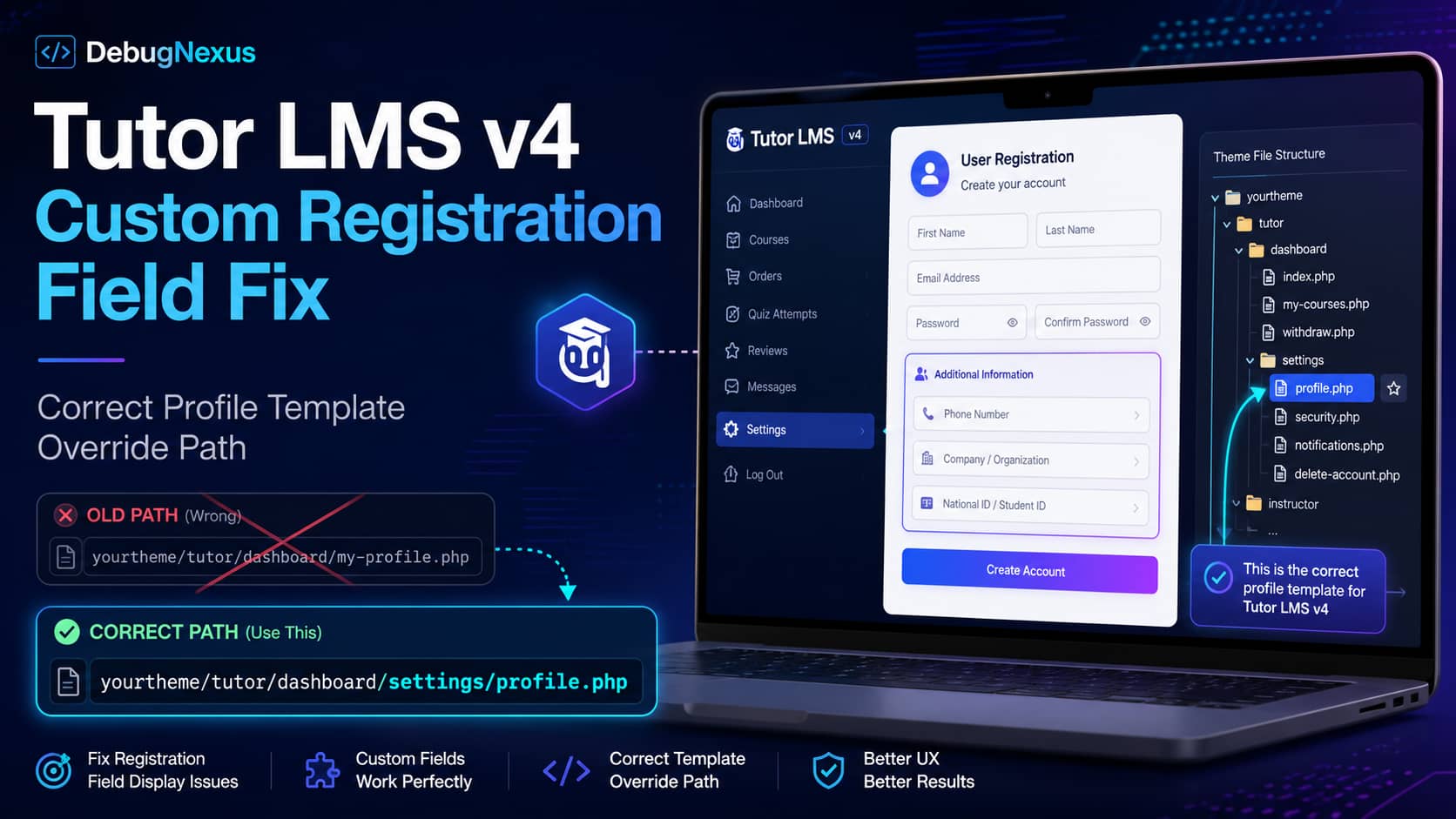
Adding a custom field to the Tutor LMS student registration form should be relatively straightforward. However, older tutorials and even parts of the official documentation can send developers to the wrong dashboard template.
The documentation previously instructed users to place the editable profile field inside:
yourtheme/tutor/dashboard/my-profile.phpThat path is not the correct location for the editable Dashboard > Settings > Profile form in Tutor LMS v4.
The correct child-theme override path is:
yourtheme/tutor/dashboard/settings/profile.phpTutor LMS support has acknowledged that the previous my-profile.php instruction is outdated for Tutor LMS v4. The current Tutor LMS action-hook documentation also identifies /templates/dashboard/settings/profile.php as the frontend profile editing template.
This guide explains the correct file structure and provides a safer hook-based solution that normally does not require overriding the profile template at all.
Symptoms of the Problem
You may be experiencing this issue when:
- The custom field appears on the student registration form.
- The value is saved when a new student registers.
- The field does not appear under Tutor Dashboard > Settings > Profile.
- Editing
my-profile.phphas no effect. - A custom
profile.phpfile was placed in the wrong directory. - The field disappears after updating Tutor LMS.
- The registration form reports that the custom field is required even though no visible field appears.
- The field appears but its updated value is not saved.
The problem is usually caused by an outdated template path, mismatched field names, missing hooks, or changes made directly inside the Tutor LMS plugin.
Why the Old Tutor LMS Path Does Not Work
Tutor LMS uses different templates for different parts of the frontend dashboard.
The profile summary page and the editable profile settings form are not necessarily handled by the same file.
For the editable profile form in Tutor LMS v4, the plugin template is located at:
wp-content/plugins/tutor/templates/dashboard/settings/profile.phpThe corresponding child-theme override must preserve the same relative directory structure:
wp-content/themes/your-child-theme/tutor/dashboard/settings/profile.phpThe official Tutor LMS documentation still showed yourtheme/tutor/dashboard/my-profile.php for the editable field at the time of writing, even though the profile settings template is located under dashboard/settings/profile.php.
Tutor LMS 4.0 introduced a substantially redesigned dashboard and learning experience. The current public plugin release at the time of writing is Tutor LMS 4.0.2, released on July 22, 2026.
Correct Tutor LMS Template Paths
Use the following paths when manually overriding Tutor LMS templates.
Student registration template
Original plugin file:
wp-content/plugins/tutor/templates/dashboard/registration.phpChild-theme override:
wp-content/themes/your-child-theme/tutor/dashboard/registration.phpFrontend profile settings template
Original plugin file:
wp-content/plugins/tutor/templates/dashboard/settings/profile.phpChild-theme override:
wp-content/themes/your-child-theme/tutor/dashboard/settings/profile.phpTutor LMS recommends copying templates into a child theme rather than editing plugin files directly. The plugin’s templates directory becomes a tutor directory inside the child theme while preserving the remaining subdirectories.
Recommended Solution: Use Tutor LMS Hooks
Although you can override both templates, overriding an entire template creates an additional maintenance responsibility.
When Tutor LMS changes the original template in a future release, an outdated copy inside the child theme may continue loading and prevent new markup, security changes, hooks, or design improvements from reaching the website.
A safer solution is to use the available Tutor LMS hooks:
tutor_student_reg_form_end
tutor_student_registration_required_fields
tutor_profile_edit_input_after
The solution below will:
- Add a National ID field to the student registration form.
- Make the field required.
- Save the value as WordPress user metadata.
- Display the field under Tutor Dashboard profile settings.
- Allow the student to update the value.
- Avoid overriding the profile settings template.
You can change “National ID” to a phone number, company name, country, student number, profession, or another text-based field.
Step 1: Add the Complete PHP Code
Add the following code to one of these locations:
wp-content/themes/your-child-theme/functions.phpYou can also use a custom functionality plugin, an MU plugin, or a PHP snippet plugin.
Do not place the code directly inside the Tutor LMS plugin.
<?php
/**
 * Add a custom National ID field to Tutor LMS student registration
 * and frontend profile settings.
 *
 * Compatible approach for Tutor LMS v4.
 */

defined( 'ABSPATH' ) || exit;

/**
 * Display the field on the Tutor LMS student registration form.
 */
function debugnexus_tutor_nid_registration_field() {
	$old_value = '';

	if ( function_exists( 'tutor_utils' ) ) {
		$old_value = tutor_utils()->input_old( 'debugnexus_nid' );
	}
	?>
	<div class="tutor-form-row">
		<div class="tutor-form-col-12">
			<div class="tutor-form-group">
				<label for="debugnexus_nid">
					<?php esc_html_e( 'National ID', 'debugnexus' ); ?>
				</label>

				<input
					type="text"
					id="debugnexus_nid"
					name="debugnexus_nid"
					value="<?php echo esc_attr( $old_value ); ?>"
					placeholder="<?php esc_attr_e( 'Enter your National ID', 'debugnexus' ); ?>"
					autocomplete="off"
					required
				>
			</div>
		</div>
	</div>
	<?php
}
add_action(
	'tutor_student_reg_form_end',
	'debugnexus_tutor_nid_registration_field'
);

/**
 * Tell Tutor LMS that the registration field is required.
 *
 * The array key must exactly match the input name.
 */
function debugnexus_tutor_required_nid_field( $required_fields ) {
	$required_fields['debugnexus_nid'] = __(
		'National ID is required.',
		'debugnexus'
	);

	return $required_fields;
}
add_filter(
	'tutor_student_registration_required_fields',
	'debugnexus_tutor_required_nid_field'
);

/**
 * Save the field during registration and profile updates.
 *
 * @param int $user_id WordPress user ID.
 */
function debugnexus_tutor_save_nid_field( $user_id ) {
	if ( ! isset( $_POST['debugnexus_nid'] ) ) {
		return;
	}

	$nid = sanitize_text_field(
		wp_unslash( $_POST['debugnexus_nid'] )
	);

	if ( '' === $nid ) {
		delete_user_meta( $user_id, '_debugnexus_nid' );
		return;
	}

	update_user_meta(
		$user_id,
		'_debugnexus_nid',
		$nid
	);
}
add_action(
	'user_register',
	'debugnexus_tutor_save_nid_field'
);
add_action(
	'profile_update',
	'debugnexus_tutor_save_nid_field'
);

/**
 * Display the saved field under:
 * Tutor Dashboard > Settings > Profile
 *
 * @param WP_User|null $user Current Tutor LMS user when supplied.
 */
function debugnexus_tutor_nid_profile_field( $user = null ) {
	if ( $user instanceof WP_User ) {
		$user_id = $user->ID;
	} else {
		$user_id = get_current_user_id();
	}

	if ( ! $user_id ) {
		return;
	}

	$nid = get_user_meta(
		$user_id,
		'_debugnexus_nid',
		true
	);
	?>
	<div class="tutor-row">
		<div class="tutor-col-12 tutor-col-sm-6 tutor-col-md-12 tutor-col-lg-6 tutor-mb-32">
			<label
				class="tutor-form-label tutor-color-secondary"
				for="debugnexus_nid"
			>
				<?php esc_html_e( 'National ID', 'debugnexus' ); ?>
			</label>

			<input
				class="tutor-form-control"
				type="text"
				id="debugnexus_nid"
				name="debugnexus_nid"
				value="<?php echo esc_attr( $nid ); ?>"
				placeholder="<?php esc_attr_e( 'Enter your National ID', 'debugnexus' ); ?>"
				autocomplete="off"
			>
		</div>
	</div>
	<?php
}
add_action(
	'tutor_profile_edit_input_after',
	'debugnexus_tutor_nid_profile_field',
	10,
	1
);
When using the Code Snippets plugin, remove the first <?php line if the snippet editor already runs in PHP mode.
How the Code Works
Registration field output
This action places the custom field near the end of the Tutor LMS student registration form:
add_action(
	'tutor_student_reg_form_end',
	'debugnexus_tutor_nid_registration_field'
);
Using an action avoids copying and maintaining the complete registration.php template.
Required field validation
Tutor LMS checks required registration fields through:
tutor_student_registration_required_fieldsThe following key:
debugnexus_nidmust exactly match:
name="debugnexus_nid"Even a small difference, such as debug_nid in one location and debugnexus_nid in another, will cause validation or saving problems.
Saving the value
The field is saved using standard WordPress user metadata:
update_user_meta(
	$user_id,
	'_debugnexus_nid',
	$nid
);
The value is saved during initial account creation through:
user_registerIt is saved again when the frontend profile is updated through:
profile_updateDisplaying the profile settings field
Tutor LMS provides the following action inside its frontend profile settings template:
tutor_profile_edit_input_afterThe official Tutor LMS action-hook reference associates this hook with:
/templates/dashboard/settings/profile.phpThis allows the additional input to be inserted without overriding the entire file.
Why the Field Uses type="text"
A National ID may look numeric but should normally be stored as text.
Using:
type="number"can create problems when an identifier:
- Starts with zero.
- Contains spaces.
- Contains hyphens.
- Contains letters.
- Is longer than JavaScript safely treats as a number.
- Should not support mathematical increment and decrement controls.
For identifiers, account numbers, telephone numbers, postal codes, and membership numbers, type="text" is usually safer.
Changing the Field to a Phone Number
To use the solution for a phone number, change the visible labels and identifiers.
For example:
debugnexus_phoneUse a user meta key such as:
_debugnexus_phoneThe input can use:
type="tel"
autocomplete="tel"
Example:
<input
	class="tutor-form-control"
	type="tel"
	id="debugnexus_phone"
	name="debugnexus_phone"
	value="<?php echo esc_attr( $phone ); ?>"
	placeholder="<?php esc_attr_e( '+1 555 123 4567', 'debugnexus' ); ?>"
	autocomplete="tel"
>
Make sure every occurrence of the field name and metadata key is updated consistently.
Manual Profile Template Override Method
A template override is still available when you need to modify the exact position or surrounding profile layout.
Copy:
wp-content/plugins/tutor/templates/dashboard/settings/profile.phpTo:
wp-content/themes/your-child-theme/tutor/dashboard/settings/profile.phpDo not use:
wp-content/themes/your-child-theme/tutor/dashboard/my-profile.phpfor the editable Settings > Profile form.
Add the field inside the existing profile form, preferably near the current profile inputs or near this hook:
do_action( 'tutor_profile_edit_input_after' );Example field:
<?php
$nid = get_user_meta(
	$user->ID,
	'_debugnexus_nid',
	true
);
?>

<div class="tutor-row">
	<div class="tutor-col-12 tutor-col-sm-6 tutor-col-md-12 tutor-col-lg-6 tutor-mb-32">
		<label
			class="tutor-form-label tutor-color-secondary"
			for="debugnexus_nid"
		>
			<?php esc_html_e( 'National ID', 'debugnexus' ); ?>
		</label>

		<input
			class="tutor-form-control"
			type="text"
			id="debugnexus_nid"
			name="debugnexus_nid"
			value="<?php echo esc_attr( $nid ); ?>"
			placeholder="<?php esc_attr_e( 'Enter your National ID', 'debugnexus' ); ?>"
		>
	</div>
</div>
The saving function from the complete PHP solution is still required.
Manual Registration Template Override Method
If your theme has removed or relocated the Tutor registration hooks, you may need to override the registration template.
Copy:
wp-content/plugins/tutor/templates/dashboard/registration.phpTo:
wp-content/themes/your-child-theme/tutor/dashboard/registration.phpAdd the custom field inside the existing <form> element:
<div class="tutor-form-row">
	<div class="tutor-form-col-12">
		<div class="tutor-form-group">
			<label for="debugnexus_nid">
				<?php esc_html_e( 'National ID', 'debugnexus' ); ?>
			</label>

			<input
				type="text"
				id="debugnexus_nid"
				name="debugnexus_nid"
				value="<?php echo esc_attr( tutor_utils()->input_old( 'debugnexus_nid' ) ); ?>"
				placeholder="<?php esc_attr_e( 'Enter your National ID', 'debugnexus' ); ?>"
				required
			>
		</div>
	</div>
</div>
Do not use both the registration action and the manually inserted field. Doing so will display the field twice.
When using the manual template method, remove or comment out:
add_action(
	'tutor_student_reg_form_end',
	'debugnexus_tutor_nid_registration_field'
);
Keep the validation, saving, and profile field functions active.
How to Test the Custom Field
Perform the test on a staging website before applying the code to a production learning platform.
Test registration validation
- Log out of WordPress.
- Open the Tutor LMS student registration page in a private browser window.
- Confirm that the National ID field appears.
- Leave it empty.
- Submit the form.
- Confirm that Tutor LMS displays the required-field message.
Test initial saving
- Enter a test National ID.
- Complete the student registration.
- Log in using the new student account.
- Open:
Tutor Dashboard > Settings > Profile- Confirm that the value appears in the field.
Test profile updating
- Change the National ID.
- Save the Tutor LMS profile.
- Reload the page.
- Confirm that the new value remains.
Check the value with WP-CLI
First find the user ID:
wp user listThen check the saved metadata:
wp user meta get USER_ID _debugnexus_nidReplace USER_ID with the actual numerical user ID.
Example:
wp user meta get 25 _debugnexus_nidTroubleshooting
The registration field does not appear
Your active theme may contain an outdated Tutor LMS registration template.
Check:
wp-content/themes/your-active-theme/tutor/dashboard/registration.phpSearch that file for:
do_action( 'tutor_student_reg_form_end' );If the action is missing, update the overridden template from the current Tutor LMS version or add the field manually inside the form.
Also check the parent theme if the active child theme does not contain the file.
The field appears twice
The field has probably been added through both:
- The
tutor_student_reg_form_endaction. - A manual
registration.phpmodification.
Use only one rendering method.
The validation and saving functions should remain active.
Tutor LMS says the field is required when it is filled
Check that the input name exactly matches the required-field array key.
Correct:
$required_fields['debugnexus_nid']And:
name="debugnexus_nid"Incorrect:
$required_fields['nid']With:
name="debugnexus_nid"The keys must match exactly.
The field displays but does not save
Check that the saving function uses the same POST key:
$_POST['debugnexus_nid']Also confirm that the metadata key used for saving and retrieving is identical:
_debugnexus_nidDo not save to:
_nidand attempt to retrieve:
_debugnexus_nidThe field saves during registration but not from profile settings
Confirm that the profile field is inside the Tutor LMS profile form.
Using:
tutor_profile_edit_input_afternormally places it inside the correct form.
When manually overriding the template, make sure the custom input has not been added after the closing </form> tag.
Also confirm that this action remains active:
add_action(
	'profile_update',
	'debugnexus_tutor_save_nid_field'
);
Editing my-profile.php has no effect
For the editable Tutor LMS profile settings form in v4, use:
tutor/dashboard/settings/profile.phpDo not rely on:
tutor/dashboard/my-profile.phpThe Tutor LMS support team has confirmed that the older my-profile.php instruction is outdated for v4.
The website shows a PHP syntax error
When using a snippet plugin, remove:
<?phpif the editor automatically treats the content as PHP.
When adding the code to functions.php, ensure it is placed after the existing opening PHP tag and not inside another function.
Restore the backup or disable the snippet through the hosting file manager if the WordPress dashboard becomes inaccessible.
Changes do not appear immediately
Clear all relevant cache layers:
- WordPress page cache.
- Hosting cache.
- Varnish cache.
- Redis or Memcached object cache.
- Cloudflare or another CDN.
- Browser cache.
Registration and dashboard pages should generally be excluded from full-page caching.
Test again in a private browser window.
Should You Edit Tutor LMS Plugin Files Directly?
No.
Files inside:
wp-content/plugins/tutor/are replaced during Tutor LMS updates.
Direct changes may disappear without warning and can also make future troubleshooting more difficult.
Use one of these instead:
- A child theme.
- A small custom plugin.
- An MU plugin.
- A PHP snippet plugin.
- Tutor LMS actions and filters.
For this particular customization, a small custom plugin or hook-based child-theme implementation is preferable because it avoids maintaining complete template copies.
Final Result
After applying the solution:
- The National ID field appears on the Tutor LMS student registration form.
- Students cannot register without completing the required field.
- The submitted value is sanitized.
- The value is stored in WordPress user metadata.
- Students can see and update it under Tutor Dashboard profile settings.
- The solution uses the correct Tutor LMS v4 profile structure.
- No Tutor LMS plugin file needs to be edited.
- The customization is less likely to break during future plugin updates.
The most important correction is that the editable Tutor LMS profile settings template is:
your-child-theme/tutor/dashboard/settings/profile.phpnot:
your-child-theme/tutor/dashboard/my-profile.phpUsing the tutor_profile_edit_input_after action is even safer because it can add the field without overriding that template at all.
