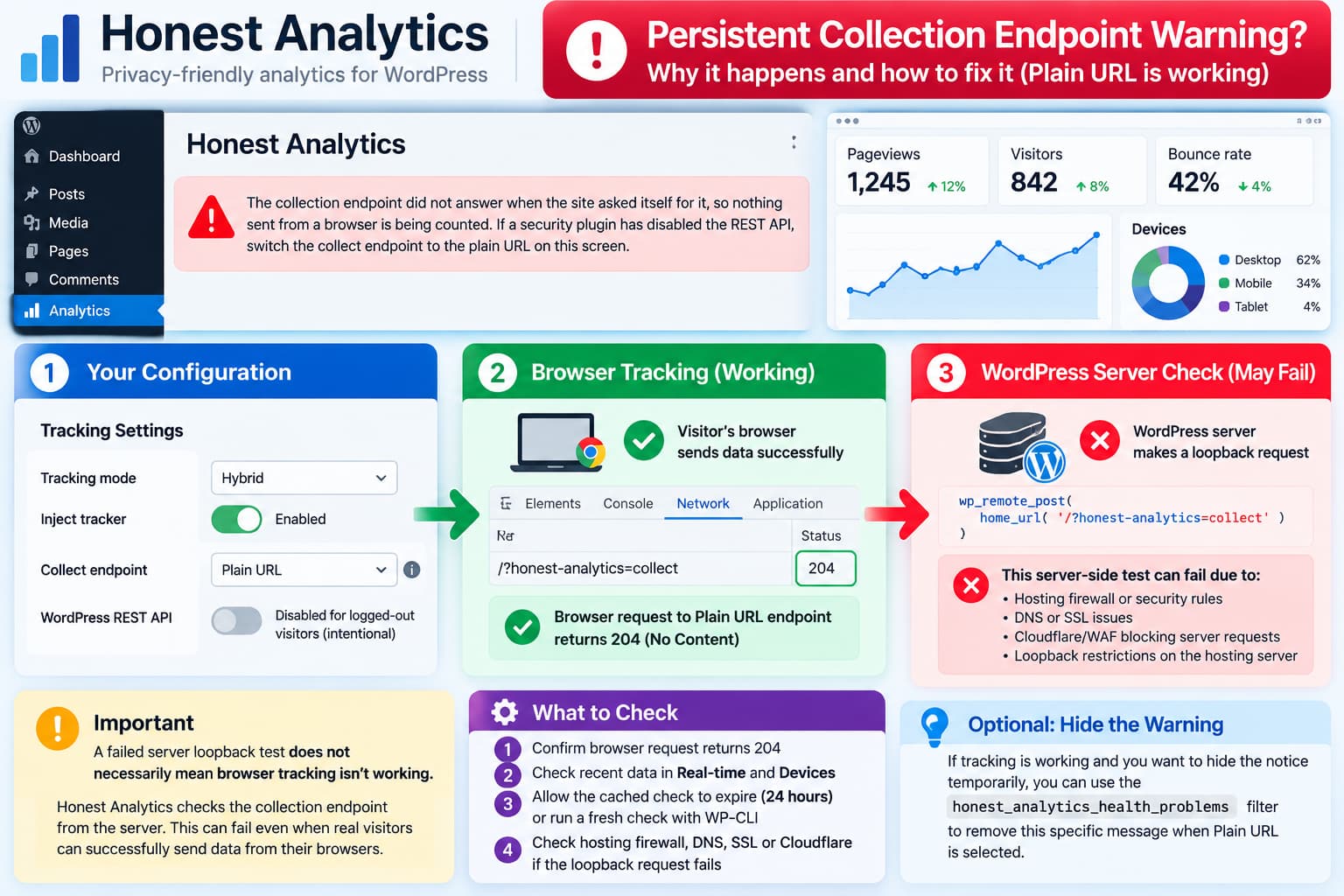
Honest Analytics may display a persistent collection endpoint warning even when browser-side tracking works correctly.
The warning reads:
The collection endpoint did not answer when the site asked itself for it, so nothing sent from a browser is being counted. If a security plugin has disabled the REST API, switch the collect endpoint to the plain URL on this screen.
This is particularly confusing when the site is already configured with:
- Tracking mode: Hybrid
- Inject tracker: Enabled
- Collect endpoint: Plain URL
- WordPress REST API: Intentionally restricted for logged-out visitors
If recent pageviews and device statistics are appearing correctly, the warning does not necessarily mean analytics collection has stopped.
The important distinction is between a browser successfully submitting tracking data and the WordPress server successfully making an HTTP request to itself.
Honest Analytics checks its collection endpoint through a server-side loopback request. That request can fail even when real visitors can submit tracking data successfully.
There is also a second possibility: the plugin caches the result of its endpoint check for 24 hours, so an earlier failure may remain visible after the configuration has been corrected.
Why the Warning Appears
Honest Analytics provides two collection endpoint options:
- WordPress REST API
- Plain URL
The normal REST collection endpoint is:
/wp-json/honest-analytics/v1/collectThe alternative Plain URL endpoint is:
/?honest-analytics=collectThe Plain URL option exists specifically for installations where REST API access is blocked or restricted.
According to the plugin’s source code, the Plain URL handler is registered early in the WordPress request lifecycle and processes collection requests without relying on a public REST API route.
This allows Honest Analytics to collect browser data while maintaining restrictions on anonymous WordPress REST API access.
Does Honest Analytics Always Test the REST API?
No, not in the currently published source implementation.
The endpoint-selection logic in the plugin’s Loopback class is:
$url = Settings::ENDPOINT_PLAIN === $this->settings->collectEndpoint
    ? home_url( '/?honest-analytics=collect' )
    : rest_url( 'honest-analytics/v1/collect' );
This means the health check already distinguishes between the two collection methods.
When Plain URL is selected, the plugin should test:
/?honest-analytics=collectrather than the REST endpoint.
Therefore, a persistent warning does not automatically prove that the plugin is testing the wrong URL.
It may indicate that the server cannot complete the request, the cached test result is outdated, or the running plugin version differs from the source being examined.
Source: Honest Analytics, src/Scheduling/Loopback.php, in the official public GitHub repository.
1. Verify That Browser Tracking Actually Works
Before modifying anything, confirm that analytics collection is currently working.
Open your website in a private browser window.
Using a private window is helpful because Honest Analytics excludes logged-in WordPress users by default.
Open the browser’s developer tools and select the Network panel.
Reload the page.
Search for:
honest-analytics=collectWith Plain URL selected, look for a request similar to:
https://example.com/?honest-analytics=collectCheck its HTTP response.
The plugin’s Plain URL handler normally returns:
204 No ContentA successful response indicates that the request reached the collection handler.
However, this status alone does not prove a pageview was counted.
Honest Analytics deliberately returns the same response for several situations, including accepted, deduplicated, or rejected tracking requests.
For meaningful verification, also check the analytics dashboard.
Confirm Recent Data Is Appearing
Navigate to:
WordPress Dashboard → Analytics → Real-time
Visit a page using a browser that should be tracked.
Check whether the activity appears.
Also inspect:
Analytics → Devices
Confirm that recent device information is being recorded.
The Devices report can provide additional evidence that browser-side tracking is operating, but historical data alone is not enough. Ideally, confirm that new data appears after the test.
If the current tracking request succeeds and new browser data is recorded, the collection warning may be misleading even though the loopback diagnostic itself failed.
2. Understand the Difference Between Browser Requests and Loopback Requests
This is the most important distinction in the problem.
Browser Tracking
A visitor opens your website.
The Honest Analytics tracker sends data to:
https://example.com/?honest-analytics=collectThe request travels from the visitor’s browser to your web server.
Server-Side Loopback Test
Honest Analytics also performs an internal health check.
WordPress attempts to connect to its own public website address using:
wp_remote_post()This request originates from the hosting environment.
Although both requests target the same website, they can take different network paths and encounter different security restrictions.
For example, a hosting firewall might allow incoming requests from visitors but block requests originating from the server itself.
Other possible causes include:
- DNS resolution problems on the hosting server
- IPv6 connectivity problems
- SSL certificate verification failures
- Cloudflare or another WAF blocking server-originated requests
- Hosting firewall restrictions
- HTTP request timeouts
- Reverse proxy configuration
- Incorrect WordPress site URLs
WordPress documents these as possible causes of loopback failures.
The key point is that a failed loopback test does not necessarily mean a visitor’s browser cannot reach the tracking endpoint.
3. Check for a Cached Failed Health Check
Honest Analytics caches its loopback health-check result.
The relevant implementation contains:
private const TTL = DAY_IN_SECONDS;The cached result includes:
[
    'spool'     => ...,
    'endpoint'  => ...,
    'checkedAt' => ...
]
The cache can remain valid for approximately 24 hours.
This creates a potential problem when switching collection endpoints.
Consider this sequence:
- Honest Analytics initially uses the REST endpoint.
- The REST endpoint is blocked for anonymous requests.
- The plugin performs its loopback test.
- The test fails.
- The failed result is cached.
- The administrator changes the collection endpoint to Plain URL.
- Browser tracking starts working correctly.
- The dashboard continues displaying the earlier warning.
The current source code does not show an explicit invalidation of the cached loopback result when the collection endpoint setting is changed.
Therefore, a previously failed check can remain visible until its cached result expires or a fresh diagnostic is run.
Simplest Fix
If tracking is confirmed to be working, allow the cached diagnostic to expire and check the warning again.
This does not require:
- Disabling Honest Analytics
- Enabling the public REST API
- Clearing analytics data
- Changing tracking modes
- Removing security restrictions
If the warning disappears after the next health check, the likely cause was stale diagnostic state.
If it remains, test the loopback request directly.
4. Force a Fresh Health Check With WP-CLI
Developers with SSH and WP-CLI access can refresh the loopback diagnostic without changing analytics settings.
The plugin’s Loopback::result() method accepts a Boolean parameter that bypasses the cached result.
First, confirm that you have a recent site backup and are using a supported plugin release containing this method.
Then run the following from the WordPress installation directory:
wp eval '
$settings = \HonestAnalytics\Settings\SettingsRepository::get();

echo "Selected endpoint: "
    . $settings->collectEndpoint
    . PHP_EOL;

$check = (
    new \HonestAnalytics\Scheduling\Loopback(
        $settings
    )
)->result( true );

echo "Endpoint loopback: "
    . ( $check["endpoint"] ? "OK" : "FAILED" )
    . PHP_EOL;

echo "Checked at: "
    . gmdate( "c", $check["checkedAt"] )
    . PHP_EOL;
'
This command runs the plugin’s existing health-check implementation.
It does not change the selected endpoint or clear analytics history.
The check also tests the write-spool protection using a temporary probe file, as part of the plugin’s normal diagnostic procedure.
Expected Result
A healthy result might look like:
Selected endpoint: plain
Endpoint loopback: OK
Checked at: 2026-10-07T...
If it reports:
Selected endpoint: plain
Endpoint loopback: FAILED
the problem is no longer merely an outdated cached result.
The server-side request is failing.
The next step is to determine why.
5. Test the Plain URL From WordPress Itself
You can also reproduce the underlying HTTP request directly.
Honest Analytics uses wp_remote_post() with a short timeout and SSL verification enabled.
A read-only diagnostic equivalent is:
wp eval '
$url = home_url(
    "/?honest-analytics=collect"
);

$response = wp_remote_post(
    $url,
    [
        "timeout"   => 5,
        "local"     => true,
        "sslverify" => true,
        "body"      => [
            "p" => "",
        ],
        "headers"   => [
            "Cache-Control" => "no-cache",
        ],
    ]
);

if ( is_wp_error( $response ) ) {
    echo "HTTP ERROR: "
        . $response->get_error_message()
        . PHP_EOL;
} else {
    echo "HTTP STATUS: "
        . wp_remote_retrieve_response_code( $response )
        . PHP_EOL;
}
'
This intentionally uses an empty page path, matching the plugin’s health-check strategy.
It is intended to verify reachability rather than record a genuine visit.
WordPress documents wp_remote_post() as part of its HTTP API for sending POST requests and retrieving either an HTTP response or a WP_Error.
Interpreting the Result
| Result | Meaning |
|---|---|
| 204 | The server reached the expected collection handler |
| 403 | A security rule or access restriction may be interfering |
| 404 | The expected Plain URL handler may not be reached |
| 301/302 | A redirect may be occurring |
| 500 | A server-side processing error requires investigation |
| Timeout | The server could not complete the request in time |
| SSL error | Certificate or local HTTPS verification needs investigation |
If WordPress receives a successful 204 while the dashboard still reports a failure, rerun the plugin’s cached health check.
If both tests succeed but the warning persists, check the actual installed plugin version and consider reporting the discrepancy to the developer.
6. Check Cloudflare, Firewall, and Hosting Restrictions
When browser requests work but WordPress loopback requests fail, the hosting/network environment becomes a stronger suspect.
Check:
Tools → Site Health → Status
Look for loopback-related warnings.
WordPress has its own loopback diagnostic independent of Honest Analytics.
If WordPress reports that loopback requests are failing, that supports the possibility of a wider server configuration problem.
Ask your hosting provider to check whether the web server can make HTTPS POST requests to its own public domain.
If Cloudflare is involved, review security events for the failed request.
Do not disable the entire firewall as a permanent workaround.
If a specific security rule is responsible, create an appropriately narrow exception based on the actual request and the site’s security requirements.
Also avoid disabling SSL verification merely to make the test pass.
A certificate verification failure should be corrected at the certificate or server configuration level.
7. Should You Re-enable the WordPress REST API?
Not merely to remove this Honest Analytics warning.
The Plain URL collection method exists for environments where the REST endpoint is unavailable.
If your site intentionally restricts unauthenticated REST access, that configuration may be appropriate for your security requirements.
Restoring public REST access solely to satisfy an analytics notice is unnecessary when browser-side collection is already functioning through the supported alternative.
Instead, verify:
- The effective Honest Analytics endpoint setting is
plain. - The browser uses the Plain URL.
- New analytics data appears.
- The WordPress loopback diagnostic is investigated separately.
8. Temporarily Hide the Warning Without Editing Plugin Files
Honest Analytics exposes the WordPress filter:
honest_analytics_health_problemsThis allows custom code to modify the list of health problems returned by the plugin.
For a site where Plain URL collection has been independently verified, the following can temporarily suppress only the specific collection-endpoint warning.
Important: This workaround hides the warning even if collection later fails. It should only be used after confirming that tracking works and should be removed once the underlying diagnostic issue is corrected.
Create a small custom plugin or must-use plugin.
For example:
wp-content/mu-plugins/
honest-analytics-endpoint-notice.php
Add:
<?php
/**
 * Temporarily suppress a verified false-positive
 * Honest Analytics collection warning.
 */

add_filter(
    'honest_analytics_health_problems',
    static function ( $problems ) {

        if (
            ! class_exists(
                \HonestAnalytics\Settings\SettingsRepository::class
            )
        ) {
            return $problems;
        }

        $settings =
            \HonestAnalytics\Settings\SettingsRepository::get();

        if ( 'plain' !== $settings->collectEndpoint ) {
            return $problems;
        }

        return array_values(
            array_filter(
                (array) $problems,
                static function ( $problem ) {

                    return ! str_contains(
                        (string) $problem,
                        'The collection endpoint did not answer when the site asked itself for it'
                    );
                }
            )
        );
    }
);
This does not disable analytics collection or change the endpoint.
It only removes the matching message from Honest Analytics’ health-problem list when the effective endpoint is Plain URL.
Other unrelated health warnings remain available.
However, the filter also affects other consumers of the same health-problem list, not only the visual admin notice.
Therefore, it is a temporary presentation workaround, not a permanent repair or a substitute for monitoring.
Remove the custom file to restore normal warning behavior.
9. What Would Be a Better Permanent Fix?
The plugin already selects the correct endpoint during its health check.
The more useful improvement would be to distinguish between:
Collection endpoint unreachable from the server
and:
Browser collection not functioning
Those are different conditions.
A failed server-side probe establishes that the server did not receive the response it expected.
It does not necessarily establish that every browser submission is failing.
Improve the Warning Message
Instead of:
The collection endpoint did not answer when the site asked itself for it, so nothing sent from a browser is being counted.
A more accurate warning would be:
Honest Analytics could not verify the selected collection endpoint using a server-side request. Browser tracking may still be working. Check recent analytics activity and test the configured endpoint before changing tracking settings.
This would avoid incorrectly telling administrators that no browser traffic is being counted.
Refresh the Diagnostic After Endpoint Changes
The plugin could also invalidate the cached endpoint health result whenever the administrator changes:
collectEndpointFor example:
REST → Plain URLor:
Plain URL → RESTA fresh diagnostic after saving would avoid displaying a warning generated under the previous configuration.
Show the Actual Failure
An additional improvement would be to display the most recent:
- Tested endpoint
- HTTP status or WP_Error
- Last test time
- Tracking mode
- Configured collection endpoint
For example:
Collection endpoint: Plain URL

Browser tracking: Activity detected

Server loopback test: Failed

Last checked: 10 minutes ago
That would communicate the situation more clearly than a single generic error message.
The existing Loopback implementation already records a checkedAt timestamp, so part of the diagnostic state needed for a more informative interface is available.
10. How to Confirm the Problem Is Resolved
After troubleshooting, perform these checks:
| Test | Expected result |
|---|---|
| Tracking mode | Hybrid |
| Tracker injection | Enabled |
| Collection endpoint | Plain URL |
| Browser POST request | Reaches Plain URL endpoint |
| Collection response | HTTP 204 |
| Recent analytics | New activity recorded |
| Devices report | New browser/device data appears |
| Server-side endpoint probe | HTTP 204 |
| Cached health result | Refreshed after successful test |
| Dashboard warning | No longer displayed |
If browser tracking works and the server-side probe succeeds after refreshing the cached result, the warning should disappear without requiring any change to REST API restrictions.
If browser tracking works but the server-side probe continues to fail, investigate hosting loopback restrictions.
If both browser and server requests fail, the warning is probably reporting a genuine collection problem and should not be suppressed.
The important distinction is that Honest Analytics can successfully collect browser data through Plain URL even when its server-side self-test fails.
The most useful permanent improvement is therefore not simply to disable the warning whenever Plain URL is selected. It is to report the actual diagnostic condition accurately, refresh stale results when endpoint settings change, and avoid claiming that browser collection has stopped without supporting evidence.
