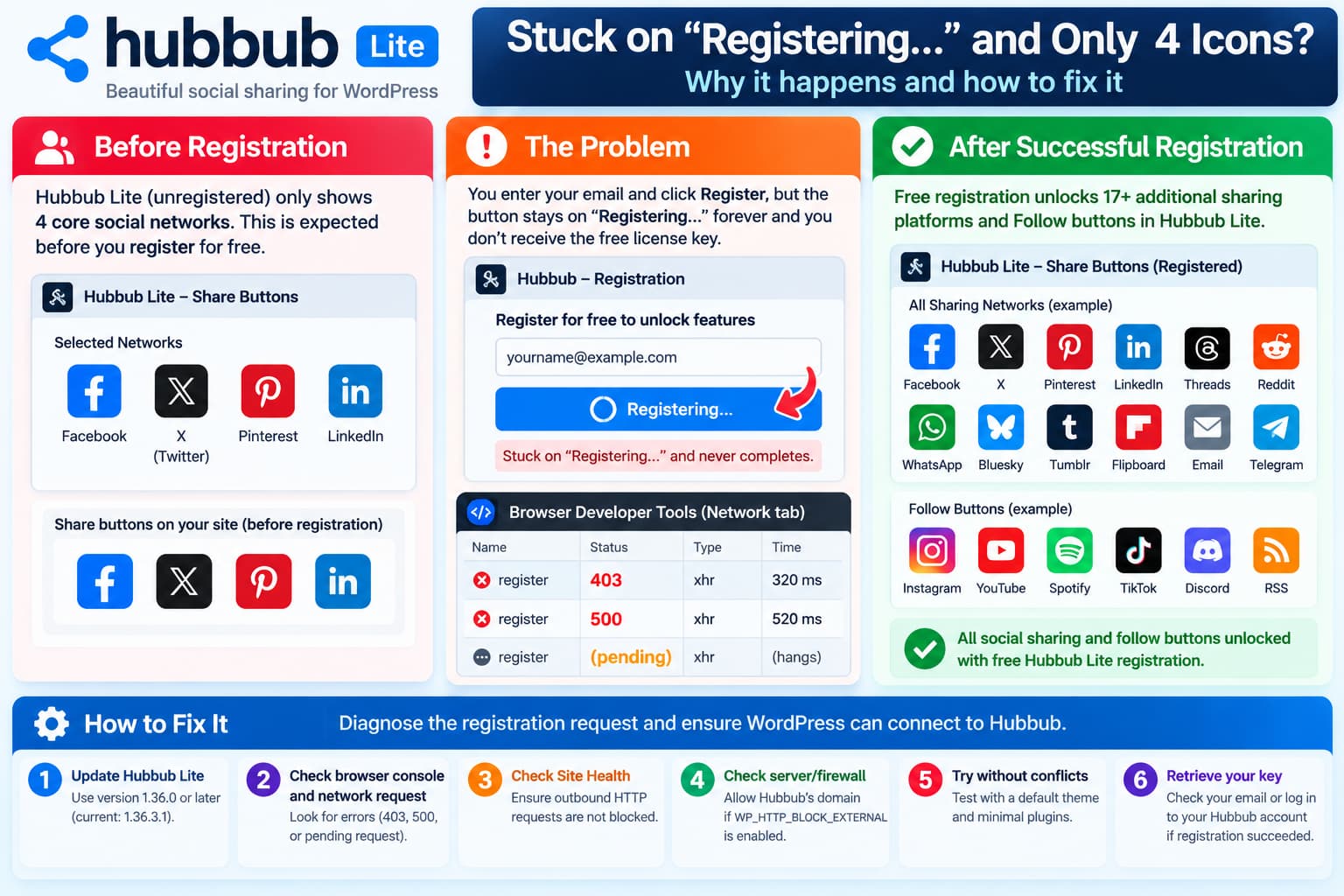
Hubbub Lite can initially appear to offer only four social sharing networks:
- X
That by itself is expected.
What is not expected is clicking the free registration button and seeing:
Registering...indefinitely without receiving or storing a Hubbub Lite license.
Since Hubbub Lite 1.36.0, NerdPress has offered a separate free registration that is supposed to unlock additional Lite features, including more than 17 additional sharing platforms and Follow buttons. The current WordPress.org description explicitly advertises this free unlock.
Therefore, if registration remains permanently stuck, the real problem is the registration request failing or never completing, rather than those additional networks requiring Hubbub Pro.
What Hubbub Lite Should Include Before Registration
Hubbub’s WordPress.org FAQ still states that the standard Lite installation supports:
Facebook
X / Twitter
Pinterest
LinkedIn
That explains why only four networks appear immediately after installation.
However, the plugin description separately says:
Unlock Hubbub Lite for even more features, free!
After free registration, it says users receive:
- 17+ additional sharing platforms
- Threads
- Tumblr
- email sharing
- Follow buttons for services such as Instagram, YouTube, Spotify and others
Hubbub’s own documentation confirms that registered Lite installations can unlock all Share Buttons in the Floating Sidebar and Inline Content tools as well as all Follow Buttons.
So there are effectively two states:
| Hubbub Lite state | Available networks |
|---|---|
| Installed but not registered | Four core sharing networks |
| Free registration completed | Additional Share and Follow networks |
| Hubbub Pro | Registered Lite features plus premium functionality |
The documentation can understandably appear inconsistent because one FAQ still describes Hubbub Lite as supporting four sharing networks, while the newer description describes the extra registration tier.
The critical point is that free registration is supposed to work.
Confirm You Are Running Hubbub Lite 1.36.0 or Later
Free Lite registration was introduced in:
Hubbub Lite 1.36.0released October 6, 2025.
Its changelog specifically states that users can unlock all Sharing and Follow Buttons by registering Hubbub Lite for free.
At the time of writing, WordPress.org lists:
Hubbub Lite 1.36.3.1as the current release.
Version 1.36.3.1 also contains a security fix for the share shortcode, so sites running an earlier release should update before further troubleshooting.
Check:
WordPress → Plugins → Installed Plugins → Hubbub Lite
If the version is older than 1.36.0, update it.
Take a normal site/database backup before updating production plugins.
Check Whether Registration Actually Succeeded Despite the Spinner
Before repeatedly submitting the form, check whether Hubbub created the registration despite the interface remaining stuck.
Open:
Hubbub → Settings
Look for the registration/license information.
Hubbub’s documentation says that when free Lite registration succeeds, the website’s license key is automatically stored in Hubbub’s settings.
Also check the email address used during registration.
Hubbub states that you can sign into your Hubbub account using that email address and retrieve the site’s Lite license key there.
If a Hubbub account or license already exists, the server side of registration may have succeeded while the WordPress admin interface failed to receive or process the response.
In that situation, avoid creating numerous registrations unnecessarily.
Use Browser Developer Tools While Clicking Register
A button that changes to:
Registering...and never returns usually means JavaScript started an asynchronous request but did not receive the response it expected.
The quickest way to investigate is through the browser’s developer tools.
In Chrome or Edge:
- Open the Hubbub registration screen.
- Press F12.
- Select Network.
- Clear the existing requests.
- Enter the email address.
- Click Register.
- Watch for the new request.
Also open the Console tab.
Look for red JavaScript errors.
The exact request name can vary between plugin releases, so identify the request that appears at the moment Register is clicked instead of assuming a specific endpoint.
If No Request Appears
If clicking Register changes the button text but no network request is generated, look for a JavaScript error.
Possible causes include:
- another plugin breaking WordPress admin JavaScript
- an optimization tool modifying admin scripts
- incomplete plugin files
- a browser extension interfering with the form
- a JavaScript exception inside Hubbub itself
Try a private/incognito browser window with extensions disabled.
If the problem disappears there, investigate browser extensions first.
Interpret the Registration Request Status
The Network panel is particularly valuable because the HTTP status often identifies the correct troubleshooting direction.
HTTP 200 but Registration Never Finishes
Open the request and inspect its Response.
The server may be returning:
- malformed JSON
- an HTML warning or PHP notice
- an unexpected login page
- a WordPress error page
- an API error that Hubbub’s JavaScript is not displaying
If an expected JSON response is replaced by HTML, JavaScript may remain in its loading state because it cannot parse the response.
HTTP 403
A 403 normally means something rejected the request.
Possible layers include:
- WordPress security plugin
- ModSecurity
- hosting WAF
- Cloudflare WAF
- nonce/security validation
- administrator permission checks
Do not permanently disable the entire firewall.
Check its logs and identify the exact rule that blocked the request.
HTTP 500
A 500 response points to a server-side PHP problem.
Check:
WooCommerce is irrelevant here; use your normal WordPress/PHP server log or wp-content/debug.log if debugging is enabled safely.
Search for an error generated at the exact time Register was clicked.
Request Remains Pending
If the registration request stays in:
Pendingfor an unusually long period, an outbound connection from WordPress to Hubbub/NerdPress may be timing out.
That deserves a server/network investigation.
Check WordPress Site Health for Blocked HTTP Requests
A plugin registration system commonly needs to communicate with the vendor’s server.
WordPress has a built-in diagnostic for whether outgoing HTTP requests have been disabled.
Open:
Tools → Site Health → Status
Look for an issue such as:
HTTP requests are blockedWordPress specifically checks whether the site’s configuration prevents external HTTP connections.
If external HTTP requests are intentionally blocked, the plugin may be unable to register with Hubbub’s service even though the rest of WordPress works normally.
Check WP_HTTP_BLOCK_EXTERNAL
Open wp-config.php and check for:
define( 'WP_HTTP_BLOCK_EXTERNAL', true );WordPress documents that this setting blocks external HTTP requests unless allowed hosts have been explicitly configured.
You may also see:
define(
    'WP_ACCESSIBLE_HOSTS',
    'api.wordpress.org,example.com'
);
When WP_HTTP_BLOCK_EXTERNAL is enabled, a plugin trying to communicate with a host not listed in WP_ACCESSIBLE_HOSTS can fail.
Do not simply remove an intentional security policy.
Instead, use the browser/server diagnostics to identify which hostname Hubbub’s registration process needs, then allow only the required host if that is appropriate for the site’s security policy.
WordPress supports wildcard hostnames in WP_ACCESSIBLE_HOSTS.
Test Whether WordPress Can Reach Hubbub
A broad connectivity test can help identify DNS, TLS, or outbound HTTP problems.
With WP-CLI:
wp eval '
$response = wp_remote_get(
    "https://morehubbub.com/",
    [
        "timeout" => 15,
    ]
);

if ( is_wp_error( $response ) ) {
    echo "ERROR: "
        . $response->get_error_message()
        . PHP_EOL;
} else {
    echo "HTTP: "
        . wp_remote_retrieve_response_code( $response )
        . PHP_EOL;
}
'
WordPress’s supported HTTP API returns either an HTTP response or a WP_Error, making this useful for diagnosing server-side networking problems.
A result such as:
HTTP: 200shows that WordPress can reach the main Hubbub website.
It does not prove that the actual licensing endpoint is working, because registration may use a different URL.
Use the Network request generated by Hubbub to identify the real endpoint if deeper testing is necessary.
A result such as:
cURL error 28or an SSL/DNS error is more significant and should be investigated with the host.
Check the WordPress PHP Error Log
If the browser shows an HTTP 500 or an unusual response, temporarily enable WordPress logging on a staging environment.
In wp-config.php:
define( 'WP_DEBUG', true );
define( 'WP_DEBUG_LOG', true );
define( 'WP_DEBUG_DISPLAY', false );
Then reproduce the registration attempt once.
Check:
wp-content/debug.logLook for errors mentioning:
- Hubbub
- social-pug
- HTTP requests
- cURL
- JSON
- SSL
- PHP fatal errors
Do not leave debug logging unnecessarily enabled on a production website.
Run a Plugin Conflict Test
If outbound HTTP works and no obvious server error appears, perform a controlled plugin conflict test.
Use staging whenever possible.
Temporarily leave active:
- Hubbub Lite
- the minimum plugins required for the site
Then try registration again.
If it works, re-enable other plugins gradually.
Pay particular attention to:
- security plugins
- firewall plugins
- admin optimization plugins
- JavaScript optimization
- privacy/security hardening plugins
- plugins that restrict external HTTP requests
Because registration occurs in WordPress Admin, frontend caching alone is less likely to be the direct cause than an admin JavaScript or server request conflict.
Test With a Default Theme Only if Necessary
Theme code can also load scripts or modify admin behavior, although this is less common.
On staging, temporarily switch to a current default WordPress theme.
Try the registration again.
If the exact problem continues with:
- current Hubbub Lite
- other plugins disabled
- a default WordPress theme
- outbound HTTP requests working
the evidence becomes much stronger that the problem is inside Hubbub’s registration workflow or its remote registration service.
Do Not Keep Pressing Register Repeatedly
Repeated registration attempts can make troubleshooting harder.
Depending on where the failure occurs, the remote service could potentially process an attempt while the WordPress interface fails to display success.
Before trying again:
- Check Hubbub → Settings.
- Check your email.
- Check whether a Hubbub account was created.
- Check whether a license exists in that account.
- Inspect the previous Network request.
Hubbub states that Lite registration is free and multiple sites can be registered with the same email address, but each website should normally have its own registration/license.
If You Already Have the License Key
Hubbub’s documentation says a successful Lite registration automatically saves the key in:
Hubbub → Settings
and that the same key can be found by logging into the Hubbub account associated with the registration email.
If your account already contains the key but WordPress still believes Hubbub Lite is unregistered, capture:
- Hubbub Lite version
- WordPress version
- PHP version
- browser Console error
- registration Network request
- HTTP status
- response body with sensitive tokens removed
Then contact Hubbub support rather than repeatedly creating registrations.
Do not post the full license key publicly.
Is the Plugin Description Misleading?
There is a documentation inconsistency worth acknowledging.
The current WordPress.org description says registered Hubbub Lite users receive 17+ additional sharing platforms and Follow buttons.
At the same time, the plugin FAQ still answers:
What social sharing buttons are supported?
by listing only the four original Lite networks.
Hubbub’s separate documentation resolves the apparent contradiction by explaining that the additional networks require free registration.
The clearest way to describe the product today would therefore be:
Hubbub Lite without registration:
4 sharing networks

Hubbub Lite registered for free:
additional Share and Follow networks

Hubbub Pro:
premium functionality beyond the registered Lite tier
If registration itself is broken, however, the user effectively remains stuck with the four-network version despite the advertised free unlock.
That is a legitimate support problem.
What Information to Send Hubbub Support
If registration continues hanging, provide a concise technical report containing:
Hubbub Lite version:
WordPress version:
PHP version:

Registration screen:
Registering... never completes

Browser request:
URL/domain:
HTTP status:
Response:

Browser Console:
Relevant error:

Tools → Site Health:
HTTP request status:

Security plugin/WAF:
Yes / No

WP_HTTP_BLOCK_EXTERNAL:
Defined / Not defined
Remove:
- license keys
- cookies
- WordPress nonces
- authentication headers
- API credentials
before posting screenshots or request details publicly.
The official WordPress.org Hubbub support forum is actively available, and Hubbub’s own registration documentation asks users experiencing registration problems to contact support.
Recommended Troubleshooting Order
For a Hubbub Lite installation stuck indefinitely on Registering, use this order:
- Update Hubbub Lite to the current version.
- Confirm the version is at least 1.36.0.
- Check Hubbub → Settings for an existing license.
- Check whether a Hubbub account/license was created.
- Open DevTools → Network and Console.
- Click Register once.
- Record the request status and response.
- Check Tools → Site Health for blocked HTTP requests.
- Check
WP_HTTP_BLOCK_EXTERNAL. - Check server/PHP logs if the request returns 500.
- Test security/plugin conflicts on staging.
- Report the captured request details to Hubbub if the failure persists.
Do not purchase Hubbub Pro merely because the registration button is failing if the only features you need are those that Hubbub explicitly advertises as part of the free registered Lite tier.
The four-network state is normal before registration. Remaining permanently stuck there because registration never completes is the actual issue that needs to be fixed.
