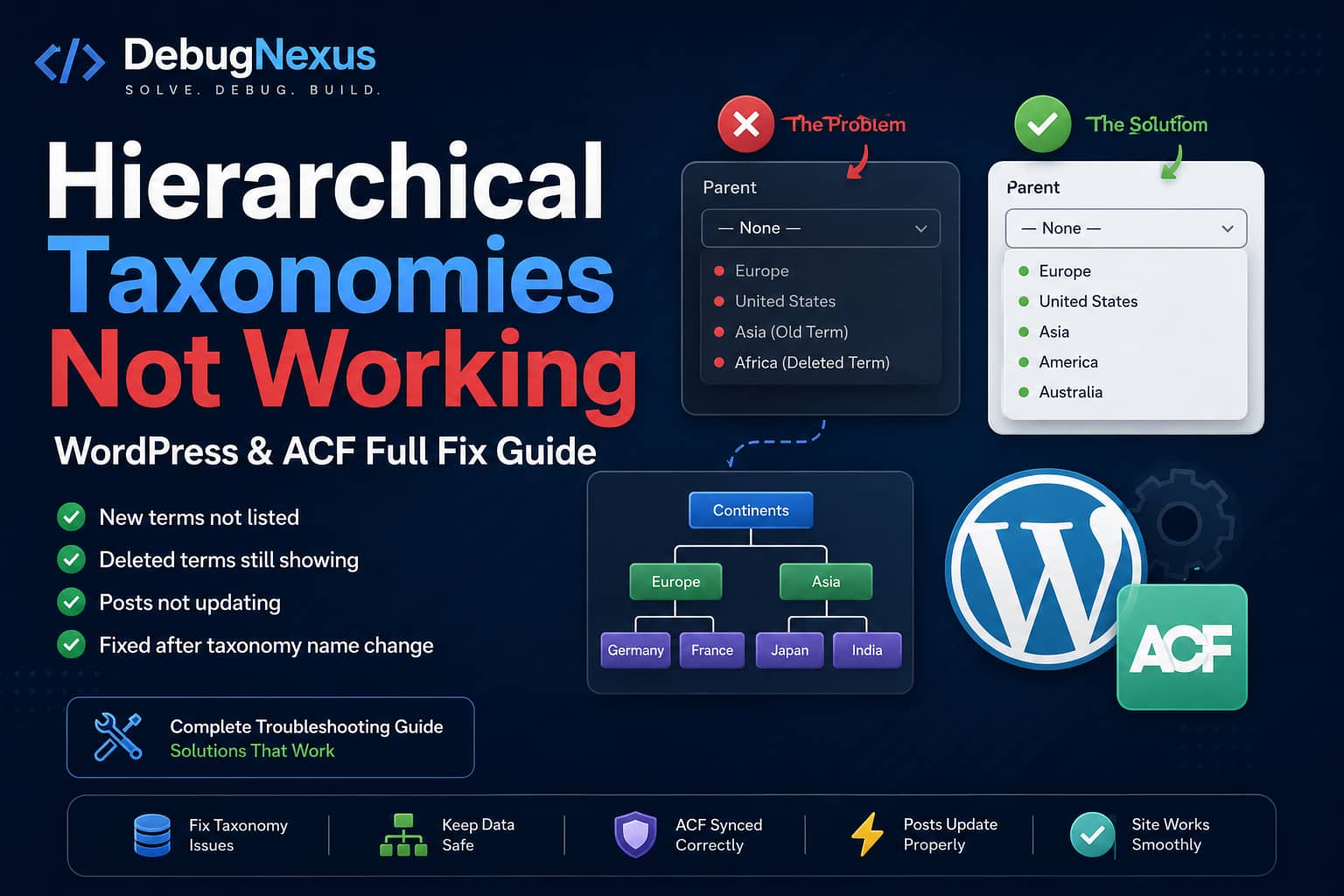
Hierarchical custom taxonomies in WordPress normally work like categories. You can create parent terms, add child terms beneath them, and assign those terms to posts or custom post types.
However, you may encounter a confusing problem where:
- Newly created taxonomy terms do not appear in the Parent dropdown.
- Deleted terms continue to appear.
- Everything looks correct inside Advanced Custom Fields.
- New and existing posts do not save the correct taxonomy information.
- The problem starts after changing the name of a taxonomy.
This issue is often caused by changing the taxonomy’s internal key, leaving ACF connected to the wrong taxonomy, disabling ACF term synchronization, or serving outdated term data from a persistent object cache.
This guide explains how to identify the exact cause and safely repair the taxonomy without losing existing post relationships.
Taxonomies and Terms Are Not the Same Thing
Before troubleshooting, it is important to understand the terminology.
A taxonomy is the classification system, such as:
- Categories
- Locations
- Product Types
- Industries
- Departments
A term is an individual item inside the taxonomy, such as:
- Europe
- United States
- Software
- Healthcare
The Parent dropdown displays other terms from the same hierarchical taxonomy. It does not display separate taxonomies.
Therefore, when an old item remains in the Parent dropdown, it is usually an old or cached term rather than a deleted taxonomy.
Most Likely Cause: The Taxonomy Key Was Renamed
A WordPress taxonomy normally has several different names:
register_taxonomy(
    'project_category',
    array( 'project' ),
    array(
        'label'        => 'Project Categories',
        'hierarchical' => true,
    )
);
In this example:
project_categoryis the internal taxonomy key.Project Categoriesis the visible label.- The rewrite slug may be defined separately.
The internal key is WordPress’s identifier for the taxonomy. WordPress requires this key when retrieving terms, assigning terms to posts, and creating term relationships.
Changing only the visible label is usually safe:
'label' => 'Project Topics',Changing the internal key is not a simple rename:
// Old taxonomy key.
'project_category'

// New taxonomy key.
'project_topic'
WordPress effectively sees the new key as a different taxonomy. This is an inference from how WordPress registers and identifies taxonomy objects using their taxonomy keys. Existing terms and post relationships may remain connected to project_category, while ACF and the post editor begin looking for terms inside project_topic.
This can produce all of the following symptoms:
- Old terms remain in the database.
- Existing posts lose their visible taxonomy selections.
- New terms appear in one screen but not another.
- The Parent dropdown uses the wrong taxonomy.
- ACF stores a selection, but WordPress does not recognize the post-to-term relationship.
Step 1: Create a Full Backup
Before modifying taxonomy settings or database relationships, create a complete backup containing:
- WordPress database
- Plugins
- Active theme
- Uploads
- ACF Local JSON files
- Custom PHP snippets
Perform the repair on a staging website first whenever possible.
Do not delete the old taxonomy until all terms and post relationships have been verified.
Step 2: Check the Internal Taxonomy Key
Open the location where the taxonomy was created.
This might be:
- ACF → Taxonomies
- Custom Post Type UI
- A theme’s
functions.phpfile - A custom plugin
- A code snippets plugin
- A custom post type framework
Find the taxonomy key or taxonomy slug used internally.
For example:
Old key: service_category
New key: service_type
Do not confuse this with the public rewrite slug:
'rewrite' => array(
    'slug' => 'services'
)
Changing the public rewrite slug affects URLs. Changing the taxonomy key changes the taxonomy WordPress uses for terms and relationships.
Quick Recovery Option
If the problem started immediately after changing the internal taxonomy key, temporarily restore the original key.
For example, change:
service_typeback to:
service_categoryThen reload the WordPress administrator area.
If the old terms and post selections return, the renamed internal key was the cause.
You can continue using the old internal key while changing only the visible labels and rewrite slug.
Step 3: Confirm That the Taxonomy Is Hierarchical
The taxonomy must have the hierarchical setting enabled.
In PHP, the registration should contain:
'hierarchical' => true,When using ACF’s taxonomy registration screen, confirm that the Hierarchical option is enabled.
A hierarchical taxonomy supports parent-child relationships like categories. A non-hierarchical taxonomy behaves more like tags and will not provide the same Parent selection interface.
After changing this setting, save the taxonomy and reload the term management screen.
Step 4: Verify the Taxonomy Is Connected to the Correct Post Type
A taxonomy must be registered for the post type being edited.
For example:
register_taxonomy(
    'service_category',
    array( 'service' ),
    array(
        'hierarchical' => true,
        'show_ui'      => true,
        'show_in_rest' => true,
    )
);
Check that the taxonomy is connected to the intended post type:
Taxonomy: service_category
Post type: service
A common mistake is accidentally assigning the renamed taxonomy to post while the actual content uses a custom post type such as service, property, or project.
When using the block editor, also enable:
'show_in_rest' => true,Without REST API support, a custom taxonomy may not behave correctly inside the block editor.
Step 5: Check the ACF Taxonomy Field
Go to:
Custom Fields → Field GroupsEdit the field group containing the taxonomy field.
Confirm that the Taxonomy setting points to the correct internal taxonomy key.
For example:
Correct: service_category
Incorrect: service_type
If the taxonomy key was changed, the ACF field may still reference the old taxonomy, or it may now reference a newly registered taxonomy that does not contain the original terms.
Enable Save Terms
Enable:
Save TermsThis tells ACF to save the selected terms as native WordPress post-to-term relationships.
Without Save Terms, ACF may store the selected term IDs only in the wp_postmeta table. WordPress taxonomy queries, archives, templates, filters, and other plugins may not recognize those selections.
Enable Load Terms
Enable:
Load TermsThis tells ACF to load the field value from the post’s native WordPress taxonomy relationships.
ACF documents these settings as follows:
- Save Terms connects the selected terms to the post.
- Load Terms loads values from the terms already assigned to the post.
For a normal taxonomy field used on posts, it is generally appropriate to enable both settings.
After enabling them, update the field group and manually resave one affected post as a test.
Step 6: Avoid Duplicate Taxonomy Fields
Check whether the default WordPress taxonomy metabox and an ACF taxonomy field are both displayed on the same post editing screen.
When both interfaces control the same taxonomy, one selection may overwrite the other during the save process.
A safer setup is to use one primary interface:
- Use the native WordPress taxonomy panel, or
- Use the ACF taxonomy field with Save Terms and Load Terms enabled.
Also check for multiple ACF taxonomy fields connected to the same taxonomy.
Two fields using Save Terms for the same taxonomy can overwrite each other because each field may replace the post’s existing terms when saved.
This is especially important when taxonomy fields are inside:
- Repeaters
- Flexible Content fields
- Clone fields
- Multiple field groups
Step 7: Check for Duplicate Taxonomy Registration
The same taxonomy may be registered from more than one location.
For example:
- ACF registers the taxonomy.
- A custom plugin also calls
register_taxonomy(). - The theme contains an old taxonomy registration.
- Custom Post Type UI still has the previous configuration.
- A snippets plugin contains an older copy of the code.
Search the site’s files for both the old and new taxonomy keys:
service_category
service_type
Check:
/wp-content/themes/
/wp-content/plugins/
/wp-content/mu-plugins/
/wp-content/acf-json/
If the same taxonomy is registered twice with different settings, the registration that runs later may overwrite part of the earlier configuration.
Keep only one authoritative registration method.
Step 8: Clear WordPress and Server Caches
Deleted terms continuing to appear can indicate stale object-cache data.
Clear all relevant cache layers:
- WordPress caching plugin
- Hosting-level page cache
- Redis object cache
- Memcached
- CDN cache
- Browser cache
If Redis Object Cache is active, use its Flush Cache option.
You can also clear the WordPress object cache using WP-CLI:
wp cache flushWordPress provides clean_term_cache() for removing cached term objects and taxonomy-wide term caches.
A temporary developer-level cache cleanup can also be performed with:
clean_term_cache( array(), 'service_category' );However, flushing the persistent object cache through the hosting panel or WP-CLI is normally more practical.
Remove temporary debugging code after testing.
Step 9: Regenerate Permalink Rules
Changing a taxonomy registration or rewrite slug may leave old permalink rules active.
Go to:
Settings → PermalinksClick:
Save ChangesYou do not need to change the permalink structure.
WordPress recommends flushing rewrite rules after changing taxonomy rewrite settings. The rules should be flushed once after the change, not on every page load.
Using WP-CLI, you can run:
wp rewrite flushRemember that rewrite rules mainly affect taxonomy URLs. They do not normally repair missing database relationships, but they should still be refreshed after a taxonomy slug change.
Step 10: Resave an Affected Post
Open one affected post and perform the following test:
- Remove all taxonomy selections.
- Update the post.
- Select the correct parent or child term.
- Update the post again.
- Reload the editor.
Confirm that the selected term remains checked.
Then check the front end and any taxonomy archive or filtering system.
If the ACF value remains selected but WordPress does not recognize the relationship, Save Terms is probably disabled or another field is overwriting the selection.
Step 11: Inspect the Database Safely
WordPress stores taxonomy information across several tables:
wp_terms
wp_term_taxonomy
wp_term_relationships
wp_termmeta
ACF may additionally store selected term IDs inside:
wp_postmetaYour database prefix may be different from wp_.
Run the following read-only SQL query in phpMyAdmin:
SELECT
    t.term_id,
    t.name,
    t.slug,
    tt.taxonomy,
    tt.parent,
    tt.count
FROM wp_terms AS t
INNER JOIN wp_term_taxonomy AS tt
    ON t.term_id = tt.term_id
WHERE tt.taxonomy IN (
    'old_taxonomy_key',
    'new_taxonomy_key'
)
ORDER BY tt.taxonomy, tt.parent, t.name;
Replace:
old_taxonomy_key
new_taxonomy_key
with the actual keys.
This query can reveal that the original terms still belong to the old taxonomy while the new taxonomy contains no terms or only recently created terms.
Do not manually change taxonomy values in the database unless you fully understand the term and relationship tables. A direct SQL replacement can break parent IDs, term counts, shared relationships, or ACF values.
Solution A: Keep the Original Internal Key
This is the safest solution when the taxonomy only needed a different visible name.
Keep:
service_categoryas the internal key.
Change only the labels:
'labels' => array(
    'name'          => 'Service Types',
    'singular_name' => 'Service Type',
),
You can also change the public URL slug separately:
'rewrite' => array(
    'slug'         => 'service-types',
    'hierarchical' => true,
),
Afterward:
- Save the taxonomy.
- Save the permalink settings.
- Clear all caches.
- Resave one affected post.
- Verify the parent-child structure.
This preserves existing term IDs and post relationships.
Solution B: Migrate the Old Taxonomy to the New Key
Use this solution only when the internal taxonomy key must be changed permanently.
The migration must preserve:
- Term names
- Term slugs
- Descriptions
- Parent-child relationships
- Term metadata
- Post-to-term relationships
- Relevant ACF field values
The following one-time snippet copies terms and post relationships from an old taxonomy into a new one.
Important Safety Instructions
Before using the code:
- Create a complete backup.
- Test it on staging.
- Replace both taxonomy keys.
- Confirm that both taxonomies are registered.
- Run the migration only once.
- Remove the snippet after completion.
/**
 * One-time hierarchical taxonomy migration.
 *
 * Change the two taxonomy keys below.
 * Set DEBUGNEXUS_RUN_TAXONOMY_MIGRATION to true only when ready.
 */

define( 'DEBUGNEXUS_RUN_TAXONOMY_MIGRATION', false );

add_action( 'init', function () {

    if ( ! DEBUGNEXUS_RUN_TAXONOMY_MIGRATION ) {
        return;
    }

    if ( get_option( 'debugnexus_taxonomy_migration_completed' ) ) {
        return;
    }

    $old_taxonomy = 'old_taxonomy_key';
    $new_taxonomy = 'new_taxonomy_key';

    if (
        ! taxonomy_exists( $old_taxonomy ) ||
        ! taxonomy_exists( $new_taxonomy )
    ) {
        error_log( 'Taxonomy migration stopped: one or both taxonomies are not registered.' );
        return;
    }

    $old_terms = get_terms(
        array(
            'taxonomy'   => $old_taxonomy,
            'hide_empty' => false,
        )
    );

    if ( is_wp_error( $old_terms ) ) {
        error_log( 'Taxonomy migration stopped: ' . $old_terms->get_error_message() );
        return;
    }

    $term_map = array();
    $pending  = $old_terms;

    /*
     * Create parent terms before child terms.
     */
    do {
        $progress = false;

        foreach ( $pending as $index => $old_term ) {

            if (
                $old_term->parent &&
                ! isset( $term_map[ $old_term->parent ] )
            ) {
                continue;
            }

            $new_parent_id = $old_term->parent
                ? $term_map[ $old_term->parent ]
                : 0;

            $existing_term = get_term_by(
                'slug',
                $old_term->slug,
                $new_taxonomy
            );

            if ( $existing_term ) {
                $new_term_id = (int) $existing_term->term_id;
            } else {
                $result = wp_insert_term(
                    $old_term->name,
                    $new_taxonomy,
                    array(
                        'slug'        => $old_term->slug,
                        'description' => $old_term->description,
                        'parent'      => $new_parent_id,
                    )
                );

                if ( is_wp_error( $result ) ) {
                    error_log(
                        sprintf(
                            'Could not migrate term %s: %s',
                            $old_term->name,
                            $result->get_error_message()
                        )
                    );

                    continue;
                }

                $new_term_id = (int) $result['term_id'];
            }

            $term_map[ $old_term->term_id ] = $new_term_id;

            /*
             * Copy term metadata.
             */
            $term_meta = get_term_meta( $old_term->term_id );

            foreach ( $term_meta as $meta_key => $values ) {
                foreach ( $values as $value ) {
                    add_term_meta(
                        $new_term_id,
                        $meta_key,
                        maybe_unserialize( $value )
                    );
                }
            }

            unset( $pending[ $index ] );
            $progress = true;
        }
    } while ( $progress && ! empty( $pending ) );

    /*
     * Build a list of new terms for each related post.
     */
    $object_terms = array();

    foreach ( $old_terms as $old_term ) {

        if ( ! isset( $term_map[ $old_term->term_id ] ) ) {
            continue;
        }

        $object_ids = get_objects_in_term(
            $old_term->term_id,
            $old_taxonomy
        );

        if ( is_wp_error( $object_ids ) ) {
            continue;
        }

        foreach ( $object_ids as $object_id ) {
            $object_terms[ $object_id ][] =
                $term_map[ $old_term->term_id ];
        }
    }

    /*
     * Assign the migrated terms to each post.
     */
    foreach ( $object_terms as $object_id => $new_term_ids ) {

        $new_term_ids = array_unique(
            array_map( 'intval', $new_term_ids )
        );

        $result = wp_set_object_terms(
            (int) $object_id,
            $new_term_ids,
            $new_taxonomy,
            false
        );

        if ( is_wp_error( $result ) ) {
            error_log(
                sprintf(
                    'Could not update object %d: %s',
                    $object_id,
                    $result->get_error_message()
                )
            );
        }
    }

    clean_term_cache( array_keys( $term_map ), $new_taxonomy );

    update_option(
        'debugnexus_taxonomy_migration_completed',
        current_time( 'mysql' )
    );

    error_log( 'DebugNexus taxonomy migration completed.' );

}, 99 );
WordPress’s term-assignment functions create the native relationship between an object, a term, and its taxonomy. For hierarchical taxonomies, term IDs should be used instead of term names to avoid confusion between similarly named child terms under different parents.
How to Run the Migration
- Add the snippet to a temporary custom plugin or Code Snippets.
- Replace the old and new taxonomy keys.
- Leave the constant set to
false. - Create another database backup.
- Change the constant to:
define( 'DEBUGNEXUS_RUN_TAXONOMY_MIGRATION', true );- Visit the WordPress administrator area once.
- Check the PHP error log for:
DebugNexus taxonomy migration completed.- Change the constant back to
false. - Verify the terms and posts.
- Remove the snippet.
Do not delete the old taxonomy immediately. Keep it registered until you confirm that all terms, parent relationships, archives, posts, filters, and ACF fields work correctly.
Updating the ACF Field After Migration
After migrating the taxonomy:
- Edit the ACF field group.
- Change its Taxonomy setting to the new taxonomy key.
- Enable Save Terms.
- Enable Load Terms.
- Save the field group.
- Open and update several affected posts.
If the ACF field still contains old term IDs in post metadata, enabling Load Terms may allow it to repopulate from the newly created native WordPress relationships.
For a large site, a field-specific migration may also be required using ACF’s update_field() function. That migration must use the exact ACF field key and account for whether the field allows one term or multiple terms.
Do not run a generic ACF postmeta replacement because unrelated fields can contain similar numeric values.
Fixing Incorrect Parent Relationships
If the terms exist but the hierarchy is incorrect, inspect the parent value in the wp_term_taxonomy table.
A parent value of:
0means the term is top-level.
A child term’s parent value must contain the parent term’s ID.
Instead of editing this directly in SQL, edit the term through WordPress:
Posts or Custom Post Type → Taxonomy Name → Edit TermSelect the correct parent and save the term.
For multiple damaged relationships, use wp_update_term() in a controlled migration script.
What to Do When Deleted Terms Still Appear
If a deleted term remains visible:
- Confirm it was deleted from the correct taxonomy.
- Empty the WordPress Trash where applicable.
- Check whether another term has the same name.
- Check whether the old taxonomy is still registered.
- Clear Redis or Memcached.
- Flush the WordPress object cache.
- Clear the browser cache.
- Search ACF Local JSON for the old taxonomy key.
- Check for duplicate taxonomy registration.
- Reload the term editing page in a private browser window.
If the old term appears only inside an ACF dropdown, edit and resave the ACF field group after clearing the cache.
Final Verification Checklist
After applying the repair, confirm all of the following:
- The correct taxonomy appears under the intended post type.
- The taxonomy is hierarchical.
- New terms appear in the Parent dropdown.
- Deleted terms no longer appear.
- Parent and child relationships are correct.
- ACF points to the correct taxonomy key.
- Save Terms is enabled.
- Load Terms is enabled.
- There is only one field controlling the taxonomy.
- The taxonomy is not registered twice.
- Existing posts retain their selected terms.
- New posts save taxonomy selections correctly.
- Taxonomy archive pages work.
- Front-end filters return the correct posts.
- Permalink rules have been regenerated.
- Page cache and object cache have been cleared.
- The old taxonomy has not been deleted before verification.
Frequently Asked Questions
Why does ACF show the correct value while WordPress does not?
ACF can store selected term IDs as post metadata without creating a native WordPress taxonomy relationship.
Enable Save Terms so ACF also assigns the selected terms to the post through WordPress’s taxonomy system.
Can I safely rename a taxonomy?
You can safely change its visible labels.
Changing the internal taxonomy key is a migration, not a normal rename. Existing terms and post relationships must be transferred to the new taxonomy.
Why are new terms missing from the Parent dropdown?
The most common causes are:
- The new term belongs to a different taxonomy.
- The taxonomy is no longer hierarchical.
- ACF points to the wrong taxonomy.
- An old taxonomy registration is overriding the new one.
- Persistent object cache contains outdated term data.
Do permalinks cause missing taxonomy terms?
Usually not.
Permalink rules affect taxonomy URLs, while missing terms and selections normally involve taxonomy registration, database relationships, ACF synchronization, or caching.
You should still resave the permalink settings after changing taxonomy rewrite settings.
Should I delete the old taxonomy after migration?
Only after verifying that every term, hierarchy, post relationship, archive, ACF value, and front-end filter works with the new taxonomy.
Keep a database backup even after the migration is complete.
Conclusion
When hierarchical taxonomies stop updating after a name change, the internal taxonomy key is the first thing to investigate.
Changing that key can separate the new taxonomy from the original terms and post relationships. ACF may then store values in post metadata while WordPress continues using relationships attached to the previous taxonomy.
The safest recovery method is usually to restore the original internal key and change only the visible label. When a permanent key change is required, migrate the terms, hierarchy, metadata, and post relationships before removing the old taxonomy.
After the migration, verify the ACF Save Terms and Load Terms settings, remove duplicate registrations, clear persistent object caches, regenerate permalink rules, and test both new and existing posts.
