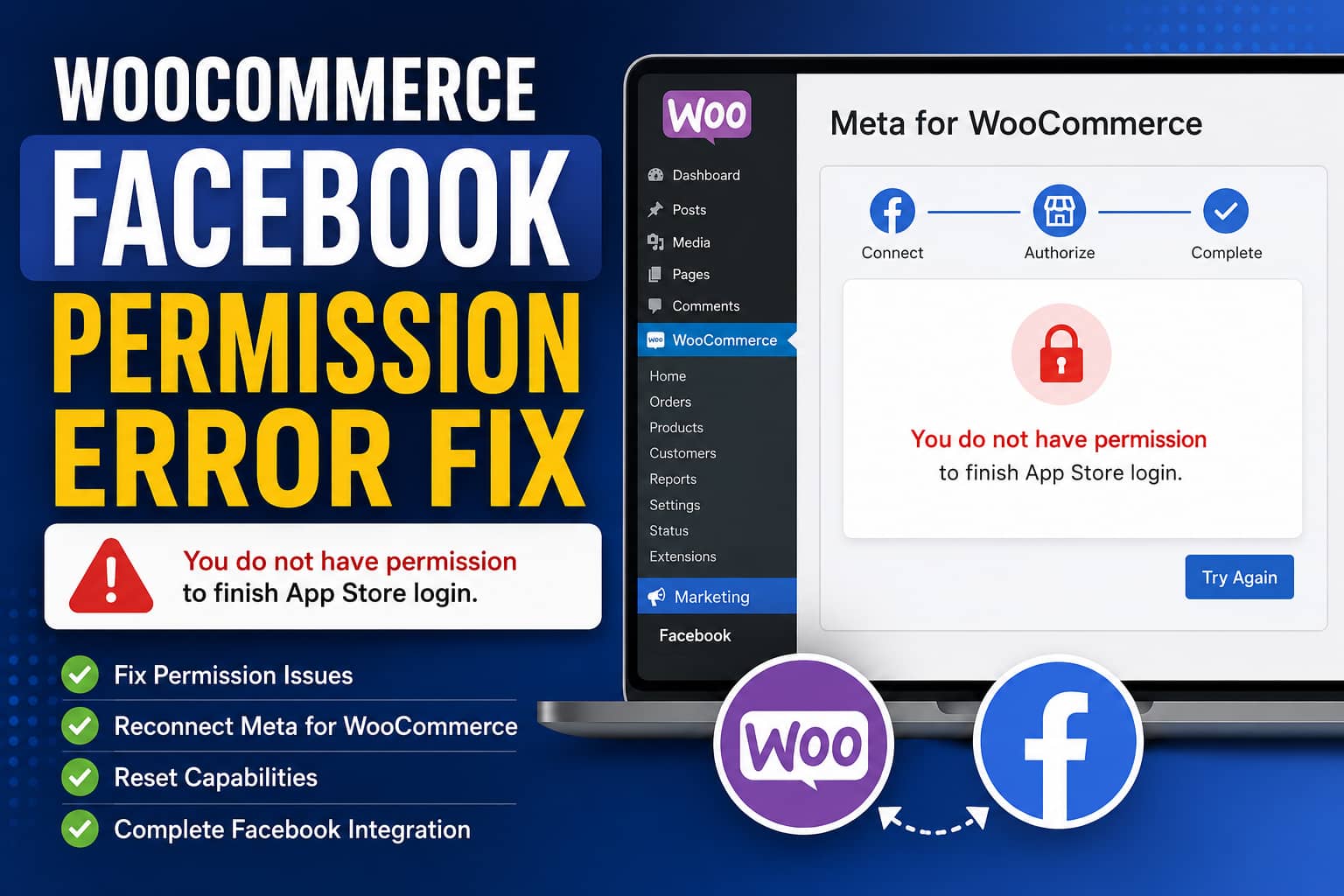
When connecting a Facebook business account to WooCommerce, the Meta for WooCommerce setup process may stop after authorization and display the following message:
You do not have permission to finish App Store login.
The wording is confusing because it sounds like an Apple App Store error. However, this message has nothing to do with Apple, iPhones, or the iOS App Store.
“App Store login” is the internal name WooCommerce uses for part of the connection process between your WordPress website, WooCommerce, and Meta.
In most cases, the error means that the WordPress user completing the connection does not have the required manage_woocommerce capability at the moment WooCommerce processes the authorization callback.
This can happen even when the user appears to have the Administrator role, especially after a website migration, role modification, security configuration change, or domain change.
What Causes This Error?
The Meta for WooCommerce plugin contains a specific permission check during the App Store login callback.
Before completing the redirect, it checks:
current_user_can( 'manage_woocommerce' )When that check returns false, the plugin displays:
You do not have permission to finish App Store login.The exact condition and error message are present in the plugin’s connection handler.
Therefore, the first thing to investigate is not your Facebook Page. It is the WooCommerce capability assigned to your current WordPress user.
WooCommerce normally gives both Administrators and Shop Managers the manage_woocommerce capability. This capability provides access to WooCommerce settings and store-management functions.
The capability may be missing or unavailable because of:
- A website migration from another domain
- A damaged or modified Administrator role
- A user-role editor plugin
- A security or admin restriction plugin
- Custom code filtering WordPress capabilities
- A stale WordPress login session
- Different
wwwand non-wwwdomain versions - An HTTP-to-HTTPS mismatch
- An outdated Meta for WooCommerce connection
- Missing Meta Business permissions
- A WooCommerce or Meta integration bug
Follow the solutions below in order.
Solution 1: Confirm You Are Using a WordPress Administrator Account
Go to:
WordPress Dashboard > Users > All UsersFind the account you are currently using and confirm its role is:
AdministratorA Shop Manager should normally also have the required WooCommerce capability, but using the primary Administrator account is recommended while setting up an external business integration.
Do not perform the setup while logged in as:
- Editor
- Author
- Contributor
- Customer
- Subscriber
- A custom staff role
- A hosting collaborator without full WordPress permissions
Also confirm that your account can open:
WooCommerce > SettingsIf WooCommerce settings are unavailable, the account probably does not have the manage_woocommerce capability.
If the account already shows Administrator but the error continues, the role’s capabilities may be damaged. Continue to the next solution.
Solution 2: Reset WooCommerce User Capabilities
WooCommerce includes a built-in tool that restores its default permissions.
Before using it, create a database backup. The tool does not delete products or orders, but it resets the default capabilities assigned to the Administrator, Shop Manager, and Customer roles.
Go to:
WooCommerce > Status > ToolsFind:
CapabilitiesClick:
Reset capabilitiesWooCommerce describes this tool as a way to reset user roles and permissions when users cannot access WooCommerce admin pages they should normally be able to access.
After running the tool:
- Log out of WordPress.
- Close the browser tab.
- Clear the website’s cookies.
- Log back into WordPress as an Administrator.
- Return to
Marketing > Facebook. - Start the connection again.
For many migrated or previously customized websites, this is the most important fix.
Important Warning About Custom Roles
If the website intentionally uses customized Administrator or Shop Manager capabilities, document those settings before resetting them.
The reset tool restores WooCommerce’s default capabilities and may remove deliberate permission changes made by a role-management plugin.
Solution 3: Check the Capability Directly
Developers can verify whether the current WordPress account passes the required permission check.
Add the following temporary code through a safe code-snippet plugin or a temporary must-use plugin:
<?php
/**
 * Temporarily checks whether the current user can manage WooCommerce.
 */

defined( 'ABSPATH' ) || exit;

add_action(
	'admin_notices',
	static function () {
		if ( current_user_can( 'manage_woocommerce' ) ) {
			echo '<div class="notice notice-success"><p>';
			echo 'WooCommerce capability check: PASSED';
			echo '</p></div>';
		} else {
			echo '<div class="notice notice-error"><p>';
			echo 'WooCommerce capability check: FAILED';
			echo '</p></div>';
		}
	}
);
Reload the WordPress dashboard.
You should see:
WooCommerce capability check: PASSEDIf it says FAILED, the Meta connection cannot finish for that account.
Run the WooCommerce capability reset described above and test again.
Remove the diagnostic code after completing the test.
WP-CLI Alternative
Developers with SSH and WP-CLI access can test a specific user with:
wp eval '
$user = get_user_by( "login", "YOUR_USERNAME" );
var_export( user_can( $user, "manage_woocommerce" ) );
'
Replace YOUR_USERNAME with the actual WordPress username.
The expected result is:
trueIf the result remains false after resetting capabilities, check for plugins or custom code using filters such as:
user_has_cap
map_meta_cap
woocommerce_shop_manager_editable_roles
A plugin may be dynamically removing the capability even though the database role appears correct.
Solution 4: Make Sure the Authorization Returns to the Same Domain
A common migration-related cause is a domain mismatch.
The Meta for WooCommerce plugin builds its return URL using the WordPress website’s configured home URL. When Meta returns the visitor to that URL, WordPress checks whether the visitor is still logged in and has the required WooCommerce capability.
Consider these two addresses:
https://example.com
https://www.example.com
WordPress may treat their authentication cookies differently.
You could begin the connection while logged into www.example.com, but the callback may return to example.com. WordPress then sees the callback as a logged-out visitor and fails the capability check.
Go to:
Settings > GeneralCheck both fields:
WordPress Address (URL)
Site Address (URL)
They should use the same:
- Domain
wwwor non-wwwformat- HTTPS protocol
- Correct live domain
For example:
WordPress Address: https://example.com
Site Address: https://example.com
Do not use a mixture such as:
WordPress Address: http://www.example.com
Site Address: https://example.com
Also check whether the site was migrated from a staging or development domain. The old domain should not remain in the WordPress home or siteurl settings.
After correcting the URLs:
- Go to
Settings > Permalinks. - Click
Save Changeswithout changing anything. - Clear the WordPress cache.
- Clear the server cache.
- Clear the CDN cache.
- Log out and back in.
- Restart the Meta connection.
Solution 5: Start With a Completely New Login Session
The connection process uses several browser sessions:
- Your WordPress login
- Your WooCommerce connection
- Your Facebook profile
- Your Meta Business account
- The WooCommerce connection gateway
A stale session or an authorization flow left open for too long can invalidate the token or permissions. WooCommerce’s troubleshooting documentation recommends rerunning the connection workflow when an old or incomplete browser session causes authorization problems.
Use the following clean-session procedure:
- Log out of WordPress.
- Log out of Facebook.
- Clear cookies for your website.
- Clear cookies for Facebook, Meta, and WooCommerce.
- Close every related browser tab.
- Open a private or incognito window.
- Log into WordPress first.
- Confirm you are still on the correct canonical domain.
- Open a second tab in the same private window.
- Log into the correct personal Facebook profile.
- Return to WordPress.
- Start the Meta for WooCommerce setup again.
- Finish the entire process without leaving the setup tab open for a long time.
Do not start the setup in one browser and complete it in another browser.
Also temporarily disable browser extensions that can block login callbacks, including:
- Ad blockers
- Privacy extensions
- Script blockers
- Cookie blockers
- Facebook container extensions
- Aggressive anti-tracking tools
Make sure browser pop-ups and third-party cookies are not being blocked during the connection process.
Solution 6: Disconnect the Existing WooCommerce Connection
A partially completed connection may contain expired tokens or mismatched Meta assets.
In WordPress, go to:
Marketing > FacebookOpen the connection settings and click:
DisconnectWooCommerce documents disconnecting and reconnecting as a standard troubleshooting step for Facebook connection problems.
After disconnecting, wait a few minutes and refresh the page.
If the connection is badly damaged, enable the plugin’s debug mode and use its connection reset tool.
Go to:
Marketing > Facebook > ConnectionEnable:
Debug modeThen go to:
WooCommerce > Status > ToolsLook for:
Facebook: Reset connection settingsThis clears the stored Facebook connection settings so the setup can be rebuilt.
Do not reset all products or delete the Facebook catalog unless product synchronization itself is also damaged.
Solution 7: Remove the Old WooCommerce Business Integration From Facebook
Disconnecting the plugin in WordPress removes local access tokens, but it may not completely remove the WooCommerce app from Facebook’s Business Integrations area.
Log into Facebook using your personal profile, not while acting as the Facebook Page.
Open:
Facebook Settings and Privacy
> Settings
> Business Integrations
Find an integration named something similar to:
WooCommerce Integration
WooCommerce Extension
WooCommerce Extension V2
Remove it.
Facebook explains that business integrations can access Pages, ads, events, messages, and other business information according to the permissions approved during login. Removing an integration prevents future API access through that integration.
WooCommerce also recommends removing the old WooCommerce integration from Facebook before attempting a clean reconnection when ordinary disconnection does not work.
After removal:
- Log out of Facebook.
- Clear your Facebook and website cookies.
- Log into WordPress as Administrator.
- Start the WooCommerce connection again.
- Approve all required permissions.
Solution 8: Confirm Your Meta Business Permissions
WordPress permission is the direct trigger for this exact error, but the setup may still fail later when the Facebook profile lacks access to one or more Meta assets.
In Meta Business Settings, verify that your Facebook profile has full control over the correct business portfolio.
Check access to:
- Facebook Page
- Business portfolio
- Ad account
- Product catalog
- Meta Pixel or dataset
- Instagram account
- Commerce account, when applicable
Under the business portfolio’s user settings, select your profile and confirm it has the permissions required to manage the connected assets.
The Meta for WooCommerce setup wizard may need to create or select:
- A Meta Business account
- A Facebook Page
- An ad account
- A Pixel
- A catalog
- An Instagram business profile
WooCommerce’s setup documentation lists these assets as part of the normal authorization process.
Having access to the Facebook Page alone is not always sufficient. A person may be able to publish posts but still lack permission to manage the catalog, Pixel, ad account, or business integration.
Solution 9: Enable Two-Factor Authentication on Facebook
Meta may require two-factor authentication before allowing a third-party business integration to manage business assets.
Enable two-factor authentication for the personal Facebook profile being used during setup.
WooCommerce identifies missing two-factor authentication as a common cause of Facebook connection problems and notes that older Business Manager accounts may require it.
After enabling two-factor authentication:
- Log out of Facebook.
- Log back in and complete the security verification.
- Remove the previous WooCommerce Business Integration.
- Restart the connection from WordPress.
Two-factor authentication will not repair a missing WordPress capability, but it can prevent the next Meta authorization step from failing.
Solution 10: Update WordPress, WooCommerce, and Meta for WooCommerce
Create a full backup and update:
- WordPress core
- WooCommerce
- Meta for WooCommerce
- Your active theme
- Relevant security and caching plugins
Use a staging website when possible.
Do not download an unofficial copy of the Meta for WooCommerce plugin. Install or update it from the official WordPress plugin repository or its official source.
After updating:
- Clear all WordPress cache.
- Clear object cache.
- Clear server cache.
- Clear CDN cache.
- Log out and back in.
- Repeat the connection.
An old plugin version may use an outdated Meta API flow or an older WooCommerce connection endpoint.
Solution 11: Test for Plugin Conflicts
A security, role-management, login, or firewall plugin may interfere with the callback.
Perform this test on staging rather than on a busy live store.
Temporarily deactivate all plugins except:
WooCommerce
Meta for WooCommerce
Switch temporarily to a default theme such as Storefront or a current default WordPress theme.
Then repeat the connection.
Pay particular attention to:
- User Role Editor plugins
- Admin menu restriction plugins
- Membership plugins
- Security plugins
- Firewall plugins
- SSO plugins
- Login URL modification plugins
- Cookie security plugins
- Caching plugins
- Redirect plugins
- Maintenance-mode plugins
- Plugins that modify WordPress capabilities
If the connection succeeds, reactivate plugins one at a time and retest until the conflict returns.
A previous support case found that a custom checkout plugin interfered with Meta Pixel tracking even though the basic Facebook connection appeared active. This demonstrates that the integration may work partially while another plugin disrupts specific features.
Solution 12: Check Firewall and REST API Restrictions
The Meta connection needs to communicate with external WooCommerce and Meta services.
Check whether any of the following are blocked:
/wp-json/
/?wc-api=
api.woocommerce.com
connect.woocommerce.com
graph.facebook.com
facebook.com
Possible sources of blocking include:
- Wordfence
- Cloudflare WAF
- ModSecurity
- Hosting firewalls
- Country blocking
- Bot protection
- Basic authentication
- Maintenance mode
- Password-protected staging
- REST API restriction plugins
Temporarily review firewall events while reproducing the error.
Do not permanently disable the firewall. Instead, identify the blocked request and create the narrowest safe exception required.
Solution 13: Review the Meta for WooCommerce Logs
Go to:
WooCommerce > Status > LogsSearch for logs beginning with:
facebook_for_woocommerceOpen the newest log created around the time of the failed connection.
Look for messages involving:
permission
access token
missing token
invalid nonce
connection failed
external business ID
page not authorized
Graph API
401
403
400
WooCommerce specifically recommends checking facebook_for_woocommerce- log files when diagnosing Facebook connection errors.
Also check:
WooCommerce > StatusDownload the system status report if you need to contact support.
Do not publish access tokens, API keys, personal information, database credentials, or complete unredacted logs in a public forum.
Solution 14: Check the External Business ID After a Migration
Another migration-related connection problem can occur when the stored Facebook external business ID contains unsupported characters.
Go to:
https://your-domain.com/wp-admin/options.phpReplace your-domain.com with your website address.
Search for:
wc_facebook_external_business_idThe value should contain only supported Latin letters, numbers, and hyphens.
An example format is:
my-store-5fb93a6bc12f1Do not leave the value blank, and do not use spaces, accented characters, symbols, or non-Latin characters.
WooCommerce identifies unsupported characters in this option as a cause of Facebook connection failures.
Before editing anything on options.php:
- Create a database backup.
- Record the original value.
- Avoid changing unrelated options.
- Save the setting.
- Confirm the new value remained saved.
- Restart the connection.
If the value cannot be saved through options.php, the database may need to be updated directly by an experienced WordPress developer.
What If the Catalog and Pixel Already Appear Connected?
It is possible for part of the integration to work while the final setup dialog still fails.
For example:
- Products may already be syncing.
- The Pixel may fire on product pages.
- The catalog may contain products.
- API requests may return successful responses.
- The advanced Meta setup may remain incomplete.
A WordPress support case reported successful catalog and Pixel communication even though the user continued receiving the App Store login permission error.
Do not assume the integration is fully configured just because the Pixel appears on the homepage.
Test at least:
- PageView
- ViewContent
- AddToCart
- InitiateCheckout
- Purchase
- Product catalog synchronization
- Product updates
- Variable-product data
- Domain connection
- Ad account access
Use Meta Events Manager and Meta Pixel Helper to verify the events.
Check the cart and checkout separately because optimization plugins and custom checkout systems may prevent events from firing on those pages.
A Known WooCommerce Connection Bug
Not every connection failure is caused by the website.
WooCommerce previously confirmed a bug where part of the Facebook setup used the wrong WooCommerce integration domain, producing a bad request during the connection process. The related GitHub issue was labeled as a confirmed bug.
This does not mean every permission error is a WooCommerce bug. The exact “You do not have permission to finish App Store login” message is directly connected to the WordPress manage_woocommerce capability check.
However, when all local permissions, sessions, URLs, and Meta assets are correct, a remote integration issue remains possible.
In that situation, collect:
- A screen recording of the connection flow
- The exact error message
- The URL shown when the error appears
- Your WooCommerce system status report
- The latest Meta for WooCommerce log
- WordPress, WooCommerce, and plugin versions
- Confirmation that the issue occurs with other plugins disabled
- Confirmation that the Administrator capability test passed
Send this information to the Meta for WooCommerce support team.
Recommended Fix Order
Use this order to avoid unnecessary database or plugin changes:
- Confirm you are logged in as a WordPress Administrator.
- Test
current_user_can( 'manage_woocommerce' ). - Reset WooCommerce capabilities.
- Confirm the WordPress and Site Address values match.
- Log out and start with a clean browser session.
- Disconnect Meta for WooCommerce.
- Remove the WooCommerce integration from Facebook.
- Confirm full access to all Meta business assets.
- Enable Facebook two-factor authentication.
- Update WooCommerce and Meta for WooCommerce.
- Test for plugin conflicts on staging.
- Review security and firewall logs.
- Check the Meta for WooCommerce logs.
- Check the external business ID.
- Contact plugin support if the issue remains.
Frequently Asked Questions
Is “App Store login” related to Apple?
No. In this context, App Store login is an internal WooCommerce integration flow. It is not related to Apple’s App Store or an iPhone.
Why do I get the error when I am already an Administrator?
The Administrator role may have lost the manage_woocommerce capability. A plugin may also be filtering the capability dynamically.
Another possibility is that Meta returns you to a different domain or protocol where your WordPress login cookie is not valid.
Will resetting capabilities delete my orders or products?
No. The WooCommerce capability reset tool resets default permissions for WooCommerce roles. It does not delete orders, products, customers, or settings.
However, it may overwrite intentional customizations made to the Administrator, Shop Manager, or Customer roles, so create a backup first.
Can a Shop Manager connect Meta for WooCommerce?
A standard Shop Manager normally receives the manage_woocommerce capability. However, using the primary Administrator account is safer for initial setup, especially when the store uses custom permissions.
Should I reinstall WordPress?
No. Reinstalling WordPress is usually unnecessary.
Start by resetting WooCommerce capabilities, checking the canonical domain, cleaning the login session, and rebuilding the Meta connection.
Should I delete my Facebook Page or catalog?
No. Do not delete your Page, catalog, Pixel, or ad account merely because of this error.
First remove only the WooCommerce Business Integration and rebuild the connection. Deleting business assets can create duplicate catalogs and make recovery more difficult.
Why did this start after moving the website?
A migration can change:
- WordPress roles and capabilities
- Domain names
- Cookie domains
- HTTPS settings
- Stored callback URLs
- External business IDs
- Cached integration data
Confirm the live domain in WordPress, reset capabilities, clear all caches, and create a fresh Meta connection.
Final Recommendation
The most important detail is that the error is generated by a specific WordPress permission check.
When Meta returns to the website, the Meta for WooCommerce plugin requires the current WordPress user to pass:
current_user_can( 'manage_woocommerce' )Start by restoring WooCommerce capabilities through:
WooCommerce > Status > Tools > Reset capabilitiesThen confirm that the WordPress Address and Site Address use the same HTTPS domain, log into a completely new browser session, remove the old WooCommerce Business Integration from Facebook, and reconnect it using an account with full WordPress and Meta Business access.
If the capability test passes but the connection still fails, investigate browser sessions, Meta asset permissions, security restrictions, plugin conflicts, and remote WooCommerce integration bugs.
