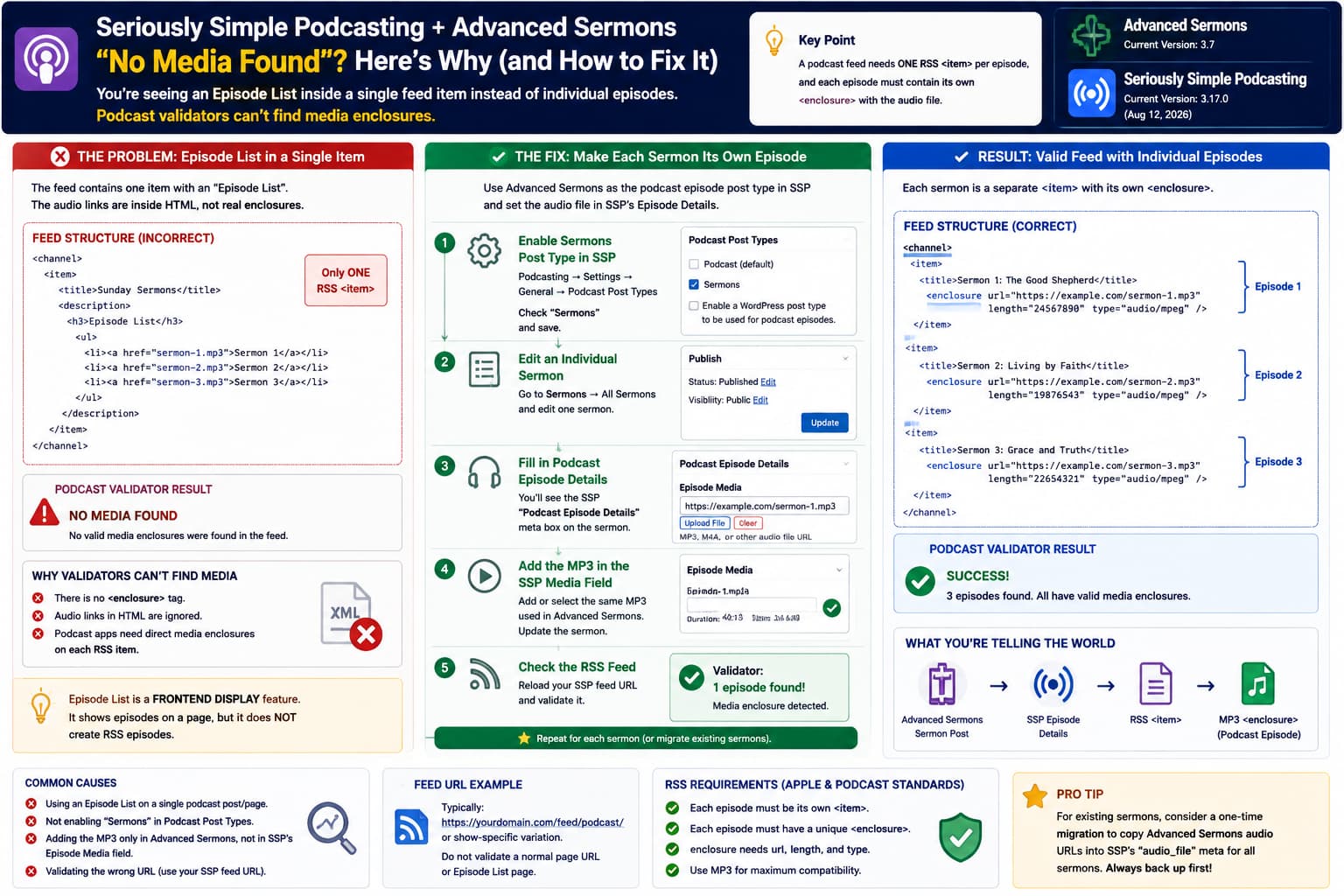
Trying to use Advanced Sermons sermons as the source for a Seriously Simple Podcasting RSS feed can produce a confusing result:
The feed opens
✓

Sermon/audio information appears somewhere
✓

Podcast validator:
No media found
✗
Looking at the XML can make it even stranger. Instead of seeing every sermon represented as a separate RSS episode, the sermons may appear inside one entry associated with something such as an Episode List.
That is the key clue.
This is most likely not a problem with the MP3 files themselves. It means the sermons are currently being displayed inside one podcast post, rather than being registered with Seriously Simple Podcasting as individual podcast episodes.
A podcast episode list and a podcast RSS feed are two very different things.
What a Podcast RSS Feed Must Look Like
A normal podcast feed contains:
<channel>

    <item>
        <title>Sermon One</title>
        <enclosure
            url="https://example.com/sermon-one.mp3"
            length="24567890"
            type="audio/mpeg"
        />
    </item>

    <item>
        <title>Sermon Two</title>
        <enclosure
            url="https://example.com/sermon-two.mp3"
            length="19876543"
            type="audio/mpeg"
        />
    </item>

</channel>
Each:
<item>represents one podcast episode.
And each episode needs its own:
<enclosure>pointing directly to the audio file.
Apple’s current podcast RSS requirements explicitly say that every episode must have a unique <enclosure> containing the media URL, file length, and MIME type. Without it, podcast apps do not recognize the entry as a playable episode.
So:
Sermon post
→ RSS <item>
→ MP3 <enclosure>
is what you need.
An Episode List Is Not the Same Thing
Seriously Simple Podcasting includes an Episode List block/shortcode.
Its job is to visually display multiple podcast episodes on a WordPress page. For example:
Episode List

Sermon 1
[Player]

Sermon 2
[Player]

Sermon 3
[Player]
Castos documents ssp_episode_list specifically as a frontend display feature for listing podcast episodes.
It does not mean:
Convert every item shown inside this block into a separate RSS
<item>.
So if you create one SSP episode/page containing an Episode List of sermons, the feed architecture becomes approximately:
RSS Feed
└── <item>
    └── WordPress post containing Episode List
        ├── Sermon A
        ├── Sermon B
        ├── Sermon C
        └── audio links
Podcast validators see:
ONE RSS episodenot:
THREE podcast episodesEven if three MP3 links appear somewhere inside that item’s HTML.
That’s why a validator can say:
No media founddespite you being able to visibly find audio URLs in the XML.
Podcast Validators Do Not Treat Random MP3 Links as Enclosures
This:
<a href="sermon.mp3">
    Listen
</a>
inside an RSS description is not enough.
Neither is:
<audio src="sermon.mp3"></audio>inside the item’s HTML content.
The actual feed needs:
<enclosure
    url="https://example.com/sermon.mp3"
    length="12345678"
    type="audio/mpeg"
/>
directly inside that sermon’s <item>.
The RSS specification defines <enclosure> specifically as the media object associated with an item.
Seriously Simple Podcasting Can Use Custom Post Types
Fortunately, you do not necessarily need to duplicate all Advanced Sermons posts into SSP’s default:
Podcastpost type.
Seriously Simple Podcasting supports using a third-party custom post type as podcast episodes.
Castos documents this under:
Podcasting
→ Settings
→ General
→ Podcast Post Types
Instead of using only SSP’s default Podcast post type, you can enable another WordPress post type.
That is the approach I would test first.
Correct Setup: Make Each Advanced Sermon an SSP Episode
The desired architecture is:
Advanced Sermons
Sermon Post #1
↓
SSP Podcast Episode Details
↓
audio file
↓
RSS <item>
↓
<enclosure>
Then:
Advanced Sermons
Sermon Post #2
↓
SSP Podcast Episode Details
↓
audio file
↓
second RSS <item>
and so on.
Step 1: Enable the Sermons Post Type in SSP
Go to:
Podcasting
→ Settings
→ General
Find:
Podcast Post TypesLook for the Advanced Sermons post type, likely displayed as:
Sermonsand enable it.
Save your settings.
Seriously Simple Podcasting officially supports publishing podcast episodes through custom post types rather than forcing everything into its own Podcast post type.
Step 2: Edit an Individual Sermon
Go to:
Sermons
→ All Sermons
→ Edit one sermon
You should now see Seriously Simple Podcasting’s:
Podcast Episode Detailssection on the sermon editing screen.
Castos documents that enabling another post type adds SSP’s episode information fields to that post type.
If you see that box, you are on the correct path.
Step 3: Add the MP3 to SSP’s Episode Media Field
This is the part most likely being missed.
Advanced Sermons already has its own:
Sermon Details
→ Audio
field.
That makes the sermon playable on the Advanced Sermons frontend.
However, Seriously Simple Podcasting has its own episode media field.
SSP stores its episode media URL in:
audio_filepost metadata and uses that value for its podcast player/feed. Castos explicitly documents this behavior.
Therefore:
Advanced Sermons audio existsdoes not automatically mean:
SSP knows this is the episode enclosure.Unless an integration specifically maps one plugin’s media field to the other.
This is probably the biggest conceptual problem in the current setup.
Advanced Sermons and SSP Store Different Podcast Information
Think of the sermon as containing two independent plugin systems:
WordPress Sermon Post
│
├── Advanced Sermons
│   └── sermon audio field
│
└── Seriously Simple Podcasting
    └── Podcast Episode Details
        └── audio_file
Advanced Sermons knows:
This MP3 should be shown in my sermon player.
SSP needs to know:
This MP3 is the podcast episode’s enclosure.
Those are not automatically the same instruction.
Quick Test With One Sermon
Before modifying hundreds of sermons, perform a one-sermon test.
Choose an existing sermon containing a known MP3.
Enable:
Sermonsunder SSP’s Podcast Post Types.
Then edit that sermon and add the same MP3 URL to:
Podcast Episode Details
→ Media File
Update the sermon.
Then reload your SSP RSS feed.
Search the XML for the sermon title.
You want to find:
<item>followed somewhere inside the same item by:
<enclosureFor example:
<item>

<title>
Sunday Morning Sermon
</title>

<enclosure
url="https://example.com/wp-content/uploads/sermon.mp3"
length="28473620"
type="audio/mpeg"
/>

</item>
If that appears, run the feed through the validator again.
It should now detect at least one media episode.
Don’t Test With the Episode List Page
Validate the actual SSP RSS URL.
A typical SSP feed may look like:
https://example.com/feed/podcast/or a show-specific variation.
Castos gives this general pattern for Seriously Simple Podcasting feeds:
https://yoursite.com/feed/podcast/your-podcastdepending on how the show is configured.
Do not submit:
/podcast/if that is simply the visual podcast archive page.
And do not submit the URL of a normal WordPress page containing:
Episode ListThat page is for humans, not podcast applications.
Why the Current Feed Probably Has One Item
The likely current setup is something like:
One WordPress podcast post/page
↓
Episode List block
↓
Advanced Sermons displayed inside it
SSP therefore sees:
One publishable podcast postand generates:
<item>
...
Episode List...
</item>
The Episode List’s child content does not become RSS child episodes.
The correct setup is:
Advanced Sermon 1
→ SSP episode

Advanced Sermon 2
→ SSP episode

Advanced Sermon 3
→ SSP episode
so SSP’s feed query can generate:
<item> Sermon 1 </item>
<item> Sermon 2 </item>
<item> Sermon 3 </item>
If “Sermons” Does Not Appear in Podcast Post Types
Seriously Simple Podcasting has some requirements when working with third-party custom post types.
Castos says custom post types should support:
custom-fieldsand should be available through the WordPress REST API:
'show_in_rest' => trueespecially when using the block editor.
If this isn’t configured correctly, you might see:
ssp-sidebar-panel encountered an erroror:
ssp-episode-meta-sidebar cannot be renderedCastos specifically recommends contacting the third-party custom-post-type developer in this situation.
So if Advanced Sermons’ Sermon type cannot be selected or SSP’s Episode Details panel fails, this may require a small compatibility layer.
Advanced Sermons Officially Recommends PowerPress
There is also an important compatibility point.
Advanced Sermons itself currently advertises:
Podcasting Support
→ PowerPress
rather than Seriously Simple Podcasting.
Their official podcasting documentation says:
Podcasting is not currently built directly into Advanced Sermons, and they recommend PowerPress for podcasting.
Their documented setup is:
Advanced Sermons
+
PowerPress
↓
Enable Post Type Podcasting
↓
Choose Sermons
↓
PowerPress Podcast Episode metabox
↓
assign media file
↓
validate feed
So if your priority is:
I want the configuration officially documented by the Advanced Sermons developer
then PowerPress is currently the safer supported route.
Does That Mean SSP Cannot Work?
No.
Seriously Simple Podcasting explicitly supports third-party custom post types.
So:
Advanced Sermons
+
Seriously Simple Podcasting
is technically reasonable.
But it is not the integration Advanced Sermons currently documents.
That means you need to ensure that:
Sermon post
→ recognized by SSP
and:
Advanced Sermons audio
→ SSP episode media
are both handled.
The second part is not automatic just because both plugins can play the same MP3.
Best Configuration if You Want to Keep SSP
I would build it this way:
Advanced Sermons
= controls sermon content and frontend presentation

Seriously Simple Podcasting
= controls podcast RSS metadata
with the same sermon custom post being used by both.
Conceptually:
SERMON POST
│
├── title
├── description
├── speaker
├── series
├── scripture
├── sermon image
│
├── Advanced Sermons audio
│
└── SSP Podcast Episode Details
    └── same MP3 URL
Then one WordPress sermon corresponds to one podcast episode.
You avoid:
Sermon post
+
separate duplicate Podcast post
for every sermon.
Existing Sermons Will Need Podcast Metadata
Enabling the Sermon post type in SSP does not necessarily mean every historical sermon automatically becomes a valid podcast episode.
Castos’ migration documentation says that when converting existing WordPress content into SSP episodes, you still need to provide the episode audio through SSP’s Podcast Episode Details.
So for a large archive:
300 existing sermonsyou probably don’t want to manually re-enter:
300 MP3 URLsif Advanced Sermons already stores them.
That is where a small migration/integration script can help.
A Custom Integration Can Copy the Existing Audio URLs
Conceptually, a migration could do:
Read Advanced Sermons audio URL
↓
Write same URL to SSP audio_file meta
for each sermon.
For example:
update_post_meta(
    $sermon_id,
    'audio_file',
    $advanced_sermons_audio_url
);
But I would not publish a complete migration snippet without first identifying the exact Advanced Sermons audio meta key used by your installed version.
Guessing that key could overwrite or miss data.
The safe approach is:
- inspect one sermon in
wp_postmeta, - identify the Advanced Sermons audio field,
- verify it contains a direct MP3 URL or attachment reference,
- map that value to SSP’s
audio_file, - test one sermon,
- back up,
- migrate the archive.
SSP’s audio_file field itself is documented.
Don’t Set audio_file Without Testing the Rest of the Episode Metadata
SSP also manages values such as:
file size
duration
recorded date
episode metadata
Recent SSP versions automatically update file properties when audio is selected from the Media Library, and SSP 3.16.2 specifically improved its episode enclosure data storage for broader WordPress compatibility.
Therefore using SSP’s normal Episode Details interface is preferable when practical.
If building an automated migration, test whether SSP recalculates:
file length
MIME type
duration
correctly after writing the media file.
The feed’s <enclosure> requires more than just a URL.
Seriously Simple Podcasting Was Recently Updated
At the time of verification, WordPress.org lists:
Seriously Simple Podcasting
Version 3.17.0
Released August 12, 2026
That release includes a fix for podcast feeds with large numbers of episodes.
The previous 3.16.2 release also changed episode enclosure storage to WordPress’s standard format for improved compatibility.
So before investigating a feed-generation bug, update SSP to the current release.
Advanced Sermons Is Currently Version 3.7
WordPress.org currently lists:
Advanced Sermons
Version 3.7
with audio sermon support and MP3/WAV/OGG handling.
Its official feature page still describes podcasting support through PowerPress.
That is useful context when deciding whether to continue building the SSP integration or switch to the officially documented PowerPress workflow.
Important Difference in Audio Format Support
Advanced Sermons itself supports sermon audio formats including:
MP3
WAV
OGG
according to its current plugin changelog.
Seriously Simple Podcasting’s current publishing documentation focuses on:
MP3
M4A
for audio podcast episodes.
For maximum compatibility with podcast directories, I would use:
MP3for the feed.
A WAV file may play on the website but is not the best choice for podcast distribution.
How to Verify the Feed Manually
Once one sermon has been configured correctly:
- Open the SSP feed.
- View its XML.
- Search for the sermon title.
- Confirm it has its own
<item>. - Search inside that
<item>for<enclosure. - Confirm the enclosure URL ends in a real media resource.
- Check
type="audio/mpeg"for MP3. - Confirm a positive file length.
- Open the MP3 URL directly.
- Validate the feed.
The result should look roughly like:
<channel>

    <item>

        <title>
            The Sermon Title
        </title>

        <guid>
            ...
        </guid>

        <enclosure
            url="https://example.com/uploads/sermon.mp3"
            length="28374721"
            type="audio/mpeg"
        />

    </item>

</channel>
Apple says a valid podcast feed needs at least one episode containing a valid media enclosure, and its validator will report that no episodes exist when usable enclosures are absent.
A Very Useful Diagnostic
Try this with one sermon only.
Before
Current feed:
<item>
    Episode List
    ├── sermon A
    ├── sermon B
    └── sermon C
</item>

No valid enclosure
Validator:
No media foundAfter
Enable Sermons in SSP and configure that sermon’s Episode Details:
<item>
    Sermon A
    <enclosure ... />
</item>
Validator:
1 episode foundIf that works, you have proven the configuration issue.
Then you can decide how to migrate the remaining sermons.
Don’t Try to Fix the XML Manually
Avoid editing:
feed-rss2.phpor SSP’s feed templates just to inject MP3 links.
The feed isn’t fundamentally missing a line of XML.
The underlying data model is wrong.
You want:
each sermon
=
podcast episode
rather than:
one episode
=
list of sermons
Once the episode data is structured correctly, SSP should generate the appropriate RSS automatically.
Recommended Path
For this particular setup, I would choose between two approaches.
Option A: Keep Seriously Simple Podcasting
Use this if you specifically prefer SSP/Castos.
Configure:
Podcasting
→ Settings
→ General
→ Podcast Post Types
→ Sermons
Then make sure each sermon has SSP Podcast Episode Details and a media file.
For historical sermons, create a safe one-time migration from Advanced Sermons’ audio metadata into SSP’s audio_file field after identifying the exact Advanced Sermons meta key.
Option B: Use PowerPress
Use this if you want the integration that Advanced Sermons officially documents.
Advanced Sermons’ instructions specifically cover:
PowerPress
→ Advanced
→ Post Type Podcasting
→ Sermons
followed by assigning the podcast media file through the PowerPress episode metabox.
Either way, the structural requirement is identical:
one sermon
=
one RSS <item>
=
one podcast media enclosure
Most Likely Explanation
The clue:
“the files are embedded in a single item with an XML tag: Episode List instead of distinct items in the channel”
strongly suggests the wrong level of content is being syndicated.
An Episode List is a presentation component. It can list many episodes on one WordPress page, but it does not transform the objects it displays into separate podcast RSS entries.
Seriously Simple Podcasting needs to query the individual Advanced Sermons posts themselves as episode post types.
Then each sermon must have an SSP-recognized media file so SSP can generate the required <enclosure>.
Direct Answer
Yes, this looks much more like a configuration/integration issue than a broken media file.
Do not put the Advanced Sermons archive or an Episode List inside one podcast episode and expect SSP to generate individual RSS episodes from it.
Instead:
Podcasting
→ Settings
→ General
→ Podcast Post Types
→ enable Sermons
Then edit one Advanced Sermon and check for:
Podcast Episode DetailsAdd that sermon’s MP3 there and publish/update it.
Reload the actual podcast RSS feed.
That sermon should now appear as its own:
<item>with its own:
<enclosure ... />which is what podcast validators require.
If this one-sermon test works, the remaining problem is simply getting the Advanced Sermons audio values into SSP’s episode media metadata for the rest of the archive.
One final point: Advanced Sermons currently officially documents PowerPress rather than Seriously Simple Podcasting for podcast integration, so SSP can work through its custom-post-type support, but it is effectively a custom integration between the two plugins.
