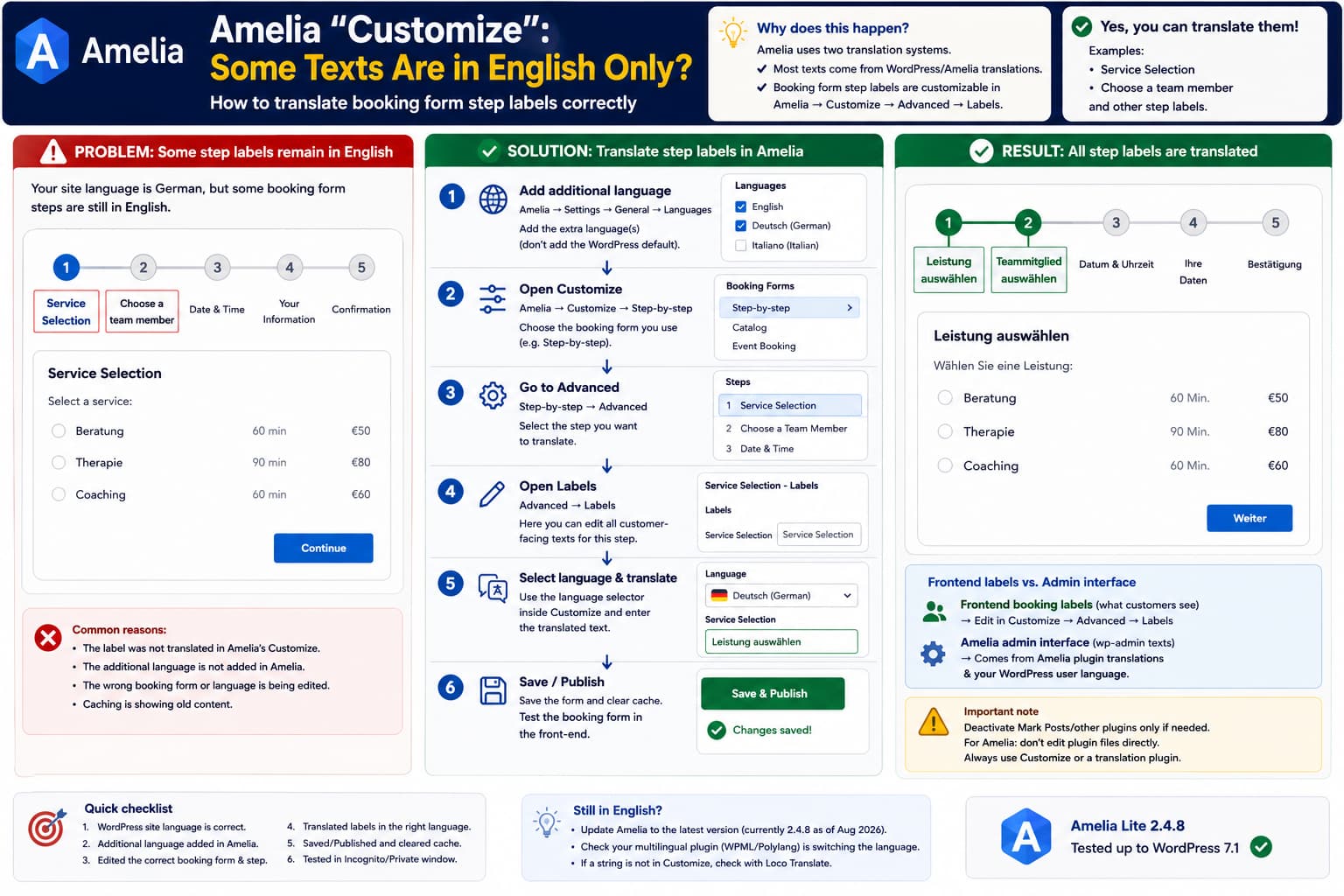
When translating an Amelia booking form, most of the plugin may appear correctly localized while some texts inside the booking process remain in English.
Common examples include:
Service Selection
Choose a team member
Select a service
Date & Time
Your Information
This can be confusing because the rest of WordPress or Amelia may already be running in another language.
The important thing to understand is that Amelia uses more than one translation mechanism.
Some strings come from Amelia’s normal plugin language files, while many customer-facing booking form labels are independently customizable from:
Amelia
→ Customize
For those labels, the solution usually isn’t Loco Translate first. Amelia provides its own per-language label editor.
“Service Selection” Is a Customizable Form Label
Amelia’s documentation specifically uses Service Selection as an example of a label that can be modified in the Customize interface.
The booking form can be edited from:
Amelia
→ Customize
→ Step-by-step
Current Amelia documentation describes two sections:
Basic
Advanced
with the Advanced section providing controls for individual booking steps, including labels.
For a string such as:
Service Selectiongo to the corresponding step and edit its label rather than assuming it must come from the WordPress translation file.
How to Translate the Step Labels
First make sure the additional language exists in Amelia.
Go to:
Amelia
→ Settings
→ General
→ Languages
Add the additional language you want to support.
For example, if WordPress itself is configured in Italian:
WordPress Site Language:
Italian
and the site also needs German and English, Amelia’s additional languages would normally be:
German
English
You should not add the WordPress default language to Amelia’s additional-language list. Amelia treats the WordPress site language as the primary language automatically.
Then open:
Amelia
→ Customize
→ Step-by-step
→ Advanced
Select the appropriate step.
For example:
Services / Service Selectionand open:
LabelsThere you can customize customer-facing strings for that booking step. Amelia’s current multilingual documentation specifically says form labels can be translated through:
Customize
→ Forms
→ Advanced
→ Labels
and edited individually for each enabled language.
Use the Language Selector in Customize
Inside Amelia’s Customize interface, there is a language selector that lets you switch between the languages configured for the booking form.
For example:
Language:
English
Italian
German
Choose the affected language first.
Then enter a localized version for:
Service Selectionor:
Choose a team memberand save/publish the form.
The basic workflow is:
Amelia → Settings → General
        ↓
Add additional language
        ↓
Amelia → Customize
        ↓
Step-by-step
        ↓
Advanced
        ↓
Choose affected Step
        ↓
Labels
        ↓
Select Language
        ↓
Enter translated label
        ↓
Save / Publish
Amelia’s documentation confirms that the language selector in Customize is specifically intended for previewing and editing language-specific form labels.
Why Does Amelia Show English When the Translation Field Is Empty?
Amelia has fallback behavior.
If you leave a custom label empty, Amelia tries to use the plugin’s built-in translation for the currently active language.
Conceptually:
Custom translated label exists?
        ↓ Yes
Use custom label

        ↓ No

Built-in Amelia translation exists?
        ↓ Yes
Use bundled translation

        ↓ No

Fall back to default/English string
This is why some labels can appear translated automatically while others remain English.
It doesn’t necessarily mean your entire Amelia translation is broken.
It may simply mean that the specific booking-form label:
Choose a team memberdoesn’t currently have the expected translation for that locale, while other strings do.
Amelia explicitly allows you to override these defaults manually inside Customize.
“Default Label” Does Not Always Mean English
Another easily misunderstood part of Amelia’s Customize interface is:
Default LabelThe default label corresponds to the primary WordPress language, not necessarily English.
For example:
WordPress Site Language:
Italian
means the Default Label represents the Italian version of the form.
Your additional languages might then have separate fields for:
English
German
This is why changing WordPress’s site language and Amelia’s additional languages incorrectly can produce confusing combinations.
Amelia’s General Settings documentation says the WordPress site language is treated as the primary language and additional languages should only contain the other languages used by the site.
Example
Suppose the site’s main language is German.
You want:
Service Selection
→ Leistung auswählen

Choose a team member
→ Teammitglied auswählen
Set:
WordPress
→ Settings
→ General
→ Site Language
→ Deutsch
Then in Amelia:
Customize
→ Step-by-step
→ Advanced
→ Service Selection
→ Labels
enter:
Service Selection:
Leistung auswählen
and:
Choose a team member:
Teammitglied auswählen
Then save the booking form.
The resulting frontend should display those customized German labels.
If You Use WPML or Polylang
Amelia does not independently decide which frontend language should be active.
Instead, multilingual plugins such as:
WPML
Polylang
set the current locale.
Amelia detects that locale and then chooses the corresponding content you’ve configured.
The relationship is:
WPML / Polylang
↓
Determines active language
↓
Amelia detects locale
↓
Amelia displays matching labels
Amelia’s current multilingual documentation explicitly states that language switching is handled by the multilingual plugin, not by Amelia itself.
So if:
German page
→ English Amelia labels
check that WPML/Polylang is actually returning the German locale on that page.
Don’t Add the Default Language Twice
One configuration I would specifically avoid is:
WordPress Site Language:
German
and then:
Amelia → Languages:
German
English
Amelia’s documentation says do not add the WordPress default language as an additional Amelia language.
Instead use:
WordPress:
German

Amelia additional languages:
English
This keeps the language mapping predictable.
What If the English Text Is Only Visible Inside the Amelia Admin?
There is an important distinction.
Suppose the booking form on the public website is correctly translated:
Frontend:
✓ German
but inside:
Amelia
→ Customize
the editor itself still contains interface text such as:
Service Selection
Labels
Options
Choose a team member
in English.
Then you may be looking at Amelia’s wp-admin interface translation, not the customer-facing booking label.
These are different translation systems.
Customer-facing label
Usually customize here:
Amelia
→ Customize
→ Advanced
→ Labels
Amelia admin interface string
Usually comes from:
Amelia's plugin translation files
+
WordPress admin/user locale
Changing a frontend label does not necessarily translate the name of the control inside the Customize editor itself.
Check the WordPress User Language Too
WordPress allows the wp-admin language to differ from the website’s public language.
Check:
Users
→ Profile
→ Language
For example:
Site Language:
Italian

Administrator User Language:
English
can legitimately result in:
Public website:
Italian

wp-admin:
English
So if the complaint is specifically:
The text inside Amelia’s Customize administrator interface stays English
check the administrator’s user language before assuming Amelia is ignoring translations.
Use Loco Translate Only for Strings Not Exposed by Customize
If a text is customer-facing and Amelia exposes it under:
Customize → LabelsI would use Amelia’s own field first.
Loco Translate becomes useful when the string:
- isn’t exposed in Customize,
- belongs to Amelia’s backend interface,
- or needs a local translation different from Amelia’s included translation.
A simple workflow is:
Loco Translate
→ Plugins
→ Amelia
→ affected language
→ search exact English text
For example:
Choose a team memberIf Loco can find it, you can determine whether the string exists in Amelia’s normal gettext catalog.
However, Amelia’s current multilingual documentation recommends its built-in label translation controls for booking form labels, while static core strings come from the plugin translation files.
Don’t Edit Amelia’s Plugin Files Directly
Avoid changing strings directly inside:
/wp-content/plugins/ameliabooking/or a bundled JavaScript file.
Even if this works temporarily:
"Service Selection"
→ "Leistung auswählen"
the next Amelia update will overwrite it.
For labels exposed in Customize, save the custom value there.
For missing plugin translations, use the supported translation mechanism or report the missing string to Amelia.
Amelia Has Had Translation-Specific Fixes
Translation coverage is actively maintained.
For example, Amelia’s current changelog includes fixes such as:
“No data” label not available for translationand other localization-related corrections. The current WordPress.org release is Amelia Lite 2.4.8, with recent releases continuing to include translation and localization fixes.
Older releases also included fixes related to:
translation errors
updated language files
missing labels
So if a specific built-in string cannot be translated through either Customize or the normal language catalog, updating to the current release is worthwhile before creating a workaround.
Update Amelia Before Troubleshooting Missing Strings
At the time of verification, WordPress.org lists:
Amelia Lite
Version: 2.4.8
and the release is only a few days old.
If you’re running an older version:
Dashboard
→ Plugins
→ Amelia
→ Update
If using the commercial version, make sure the base plugin and paid components are compatible and current.
Then revisit:
Amelia
→ Customize
because newer versions may contain additional labels or corrected translations.
If You Changed the Label but the Frontend Still Shows English
First save/publish the Customize form.
Then clear:
browser cache
page cache
server cache
CDN cache
Amelia’s own documentation recommends clearing caching when Customizer changes do not appear on the live site.
Also test in:
Incognito / Private windowbefore concluding the label hasn’t changed.
Make Sure You’re Customizing the Correct Form
Amelia has several booking forms.
For example:
Step-by-step
Catalog
Events
Customer Panel
Employee Panel
If your page contains a Step-by-step booking form but you’re modifying the Catalog form, the changes will not appear.
Current Amelia documentation says each form has its own Customize settings.
So first identify the shortcode/block actually used.
For example:
[ameliastepbooking]means you should customize the Step-by-step form.
The Amelia WordPress.org documentation confirms that different shortcodes correspond to different booking layouts.
A Useful Test
Change one label to something unmistakable:
Service Selection
→ TEST TRANSLATION 123
Save the form.
Open the frontend in Incognito.
If:
TEST TRANSLATION 123appears, you have confirmed:
Correct form
✓
Correct label
✓
Customizer working
✓
You can then replace the test text with the real translation.
If it does not appear, either:
wrong booking form
wrong language
wrong Customizer step
cache
or form settings not saved
is likely involved.
If Only a Few Amelia Labels Cannot Be Translated
Suppose almost everything works:
Select Date
✓ translated

Continue
✓ translated

Your Information
✓ translated

Service Selection
✗ English

Choose a team member
✗ English
Do not reinstall the plugin.
Instead:
- Update Amelia.
- Open the exact Step-by-step form.
- Go to Advanced → affected step → Labels.
- Select the target language.
- Manually populate the two English labels.
- Save/Publish.
- Clear cache.
- Test the public form.
That is precisely what Amelia’s label customization system is intended to solve.
If the Labels Cannot Be Found in Customize
Then determine whether they are really customer-facing configurable labels or static plugin interface strings.
Search with Loco Translate.
If the string is also missing there, it may be:
hardcoded
missing from translation extraction
or missing its text domain
That becomes a legitimate plugin localization bug worth reporting.
A useful report would be:
Amelia’s Step-by-step form contains the string “Choose a team member,” but the string is not available under Customize → Advanced → Labels and is also unavailable in the plugin’s translation catalog. Could this string be exposed for localization?
Include:
Amelia version
WordPress version
Site Language
Additional Amelia languages
Booking form type
Exact English string
Screenshot
Most Likely Explanation
For the specific strings:
Service Selection
Choose a team member
the first place I would check is Amelia’s Step-by-step Customize labels, not Loco Translate.
Amelia explicitly documents Service Selection as one of the customizable booking-form labels, and its current multilingual system lets labels be entered separately for each enabled language.
The likely configuration is:
Some labels
→ official translation exists
→ translated automatically

These labels
→ custom/built-in translation unavailable or empty
→ English fallback
Adding the translations manually in Customize should resolve that.
Direct Answer
Yes, those texts can be translated.
Go to:
Amelia
→ Settings
→ General
→ Languages
and make sure the additional language is enabled.
Then go to:
Amelia
→ Customize
→ Step-by-step
→ Advanced
→ select the affected step
→ Labels
Use the language selector and manually translate strings such as:
Service Selection
Choose a team member
then save/publish the form.
Amelia’s official multilingual documentation confirms that customer-facing form labels are translated this way and that the Customize interface contains a language selector specifically for editing them.
If what remains in English is only the Amelia administrator interface itself, rather than the public booking form, check your WordPress user language and Amelia’s normal plugin translation files instead.
