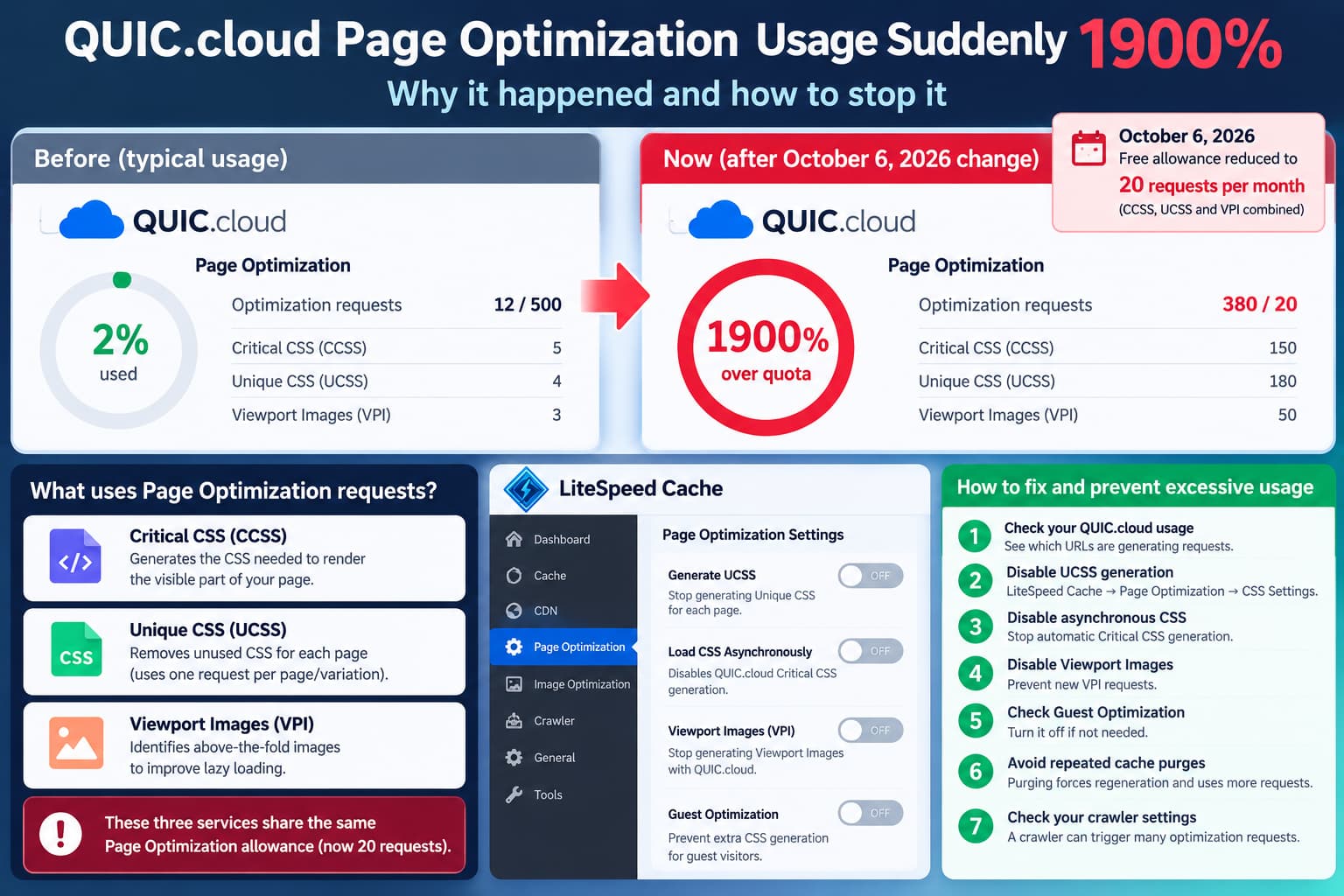
If QUIC.cloud Page Optimization usage suddenly jumps from a normal 2–3% to 1,000%, 1,900%, or higher, the first thing to check is whether your monthly optimization allowance changed.
This is particularly important in October 2026.
On October 6, 2026, QUIC.cloud changed its free monthly Page Optimization allowance to just 20 requests per domain, replacing its previous tier-based free quota system.
The change applies to:
- Critical CSS (CCSS)
- Unique CSS (UCSS)
- Viewport Images (VPI)
These three services share the same Page Optimization allowance.
A website that previously consumed only a small percentage of its monthly allowance can therefore appear to be dramatically over quota without necessarily generating thousands of additional optimization requests.
However, if several WordPress websites also became unavailable around the same time, investigate the outages separately. A high QUIC.cloud optimization percentage does not establish that optimization requests caused the websites to go down.
Why QUIC.cloud Page Optimization Usage Suddenly Increased
QUIC.cloud announced significant billing and quota changes on October 6, 2026.
Previously, free optimization quotas depended on the hosting environment and assigned service tier.
Under the new arrangement, all domains receiving the standard free allowance have:
| Optimization service | October 2026 free allowance |
|---|---|
| Page Optimization (CCSS, UCSS, VPI combined) | 20 requests |
| Image Optimization | 100 images |
| Low-Quality Image Placeholders (LQIP) | 20 requests |
These allowances apply to October 2026, with renewal scheduled for November 1.
QUIC.cloud also announced that its new plan-based billing system will begin November 10, 2026.
How a 1900% Reading Can Happen
Consider a website whose dashboard reports 380 optimization requests.
If the allowance is now 20 requests:
Optimization requests: 380

Monthly free allowance: 20

Usage percentage:

380 ÷ 20 × 100 = 1900%
That produces a 1,900% usage reading.
The important distinction is that 1,900% of quota does not mean the server is using 1,900% CPU, memory, or bandwidth.
It means the reported usage is being compared against a particular optimization allowance.
This example is illustrative. The actual percentage shown for a domain depends on the dashboard’s accounting and any additional quota or paid allowance.
The October 6 quota reduction is confirmed, but the percentage alone does not tell you exactly how many requests were generated after the change.
To determine whether optimization activity genuinely increased, compare the actual request counts and timestamps rather than percentages alone.
First: Check the QUIC.cloud Page Optimization Dashboard
Open your QUIC.cloud account.
Navigate to:
QUIC.cloud Dashboard → Select Domain → Page Optimization
The dashboard provides information about recent optimization requests and the current month’s usage.
QUIC.cloud documents that CCSS, UCSS, and VPI usage is combined when calculating Page Optimization consumption.
Check:
- The current monthly allowance.
- The number of optimization requests.
- The dates and times of recent requests.
- Which optimization service generated them.
- Whether the same URLs appear repeatedly.
- Whether usage increased after the websites recovered.
This distinction matters.
If the request count is relatively ordinary but the displayed percentage increased dramatically, the reduced quota may be the main explanation.
If the dashboard shows hundreds of newly generated requests within a short period, investigate why LiteSpeed Cache is requesting repeated optimizations.
What Generates QUIC.cloud Page Optimization Requests?
LiteSpeed Cache for WordPress can request several different optimization services.
1. Critical CSS (CCSS)
Critical CSS contains the styles required to render the visible portion of a page.
LiteSpeed Cache can generate it through QUIC.cloud when asynchronous CSS loading is enabled.
The relevant WordPress setting is:
LiteSpeed Cache → Page Optimization → CSS Settings → Load CSS Asynchronously
When enabled, LiteSpeed uses QUIC.cloud to generate Critical CSS.
If the site generates separate Critical CSS for many URLs, consumption can increase significantly.
LiteSpeed’s documentation confirms that generating Critical CSS per URL uses more quota than generating it per post type.
2. Unique CSS (UCSS)
Unique CSS attempts to remove CSS rules that are unnecessary for a particular page.
This process can generate separate CSS files for different pages and page variations.
The relevant setting is:
LiteSpeed Cache → Page Optimization → CSS Settings → Generate UCSS
A site with hundreds of pages can require hundreds of individual optimization calculations.
Additional variations, such as separate mobile versions or other cache variations, may multiply the number of files generated.
LiteSpeed explicitly warns that Unique CSS can require significant storage on websites with many pages.
3. Viewport Images (VPI)
Viewport Images identifies images visible when a webpage initially loads.
The service helps LiteSpeed Cache avoid lazy-loading important above-the-fold images.
The relevant setting is:
LiteSpeed Cache → Page Optimization → VPI → Viewport Images
VPI also consumes QUIC.cloud Page Optimization quota.
Although CCSS, UCSS, and VPI provide different optimizations, they share the same allowance.
How to Stop Excessive Page Optimization Requests
If actual request counts are increasing unexpectedly, temporarily disable the features responsible for generating new requests.
You do not need to disable all LiteSpeed caching to do this.
Step 1: Disable Unique CSS Generation
Open:
LiteSpeed Cache → Page Optimization → CSS Settings
Find:
Generate UCSS
Set it to:
OFFSave the changes.
This prevents that feature from continuing to request new Unique CSS calculations.
If you are experiencing unusually high optimization usage, this is one of the first settings worth checking.
Step 2: Disable Asynchronous CSS Loading
On the same CSS Settings page, locate:
Load CSS Asynchronously
Set it to:
OFFSave the changes.
LiteSpeed documents that asynchronous CSS loading generates Critical CSS using QUIC.cloud.
Disabling it stops this feature from requesting new Critical CSS calculations.
The browser will return to loading CSS through the normal stylesheet-loading process.
Step 3: Disable Viewport Images
Navigate to:
LiteSpeed Cache → Page Optimization → VPI
Set:
Viewport Images: OFFSave the changes.
This prevents new VPI generation through that feature.
You can continue using ordinary image lazy loading without necessarily enabling the QUIC.cloud VPI service.
Step 4: Check Guest Optimization
Navigate to:
LiteSpeed Cache → General
Check:
Guest Mode
Guest Optimization
LiteSpeed’s Guest Optimization feature can apply additional optimizations to first-time visitor pages, even when some ordinary optimization settings are disabled.
Its documentation specifically warns that Guest Optimization may generate extra Unique CSS files and additional cache variations.
If Guest Optimization is enabled, temporarily disable it during the investigation.
This is especially important when ordinary UCSS or CCSS settings appear disabled but optimization requests continue.
Step 5: Preserve Normal Page Caching
Do not automatically disable LiteSpeed’s main cache functionality.
The page cache and QUIC.cloud’s CSS/VPI optimization services are different features.
LiteSpeed explicitly states that websites can continue benefiting from caching with CSS and JavaScript optimization features disabled.
Once the changes are saved, purge the normal page cache as needed and verify that the site’s frontend still displays correctly.
Avoid repeatedly purging all generated UCSS and CCSS files. Deleting those files can trigger regeneration and consume additional quota when the corresponding services are enabled again.
Why Repeated Cache Purges Can Increase Usage
A common cause of unexpectedly high Page Optimization consumption is repeated invalidation of previously generated CSS.
For example, an administrator might repeatedly:
- change optimization settings;
- clear every LiteSpeed cache;
- purge all UCSS files;
- purge all CCSS files;
- change settings again;
- trigger regeneration.
The system may then need to generate CSS that already existed before the purge.
QUIC.cloud’s own optimization guide explains that purging generated CSS files forces regeneration and consumes additional quota.
A WordPress.org support discussion also documented unusually rapid Page Optimization consumption associated with repeated cache clearing and optimization-setting changes rather than ordinary post editing.
The safest approach is to change one setting at a time, verify the results, and avoid unnecessary full optimization-data purges.
Check Whether a Cache Crawler Is Running
A LiteSpeed cache crawler can request pages automatically to populate the cache.
This is separate from QUIC.cloud’s Page Optimization quota, but it becomes relevant when several websites on the same server experience downtime.
Navigate to:
LiteSpeed Cache → Crawler
Check whether the crawler is enabled.
If it is enabled, investigate:
- crawler activity;
- server load;
- how many websites are being crawled;
- the number of cache variations;
- whether crawler activity increased before the outages.
LiteSpeed warns that its crawler can consume considerable server resources, particularly on shared hosting.
Its documentation also notes that additional cache variations may multiply crawler activity.
If the hosting provider confirms crawler-related resource pressure, temporarily disable the crawler and monitor the server.
Do not assume the crawler caused the outage merely because it is enabled.
Could QUIC.cloud Page Optimization Cause Multiple Websites to Go Down?
Normally, exceeding a Page Optimization allowance should not directly make an entire WordPress website unavailable.
QUIC.cloud processes CCSS, UCSS, and VPI calculations on its own service infrastructure and returns the generated results to WordPress.
The optimization calculations themselves are not performed directly by the hosting server.
QUIC.cloud’s new billing documentation also states that when an optimization allowance is exhausted, optimization pauses until the allowance renews or additional quota becomes available.
It does not describe shutting down websites because their optimization allowance is exhausted.
However, several related situations deserve investigation.
Hosting Server Resource Exhaustion
If multiple websites on the same hosting account became unavailable at approximately the same time, the hosting environment is an important suspect.
Possible causes include:
- CPU resource limits;
- PHP worker exhaustion;
- memory exhaustion;
- disk space exhaustion;
- database overload;
- unusually high concurrent requests;
- a hosting infrastructure incident.
These are possibilities, not confirmed explanations.
Your hosting provider should determine which resource or service failed.
Excessive Crawler Activity
If several WordPress installations have LiteSpeed crawlers enabled, their combined activity could contribute to server load.
This is particularly relevant when caching variations multiply the number of requests the crawler must make.
Cache Regeneration After Recovery
After a website recovers from downtime, cached data may be missing, expired, or invalidated.
As a result, LiteSpeed may need to regenerate optimized resources.
Whether this happens depends on the site’s cache state and configuration.
That means increased optimization activity could be a consequence of the recovery process rather than the cause of the original outage.
Check the request timestamps to distinguish those scenarios.
QUIC.cloud CDN Connection Problems
If the websites use QUIC.cloud’s CDN, also investigate whether the errors originated from the CDN or the hosting server.
QUIC.cloud documents several relevant HTTP errors:
| HTTP error | Meaning in QUIC.cloud documentation |
|---|---|
| 503 | QUIC.cloud has difficulty serving the website |
| 520 | QUIC.cloud cannot connect to the origin server |
| 524 | Domain is pointed to QUIC.cloud but is not correctly registered or recognized |
These errors require different troubleshooting procedures.
A 520, for example, can indicate an origin connectivity or firewall problem rather than an optimization quota issue.
What to Ask Your Hosting Provider
When several sites become unavailable simultaneously, request information from the actual incident window.
Ask the hosting provider to check:
- Whether CPU or memory limits were reached.
- Whether PHP workers were exhausted.
- Whether the database server became unavailable.
- Whether storage or inode limits were reached.
- Whether unusually large numbers of requests occurred.
- Whether LiteSpeed crawlers contributed to server load.
- Whether the incident affected other customers on the same server.
- Whether the server or LiteSpeed service was restarted.
- Whether any WAF or firewall rules blocked QUIC.cloud connections.
The most valuable evidence is the timestamped server error log and resource-usage history.
A percentage in the QUIC.cloud dashboard cannot replace those logs when diagnosing a hosting outage.
How to Verify That Excessive Optimization Usage Has Stopped
After adjusting the LiteSpeed settings, return to:
QUIC.cloud Dashboard → Domain → Page Optimization
Record the current request count.
Then compare it with later readings.
If CCSS, UCSS, and VPI generation are disabled and there are no other sources of new requests, the number of newly submitted optimization requests should stop increasing once any existing in-flight work has completed.
Do not expect the displayed monthly percentage to immediately return to 2–3%.
Disabling optimization does not erase requests already counted against the monthly allowance.
The dashboard may continue displaying a high percentage until the relevant quota period resets.
That does not necessarily mean new requests are still being generated.
Also verify that:
- all websites remain accessible;
- CSS layouts display correctly;
- no new server resource alerts appear;
- LiteSpeed’s ordinary page caching still works;
- page load times remain acceptable;
- the hosting provider has identified or ruled out server-related causes.
Will the High Percentage Reset Automatically?
QUIC.cloud states that its October 2026 free optimization allowances expire on October 31 and renew on November 1, 2026.
Its new plan-based billing system is scheduled to begin November 10, 2026.
Therefore, the usage percentage may normalize when the new quota period begins.
However, resetting the monthly allowance does not permanently fix a configuration that continually generates excessive optimization requests.
If the same requests are repeatedly being generated, the problem can return.
Recommended Configuration for Sites With Limited Free Quota
For a WordPress website where minimizing QUIC.cloud optimization requests is more important than advanced CSS automation, consider the following baseline:
| LiteSpeed Cache setting | Recommended troubleshooting value |
|---|---|
| Main page cache | ON, if functioning correctly |
| Generate UCSS | OFF |
| Load CSS Asynchronously | OFF |
| Viewport Images | OFF |
| Guest Optimization | OFF during investigation |
| Cache Crawler | OFF if contributing to server load |
These values are a conservative troubleshooting configuration, not a universal performance recommendation.
They reduce reliance on QUIC.cloud’s external Page Optimization services while preserving ordinary page caching.
Some websites may benefit from re-enabling selected optimizations after measuring their actual performance impact and expected quota consumption.
Final Diagnosis
A Page Optimization usage reading of 1,900% in October 2026 has an important potential explanation: QUIC.cloud reduced its free Page Optimization allowance to 20 requests on October 6, 2026.
If the percentage increased dramatically but the absolute request count remained relatively stable, the quota change may explain most of the apparent spike.
If actual optimization requests are increasing rapidly, inspect CCSS, UCSS, VPI, Guest Optimization, and repeated cache purges.
If multiple websites also became unavailable, investigate the hosting incident independently using timestamped resource and error logs.
The two symptoms may be related through cache regeneration or server activity, but a high QUIC.cloud quota percentage alone is not evidence that Page Optimization caused the outage.
