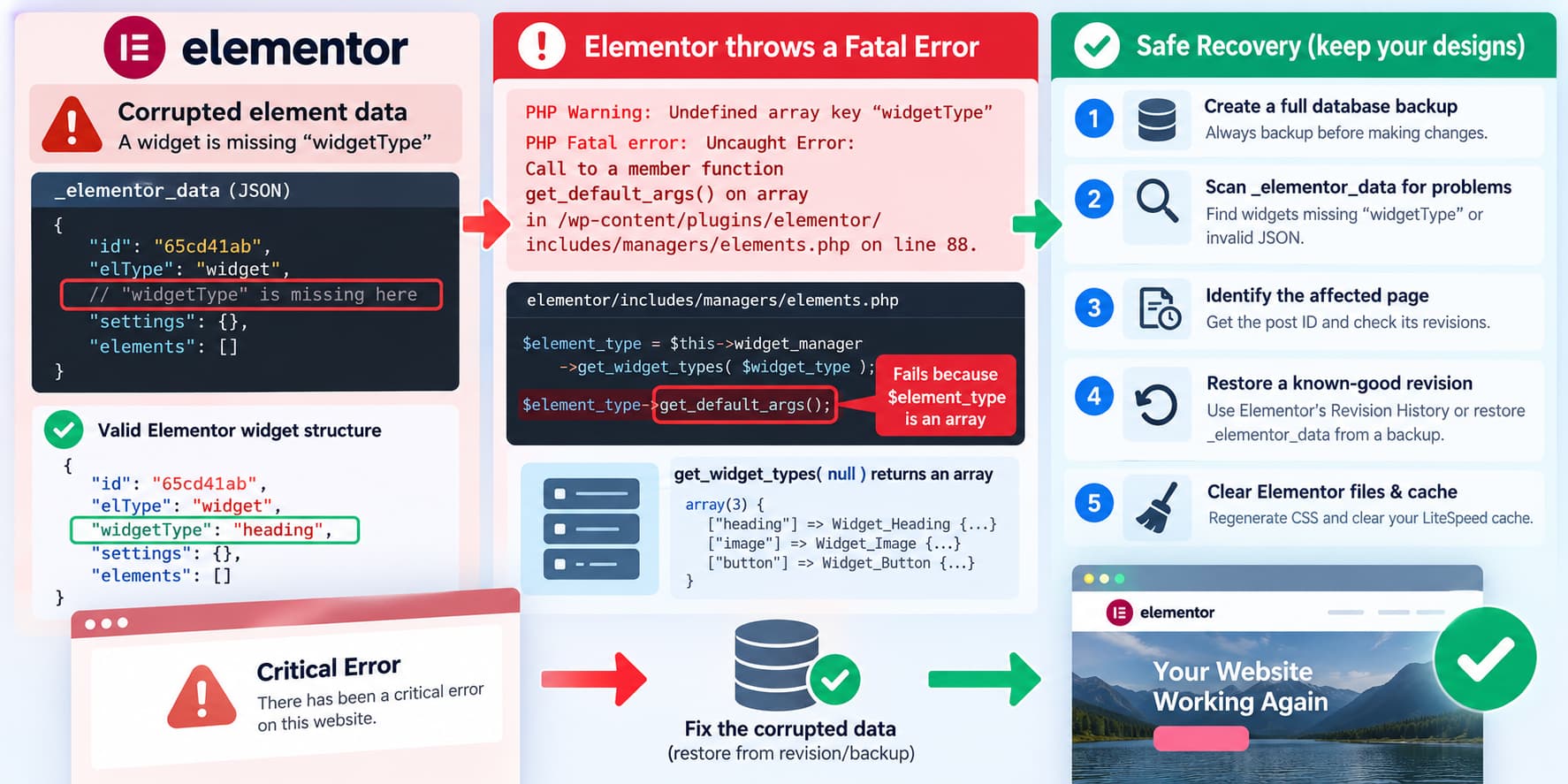
An Elementor fatal error containing:
PHP Warning: Undefined array key "widgetType"

PHP Fatal error: Uncaught Error:
Call to a member function get_default_args() on array
in /wp-content/plugins/elementor/includes/managers/elements.php
can be consistent with malformed Elementor element data, particularly a widget object whose widgetType property is missing.
This is more than a theoretical possibility. Elementor stores page layouts as structured JSON, and its documented widget structure requires both:
"elType": "widget"and:
"widgetType": "heading"or another registered widget name. Elementor’s current element manager also contains a code path where a widget with no widgetType can cause the widget manager to return its entire widget registry as an array. Elementor then attempts to call get_default_args() on that array, producing the fatal error. (developers.elementor.com) (github.com)
The safest repair is not to reinstall Elementor repeatedly or delete Elementor metadata. Back up the database, identify the affected document without modifying it, and restore a known-good revision where possible.
Why a Missing widgetType Can Cause This Exact Fatal Error
Elementor’s current create_element_instance() method determines which element class should be used from the saved element data.
For widgets, it effectively looks at:
$element_data['elType']and, when available:
$element_data['widgetType']The current code protects direct access to widgetType with an isset() check and passes null when the property is missing. (github.com)
That sounds safe, but the next step is important.
Elementor’s widget manager behaves differently when no widget name is supplied:
get_widget_types( null )returns the complete array of registered widget types rather than a single widget object. (github.com)
The element manager subsequently expects an element object and calls:
$element_type->get_default_args()If $element_type is actually that array of widgets, PHP produces:
Call to a member function get_default_args() on arraySo an element similar to this:
{
  "id": "12345678",
  "elType": "widget",
  "settings": {},
  "elements": []
}
is suspicious because it declares itself to be a widget but contains no widgetType.
A normal Elementor widget has a structure closer to:
{
  "id": "12345678",
  "elType": "widget",
  "widgetType": "heading",
  "isInner": false,
  "settings": {},
  "elements": []
}
Elementor documents widgetType as the property identifying which widget the element represents. (developers.elementor.com)
Do Not Delete Elementor Data to Make the Site Load
Elementor stores its page structure and content in WordPress post metadata.
Its developer documentation explains that Elementor saves the page layout as JSON in the WordPress database. Elementor Core defines the corresponding meta key as:
_elementor_data(developers.elementor.com) (github.com)
Deleting that metadata can make the fatal error disappear while also deleting the Elementor layout you are trying to preserve.
Do not begin troubleshooting with commands such as:
DELETE FROM wp_postmeta
WHERE meta_key = '_elementor_data';
That affects the actual page-builder data and is not an appropriate repair.
A full database backup should exist before any _elementor_data modification.
Check the WordPress Version Too
Elementor 4.3.4 was released on October 5, 2026 and is currently listed by WordPress.org as requiring:
WordPress 6.8 or higher
PHP 7.4 or higherPHP 8.1.34 therefore meets Elementor’s published minimum PHP requirement.
A 512 MB PHP memory limit also does not resemble the reported failure: this is a PHP type error rather than a memory-exhaustion error.
However, the WordPress version should also be verified. Running Elementor 4.3.4 on an older WordPress release would introduce a separate unsupported configuration that should be corrected before deeper data repair.
The 4.3.4 changelog does not list this specific get_default_args() fatal as a resolved issue. (elementor.com)
First Create a Full Database Backup
Before inspecting or repairing Elementor metadata, export the database.
With WP-CLI:
wp db export /tmp/before-elementor-repair.sqlConfirm that the command finishes successfully and that the file exists.
If WP-CLI is unavailable, use the hosting provider’s database backup or staging/backup system instead.
A file backup is also recommended, although the Elementor page structures involved in this problem are primarily database data.
Safely Scan Elementor Data Without Changing Anything
If Elementor cannot remain activated long enough to use its editor, the database can still be inspected while Elementor is disabled.
The following WP-CLI diagnostic scans _elementor_data for:
- invalid JSON;
- objects where
elTypeiswidget; - widgets with a missing, empty, or invalid
widgetType.
It does not modify the database.
Create a temporary file:
cat > /tmp/scan-elementor-data.php <<'PHP'
<?php

global $wpdb;

$rows = $wpdb->get_results(
    $wpdb->prepare(
        "SELECT post_id, meta_value
         FROM {$wpdb->postmeta}
         WHERE meta_key = %s
           AND meta_value <> ''",
        '_elementor_data'
    )
);

$problems = 0;

function dn_scan_elementor_nodes( array $elements, int $post_id, string $path = 'root' ): void {
    global $problems;

    foreach ( $elements as $index => $element ) {
        $current_path = $path . '[' . $index . ']';

        if ( ! is_array( $element ) ) {
            continue;
        }

        $el_type = $element['elType'] ?? null;

        if ( 'widget' === $el_type ) {
            $widget_type_valid =
                array_key_exists( 'widgetType', $element ) &&
                is_string( $element['widgetType'] ) &&
                '' !== trim( $element['widgetType'] );

            if ( ! $widget_type_valid ) {
                $problems++;

                $element_id = $element['id'] ?? '(missing)';

                echo sprintf(
                    "BAD_WIDGET post_id=%d element_id=%s path=%s\n",
                    $post_id,
                    $element_id,
                    $current_path
                );
            }
        }

        if (
            isset( $element['elements'] ) &&
            is_array( $element['elements'] )
        ) {
            dn_scan_elementor_nodes(
                $element['elements'],
                $post_id,
                $current_path . '.elements'
            );
        }
    }
}

foreach ( $rows as $row ) {
    $post_id = (int) $row->post_id;

    try {
        $data = json_decode(
            $row->meta_value,
            true,
            512,
            JSON_THROW_ON_ERROR
        );
    } catch ( JsonException $e ) {
        $problems++;

        echo sprintf(
            "INVALID_JSON post_id=%d post_type=%s title=%s error=%s\n",
            $post_id,
            get_post_type( $post_id ) ?: '(unknown)',
            wp_strip_all_tags( get_the_title( $post_id ) ),
            $e->getMessage()
        );

        continue;
    }

    if ( is_array( $data ) ) {
        dn_scan_elementor_nodes( $data, $post_id );
    }
}

echo "Scan complete. Problems found: {$problems}\n";
PHP
Run it:
wp eval-file /tmp/scan-elementor-data.phpA suspicious result may look like:
BAD_WIDGET post_id=287 element_id=65cd41ab path=root[2].elements[1]or:
INVALID_JSON post_id=287 post_type=page title=Home error=Syntax errorThe first result strongly matches the missing-widgetType failure mode.
The second indicates a broader JSON corruption problem.
Elementor 4’s _elementor_data format is actively used for page structure, and there have also been recent Elementor V4 bug reports involving invalid JSON being stored in _elementor_data. Those reports do not prove that every site with this fatal has the same bug, but they reinforce the importance of inspecting the stored document rather than deleting it blindly. (github.com)
Identify Which Page the Post ID Belongs To
If the scanner reports:
post_id=287inspect it with:
wp post get 287 --fields=ID,post_title,post_type,post_status,urlThis tells you whether the affected document is:
- a normal page;
- a post;
- an Elementor template;
- another custom post type;
- or potentially a revision.
If only one page contains a malformed widget, the repair can usually be limited to that page rather than changing anything globally.
Safest Repair: Restore a Known-Good Revision
Elementor’s revision system is the preferred recovery route when a good revision exists.
Elementor documents that saved versions can be restored from:
History → Revisions
and that each save/publish operation creates a revision that can be selected and restored. (elementor.com)
If the editor becomes accessible after identifying or isolating the affected page:
- Work on staging first.
- Activate Elementor.
- Open the affected document.
- Open History.
- Select Revisions.
- Choose a revision from before the fatal error started.
- Verify the full layout.
- Restore that revision.
- Save once.
- Recheck the frontend.
This is much safer than manually guessing what a missing widget was supposed to be.
If Elementor Cannot Open the Editor
When the fatal occurs too early for the Elementor editor to load, a database backup or revision can still be used.
First list WordPress revisions belonging to the affected page:
wp post list \
  --post_type=revision \
  --post_parent=287 \
  --orderby=ID \
  --order=DESC \
  --fields=ID,post_date,post_title
Replace 287 with the affected post ID.
For a candidate revision, check whether Elementor data is present:
wp post meta get 412 _elementor_dataIf a known-good revision contains its Elementor metadata, export it rather than immediately writing it back:
wp post meta get 412 _elementor_data > /tmp/good-elementor-data.jsonValidate the JSON:
php -r '
$json = file_get_contents("/tmp/good-elementor-data.json");
json_decode($json, true, 512, JSON_THROW_ON_ERROR);
echo "JSON is valid\n";
'
Do not restore it merely because the JSON syntax is valid. Ideally, inspect that revision on staging and confirm it is from before the corruption occurred.
Elementor’s own source shows that it copies Elementor metadata when creating autosaves, so usable historical Elementor metadata may be available depending on the site’s revision/autosave history. (github.com)
Restoring _elementor_data From a Known-Good Copy
This is an advanced recovery procedure and should be performed only after a complete database backup and preferably on staging.
Assume:
287 = broken page
/tmp/good-elementor-data.json = verified good Elementor data
Restore it using WordPress APIs rather than a raw SQL update:
wp eval '
$post_id = 287;

$json = file_get_contents( "/tmp/good-elementor-data.json" );

json_decode(
    $json,
    true,
    512,
    JSON_THROW_ON_ERROR
);

update_post_meta(
    $post_id,
    "_elementor_data",
    wp_slash( $json )
);

echo "Elementor data restored for post {$post_id}\n";
'
wp_slash() is intentional. WordPress metadata handling can unslash values, and Elementor itself takes slashing into account when importing and manipulating its JSON data. (github.com)
Do not run this against production until the exact same restoration has been verified on a staging copy.
What If No Good Revision Exists?
If the scanner identifies only one malformed widget and there is no usable revision or backup, a surgical repair may still be possible.
For example:
BAD_WIDGET post_id=287
element_id=65cd41ab
path=root[2].elements[1]
tells you exactly where the malformed object appears.
At that point the safer choices are:
- restore the entire page from another backup;
- export a copy of
_elementor_data, remove only the malformed element on staging, and rebuild that single widget in Elementor; - determine the correct
widgetTypefrom a previous export or backup and restore it.
Do not guess values such as:
"widgetType": "heading"simply to make Elementor load.
A wrong widget type can cause Elementor to interpret that element’s settings using a completely different control schema.
If the malformed object cannot be reliably reconstructed, removing that one element from a backed-up staging copy and recreating it visually is safer than inventing its type.
An Invalid Widget From a Removed Add-on Is Different
A widget can also belong to an Elementor add-on that is no longer active.
In that situation the saved data may contain a perfectly valid:
{
  "elType": "widget",
  "widgetType": "some-addon-widget"
}
The widgetType exists, but Elementor cannot find a currently registered implementation for that widget.
That is not the same condition as a missing widgetType.
Before changing data, check whether the affected site previously used:
- Elementor Pro;
- a widget/add-on pack;
- theme-provided Elementor widgets;
- custom Elementor widgets;
- an mu-plugin registering Elementor elements.
The fact that ordinary plugins were disabled during troubleshooting is useful, but if a page depends on one of those plugins, disabling it can itself make its custom widgets unavailable.
Also check:
wp-content/mu-plugins/because must-use plugins are not disabled through the normal Plugins screen.
Can Elementor Safe Mode Help?
Elementor Safe Mode is useful for determining whether the editor is failing because of the theme or third-party plugins. It loads an isolated editor environment without normal third-party plugin/theme interference for the administrator. (elementor.com)
However, it has an important limitation here.
If merely activating Elementor triggers a fatal error while Elementor parses stored page data on normal frontend requests, Safe Mode may not solve that site-wide failure because Safe Mode primarily isolates the editor session.
Use it if WP Admin and the editor remain accessible, but do not rely on it as the primary recovery method for corrupted _elementor_data.
Clear Elementor’s Generated Files After Repair
Once the underlying document has been repaired, clear Elementor’s generated files and data.
Elementor currently documents this under:
Elementor → Editor → Home → Tools → Clear Files & Data
Do this after the data repair.
Clearing CSS or generated files before fixing a malformed widget does not repair the JSON. In fact, regeneration can cause Elementor to parse the broken document again and reproduce the same fatal.
After clearing Elementor’s files, also purge LiteSpeed Cache if it is active.
Why Reinstalling Elementor Usually Does Not Fix This
If the problem lives in:
_elementor_datareplacing:
/wp-content/plugins/elementor/does not change the damaged document stored in the database.
This explains why an Elementor update or reinstall can complete successfully while the fatal immediately returns after activation.
The plugin files and the page data are separate.
Reinstalling makes sense when Elementor’s PHP files themselves are incomplete or corrupted. It does not repair malformed page-builder JSON.
The widgetType Warning Has Appeared in Other Elementor Failures
There is additional evidence that Elementor can encounter element arrays without the expected widgetType.
An Elementor GitHub issue filed in February 2026 documents repeated:
Undefined array key "widgetType"warnings from Elementor’s content sanitizer when it receives an element missing that key. (github.com)
That issue concerns a different Elementor subsystem and should not be treated as proof that it caused this specific fatal.
It does, however, confirm that missing widgetType data is a real condition Elementor code can encounter.
Recommended Recovery Order
For this particular fatal, the safest troubleshooting sequence is:
- Leave Elementor disabled long enough to regain site access if necessary.
- Take a full database backup.
- Confirm WordPress meets Elementor 4.3.4’s requirements.
- Run the read-only
_elementor_datascanner. - Identify malformed widget objects and affected post IDs.
- Determine whether a valid revision or backup exists.
- Restore the known-good document on staging.
- Activate Elementor on staging.
- Load the repaired page.
- Clear Elementor Files & Data.
- Clear LiteSpeed/server cache.
- Open and save the page once with Elementor.
- Run the scanner again.
- Check PHP logs for
widgetTypeandget_default_args()errors. - Only then repeat the verified recovery procedure on production.
How to Verify the Repair
After restoring the page data, activate Elementor and verify all of the following:
- the WordPress frontend loads without a Critical Error;
- WP Admin remains accessible;
- the affected page renders;
- Elementor can open the page;
- the original design is present;
- widgets, containers, and responsive layouts remain intact;
- the page can be saved successfully;
- the read-only scanner reports no widget elements missing
widgetType; - the PHP error log no longer records:
Undefined array key "widgetType"or:
Call to a member function get_default_args() on arrayThen clear Elementor’s generated files and LiteSpeed cache one final time.
The combination of a missing widgetType warning and get_default_args() being called on an array is unusually informative. In current Elementor code, that malformed widget structure can lead directly to the reported fatal, so inspecting _elementor_data is a justified diagnostic step rather than a speculative database edit.
