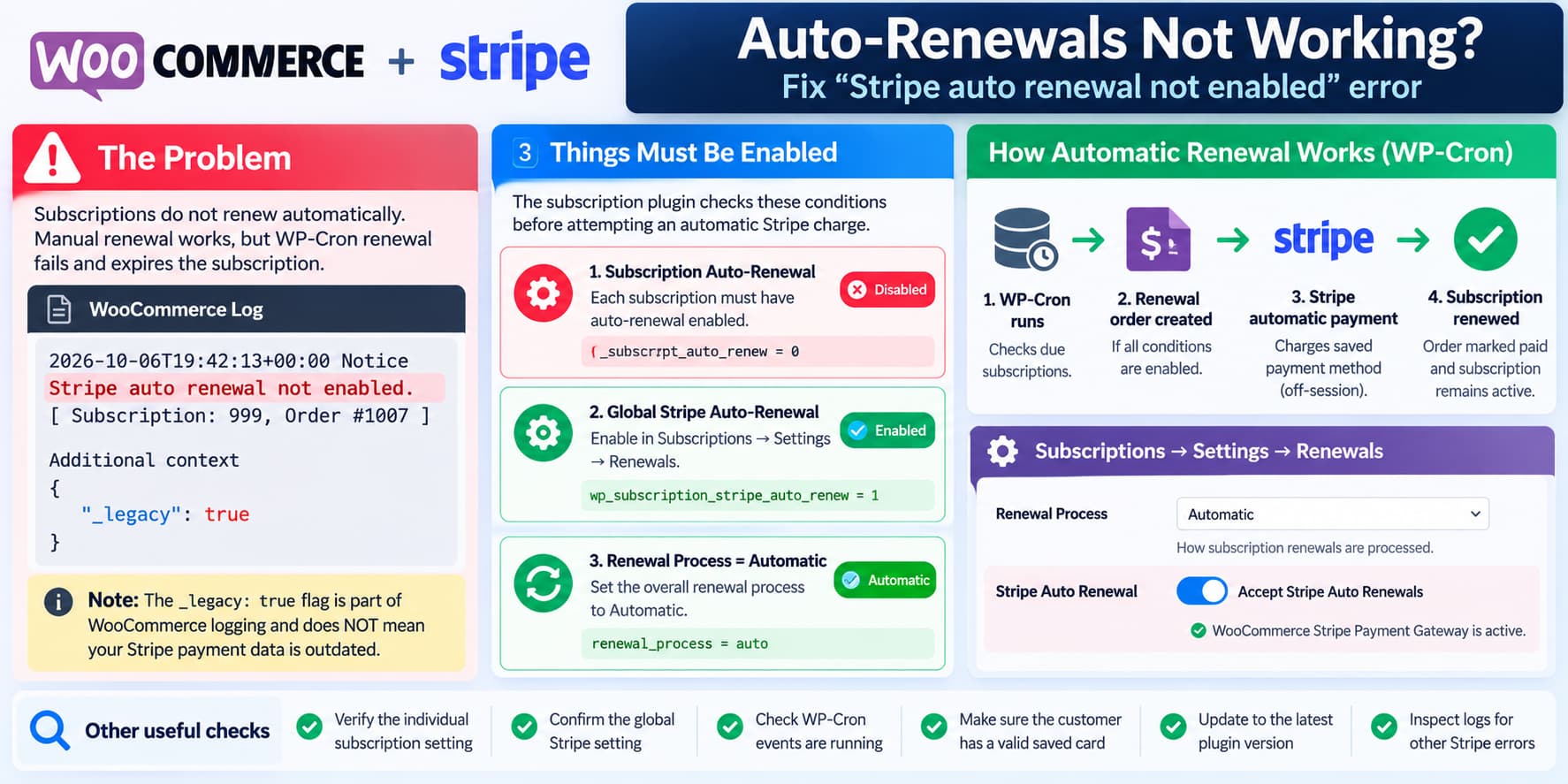
WooCommerce subscriptions can fail to renew automatically even when customers have saved credit cards and normal Stripe payments work correctly.
A particularly useful diagnostic message is:
Stripe auto renewal not enabled.
[ Subscription: 999, Order #1007 ]
The WooCommerce log may also contain:
{
  "_legacy": true
}
When this error comes from Subscriptions for WooCommerce with Stripe Recurring Payments by Convers Lab, also known as WPSubscription, it indicates that the plugin decided not to attempt automatic billing.
Importantly, enabling the visible Stripe Auto Renewal setting does not necessarily enable recurring charges for every subscription.
The plugin’s renewal code checks three separate conditions:
- The individual subscription must have automatic renewal enabled.
- The global Stripe automatic-renewal option must be enabled.
- The overall subscription renewal process must be set to Automatic.
If any of those checks fails, the plugin logs the error and returns without attempting the Stripe payment.
The safest fix is to identify which condition is failing before changing payment metadata, modifying scheduled jobs, or retrying charges.
What Causes “Stripe Auto Renewal Not Enabled”?
The message comes from the Stripe integration in the Convers Lab subscription plugin.
Its publicly available source code contains the following renewal checks:
$is_auto_renew = get_post_meta(
    $subscription_id,
    '_subscrpt_auto_renew',
    true
);

$is_auto_renew = in_array(
    $is_auto_renew,
    [ 1, '1' ],
    true
);

$is_global_auto_renew = get_option(
    'wp_subscription_stripe_auto_renew',
    '1'
);

$is_global_auto_renew = in_array(
    $is_global_auto_renew,
    [ 1, '1' ],
    true
);

$stripe_enabled =
    $is_auto_renew &&
    $is_global_auto_renew &&
    subscrpt_is_auto_renew_enabled();
This is a diagnostic excerpt from the plugin’s public source, not code that needs to be added to your website.
The important part is:
$stripe_enabled =
    $is_auto_renew &&
    $is_global_auto_renew &&
    subscrpt_is_auto_renew_enabled();
All three expressions must evaluate to true.
The plugin then checks:
if ( ! $stripe_enabled ) {
    $log_message =
        "Stripe auto renewal not enabled.";

    subscrpt_write_log( $log_message );

    return;
}
The actual source includes subscription and order identifiers in the message.
Therefore, this log is generated before the plugin reaches its automatic Stripe payment-processing method.
That is why diagnosing saved payment tokens or Stripe API failures first may waste time.
The code is available in the plugin’s public repository:
WPC Subscription Stripe integration source
1. Check the Overall Renewal Process Setting
Start with the simplest configuration check.
In WordPress, open:
Subscriptions → Settings → Renewals
Locate:
Renewal Process
Confirm that it is set to:
Automaticrather than:
ManualThen locate:
Stripe Auto Renewal
Confirm:
Accept Stripe Auto Renewals: ONSave the settings.
These are two different options.
The plugin’s official documentation describes Renewal Process as the setting that determines whether renewal handling is automatic or manual.
The Stripe Auto Renewal option separately enables the Stripe integration.
Why This Matters
Internally, the plugin’s:
subscrpt_is_auto_renew_enabled()function checks whether the resolved renewal process equals:
autoTherefore, a site can have:
Stripe Auto Renewal: Enabled
Renewal Process: Manual
and still fail the plugin’s automatic billing check.
If you intended existing subscriptions to renew automatically, confirm that the overall renewal mode reflects that intention.
Do not change a store from manual to automatic billing without reviewing which subscriptions and customer agreements the change will affect.
2. Check Whether the Individual Subscription Has Auto-Renewal Enabled
This is the next important diagnostic.
The plugin stores an individual subscription’s automatic-renewal state using:
_subscrpt_auto_renewThe renewal code reads this value directly.
It considers the flag enabled only when the retrieved value matches:
1or:
'1'under its strict comparison.
An individual subscription with a disabled automatic-renewal flag can therefore fail even when the global Stripe setting is enabled.
Check From the Customer Account
The plugin’s customer account interface supports an automatic-renewal toggle when the feature is enabled by the store administrator.
The documented customer workflow is:
My Account → Subscriptions → View Subscription
Look for the subscription’s auto-renewal control.
The plugin separately provides an Auto Renewal Toggle setting that determines whether customers can access that control.
An important distinction:
Enabling the customer-facing toggle feature does not necessarily enable automatic renewal for every existing subscription.
The customer’s actual subscription setting still matters.
If automatic renewal was disabled intentionally, do not override that preference merely to eliminate the error.
3. Inspect the Three Renewal Values With WP-CLI
For developers, the quickest way to identify the failing condition is a read-only WP-CLI check.
This is particularly useful when the administration interface says everything is enabled but the renewal log disagrees.
Before doing any repair, take a database backup.
Then connect to the server and open the WordPress installation directory.
Run:
wp eval '
$subscription_id = 999;

$subscription_flag = get_post_meta(
    $subscription_id,
    "_subscrpt_auto_renew",
    true
);

$global_stripe = get_option(
    "wp_subscription_stripe_auto_renew",
    "1"
);

$renewal_process = function_exists(
    "subscrpt_get_renewal_process"
)
    ? subscrpt_get_renewal_process()
    : get_option(
        "wp_subscription_renewal_process",
        "auto"
    );

echo "Subscription ID: {$subscription_id}\n";

echo "Subscription auto-renew: "
    . var_export($subscription_flag, true)
    . "\n";

echo "Global Stripe auto-renew: "
    . var_export($global_stripe, true)
    . "\n";

echo "Renewal process: "
    . var_export($renewal_process, true)
    . "\n";
'
Replace 999 with the subscription ID shown in your log.
This command reads the existing values. It does not change subscription settings, create orders, or attempt charges.
Expected Values
For a subscription intended to renew automatically, the output should resemble:
Subscription ID: 999
Subscription auto-renew: '1'
Global Stripe auto-renew: '1'
Renewal process: 'auto'
The three values correspond to the conditions in the plugin’s Stripe renewal code.
Example: Individual Subscription Disabled
If the output is:
Subscription auto-renew: '0'
Global Stripe auto-renew: '1'
Renewal process: 'auto'
the individual subscription is failing the check.
Example: Global Setting Disabled
If the output is:
Subscription auto-renew: '1'
Global Stripe auto-renew: '0'
Renewal process: 'auto'
the global Stripe option is failing.
Example: Manual Renewal Mode
If the output is:
Subscription auto-renew: '1'
Global Stripe auto-renew: '1'
Renewal process: 'manual'
the overall renewal mode is preventing the automatic charge.
This is a much more reliable diagnostic than repeatedly reinstalling the Stripe plugin.
What if the Subscription Flag Is Empty?
An empty value requires additional investigation.
The plugin contains logic that may initialize the individual auto-renewal flag during renewal-order preparation when automatic renewal is configured.
However, an empty flag can also indicate a subscription created under older plugin behavior, a failed migration, or incomplete subscription metadata.
Do not automatically treat an empty value as permission to charge the customer.
Determine how that subscription was created and whether recurring billing was agreed to before changing the flag.
4. Why _legacy: true Is Not the Stripe Problem
A WooCommerce log entry may include:
{
  "_legacy": true
}
This can look suspicious when automatic payments stop after an update.
However, in WooCommerce, _legacy is part of the logging system.
WooCommerce’s WC_Logger::add() method passes:
array(
    'source'  => $handle,
    '_legacy' => true,
)
to its logger.
WooCommerce uses this marker to identify log messages written through the older logger interface.
It does not mean:
- the subscription is using obsolete Stripe credentials;
- the customer’s card is stored in an old format;
- the WooCommerce order uses legacy payment metadata;
- the payment token needs to be migrated;
- the customer must re-enter their card.
The WooCommerce logger’s source code confirms that _legacy is introduced by the logging interface itself.
This distinction matters because changing Stripe metadata in response to _legacy: true would not fix the actual renewal-setting failure.
5. Check the Subscription Plugin Version
The plugin involved here is:
Subscriptions for WooCommerce with Stripe Recurring Payments, developed by Convers Lab.
Its WordPress.org listing currently identifies version 2.3.0, released October 6, 2026.
The plugin has received several renewal-related fixes during 2026.
Relevant changelog entries include:
| Version | Published change |
|---|---|
| 2.3.0 | Fixed early-renewal billing-cycle timing |
| 2.2.0 | Added Stripe gateway installation and activation from renewal settings |
| 1.11.2 | Fixed guest-account reusable-token issue |
| 1.10.9 | Fixed Stripe renewal errors involving payment information |
| 1.10.6 | Fixed subscription status-change cron |
| 1.9.5 | Fixed missing automatic-renewal data in a subscription helper |
| 1.9.3 | Fixed a Stripe-unavailable error during renewal |
These changes demonstrate that the plugin’s recurring-payment implementation has undergone several corrections.
However, none of the listed changes explicitly confirms that version 2.3.0 fixes the particular:
Stripe auto renewal not enabled.condition.
Updating is sensible when running an older supported version, but it should not replace the three-setting diagnostic.
Always back up the store before updating payment and subscription plugins.
6. Check Whether WP-Cron Is Actually Failing
WP-Cron often becomes the first suspect when subscriptions expire without charging customers.
However, there is an important distinction.
If the subscription plugin creates a renewal order and logs:
Stripe auto renewal not enabled.then the renewal routine has already executed far enough to evaluate the Stripe settings.
That means the immediate failure is not simply that WP-Cron never ran.
Check the Subscription Cron Event
The plugin’s public source registers:
subscrpt_hourly_cronas its hourly subscription-check event.
You can inspect scheduled WordPress events using:
wp cron event list --fields=hook,next_run_gmt,recurrenceLook for:
subscrpt_hourly_cronThe plugin’s source also retains a compatibility handler for its older:
subscrpt_daily_cronevent.
WordPress officially documents wp cron event list as a read-only way to inspect scheduled events.
Do Not Force the Cron Job to Run on Production
Avoid immediately running:
wp cron event run --due-nowor:
wp cron event run subscrpt_hourly_cronon a live store with unpaid renewals.
These commands can execute subscription billing operations.
Depending on the current subscription and order states, that could create additional renewal orders or attempt charges.
First reconcile the existing renewal orders with Stripe’s payment records.
Then test the correction through a controlled process.
7. Check the Renewal Order Before Retrying Payment
A subscription renewal failure can leave behind a WooCommerce order awaiting payment.
Before testing again, inspect the renewal order from the original log.
Open:
WooCommerce → Orders
Locate the relevant renewal order.
Check:
- its current status;
- its payment method;
- the subscription it belongs to;
- any transaction ID;
- order notes;
- whether another renewal order exists for the same billing period.
Then inspect the Stripe Dashboard for a corresponding PaymentIntent or charge.
This is important because WordPress and Stripe can temporarily disagree when a payment succeeds but a callback or subsequent update fails.
Do not assume that an unpaid WooCommerce status proves no Stripe charge occurred.
Avoid Duplicate Billing
Before regenerating a renewal order:
- Confirm whether the customer has already paid manually.
- Check for an existing successful Stripe charge.
- Check whether a previous PaymentIntent is still processing.
- Confirm whether the subscription was already reactivated.
- Reconcile the renewal period and amount.
Only after those checks should a controlled renewal attempt be considered.
8. Investigate Saved Stripe Payment Metadata Only After the Settings Pass
If all three automatic-renewal conditions are correct but payments still fail, inspect the next stage of the process.
The subscription plugin uses the official WooCommerce Stripe gateway to process renewal payments.
Its source code includes handling for Stripe information such as:
_stripe_customer_idand:
_stripe_source_idThe plugin also copies relevant Stripe payment information when creating a renewal order.
WooCommerce’s Stripe extension stores reusable payment methods through tokenization rather than storing raw card numbers on the WordPress site.
Why Manual Renewals Can Work While Automatic Renewals Fail
Manual and automatic payments do not have identical authentication requirements.
When a customer manually renews a subscription, the payment happens while the customer is present.
That allows Stripe to request additional authentication when required.
Automatic renewals are normally off-session transactions.
The customer is not present to complete a challenge.
For an off-session charge, the integration must have an appropriate saved payment method and authorization for future payments.
Stripe explains that even properly configured off-session transactions may occasionally require the customer to authenticate again.
Therefore, successful manual renewals demonstrate that Stripe can collect payments, but they do not guarantee that every stored payment method can be charged automatically.
However, this is a second-stage diagnosis.
If the plugin logs:
Stripe auto renewal not enabled.the settings check must be corrected first.
9. Inspect the Stripe Payment Method on the Renewal Order
After the automatic-renewal checks pass, confirm that the renewal order retains the expected Stripe payment method.
On a staging copy or through a read-only developer diagnostic, inspect the order using WooCommerce’s order API.
For example:
wp eval '
$order = wc_get_order(1007);

if (!$order) {
    echo "Order not found.\n";
    return;
}

echo "Order ID: " . $order->get_id() . "\n";
echo "Status: " . $order->get_status() . "\n";
echo "Gateway: " . $order->get_payment_method() . "\n";

echo "Has Stripe customer ID: "
    . ($order->get_meta("_stripe_customer_id") ? "yes" : "no")
    . "\n";

echo "Has Stripe source ID: "
    . ($order->get_meta("_stripe_source_id") ? "yes" : "no")
    . "\n";
'
Replace 1007 with the actual renewal order ID.
This command does not initiate payment.
It reports only whether the Stripe identifiers are present, rather than printing the identifiers themselves.
Interpreting the Output
If the gateway is empty or Stripe identifiers are missing, review the earlier successful order and the subscription plugin’s renewal metadata-copy process.
If the gateway and payment identifiers exist, inspect the subsequent Stripe gateway logs.
Look for more specific errors involving:
- missing customers;
- invalid or detached payment methods;
- payment authentication;
- declined charges;
- PaymentIntent failures.
Do not manually fabricate Stripe customer IDs or payment method IDs.
A legitimate Stripe customer and reusable payment method must be associated correctly with the original payment and customer account.
10. Check Whether Automatic Renewal Was Disabled by the Customer
WPSubscription offers customer-controlled automatic-renewal settings.
When the administrator enables the customer-facing toggle, a subscriber can disable future automatic renewals without necessarily cancelling the subscription immediately.
This creates an important difference between:
The store accepts Stripe auto-renewals.and:
This particular customer has enabled auto-renewal.Both must be true for an authorized automatic renewal.
If a customer intentionally disabled automatic renewal, the appropriate behavior is usually to request a manual renewal rather than silently changing the customer’s preference.
The plugin’s documentation confirms that customers can manage automatic renewal from their subscription details page when the feature is enabled.
11. What If the Settings Show Enabled but the Stored Values Are Wrong?
If the admin interface displays an enabled setting while the database or WP-CLI reports another value, the problem may be in the settings-saving process.
For example:
Admin UI:

Stripe Auto Renewal: ON
but:
Stored option:

wp_subscription_stripe_auto_renew = 0
would produce a mismatch.
Before manually changing the database:
- Take a database backup.
- Reopen the plugin settings.
- Save the intended renewal settings.
- Reload the settings page.
- Run the read-only WP-CLI diagnostic again.
- Check whether the stored values changed.
If the interface continues to show an enabled setting while saving an incompatible value, report the discrepancy to the plugin developer.
Do not directly edit the subscription plugin’s source code.
A plugin update could overwrite the change, and a poorly implemented workaround could bypass a customer’s explicit decision not to renew automatically.
12. How to Verify Automatic Stripe Renewals Safely
A successful manual payment is not sufficient verification.
The goal is to confirm that a genuinely automatic renewal completes through the subscription plugin’s normal workflow.
Use a Controlled Test Subscription
Create a test subscription with:
- automatic renewal enabled;
- Stripe selected as the payment gateway;
- a properly saved test payment method;
- a short billing cycle;
- no unrelated subscription modifications.
Use Stripe test mode with test payment methods.
Do not allow a staging site cloned from production to process live customer payments.
Run Through the Normal Renewal Workflow
Observe whether:
- The subscription reaches its next payment date.
- The plugin detects the renewal.
- A renewal order is created.
- The three automatic-renewal settings pass.
- The plugin invokes Stripe payment processing.
- Stripe records the test payment.
- WooCommerce updates the order status.
- The subscription returns to or remains in the expected active state.
- The next payment date advances correctly.
The original error should no longer appear for this test subscription.
A successful result should be confirmed in both WooCommerce and the Stripe Dashboard.
Important: Check Existing Failed Renewals Separately
Fixing the configuration may prevent future failures without automatically recovering every subscription that has already expired.
Previously failed renewals may require individual reconciliation.
Before resuming automatic processing, compare:
- the subscription’s status;
- the most recent successful payment;
- the next billing date;
- existing pending renewal orders;
- Stripe’s payment history.
Do not manually reactivate subscriptions or move their billing dates without considering whether a payment is still owed.
Diagnosis Summary
The most useful diagnostic is the plugin’s exact renewal condition:
$stripe_enabled =
    $is_auto_renew &&
    $is_global_auto_renew &&
subscrpt_is_auto_renew_enabled();| Check | Stored value | Required value |
|---|---|---|
| Individual subscription auto-renewal | _subscrpt_auto_renew | 1 |
| Global Stripe auto-renewal | wp_subscription_stripe_auto_renew | 1 |
| Overall renewal process | Resolved renewal-process setting | auto |
If the plugin produces:
Stripe auto renewal not enabled.one or more of these conditions failed.
The _legacy: true context is a WooCommerce logging marker and should not be confused with Stripe’s payment metadata.
Because the renewal order and log were created, the subscription process reached the Stripe renewal eligibility check. Focus on those checks first rather than assuming that WP-Cron is broken.
Once all three conditions are satisfied and the customer’s recurring-payment authorization is confirmed, investigate the saved Stripe payment method and off-session payment processing if renewals still fail.
This approach avoids unnecessary database modifications, preserves customer billing preferences, and reduces the risk of duplicate subscription charges.
