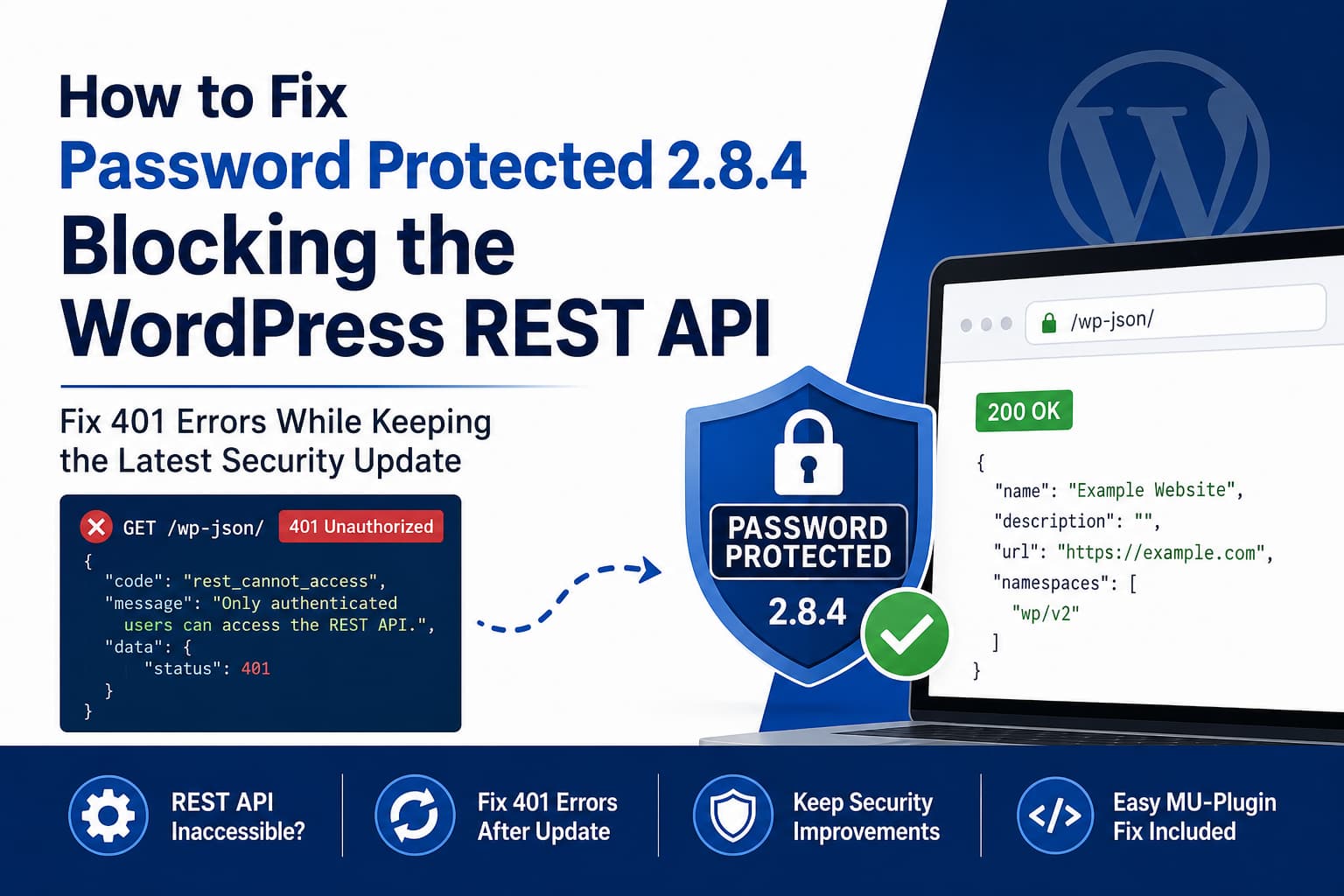
After updating the WordPress Password Protected plugin to version 2.8.4, some websites may no longer allow anonymous access to the WordPress REST API.
A typical affected website may have the following configuration:
- Password Protected version 2.8.4
- WordPress 7.0.2
- PHP 8.5
- The Allow REST API option enabled
- REST API access working correctly in version 2.8.3
Despite the setting being enabled, requests to /wp-json/ may require the visitor to be logged in or return an authentication error.
Downgrading the plugin to version 2.8.3 restores access, which strongly indicates that the behavior was introduced by the 2.8.4 update rather than by WordPress core, PHP, or the website’s permalink configuration.
This guide explains how to confirm the problem, restore the REST API safely, and avoid losing the security improvements included in version 2.8.4.
Symptoms of the Problem
The issue may be present when one or more of the following occurs:
- Opening
/wp-json/while logged out returns a 401 response. - A headless application can no longer retrieve WordPress content.
- A calendar, booking, form, or integration stops loading data.
- Gutenberg or another plugin reports that the REST API is unavailable.
- An external application works only when using a logged-in WordPress session.
- The REST API starts working immediately after downgrading to version 2.8.3.
- Enabling Allow REST API does not change the response.
- The response contains the error code
rest_cannot_access.
A failed response may look similar to this:
{
  "code": "rest_cannot_access",
  "message": "Only authenticated users can access the REST API.",
  "data": {
    "status": 401
  }
}
The HTTP response may contain:
HTTP/2 401 UnauthorizedWhy This Started After Version 2.8.4
The official Password Protected changelog states that version 2.8.4 includes a CAPTCHA validation fix, a feedback SDK update, and a security enhancement related to CVE-2026-11995. The plugin page also lists version 2.8.4 as tested with WordPress 7.0.2.
That security-related change is important because it means permanently remaining on version 2.8.3 is not the best solution.
The plugin has previously experienced a similar issue. Its version 2.6.8 changelog specifically mentions that the REST API was being blocked and that a Gutenberg compatibility fix was added.
The plugin controls REST API access through WordPress’s rest_authentication_errors filter. Historical official plugin source shows that it registers a method named:
only_allow_logged_in_rest_accessThe method checks the database option:
password_protected_restWhen that option is enabled, the plugin should allow the REST request to continue. When it is disabled, the plugin returns the rest_cannot_access error.
The reported behavior therefore suggests that version 2.8.4 is either:
- Not reading the saved option correctly
- Not saving the checkbox value correctly
- Applying its authentication restriction despite the enabled option
- Conflicting with a cache containing the previous option value
The public changelog does not identify the exact affected line, so the issue should be treated as a likely plugin regression rather than a confirmed WordPress 7.0.2 or PHP 8.5 incompatibility.
Step 1: Test the REST API While Logged Out
Always test the endpoint in an incognito or private browser window.
Open:
https://example.com/wp-json/Replace example.com with the website’s domain.
A working REST API root should return JSON containing information such as:
{
  "name": "Example Website",
  "description": "",
  "url": "https://example.com",
  "namespaces": [
    "wp/v2"
  ]
}
You can also test it from a terminal:
curl -i https://example.com/wp-json/To show only the HTTP response code, use:
curl -sS -o /dev/null -w "%{http_code}\n" https://example.com/wp-json/The expected response is:
200If pretty permalinks are unavailable, test the non-pretty REST URL:
https://example.com/?rest_route=/Step 2: Resave the Allow REST API Setting
Before adding code, force WordPress to save the setting again.
In the WordPress dashboard:
- Open the Password Protected settings.
- Disable Allow REST API.
- Save the settings.
- Enable Allow REST API again.
- Save the settings a second time.
- Clear all website caches.
- Test
/wp-json/in an incognito window.
Clear every cache layer that applies to the website, including:
- WordPress page cache
- Persistent object cache
- Redis or Memcached
- Hosting cache
- Cloudflare or another CDN
- Browser cache
The REST access setting is stored in the WordPress options table. A stale persistent object cache could therefore cause WordPress to continue using an older value.
Step 3: Verify the Saved Option With WP-CLI
When SSH and WP-CLI are available, check the actual option value from the WordPress installation directory:
wp option get password_protected_restWhen REST API access is enabled, the command should normally return:
1If it returns 0, an empty value, or reports that the option does not exist, update it manually:
wp option update password_protected_rest 1Then flush the WordPress object cache:
wp cache flushTest the endpoint again:
curl -i https://example.com/wp-json/How to Interpret the Result
If changing the option to 1 restores access, the problem was caused by the setting not being saved correctly.
If the option already contains 1 but the API still returns rest_cannot_access, the plugin’s REST authentication callback is probably ignoring or overriding the saved value.
In that case, use the compatibility fix below.
Solution: Add a Temporary MU-Plugin Compatibility Fix
The safest workaround is to keep Password Protected 2.8.4 installed and remove only its global REST authentication restriction when its own Allow REST API option is enabled.
Do not edit the Password Protected plugin files directly. Any change made inside the plugin directory will be removed during the next update.
Step 1: Create the MU-Plugins Directory
Using SFTP, SSH, or the hosting file manager, open:
/wp-content/Create this directory if it does not already exist:
/wp-content/mu-plugins/MU plugins, also called must-use plugins, load automatically and do not need to be activated from the standard Plugins screen.
Step 2: Create the Compatibility File
Inside the mu-plugins directory, create:
password-protected-rest-fix.phpThe complete path should be:
/wp-content/mu-plugins/password-protected-rest-fix.phpStep 3: Add the Code
Paste the following code into the file:
<?php
/**
 * Plugin Name: Password Protected REST API Compatibility Fix
 * Description: Restores REST API access when the Password Protected plugin's Allow REST API option is enabled.
 * Version: 1.0.0
 */

defined( 'ABSPATH' ) || exit;

add_action(
	'plugins_loaded',
	static function (): void {
		/*
		 * Do nothing unless the administrator has explicitly enabled
		 * the Password Protected plugin's "Allow REST API" option.
		 */
		if ( ! (bool) get_option( 'password_protected_rest' ) ) {
			return;
		}

		global $Password_Protected;

		/*
		 * Remove only the REST authentication restriction registered
		 * by the Password Protected plugin.
		 */
		if (
			is_object( $Password_Protected ) &&
			is_callable(
				array(
					$Password_Protected,
					'only_allow_logged_in_rest_access',
				)
			)
		) {
			remove_filter(
				'rest_authentication_errors',
				array(
					$Password_Protected,
					'only_allow_logged_in_rest_access',
				)
			);
		}
	},
	PHP_INT_MAX
);
Save the file and clear all caches.
Why This Code Is Safer Than Globally Enabling the REST API
The code does not use a broad filter such as:
add_filter( 'rest_authentication_errors', '__return_null' );Do not use that type of global workaround.
Returning null for every REST authentication error could suppress valid errors generated by:
- WordPress core
- Application Passwords
- Security plugins
- Custom authentication systems
- OAuth or JWT plugins
- Endpoint-specific permission checks
The compatibility code instead removes only this callback:
$Password_Protected->only_allow_logged_in_rest_accessIt also runs only when this option is enabled:
password_protected_restIf the administrator later disables Allow REST API, the compatibility code does nothing.
WordPress documents rest_authentication_errors as the filter used by authentication methods to return a WP_Error, null, or a successful authentication result. Removing one plugin’s callback does not automatically bypass every other authentication or permission check on the website.
Does This Make Private REST Data Public?
The workaround allows WordPress to process REST requests normally. It does not automatically give anonymous visitors permission to edit posts, access private users, change settings, or perform administrative actions.
WordPress REST endpoints still apply their own permission callbacks.
However, publicly available REST endpoints may expose publicly published content. For example:
/wp-json/wp/v2/postsmay return published posts.
That is the normal consequence of enabling the plugin’s Allow REST API option.
Do not use this workaround when the entire REST API must remain private. Use authenticated requests instead.
Test the Compatibility Fix
After saving the MU plugin, confirm that WordPress loaded it.
Go to:
WordPress Dashboard > Plugins > Must-UseYou should see:
Password Protected REST API Compatibility FixNow test the REST root:
curl -i https://example.com/wp-json/You should receive:
HTTP/2 200Next, test a public posts endpoint:
curl -i "https://example.com/wp-json/wp/v2/posts?per_page=1"A successful request should return either:
- A JSON array containing a published post
- An empty JSON array when there are no public posts
It should no longer return:
rest_cannot_accessAlso test the application that originally detected the problem, such as:
- A headless frontend
- A mobile application
- An events calendar
- A booking system
- A form integration
- A remote publishing application
- A monitoring service
Testing only /wp-json/ confirms that the API root works, but it does not confirm that the integration’s specific namespace and endpoint work correctly.
Use Application Passwords for Private Integrations
When an external application does not require anonymous access, use authenticated REST requests instead of exposing the API publicly.
WordPress includes Application Passwords for external API authentication. They can be generated from the WordPress user profile and used over HTTPS.
Go to:
WordPress Dashboard > Users > ProfileFind:
Application PasswordsCreate a separate password for the integration.
A test request may look like:
curl --user "USERNAME:APPLICATION_PASSWORD" \
"https://example.com/wp-json/wp/v2/users?context=edit"
Use a dedicated WordPress account with only the capabilities required by the integration. Do not give an external service an administrator account unless administrator access is genuinely necessary.
Temporary Rollback to Version 2.8.3
Rolling back to version 2.8.3 can confirm that the update caused the problem.
However, it should be treated as an emergency workaround rather than a permanent solution because version 2.8.4 contains a security enhancement associated with CVE-2026-11995.
Before rolling back:
- Create a complete website backup.
- Test the rollback on a staging website when possible.
- Record all current Password Protected settings.
- Temporarily disable automatic updates for this plugin.
- Replace only the Password Protected plugin with version 2.8.3.
- Clear every cache layer.
- Test the REST API while logged out.
Return to a fixed current version as soon as the plugin developer releases an update that resolves the REST API problem.
The MU-plugin compatibility fix is generally preferable because it allows the website to retain the security changes included in version 2.8.4.
Troubleshooting Different REST API Responses
Not every REST API failure is caused by Password Protected.
HTTP 401 With rest_cannot_access
Example:
{
  "code": "rest_cannot_access",
  "message": "Only authenticated users can access the REST API."
}
This strongly points to an authentication restriction from Password Protected or another access-control plugin.
Verify:
wp option get password_protected_restThen apply the targeted compatibility fix when the saved value is 1.
HTTP 401 With rest_not_logged_in
This can be normal when the requested endpoint requires authentication.
Use:
- A WordPress login cookie and REST nonce for requests made inside WordPress
- An Application Password for external requests
- Another supported authentication system
Do not bypass endpoint permissions simply to remove the error.
HTTP 403 Forbidden
A 403 response is more likely to come from:
- A security plugin
- ModSecurity
- Imunify360
- Cloudflare WAF
- A hosting firewall
- An invalid or expired REST nonce
- A custom server rule
Check the browser network response, hosting security log, and WordPress security plugin logs.
HTTP 404 Not Found
A 404 response may indicate a permalink or rewrite-rule problem.
Go to:
WordPress Dashboard > Settings > PermalinksClick:
Save ChangesDo not change the selected permalink structure unless necessary.
Then test:
https://example.com/wp-json/and:
https://example.com/?rest_route=/If the second URL works but /wp-json/ does not, investigate the server rewrite configuration.
HTML Login Page Instead of JSON
If the endpoint redirects to the Password Protected login form, clear:
- Page cache
- Hosting cache
- CDN cache
- Browser cache
Also confirm that the request is reaching WordPress and is not being intercepted by server-level password protection.
Check WordPress Site Health
Go to:
WordPress Dashboard > Tools > Site HealthLook for errors related to:
- The REST API
- Loopback requests
- Background updates
- Scheduled events
- Authorization headers
Site Health may show a REST API warning when the API is intentionally restricted. Therefore, compare the result with the website’s intended access policy rather than assuming every warning is a WordPress core failure.
Do Not Permanently Disable REST API Authentication
Some code examples found online completely disable REST authentication checks:
add_filter( 'rest_authentication_errors', '__return_null' );This is not recommended.
It can interfere with authentication errors returned by legitimate WordPress security and integration systems.
The correct approach is to:
- Confirm that Allow REST API is intentionally enabled.
- Confirm that
password_protected_restcontains1. - Remove only the Password Protected plugin’s conflicting callback.
- Keep normal WordPress endpoint permission checks enabled.
- Retest after each future plugin update.
- Remove the compatibility fix once the plugin itself handles the setting correctly.
Remove the Fix After the Plugin Is Updated
When a newer Password Protected version becomes available:
- Create a staging copy of the website.
- Update the plugin on staging.
- Temporarily rename the compatibility file:
password-protected-rest-fix.php.disabled- Clear all caches.
- Test
/wp-json/while logged out. - Test the integration’s specific endpoint.
- Confirm that Allow REST API still controls access correctly.
If the API works without the compatibility file, delete the file permanently.
Do not leave unnecessary compatibility patches active after the underlying plugin issue has been fixed.
Frequently Asked Questions
Why is the REST API inaccessible after updating Password Protected?
Version 2.8.4 appears to block anonymous REST requests on some websites even when the Allow REST API setting is enabled. If the same website works after restoring version 2.8.3, the update is the most likely cause.
Is WordPress 7.0.2 causing the problem?
The official plugin page lists Password Protected 2.8.4 as tested up to WordPress 7.0.2. The fact that version 2.8.3 works on the same WordPress installation also makes a WordPress core failure less likely.
Is PHP 8.5 causing the problem?
PHP 8.5 should still be considered during compatibility testing, but a plugin-version-specific change is more likely when the REST API works on the same server after downgrading only the plugin.
Check PHP logs for warnings or fatal errors before ruling out a separate PHP compatibility issue.
Is it safe to downgrade to version 2.8.3?
A brief rollback can help confirm the source of the issue, but it is not recommended as a permanent production solution. Version 2.8.4 includes a security enhancement associated with a published CVE.
Does enabling REST API access expose the whole website?
It may make publicly registered REST endpoints and public content accessible. It does not automatically authorize anonymous visitors to edit content or access endpoints that require specific capabilities.
For a completely private site, use authenticated API requests instead.
Why does the API work while I am logged in?
The plugin historically allows logged-in users with suitable capabilities to pass its REST authentication check. Anonymous visitors do not have that WordPress session, so they encounter the restriction.
Why does clearing the cache matter?
The setting is stored as a WordPress option. Persistent object caching or hosting cache may continue serving an older value even after the checkbox is changed.
Final Recommendation
When Password Protected 2.8.4 blocks the WordPress REST API despite the Allow REST API option being enabled, first verify that the database option contains 1 and clear every cache layer.
If the option is correct but the API still returns rest_cannot_access, keep version 2.8.4 installed and use the narrowly targeted MU-plugin compatibility fix.
Avoid permanently downgrading because the current update contains an important security enhancement. Also avoid globally disabling REST authentication, because that can suppress legitimate errors from WordPress and other security systems.
The recommended process is:
- Confirm the error while logged out.
- Resave the REST API setting.
- Verify
password_protected_restwith WP-CLI. - Clear all cache layers.
- Install the targeted MU-plugin fix.
- Test both the API root and the affected integration.
- Remove the temporary fix after the plugin developer publishes a corrected release.
This restores the intended REST API behavior while retaining the security improvements introduced in Password Protected 2.8.4.
