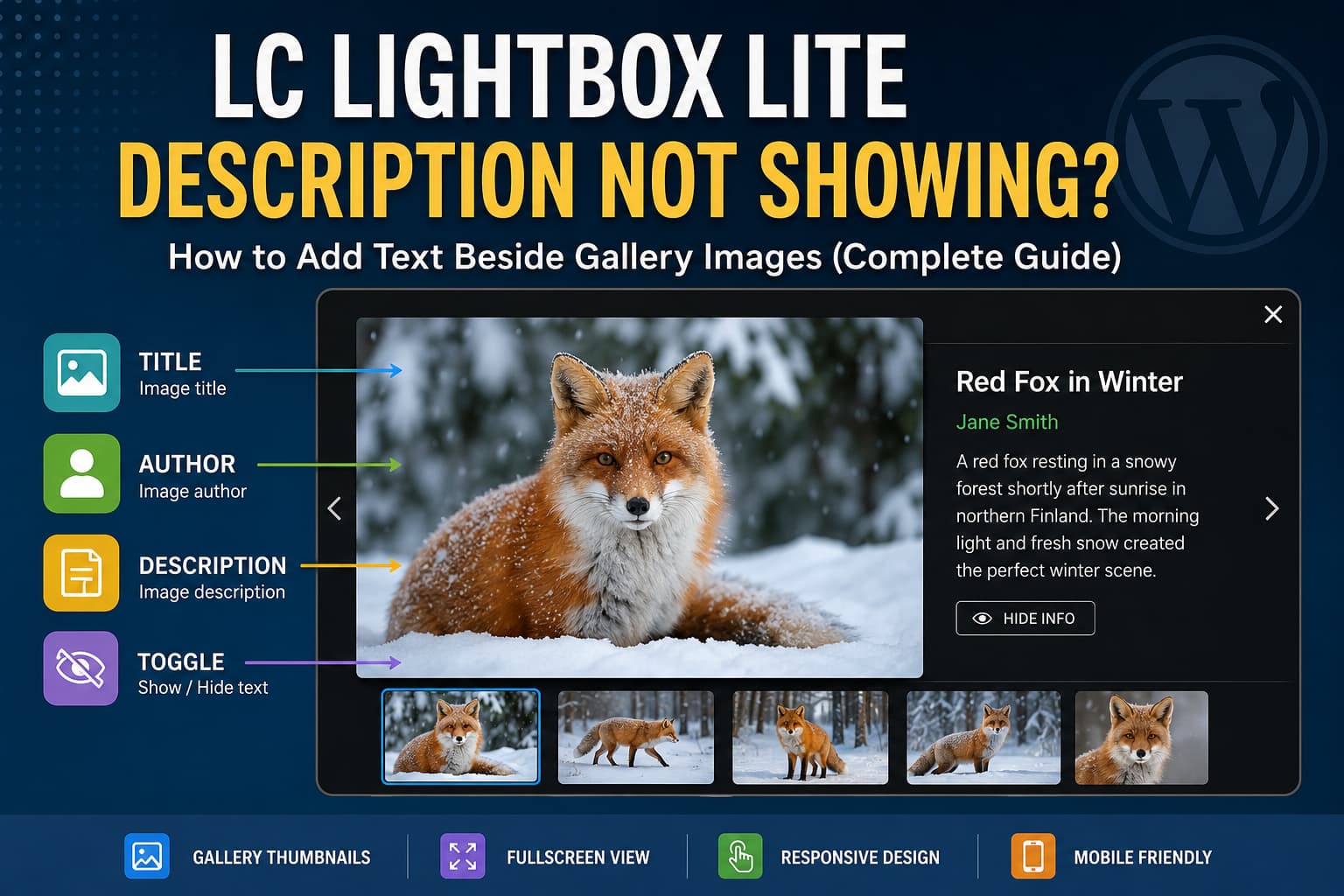
You install LC Lightbox Lite because its screenshots show an attractive gallery lightbox with:
- A large image
- Gallery thumbnails along the bottom
- A title beside the image
- An author name
- A longer description
- A button that shows or hides the text panel
However, after adding a title, caption, alt text, and description to an image in the WordPress Media Library, only the title appears in the lightbox.
The description remains empty.
This can look like a configuration problem, but in most cases, the plugin is working as designed.
Quick Answer
LC Lightbox Lite can automatically read and display an image caption, but it cannot build the complete Title + Author + Description layout shown in the fox screenshot using standard WordPress gallery data.
The plugin developer confirmed that the full example was created using the premium Global Gallery plugin. Global Gallery provides dedicated title, author, and description fields and generates the additional HTML structure required by LC Lightbox.
You therefore have two practical options:
- Continue using LC Lightbox Lite and place all visible text in the WordPress image caption.
- Use Global Gallery when you need separate title, author, and description fields beside the image.
Why the WordPress Description Field Does Not Appear
WordPress stores several different types of information for every image:
Alternative Text
Alt text describes the image for screen readers and accessibility tools. It may also help search engines understand the image.
It is not intended to be displayed as a visible lightbox description.
Title
The title is the name assigned to the media attachment. Themes and plugins may use it as a visible heading, tooltip, or attachment-page title.
This is why you may see a title inside LC Lightbox even when no description appears.
Caption
The caption is a short explanation associated with the image. WordPress can display it directly beneath an Image or Gallery block.
According to the LC Lightbox developer, this is the text field that LC Lightbox Lite can detect and display.
Description
The Media Library description is a longer block of content associated with the attachment.
WordPress normally uses it on attachment pages or in themes and plugins that explicitly request it. LC Lightbox Lite does not automatically convert this field into a separate lightbox description panel.
WordPress treats the title, caption, alt text, and description as separate media fields, so entering the same content into all four fields does not guarantee that a lightbox plugin will display all of them.
Solution 1: Display a Caption Using LC Lightbox Lite
This is the free solution and does not require Global Gallery.
It works well when you only need one block of text beside or underneath each image.
Step 1: Install LC Lightbox Lite
In the WordPress dashboard:
- Go to Plugins > Add New Plugin.
- Search for LC Lightbox Lite.
- Install the plugin.
- Activate it.
- Open the LC Lightbox Lite settings.
- Enable its automatic integration.
LC Lightbox Lite automatically detects linked images and can provide thumbnail navigation, fullscreen display, touch gestures, keyboard navigation, and configurable caption placement.
Step 2: Create a WordPress Gallery
Edit the page or post where you want the gallery.
- Add a Gallery block.
- Upload new images or select images from the Media Library.
- Select the Gallery block.
- Open the gallery link settings.
- Set the images to link to their Media Files.
This step is important. LC Lightbox Lite targets linked images. If the gallery images are not linked, the plugin may have nothing to intercept when a visitor clicks an image.
WordPress provides a “Link images to media files” option directly in the Gallery block settings.
Step 3: Add the Text as an Image Caption
Select each individual image inside the Gallery block.
Click the caption control and enter the text you want LC Lightbox Lite to display.
For example:
A red fox resting in a snowy forest. Photographed shortly after sunrise in northern Finland.
Do not place the text only in the Media Library Description field. For the free plugin, the important field is the image caption.
You can also edit the image through:
Media > Library > Select Image > Caption
After updating the caption, update the page and test the gallery in a private browser window.
Step 4: Configure the Side-Text Layout
Open the LC Lightbox Lite settings and configure the lightbox appearance.
Depending on the current interface wording, look for options related to:
- Text or caption position
- Left-side or right-side text layout
- Thumbnail navigation
- Text visibility
- Text toggle control
- Lightbox skin
- Fullscreen mode
LC Lightbox supports layouts that place text over, under, to the left, or to the right of the displayed image. It also supports text and thumbnail toggle controls.
What This Free Method Can Display
With the standard LC Lightbox Lite integration, expect one main caption or text area.
You should not expect three independently managed fields containing:
- Title
- Author
- Description
The lightbox interface may visually support these elements, but the standard WordPress gallery does not automatically provide the complete structure expected by the plugin.
Solution 2: Recreate the Full Fox Screenshot With Global Gallery
Use this method when you need the complete layout, including independently editable titles, authors, and descriptions.
Global Gallery is the officially supported solution identified by the developer.
Step 1: Install Global Gallery
Purchase, install, and activate the Global Gallery plugin.
Before installing it on a production website:
- Create a full website backup.
- Test the plugin on a staging website when possible.
- Check for conflicts with existing gallery or lightbox plugins.
- Clear all caching after activation.
Global Gallery contains an advanced integration of the LC Lightbox engine and provides a complete gallery-management system.
Step 2: Create a New Gallery
After activation, open the Global Gallery section in the WordPress dashboard.
Create a new gallery and choose an image source. Depending on your setup, available sources may include:
- WordPress Media Library
- Global Gallery Album
- NextGEN Gallery
- Google Drive
- Dropbox
- Amazon S3
- Other supported gallery sources
For a small gallery, the WordPress Media Library is usually the simplest option.
Step 3: Add Image Information
Open each image in the Global Gallery builder and complete its dedicated fields.
Add:
- Image title
- Author
- Description
- Tags, when required
- Thumbnail focal point
- Optional image link
Global Gallery allows gallery images to have independently managed titles, authors, descriptions, tags, and sorting information.
This dedicated metadata is the main difference between Global Gallery and a standard WordPress Gallery block.
Step 4: Select LC Lightbox
Open the Global Gallery lightbox settings and choose LC Lightbox as the gallery lightbox.
Global Gallery supports multiple lightbox systems, but LC Lightbox is the appropriate choice when recreating the side-text design shown in the plugin example.
Step 5: Configure the Layout
Configure the lightbox to use:
- Text positioned on the right or left
- Title display enabled
- Description display enabled
- Author display enabled
- Thumbnail navigation enabled
- Text toggle enabled
- Thumbnail toggle enabled
- A light or dark skin matching your website
- Responsive behavior for smaller screens
The underlying LC Lightbox engine supports separate title, description, and author values, as well as side-positioned content and thumbnail navigation.
Step 6: Insert the Gallery
Global Gallery integrates with the WordPress Block Editor, Elementor, Divi, and other supported builders.
For a shortcode-based implementation, the standard gallery shortcode follows this structure:
[g-gallery gid="5"]Replace 5 with the ID of your gallery.
Update the page and test the gallery on desktop, tablet, and mobile devices.
Important: Do Not Enable Two Lightboxes
Modern versions of WordPress include an Enlarge on click option for Image and Gallery blocks.
Your theme or page builder may also include its own lightbox.
Running multiple lightbox systems on the same images can cause problems such as:
- Two lightboxes opening together
- The wrong lightbox opening
- Broken navigation arrows
- Missing thumbnails
- Captions appearing in one lightbox but not another
- The image opening directly in the browser
- JavaScript console errors
When using LC Lightbox Lite or Global Gallery, disable competing lightbox features for the same gallery.
Check:
- WordPress Gallery block’s Enlarge on Click option
- Elementor image lightbox
- Theme gallery lightbox
- Jetpack Carousel
- WooCommerce product lightbox
- Other gallery plugins
Only one system should control a particular image link.
Troubleshooting Captions That Still Do Not Appear
1. Confirm That the Image Is Linked
Inspect the page or use the Gallery block settings.
The gallery thumbnail should link to the full media file. If there is no link surrounding the image, LC Lightbox Lite may not detect it.
2. Use the Caption Field
Enter the text in the image’s Caption field.
Do not rely only on:
- Alt text
- Attachment description
- File name
- Gallery-level caption
- Page excerpt
The gallery-level caption describes the entire gallery. It is not an individual image caption.
3. Clear Every Cache Layer
Clear:
- WordPress caching plugin
- Server cache
- Cloudflare or other CDN cache
- Page-builder generated CSS
- Browser cache
Then test the page in an incognito or private window.
4. Temporarily Disable JavaScript Optimization
Performance plugins can delay, combine, defer, or minify the lightbox scripts incorrectly.
Temporarily disable:
- JavaScript delay
- JavaScript combination
- Aggressive script defer
- Remove unused JavaScript
- Cloudflare Rocket Loader
If the captions return, exclude the LC Lightbox scripts from the conflicting optimization feature.
5. Check for Another Lightbox
Temporarily disable other gallery and popup plugins.
Also inspect your theme settings for options such as:
- Image lightbox
- Gallery popup
- Magnific Popup
- PhotoSwipe
- Fancybox
- Image zoom
6. Test With a Standard Gallery Block
Page builders sometimes generate background images, JavaScript-driven galleries, or custom markup instead of standard linked images.
Create a temporary test page containing:
- A native WordPress Gallery block
- Two images
- Media File links
- Individual image captions
If the test gallery works, the problem is likely caused by the markup generated by the original page builder or widget.
7. Check the Browser Console
Open the affected page and press:
F12on WindowsCommand + Option + Ion macOS
Open the Console tab and reload the page.
Look for errors involving:
jQuerylc_lightbox- Undefined functions
- Blocked JavaScript files
- Content Security Policy
- Mixed HTTP and HTTPS content
A JavaScript error from another plugin can prevent the lightbox initialization code from running.
Can Custom Code Add Separate Descriptions to the Lite Version?
Potentially, but it is not the officially supported WordPress workflow.
The underlying LC Lightbox JavaScript can read information from HTML attributes such as:
<a
    href="fox-large.jpg"
    title="Red Fox"
    data-lcl-author="Jane Smith"
    data-lcl-txt="A red fox resting in a snowy forest."
>
    <img src="fox-thumbnail.jpg" alt="Red fox in snow">
</a>
However, standard WordPress Gallery blocks do not automatically generate all these attributes from the Media Library fields.
A developer could create a custom block-rendering filter that adds the required attributes. This approach should be tested carefully because:
- Page builders generate different markup.
- Plugin updates may change the integration.
- HTML descriptions must be sanitized.
- Galleries loaded through AJAX may need separate handling.
- It is outside the plugin developer’s standard supported workflow.
For a client website that depends on stable gallery management, Global Gallery is usually safer than maintaining custom integration code.
Which Solution Should You Choose?
Use LC Lightbox Lite When:
- You need a simple lightbox.
- One caption per image is enough.
- You already use the WordPress Gallery block.
- You want thumbnails, fullscreen viewing, and responsive navigation.
- You do not need separate author and description fields.
Use Global Gallery When:
- You need separate titles, authors, and descriptions.
- You want the same layout shown in the fox screenshot.
- You manage a photography, portfolio, art, or museum website.
- You need advanced gallery layouts or albums.
- You want image filtering, collections, watermarks, or external image sources.
- Gallery information needs to be managed independently from WordPress attachment metadata.
Frequently Asked Questions
Is the side-text layout itself a paid feature?
The LC Lightbox interface can place text to the side in the free plugin. The limitation is the amount and structure of information that WordPress supplies to it.
The complete Title + Author + Description example requires Global Gallery or a custom-coded HTML structure.
Why does the title appear but not the description?
The plugin can obtain a title from the linked image or attachment markup. The standard Media Library Description field is not automatically converted into the separate description attribute required by the lightbox.
Can I use the image caption as the description?
Yes. This is the recommended free solution.
Place the text you want visitors to read in the individual image caption field.
Do I need to add the caption in the Media Library or the Gallery block?
Either method may work, but confirm that the caption appears in the final Gallery block markup.
Adding it directly to the individual image inside the Gallery block is often the easiest way to confirm it has been included.
Why do my gallery thumbnails not appear?
Check that thumbnail navigation is enabled in the plugin settings. Also confirm that the images are grouped in the same gallery and that another lightbox plugin is not intercepting the image links.
Does LC Lightbox Lite work with Elementor?
The plugin is designed to work with Elementor and other common builders. However, the specific Elementor widget must output linked images that the plugin can detect. Background images and some custom carousel widgets may require additional configuration.
Final Recommendation
LC Lightbox Lite is suitable when you need an attractive, responsive image viewer with thumbnails and one caption for each image.
The missing description is not normally caused by a WordPress error. It happens because the free plugin does not receive the dedicated title, author, and description structure shown in the fox example.
For the free setup:
- Link gallery images to their media files.
- Enter the visible text in each image’s Caption field.
- Select a side-text layout.
- Enable thumbnail navigation.
- Disable competing lightboxes.
- Clear the website cache.
For the complete screenshot-style layout, use Global Gallery and populate its dedicated title, author, and description fields.
That is the officially supported way to create a WordPress lightbox with gallery thumbnails at the bottom and detailed image information displayed beside the main image.
