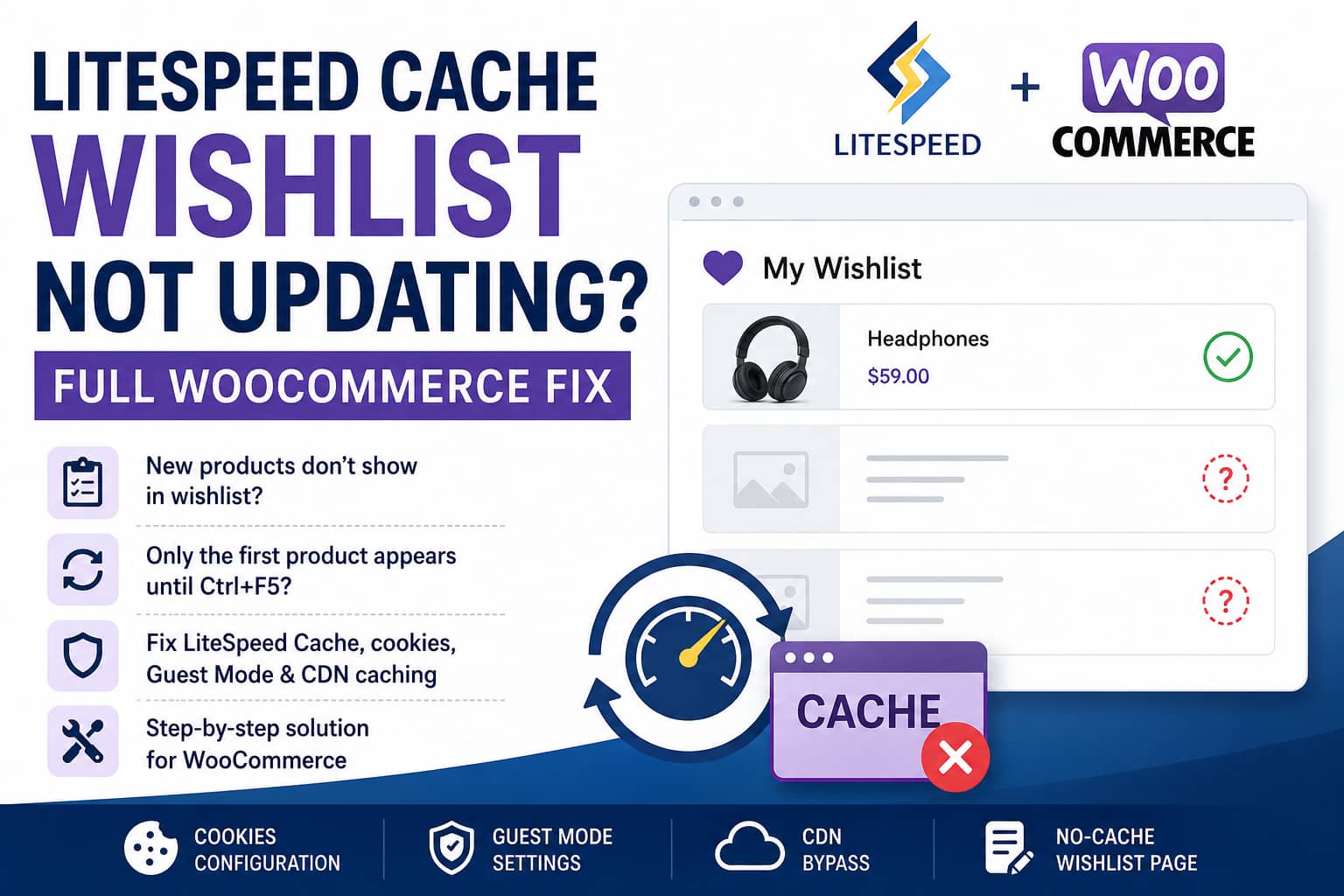
A common WooCommerce caching problem occurs when guest visitors add several products to their wishlist, but only the first product appears on the wishlist page.
The missing products suddenly appear after pressing Ctrl+F5 or performing a hard refresh.
A typical report looks like this:
The first product appears correctly on the wishlist page. When a visitor adds a second, third, or additional product, they do not appear. Excluding
/wishlist/from LiteSpeed Cache does not solve it, but pressing Ctrl+F5 displays all products.
This behavior strongly suggests that the wishlist data is being saved correctly, but an outdated version of the wishlist page is being served from cache.
This guide explains how to diagnose and permanently fix the issue.
Why the Wishlist Updates After Ctrl+F5
A hard refresh tells the browser to request a newer copy of the page instead of relying on its locally cached version.
Because all the products appear after Ctrl+F5, the wishlist plugin has most likely saved them successfully. The problem is usually one of the following:
- LiteSpeed Cache is serving stale HTML.
- The browser is caching the wishlist page.
- Guest Mode is returning a generic cached response.
- A CDN such as QUIC.cloud or Cloudflare is caching the page.
- The wishlist cookie is not included in LiteSpeed’s cache variation.
- An old cached copy remains after adding the wishlist URL to the exclusion list.
- The wishlist plugin’s LiteSpeed integration is disabled or outdated.
Wishlist functionality is especially sensitive to caching because guest wishlists are normally associated with a browser cookie or guest session. Different visitors must not receive the same cached wishlist content.
LiteSpeed provides separate controls for excluding URLs, bypassing cache based on cookies, and creating cache variations based on cookie values. These settings serve different purposes and must be configured carefully.
Quick Fix Checklist
Before making advanced changes, complete these steps:
- Update LiteSpeed Cache and the wishlist plugin.
- Enable the wishlist plugin’s LiteSpeed integration, when available.
- Add the wishlist URL to Do Not Cache URIs.
- Purge LiteSpeed Cache completely.
- Purge any CDN or server-level cache.
- Test in a private or incognito browser window.
- Temporarily disable LiteSpeed Guest Mode.
- Inspect the wishlist page response headers.
- Configure the correct guest wishlist cookie when necessary.
The detailed instructions are below.
Step 1: Update the Wishlist Plugin
Start by updating the wishlist plugin to its latest stable version.
This is especially important when using TI WooCommerce Wishlist. Version 2.12.0, released on June 25, 2026, included an update to its LiteSpeed Cache integration.
The current TI WooCommerce Wishlist integration contains logic that can:
- Detect LiteSpeed Cache.
- Protect REST API nonces using LiteSpeed ESI.
- Force the configured wishlist page to bypass LiteSpeed page caching.
However, this integration runs only when the LiteSpeed integration option is enabled in the wishlist plugin.
After updating:
- Open the wishlist plugin settings.
- Find its Integrations section.
- Enable the LiteSpeed Cache integration if the option is available.
- Save the settings.
- Purge all caches.
If you are using a different wishlist plugin, continue with the following steps.
Step 2: Exclude the Wishlist Page Correctly
Go to:
WordPress Dashboard → LiteSpeed Cache → Cache → Excludes
Find Do Not Cache URIs and add:
^/wishlistThis should match:
/wishlist
/wishlist/
/wishlist/page/2/
/wishlist/?some-parameter=value
If the website uses multilingual wishlist pages, add each language-specific path separately. For example:
^/wishlist
^/en/wishlist
^/de/wunschliste
Do not enter the entire domain. LiteSpeed normally expects only the URI path.
After saving the setting, immediately purge the existing cache. Adding an exclusion rule does not necessarily remove copies that were already cached.
Step 3: Purge Every Cache Layer
Go to:
LiteSpeed Cache → Toolbox → Purge
Run:
- Purge All
- Purge All LSCache
- Purge CSS/JS Cache, if available
Then clear any additional cache layers being used by the website:
- Hosting control-panel cache
- QUIC.cloud cache
- Cloudflare cache
- Reverse-proxy cache
- Object cache, temporarily for testing
- Browser cache
Test the wishlist in a new incognito window after purging.
Use a completely new guest session because an old browser window may still contain cached HTML, JavaScript, service-worker data, or an outdated wishlist cookie.
Step 4: Temporarily Disable LiteSpeed Guest Mode
Go to:
LiteSpeed Cache → General → General Settings
Temporarily set:
Guest Mode: OFF
Guest Optimization: OFF
Save the settings and purge all caches again.
LiteSpeed Guest Mode can serve a generic cached version of the page on the visitor’s first request and then attempt to update personalized content afterward. That behavior can cause problems with dynamic guest features when the plugin integration or frontend refresh process does not work correctly.
Test by adding three products to the wishlist as a logged-out visitor.
If the problem disappears when Guest Mode is disabled, leave Guest Mode off until the wishlist plugin and LiteSpeed integration are configured correctly.
Step 5: Check Whether the Wishlist Page Is Still Cached
Open the wishlist page in Chrome.
Then:
- Press F12 to open Developer Tools.
- Select the Network tab.
- Reload the wishlist page normally.
- Click the main document request.
- Open Headers.
- Inspect the response headers.
Look for headers such as:
x-litespeed-cache: hit
x-litespeed-cache: miss
x-litespeed-cache-control: no-cache
cache-control: no-cache
cf-cache-status: HIT
cf-cache-status: DYNAMIC
For a dynamic wishlist page, you should not repeatedly see:
x-litespeed-cache: hitA good response may include something similar to:
x-litespeed-cache-control: no-cache
cache-control: no-cache, must-revalidate, max-age=0
LiteSpeed recommends using response headers to confirm whether a page was served from cache and whether its exclusion rules are working.
When Cloudflare Shows HIT
If you see:
cf-cache-status: HITCloudflare may be caching the wishlist page even though LiteSpeed is not.
Create a Cloudflare cache rule that bypasses caching when the URI path starts with:
/wishlistThen purge Cloudflare’s cache and retest.
Apply similar bypass rules in any other CDN or reverse proxy used by the site.
Step 6: Check the Guest Wishlist Cookie
Excluding the wishlist page usually solves the main problem. However, cached product pages, header counters, wishlist icons, and mini-wishlist widgets may still display outdated information.
In that case, LiteSpeed needs to recognize the wishlist visitor’s cookie.
Find the Cookie Used by Your Plugin
In Chrome:
- Open Developer Tools.
- Select Application.
- Expand Cookies.
- Select the website domain.
- Record the current cookies.
- Add a product to the wishlist.
- Check which cookie was created or changed.
The cookie name depends on the wishlist plugin.
For TI WooCommerce Wishlist, a commonly used guest wishlist key is:
tinv_wishlistkeyConfirm the actual cookie on your own website before adding it to LiteSpeed because cookie names and integration behavior may change between plugin versions.
Add the Cookie to LiteSpeed Vary Cookies
Go to:
LiteSpeed Cache → Cache → Advanced → Vary Cookies
Add the verified guest wishlist cookie:
tinv_wishlistkeySave the settings and purge all caches.
A vary cookie allows LiteSpeed to serve different cached variations based on the visitor’s cookie instead of giving every visitor the same HTML response.
This is useful for wishlist counters or product-page heart icons while still allowing those general pages to remain cached.
Do Not Use Every Wishlist Cookie as a Vary Cookie
Avoid using a cookie that changes every time a product is added. That can create an excessive number of cache variations.
The best cookie for cache variation is normally a stable guest identifier or wishlist key.
For the wishlist page itself, completely bypassing page cache is usually safer than generating many cached versions.
Step 7: Understand Vary Cookies vs Do Not Cache Cookies
LiteSpeed offers two similar-looking settings, but they behave differently.
Vary Cookies
Use Vary Cookies when:
- The page may remain cached.
- Different visitors need different cached variations.
- The cookie contains a stable visitor or session identifier.
- You need wishlist counters or icons to remain personalized.
Do Not Cache Cookies
Use Do Not Cache Cookies when:
- Any visitor carrying that cookie must bypass page cache.
- The plugin cannot safely work with cache variations.
- The cookie is present only during a limited dynamic session.
Be careful with this setting. If the cookie is created site-wide for every visitor, adding it to Do Not Cache Cookies can effectively disable page caching across the entire website for those visitors. LiteSpeed specifically warns that cookie-based cache exclusions can significantly reduce cache usage.
Plugin-Specific Cookie Examples
The correct cookie depends on the installed wishlist plugin.
TI WooCommerce Wishlist
Start with:
Do Not Cache URI:
^/wishlist
For stale wishlist counters or product icons, inspect the browser cookies and test:
Vary Cookies:
tinv_wishlistkey
Also confirm that the plugin’s LiteSpeed integration is enabled.
Do not confuse the guest wishlist key with a counter cookie. For example, tinvwl_wishlists_data_counter has been documented for wishlist counter behavior and may not be the cookie that identifies an unauthenticated visitor’s wishlist.
WCBoost Wishlist
WCBoost support has recommended excluding these cookies from cache:
wcboost_wishlist_session
wcboost_wishlist_hash
Place them under:
LiteSpeed Cache → Cache → Excludes → Do Not Cache Cookies
Then purge all caches.
YITH WooCommerce Wishlist
A common YITH configuration is:
Do Not Cache URI:
^/wishlist

Do Not Cache Cookies:
yith_wcwl_session_
Some configurations use dynamically suffixed cookie names, which is why checking the browser’s actual cookies is essential.
LiteSpeed has also documented compatibility concerns with certain YITH wishlist implementations, so fully excluding the wishlist page is normally safer than trying to cache it.
BricksUltimate Wishlist
For BricksUltimate, one reported LiteSpeed solution was adding the following under Vary Cookies:
bu_wishlist_product_0This allows the cached output to vary based on the visitor’s wishlist cookie.
Step 8: Force the Wishlist Page to Bypass Cache With Code
If the LiteSpeed exclusion still does not work, you can force WordPress and LiteSpeed not to cache the wishlist page.
Create a new file named:
debugnexus-no-cache-wishlist.phpAdd this code:
<?php
/**
 * Plugin Name: DebugNexus - No Cache for Wishlist
 * Description: Prevents WordPress, LiteSpeed, and intermediary caches from caching the WooCommerce wishlist page.
 * Version: 1.0.0
 */

defined( 'ABSPATH' ) || exit;

add_action(
	'template_redirect',
	static function (): void {
		/*
		 * Replace "wishlist" if your wishlist page uses a different slug.
		 */
		if ( ! is_page( 'wishlist' ) ) {
			return;
		}

		if ( ! defined( 'DONOTCACHEPAGE' ) ) {
			define( 'DONOTCACHEPAGE', true );
		}

		/*
		 * Send WordPress no-cache headers.
		 */
		nocache_headers();

		/*
		 * Tell LiteSpeed Cache not to cache this response.
		 * Calling an action with no listener is safe, so this will not
		 * produce an error when LiteSpeed Cache is inactive.
		 */
		do_action(
			'litespeed_control_set_nocache',
			'Dynamic WooCommerce wishlist page'
		);
	},
	0
);
Upload the file to:
/wp-content/mu-plugins/Create the mu-plugins directory if it does not already exist.
An MU plugin activates automatically and cannot accidentally be disabled from the normal Plugins screen.
After uploading the file:
- Purge LiteSpeed Cache.
- Purge the CDN.
- Open a new incognito window.
- Add at least three products.
- Open the wishlist page with a normal click.
- Confirm that all products appear without Ctrl+F5.
Replace this line when the wishlist page uses another slug:
if ( ! is_page( 'wishlist' ) ) {For example:
if ( ! is_page( 'my-wishlist' ) ) {Using a page ID is even safer when the site is multilingual:
if ( ! is_page( 123 ) ) {Replace 123 with the actual wishlist page ID.
Step 9: Fix Browser Caching of HTML
If LiteSpeed reports that the page is not cached but a normal refresh still displays old HTML, inspect the cache-control and expires response headers.
The server should not send a long browser-cache lifetime for HTML wishlist pages.
A problematic response might contain:
cache-control: public, max-age=31536000or an Expires date far in the future.
A dynamic HTML response should use no-cache or immediate-expiration headers.
If the hosting configuration globally caches HTML through Apache expiration rules, add the following carefully to .htaccess:
<IfModule mod_expires.c>
    ExpiresByType text/html "access plus 0 seconds"
</IfModule>
Back up .htaccess before editing it.
Do not add this blindly if the hosting provider manages cache headers through a server panel. Server-level rules may override WordPress and LiteSpeed settings.
Step 10: Test JavaScript Optimization
The hard-refresh symptom usually indicates stale HTML rather than a failed AJAX request. However, JavaScript optimization can prevent the wishlist interface from refreshing after an item is added.
Temporarily test with these settings disabled:
LiteSpeed Cache → Page Optimization → JavaScript
JS Minify: OFF
JS Combine: OFF
Load JS Deferred: OFF
Delay JS: OFF
Purge all caches and retest.
If this solves the problem, enable the options individually until the issue returns. Then exclude the wishlist plugin’s frontend JavaScript file from the responsible optimization setting.
Do not permanently disable all JavaScript optimization unless testing confirms that it is necessary.
Step 11: Rule Out Object Cache
Redis or Memcached object caching is less likely to be the cause when Ctrl+F5 immediately reveals all products, but it is still worth testing if the issue remains.
Go to:
LiteSpeed Cache → Cache → Object
Temporarily set:
Object Cache: OFFPurge all caches and test again.
If disabling object cache fixes the problem, investigate whether the wishlist plugin stores guest-session data in transients or cached database objects that are not being invalidated correctly.
Re-enable object cache after testing unless it is confirmed as the cause.
Recommended Permanent Configuration
For most WooCommerce wishlist websites, the safest setup is:
Wishlist page:
Do not page-cache

Shop and product pages:
Keep cached

Guest wishlist cookie:
Add to Vary Cookies only when counters or icons are stale

Guest Mode:
Disable if it serves stale personalized content

CDN:
Bypass the wishlist URL

Browser:
Do not give HTML a long cache lifetime
This provides a good balance between accurate wishlist behavior and website performance.
How to Confirm the Problem Is Fixed
Perform the following test as a logged-out visitor:
- Open a fresh incognito browser window.
- Visit the first product.
- Add it to the wishlist.
- Visit a second product and add it.
- Add a third product.
- Open
/wishlist/normally. - Confirm that all three products appear.
- Remove one product.
- Reload normally.
- Confirm that the removed product stays removed.
- Close the browser.
- Open a new guest session.
- Confirm that another visitor does not inherit the previous wishlist.
- Check the wishlist document response headers.
- Confirm the page is not served as a LiteSpeed or CDN cache hit.
Also test:
- Desktop Chrome
- Mobile Chrome
- Safari
- Logged-in customer
- Logged-out visitor
- Private browsing
- Multiple language versions, when applicable
Common Mistakes
Excluding the URL Without Purging Cache
The exclusion applies to future requests. An old cache entry may remain until it is purged.
Always purge all cache layers after changing exclusions.
Testing While Logged In
Logged-in administrators are frequently excluded from page cache. A wishlist may work perfectly for an administrator while remaining broken for visitors.
Always test as a logged-out visitor.
Testing in the Same Browser Tab
The browser may reuse memory cache, an old document, or an existing service-worker response.
Use an incognito window for reliable tests.
Adding Every Wishlist Cookie to Do Not Cache Cookies
This may disable caching across most of the site.
Use URL exclusion for the wishlist page and cookie variation only where personalization is required.
Forgetting the CDN
LiteSpeed may correctly bypass the page while Cloudflare, QUIC.cloud, or another proxy continues serving an old copy.
Inspect all response headers, not only x-litespeed-cache.
Using Only Ctrl+F5 as a Workaround
Ctrl+F5 does not solve the underlying problem. Visitors will not know that they must hard-refresh the page, and mobile users may not have an equivalent obvious option.
The caching rules must be corrected at the server, plugin, or CDN level.
Frequently Asked Questions
Why does the first wishlist product appear but not later products?
The first request may create and cache the wishlist page correctly. After more products are added, the underlying wishlist data changes, but the visitor continues receiving the older cached HTML.
Why does Ctrl+F5 show all the products?
Ctrl+F5 forces the browser to request a fresher response. This strongly suggests that the products were saved successfully and that stale cached content was hiding them.
Why did excluding /wishlist/ not fix it?
Possible reasons include:
- The old cache was never purged.
- The exclusion pattern did not match the actual URL.
- A multilingual wishlist has a different path.
- Guest Mode served a generic cached response.
- A CDN cached the page independently.
- Browser cache headers allowed the HTML to remain cached.
- The wishlist plugin’s LiteSpeed integration was disabled.
Should the entire WooCommerce site be excluded from cache?
No. Only highly dynamic pages and sessions should bypass page cache.
WooCommerce cart, checkout, account, and wishlist pages may require special handling, while product and category pages should normally remain cached for performance.
Should I use Vary Cookies or Do Not Cache Cookies?
Use Vary Cookies when a stable cookie should produce different cached variations.
Use Do Not Cache Cookies when any request carrying that cookie must bypass cache completely.
For the main wishlist page, a URI exclusion is generally the safest approach.
Does this solution work with all wishlist plugins?
The general diagnosis applies to most cookie-based WooCommerce wishlist plugins. The exact cookie name and integration settings vary between TI WooCommerce Wishlist, YITH, WCBoost, BricksUltimate, and other plugins.
Always inspect the browser cookies instead of assuming a cookie name.
Is this a LiteSpeed Cache bug?
Not necessarily.
The issue can result from an incomplete plugin integration, incorrect cache exclusion, stale CDN content, browser cache headers, or a wishlist plugin that does not properly communicate its guest-session requirements to LiteSpeed.
Final Solution
When additional wishlist products appear only after Ctrl+F5, the wishlist database is usually working. The visitor is simply being shown an outdated cached response.
The most reliable fix is to:
- Update the wishlist plugin.
- Enable its LiteSpeed integration.
- exclude the wishlist URI from page cache,
- purge LiteSpeed, CDN, and browser caches,
- disable Guest Mode for testing,
- inspect the response headers,
- add the verified guest wishlist cookie to Vary Cookies when personalized counters remain stale, and
- force no-cache headers with the MU-plugin code when server settings continue caching the page.
Once configured correctly, guest visitors should see every newly added wishlist product immediately without reloading the page with Ctrl+F5.
