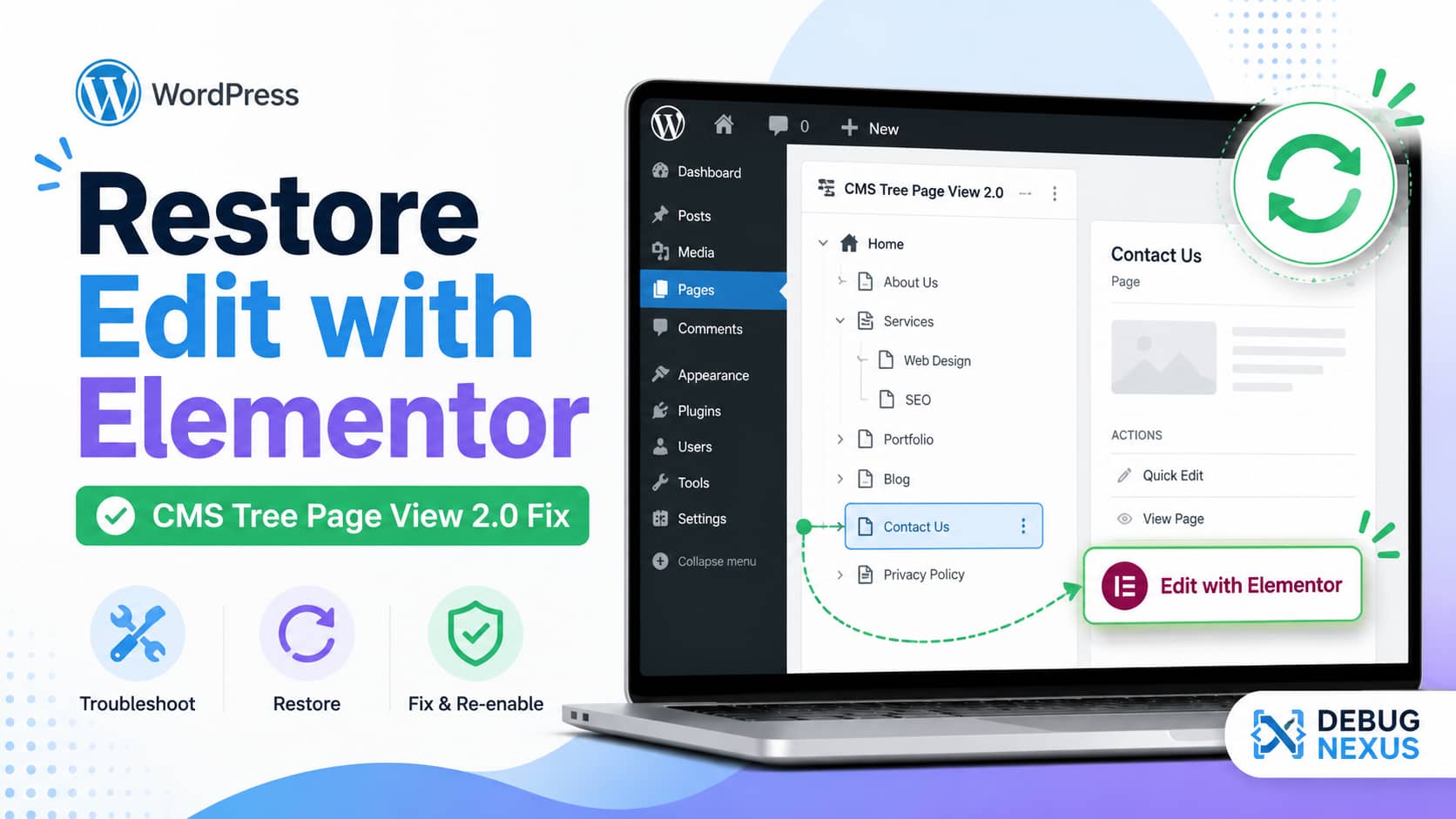
After updating the CMS Tree Page View plugin, you may notice that the direct Edit with Elementor shortcut is no longer available when hovering over or selecting a page.
Previously, you could open a page directly in Elementor from the page tree. After the update, clicking the available edit option may take you to the standard WordPress editor or page-editing screen instead. From there, you must click Edit with Elementor again.
This adds an unnecessary step, especially when managing a large Elementor website.
The good news is that you can restore direct Elementor editing with a small, update-safe WordPress customization.
Quick Solution
Create a small must-use plugin that changes WordPress edit links for pages already built with Elementor.
The solution will:
- Open existing Elementor pages directly in Elementor.
- Leave Gutenberg and Classic Editor pages unchanged.
- Work with pages, posts, and custom post types enabled in Elementor.
- Survive theme and plugin updates.
- Avoid editing the CMS Tree Page View plugin itself.
What Changed in CMS Tree Page View?
CMS Tree Page View version 2.0.0 introduced a rebuilt page-tree interface. According to the plugin changelog, the entire interface was redesigned and page actions were moved into a selected-page sidebar.
The direct Elementor shortcut was originally added to the plugin in version 1.6.6.
After the 2.0 update, users began reporting that the direct Elementor link was no longer available. As of July 23, 2026, the related WordPress.org support request remains unresolved.
The 2.0 changelog does not specifically say that Elementor support was intentionally removed. Therefore, the missing shortcut may be:
- An unintended regression.
- An omitted feature in the rebuilt interface.
- A change in how the plugin retrieves WordPress edit links.
The plugin documentation also states that it uses WordPress’s own edit links. This gives us a clean way to restore the desired behavior without modifying the plugin.
The Direct Elementor Editor URL
WordPress normally opens a page editor using a URL similar to:
https://example.com/wp-admin/post.php?post=123&action=editElementor opens the same page using:
https://example.com/wp-admin/post.php?post=123&action=elementorThe important difference is the action parameter:
action=elementorThis URL format is also used by Elementor when opening content directly in its editor.
However, manually changing the URL every time is not practical. The following solution automatically generates the correct link.
Solution: Restore Direct Elementor Edit Links
The safest implementation is a must-use plugin, commonly called an MU plugin.
An MU plugin:
- Loads automatically.
- Cannot be accidentally deactivated from the normal Plugins screen.
- Continues working after theme updates.
- Is not overwritten when CMS Tree Page View or Elementor is updated.
Step 1: Back Up the Website
Before adding custom PHP code, create a full backup or test the solution on a staging website.
At minimum, back up:
- Website files.
- WordPress database.
- Current plugin configuration.
Although the code below does not modify website content, having a rollback point is always recommended.
Step 2: Open the MU Plugins Directory
Using your hosting file manager, FTP, SFTP, or SSH, navigate to:
/wp-content/mu-plugins/If the mu-plugins directory does not exist, create it.
The complete path should look similar to:
public_html/wp-content/mu-plugins/Step 3: Create the Plugin File
Inside the mu-plugins directory, create a new file named:
debugnexus-elementor-edit-links.phpPaste the following code into the file:
<?php
/**
 * Plugin Name: DebugNexus - Restore Elementor Edit Links
 * Description: Opens WordPress edit links directly in Elementor for content already built with Elementor.
 * Version: 1.0.0
 * Author: DebugNexus
 */

defined( 'ABSPATH' ) || exit;

/**
 * Replace the standard WordPress edit URL with the Elementor editor URL
 * when the selected content was previously created with Elementor.
 *
 * @param string $link    Existing WordPress edit link.
 * @param int    $post_id Post ID.
 * @param string $context Link context, usually "display" or "raw".
 *
 * @return string
 */
function debugnexus_restore_elementor_edit_link( $link, $post_id, $context ) {

	// Do nothing when WordPress did not generate an edit link.
	if ( empty( $link ) ) {
		return $link;
	}

	// Do nothing when Elementor is not active.
	if ( ! defined( 'ELEMENTOR_VERSION' ) ) {
		return $link;
	}

	$post_id = absint( $post_id );

	if ( ! $post_id ) {
		return $link;
	}

	// Make sure the current user is allowed to edit this content.
	if ( ! current_user_can( 'edit_post', $post_id ) ) {
		return $link;
	}

	$post_type = get_post_type( $post_id );

	if ( ! $post_type ) {
		return $link;
	}

	/*
	 * Get the post types enabled in Elementor settings.
	 * Elementor commonly enables pages and posts, but site settings may differ.
	 */
	$supported_post_types = get_option(
		'elementor_cpt_support',
		array( 'page', 'post' )
	);

	if ( ! is_array( $supported_post_types ) ) {
		$supported_post_types = array( 'page', 'post' );
	}

	// Keep the normal edit link for post types not enabled in Elementor.
	if ( ! in_array( $post_type, $supported_post_types, true ) ) {
		return $link;
	}

	/*
	 * Only redirect content that has already been edited with Elementor.
	 * This prevents Gutenberg or Classic Editor content from being
	 * unintentionally opened in Elementor.
	 */
	$elementor_edit_mode = get_post_meta(
		$post_id,
		'_elementor_edit_mode',
		true
	);

	$elementor_data = get_post_meta(
		$post_id,
		'_elementor_data',
		true
	);

	$is_elementor_content =
		'builder' === $elementor_edit_mode ||
		'' !== $elementor_data;

	if ( ! $is_elementor_content ) {
		return $link;
	}

	// Build the direct Elementor editor URL.
	$elementor_url = add_query_arg(
		array(
			'post'   => $post_id,
			'action' => 'elementor',
		),
		admin_url( 'post.php' )
	);

	/*
	 * Escape the URL according to the context WordPress requested.
	 */
	if ( 'display' === $context ) {
		return esc_url( $elementor_url );
	}

	return esc_url_raw( $elementor_url );
}

add_filter(
	'get_edit_post_link',
	'debugnexus_restore_elementor_edit_link',
	99,
	3
);
Save the file.
Step 4: Test the Page Tree
After saving the MU plugin:
- Sign in to the WordPress dashboard.
- Go to the CMS Tree Page View screen.
- Refresh the page using
Ctrl + F5on Windows orCommand + Shift + Ron macOS. - Select a page that was created with Elementor.
- Click its available edit action.
The page should now open at a URL similar to:
https://example.com/wp-admin/post.php?post=123&action=elementorElementor should load directly without first opening the standard WordPress editor.
How the Code Works
The customization uses WordPress’s get_edit_post_link filter.
Whenever WordPress generates an editing URL, the function checks:
- Whether Elementor is active.
- Whether the current user can edit the page.
- Whether the post type is enabled in Elementor.
- Whether the page contains Elementor data.
- Whether it should replace the standard URL with the Elementor URL.
This prevents the customization from affecting pages built exclusively with Gutenberg or the Classic Editor.
Important Limitation
This solution modifies WordPress-generated editing links for existing Elementor content throughout the administrator area, not only inside CMS Tree Page View.
For example, a WordPress plugin that uses get_edit_post_link() may also begin opening Elementor pages directly in Elementor.
This is normally helpful, but you should test other administrative workflows after adding the code.
The customization does not affect:
- Front-end page URLs.
- Visitor links.
- Permalinks.
- Search-engine indexing.
- Published page content.
It only changes where an authorized administrator or editor is sent when clicking an edit link.
Alternative: Add the Code Through Code Snippets
You can also use the Code Snippets plugin instead of creating an MU plugin.
To do that:
- Install and activate Code Snippets.
- Go to Snippets > Add New.
- Name the snippet:
Restore Direct Elementor Edit Links- Paste the code without the opening
<?phpline. - Set the snippet to run everywhere.
- Save and activate it.
The MU-plugin approach is preferable for troubleshooting customizations because it does not depend on another plugin. However, Code Snippets may be more convenient for users who do not have file access.
How to Open Every Elementor-Supported Page Directly
The recommended code only redirects pages that already contain Elementor data.
This protects Gutenberg and Classic Editor pages.
To force every Elementor-supported post type to open in Elementor, remove this portion of the code:
$elementor_edit_mode = get_post_meta(
	$post_id,
	'_elementor_edit_mode',
	true
);

$elementor_data = get_post_meta(
	$post_id,
	'_elementor_data',
	true
);

$is_elementor_content =
	'builder' === $elementor_edit_mode ||
	'' !== $elementor_data;

if ( ! $is_elementor_content ) {
	return $link;
}
After removing that condition, every edit link for a post type enabled in Elementor will open Elementor.
This version is not recommended for websites that use a mixture of Elementor and Gutenberg content.
Troubleshooting
Elementor Still Does Not Open
First, test the Elementor URL manually.
Replace 123 with the actual page ID:
https://example.com/wp-admin/post.php?post=123&action=elementorIf the manual URL opens Elementor correctly, the issue is probably related to the page-tree interface or how it obtains the edit URL.
If the manual URL does not open Elementor, continue with the checks below.
Confirm That Elementor Is Active
Go to:
WordPress Dashboard > PluginsConfirm that Elementor is installed and active.
If Elementor Pro is installed, the free Elementor plugin must normally remain active as its core dependency.
Check Whether the Post Type Is Enabled
Open Elementor’s settings and confirm that the relevant content type is enabled.
For example:
- Pages
- Posts
- Products
- Custom post types
If the page’s post type is not enabled, the custom code intentionally preserves the normal WordPress edit link.
Confirm That the Page Was Built With Elementor
Edit the page normally and check whether WordPress displays an Edit with Elementor button.
The recommended code only redirects content that has Elementor metadata.
A newly created page that has never been opened or saved in Elementor will continue using the normal WordPress editor.
Check User Permissions
The current account must have permission to edit the selected page.
Test with an administrator account to determine whether the issue is role-related.
A custom editor role may be missing one or more capabilities required by Elementor or the page’s post type.
Clear Administrative Caches
Although WordPress admin pages are not usually cached, some optimization and hosting configurations can cache API or object data.
Try:
- Hard-refreshing the browser.
- Clearing the browser cache.
- Purging the WordPress caching plugin.
- Clearing Redis or Memcached object cache.
- Signing out and signing back in.
Check the MU Plugin
Go to:
WordPress Dashboard > Plugins > Must-Use PluginsYou should see:
DebugNexus - Restore Elementor Edit LinksIf it does not appear:
- Confirm that the file uses the
.phpextension. - Confirm that it is directly inside
/wp-content/mu-plugins/. - Check for a duplicated extension such as
.php.txt. - Check the server’s PHP error log.
Check for a PHP Error
Temporarily enable WordPress debugging on a staging website by adding the following to wp-config.php:
define( 'WP_DEBUG', true );
define( 'WP_DEBUG_LOG', true );
define( 'WP_DEBUG_DISPLAY', false );
Reload the WordPress dashboard and then inspect:
/wp-content/debug.logDisable debugging after completing the test on a production website.
Should You Downgrade CMS Tree Page View?
Temporarily installing the previous version can help confirm whether version 2.0 caused the behavior change.
However, permanently running an older plugin version is not the best solution because you may miss:
- Security improvements.
- WordPress compatibility fixes.
- PHP compatibility updates.
- Future bug fixes.
A safer approach is:
- Keep CMS Tree Page View updated.
- Add the MU-plugin workaround.
- Test it on staging.
- Monitor the official plugin support thread and changelog.
- Remove the workaround if the plugin restores a native Elementor action.
What You Should Not Do
Do Not Edit the Plugin Files
Avoid modifying files inside:
/wp-content/plugins/cms-tree-page-view/Any direct modification will be erased the next time the plugin is updated.
Editing plugin files can also make future troubleshooting more difficult.
Do Not Replace Every Edit URL Blindly
Avoid redirecting all WordPress pages to Elementor unless the complete website uses Elementor.
Opening a Gutenberg page in Elementor can change its editing workflow or encourage administrators to convert content unintentionally.
Do Not Add the Code to a Parent Theme
Code added to a parent theme’s functions.php file may be overwritten during a theme update.
Use one of these instead:
- An MU plugin.
- A small custom plugin.
- A child theme.
- Code Snippets.
For this particular fix, an MU plugin is the most reliable option.
How to Remove the Fix
To disable the customization, rename the file:
debugnexus-elementor-edit-links.phpto:
debugnexus-elementor-edit-links.php.disabledAlternatively, delete the file from:
/wp-content/mu-plugins/WordPress will immediately return to its default edit-link behavior.
The customization does not modify database content, so no database cleanup is required.
Frequently Asked Questions
Why did the Edit with Elementor link disappear?
CMS Tree Page View 2.0 rebuilt the page-tree interface. The previous Elementor shortcut appears to be missing from the new interface, although the public changelog does not confirm whether its removal was intentional.
Is this an Elementor problem?
Not necessarily. Elementor can still be opened directly using the action=elementor editing URL. The issue appears to involve the edit action displayed or generated by the updated page-tree interface.
Will this code survive plugin updates?
Yes. An MU plugin is stored outside the CMS Tree Page View and Elementor plugin directories, so updating either plugin will not overwrite it.
Will Gutenberg pages open in Elementor?
No. The recommended version checks for existing Elementor metadata before changing the edit URL.
Does the solution work with custom post types?
Yes, provided the custom post type is enabled in Elementor and the selected item has already been built with Elementor.
Does this affect website visitors?
No. The code only filters administrative edit links for logged-in users who have permission to edit the content.
Can I use the normal WordPress editor afterward?
You can manually remove action=elementor from the URL, access the page from another unfiltered workflow, or temporarily disable the customization.
Should I keep the workaround permanently?
You can keep it as long as it supports your editing workflow. However, monitor future CMS Tree Page View releases. If the plugin restores a dedicated Edit with Elementor action, remove the workaround to avoid unnecessary customization.
Final Recommendation
The missing direct Elementor link appears after the major CMS Tree Page View 2.0 interface rebuild. Because the plugin uses WordPress-generated edit links, filtering get_edit_post_link provides a practical and update-safe workaround.
For most websites, the best solution is to:
- Keep CMS Tree Page View updated.
- Add the MU plugin on staging.
- Confirm that Elementor pages open correctly.
- Test Gutenberg and custom post type pages.
- Deploy the fix to the live website.
- Remove it later if native Elementor support returns.
This restores the faster one-click Elementor workflow without modifying CMS Tree Page View, Elementor, or the active theme.
