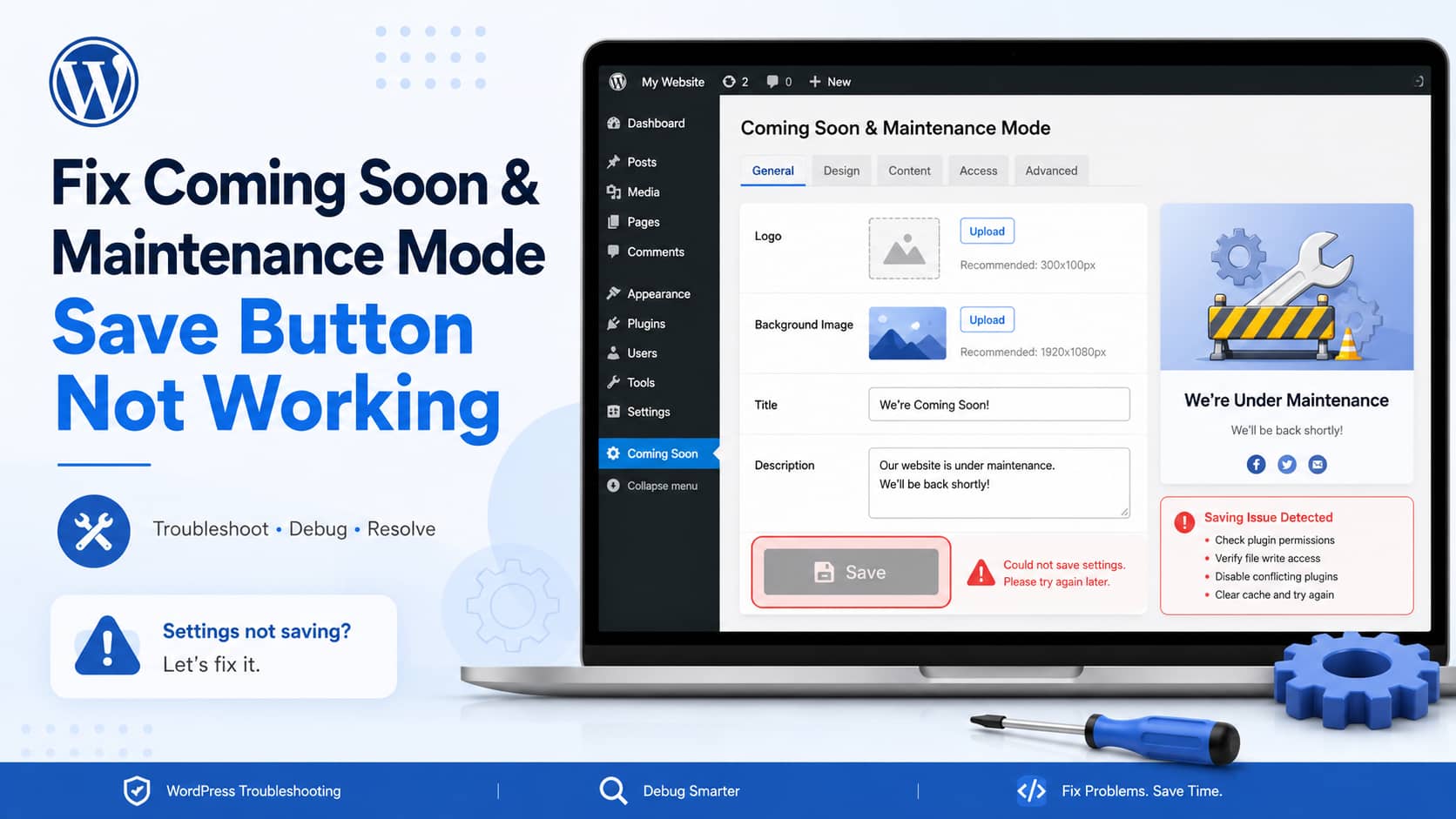
If the Coming Soon Maintenance Mode Save button does nothing, first check the browser’s Console and Network panels. These checks show whether the button’s JavaScript failed before sending a request, whether WordPress returned an error, or whether the request succeeded without saving the settings.
Plugin compatibility information
Plugin: Coming Soon Maintenance Mode
- Current version: 1.3.0
- WordPress.org last updated: September 17, 2026
- Minimum PHP version declared: 5.6 or higher
- Requires WordPress: 5.0 or higher
- Tested up to WordPress: 7.1.3
Source: official WordPress.org plugin listing.
This guide covers unresponsive individual Save buttons and the Save All Sections button, including cases where uploaded images or other settings disappear after the page reloads.
Quick diagnosis
- Open the plugin settings in a private browsing window and test the button.
- Check the browser Console for the first red JavaScript error.
- Check the Network panel for a request to
admin-ajax.phpor another WordPress endpoint. - Use the result to investigate JavaScript optimization, plugin conflicts, security rules, PHP errors, or compatibility.
Do not assume that compatibility is the cause without checking the Console, Network response, and server logs. An unresponsive button can result from a JavaScript error, a missing script, an optimization conflict, a blocked request, a server error, or an incomplete plugin installation.
Before troubleshooting
Create a complete backup before making changes. Include:
- WordPress files
- The database
- Uploaded media
- Plugin settings
- The
wp-config.phpfile
When possible, use a staging or local copy for plugin conflicts, reinstallations, security-rule changes, and compatibility testing. Take screenshots of the current plugin settings and download any logo or background image before reinstalling the plugin.
1. Test the button in a clean browser session
Start by ruling out a stale browser session or an extension that interferes with WordPress admin scripts.
Hard-refresh the page
In Chrome on Windows, press:
Ctrl + Shift + ROn macOS, press:
Command + Shift + RYou can also open the plugin settings in an Incognito or Private Browsing window. Temporarily disable ad blockers, privacy extensions, script blockers, password managers, and browser security extensions, then reload the settings page.
2. Check the browser Console
When a button does not visually react, the click handler may not have initialized or may have stopped because of an error. The Console can identify that problem.
Chrome
- Open the Coming Soon Maintenance Mode settings.
- Press
F12orCtrl + Shift + I. - Select the Console tab.
- Clear the existing messages.
- Click a Save button.
- Look for the first red error.
Examples of messages that can be relevant include:
Uncaught TypeErrorjQuery is not definedCannot read properties of undefinedFailed to load resourceMixed Content403 ForbiddenUnexpected tokenThe first red error is usually more useful than later errors, which may be consequences of the initial failure. Record the complete message and the file or line number shown by the browser.
Safari
- Open Safari settings.
- Select Advanced.
- Enable Show Develop menu in menu bar.
- Open the plugin settings.
- Select Develop > Show JavaScript Console.
- Click Save and inspect the errors.
If different browsers show a similar error, that points more strongly to a site-side script, plugin, request, or compatibility problem rather than a browser-specific problem. It does not identify the exact cause by itself.
3. Inspect the Save request
Use the Network panel to determine whether clicking Save sends a request to WordPress.
- Open the browser developer tools.
- Select the Network tab.
- Filter requests by Fetch/XHR.
- Click the plugin’s Save button.
- Look for a request to
admin-ajax.phpor another WordPress endpoint.
WordPress plugins commonly send admin-side AJAX requests through:
/wp-admin/admin-ajax.phpNo request appears
If no request appears after clicking Save, the click handler may not have initialized. Possible causes include a JavaScript error, a missing plugin script, changed script execution order, a compatibility problem, an element covering the button, or an incomplete plugin installation.
The request returns 403 Forbidden
A 403 response can indicate that the request is being blocked by a security plugin, web application firewall, ModSecurity, Cloudflare, hosting rules, an expired WordPress nonce, password protection on wp-admin, or a server rule affecting admin-ajax.php.
Clear relevant caches, log out, log back in, and test again. If the response remains blocked, ask the hosting provider to check requests to:
/wp-admin/admin-ajax.phpDo not leave a firewall disabled. Identify the exact blocked request and create a targeted exception only when the rule is a confirmed false positive.
The request returns 500 Internal Server Error
A 500 response indicates that the server encountered an error while processing the request. Check the WordPress debug log and the PHP or hosting error log.
The request returns 200 but the settings are not saved
An HTTP 200 status does not necessarily mean that the plugin completed the save operation. Open the request and inspect its response for values such as:
-10falseInvalid nonceYou are not allowed to do thisThese responses can point to a nonce, permission, AJAX action, or plugin compatibility problem.
4. Check caching, optimization, and plugin conflicts
After recording the Console and Network evidence, test one change at a time. Prefer staging for broad deactivation tests. If you must test on production, make the smallest temporary change possible and restore it immediately afterward.
Clear caches and disable admin-side optimization
Clear the browser cache and any applicable WordPress, hosting, object, Redis, Memcached, CDN, or Cloudflare cache. Although WordPress admin pages should not normally be cached, an incorrect optimization or CDN rule can affect plugin scripts.
Temporarily disable features such as:
- Combine JavaScript
- Defer JavaScript
- Delay JavaScript execution
- Remove jQuery Migrate
- Minify JavaScript
- Cloudflare Rocket Loader
- Admin page optimization
Check that admin requests are excluded from front-end optimization and caching, including:
/wp-admin/*/wp-login.php/wp-admin/admin-ajax.phpPerform a plugin conflict test
- Back up the site or use staging.
- Deactivate every plugin except Coming Soon Maintenance Mode.
- Reload the plugin settings and test Save.
- If Save works, reactivate the other plugins one at a time.
- Test after each activation to identify a change in behavior.
Pay particular attention to JavaScript optimization, cache, security, media-library, login-protection, admin-customization, white-label, and jQuery-related plugins. The active theme is less likely to be involved because the failure occurs in the administration area, but it is not excluded without testing.
5. Enable WordPress debug logging for server errors
Use this step when the Network request returns a server error or when the Console points to a backend failure. Back up wp-config.php before editing it. Do not display errors publicly, and edit existing constants instead of adding duplicates.
Add or update these lines above:
/* That's all, stop editing! Happy publishing. */define( 'WP_DEBUG', true );
define( 'WP_DEBUG_LOG', true );
define( 'WP_DEBUG_DISPLAY', false );
@ini_set( 'display_errors', 0 );Errors will normally be written to:
/wp-content/debug.logReturn to the plugin settings, click Save, and inspect the newest log entries for references to the plugin, AJAX, PHP fatal errors, deprecated functions, or database errors. A message such as the following may identify the failing file and line:
PHP Fatal error: Uncaught TypeError ...Debug logs may contain private paths or other sensitive information. Keep them private and remove sensitive details before sharing excerpts. After troubleshooting, restore the previous debug configuration. The source article recommends:
define( 'WP_DEBUG', false );
define( 'WP_DEBUG_LOG', false );
define( 'WP_DEBUG_DISPLAY', false );
6. Check URLs, HTTPS, and security rules
Incorrect URL or HTTPS settings can cause the settings page and save request to use different domains or protocols. Go to:
Settings > GeneralCheck that the WordPress Address and Site Address use the same domain, HTTPS protocol, www or non-www format, and subdirectory structure. For example, avoid:
WordPress Address: http://example.com
Site Address: https://www.example.com
A consistent configuration should normally use one format:
https://example.comAlso check the Console for mixed-content or CORS errors. If the Network panel shows that a security layer is blocking the save request, inspect hosting firewall, ModSecurity, Cloudflare Security Events, bot protection, country-blocking, custom .htaccess rules, and password protection on the WordPress admin directory.
Use the narrowest possible exception for a confirmed false positive. Do not leave a security plugin, firewall, or admin protection disabled.
7. Reinstall or update the plugin
An interrupted update or damaged JavaScript file can leave the settings page visible while its controls no longer work. Before reinstalling, back up the database, save screenshots of the settings, download required media, and confirm access through File Manager or FTP.
- Go to Plugins > Installed Plugins.
- Deactivate Coming Soon Maintenance Mode.
- Delete the plugin.
- Go to Plugins > Add New.
- Search for Coming Soon Maintenance Mode.
- Install and activate the required current version.
- Clear applicable caches.
- Test Save before changing other settings.
Do not assume that deleting the plugin preserves its database options. Retention depends on the plugin’s uninstall behavior, so use the backup and screenshots when restoring the settings.
8. Test compatibility on staging
The supplied plugin metadata lists a current plugin version and a WordPress compatibility level, but that information does not prove that the affected site’s specific failure is a compatibility bug. Compare versions only on a staging copy with the same theme, plugins, settings, and optimization rules.
Keep the production site on its supported, security-maintained WordPress version. Do not permanently downgrade production to test a plugin.
- Create and back up a staging copy.
- Reproduce the Save-button failure on staging.
- Compare the result with a supported WordPress and plugin combination.
- Keep the other site conditions as consistent as possible.
- Record whether the Console and Network results change.
If the button works only with a different version combination while the other conditions remain the same, that is evidence of a compatibility issue, not definitive proof of its root cause. Request a compatible update from the developer or consider another maintenance solution.
What to send the plugin developer
Include enough information for the developer to distinguish a script problem from a blocked or failed server request:
- Installed plugin version
- WordPress version
- PHP version
- Active theme
- Active plugins
- Complete browser Console error
- Failed Network request and response
- HTTP response code
- Relevant private debug-log entries
- Whether the problem occurs in multiple browsers
- Results of the conflict and staging tests
The Save and Save All buttons in Coming Soon Maintenance Mode do not respond. The problem occurs in multiple browsers. I cleared caches, checked the Console, inspected the failed Save request, and tested with other plugins disabled. Here is the browser error and the response from the request.
Verify the fix
After a change appears to resolve the problem, use a harmless setting for the test:
- Change one noncritical setting.
- Click Save and confirm that the expected success response or notice appears.
- Reload the settings page.
- Confirm that the changed value persists.
- Check the relevant front-end output in a private browser window.
- Restore any temporary conflict, optimization, or security changes.
Conclusion
An unresponsive Coming Soon Maintenance Mode Save button most often requires evidence from the browser Console and Network panels before any site files or security settings are changed. No request usually points toward JavaScript initialization, missing scripts, optimization, or a conflict. A 403 points toward a blocked request, a 500 points toward a server-side error, and a successful HTTP response with unchanged settings requires inspection of the response and logs.
Back up the site, prefer staging for disruptive tests, keep security protections enabled whenever possible, and contact the plugin developer with the actual diagnostic evidence when the issue remains unresolved.
