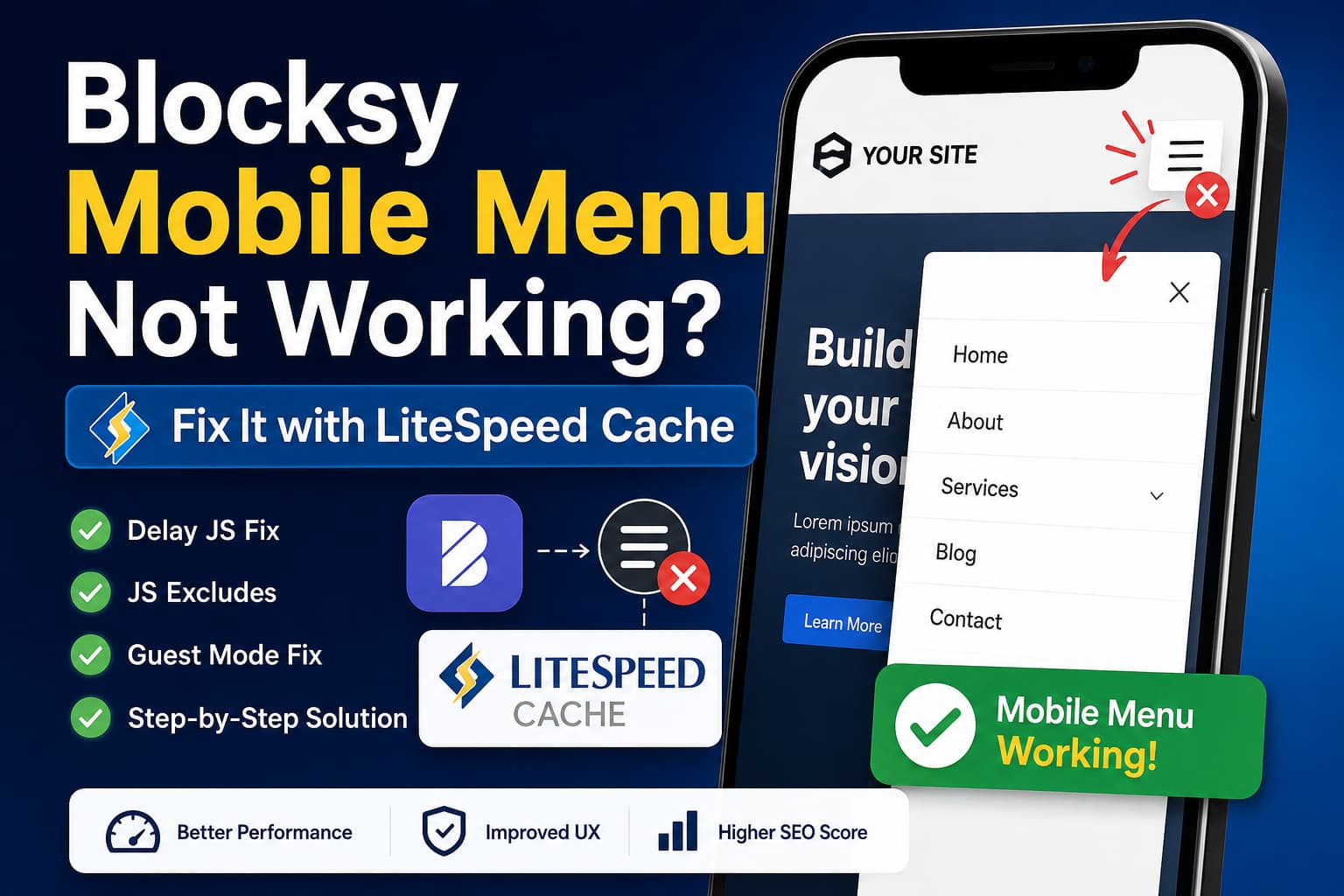
A common issue with the Blocksy WordPress theme occurs when the mobile menu works normally until LiteSpeed Cache is enabled.
The symptoms usually look like this:
- The hamburger menu icon is visible.
- Tapping the icon does nothing.
- The menu works while logged in but fails for visitors.
- The menu works after clearing the cache but stops again later.
- Disabling LiteSpeed Cache immediately restores the mobile menu.
In most cases, the caching system itself is not the problem. The issue is caused by one of LiteSpeed Cache’s JavaScript optimization features changing when or how Blocksy’s frontend JavaScript is executed.
The settings most likely to cause the conflict are:
- Load JS Deferred set to Delayed
- JS Combine
- JS Minify
- Guest Mode
- Guest Optimization
Blocksy uses JavaScript to initialize its mobile menu and off-canvas header. If that script is delayed, combined incorrectly, or excluded from the initial guest page, the menu button may appear before its click functionality has been initialized.
Quick Fix
Start with the following solution:
- Go to WordPress Dashboard > LiteSpeed Cache > Page Optimization > Tuning.
- Find JS Deferred/Delayed Excludes.
- Add this path:
/wp-content/themes/blocksy/static/bundle/main.js- Save the settings.
- Go to LiteSpeed Cache > Toolbox > Purge.
- Run:
- Purge All
- Purge All – CSS/JS
- Open the website in an incognito window and test the mobile menu.
Blocksy support has previously identified /blocksy/static/bundle/main.js as the file that should be excluded when an optimization plugin delays the off-canvas or mobile menu script. Blocksy’s primary frontend JavaScript files are stored inside the theme’s /static/bundle/ directory.
If this resolves the issue, you can continue using LiteSpeed Cache without disabling page caching or all JavaScript optimization.
Why Delay JavaScript Breaks the Blocksy Menu
LiteSpeed Cache provides two JavaScript loading modes:
- Deferred: JavaScript runs after the HTML has finished loading.
- Delayed: JavaScript waits until LiteSpeed detects user interaction, such as mouse movement, a click, or keyboard activity.
Delayed mode can improve performance-test scores because much of the JavaScript is not executed during the initial page-speed test. However, interactive components can stop responding correctly if their initialization script is delayed.
LiteSpeed itself recommends testing Delayed mode carefully because performance improvements must be balanced against the effect on the visitor experience.
A mobile menu is particularly sensitive to this setting. The visitor’s first tap may cause the JavaScript to start loading instead of opening the menu. Depending on the timing and device, the menu may require a second tap or may fail to initialize completely.
Solution 1: Change Delayed JavaScript to Deferred
This is the easiest solution when you do not want to configure exclusions.
Go to:
LiteSpeed Cache > Page Optimization > JS Settings
Find Load JS Deferred and change it from:
Delayedto:
DeferredSave the changes and purge all caches.
Deferred mode still postpones JavaScript until the HTML has loaded, but it does not wait for visitor activity. This makes it less likely to interfere with menus, popups, sliders, tabs, search panels, and other interactive components.
Test the website again on:
- Android
- iPhone or iPad
- Chrome incognito mode
- Safari private browsing
- At least two different pages
If the mobile menu works with Deferred but fails with Delayed, you have confirmed that Delay JS is the cause.
Solution 2: Exclude Blocksy’s Main JavaScript File
If you want to keep Delayed mode for better performance, exclude only the Blocksy frontend file responsible for the menu.
Navigate to:
LiteSpeed Cache > Page Optimization > Tuning
Under JS Deferred/Delayed Excludes, enter:
/wp-content/themes/blocksy/static/bundle/main.jsLiteSpeed accepts either a complete URI or a partial matching string. Wildcards are not required.
A shorter exclusion can also be used:
/blocksy/static/bundle/main.jsSave the settings and purge the cache.
Broader Blocksy Exclusion
If excluding main.js alone does not work, temporarily exclude Blocksy’s complete JavaScript bundle directory:
/wp-content/themes/blocksy/static/bundle/This is broader and may exclude more Blocksy scripts than necessary, but it is useful for identifying whether another Blocksy bundle is involved.
Once the menu works, inspect the loaded files and narrow the exclusion to the smallest possible path.
Solution 3: Test JS Combine
If Delay JS is not causing the problem, test JS Combine.
Go to:
LiteSpeed Cache > Page Optimization > JS Settings
Set:
JS Combine: OFF
JS Combine External and Inline: OFF
Save the settings and purge both the page cache and optimized CSS/JS files.
LiteSpeed Cache’s default setting for JS Combine is off. When enabled, the plugin places multiple JavaScript files into a combined file, which can sometimes change script execution order or create compatibility problems.
If disabling JS Combine fixes the menu, you can safely leave it disabled. Page caching, browser caching, object caching, image optimization, and other LiteSpeed features can continue working without JavaScript combination.
LiteSpeed’s documentation also confirms that you do not need to enable CSS or JavaScript optimization to benefit from its page-caching functionality.
Solution 4: Exclude Blocksy From Minification and Combination
If you need to keep JS Combine or JS Minify enabled, add Blocksy to the separate JS Excludes field.
Go to:
LiteSpeed Cache > Page Optimization > Tuning > JS Excludes
Add:
/wp-content/themes/blocksy/static/bundle/main.jsIf necessary, use the broader folder exclusion:
/wp-content/themes/blocksy/static/bundle/The two LiteSpeed exclusion fields perform different jobs:
JS Excludes
This prevents matching files from being processed by JavaScript minification and combination.
JS Deferred/Delayed Excludes
This prevents matching files from being deferred or delayed.
If you use minification, combination, and delayed JavaScript together, you may need the Blocksy path in both fields:
JS Excludes:
/wp-content/themes/blocksy/static/bundle/main.js

JS Deferred/Delayed Excludes:
/wp-content/themes/blocksy/static/bundle/main.js
LiteSpeed documents these as separate exclusion controls, so adding a script to only one field may not protect it from another enabled optimization.
Solution 5: Check Guest Mode and Guest Optimization
Guest Mode can make this problem difficult to diagnose because administrators and returning visitors may receive a different version of the page from first-time visitors.
When Guest Mode is enabled, LiteSpeed serves a default cached version on the visitor’s first request. It then uses an Ajax request to load the correct version for that visitor.
Guest Optimization can apply aggressive page and image optimization to that initial guest version, even when certain optimization options appear to be disabled elsewhere.
This can produce a situation where:
- The menu works while you are logged in.
- The menu works after the second page load.
- The menu fails only in incognito mode.
- The menu fails only for first-time visitors.
- PageSpeed tests look good while actual visitors experience a broken menu.
Test Guest Mode
Go to:
LiteSpeed Cache > General
Temporarily set:
Guest Mode: OFF
Guest Optimization: OFF
Purge all caches and test the website in a new incognito window.
If the mobile menu now works, turn Guest Mode back on and add the Blocksy script to:
LiteSpeed Cache > Page Optimization > Tuning > Guest Mode JS Excludes
/wp-content/themes/blocksy/static/bundle/main.jsLiteSpeed provides this field specifically for JavaScript files or inline code that should not be optimized as part of Guest Mode.
Recommended LiteSpeed Configuration for Blocksy
The following configuration provides a stable starting point:
JS Settings
JS Minify: ON
JS Combine: OFF
JS Combine External and Inline: OFF
Load JS Deferred: Deferred
After confirming that everything works, you can test Delayed mode with the Blocksy exclusion:
/wp-content/themes/blocksy/static/bundle/main.jsTuning Settings
JS Excludes:
/wp-content/themes/blocksy/static/bundle/main.js

JS Deferred/Delayed Excludes:
/wp-content/themes/blocksy/static/bundle/main.js

Guest Mode JS Excludes:
/wp-content/themes/blocksy/static/bundle/main.js
You may not need the path in all three fields. Start with JS Deferred/Delayed Excludes, test the menu, and add the other exclusions only when the corresponding optimization is causing the conflict.
Correct Cache-Purging Process
Changes to LiteSpeed optimization settings may not appear immediately because the previously generated files can remain cached.
After every important change, go to:
LiteSpeed Cache > Toolbox > Purge
Run:
Purge All
Purge All - CSS/JS
The second option removes the minified and combined CSS and JavaScript files generated by the Page Optimization settings.
You should also clear:
- Any server-level cache
- QUIC.cloud CDN cache
- Cloudflare cache
- Browser cache
- Hosting control-panel cache
Then test from an incognito window rather than testing only while logged into WordPress.
How to Identify the Exact Problematic Setting
Do not change five settings simultaneously. That may restore the menu, but you will not know which setting caused the problem.
Use this process instead:
- Disable all LiteSpeed JavaScript optimization settings.
- Purge all caches.
- Confirm that the mobile menu works.
- Enable JS Minify.
- Purge and test.
- Enable JS Combine, if required.
- Purge and test.
- Enable Deferred JavaScript.
- Purge and test.
- Change Deferred to Delayed.
- Purge and test.
- Test Guest Mode and Guest Optimization separately.
The setting enabled immediately before the problem returns is the likely cause.
LiteSpeed recommends disabling JavaScript and CSS optimization, purging the cache, and then re-enabling features individually to locate an incompatible file or setting.
Use LiteSpeed’s Optimization Bypass Parameter
You can compare the optimized and unoptimized versions of a page without completely disabling the plugin.
Add this parameter to the affected URL:
?LSCWP_CTRL=before_optmExample:
https://example.com/?LSCWP_CTRL=before_optmIf the mobile menu works on the bypassed URL but fails on the regular URL, the issue is almost certainly related to LiteSpeed Page Optimization.
LiteSpeed recommends this parameter when identifying original CSS and JavaScript files before optimization.
Check the Browser Console
Open the affected page in Chrome and press F12.
Select the Console tab and tap the mobile menu.
Look for errors such as:
Uncaught TypeError
ReferenceError
Cannot read properties of undefined
Failed to execute
main.js
Then open the Network tab and filter by JS.
Search for:
blocksy
main.js
static/bundle
Compare the normal page with the LiteSpeed optimization bypass URL. This helps confirm whether Blocksy’s JavaScript is missing, delayed, combined, or returning an error.
LiteSpeed’s troubleshooting documentation recommends checking the browser console and network waterfall when interactive functionality stops working.
Should You Disable LiteSpeed Cache Completely?
No. Disabling the entire plugin is normally unnecessary.
If the mobile menu works with LiteSpeed disabled, that confirms an optimization conflict, but it does not mean page caching is incompatible with Blocksy.
The better solution is to:
- Disable the individual problematic optimization.
- Exclude Blocksy’s frontend JavaScript.
- Keep LiteSpeed page caching enabled.
- Test changes on staging before applying them to production.
A functioning mobile menu is more important than gaining a few additional points in a synthetic performance test.
Final Recommended Fix
For most Blocksy websites, apply these settings:
- Keep LiteSpeed Cache enabled.
- Set JS Combine to off.
- Set Load JS Deferred to Deferred.
- If using Delayed mode, add this to JS Deferred/Delayed Excludes:
/wp-content/themes/blocksy/static/bundle/main.js- If the problem affects only new visitors, add the same path to Guest Mode JS Excludes.
- Purge both LSCache and the generated CSS/JS cache.
- Test in incognito mode on multiple mobile devices.
This approach preserves most of LiteSpeed Cache’s performance benefits while ensuring Blocksy’s mobile menu initializes immediately and remains usable.
Frequently Asked Questions
Why does the Blocksy hamburger icon appear but not open?
The icon is part of the page’s HTML and CSS, so it can appear before the JavaScript controlling the menu has executed. If the Blocksy frontend script is delayed or processed incorrectly, the button remains visible but has no working click behavior.
Which Blocksy JavaScript file controls the mobile menu?
The primary file commonly identified for exclusion is:
/wp-content/themes/blocksy/static/bundle/main.jsThe exact asset path can change in a future theme release, so confirm it through your browser’s Network tab if the exclusion stops working after an update.
Where should I add the Blocksy exclusion in LiteSpeed Cache?
For Delay JS conflicts, add it to:
LiteSpeed Cache > Page Optimization > Tuning >
JS Deferred/Delayed Excludes
For minification or combination conflicts, also add it to:
JS ExcludesFor problems affecting only first-time visitors, add it to:
Guest Mode JS ExcludesCan I keep Delay JS enabled?
Yes. Keep Delayed mode enabled and exclude Blocksy’s main.js file. If the menu remains unreliable, use Deferred mode instead.
Will turning off JS Combine make the website slow?
Not necessarily. LiteSpeed page caching and its other performance features continue working when JS Combine is disabled. Always compare real loading performance before and after the change instead of relying only on the setting name.
Why does the menu work while I am logged in?
LiteSpeed often optimizes logged-out and guest traffic differently. Guest Mode, Guest Optimization, and the Optimize for Guest Only option can make the administrator’s version work while the public cached version remains broken.
Conclusion
When the Blocksy mobile menu stops working after enabling LiteSpeed Cache, the most likely cause is JavaScript optimization rather than the cache itself.
Start by excluding:
/wp-content/themes/blocksy/static/bundle/main.jsfrom delayed JavaScript. Then test JS Combine, Guest Mode, and Guest Optimization individually.
Do not sacrifice essential navigation for a higher page-speed score. A fast website is valuable, but a mobile website visitors cannot navigate is still broken.
