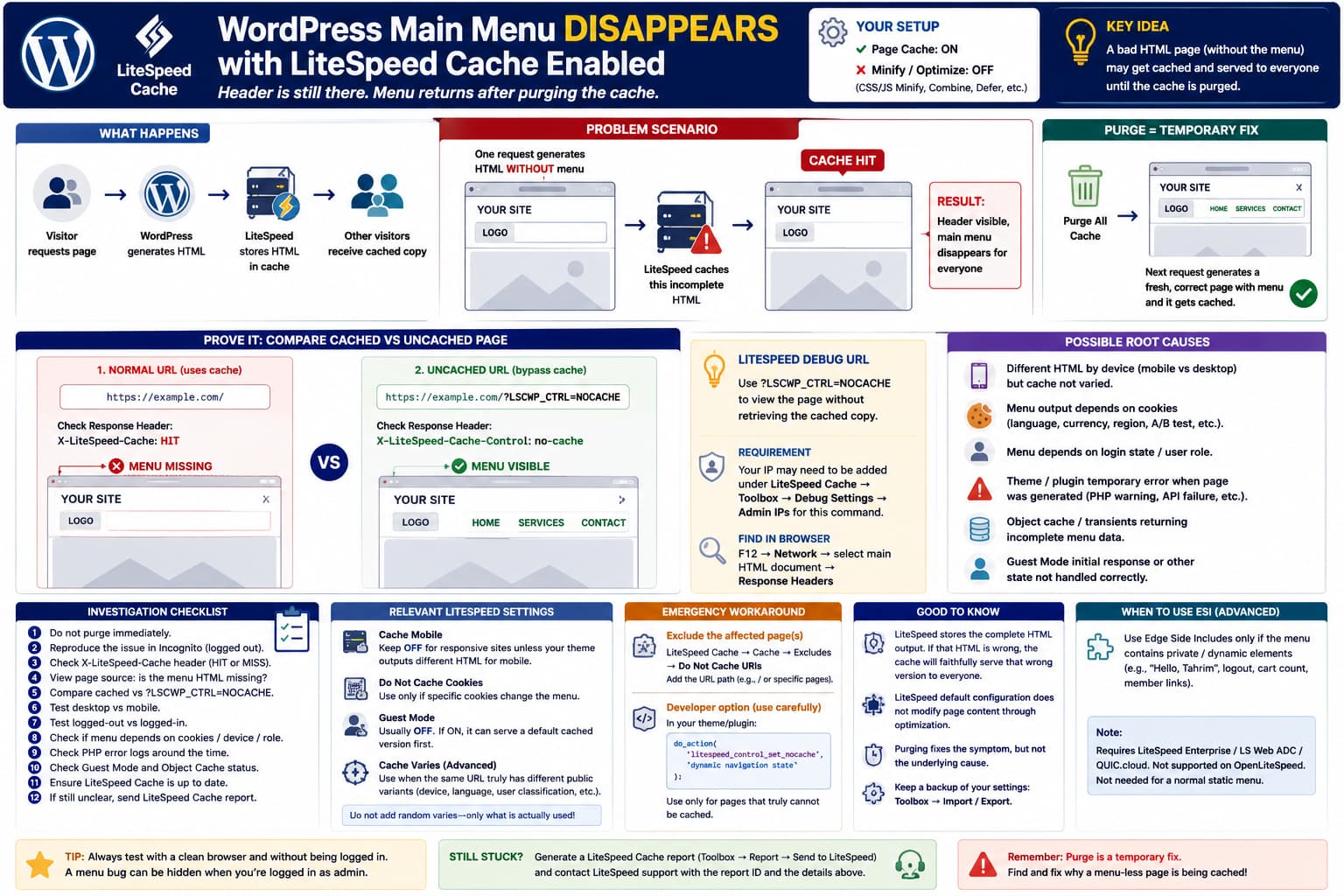
A strange WordPress caching problem can look like this:
Header
✓ still visible

Main navigation
✗ completely missing
Then you purge LiteSpeed Cache and immediately get:
Header
✓

Main menu
✓
Everything may remain normal for several days before the menu disappears again.
If LiteSpeed Cache’s page cache is enabled but CSS/JS minification, combine, defer, and similar optimization options are disabled, this is an important clue.
LiteSpeed’s own troubleshooting documentation says the default configuration does not modify page content through optimization. The cache layer simply stores the HTML WordPress generated and can later serve that cached object without running WordPress again.
So the key question is not initially:
What CSS setting is hiding the menu?
It is:
Is LiteSpeed serving a cached HTML copy in which the menu was already missing when that copy was created?
That is the first thing I would test.
Why Purging the Cache Is Such an Important Clue
LiteSpeed page caching works approximately like this:
Visitor requests page
        ↓
No cached copy exists
        ↓
WordPress + theme generate HTML
        ↓
LiteSpeed stores that complete HTML
        ↓
Future visitors receive cached copy
When a cache object already exists, LiteSpeed can serve it without invoking WordPress at all.
Imagine that one request happens while the theme or another plugin unexpectedly generates:
<header>
    <div class="logo">...</div>

    <!-- menu unexpectedly absent -->
</header>
If that response is considered cacheable, LiteSpeed may store it.
Subsequent visitors can then receive that same bad version:
Cache HIT
↓
header visible
↓
menu absent
Purging removes it.
The next request generates a healthy copy:
Purge
↓
Cache MISS
↓
WordPress generates menu correctly
↓
Healthy page gets cached
↓
menu returns
This fits the reported behavior extremely well.
But we should prove it before changing settings.
Do This Test the Next Time the Menu Disappears
Do not purge the cache immediately.
That destroys the evidence.
When the menu disappears, open the affected page normally in an Incognito/private browser.
Then open the same URL with:
?LSCWP_CTRL=NOCACHEFor example:
https://example.com/versus:
https://example.com/?LSCWP_CTRL=NOCACHELiteSpeed officially provides this debugging command specifically to display a page without retrieving its cached copy.
Depending on the current LiteSpeed configuration, your IP may need to be added under:
LiteSpeed Cache
→ Toolbox
→ Debug Settings
→ Admin IPs
for the NOCACHE command.
Result A: Cached Page Has No Menu, NOCACHE Page Has Menu
If:
Normal URL
✗ menu missing
but:
?LSCWP_CTRL=NOCACHE
✓ menu visible
you have proven that the bad result is specifically in LiteSpeed’s cached page.
Now the investigation becomes:
Why was a menu-less version of this page allowed to become the public cache copy?
That is much more useful than experimenting with random cache options.
Result B: Both Versions Have No Menu
If:
Normal cached page
✗
and:
NOCACHE
✗
then LiteSpeed is not the root cause at that moment.
WordPress/theme/plugin code is currently generating the page without the menu.
Purging may appear to fix it because the purge action triggers other state changes or simply coincides with the issue resolving.
Then investigate:
theme
navigation plugin
menu assignment
PHP errors
transients
database/object cache
conditional header logic
instead.
Also Check the LiteSpeed Cache Header
When the issue happens, open:
F12
→ Network
→ reload
→ click the main HTML document
→ Response Headers
Look for:
X-LiteSpeed-Cache: hitor:
X-LiteSpeed-Cache: missLiteSpeed documents:
hitas meaning the page was served from cache, while:
missmeans the request reached the application and a new cache object may now have been generated.
A particularly useful reproduction is:
Menu missing
X-LiteSpeed-Cache: hit
then:
?LSCWP_CTRL=NOCACHE
Menu present
That is very strong evidence of a bad cached representation.
Check Whether the Menu HTML Is Actually Missing
There are two distinct problems that users often describe as:
The menu disappeared.
Case 1: Menu HTML is absent
View source and search for one of the menu item names.
Suppose the menu should contain:
Home
Services
Contact
If none of those exist in the HTML, the menu was not rendered.
That points toward:
bad page cache
theme rendering
menu query
conditional logic
Case 2: Menu HTML exists but isn’t visible
If DevTools shows:
<nav class="main-navigation">
    ...
</nav>
but it cannot be seen, then something is visually suppressing it.
Check:
display
visibility
opacity
height
overflow
transform
in Computed Styles.
Since CSS Minify and similar LiteSpeed optimizations are reportedly OFF, LiteSpeed’s CSS optimizer is a weaker suspect, although normal theme/plugin CSS or JavaScript can still be responsible.
Why Can It Work for Four Days and Then Suddenly Break?
Page caching does not necessarily mean:
cache enabled
↓
problem occurs immediately
A cached page can be purged or expire for many reasons.
When the old healthy cache object disappears, the next request becomes the request that regenerates the public cached version.
Imagine:
Day 1
Healthy page cached

Day 2
Healthy cache served

Day 3
Healthy cache served

Day 4
Cache expires/is purged
↓
new request reaches WordPress
↓
for some reason menu missing on that request
↓
bad page stored
Now everyone sees the bad version.
That would explain why:
it worked for daysand then suddenly appeared broken despite nobody changing LiteSpeed’s settings.
The delay itself does not prove a four-day LiteSpeed bug.
The Most Important Question: Is the Menu Dynamic?
A main navigation usually looks static, but some sites generate different menus depending on:
desktop/mobile
logged-in/logged-out state
membership
user role
language
country
currency
cookie
A/B test
device detection
That matters because public page caching assumes different visitors can safely receive the same public representation unless the cache is told otherwise.
LiteSpeed supports cache varies specifically for applications that generate different versions of the same URL based on things such as user agent, language, user classification, geographic location, and other conditions.
If your theme says:
if ( $mobile_device ) {
    output_mobile_menu();
} else {
    output_desktop_menu();
}
then desktop and mobile visitors may genuinely receive different HTML.
That needs special consideration.
Check Whether Desktop and Mobile Use Different HTML
Modern responsive themes generally output one navigation structure and use CSS to adapt it.
In that case you usually leave:
LiteSpeed Cache
→ Cache
→ Cache Mobile
→ OFF
LiteSpeed itself says Cache Mobile is normally OFF and should only be enabled where the application actually serves mobile-specific content/HTML.
But if your theme or menu plugin truly generates different HTML for mobile and desktop, then separate cache copies may be necessary.
LiteSpeed warns that when the application’s device detection and cache variation do not match, a desktop page can be cached as mobile or vice versa.
So test:
Desktop uncached
Mobile uncached
and compare the <nav> markup.
If it is materially different, investigate Cache Mobile or the theme’s device-dependent rendering.
Do not simply enable Cache Mobile on every responsive website.
A Cookie-Dependent Menu Needs the Same Attention
Some themes/plugins use cookies to decide whether a menu item or entire navigation is rendered.
For example:
Cookie absent
→ menu A

Cookie present
→ menu B
LiteSpeed provides two approaches for cookie-dependent content:
Do Not Cache Cookiesor a proper cache vary when multiple publicly cacheable variants are required.
If the whole menu changes based on a cookie and LiteSpeed does not know that cookie matters, the wrong visitor’s HTML could theoretically seed the public cached version.
Do not add random cookies to the exclude list.
First identify whether the theme/menu plugin actually uses one.
Logged-In vs Logged-Out Is Another Useful Test
Try the site:
logged in as administratorand:
Incognito / logged outIf:
Logged in
✓ menu always visible

Logged out
✗ menu sometimes disappears
that is highly relevant.
Administrators and logged-out visitors may not be served the same cached representation.
Also remember that debugging while logged into WordPress can hide public-cache issues completely.
Always reproduce caching problems in:
Incognitoor another browser with no WordPress login cookie.
Don’t Start With CSS/JS Optimization Settings
A lot of LiteSpeed menu troubleshooting guides immediately recommend disabling:
JS Minify
JS Combine
Load JS Deferred
Delay JS
CSS Minify
UCSS
That is sensible when those options are enabled.
But here the user says:
I only have cache enabled. Minify is off.
That changes the diagnosis.
LiteSpeed’s own troubleshooting guide says the default configuration does not apply optimization or alter page content.
So I would not spend the first hour changing CSS/JS optimization settings that are already disabled.
The page-cache comparison is much more valuable.
There Have Been Other Reports of Menu Symptoms With LiteSpeed
Other WordPress users have reported menus or submenus behaving incorrectly while LiteSpeed Cache is active, including cases involving guest views, Divi, Elementor, and menu structures.
Those reports do not prove they share this exact root cause.
Some involved optimization settings, themes, or different cache variations.
So I would avoid saying:
LiteSpeed has a known bug that deletes WordPress menus.
There is not enough evidence for that statement.
A more accurate description is:
LiteSpeed makes an underlying dynamic-rendering/cache-variation problem persistent because it stores the generated page.
Check Whether the WordPress Menu Is Still Assigned
While the frontend is broken, before purging anything, go to:
Appearance
→ Menus
or:
Appearance
→ Editor
→ Navigation
depending on the theme.
Check that the menu is still assigned to:
Primary
Header
Main Navigation
or the theme’s equivalent.
If the assignment exists in wp-admin while the cached frontend contains no menu, the menu data itself probably hasn’t been deleted.
This is another clue that you are looking at rendering/cache behavior rather than lost WordPress menu configuration.
Check PHP Error Logs at the Time the Bad Cache Is Created
A particularly interesting possibility is:
WordPress starts rendering page
↓
menu-related code encounters a recoverable issue
↓
header completes without navigation
↓
response still receives HTTP 200
↓
LiteSpeed caches it
Check:
wp-content/debug.logand the hosting PHP error log.
Look around the exact time the menu disappears.
Search for:
menu
nav
walker
header
theme
PHP Warning
PHP Notice
PHP Fatal
database
A fatal error would often stop more than the menu, but warnings, exceptions handled internally, failed API calls, or buggy navigation code may produce partial content without killing the entire page.
Check HTTP Status of the Bad Page
Make sure the menu-less response is actually:
200 OKand not an odd cached error state.
LiteSpeed can cache certain non-200 responses depending on its settings, so knowing the actual status matters.
Use:
F12
→ Network
→ Document
→ Status
and record:
status
X-LiteSpeed-Cache
cache-control
before purging.
Compare the Bad Cached HTML With the Fresh HTML
This is probably the strongest diagnostic of all.
When broken, save:
Normal cached page sourceThen open:
?LSCWP_CTRL=NOCACHEand save that source too.
Compare them with any diff tool.
Focus around:
<header>
<nav>
menu classes
You may discover something like:
<header>
   <div class="logo">...</div>
-  <!-- nothing -->
+  <nav id="site-navigation">
+      ...
+  </nav>
</header>
Now you know this is not a CSS problem at all.
Or you might discover:
<nav class="menu hidden">
<nav class="menu">
which points toward state-dependent markup.
Reset LiteSpeed to Default as an Isolation Test
LiteSpeed’s current troubleshooting procedure recommends:
- export the current settings,
- reset LSCache to defaults,
- retest the problem.
If the site is still broken with default settings, LiteSpeed recommends submitting a support report.
In this particular case, if the user really enabled only caching, the configuration is already fairly simple.
Still, export first:
LiteSpeed Cache
→ Toolbox
→ Import / Export
then use the official default reset as a controlled test.
Make Sure LiteSpeed Cache Itself Is Current
As of August 2026, WordPress.org lists LiteSpeed Cache 7.9, released August 5, 2026, as the current stable public release, with 8.0 listed as upcoming.
LiteSpeed’s troubleshooting documentation explicitly recommends updating to the latest plugin version before spending significant time diagnosing an issue because bugs may already have been fixed.
So check:
Plugins
→ LiteSpeed Cache
before testing.
Also Check the LiteSpeed Server Version
This is easy to overlook.
The WordPress plugin is only one part of LSCache.
The actual page cache is implemented by:
LiteSpeed Web Server
OpenLiteSpeed
LiteSpeed Web ADC
QUIC.cloud
depending on the hosting setup.
There was a recent July 2026 LiteSpeed support case where HTML cache purge behaved incorrectly because of a LiteSpeed Web Server 6.3.6 build 0 server-side issue; LiteSpeed recommended upgrading to build 1 or reverting to 6.3.5, and the reporter confirmed the issue was resolved server-side.
That case is not about disappearing menus, but it is a useful reminder:
If cache behavior itself is inconsistent, check both the WordPress plugin version and the server-side LiteSpeed version.
Ask the host for:
LiteSpeed Web Server / OpenLiteSpeed version
build number
if the cache evidence does not make sense.
Can You Exclude Only the Menu From LiteSpeed Cache?
Not through normal full-page cache configuration.
Page cache stores the rendered page as a complete response.
You cannot normally say:
cache everything
except this arbitrary <nav>
using a simple exclusion box.
LiteSpeed has ESI (Edge Side Includes) for this kind of mixed-content page. ESI can “punch holes” in the cached page and render particular fragments separately.
However:
I would not use ESI for a normal static navigation menu just to hide the underlying bug.
A static menu should be perfectly safe to cache.
If it is not, find out why its output changes.
When ESI Would Make Sense
ESI is appropriate if the menu genuinely contains private/dynamic elements such as:
Hello, Tahrim
My Account
Logout
customer-specific links
membership links
cart/customer state
LiteSpeed documents ESI specifically for mixing public pages with privately cached or uncached fragments.
But there are constraints:
- OpenLiteSpeed does not support ESI.
- You need LiteSpeed Enterprise, LiteSpeed Web ADC, or QUIC.cloud for ESI.
- ESI adds processing complexity.
- Native widget ESI currently has limitations with modern WordPress widgets.
So this is an architectural solution for truly dynamic content, not the first fix for a broken static menu.
Emergency Workaround: Exclude the Affected Pages From Cache
If the site is live and you need reliability immediately, you can temporarily stop caching the affected page.
Go to:
LiteSpeed Cache
→ Cache
→ Excludes
→ Do Not Cache URIs
and add the relevant path.
For the homepage, a broader exclusion may be necessary depending on the configuration.
LiteSpeed documents URI exclusions as the standard method for ensuring particular pages bypass page cache.
Then verify in DevTools that the response shows:
X-LiteSpeed-Cache-Control: no-cachewhich LiteSpeed says indicates the page is intentionally being served dynamically.
This sacrifices page caching for that URL, so treat it as a workaround while finding the source.
Developer-Level No-Cache Option
If only a particular template or runtime condition should bypass LiteSpeed, the plugin also exposes:
do_action(
    'litespeed_control_set_nocache',
    'dynamic navigation state'
);
LiteSpeed documents litespeed_control_set_nocache as the API action for marking the current response non-cacheable.
For example, if your custom theme genuinely cannot safely cache a particular template:
if ( is_page( 'members-area' ) ) {
    do_action(
        'litespeed_control_set_nocache',
        'dynamic member navigation'
    );
}
Do not apply this site-wide unless you want to effectively disable page caching.
Don’t Use This as the Permanent “Fix”
Avoid:
add_action(
    'wp',
    function () {
        do_action(
            'litespeed_control_set_nocache',
            'menu issue'
        );
    }
);
on every page.
That would defeat the main reason you installed LiteSpeed Cache.
The goal is to determine why one version of the menu differs.
Guest Mode Is Worth Checking
Under:
LiteSpeed Cache
→ General
check whether:
Guest Modeis enabled.
LiteSpeed documents that Guest Mode can initially serve a default cached version before an AJAX request retrieves the correct version for that visitor, and that cache varies are initially ignored for that first response.
If Guest Mode is ON, temporarily turn it OFF, purge, and retest.
For a site that reportedly has only “cache enabled,” it should normally already be OFF, but it is worth verifying instead of assuming.
Object Cache Is a Separate Setting
Check:
LiteSpeed Cache
→ Cache
→ Object
and the dashboard’s cache status.
LiteSpeed distinguishes:
Public Cache
Private Cache
Object Cache
Browser Cache
as different mechanisms.
If Redis or Memcached is actually enabled by the host, menu-related WordPress objects/transients could behave differently even though you only remember enabling page cache.
A recent WordPress menu-support case also noted that intermittent frontend menu disappearance can be associated with cached/transient menu data while the menu remains intact in wp-admin.
That does not prove object caching is involved here, but verify it.
A Clean Troubleshooting Sequence
When this happens again, I would follow this exact order:
- Do not purge immediately.
- Open the broken page in Incognito.
- Record
X-LiteSpeed-Cache: hit/miss. - Inspect whether the menu exists in the HTML.
- Open the same URL with
?LSCWP_CTRL=NOCACHE. - Compare cached vs uncached HTML.
- Test desktop and mobile separately.
- Test logged-out vs logged-in.
- Check whether the menu depends on a cookie, device, role, or language.
- Check PHP/server logs at the time the bad copy was created.
- Confirm Guest Mode and Object Cache status.
- Update LiteSpeed Cache to the current version.
- If the cached copy is demonstrably wrong and the cause remains unclear, send a LiteSpeed diagnostic report.
That should turn a random four-day problem into something reproducible.
Send LiteSpeed a Report While the Problem Exists
LiteSpeed support commonly asks for a report generated from:
LiteSpeed Cache
→ Toolbox
→ Report
→ Send to LiteSpeed
when menu/cache problems cannot be reproduced from settings alone. Similar menu-related reports on WordPress.org were directed through this diagnostic process.
Send the report ID, plus:
Affected URL
LiteSpeed Cache version
server version
theme
menu/header builder
cached page result
NOCACHE page result
X-LiteSpeed-Cache header
desktop/mobile difference
logged-in/logged-out difference
The NOCACHE comparison is particularly useful.
Most Likely Explanation
Based only on the reported symptoms:
LiteSpeed page cache enabled
CSS/JS optimization disabled
↓
site works normally
↓
days later navigation disappears
↓
header remains
↓
Purge All immediately restores navigation
my leading hypothesis would be:
A menu-less version of the generated page is occasionally becoming the public cached HTML object. LiteSpeed then faithfully serves that bad HTML until it is purged.
That does not necessarily mean LiteSpeed is the component originally removing the menu.
The underlying cause may be:
theme/menu rendering race or bug
device-specific markup without correct cache variation
cookie-dependent navigation
logged-in/guest conditional logic
transient/object-cache issue
temporary server/PHP issue
LiteSpeed’s role may simply be making that one bad generated response persistent.
Direct Answer
Because purging LiteSpeed immediately restores the menu and you have not enabled minification or other page optimizations, I would not start with CSS or JavaScript exclusions.
The next time it happens, before purging, compare:
https://example.com/with:
https://example.com/?LSCWP_CTRL=NOCACHELiteSpeed officially provides NOCACHE specifically for comparing cached and uncached versions of a page.
If the result is:
cached URL
✗ menu missing

NOCACHE
✓ menu present
then you have confirmed that a bad HTML version has entered LiteSpeed’s page cache.
Next determine why WordPress sometimes outputs a different menu state. Pay particular attention to desktop/mobile-specific menu rendering, cookies, login state, Guest Mode, and any dynamic header plugin.
If the menu markup genuinely differs by device, LiteSpeed supports separate mobile cache variants, but its documentation says this should only be enabled where mobile content actually differs from desktop HTML.
If the menu is static and identical for everyone, you should not need to exclude it from cache or use ESI. A static WordPress menu should cache normally.
