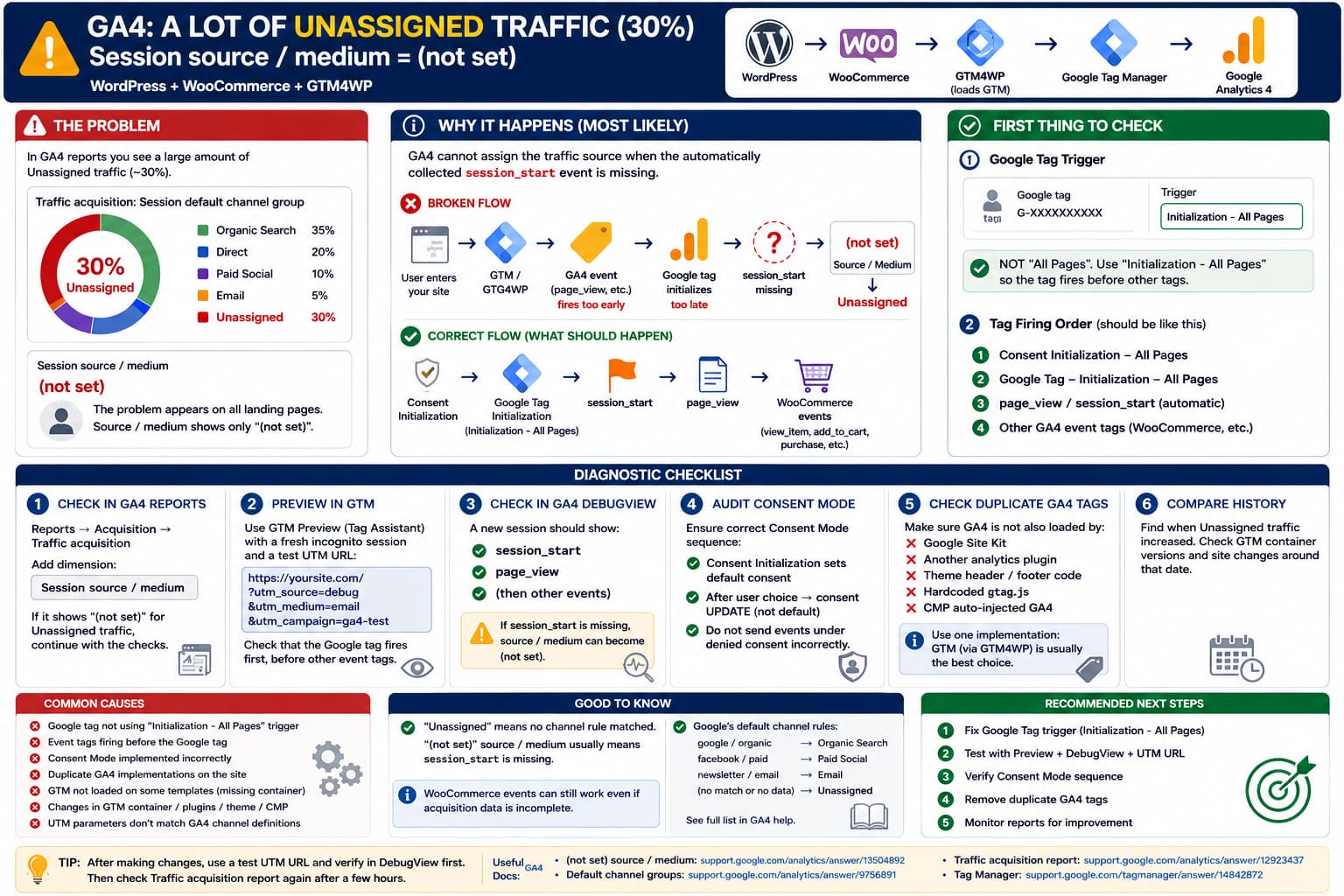
If a WordPress/WooCommerce website using GTM4WP shows something like:
Unassigned
30% of sessions
and drilling into that traffic gives:
Session source / medium
(not set)
the first thing to understand is that this is not normally a WooCommerce category, landing-page, or SEO problem.
Google explicitly states that when Session source / medium is (not set), a common reason is that GA4 did not receive the automatically collected:
session_startevent for those sessions. When that happens, GA4 cannot assign the session’s traffic source and the corresponding traffic can appear as Unassigned.
That makes the GTM/GA4 implementation the first place to investigate.
What “Unassigned” Actually Means in GA4
GA4’s channel groups are rule based.
For example:
google / organic
→ Organic Search

facebook / paid
→ Paid Social

newsletter / email
→ Email
If GA4 receives a valid source and medium but they do not match one of Google’s channel rules, the session can be classified as:
UnassignedGoogle’s current definition is explicit:
Unassigned is used when no other channel rule matches the traffic data.
But there is an important distinction.
Case 1: Source/medium contains real values
For example:
facebook / social-paidbut channel:
UnassignedThat is usually a UTM/channel classification problem.
Case 2: Source/medium itself is (not set)
For example:
Session source / medium:
(not set)

Session default channel group:
Unassigned
That points much more strongly toward a session/tagging problem.
The reported case is Case 2.
The First Thing I Would Check: Your Google Tag Trigger
Open:
Google Tag Manager
→ Workspace
→ Tags
Find the main Google tag containing your GA4 Measurement ID, for example:
G-XXXXXXXXXXIts trigger should normally be:
Initialization - All Pagesnot simply:
All PagesGoogle’s current Tag Manager setup instructions specifically tell users to set the Google tag to:
Initialization - All Pagesso it fires before other tags.
Google also specifically connects this configuration to (not set) source/medium.
Its GA4 documentation says:
Session source / medium can be
(not set)whensession_startis missing. This can happen when the Google Analytics configuration/Google tag does not use the Initialization trigger.
So this is the highest-value thing to check first.
Correct GTM Configuration
Your base tag should look conceptually like:
Tag:
Google tag

Tag ID:
G-XXXXXXXXXX

Trigger:
Initialization - All Pages
The desired firing order is:
Consent Initialization
        ↓
Google tag
Initialization - All Pages
        ↓
page_view / session_start
        ↓
WooCommerce events
view_item
add_to_cart
begin_checkout
purchase
etc.
Not:
WooCommerce / custom GA4 event
        ↓
Google tag loads afterward
Google’s tagging best-practices documentation says the Google tag should be initialized before event methods are called.
Why This Matters With GTM4WP
GTM4WP itself is not your GA4 property.
The plugin primarily:
1. Inserts the GTM container into WordPress
2. Populates the dataLayer
3. Adds WordPress/WooCommerce information
4. Pushes GA4 ecommerce events
The actual Analytics tags are configured inside Google Tag Manager.
GTM4WP’s official WordPress.org description confirms that it inserts the GTM container and provides WooCommerce GA4 ecommerce data in the data layer.
So this architecture is:
WordPress/WooCommerce
        ↓
GTM4WP
        ↓
dataLayer
        ↓
Google Tag Manager
        ↓
Google tag / GA4 event tags
        ↓
Google Analytics 4
Therefore:
Seeing Unassigned traffic does not automatically mean GTM4WP itself is broken.
The problem can be entirely inside the GTM container configuration.
Why Does It Affect All Landing Pages?
The report says (not set) occurs across many or all landing pages.
That actually supports the idea of a site-wide session initialization problem.
If only:
/product/example/were affected, I would investigate that template.
But if you see:
Homepage
Products
Categories
Blog posts
Checkout
Other pages
all represented under Unassigned, the common element is more likely:
GTM
Google tag
Consent Mode
session_start
rather than those individual pages.
Traffic source is session-level information, so one broken session initialization mechanism can affect sessions landing anywhere on the site.
Make Sure You Are Looking at “Session source / medium”
This is also important.
Go to:
GA4
→ Reports
→ Acquisition
→ Traffic acquisition
Use:
Session default channel groupand then change/add the dimension:
Session source / mediumGoogle’s Traffic Acquisition report is specifically built around session-scoped acquisition dimensions.
Don’t confuse it with:
First user source / mediumwhich answers:
How was this user originally acquired?
or other source/medium dimensions used in event-level reporting.
For diagnosing this issue you want:
Session source / mediumIf that says:
(not set)for the Unassigned traffic, continue with the tagging checks below.
Check Whether session_start Is Actually Missing
You can test this using GTM Preview / Tag Assistant.
Open:
Google Tag Manager
→ Preview
Enter your website URL.
Then start a completely fresh visit.
Ideally:
- Use Incognito/private browsing.
- Clear site cookies.
- Enter through a tagged URL.
For example:
https://example.com/?utm_source=test&utm_medium=email&utm_campaign=ga4_debugThen inspect the GTM event timeline.
You should see your Google tag fire very early.
Also open GA4:
Admin
→ DebugView
The new session should contain events such as:
session_start
page_view
followed later by any WooCommerce events.
If you see events like:
page_view
view_item
add_to_cart
but no proper session initialization, that is a serious clue.
Test With a Controlled UTM URL
Use:
?utm_source=debugnexus-test
&utm_medium=email
&utm_campaign=ga4-test
For example:
https://example.com/?utm_source=debugnexus-test&utm_medium=email&utm_campaign=ga4-testA new session should eventually appear as approximately:
Session source:
debugnexus-test

Session medium:
email

Session default channel:
Email
Google’s default channel definition recognizes email as an Email medium.
If the controlled test still becomes:
(not set)
→ Unassigned
then there is almost certainly a problem with the GA4 session/tagging implementation.
Check Consent Mode Carefully
If you use a cookie banner or CMP, this becomes the next major suspect.
Google currently documents Consent Mode implementation errors as one cause of (not set) attribution problems.
Specific examples include:
- incorrectly using the
defaultcommand to update consent after the user’s decision; - sending additional events under denied consent after an initially granted state;
- losing the original event associated with
session_start.
The desired architecture is roughly:
Consent Initialization - All Pages
        ↓
Set default consent state
        ↓
Google tag Initialization - All Pages
        ↓
User interacts with banner
        ↓
Consent UPDATE
not:
Google tag completely delayed
↓
random event fires first
↓
consent state changes
↓
new measurement sequence starts
depending on whether you’re implementing Basic or Advanced Consent Mode.
Google describes the two Consent Mode implementations separately: Basic mode can block tags before consent, while Advanced mode loads Google tags with consent defaults and sends limited cookieless pings where permitted.
Common Consent Setup Mistake
A setup sometimes looks like:
Google Tag
Trigger:
All Pages

Exception:
analytics_storage denied
Then the CMP fires an event such as:
cookie_consent_updateand Analytics starts afterward.
That may mean the first Analytics event arrives much later than the actual page/session entrance.
This deserves careful testing.
Do not simply remove consent restrictions to fix analytics. The consent implementation needs to remain legally appropriate for your site and visitors.
Instead verify that GTM’s Consent Mode sequencing is correct.
Check for Duplicate GA4 Implementations
Search the page source for your GA4 Measurement ID:
G-XXXXXXXXXXAlso use Tag Assistant.
You should understand every place where GA4 is being loaded.
Common duplicates include:
GTM4WP / GTM
+
Google Site Kit

GTM
+
theme header code

GTM
+
another Analytics plugin

GTM
+
hardcoded gtag.js

GTM
+
CMP auto-injected GA4
A WordPress site can easily accumulate multiple implementations over time.
You generally want one deliberate architecture.
For example:
GTM4WP
→ loads GTM

GTM
→ controls Google tag and GA4 events
rather than three independent tools all loading Analytics.
Duplicate tags more commonly create duplicate page views/events than (not set) by themselves, but an inconsistent multi-tag setup can make session and consent debugging significantly harder.
Make Sure GTM4WP Is Actually Loading the Container on Every Page
GTM4WP’s main GTM JavaScript snippet is designed to be placed in the <head>.
The plugin’s current documentation says this first snippet is critical for full GTM functionality.
On several affected landing pages, inspect source and confirm:
GTM-XXXXXXXis present.
Test:
homepage
product
product category
blog article
checkout
If one template lacks the GTM container entirely, that is a separate implementation problem.
But if the missing-attribution sessions truly span every page type, the Google tag firing sequence remains more likely.
Check GTM4WP Compatibility Mode
Under:
WordPress
→ Settings
→ Google Tag Manager
review how the GTM container is being inserted.
GTM4WP supports several placement/compatibility configurations because WordPress themes differ in where hooks such as the body-open hook are available.
However, the fallback <noscript> iframe is not what determines normal JavaScript-based GA4 attribution.
The key component is the main GTM JavaScript snippet.
So don’t spend hours trying to optimize the iframe placement if:
gtm.jsis already loading correctly.
GTM4WP Is Currently Maintained
This is also worth checking because older tutorials may reference different versions.
WordPress.org currently lists GTM4WP 1.22.5 as the latest 1.x maintenance release, with GTM4WP 2.0 planned for September 1, 2026. It has more than 700,000 active installations.
The plugin’s recent changelog includes WooCommerce compatibility work and multiple changes around its ecommerce tracking implementation.
So update GTM4WP before debugging an old version, but do it on staging if the WooCommerce tracking setup is business-critical.
WooCommerce Is Probably Not the Direct Cause of (not set)
GTM4WP’s WooCommerce integration is responsible for ecommerce events such as:
view_item
add_to_cart
begin_checkout
purchase
It does not decide whether a session came from Google Organic, Facebook, Email, or Direct.
That is GA4 acquisition/session attribution.
Therefore this:
Unassigned + Session source/medium = (not set)should first be treated as:
GA4 session initialization / tagging problemnot:
WooCommerce ecommerce dataLayer problemYou can have perfectly valid WooCommerce purchase events while acquisition data is still incomplete.
Check If the Problem Started After a Specific Change
The report says the problem has existed “for some time.”
Find the first date when Unassigned increased.
In GA4, compare:
Before
vs
After
Then check what changed around that date:
GTM container publish
Cookie/CMP installation
Consent Mode setup
GA4 tag migration
GTM4WP update
Site Kit installation
Theme redesign
Caching/optimization change
Google Tag migration
Server-side GTM implementation
A sudden step-change is extremely useful.
For example:
Jan 1–14:
Unassigned 2%

Jan 15 onward:
Unassigned 30%
Then open GTM:
Admin
→ Container Versions
and inspect what was published around January 15.
Check GTM Container Versions
This is one of the easiest ways to find a long-standing implementation mistake.
Go to:
GTM
→ Versions
Look at:
Google tag trigger
Consent configuration
GA4 event tags
Custom HTML
before and after the date when Unassigned increased.
You may discover:
Old:
Google tag
Initialization - All Pages

New:
Google tag
All Pages
or a newly introduced consent trigger.
If so, you have direct historical evidence for the cause.
Check Whether Event Tags Fire Before the Google Tag
In GTM Preview, select the earliest events.
Look at:
Tags Fired
Tags Not Fired
Your base Google tag should initialize before your regular GA4 event tags.
For example:
Initialization
Google tag ✓

DOM Ready
other tags

add_to_cart
GA4 event tag
Google specifically recommends initializing the Google tag before event methods.
If your ecommerce/custom GA4 tags can fire before the Google tag, fix that ordering.
You Probably Don’t Need to Manually Create session_start
Do not respond to this issue by creating your own:
GA4 Event
Event name:
session_start
tag.
session_start is an automatically collected GA4 event.
The goal is to fix the Google tag/session initialization so GA4 generates it naturally.
Manually manufacturing session_start events can make the data even harder to trust.
Why UTM Problems Are Less Likely Here
Incorrect UTMs can certainly produce Unassigned traffic.
For example:
utm_source=facebook
utm_medium=paid-social-custom
may not match Google’s current predefined channel rules.
Google’s default channel definitions control classification.
But in that case you usually still see something meaningful under:
Session source / mediumsuch as:
facebook / paid-social-customThe reported traffic instead shows:
(not set)That changes the diagnosis.
Fixing UTM naming alone will not repair sessions where GA4 never received the required source/session information.
A Useful Diagnostic Comparison
Add these dimensions for the affected traffic:
Session source / medium
First user source / medium
Landing page + query string
Country
Device category
Browser
Hostname
If you see:
Session source / medium:
(not set)

First user source / medium:
google / organic
that means GA4 knows something about how the user was initially acquired but cannot properly assign the current session.
That again points toward the session-level tracking implementation.
If (not set) is concentrated in:
one country
one browser
one hostname
one consent region
that gives you another valuable clue.
A recent GA4 community troubleshooting recommendation also suggests checking dimensions such as Country when a large Unassigned spike appears.
Also Check the Hostname
This is particularly useful on WooCommerce sites.
Add:
Hostnameto an Exploration.
Make sure the Unassigned traffic comes from your legitimate domains.
If you suddenly see:
unknown-domain.exampleor unexpected hostnames, you may be receiving Measurement ID spam or traffic from a duplicated implementation elsewhere.
If everything comes from:
www.example.comcontinue investigating your own tagging.
Payment Gateways Are a Different Attribution Problem
WooCommerce stores sometimes have attribution trouble because users leave the site for:
PayPal
Stripe-hosted flows
Klarna
other payment providers
and return afterward.
That can create referrals or new sessions if cross-domain/unwanted-referral handling is wrong.
But those cases usually look like:
paypal.com / referralrather than:
(not set)for 30% of all site traffic.
So payment gateway referrals are worth auditing, but they are not my first suspect in this specific case.
What I Would Do First on This Site
I would follow this order.
1. Confirm the report
Open:
Reports
→ Acquisition
→ Traffic acquisition
Use:
Session default channel groupand inspect:
Session source / mediumConfirm the 30% really says:
(not set)2. Check the GTM Google tag
Open the main:
Google tag
G-XXXXXXXXXX
Confirm:
Trigger:
Initialization - All Pages
Google specifically recommends this configuration.
3. Preview GTM
Start a fresh incognito session using:
?utm_source=test&utm_medium=email&utm_campaign=debugConfirm the Google tag fires before GA4 event tags.
4. Verify session_start
Use GA4 DebugView and check that a fresh session produces:
session_start
page_view
5. Audit Consent Mode
If a CMP is installed, verify:
Consent Initialization
→ default

User choice
→ update
and inspect whether GA4 starts only after an incorrect event sequence. Google documents Consent Mode mistakes as a cause of (not set).
6. Check duplicate GA4 installations
Make sure GA4 is not simultaneously loaded by:
GTM
Site Kit
theme
another plugin
hardcoded gtag
CMP
7. Check history
Find when Unassigned rose and compare that with GTM container versions and WordPress/CMP changes.
Most Likely Cause in This Case
Given:
~30% Unassigned

Session source / medium:
(not set)

Problem appears on all landing pages

WordPress + WooCommerce + GTM4WP
the first hypothesis I would test is:
Some sessions are being measured without a proper
session_start, potentially because the Google tag is firing too late, event tags fire before it, or Consent Mode is causing an incorrect initialization sequence.
This is directly consistent with Google’s current GA4 documentation.
I would not start by changing WooCommerce, reinstalling GTM4WP, or rewriting UTMs.
First inspect the GTM base Google tag.
Direct Answer
Yes, this is a known type of GA4 problem, but 30% Unassigned with Session source/medium (not set) is not normal and should be investigated.
It is also not inherently a WooCommerce or GTM4WP bug.
GTM4WP mainly inserts the GTM container and provides WooCommerce dataLayer events. Your main GA4 implementation still lives inside Google Tag Manager.
Google currently says that Session source / medium becomes (not set) when a session is missing session_start, and specifically recommends configuring the main Google tag with:
Initialization - All Pagesrather than a later trigger. (not set) session source/medium then appears as Unassigned because GA4 has no channel information to classify.
So the first change/check I would make is:
GTM
→ Tags
→ Google tag
→ Trigger
→ Initialization - All Pages
Then use GTM Preview + GA4 DebugView with a fresh UTM-tagged incognito session to confirm:
Google tag fires first
↓
session_start exists
↓
page_view follows
↓
WooCommerce events follow later
If that is already correct, investigate Consent Mode next.
