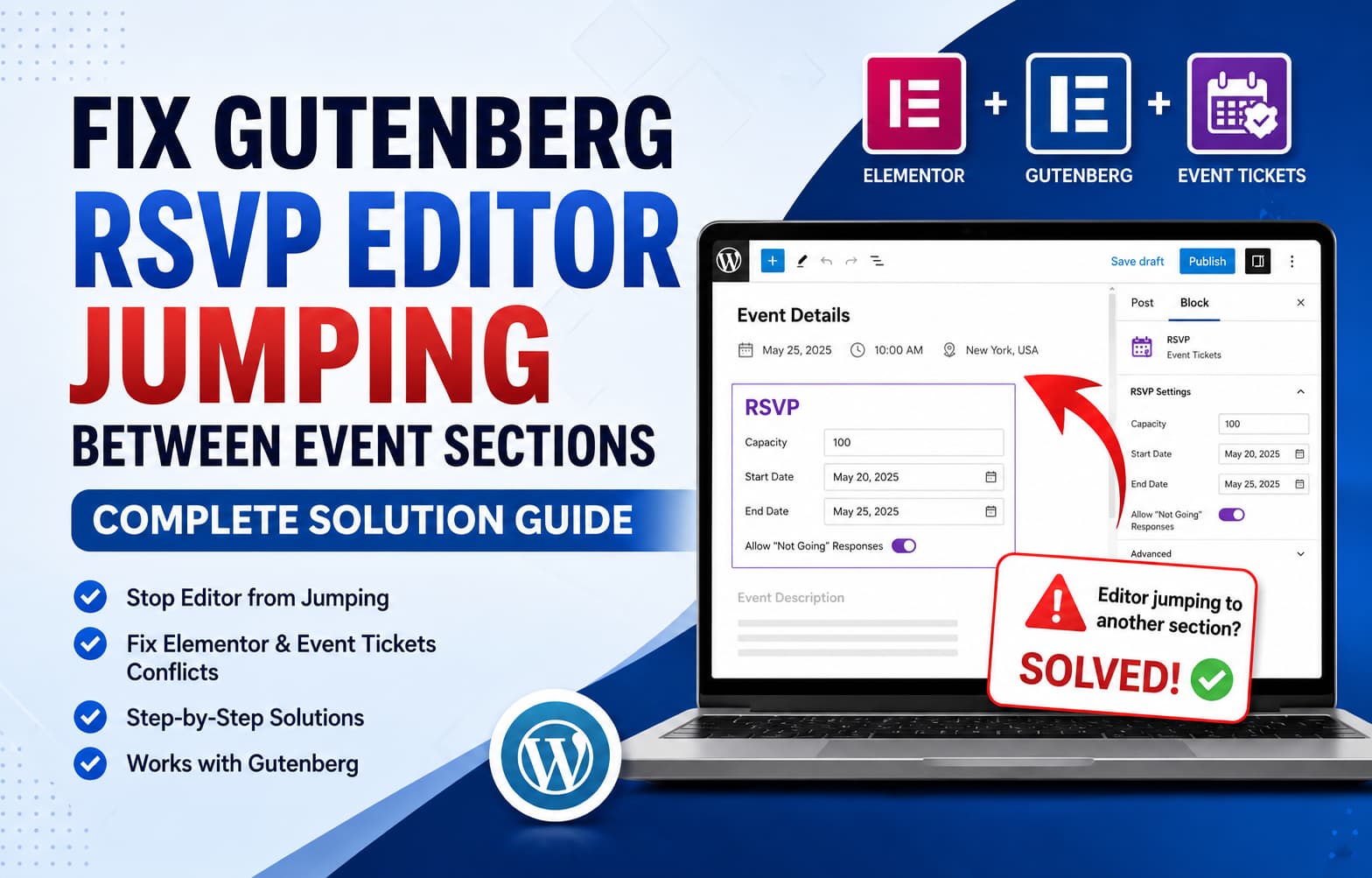
The Gutenberg RSVP editor jumping to another section of an event can make it almost impossible to edit ticket availability, capacity, dates, or RSVP settings.
A common version of this problem happens after installing Elementor Blocks for Gutenberg alongside The Events Calendar and Event Tickets. When the administrator tries to scroll inside the RSVP or ticket section, the WordPress editor suddenly moves to another event block.
The event may still display correctly on the front end, but the editing experience becomes unstable.
This guide explains the most likely cause, the quickest fix, how to identify the conflicting plugin, and several safe workarounds when Elementor and Event Tickets must remain active.
Symptoms of the Gutenberg RSVP Editor Jumping Problem
You may be experiencing this issue when:
- Scrolling inside the RSVP section moves the editor to a different event section.
- Clicking an RSVP field causes another Gutenberg block to become selected.
- The editor repeatedly jumps to the event date, venue, organizer, or description block.
- The RSVP settings panel closes while you are editing it.
- The issue began after installing Elementor Blocks for Gutenberg.
- The published event works, but editing the event is difficult.
- The problem only affects Events and not normal WordPress posts or pages.
- Refreshing the editor temporarily fixes the issue, but it returns when scrolling.
This behavior normally points to an editor-side JavaScript, focus, or plugin compatibility problem rather than damaged RSVP data.
What Causes Gutenberg RSVP Editor Jumping?
The most likely cause is a conflict between two or more plugins that modify the WordPress block editor.
Elementor Blocks for Gutenberg is designed to insert saved Elementor templates into the WordPress block editor. It is not required for creating or editing Event Tickets RSVP blocks.
Event Tickets already provides its own Gutenberg blocks for creating and managing tickets and RSVPs. These blocks are registered directly inside the event editor.
When both plugins load editor scripts on the same event-editing screen, a compatibility issue may cause the currently selected block to lose focus or be selected again after the RSVP interface updates.
The exact cause cannot be confirmed without reproducing the issue and checking the browser console. However, when the problem begins immediately after installing Elementor Blocks for Gutenberg, temporarily disabling that plugin is the most useful first test.
Quick Fix: Disable Elementor Blocks for Gutenberg
Start with the simplest solution.
Go to:
WordPress Dashboard > Plugins > Installed PluginsFind:
Elementor Blocks for GutenbergClick:
DeactivateNow reopen the affected event and test the RSVP section.
Try scrolling, changing the RSVP capacity, editing the dates, and opening the advanced RSVP options.
When the editor works normally after deactivating the plugin, you have confirmed a compatibility conflict.
Elementor Blocks for Gutenberg is only needed when you want to embed an Elementor template as a Gutenberg block. You can safely leave it disabled when you do not use that functionality.
Do not deactivate the main Elementor plugin unless you are specifically testing whether Elementor itself is contributing to the problem.
Update All Related Plugins
Before making permanent changes, confirm that all connected components are updated.
Check for updates to:
- WordPress
- Elementor
- Elementor Pro
- Elementor Blocks for Gutenberg
- The Events Calendar
- Events Calendar Pro
- Event Tickets
- Event Tickets Plus
- Your active WordPress theme
The Events Calendar recommends using matching, current versions of its main plugin and add-ons because version mismatches can cause editor and feature compatibility problems.
Perform updates on a staging website when possible.
After updating:
- Clear the WordPress cache.
- Clear any server or CDN cache.
- Log out of WordPress.
- Clear the browser cache.
- Log back in and reopen the event.
- Test the RSVP editor again.
Caching is less likely to cause the editor to jump, but stale JavaScript files can continue loading after a plugin update.
Use the Native Event Tickets RSVP Block
Do not use an Elementor Library block as a replacement for the native RSVP block inside the event content.
Open the event with the WordPress block editor.
Click the block inserter and search for:
RSVPSelect the RSVP block provided by Event Tickets.
Event Tickets includes native Gutenberg blocks for adding and updating RSVP options and tickets.
After inserting or selecting the block:
- Open the block settings sidebar.
- Enter the RSVP title.
- Set the capacity.
- Configure the start and end dates.
- Enable or disable “Not Going” responses.
- Save or update the event.
- Test the RSVP form on the front end.
Avoid placing the RSVP block inside an Elementor template block, Group block, Columns block, or another complex interactive block while troubleshooting.
Start with the RSVP block directly inside the event content.
Use Gutenberg List View Instead of Scrolling Inside the Block
When the editor jumps before you can deactivate plugins, use Gutenberg’s List View to select the RSVP section directly.
Open the affected event and click the List View icon in the top-left editor toolbar.
Find the RSVP or Tickets block in the list and select it.
Then edit its options through the right-hand settings sidebar instead of repeatedly clicking and scrolling inside the visual preview.
This does not repair the underlying conflict, but it can help you finish urgent changes without the editor constantly selecting another event section.
You can also enable the top toolbar:
Options > Preferences > Appearance > Top toolbarThis keeps the block toolbar at the top of the editor instead of repositioning it whenever another block is selected.
Reset the Block Editor Setting for Events
The Events Calendar has a separate setting that controls whether Events use Gutenberg.
Go to:
Events > Settings > GeneralFind:
Activate Block Editor for EventsDisable the option and save the settings.
Then enable it again and save once more.
The Events Calendar officially uses this option to enable Gutenberg for its Event post type.
After resetting it:
- Close the current event editor.
- Open the Events list.
- Edit the event again.
- Select the RSVP block through List View.
- Test the scrolling behavior.
Toggling the editor setting can restore an event editor that is loading the wrong classic or block-editor configuration.
Remove Duplicate RSVP or Ticket Blocks
Check the Gutenberg List View carefully.
An event should not normally contain multiple copies of the same RSVP block unless there is a specific reason for doing so.
Remove any accidental duplicate blocks, including:
- Multiple RSVP blocks
- Multiple Tickets blocks
- An RSVP block inside an Elementor Library block
- An old classic ticket section and a new block-based ticket section
- A duplicate RSVP shortcode
- A ticket widget and a native ticket block showing together
Duplicate ticket interfaces can cause confusing editor behavior and may also display the form twice on the published event.
After removing a duplicate:
- Save the event.
- Refresh the editor.
- Clear the site cache.
- Check the event in an incognito window.
Do Not Edit the Free RSVP Form Directly with Elementor
When using the free version of Event Tickets, manage the ticket or RSVP from the normal WordPress event editor.
A native Elementor Tickets or RSVP widget is associated with Event Tickets Plus. Official support guidance recommends using the Block Editor or Classic Editor when the Plus widget is unavailable.
A reliable setup is:
- Use Gutenberg to create the event and manage the RSVP.
- Use Elementor Theme Builder for the surrounding event design.
- Let Event Tickets output the RSVP form in its configured location.
- Avoid embedding another RSVP form inside the Elementor layout.
Event Tickets also includes a setting that controls where the RSVP form appears relative to the event description and details.
Check it under the Event Tickets settings and choose one of the available positions:
- Above the event details
- Below the event details
- Above the event description
- Below the event description
This allows you to position the RSVP without manually inserting it into an Elementor template.
Test for a Plugin Conflict Safely
When deactivating Elementor Blocks for Gutenberg does not solve the problem, perform a full conflict test.
Do this on a staging website whenever possible.
The Events Calendar recommends temporarily using a default theme and disabling other plugins while keeping only the required Events Calendar products active. It also recommends Health Check troubleshooting mode when testing on a live site.
Start with only:
- The Events Calendar
- Event Tickets
Test the RSVP editor.
When it works correctly, activate the remaining plugins one at a time.
Test the event editor after every activation.
A practical activation order is:
- Elementor
- Elementor Pro
- Elementor Blocks for Gutenberg
- Other Elementor add-ons
- Optimization and caching plugins
- Security plugins
- Custom field plugins
- Other block libraries
When the problem returns after activating one plugin, you have identified the conflict.
When many plugins are installed, activate half at a time. If the problem returns, the conflicting plugin is in that half. Continue dividing the group until you isolate it.
Test with a Default WordPress Theme
The active theme can also load scripts or styles inside the WordPress editor.
Temporarily test with a default theme on staging.
Use a theme recommended for conflict testing by The Events Calendar rather than changing the live design without a backup.
When the RSVP editor works under the default theme, check your theme for:
- Custom Gutenberg editor styles
- JavaScript loaded in WordPress admin
- Event template overrides
- Files inside a
tribeortribe-eventstheme directory - Code that dequeues WordPress block styles
- Custom functions that change editor behavior
Theme code that removes Gutenberg assets can interfere with third-party blocks. Similar conflicts have been reported when themes or custom code dequeue the WordPress block library.
Check the Browser Console for JavaScript Errors
Open the affected event editor in Chrome.
Press:
Ctrl + Shift + JOn macOS, use:
Command + Option + JSelect the Console tab.
Clear the existing messages, then scroll inside the RSVP section until the editor jumps.
Look for red errors mentioning:
elementor
block-builder
tribe
tickets
events
wp.data
wp.blocks
react
TypeError
Take a screenshot and copy the complete error.
The Events Calendar specifically recommends checking for JavaScript errors while diagnosing editor conflicts.
A console error can show whether the problem is being triggered by:
- Elementor Blocks for Gutenberg
- Event Tickets
- The Events Calendar
- Another block plugin
- The active theme
- A browser extension
Test in an Incognito Window
Browser extensions can inject scripts into the WordPress editor.
Open an incognito or private browsing window and log in to WordPress.
Test the event editor again.
When the problem disappears, temporarily disable extensions such as:
- Grammar checkers
- Translation extensions
- Password managers
- Ad blockers
- Screen-recording extensions
- Accessibility tools
- Developer extensions
Then enable them individually to identify the cause.
Temporary Workaround: Use the Classic Editor for Events
When the block editor remains unstable, switch Events back to the Classic Editor temporarily.
Go to:
Events > Settings > GeneralDisable:
Activate Block Editor for EventsSave the settings and reopen the event.
The Events Calendar supports both the block editor and classic event-editing workflows. Its documentation also recommends disabling the block-editor option when using the Classic Editor to avoid conflicting editor states.
You should then be able to manage RSVP or ticket details through the Event Tickets section beneath the event content.
This is a practical workaround when you need to update the event immediately while waiting for a plugin compatibility fix.
Optional Code: Force the Classic Editor Only for Events
Use this only when the Events Calendar setting does not successfully disable Gutenberg.
Add the following with a code-snippet plugin or a custom MU plugin:
<?php
/**
 * Disable the WordPress block editor only for
 * The Events Calendar event post type.
 */

defined( 'ABSPATH' ) || exit;

add_filter(
	'use_block_editor_for_post_type',
	static function ( $use_block_editor, $post_type ) {
		if ( 'tribe_events' === $post_type ) {
			return false;
		}

		return $use_block_editor;
	},
	20,
	2
);
WordPress provides the use_block_editor_for_post_type filter specifically for controlling whether a post type uses the block editor.
This code:
- Disables Gutenberg only for Events.
- Keeps Gutenberg enabled for posts and pages.
- Does not remove existing event content.
- Allows the event to open in the classic editing interface.
Remove the snippet after the plugin conflict has been fixed and you are ready to use Gutenberg for Events again.
Always make a backup before adding custom PHP.
Recommended Permanent Configuration
For the most stable setup:
- Use Gutenberg for event information and Event Tickets RSVP management.
- Use the native Event Tickets RSVP block.
- Do not place the RSVP block inside an Elementor Library block.
- Use Elementor Theme Builder only for the surrounding event layout.
- Keep The Events Calendar and Event Tickets versions aligned.
- Remove Elementor Blocks for Gutenberg when it is not actively needed.
- Use Event Tickets Plus when native Elementor ticket widgets are required.
- Test plugin updates on staging before applying them to the live site.
This separates the responsibilities of Gutenberg, Elementor, and Event Tickets and reduces the chance that multiple editor interfaces will compete for control of the same RSVP section.
Frequently Asked Questions
Why does Gutenberg jump to another block when I scroll?
The editor may be losing focus because a plugin is rerendering or reselecting a block. In an Events setup, the conflict may involve Elementor Blocks for Gutenberg, Event Tickets, another Gutenberg extension, or the active theme.
Is Elementor Blocks for Gutenberg required for Event Tickets?
No. The plugin is intended to insert Elementor templates into Gutenberg. Event Tickets registers its own native RSVP and ticket blocks.
Can I use Elementor and Event Tickets together?
Yes, but the available integration depends on the version of Event Tickets. Native Elementor Tickets and RSVP tools are associated with Event Tickets Plus. Free users can manage RSVPs through the WordPress Block Editor or Classic Editor.
Will disabling Elementor Blocks for Gutenberg break Elementor pages?
It does not deactivate the main Elementor plugin. However, Gutenberg posts or pages containing an Elementor Library block may stop previewing that embedded template until the plugin is reactivated. Check where the block is used before removing the plugin permanently.
Will switching to the Classic Editor delete my event?
Switching editor modes should not delete the event. However, complex block layouts may appear differently after switching. Create a backup and test the change on staging first.
What should I send to plugin support?
Include:
- WordPress version
- PHP version
- Active theme and version
- Elementor version
- Elementor Blocks for Gutenberg version
- The Events Calendar version
- Event Tickets version
- Browser console errors
- A short screen recording
- Confirmation that the issue disappears during conflict testing
This information helps support teams reproduce the problem.
Final Recommendation
When the Gutenberg RSVP editor jumping problem starts after installing Elementor Blocks for Gutenberg, deactivate that plugin first and test the event again.
The plugin is not required for Event Tickets’ native RSVP block. Use Gutenberg to manage the RSVP, and use Elementor only for the surrounding event template.
When the issue continues, reset the Events block-editor setting, remove duplicate RSVP blocks, run a staging-site conflict test, and inspect the browser console.
As an immediate fallback, disable Gutenberg for the Events post type and manage RSVPs through the Classic Editor until the incompatible plugin or editor script is identified.
