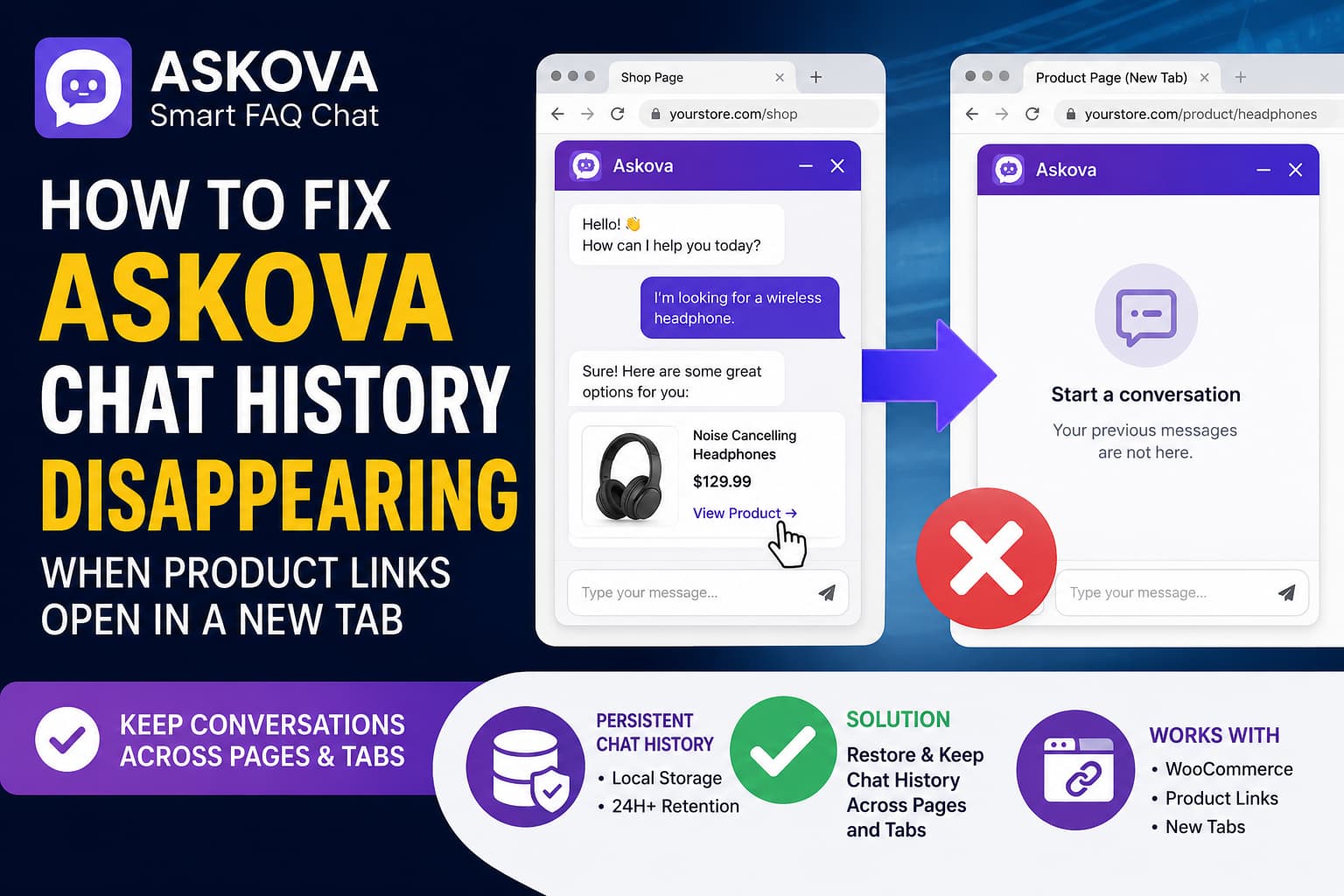
Askova chat history may appear to disappear when a visitor clicks a recommended WooCommerce product and the product page opens in a new browser tab.
The new product page loads a fresh instance of the chat widget, but the previous conversation is not displayed. This creates a confusing experience because the visitor may assume that the chatbot has forgotten the entire discussion.
In most cases, this is caused by one of the following:
- An outdated Askova version
- Conversation retention being disabled or set too low
- The widget not loading on product pages
- A difference between the source and destination domain
- Browser storage being blocked
- JavaScript optimization or caching interfering with the widget
- A product link opening on a different WordPress installation or subdomain
This guide explains how Askova conversation persistence works and provides a complete troubleshooting process.
How Askova Chat History Is Supposed to Work
Askova supports WooCommerce product recommendations and can include clickable product and category links in AI responses.
According to the plugin changelog, Askova version 2.6.0 added product links that open in a new tab. The same release also added device-level conversation retention for a configurable period, with a default retention window of 24 hours. The conversation should therefore be restored when the widget loads again on another page of the same website.
Askova uses browser storage to remember the visitor and conversation.
Browser storage has two commonly used forms:
sessionStorageis separated by browser tab and is deleted when that tab closes.localStorageis shared by pages and tabs using the same origin and can survive browser restarts.
Askova lists localStorage-based session memory as one of its features. This makes localStorage the appropriate method for retaining a chat when a visitor moves between pages or opens an internal product link in another tab.
If the conversation disappears, the expected persistence process is being interrupted somewhere.
Solution 1: Update Askova to the Latest Version
Start by checking the installed Askova version.
Go to:
WordPress Dashboard > Plugins > Installed PluginsFind:
Askova – Smart FAQ ChatInstall any available update.
Conversation restoration was improved in version 2.6.0. Older versions may contain basic session memory but may not correctly restore the complete AI conversation after closing or reopening the widget.
After updating:
- Clear the WordPress cache.
- Clear the hosting cache.
- Clear the CDN cache.
- Open the website in a new private window.
- Start a new Askova conversation.
- Click a recommended product.
- Open the widget on the product page.
Do not rely on a conversation created before the update. Old storage data may not match the current plugin structure.
Solution 2: Check the Conversation Retention Setting
Open the Askova settings in WordPress and navigate to the AI Chat settings.
Look for a setting related to:
Conversation memory
Conversation retention
Remember conversations
Conversation history duration
The exact label may vary between plugin releases.
Set the retention period to at least:
24 hoursFor an online store, a longer period such as three to seven days may provide a better shopping experience.
Save the settings and clear all caches again.
A retention value of zero, a disabled memory option, or an extremely short duration can cause the stored conversation to expire before the visitor reaches the product page.
Solution 3: Make Sure Askova Loads on Product Pages
Conversation history cannot appear when the destination page does not load the Askova widget.
Open:
Askova > General SettingsReview any page visibility or page-loading rules.
For testing, configure the widget to load across the entire website, including:
- The shop page
- Product category archives
- Individual WooCommerce product pages
- Cart and checkout pages, when appropriate
- Regular WordPress pages and posts
Askova supports page-specific loading, so a restrictive visibility rule can cause the widget to appear on the original page but not on the recommended product page.
After changing the visibility setting, visit a product URL directly and confirm that the Askova button appears.
Solution 4: Keep Every Page on the Same Origin
Browser localStorage is separated by origin.
Two URLs have the same origin only when the following three values match:
- Protocol
- Hostname
- Port
For example, these URLs do not have the same origin:
https://example.com
https://www.example.com
These are also different:
http://example.com
https://example.com
And these are different:
https://example.com
https://shop.example.com
Browser scripts on one origin cannot read localStorage belonging to another origin.
Check the product link
Start a conversation and hover over a recommended product link.
Compare the link with the page where the conversation started.
A problematic example would be:
Chat page:
https://www.example.com/shop/

Product link:
https://example.com/product/sample-product/
Even though both addresses lead to the same WordPress website, the browser treats www.example.com and example.com as separate origins.
Fix the domain inconsistency
In WordPress, go to:
Settings > GeneralConfirm that both values use the same hostname and HTTPS format:
WordPress Address
Site Address
For example:
https://example.com
https://example.com
Do not use www in one field and the non-www version in the other.
Next, configure a permanent redirect so all alternate versions lead to one canonical domain.
Examples:
http://example.com → https://example.com
https://www.example.com → https://example.com
Also check:
WooCommerce > SettingsMake sure no shop, cart, account, or checkout pages use an outdated domain.
Solution 5: Clear Old Browser Storage
A damaged or outdated localStorage record can prevent the current plugin version from restoring the conversation properly.
To clear only the Askova data in Chrome:
- Open the website.
- Press
F12. - Select Application.
- Expand Local Storage.
- Select the website domain.
- Look for entries containing words such as
askova,chat,visitor, orconversation. - Delete the relevant entries.
- Refresh the page.
Alternatively, clear all site data for the domain from the browser’s address-bar settings.
Do not test using the old conversation after clearing storage. Start a new one and repeat the product-link test.
Solution 6: Verify That localStorage Is Available
Some privacy settings, browser extensions, and restricted browsing environments can prevent a website from writing persistent browser data.
Open the browser developer console and run:
(() => {
    const testKey = 'askova_local_storage_test';

    try {
        localStorage.setItem(testKey, 'working');

        const result = localStorage.getItem(testKey);
        localStorage.removeItem(testKey);

        if (result === 'working') {
            console.log('localStorage is working correctly.');
        } else {
            console.error('localStorage did not return the saved value.');
        }
    } catch (error) {
        console.error('localStorage is blocked or unavailable:', error);
    }
})();
The expected result is:
localStorage is working correctly.A browser can reject localStorage when the user has disabled persistent site data or when privacy policies block storage access. HTTP and HTTPS versions of a website also receive separate localStorage areas.
Test the site in:
- Chrome
- Firefox
- Microsoft Edge
- A normal browser window
- A private or incognito window
- A browser with extensions temporarily disabled
If the issue occurs only in one browser, check its cookie, tracking-protection, and site-storage settings.
Solution 7: Test for Cache and JavaScript Optimization Conflicts
Caching normally should not delete localStorage, but optimization plugins can serve outdated Askova JavaScript or delay the code responsible for restoring the conversation.
Temporarily disable these features:
- JavaScript delay
- JavaScript defer
- JavaScript combination
- JavaScript minification
- Remove unused JavaScript
- Cloudflare Rocket Loader
- Guest-mode optimization
- Aggressive page caching
Common plugins that may apply these settings include:
- WP Rocket
- LiteSpeed Cache
- Autoptimize
- FlyingPress
- Perfmatters
- W3 Total Cache
- SG Optimizer
After disabling optimization:
- Purge all WordPress caches.
- Purge the hosting cache.
- Purge Cloudflare or another CDN.
- Clear browser storage.
- Start a new conversation.
- Open a recommended product.
When the history begins working, re-enable the options one at a time.
Recommended JavaScript exclusion
Exclude files whose URLs contain:
/wp-content/plugins/askova/Add the path to the optimization plugin’s JavaScript exclusion, delay exclusion, and defer exclusion fields where applicable.
Do not exclude more JavaScript than necessary.
Solution 8: Check for JavaScript Errors
Open a product page, press F12, and select the Console tab.
Look for red errors involving:
askova
localStorage
JSON
AJAX
REST API
admin-ajax.php
Uncaught TypeError
SecurityError
A JavaScript error from the theme or another plugin can stop Askova’s initialization process before the stored conversation is restored.
Also open the Network tab and reload the product page.
Check whether Askova JavaScript files return:
200 OKProblematic responses include:
404 Not Found
403 Forbidden
500 Internal Server Error
A 403 response may indicate a security plugin, firewall, CDN rule, or hosting rule is blocking the request.
Solution 9: Make Sure the Same Askova Configuration Loads Everywhere
The website should load the same Askova widget and AI configuration on the original page and the destination product page.
Problems can occur when:
- One page uses the floating widget and another uses a separate shortcode.
- Different pages load different widget configurations.
- A multilingual plugin creates separate chat instances.
- Desktop and mobile templates load different widgets.
- A staging-domain widget is accidentally embedded on the live website.
- Elementor conditional templates load different Askova output.
Test the widget on both pages and confirm that:
- The design is the same.
- The greeting is the same.
- The AI settings are the same.
- The same language configuration is active.
- The same WordPress installation generates both widgets.
Temporary Workaround: Open Internal Product Links in the Same Tab
The preferred solution is to restore conversation persistence. However, opening product links in the same tab can be used as a temporary workaround.
Add the following as a PHP snippet through WPCode, Code Snippets, a custom plugin, or the child theme’s functions.php file:
<?php
/**
 * Open same-domain Askova links in the current tab.
 *
 * External links are not modified.
 */
add_action(
	'wp_footer',
	static function (): void {
		if ( is_admin() ) {
			return;
		}
		?>
		<script>
		(() => {
			'use strict';

			document.addEventListener(
				'click',
				(event) => {
					if (!(event.target instanceof Element)) {
						return;
					}

					const link = event.target.closest('a[target="_blank"]');

					if (!(link instanceof HTMLAnchorElement)) {
						return;
					}

					const askovaContainer = link.closest(
						'[id*="askova"], [class*="askova"]'
					);

					if (!askovaContainer) {
						return;
					}

					try {
						const destination = new URL(
							link.href,
							window.location.href
						);

						if (destination.origin === window.location.origin) {
							link.removeAttribute('target');
						}
					} catch (error) {
						// Leave invalid or unsupported URLs unchanged.
					}
				},
				true
			);
		})();
		</script>
		<?php
	},
	100
);
This snippet:
- Detects links clicked inside an Askova element
- Checks whether the link belongs to the current website
- Removes
target="_blank"from internal links - Leaves external links unchanged
The visitor will move to the product page in the existing tab rather than opening a new one.
This does not repair a broken storage system, but it can reduce confusion while the underlying issue is investigated.
Test the code on a staging site first because the exact Askova HTML classes may change in future versions.
What If the Product Store Is on Another Subdomain?
Suppose the chatbot runs on:
https://www.example.comBut WooCommerce products open on:
https://shop.example.comThose are different origins. The product page cannot directly read the localStorage created on the main domain.
In that situation, the available solutions are:
- Move the shop and chatbot to the same hostname.
- Store conversations server-side and retrieve them using a visitor or conversation ID.
- Add an authenticated API integration between the two applications.
- Pass a short-lived signed conversation token to the destination.
- Ask the plugin developer to add cross-domain conversation support.
Do not pass the full conversation through the product URL. It can expose private chat content in browser history, analytics reports, server logs, and referral headers.
How to Confirm the Fix
Use this complete test:
- Clear all WordPress, hosting, CDN, and browser caches.
- Open the website in a private window.
- Open Askova.
- Submit the pre-chat form when enabled.
- Ask for a product recommendation.
- Send at least two follow-up questions.
- Click the recommended product.
- Confirm that the product page uses the same protocol and hostname.
- Open Askova on the product page.
- Confirm that the previous messages appear.
- Send another question.
- Return to the original tab.
- Reopen the widget and check that the conversation remains available.
For same-origin tabs, localStorage is shared. Changes can also be communicated between tabs through browser storage events or the Broadcast Channel API when a plugin implements live synchronization.
The two tabs may not update instantly in real time, but the stored conversation should be restored when the widget initializes or reloads.
Is This an Askova Setting or a Plugin Bug?
It can be either.
It is probably a configuration or environment issue when:
- Conversation retention is disabled.
- Product pages do not load the widget.
- The link switches between www and non-www domains.
- A caching plugin serves outdated JavaScript.
- Browser storage is blocked.
It may be a plugin issue when:
- The current Askova version is installed.
- Both pages use the exact same origin.
- localStorage works.
- The same widget loads everywhere.
- All optimization is disabled.
- The conversation still disappears consistently in multiple browsers.
When reporting the issue to the developer, include:
Askova version:
WordPress version:
WooCommerce version:
PHP version:
Source page URL:
Destination product URL:
Browser and version:
Cache plugin:
CDN:
Does the problem occur while logged out?
Does it occur in incognito mode?
Console errors:
A short screen recording showing the original conversation, product click, and empty widget on the new page can make the issue much easier to reproduce.
Privacy Considerations
A retained chatbot conversation can contain names, email addresses, phone numbers, product questions, and other visitor-provided information.
Choose a reasonable retention period and disclose the chatbot’s storage behavior in the website’s privacy policy. Avoid encouraging visitors to submit passwords, card information, medical details, or other sensitive data through the chat.
When server-side conversation storage is enabled, also document:
- What is stored
- Why it is stored
- How long it is retained
- Who can access it
- How a visitor can request deletion
Final Recommendation
Askova is designed to remember visitor conversations and restore them for a configurable period. Its product links can open in a new tab, while its conversation memory uses browser storage to retain the discussion.
When Askova chat history disappears after opening a recommended product, use this order of troubleshooting:
- Update Askova.
- Enable or extend conversation retention.
- Load the widget on all product pages.
- Standardize the domain and HTTPS version.
- Clear old localStorage and caches.
- Disable JavaScript optimization temporarily.
- Test for browser-storage and console errors.
- Use the same-tab snippet as a temporary workaround.
- Contact the plugin developer when the problem remains reproducible.
The most common causes are mismatched domains, widget visibility rules, outdated JavaScript, or blocked browser storage rather than the act of opening a new tab itself.
