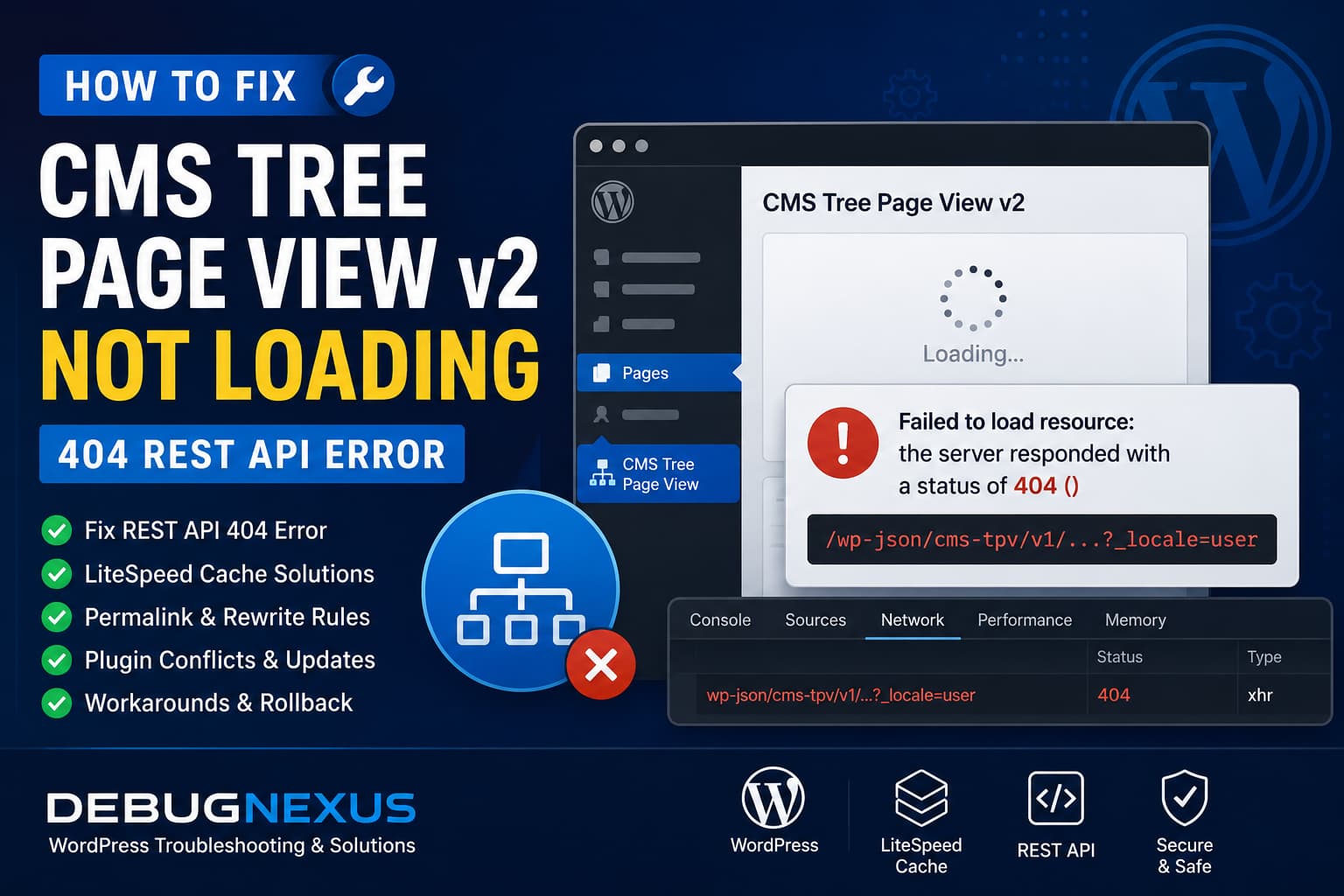
The CMS Tree Page View v2 not loading problem may appear immediately after updating the plugin to version 2.0.0.
Instead of displaying the WordPress page hierarchy, the plugin remains blank or stuck on a loading screen. Opening the browser developer console may reveal an error similar to:
/wp-json/cms-tpv/v1/...?_locale=user
Failed to load resource: the server responded with a status of 404
One reported environment included:
WordPress: 7.0.2
Theme: Divi
Web server: LiteSpeed
PHP: 8.5.6
Plugin: CMS Tree Page View 2.0
CMS Tree Page View 2.0.0 introduced a complete rebuild of the plugin’s tree interface. The official plugin information says version 2.0.0 requires WordPress 6.6 or later, requires PHP 7.4 or later, and is tested up to WordPress 7.0.2. Therefore, WordPress 7.0.2 alone should not automatically be treated as the cause.
The error is more likely connected to the plugin’s REST API route, WordPress rewrite rules, server caching, a security restriction, an incomplete update, or a plugin conflict.
What the cms-tpv/v1 404 Error Means
CMS Tree Page View v2 uses JavaScript in the WordPress dashboard to request page-tree data from a WordPress REST API endpoint.
The failed request begins with:
/wp-json/cms-tpv/v1/WordPress plugins can create custom REST API endpoints under their own namespace. These routes must be registered during the rest_api_init action before WordPress can respond to them.
A 404 response normally means one of the following:
- WordPress cannot process
/wp-json/URLs because rewrite rules are broken. - LiteSpeed cached an earlier 404 response.
- A security plugin or web application firewall is blocking the route.
- The CMS Tree Page View REST route was not registered.
- Some version 2.0.0 plugin files are missing or outdated.
- Another plugin prevented CMS Tree Page View from completing its initialization.
- The version 2.0.0 update contains a compatibility problem on the affected environment.
The response body will help identify which cause applies.
Step 1: Create a Backup
Before changing plugins, PHP versions, rewrite rules, or .htaccess, create a complete backup containing:
- WordPress files
- The WordPress database
- The current CMS Tree Page View plugin folder
- The existing
.htaccessfile
Perform the troubleshooting on a staging website when possible.
Do not make several major changes simultaneously. Test the page tree after each step so you can identify which action solved the problem.
Step 2: Purge LiteSpeed Cache Completely
LiteSpeed Cache can cache WordPress REST API responses. Its documentation also shows a default cache period of 3,600 seconds for 404 responses, meaning a temporary 404 may continue being served for up to one hour unless it is purged.
In WordPress, go to:
LiteSpeed Cache > Toolbox > PurgeUse the available options to purge:
Purge All
Purge All - LSCache
Purge 404
The exact buttons may vary by LiteSpeed Cache version.
When an external object cache is enabled, purge that as well:
LiteSpeed Cache > Cache > ObjectYou may also need to clear Redis or Memcached from the hosting control panel.
Next, temporarily disable REST API caching:
LiteSpeed Cache > Cache > Cache REST APISet it to:
OFFSave the setting and purge all caches again.
Reload the CMS Tree Page View screen in a private browser window or perform a hard refresh:
Ctrl + Shift + RDo not permanently leave REST API caching disabled unless necessary. It is being disabled temporarily to determine whether LiteSpeed is serving a cached failure.
Step 3: Test the Main WordPress REST API
Open the following URL in a new browser tab, replacing the domain with your website:
https://example.com/wp-json/A working WordPress REST API should return JSON containing information about the website and its registered API namespaces.
Also test the non-pretty REST API URL:
https://example.com/?rest_route=/If both URLs work
WordPress REST API itself is functioning. The problem is probably limited to:
- The CMS Tree Page View endpoint
- A plugin conflict
- A security rule targeting
cms-tpv - An incomplete CMS Tree Page View update
Continue to the plugin-specific steps below.
If /wp-json/ fails but ?rest_route=/ works
This usually indicates a WordPress rewrite-rule or .htaccess problem.
The REST API is available, but the server is not correctly rewriting /wp-json/ requests to WordPress.
Continue to the permalink and .htaccess repair steps.
If both URLs return 404
The REST API may be disabled or requests may not be reaching WordPress.
Check:
- Server rewrite configuration
- Security plugins
- LiteSpeed rules
- ModSecurity
- Cloudflare or another firewall
- Custom code that disables the REST API
If the request returns 401 or 403
The endpoint exists, but access is being rejected.
This usually points to an authentication, nonce, permissions, or security-filtering issue rather than a missing route.
Step 4: Examine the Exact Failed Request
Open the CMS Tree Page View screen and press:
F12Select the Network tab and reload the page.
Find the request containing:
cms-tpv/v1Click the request and inspect:
- Request URL
- Status code
- Response headers
- Response body
- Request method
- Initiator
You can also right-click the request and select:
Open in new tabDo this while logged in to WordPress, because the endpoint may require an authenticated administrator session.
WordPress JSON 404
When the response looks similar to this:
{
  "code": "rest_no_route",
  "message": "No route was found matching the URL and request method.",
  "data": {
    "status": 404
  }
}
WordPress received the request, but the CMS Tree Page View route was not registered for that URL or request method.
In that situation, focus on:
- Reinstalling CMS Tree Page View
- Checking plugin conflicts
- Checking PHP errors
- Rolling back to version 1.7.1
HTML 404 page
When the response contains the theme’s normal “Page Not Found” HTML, the request may not be reaching the WordPress REST API correctly.
Focus on:
- Permalinks
.htaccess- LiteSpeed server rules
- Security or firewall rules
HTTP 500 response
A 500 error indicates a server-side PHP failure. Enable WordPress debugging and inspect the PHP error log before making further changes.
Step 5: Refresh WordPress Permalink Rules
Go to:
WordPress Dashboard > Settings > PermalinksDo not change the permalink structure.
Click:
Save ChangesSaving the Permalinks screen forces WordPress to refresh its rewrite rules. WordPress officially recommends refreshing permalinks when new rewrite rules are not taking effect.
Purge LiteSpeed Cache again and retest:
https://example.com/wp-json/When SSH and WP-CLI are available, you can also run:
wp rewrite flushWordPress’s WP-CLI documentation confirms that this command flushes the site’s rewrite rules.
Step 6: Check the WordPress .htaccess File
Only perform this step when:
- The website is a standard single-site WordPress installation.
- WordPress is installed at the domain root.
- The server uses Apache-compatible
.htaccessrules, including most LiteSpeed configurations.
Do not use the following rules unchanged on:
- WordPress Multisite
- A subdirectory installation
- Nginx
- A website with custom routing rules
Back up the existing .htaccess file first.
The standard WordPress rules for a root single-site installation are:
# BEGIN WordPress

RewriteEngine On
RewriteRule .* - [E=HTTP_AUTHORIZATION:%{HTTP:Authorization}]
RewriteBase /
RewriteRule ^index\.php$ - [L]
RewriteCond %{REQUEST_FILENAME} !-f
RewriteCond %{REQUEST_FILENAME} !-d
RewriteRule . /index.php [L]

# END WordPress
These are the standard rules published in the WordPress administration documentation.
After restoring the rules:
- Save the
.htaccessfile. - Visit Settings > Permalinks.
- Click Save Changes.
- Purge LiteSpeed Cache.
- Test
/wp-json/again. - Reload the page tree.
When WordPress cannot write to .htaccess, verify the file ownership and permissions or ask the hosting provider to regenerate the WordPress rewrite configuration.
Step 7: Deactivate and Reactivate CMS Tree Page View
Go to:
Plugins > Installed PluginsDeactivate:
CMS Tree Page ViewPurge LiteSpeed Cache, then activate the plugin again.
This may cause the plugin to reload its hooks and register its REST API routes during a fresh request.
After activation:
- Purge all LiteSpeed caches.
- Clear object cache.
- Refresh the Permalinks screen.
- Open the page tree again.
Step 8: Reinstall CMS Tree Page View 2.0.0
A partially completed automatic update can leave old and new plugin files mixed together.
Create a backup, then reinstall a clean copy of version 2.0.0.
With WP-CLI, run:
wp plugin install cms-tree-page-view --version=2.0.0 --force --activateThe --version option installs a particular plugin version, while --force replaces the existing plugin files.
Without WP-CLI:
- Download a fresh copy of CMS Tree Page View.
- Deactivate the installed plugin.
- Replace the
cms-tree-page-viewplugin directory with the clean copy. - Activate it again.
- Purge all caches.
- Save Permalinks.
- Test the page tree.
CMS Tree Page View stores page order using WordPress’s built-in menu_order value rather than a separate hidden page-order table. Replacing the plugin files should therefore not remove the actual WordPress pages or their stored order, although a full backup is still recommended.
Step 9: Test for Plugin and Theme Conflicts
The plugin’s official troubleshooting guidance recommends checking the browser console, temporarily switching to a default WordPress theme, and deactivating other plugins to identify conflicts when the tree does not load.
Perform this test on staging whenever possible.
Temporarily activate a default theme and leave only CMS Tree Page View active.
Then test the page tree.
If the tree loads
Reactivate the original components individually:
- Reactivate Divi.
- Test the tree.
- Reactivate LiteSpeed Cache.
- Test again.
- Reactivate each remaining plugin one at a time.
The last component activated before the problem returns is likely involved in the conflict.
If the tree still does not load
The problem is less likely to be caused by Divi or another standard plugin. Continue with security checks, debugging, and rollback testing.
Because the failed resource is a REST API request from the WordPress admin area, Divi should not be assumed to be the cause without a conflict test.
Step 10: Check Security and REST API Restrictions
Review any plugin or server feature that can disable or restrict the WordPress REST API.
Examples include:
- Wordfence
- Solid Security
- All-In-One Security
- Disable REST API plugins
- Custom REST API restriction code
- Cloudflare WAF
- ModSecurity
- Hosting firewall rules
- Custom LiteSpeed rewrite rules
Temporarily disable REST API restrictions and test the page tree again.
When the exact cms-tpv/v1 route is blocked, whitelist only the necessary path for authenticated WordPress administrators instead of disabling all security protections.
Check the server access and firewall logs for the failed URL and request time. A firewall may intentionally return a 404 instead of a 403 to hide the existence of the blocked resource.
Step 11: Enable WordPress Debug Logging
Add the following above the “stop editing” line in wp-config.php:
define( 'WP_DEBUG', true );
define( 'WP_DEBUG_LOG', true );
define( 'WP_DEBUG_DISPLAY', false );
Reload the CMS Tree Page View screen and inspect:
/wp-content/debug.logAlso check the hosting PHP error log.
Look for errors containing:
cms-tree-page-view
cms-tpv
register_rest_route
rest_api_init
TypeError
Fatal error
Deprecated
PHP 8.5
After troubleshooting, disable debugging:
define( 'WP_DEBUG', false );Do not leave debug output visible on a production website.
Step 12: Test a Stable PHP Version
PHP 8.5.6 is relatively new. The plugin’s public requirements state PHP 7.4 or later, but that does not prove that every new PHP 8.5 behavior has been tested in every hosting environment.
A 404 response does not by itself prove that PHP 8.5 is responsible. However, when the REST route remains missing after reinstalling the plugin, test PHP 8.4 or PHP 8.3 on staging.
After changing PHP:
- Restart PHP.
- Clear OPcache.
- Purge LiteSpeed Cache.
- Clear object cache.
- Deactivate and reactivate CMS Tree Page View.
- Test the REST route again.
When changing to PHP 8.4 or 8.3 restores the route, report the result to the plugin developer as a potential PHP 8.5 compatibility issue.
Immediate Workaround: Roll Back to Version 1.7.1
When all of the following are true:
/wp-json/works normally.- The failed CMS Tree Page View request returns
rest_no_route. - Reinstalling version 2.0.0 does not help.
- The issue began immediately after updating to version 2.0.0.
- Version 1.7.1 worked before the update.
The safest temporary workaround is to roll back to CMS Tree Page View 1.7.1.
Version 2.0.0 completely rebuilt the tree interface, while version 1.7.1 is the immediately preceding release.
Using WP-CLI:
wp plugin install cms-tree-page-view --version=1.7.1 --force --activateWP-CLI officially supports installing a specific plugin version and overwriting the currently installed version.
After rolling back:
wp rewrite flushThen:
- Purge LiteSpeed Cache.
- Clear object cache.
- Clear PHP OPcache when available.
- Hard-refresh the WordPress dashboard.
- Test the page tree.
Disable automatic updates for this plugin temporarily so version 2.0.0 is not immediately installed again.
A rollback should be treated as a temporary compatibility workaround. Update again after the developer releases a confirmed fix.
Do Not Manually Create a Replacement REST Route
Avoid adding custom code that manually registers a fake cms-tpv/v1 route.
The plugin’s endpoint may include:
- Permission callbacks
- Nonce validation
- Page capability checks
- Post-type validation
- Reordering callbacks
- Search callbacks
- Data-format requirements
An incomplete replacement route could expose private page information or allow unauthorized content changes.
Fix the original route registration, reinstall the plugin, or use the previous stable version instead.
Information to Send to the Plugin Developer
Include the following details in a support request:
CMS Tree Page View version:
WordPress version:
PHP version:
Theme:
Web server:
Caching plugin:
Object cache:
Security plugin:
Exact failed REST URL:
HTTP status:
Response body:
Does /wp-json/ work?
Does ?rest_route=/ work?
Does version 1.7.1 work?
Does version 2.0.0 work with other plugins disabled?
Does changing PHP version help?
Also include the relevant browser-console and PHP-log entries.
Do not publicly post:
- WordPress nonces
- Session cookies
- Authentication headers
- Administrator details
- Private page titles
- Server credentials
Recommended Troubleshooting Order
For the fastest diagnosis, follow this order:
- Back up the website.
- Purge LiteSpeed, object cache, browser cache, and cached 404 responses.
- Temporarily disable LiteSpeed REST API caching.
- Test
/wp-json/and?rest_route=/. - Save WordPress Permalinks.
- Inspect the exact
cms-tpv/v1response. - Deactivate and reactivate the plugin.
- Reinstall a clean copy of version 2.0.0.
- Test with other plugins disabled and a default theme.
- Check security and firewall restrictions.
- Enable debug logging.
- Test a stable PHP version on staging.
- Roll back to version 1.7.1 when the v2 route remains unavailable.
Final Recommendation
The CMS Tree Page View v2 not loading error is caused by a failed WordPress REST API request to the plugin’s cms-tpv/v1 namespace.
On a LiteSpeed server, start by purging cached REST and 404 responses because LiteSpeed can retain an earlier 404 result. Next, refresh WordPress rewrite rules and verify that the main /wp-json/ endpoint works.
When the main REST API works but the plugin returns rest_no_route, reinstall CMS Tree Page View 2.0.0 and test for plugin conflicts. If the route remains missing and version 1.7.1 works, remain on 1.7.1 temporarily and report the compatibility issue to the plugin developer.
This approach restores access to the page tree without adding an unsafe replacement API route or making unnecessary changes to the WordPress page structure.
