Paste the following into the WordPress post body. Do not add another H1 because WordPress will use the post title as the H1.
The tptn_aggregation_cron_hook error can begin appearing in the WordPress debug log after updating the WebberZone Top 10 — Popular Posts plugin.
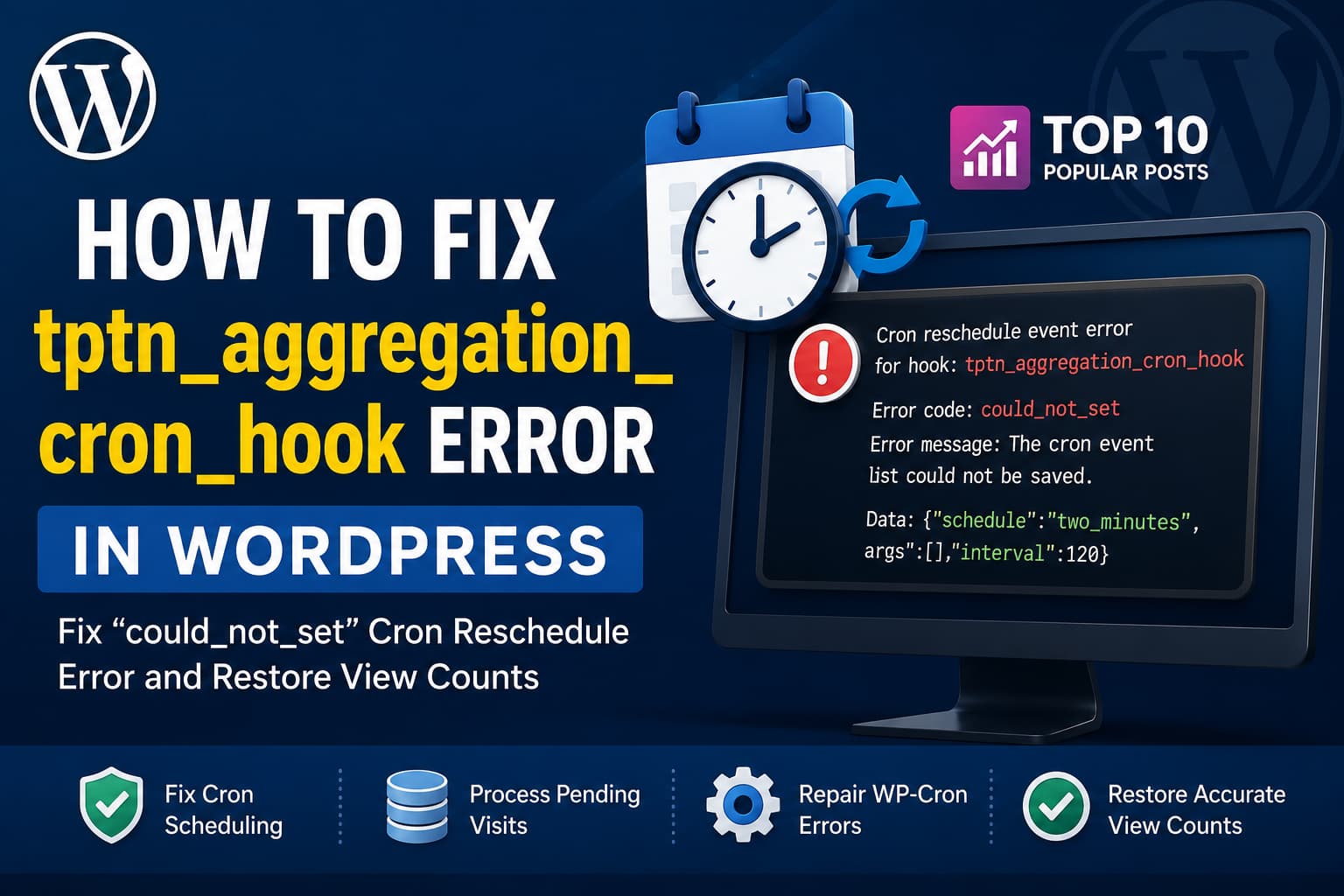
A typical error looks like this:
Cron reschedule event error for hook: tptn_aggregation_cron_hook,
Error code: could_not_set,
Error message: The cron event list could not be saved.,
Data: {
    "schedule": "two_minutes",
    "args": [],
    "interval": 120
}
This error means WordPress attempted to reschedule the Top 10 view-count aggregation task but could not save the updated cron event list.
The website may continue loading normally, but repeated errors can cause delayed popular-post counts, unprocessed view records, and a rapidly growing debug log.
This guide explains what the hook does, why the error may appear after a plugin update, and how to fix it safely.
What Is tptn_aggregation_cron_hook?
The tptn_aggregation_cron_hook event is created by the WebberZone Top 10 — Popular Posts WordPress plugin.
Recent versions of Top 10 use a buffered tracking system. Instead of updating several count tables during every page view, the plugin first adds each visit to a temporary funnel table.
The cron event later processes those visits by:
- Copying individual visits to the visits log.
- Updating the daily view-count table.
- Updating the overall view-count table.
- Removing successfully processed records from the funnel.
The relevant database tables normally include:
wp_top_ten
wp_top_ten_daily
wp_top_ten_visits_funnel
wp_top_ten_visits_log
Your database prefix may be different from wp_.
This buffered system was introduced in Top 10 version 4.3.0 to reduce database write contention. Version 4.3.1 changed the aggregation frequency from every five minutes to every two minutes, which explains these values in the error:
"schedule": "two_minutes"
"interval": 120
The plugin’s tracker documentation explains that the aggregation hook moves buffered visits into the daily, overall, and visit-log tables.
What Does the could_not_set Error Mean?
The error does not necessarily mean that the Top 10 plugin itself is broken.
WordPress stores its scheduled-event list in the cron option in the WordPress options table. When a recurring event finishes, WordPress updates that option to record the event’s next scheduled run.
The could_not_set error is returned when WordPress cannot save that updated cron array.
WordPress Core ticket #57271 identifies two important possibilities:
- The saved cron value already matches the value WordPress is trying to write, which may happen during duplicate or concurrent requests.
- The database update actually failed.
The issue has been reported with both plugin and WordPress core cron hooks, so the hook shown in the message identifies the affected task but does not always identify the underlying cause.
Why Did the Error Appear After a Top 10 Update?
Top 10 version 4.3.0 introduced the funnel-based tracking system. Version 4.3.1 then increased the aggregation frequency by changing the event from every five minutes to every two minutes.
That means WordPress must reschedule this event more frequently.
A database, object-cache, concurrency, or WP-Cron reliability problem that was previously unnoticed may become visible once the plugin begins updating the cron array every two minutes.
Therefore, the timing may coincide with the plugin update without proving that Top 10 is solely responsible.
Top 10 version 4.3.4 includes a new tracking-method setting specifically for websites where WP-Cron is disabled or unreliable. It allows users to return to the direct tracking behavior used before version 4.3.
Is This a Critical WordPress Error?
A single occurrence is not normally a critical front-end failure.
When the error appears once and the view counts continue updating, it may have been a temporary database or concurrent-save issue.
It requires attention when:
- The message appears every two minutes.
- The debug log grows continuously.
- Popular-post counts stop updating.
- The Top 10 funnel table continues growing.
- Other WordPress cron hooks produce the same error.
- Scheduled posts, backups, emails, or plugin tasks are delayed.
- WordPress Site Health reports a scheduled-event or loopback problem.
Repeated failures indicate that either the Top 10 aggregation system or the wider WordPress cron system is not functioning reliably.
Recommended Fix: Update Top 10 and Use Legacy Tracking
The simplest supported solution is to update Top 10 and switch from Funnel tracking to Legacy tracking.
Legacy tracking writes page views directly to the count tables instead of waiting for tptn_aggregation_cron_hook.
Step 1: Back Up the Website
Create a complete backup containing:
- WordPress files
- WordPress database
- The
wp-config.phpfile - Current Top 10 plugin settings
Do not reset or recreate the Top 10 database tables without a backup because those actions can affect existing view-count data.
Step 2: Update Top 10
Go to:
WordPress Dashboard > Plugins > Installed PluginsUpdate WebberZone Top 10 — Popular Posts to version 4.3.4 or later.
Version 4.3.4 added the Tracking method option used in this solution.
Step 3: Process Any Pending Funnel Records
Before switching tracking methods, go to:
Top 10 > ToolsLook for:
Sync Funnel NowRun the synchronization once.
This attempts to move any waiting records from the funnel table into the main count tables immediately.
The plugin’s official tracker documentation confirms that Sync Funnel Now runs the same aggregation process without waiting for the next cron execution.
If it succeeds, continue to the next step.
If it reports a database error, save the exact error message. A genuine database problem should be repaired before relying on either tracking method.
Step 4: Select Legacy Tracking
Go to:
Top 10 > Settings > Counter/TrackerScroll to:
Tracker settingsFind:
Tracking methodSelect:
Legacy trackingSave the settings.
With Legacy tracking enabled, views are written directly to the count tables as they were before Top 10 version 4.3.
Important Legacy Tracking Limitation
Legacy tracking does not populate the individual visits-log table.
It will continue updating overall and daily post counts, but it does not maintain the same raw visit log produced by Funnel tracking.
For most websites that only need post counts and popular-post lists, this limitation is acceptable.
Remove a Stale tptn_aggregation_cron_hook Event
After switching to Legacy tracking, an old aggregation event may still remain in the WordPress cron array.
You can inspect and remove it with WP Crontrol.
Step 1: Install WP Crontrol
Go to:
Plugins > Add NewSearch for:
WP CrontrolInstall and activate the plugin.
WP Crontrol allows administrators to view, run, edit, pause, and delete WordPress cron events from the dashboard.
Step 2: Find the Hook
Go to:
Tools > Cron EventsSearch for:
tptn_aggregation_cron_hookCheck how many events are listed.
When Legacy Tracking Is Enabled
When you have already selected Legacy tracking and no longer need funnel aggregation, delete remaining events for:
tptn_aggregation_cron_hookCheck the cron list again after refreshing the page.
If the event returns immediately, confirm that the Tracking method setting was saved successfully and that no second copy of Top 10 is active.
When Funnel Tracking Is Enabled
Do not permanently pause or delete this hook while Funnel tracking is active.
Funnel tracking depends on the event to transfer buffered visits into the main count tables. Disabling it would cause view records to remain in the funnel.
When Funnel tracking is enabled and duplicate events are visible:
- Delete the duplicate aggregation events.
- Deactivate Top 10 briefly.
- Reactivate Top 10.
- Return to Tools > Cron Events.
- Confirm that only one aggregation event exists.
- Run the event once manually.
- Check whether it completes without an error.
Top 10 version 4.3.0 and later clears its cron jobs during plugin deactivation, which makes deactivation and reactivation a useful way to reset its scheduled events.
You may deactivate and remove WP Crontrol after completing the test.
Reset the Hook With WP-CLI
Developers with SSH and WP-CLI access can inspect the hook with:
wp cron event list --fields=hook,next_run_gmt,recurrence | grep tptn_aggregation_cron_hookDelete all scheduled events using that hook with:
wp cron event delete tptn_aggregation_cron_hookThe official WP-CLI command deletes all scheduled events associated with the specified hook.
When you intend to continue using Funnel tracking, deactivate and reactivate Top 10 so it can recreate a clean event:
wp plugin deactivate top-10
wp plugin activate top-10
Then verify the schedule:
wp cron event list --fields=hook,next_run_gmt,recurrence | grep tptn_aggregation_cron_hookOn WordPress multisite, specify the affected site:
wp cron event list \
    --url=https://example.com \
    --fields=hook,next_run_gmt,recurrence
WP-CLI officially supports listing event hooks, next-run times, and recurrence information.
Alternative Fix: Keep Funnel Tracking but Reduce Its Frequency
Funnel tracking is more efficient on busy websites because it combines multiple page-view updates into a single database transaction.
When the website needs Funnel tracking but the two-minute schedule creates excessive cron activity, change the aggregation interval to five minutes.
Create this directory if it does not exist:
/wp-content/mu-plugins/Inside it, create:
/wp-content/mu-plugins/top-10-cron-interval.phpAdd:
<?php
/**
 * Plugin Name: Top 10 Aggregation Interval
 * Description: Changes the Top 10 funnel aggregation schedule to every five minutes.
 */

defined( 'ABSPATH' ) || exit;

add_filter(
	'tptn_aggregation_cron_interval',
	static function () {
		return 'five_minutes';
	}
);
Save the file and open a WordPress administration page.
Top 10 registers the following schedule names:
one_minute
two_minutes
three_minutes
five_minutes
Its official documentation states that the tptn_aggregation_cron_interval filter can change the aggregation schedule.
This code reduces how often WordPress must reschedule the event, but it does not repair a failing database connection or corrupted cron option.
Treat it as an optimization, not a substitute for diagnosing repeated database failures.
Check Whether WP-Cron Is Disabled
Open:
/wp-config.phpSearch for:
define( 'DISABLE_WP_CRON', true );When this line exists, normal page-load WP-Cron execution is disabled.
That configuration is correct only when the hosting control panel or server has a real cron job calling wp-cron.php.
When WP-Cron is disabled and no system cron exists, Top 10 funnel aggregation will not run reliably.
You have two choices:
- Switch Top 10 to Legacy tracking.
- Configure a real server cron job.
Configure a Real Server Cron Job
For reliable WordPress scheduled tasks, configure the hosting server to request wp-cron.php.
An example running every two minutes is:
*/2 * * * * wget -q -O - "https://example.com/wp-cron.php?doing_wp_cron" >/dev/null 2>&1Replace https://example.com with the canonical HTTPS version of the website.
After confirming that the system cron works, add this to wp-config.php:
define( 'DISABLE_WP_CRON', true );Place it above:
/* That's all, stop editing! Happy publishing. */WordPress recommends disabling page-load WP-Cron after configuring a system scheduler because running both adds unnecessary server activity.
Do not configure the cron request with a URL that redirects from:
- HTTP to HTTPS
- Non-www to www
- www to non-www
- One domain to another
Use the final canonical URL directly.
Your hosting provider may recommend a PHP CLI command instead of wget. Use the host’s preferred command when available.
Check for Database Problems
When the error continues after resetting the event, inspect the database.
The message can be generated when WordPress fails to update the cron value in the options table. WordPress Core discussions have documented cases involving failed database updates as well as situations where the old and new option values already match.
Check the following:
Database connection errors
Search the PHP and WordPress logs for messages such as:
WordPress database error
MySQL server has gone away
Lost connection to MySQL server
Deadlock found
Lock wait timeout exceeded
Disk full
Table is marked as crashed
Hosting resource limits
Ask the host to verify:
- Available disk space
- Database storage quota
- MySQL connection limits
- Database server health
- Slow or blocked queries
- Table corruption
- Recent server restarts
The options table
The cron array is normally stored in:
wp_optionsOn installations with a custom prefix, the table name will be different.
You can check the size of the saved cron option in phpMyAdmin:
SELECT
	option_name,
	LENGTH(option_value) AS option_size
FROM wp_options
WHERE option_name = 'cron';
Replace wp_options when the website uses another database prefix.
Do not manually edit or delete the serialized cron value in phpMyAdmin unless you have a tested backup and understand WordPress serialization.
Flush the Persistent Object Cache
Redis or Memcached can sometimes hold an outdated copy of the cron option while another request writes a newer value.
Clear the persistent object cache from your hosting dashboard or caching plugin.
With WP-CLI, use:
wp cache flushThis clears the complete WordPress object cache, so run it during a low-traffic period when possible.
After flushing the object cache:
- Clear the page cache.
- Open the WordPress dashboard.
- Inspect the cron event again.
- Monitor the debug log for at least 10 minutes.
Check for Concurrent WP-Cron Requests
More than one process may attempt to update the cron array at approximately the same time.
Possible causes include:
- Page-load WP-Cron and a server cron both running.
- Two system cron jobs calling
wp-cron.php. - An external uptime service calling
wp-cron.php. - Requests hitting both www and non-www versions.
- HTTP and HTTPS cron requests running simultaneously.
- Multiple web servers without correctly shared locks or object caching.
Check the hosting control panel and remove duplicate cron entries.
Use only one reliable scheduling method.
A one-time could_not_set message can be a harmless race or duplicate-value warning. Repeated messages every two minutes require further investigation.
Check Whether Other Hooks Are Failing
Search the debug log for:
Cron reschedule event error for hook:When only tptn_aggregation_cron_hook fails, concentrate on the Top 10 aggregation event.
When many unrelated hooks fail, such as:
wp_version_check
wp_update_plugins
action_scheduler_run_queue
wordfence_processAttackData
the problem is probably broader than Top 10.
Investigate:
- Database reliability
- WordPress object caching
- Duplicate WP-Cron execution
- Hosting resource limits
- Cron option size
- Server-level locks
The same could_not_set error has been reported with both WordPress core and third-party hooks.
How to Verify the Fix
After applying the solution, complete this test.
When Using Legacy Tracking
- Open a published post in an incognito window.
- Confirm that logged-out visitors are enabled in Top 10 tracking settings.
- Refresh the post once.
- Wait briefly.
- Check the post’s view count.
- Confirm that no new aggregation-hook error appears.
The old aggregation event should no longer be required.
When Using Funnel Tracking
- Open Tools > Cron Events.
- Confirm that only one
tptn_aggregation_cron_hookevent exists. - Open a published post in an incognito window.
- Go to Top 10 > Tools.
- Click Sync Funnel Now.
- Confirm that synchronization succeeds.
- Check that the view count updates.
- Monitor the debug log for at least 10 minutes.
The funnel may normally retain visits until the next aggregation run. Top 10 documents the Sync Funnel Now tool as a way to process them immediately.
Should You Roll Back Top 10?
A temporary rollback may make the message disappear because versions before 4.3 wrote view counts directly instead of using funnel aggregation.
However, a permanent rollback is usually unnecessary.
Top 10 4.3.4 provides Legacy tracking, which restores the earlier direct-write behavior without requiring an outdated plugin version.
The safer approach is:
- Update to the latest stable version.
- Switch to Legacy tracking when WP-Cron is unreliable.
- Repair the underlying cron or database problem.
- Return to Funnel tracking only after WP-Cron works consistently.
Frequently Asked Questions
Which plugin creates tptn_aggregation_cron_hook?
The hook is created by the WebberZone Top 10 — Popular Posts plugin. It processes buffered page views and updates the plugin’s daily and overall count tables.
Why does the error show an interval of 120?
An interval of 120 means 120 seconds, or two minutes. Top 10 version 4.3.1 changed its aggregation cron frequency from five minutes to two minutes.
Can I safely delete the hook?
You can delete a stale hook after switching to Legacy tracking.
Do not leave it deleted or paused while using Funnel tracking because buffered views depend on the hook for aggregation.
Will deleting the hook remove my view counts?
Deleting the scheduled event does not directly delete the existing Top 10 count tables.
However, pending visits in the funnel will not be processed while Funnel tracking is active and the event is missing. Run Sync Funnel Now before changing the tracking method.
Is the error caused by WordPress or Top 10?
The named event belongs to Top 10, but could_not_set is generated by the WordPress Cron API when it cannot save the cron event list.
The root cause may be plugin scheduling, a duplicate request, database failure, persistent object caching, or a wider WP-Cron problem.
Will changing to Legacy tracking reduce performance?
Legacy tracking performs direct database writes on each recorded visit. It is usually suitable for small and medium websites.
Funnel tracking is preferable for high-traffic sites because it groups database updates, but it requires reliable WP-Cron execution.
Final Recommendation
The tptn_aggregation_cron_hook message indicates that WordPress could not save the rescheduled Top 10 aggregation event.
For most affected websites, the quickest supported solution is:
- Back up the site.
- Update Top 10 to version 4.3.4 or later.
- Run Sync Funnel Now.
- Change the Tracking method to Legacy tracking.
- Remove any stale aggregation event with WP Crontrol.
- Verify that view counts update.
- Investigate the database or WP-Cron configuration when other hooks also fail.
This fixes the tptn_aggregation_cron_hook error without requiring a permanent plugin rollback and keeps the website’s popular-post counts working.
