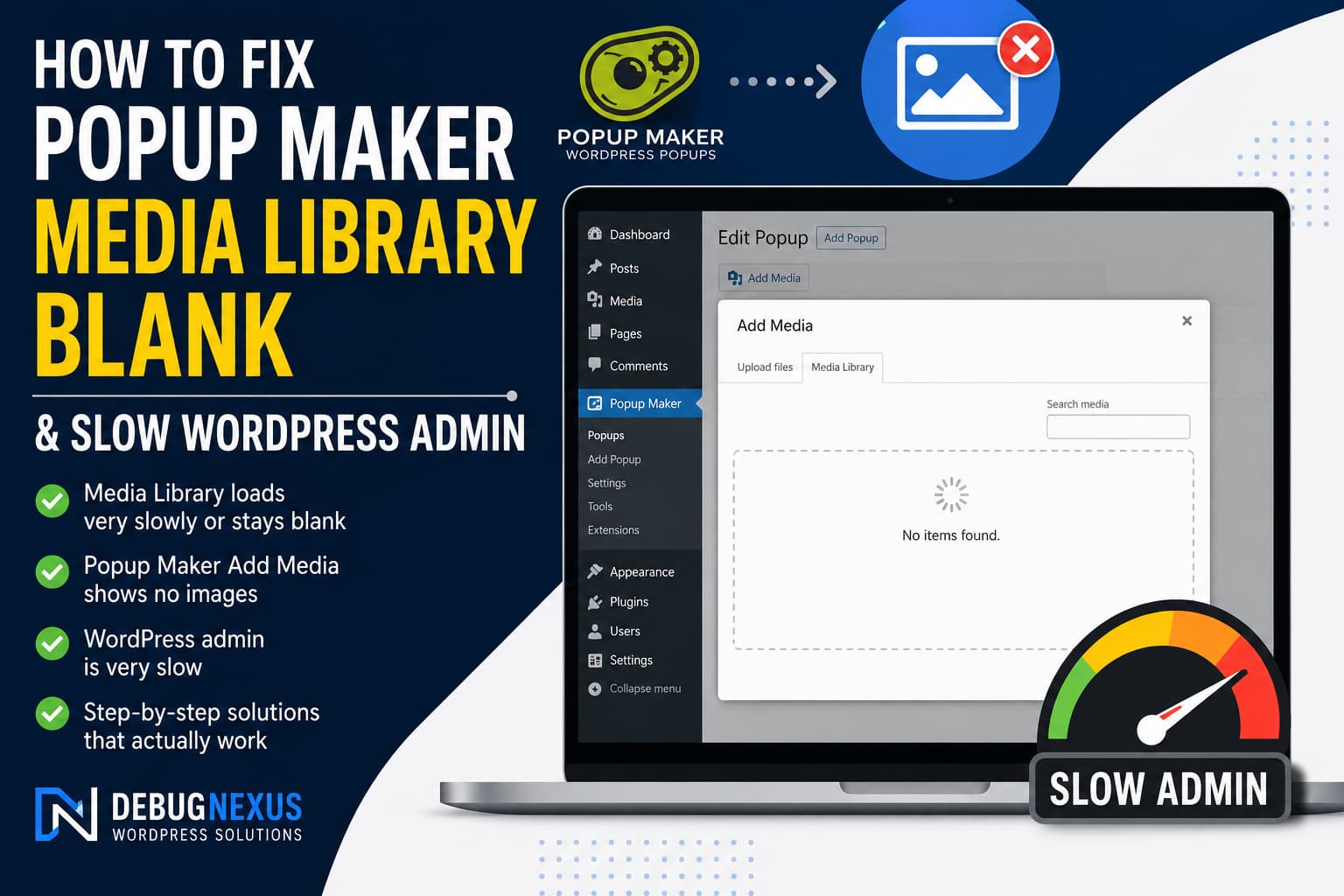
The Popup Maker Media Library blank problem occurs when the Add Media window opens inside the Popup Maker editor but displays no images. It may load for a long time, remain completely empty, or prevent you from selecting an existing image.
In many cases, the normal WordPress Media Library continues working correctly. The problem appears only when editing a popup. The WordPress dashboard may also feel unusually slow even when the hosting provider confirms that CPU and RAM usage are normal.
This combination usually points to an editor conflict, JavaScript error, failed AJAX request, slow database query, or another WordPress plugin interfering with Popup Maker.
This guide explains how to identify the exact cause and fix the problem without unnecessarily changing your hosting plan.
Quick solution
If you need the most likely fix first, try this:
- Go to Popup Maker > Settings.
- Open the General tab.
- Enable Use Classic Editor for Popups.
- Save the settings.
- Hard-refresh the browser.
- Reopen the popup and click Add Media.
Popup Maker changed its default popup editor to the WordPress block editor beginning with version 1.21. Its official documentation acknowledges that the block editor may conflict with themes, page builders, or other plugins and recommends switching to the classic editor when the popup editor becomes blank or unusable.
If that does not solve the issue, continue with the diagnostic steps below.
Symptoms of the problem
You may be experiencing this issue when:
- The Add Media window opens inside Popup Maker but contains no images.
- The media window continues loading indefinitely.
- Images appear normally under Media > Library.
- The problem occurs only while editing a popup.
- The popup editor takes a long time to open.
- Other WordPress admin pages are also slow.
- Disabling a caching plugin does not change the behavior.
- Server CPU, RAM, and disk usage appear normal.
- The browser console shows JavaScript errors.
- The media request returns a 403, 500, or 504 response.
The fact that the normal Media Library works is important. It suggests that the uploaded images and attachment database records probably still exist. The failure is more likely related to the Popup Maker editing screen or something loaded specifically on that screen.
What causes the Popup Maker Media Library to stay blank?
Several different problems can produce the same blank window.
1. Popup Maker block editor conflict
Popup Maker now uses the WordPress block editor by default. A page builder, admin customization plugin, block plugin, security tool, or active theme can load scripts that conflict with the popup editor.
The normal Media Library may still work because it loads in a different admin context with a different combination of scripts.
2. JavaScript error
The WordPress media modal depends heavily on JavaScript. One uncaught JavaScript error can stop the media interface before the attachment grid is rendered.
Popup Maker also relies heavily on JavaScript in both its editing interface and front-end popups. Its troubleshooting documentation recommends using the browser console to identify errors and determine whether they come from Popup Maker, another plugin, or the active theme.
3. Failed attachment AJAX request
When the media modal requests images, WordPress queries attachments through an AJAX handler called wp_ajax_query_attachments().
If that request is blocked, delayed, or returns invalid output, the media modal can remain empty. WordPress core confirms that this function handles attachment queries sent through AJAX.
4. Plugin or theme conflict
Disabling WP Rocket and WP Mail SMTP alone does not rule out a plugin conflict.
The actual conflict may come from:
- A security plugin
- A media-folder plugin
- An image optimization plugin
- A page builder or builder add-on
- An admin-menu customization plugin
- A translation plugin
- A block-library plugin
- A code-snippet plugin
- A custom or must-use plugin
- The active theme
5. Slow database or external request
Normal CPU and RAM usage do not guarantee that every WordPress request is fast.
The WordPress admin can remain slow because of:
- A slow database query
- Repeated duplicate queries
- A plugin license server that is not responding
- A remote API request timing out
- A large autoloaded option
- A failing scheduled task
- A stale object-cache entry
- A plugin repeatedly producing PHP warnings
- A slow AJAX or REST API request
Solution 1: Switch Popup Maker to the classic editor
This is the recommended first fix, especially when the issue began after updating Popup Maker.
Go to:
Popup Maker > Settings > GeneralFind and enable:
Use Classic Editor for PopupsSave the settings.
Next, perform a hard refresh:
Windows or Linux
Ctrl + Shift + Ror:
Ctrl + F5macOS
Command + Shift + RReopen the popup and click Add Media.
Popup Maker’s official FAQ specifically recommends this setting when its block editor conflicts with a plugin, page builder, or theme.
If the media library works in the classic editor, the problem is likely a block-editor compatibility conflict rather than a hosting failure.
You may continue using the classic editor while reporting the conflict to the relevant plugin developer.
Solution 2: Clear browser and admin asset caches
An outdated JavaScript or CSS file can remain cached after a Popup Maker, WordPress, or plugin update.
Complete the following steps:
- Save any unfinished work.
- Log out of WordPress.
- Clear the browser cache.
- Open an incognito or private window.
- Log back in.
- Clear any CDN cache.
- Clear the WordPress caching-plugin cache.
- Open the popup editor again.
Popup Maker recommends a hard browser refresh when an update causes admin features to stop working because the browser may still be serving older plugin scripts.
Also test using another browser. Browser extensions that modify scripts, block requests, translate pages, or apply privacy filters can sometimes interfere with WordPress admin modals.
Solution 3: Check the browser console for JavaScript errors
Open the affected popup editor before clicking Add Media.
In Chrome or Edge:
- Press
F12. - Open the Console tab.
- Clear existing messages.
- Reload the popup editor.
- Click Add Media.
- Look for red errors.
Pay attention to file paths containing:
/wp-content/plugins/popup-maker//wp-content/plugins/another-plugin//wp-content/themes/your-theme//wp-content/uploads/pum/An error may look similar to:
Uncaught TypeErrorUncaught ReferenceErrorwp.media is undefinedCannot read properties of undefinedFailed to load resourceDo not assume that the file shown at the top of the error is always responsible. Expand the error and examine the call stack.
Popup Maker recommends checking whether the first relevant file belongs to Popup Maker, another plugin, or the active theme. It also notes that loading an additional copy of jQuery can break Popup Maker functionality.
Solution 4: Inspect the Media Library AJAX request
Open the browser developer tools and select the Network tab.
Then:
- Reload the popup editor.
- Click Add Media.
- Search the network requests for:
admin-ajax.php- Select the request related to querying attachments.
- Check its status and response.
The request may contain an action similar to:
query-attachmentsHTTP 200 but the library is blank
Open the response.
It should contain valid data, not PHP warnings, HTML from an error page, or a login screen.
A PHP warning printed before the JSON response can make the response invalid and prevent WordPress from displaying the images.
HTTP 403 Forbidden
A firewall, security plugin, bot-protection service, or server rule may be blocking the request.
Temporarily disable the security plugin in a staging environment and test again. When the request begins working, whitelist the required authenticated WordPress AJAX action rather than permanently disabling security.
HTTP 500 Internal Server Error
A plugin or theme is producing a PHP fatal error.
Enable WordPress debugging and inspect the error log.
HTTP 504 Gateway Timeout
The AJAX request is taking too long. Possible causes include a slow database query, remote API timeout, object-cache issue, or plugin code running during every admin AJAX request.
Redirect to the login screen
The WordPress login session, authentication cookie, domain configuration, or security rule may be interfering with authenticated AJAX requests.
Log out, clear cookies for the domain, and sign in again.
Solution 5: Test for a plugin conflict safely
The most reliable way to identify a plugin conflict is to test Popup Maker with all nonessential plugins disabled.
Do this on a staging website whenever possible.
Another option is WordPress Troubleshooting Mode, which can disable plugins only for your logged-in session while leaving the public website unchanged for visitors. WordPress documentation recommends this method for identifying plugin and theme conflicts.
Testing procedure
- Install the Health Check & Troubleshooting or standalone Troubleshooting plugin.
- Enable Troubleshooting Mode.
- Activate Popup Maker for your troubleshooting session.
- Use a default WordPress theme.
- Open a popup.
- Click Add Media.
If the Media Library now works, another plugin or the normal theme is causing the conflict.
Reactivate plugins one at a time and test after each activation.
Start with plugins most likely to modify the editor or Media Library:
- Page builders
- Block collections
- Media folder managers
- Image compression plugins
- Security plugins
- Admin optimization plugins
- Translation plugins
- Custom-field plugins
- Code-snippet plugins
When the problem returns immediately after activating one plugin, you have identified the likely conflict.
Popup Maker also recommends isolating plugin and theme conflicts by testing the plugin with other extensions disabled and then reactivating them individually.
Solution 6: Test with a blank popup
Sometimes the problem is caused by content already added to a popup rather than Popup Maker itself.
Content that may trigger a conflict includes:
- Shortcodes
- Embedded forms
- Videos
- Custom JavaScript
- Custom HTML
- Page-builder widgets
- Dynamic-content blocks
- Third-party buttons
- Broken image blocks
Create a completely new popup and enter only a popup name. Do not add any content, trigger, shortcode, or targeting condition.
Publish or save the blank popup, reopen it, and test Add Media.
If the Media Library works in the blank popup but not in an existing popup, remove elements from the affected popup one at a time until the problem disappears.
Popup Maker’s documentation recommends drafting existing popups and testing popup content individually when an admin or editor feature breaks.
Solution 7: Enable WordPress debugging
Before editing wp-config.php, create a backup or use a staging site.
Open the site’s wp-config.php file and add the following lines before:
/* That's all, stop editing! Happy publishing. */Add:
define( 'WP_DEBUG', true );
define( 'WP_DEBUG_LOG', true );
define( 'WP_DEBUG_DISPLAY', false );
@ini_set( 'display_errors', 0 );
Do not add duplicate definitions if these constants already exist. Update the existing values instead.
Reproduce the problem:
- Open Popup Maker.
- Edit the affected popup.
- Click Add Media.
- Wait for the blank Media Library.
- Open:
/wp-content/debug.logSearch the newest entries for:
popup-makeradmin-ajax.phpquery-attachmentsFatal errorUncaughtAllowed memory sizeMaximum execution timeDeprecatedThe official WordPress debugging guide confirms that WP_DEBUG_LOG can capture errors generated during AJAX requests, which makes it particularly useful for diagnosing a blank Media Library.
After testing, disable debugging:
define( 'WP_DEBUG', false );
define( 'WP_DEBUG_LOG', false );
define( 'WP_DEBUG_DISPLAY', false );
Delete or protect the debug log because it may contain sensitive server paths or other technical information.
Solution 8: Diagnose the slow WordPress admin
The blank Media Library and slow dashboard may share the same cause, but they may also be separate problems.
Install Query Monitor temporarily and inspect the affected admin pages.
Query Monitor can identify:
- Slow database queries
- Duplicate queries
- PHP errors
- Slow HTTP API calls
- Failed external requests
- AJAX problems
- REST API issues
- Scripts and styles loaded by each plugin
- The plugin or theme responsible for a query
The plugin groups queries and requests by their responsible component, making it easier to find the plugin slowing down WordPress admin.
What to check in Query Monitor
Open the normal dashboard and note:
- Total page-generation time
- Number of database queries
- Slow or duplicate queries
- HTTP API calls
- PHP warnings
- Peak memory usage
Then open the Popup Maker editor and compare the results.
Look for a plugin making a remote request that takes several seconds. License validation, update checks, analytics connections, SMTP requests, and external APIs can slow the admin even while server CPU and RAM remain normal.
Remove Query Monitor after troubleshooting because it is a diagnostic tool, not a permanent performance optimizer.
Solution 9: Check persistent object caching
If Redis or another persistent object cache is enabled, purge it from the hosting control panel and retest.
A stale object-cache entry can occasionally cause unusual admin behavior after plugin or WordPress updates.
On a staging site, you can also temporarily disable persistent object caching and test the Popup Maker editor again.
Do not delete object-cache.php blindly on a production site. Confirm how object caching was installed and follow the hosting provider’s instructions.
If disabling object caching fixes the problem, update the cache integration and flush all application caches before enabling it again.
Solution 10: Reinstall Popup Maker cleanly
A failed or incomplete plugin update can leave missing or mismatched JavaScript files.
Before reinstalling:
- Create a database and file backup.
- Export any Popup Maker settings when available.
- Confirm that the popups are stored safely.
- Perform the test on staging first.
Then:
- Deactivate Popup Maker.
- Delete the plugin files through the Plugins screen.
- Download a fresh copy from WordPress.org.
- Reinstall and activate it.
- Clear all caches.
- Reopen the popup editor.
Popup Maker’s current release information and compatibility requirements are available on its official WordPress.org plugin page.
Avoid manually replacing only a few JavaScript files because mixing files from different plugin versions can create additional errors.
Why disabling WP Rocket may not solve it
WP Rocket mainly focuses on front-end caching and optimization. Logged-in WordPress admin pages are generally handled differently from public cached pages.
Disabling WP Rocket is still a useful test, but it does not eliminate other possible causes such as:
- Block-editor conflicts
- Security rules
- Invalid AJAX responses
- Slow database queries
- Theme scripts
- Media-management plugins
- Custom admin code
- Must-use plugins
The same applies to WP Mail SMTP. Unless a mail-related process is running during the affected request, disabling it may not change the Media Library problem.
Is this a known Popup Maker compatibility issue?
A blank media window does not automatically prove that Popup Maker has a universal bug.
However, Popup Maker officially documents that its block editor can conflict with themes, page builders, and other plugins. Since version 1.21, the block editor has been the default popup editor, and Popup Maker recommends switching to the classic editor when the editor becomes blank or inaccessible.
Therefore, switching to the classic editor is the best first test.
When the classic editor does not resolve the problem, the next step is to identify the exact JavaScript, AJAX, PHP, or database failure rather than continuing to disable random plugins.
Recommended troubleshooting order
Use this sequence to avoid unnecessary work:
- Back up the website or create a staging copy.
- Switch Popup Maker to the classic editor.
- Hard-refresh the browser.
- Test in an incognito window.
- Check the browser Console.
- Inspect the
query-attachmentsAJAX request. - Use Troubleshooting Mode to isolate plugin conflicts.
- Test a new blank popup.
- Enable the WordPress debug log.
- Inspect slow queries and HTTP calls with Query Monitor.
- Purge persistent object caching.
- Reinstall Popup Maker if its files appear corrupted.
- Send the diagnostic results to Popup Maker support.
Information to include in a support request
When contacting Popup Maker or another plugin developer, provide:
- WordPress version
- Popup Maker version
- PHP version
- Active theme
- List of active plugins
- Whether the classic editor fixes the issue
- Browser Console errors
- AJAX request status code
- The
admin-ajax.phpresponse - Relevant
debug.logentries - Query Monitor results
- Whether the issue occurs in Troubleshooting Mode
- Whether it occurs in a new blank popup
- Whether persistent object caching is enabled
Do not publish administrator credentials or sensitive log information in a public support forum.
Final solution
The most likely first solution for a Popup Maker Media Library blank problem is to enable Use Classic Editor for Popups under Popup Maker’s General settings.
If that works, the block editor is conflicting with another component of the website.
If it does not work, inspect the attachment AJAX request and browser Console. A 403 indicates blocking, a 500 usually indicates a PHP error, and a long-running or timed-out request suggests a plugin, database, object cache, or external service is slowing down the admin.
A normal server CPU and RAM report does not rule out these application-level problems. The correct approach is to identify the specific failing request or component instead of upgrading the server without evidence.
FAQ
Why is the normal Media Library working but Popup Maker is blank?
The Popup Maker editor loads a different set of scripts and editor components. A conflict can therefore affect the media modal inside Popup Maker without breaking the main Media Library screen.
Should I use the classic editor for Popup Maker?
Yes, especially as a troubleshooting step. Popup Maker officially recommends switching to the classic editor when its block editor conflicts with a theme, page builder, or plugin.
Can a security plugin block the Media Library?
Yes. The Media Library loads attachments through authenticated WordPress AJAX requests. A security rule that blocks or modifies the request can leave the modal blank.
Why is WordPress admin slow when CPU and RAM are normal?
Slow admin requests can be caused by database queries, remote API timeouts, PHP errors, object caching, scheduled tasks, or plugins. These do not always create sustained high CPU or RAM usage.
Will disabling a caching plugin fix the problem?
Not necessarily. The problem may be caused by editor scripts, AJAX, security settings, the active theme, another plugin, or custom code rather than page caching.
Should I increase the WordPress memory limit?
Only when logs show an allowed-memory error or monitoring confirms that the current limit is being exhausted. Increasing memory without evidence may hide the symptom without fixing the responsible plugin or query.
End-of-post call to action
Add this after the FAQ:
Still seeing a blank Media Library or slow WordPress dashboard?
I diagnose WordPress plugin conflicts, JavaScript errors, AJAX failures, database bottlenecks, and hosting-level issues. Hire me securely through Upwork to investigate and fix the problem.
