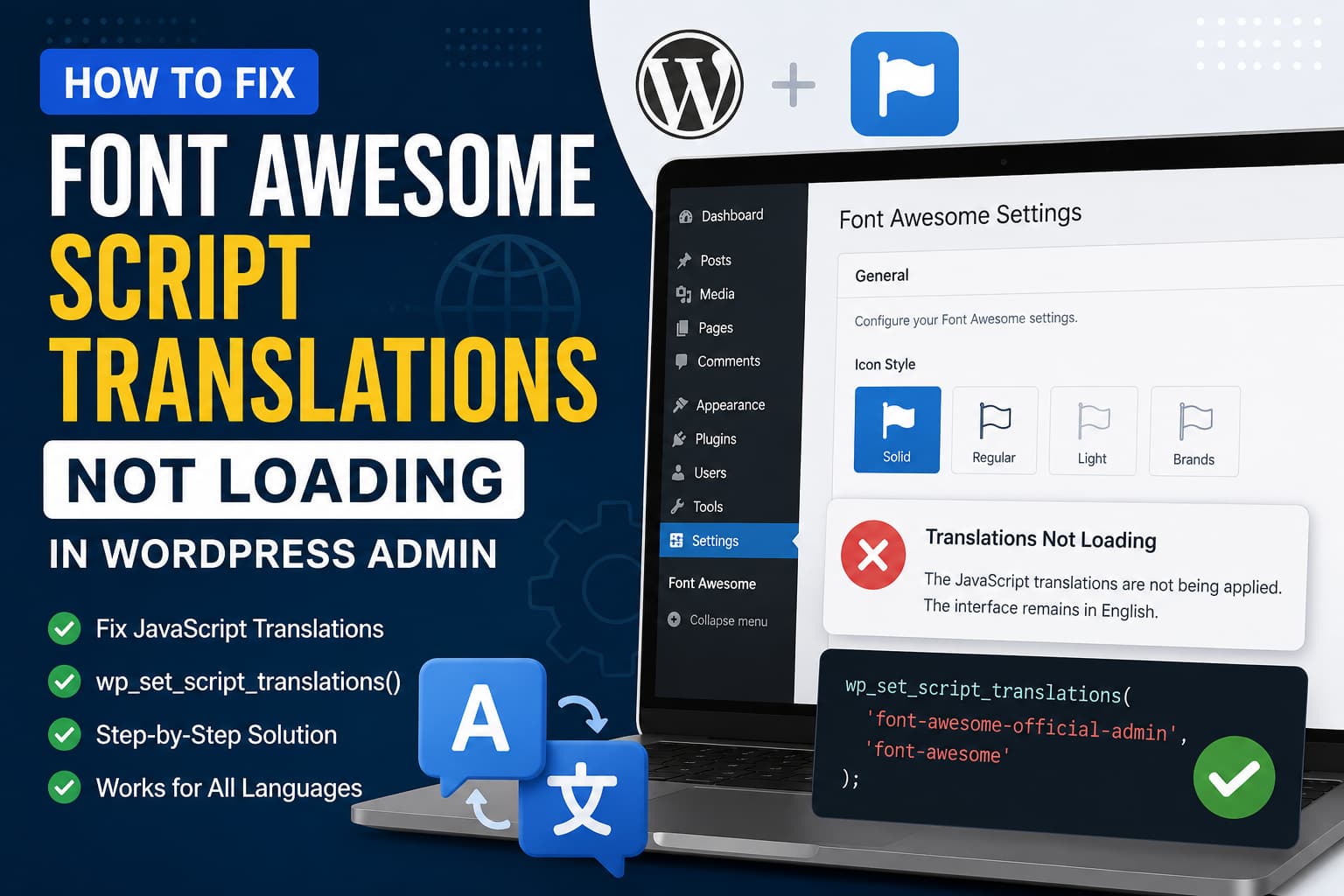
Font Awesome script translations not loading in the WordPress admin can leave the plugin’s settings page displayed entirely in English, even when the correct language pack is installed and WordPress is configured to use another language.
This issue can affect the official Font Awesome plugin settings page:
/wp-admin/admin.php?page=font-awesomeFor example, you may install the Japanese translation using WP-CLI:
wp language plugin install font-awesome jaThe translation files install successfully, but the Font Awesome settings interface still appears in English.
The problem is not necessarily caused by missing translation files. In some cases, WordPress never associates the font-awesome text domain with the plugin’s main admin JavaScript file before that script is printed.
This guide explains how to confirm the problem, apply a safe temporary fix, and correct the underlying implementation in plugin code.
Symptoms of the Font Awesome Translation Problem
You may be experiencing this issue when:
- WordPress admin is configured to use a non-English language.
- Font Awesome translation files are installed.
- Other WordPress admin screens appear in the correct language.
- PHP-generated Font Awesome text may be translated.
- The Font Awesome settings interface remains in English.
- Clearing browser and WordPress caches does not help.
- Reinstalling the Font Awesome plugin does not fix the problem.
- The expected JavaScript translation element is missing from the page source.
When inspecting the Font Awesome settings page, the following element may be absent:
<script id="font-awesome-official-admin-js-translations">That missing element is an important clue. WordPress normally prints inline locale data for a translated JavaScript file before loading the associated script.
Why PHP Translations Can Work While JavaScript Remains in English
WordPress handles PHP and JavaScript translations differently.
Traditional PHP translation functions include:
__( 'Settings', 'font-awesome' );
_e( 'Settings', 'font-awesome' );
JavaScript code generally uses functions supplied by the wp-i18n package:
const { __ } = wp.i18n;

__( 'Settings', 'font-awesome' );
For JavaScript translations to work, WordPress must know:
- The registered script handle.
- The translation text domain.
- Where the appropriate JSON translation data can be found.
The function responsible for connecting a script to its translation domain is:
wp_set_script_translations();WordPress documentation states that this function works only after the script has already been registered. Internally, WordPress returns false when the specified handle has not been registered.
A normal implementation looks like this:
wp_register_script(
	'example-admin-script',
	$script_url,
	array( 'wp-i18n' ),
	$version,
	true
);

wp_set_script_translations(
	'example-admin-script',
	'example-text-domain'
);

wp_enqueue_script( 'example-admin-script' );
The translation function must run after registration but before WordPress processes and prints the script.
Root Cause
The Font Awesome admin JavaScript uses the following handle:
font-awesome-official-adminThe corresponding translation domain is:
font-awesomeThe required call is therefore:
wp_set_script_translations(
	'font-awesome-official-admin',
	'font-awesome'
);
The reported problem occurs because that call runs too late in the page-loading sequence.
By the time WordPress processes the font-awesome-official-admin script, its registered script object does not contain the expected text domain. WordPress therefore has no translation domain to pass to its translation-printing process.
As a result:
- The JavaScript application loads.
- The settings page works.
- The
wp.i18nfunctions exist. - The language JSON files may exist.
- No locale data is printed for the Font Awesome admin script.
- The interface falls back to its original English strings.
The official Font Awesome plugin has more than 400,000 active installations and has translations available for multiple locales, so correcting the script-loading timing is important for non-English WordPress administrators.
Check the WordPress Language First
Before adding custom code, confirm that WordPress is actually using the intended admin language.
Go to:
Settings > General > Site LanguageSelect the required language and save the settings.
Also check:
Users > Profile > LanguageA user-specific language can override the main site language inside the WordPress dashboard.
For Japanese, the expected locale is:
jaFor other common languages, examples include:
de_DE
fr_FR
es_ES
it_IT
nl_NL
pt_BR
Log out and back in after changing the user language.
Confirm That the Font Awesome Language Pack Is Installed
When WP-CLI is available, run:
wp language plugin list font-awesome --status=installedWordPress provides official WP-CLI commands for listing and installing plugin language packs.
To install the Japanese Font Awesome translation:
wp language plugin install font-awesome jaTo update all installed plugin translations:
wp language plugin update --allThe installation command downloads the appropriate plugin language pack from WordPress.org.
You can also install translations without WP-CLI:
- Open Dashboard > Updates.
- Scroll to the translations section.
- Click Update Translations.
- Reload the Font Awesome settings page.
Confirm That the Translation Files Exist
WordPress.org plugin translation files are normally stored under:
/wp-content/languages/plugins/For Japanese, you may find files similar to:
font-awesome-ja.mo
font-awesome-ja.po
font-awesome-ja-xxxxxxxx.json
The exact JSON filename can contain a generated hash.
Do not rename the JSON file manually. WordPress uses a naming convention based partly on the related JavaScript source file.
If no Font Awesome files exist in the language directory, reinstall the language pack before proceeding.
Temporary Fix for Website Owners
Until the Font Awesome plugin registers its script translations at the correct time, you can apply a small MU plugin.
An MU plugin is preferable to editing the Font Awesome plugin directly because:
- It loads automatically.
- It cannot be accidentally deactivated from the normal Plugins screen.
- A Font Awesome update will not overwrite it.
- It can be removed easily after an official fix is released.
Step 1: Create the MU-Plugins Directory
Open the following directory using SFTP, SSH, your hosting file manager, or a deployment tool:
/wp-content/Create this directory if it does not already exist:
/wp-content/mu-plugins/Step 2: Create the Fix File
Inside mu-plugins, create:
font-awesome-admin-translation-fix.phpThe complete path should be:
/wp-content/mu-plugins/font-awesome-admin-translation-fix.phpStep 3: Add the Code
Paste the following code into the file:
<?php
/**
 * Plugin Name: Font Awesome Admin Translation Fix
 * Description: Ensures the Font Awesome admin script receives its translation text domain before WordPress prints it.
 * Version: 1.0.0
 */

defined( 'ABSPATH' ) || exit;

/**
 * Attach the Font Awesome text domain to its admin JavaScript handle.
 *
 * wp_set_script_translations() only works after the script has been
 * registered, so this runs late during admin asset enqueueing.
 */
function debugnexus_fix_font_awesome_admin_translations() {
	if ( ! is_admin() ) {
		return;
	}

	$page = isset( $_GET['page'] )
		? sanitize_key( wp_unslash( $_GET['page'] ) )
		: '';

	if ( 'font-awesome' !== $page ) {
		return;
	}

	$handle = 'font-awesome-official-admin';

	if ( wp_script_is( $handle, 'registered' ) ) {
		wp_set_script_translations(
			$handle,
			'font-awesome'
		);
	}
}

add_action(
	'admin_enqueue_scripts',
	'debugnexus_fix_font_awesome_admin_translations',
	999
);

/**
 * Fallback for installations where the script is registered later
 * but printed in the admin footer.
 */
add_action(
	'admin_print_footer_scripts',
	'debugnexus_fix_font_awesome_admin_translations',
	0
);
Save the file.
How the Workaround Functions
The code limits itself to the Font Awesome settings page by checking:
'font-awesome' === $pageIt then confirms that the following script has been registered:
font-awesome-official-adminOnly after the handle exists does it call:
wp_set_script_translations(
	'font-awesome-official-admin',
	'font-awesome'
);
This is important because WordPress documents that wp_set_script_translations() works only for a registered script. WordPress also ensures that the wp-i18n dependency is added when the translation domain is successfully assigned.
The first hook runs late during admin_enqueue_scripts, giving the Font Awesome plugin time to register its script.
The second hook acts as a fallback immediately before footer scripts are printed. Calling the function more than once is harmless because it assigns the same text domain to the same registered handle.
Clear Caches After Adding the Fix
After saving the MU plugin:
- Clear your WordPress caching plugin.
- Clear any persistent object cache, such as Redis or Memcached.
- Purge the hosting cache.
- Clear the CDN cache when applicable.
- Close the current Font Awesome settings tab.
- Open a new private browser window.
- Log in and reload the settings page.
The relevant URL is:
/wp-admin/admin.php?page=font-awesomeAdmin pages are not usually full-page cached, but JavaScript optimization and browser caching can still preserve older asset behavior.
Verify That the MU Plugin Is Loaded
Go to:
Plugins > Must-Use PluginsYou should see:
Font Awesome Admin Translation FixWhen it does not appear, check that:
- The directory is named exactly
mu-plugins. - The file is directly inside that directory.
- The filename ends in
.php. - The file starts with
<?php. - The server has permission to read the file.
Do not put the PHP file inside another nested directory unless you create a separate loader in the main mu-plugins directory.
Verify the Fix in Browser Developer Tools
Open the Font Awesome settings page and launch your browser’s developer tools.
Go to the Elements tab and search for:
font-awesome-official-admin-js-translationsAfter the fix, you should find an inline script similar to:
<script
	id="font-awesome-official-admin-js-translations"
	type="text/javascript"
>
	/* translation locale data */
</script>
The exact contents will vary by locale and WordPress version.
You can also search the page source for:
wp.i18n.setLocaleDataWordPress uses JavaScript locale data to make translations available to calls such as:
wp.i18n.__( 'Example string', 'font-awesome' );WordPress’s internationalization documentation confirms that JavaScript translations use the wp.i18n functions together with wp_set_script_translations() on the PHP side.
What to Check When the Page Is Still in English
The Translation Is Not Complete
Installing a language pack does not guarantee that every string in the settings application has been translated.
Some strings may remain in English when:
- They have not yet been translated.
- They are newly added.
- They are awaiting translation approval.
- They use a different text domain.
- They are generated by an external Font Awesome service.
Test several labels rather than expecting every sentence to change.
The Admin User Has an English Language Override
Even when the site language is Japanese, an administrator can have English selected in their user profile.
Check:
Users > Profile > LanguageSelect either the target language or Site Default.
The Script Handle Has Changed
The workaround depends on:
font-awesome-official-adminA future Font Awesome version may rename that handle.
Inspect the settings page source for a script ID beginning with:
font-awesomeWordPress converts script handles into element IDs by appending:
-jsFor example:
font-awesome-official-admin-jsIf the handle changes, update this line in the MU plugin:
$handle = 'font-awesome-official-admin';JavaScript Optimization Is Modifying Admin Assets
Some optimization plugins can combine, delay, defer, or rewrite JavaScript in the WordPress dashboard.
Temporarily disable admin-side optimization in:
- JavaScript minification plugins
- Performance plugins
- CDN optimization tools
- Cloudflare features
- Security plugins that rewrite inline scripts
The Font Awesome plugin itself notes that conflicts with other plugins and themes can affect how its assets behave.
The JSON File Is Not Readable
Check the permissions of:
/wp-content/languages/plugins/Typical permissions are:
Directories: 755
Files: 644
Avoid changing permissions to 777.
Also confirm that security rules are not blocking PHP from reading translation JSON files.
A Custom Translation Plugin Uses Another Directory
Tools such as Loco Translate can save translation files in a custom or protected directory.
When using a custom JSON path, the third parameter of wp_set_script_translations() can specify it:
wp_set_script_translations(
	'font-awesome-official-admin',
	'font-awesome',
	WP_CONTENT_DIR . '/languages/custom/'
);
However, do not add a custom path unless you have confirmed where the JSON files are stored. When translations come from WordPress.org, omitting the third parameter normally allows WordPress to locate them automatically.
Permanent Fix for Plugin Developers
The MU plugin is a compatibility workaround. The permanent correction should be made where the Font Awesome admin script is registered.
The translation domain should be attached immediately after script registration and before the script can be printed.
A correct implementation follows this structure:
$handle = 'font-awesome-official-admin';

wp_register_script(
	$handle,
	$admin_script_url,
	array(
		'wp-element',
		'wp-i18n',
	),
	$plugin_version,
	true
);

wp_set_script_translations(
	$handle,
	'font-awesome'
);

wp_enqueue_script( $handle );
Alternatively, when the script is enqueued directly:
$handle = 'font-awesome-official-admin';

wp_enqueue_script(
	$handle,
	$admin_script_url,
	array(
		'wp-element',
		'wp-i18n',
	),
	$plugin_version,
	true
);

wp_set_script_translations(
	$handle,
	'font-awesome'
);
The essential order is:
Register or enqueue the script
Attach the translation domain
Print the script
Do not call wp_set_script_translations() before registration because WordPress will return false.
Do not call it after WP_Scripts::do_item() has already processed the handle because the translation data will no longer be printed in the expected position.
Do Not Edit the Font Awesome Plugin Directly
It may be tempting to open the plugin file and move the translation call manually.
That is not recommended on a production website because:
- The next plugin update will overwrite the change.
- WordPress cannot track the modification.
- Future updates may conflict with the manual patch.
- Troubleshooting becomes more difficult.
Use the MU plugin until the Font Awesome team releases an official correction. After updating to a version that fixes the issue, disable the workaround by renaming the file:
font-awesome-admin-translation-fix.php.disabledThen clear caches and test the settings page again.
Delete the workaround only after confirming that the translation script is still present without it.
Does Reinstalling Font Awesome Fix the Issue?
Usually not.
Removing and reinstalling the plugin replaces its files, but it does not change the timing of wp_set_script_translations() in the plugin’s code.
Reinstallation is useful when:
- Plugin files are corrupted.
- An update did not complete.
- JavaScript bundles are missing.
- File permissions are incorrect.
It will not correct a repeatable script-registration timing problem contained in the current release.
Final Recommendation
When Font Awesome script translations are not loading in WordPress admin, first confirm the site language, user language, and installed plugin language pack.
Next, inspect the settings page for:
font-awesome-official-admin-js-translationsWhen that element is missing even though the translation files are installed, the most likely cause is that the font-awesome text domain is not being attached to the font-awesome-official-admin script before WordPress prints it.
The safest temporary solution is to use the restricted MU plugin in this guide. It affects only the Font Awesome settings page and does not modify the original plugin.
The permanent solution is for the plugin to call:
wp_set_script_translations(
	'font-awesome-official-admin',
	'font-awesome'
);
immediately after registering or enqueuing the admin script.
This restores JavaScript translations while preserving the existing Font Awesome admin interface and functionality.
