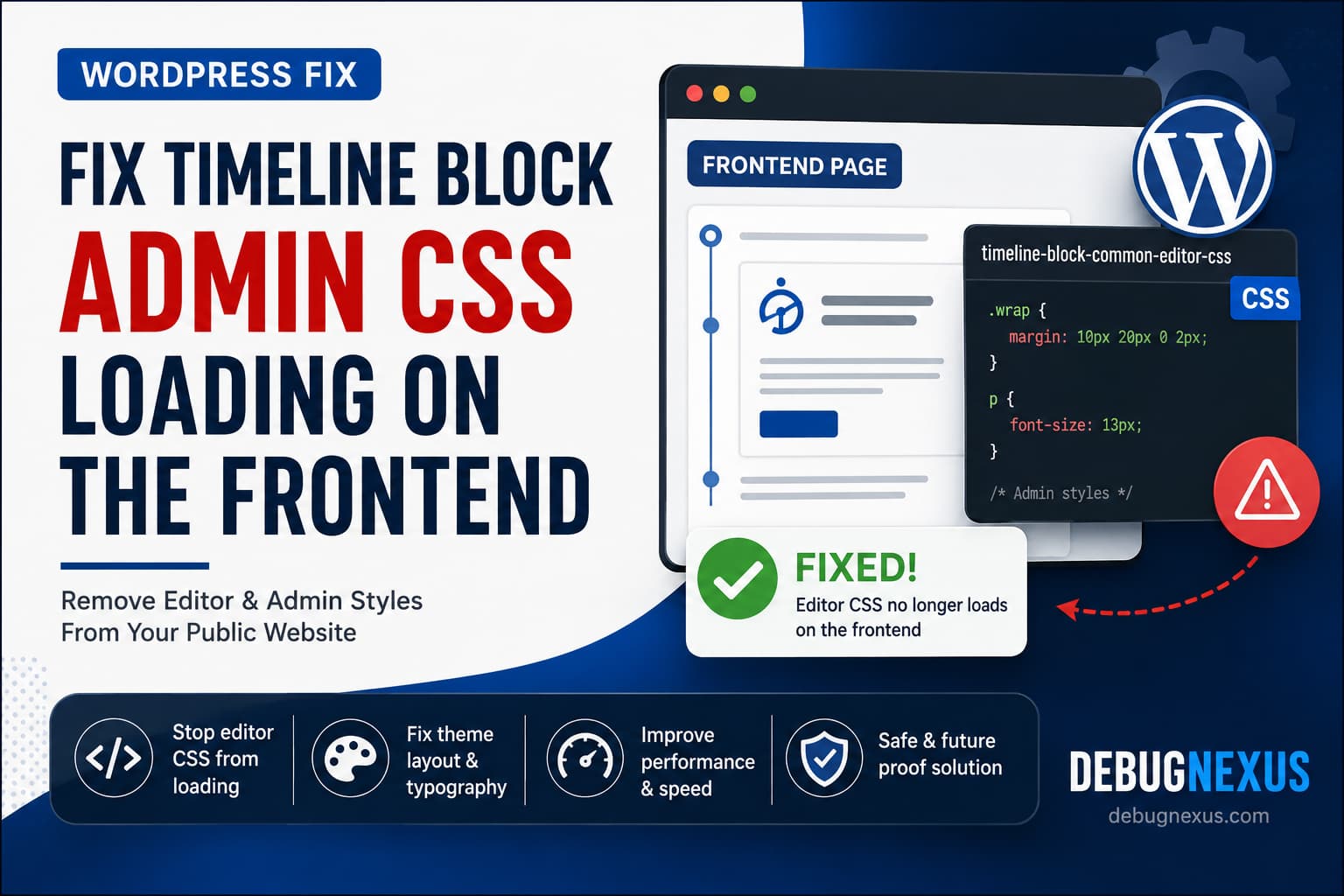
Timeline Block admin CSS may unexpectedly load on the public side of a WordPress website, bringing several WordPress editor and administration styles with it.
When this happens, the website’s design can suddenly change even though the theme files have not been edited. Paragraph text may become smaller, containers using the .wrap class may move, form elements may change, and additional WordPress CSS files may appear in the page source.
A reported example involves the Timeline Block For Gutenberg plugin loading the following editor stylesheet on public pages:
timeline-block-common-editor-cssBecause that stylesheet declares wp-edit-blocks as a dependency, WordPress can also load editor and administration styles such as:
wp-edit-blocks
wp-reset-editor-styles
common
forms
wp-components
This guide explains how to confirm the problem, safely prevent the editor stylesheet from loading on the frontend, clear cached copies, and implement the correct permanent fix.
Symptoms of Timeline Block Admin CSS Loading on the Frontend
You may be experiencing this issue when:
- Your theme layout changes immediately after activating or updating Timeline Block.
- Paragraphs unexpectedly display at approximately 13 pixels.
- Elements using a generic
.wrapclass gain incorrect margins. - Form fields and buttons inherit WordPress administration styling.
- The problem affects pages that do not contain a timeline.
- The design looks correct after disabling Timeline Block.
- The page source contains CSS files from
/wp-admin/css/. - The issue also occurs for logged-out visitors.
- Your optimization plugin combines the unwanted admin CSS with the theme stylesheet.
The most important sign is the presence of editor or administration styles on a normal public page.
Which Plugin Is Causing the Problem?
The stylesheet handle:
timeline-block-common-editor-csspoints to the Timeline Block For Gutenberg plugin by Cool Plugins.
At the time of writing, the plugin’s current public release is version 1.8.2. That release was published on July 17, 2026, upgraded the plugin to Block API version 3, and is listed as tested with WordPress 7.0.2.
This does not mean that every website using Timeline Block will experience the problem. Asset-loading behavior may also depend on the theme, optimization settings, block registration method, and whether the stylesheet is loaded conditionally.
However, the exact handle provides a strong way to identify the source.
Why Admin Styles Are Loading on the Frontend
WordPress uses stylesheet dependencies to make sure required CSS files load in the correct order.
For example, a plugin may register a stylesheet like this:
wp_enqueue_style(
	'timeline-block-common-editor-css',
	$stylesheet_url,
	array( 'wp-edit-blocks' ),
	$plugin_version
);
The dependency means:
Before loading
timeline-block-common-editor-css, WordPress must also loadwp-edit-blocks.
If the plugin enqueues that stylesheet on the public website, WordPress follows the dependency chain and loads the required editor styles too.
The problem is therefore not that WordPress randomly decided to load admin CSS. WordPress is processing the dependencies declared by the plugin.
The root issue is that an editor-only stylesheet is being added in a frontend context.
WordPress provides different asset-loading methods for this reason. The enqueue_block_assets hook runs for both the editor and frontend, while enqueue_block_editor_assets is intended for assets used only in the editing interface.
Why This Can Break a WordPress Theme
WordPress editor and administration styles contain broad selectors designed for the dashboard and block editor.
For example, an administration stylesheet may include rules targeting:
.wrap {
	margin: 10px 20px 0 2px;
}
That selector is appropriate in the WordPress dashboard, where .wrap is a standard administration container.
However, many public-facing themes also use .wrap for:
- Main content containers
- Header wrappers
- Article layouts
- Full-width sections
- Footer containers
When the administration stylesheet loads publicly, its .wrap rules may override the theme’s layout.
A similar conflict can occur with general selectors such as:
p {
	font-size: 13px;
}
A global paragraph rule can reduce typography across the entire website unless the theme uses a more specific selector.
Possible results include:
- Smaller body text
- Changed line height
- Incorrect margins
- Narrower content areas
- Broken header alignment
- Changed form styling
- Unexpected button appearances
- Additional render-blocking CSS requests
How to Confirm the Problem
Before adding custom code, confirm that the Timeline Block editor stylesheet is present on the frontend.
Test in a Logged-Out Window
Open the website in an incognito or private browser window.
Testing while logged out is important because logged-in administrators naturally receive certain toolbar and editing assets that ordinary visitors do not.
Check the Page Source
Right-click the affected page and choose View Page Source.
Search for:
timeline-block-common-editor-cssYou may find a tag resembling:
<link
	rel="stylesheet"
	id="timeline-block-common-editor-css-css"
	href="https://example.com/wp-content/plugins/timeline-block/..."
	media="all"
>
WordPress normally adds -css to a stylesheet handle when creating the HTML element ID. Because the original handle already ends in -css, the resulting ID may contain -css-css.
Also search for:
wp-edit-blocks-css
wp-reset-editor-styles-css
common-css
forms-css
wp-components-css
Check Chrome Developer Tools
Open the affected page and press:
F12Then:
- Open the Network panel.
- Select the CSS filter.
- Reload the page.
- Search for
timeline,common.min.css,forms.min.css, orwp-components. - Open the Elements panel.
- Select a broken paragraph or
.wrapcontainer. - Review which stylesheet supplies the unwanted rule.
This confirms whether the design problem is coming from the Timeline Block dependency chain rather than the theme itself.
Temporarily Disable the Plugin
On a staging site, deactivate Timeline Block For Gutenberg and reload the affected frontend page.
When the unwanted styles disappear, the plugin has been confirmed as the source.
Do not perform this test directly on a busy production website when existing pages depend on the timeline block.
Recommended Temporary Fix: Create an MU Plugin
The safest temporary workaround is to remove only the offending editor stylesheet from public pages.
Do not edit the Timeline Block plugin directly. Plugin updates would overwrite the modification.
Instead, create a small must-use plugin.
Step 1: Create the MU-Plugins Directory
Using SFTP, SSH, your hosting file manager, or a WordPress file-management tool, open:
/wp-content/Create the following directory when it does not already exist:
/wp-content/mu-plugins/Step 2: Create the Fix File
Inside mu-plugins, create:
debugnexus-timeline-css-fix.phpThe complete path should be:
/wp-content/mu-plugins/debugnexus-timeline-css-fix.phpStep 3: Add the Code
Paste this code into the file:
<?php
/**
 * Plugin Name: DebugNexus Timeline Block Frontend CSS Fix
 * Description: Prevents the Timeline Block editor-only stylesheet from loading on public pages.
 * Version: 1.0.0
 */

defined( 'ABSPATH' ) || exit;

/**
 * Remove the Timeline Block editor stylesheet from the frontend.
 *
 * The stylesheet depends on wp-edit-blocks, which may pull WordPress
 * editor and administration styles into public pages.
 *
 * @return void
 */
function debugnexus_remove_timeline_editor_css() {
	if ( is_admin() ) {
		return;
	}

	wp_dequeue_style( 'timeline-block-common-editor-css' );
}

/**
 * Run after normal frontend enqueue callbacks.
 */
add_action(
	'wp_enqueue_scripts',
	'debugnexus_remove_timeline_editor_css',
	PHP_INT_MAX
);

/**
 * Run once more immediately before queued styles are printed.
 * This catches the stylesheet when another callback added it late.
 */
add_action(
	'wp_print_styles',
	'debugnexus_remove_timeline_editor_css',
	PHP_INT_MAX
);
Save the file.
WordPress automatically loads files placed directly inside the mu-plugins directory. No manual activation is required.
The workaround uses WordPress’s official wp_dequeue_style() function, which removes a previously enqueued stylesheet by its handle.
Why This Workaround Is Safer
The code removes only:
timeline-block-common-editor-cssIt does not directly remove:
wp-edit-blocks
common
forms
wp-components
That distinction is important.
Those WordPress styles are appearing because they are dependencies of the Timeline Block editor stylesheet. Once the parent stylesheet is removed from the queue, WordPress should no longer need to process dependencies that were requested only by that stylesheet.
Blindly dequeuing core handles could break another plugin or block that legitimately uses them.
Always remove the offending parent asset first.
Alternative: Add the Fix Through Code Snippets
When you cannot access the website files, the same workaround can be added through the Code Snippets plugin.
Create a new PHP snippet and paste the following code without an opening <?php tag:
function debugnexus_remove_timeline_editor_css() {
	if ( is_admin() ) {
		return;
	}

	wp_dequeue_style( 'timeline-block-common-editor-css' );
}

add_action(
	'wp_enqueue_scripts',
	'debugnexus_remove_timeline_editor_css',
	PHP_INT_MAX
);

add_action(
	'wp_print_styles',
	'debugnexus_remove_timeline_editor_css',
	PHP_INT_MAX
);
Configure the snippet to run everywhere and activate it.
The MU-plugin method is still preferable because it:
- Does not depend on another plugin.
- Loads automatically.
- Remains active if normal plugins are temporarily disabled.
- Is easier to identify as a compatibility fix.
- Can be removed immediately after an official plugin update.
Alternative: Add the Code to a Child Theme
You can also place the function in:
/wp-content/themes/your-child-theme/functions.phpDo not add it to the parent theme because a theme update may overwrite it.
This method works, but the fix is related to plugin behavior rather than theme design. An MU plugin therefore keeps the workaround separate and makes its purpose clearer.
Clear Every Cache After Applying the Fix
Removing the stylesheet from WordPress does not automatically remove cached HTML or combined CSS files.
Clear all active cache layers.
Clear the WordPress Cache
Clear the cache from your caching or optimization plugin, such as:
- WP Rocket
- LiteSpeed Cache
- W3 Total Cache
- WP Super Cache
- Autoptimize
- FlyingPress
- Breeze
- SG Optimizer
Regenerate Combined CSS
When CSS minification or combination is enabled, the unwanted administration rules may already be stored inside a generated file.
Clear or regenerate:
- Combined CSS
- Minified CSS
- Critical CSS
- Used CSS
- Remove Unused CSS data
- Page-level optimization cache
Clear the Hosting Cache
Purge any cache provided by:
- Cloudways
- Kinsta
- WP Engine
- SiteGround
- Cloudflare APO
- Hostinger
- Pressable
- Other managed WordPress hosts
Clear the CDN
Purge Cloudflare or any other CDN serving the site.
Test in a Private Window
Open the affected page in an incognito window and perform a hard refresh.
On Windows:
Ctrl + Shift + ROn macOS:
Command + Shift + RHow to Verify That the Fix Worked
Check the page source again and search for:
timeline-block-common-editor-cssThe handle should no longer appear on the public page.
Also verify that the unwanted dependency styles are gone when no other plugin requires them:
wp-edit-blocks-css
wp-reset-editor-styles-css
common-css
forms-css
Next, inspect the previously affected elements.
Confirm that:
- Paragraph typography matches the theme.
.wrapcontainers use the theme’s margins.- Forms display correctly.
- Header and footer alignment is restored.
- Timeline blocks still display correctly.
- Timeline editing still works in the WordPress editor.
- Logged-out visitors no longer receive administration CSS.
Command-Line Test
You can also search the generated page source from a terminal:
curl -sL https://example.com/ | grep -E \
'timeline-block-common-editor-css|wp-edit-blocks-css|common-css|forms-css'
Replace example.com with the website domain.
No output normally means those handles were not found in the returned HTML.
When a CDN or full-page cache is active, purge it before running the test.
What Is the Correct Permanent Plugin Fix?
The MU-plugin workaround protects the website, but the plugin developer should correct how the stylesheet is registered.
WordPress recommends using block.json as the canonical registration method for block scripts and styles. The metadata API separates editor-only, shared, and frontend-only assets.
A simplified block configuration should resemble:
{
	"$schema": "https://schemas.wp.org/trunk/block.json",
	"apiVersion": 3,
	"name": "plugin-namespace/timeline",
	"title": "Timeline",
	"editorScript": "file:./index.js",
	"editorStyle": "file:./editor.css",
	"style": "file:./style.css"
}
The important properties are:
editorStyle
"editorStyle": "file:./editor.css"This stylesheet is loaded only in the block editor.
WordPress explicitly defines editorStyle as an editor-context asset.
style
"style": "file:./style.css"This should contain CSS genuinely required both in the editor and on the frontend.
viewStyle
For plugins supporting WordPress 6.5 or later, frontend-only CSS can use:
"viewStyle": "file:./view.css"However, the plugin currently lists WordPress 5.0 as its minimum version, so compatibility requirements must be considered before relying entirely on viewStyle.
PHP Alternative for Editor-Only Assets
When the stylesheet controls the editor interface rather than the rendered block content, it can be loaded through:
function timeline_block_enqueue_editor_assets() {
	wp_enqueue_style(
		'timeline-block-common-editor-css',
		plugins_url( 'assets/css/editor.css', __FILE__ ),
		array( 'wp-edit-blocks' ),
		'1.0.0'
	);
}

add_action(
	'enqueue_block_editor_assets',
	'timeline_block_enqueue_editor_assets'
);
The enqueue_block_editor_assets hook fires for the editing interface, making it appropriate for editor UI styles and scripts.
The plugin developer should not enqueue the same editor stylesheet through:
wp_enqueue_scriptsor an unrestricted:
enqueue_block_assetsThe first is the standard frontend asset hook, while the second applies to both editor and frontend contexts.
Should You Dequeue wp-edit-blocks Directly?
No, not as the first solution.
This code is too broad:
wp_dequeue_style( 'wp-edit-blocks' );
wp_dequeue_style( 'common' );
wp_dequeue_style( 'forms' );
wp_dequeue_style( 'wp-components' );
It attempts to remove the symptoms rather than the asset that requested them.
It may also fail when another queued stylesheet declares one of those handles as a dependency. WordPress documentation notes that removing a dependency does not work while an enqueued parent asset still requires it.
Remove:
timeline-block-common-editor-cssand allow WordPress to resolve the remaining dependency tree normally.
Should You Downgrade WordPress 7.0.2?
No.
WordPress 7.0.2 is a security release addressing one critical and one high-severity security issue. WordPress officially recommends updating affected sites immediately.
Downgrading WordPress to hide a plugin asset-loading issue would expose the website to security risks without correcting the plugin’s registration logic.
Keep WordPress updated and fix the specific stylesheet instead.
Should You Roll Back Timeline Block?
A temporary plugin rollback may help confirm whether a recent release introduced the behavior, but it should first be tested on staging.
Before rolling back:
- Create a complete site backup.
- Record the active plugin version.
- Test whether existing timeline blocks remain compatible.
- Review the plugin changelog for security fixes.
- Disable automatic updates temporarily.
- Retest the frontend source after the rollback.
A scoped dequeue workaround is generally safer than running an outdated plugin indefinitely.
What to Do After the Plugin Releases a Fix
When a future Timeline Block update states that frontend editor styles or admin CSS loading has been fixed:
- Back up the website.
- Test the update on staging.
- Temporarily disable the MU-plugin workaround.
- Clear every cache layer.
- Check the public page source.
- Confirm that
timeline-block-common-editor-cssis absent. - Test Timeline Block in the editor and frontend.
- Remove the workaround only after successful testing.
Do not leave unnecessary compatibility code active forever.
Troubleshooting When the Styles Still Appear
Confirm the Correct Handle
The plugin may change its stylesheet handle in a future release.
Inspect the page source and identify the current HTML ID or CSS URL.
Check Whether CSS Was Combined
An optimization plugin may remove the original stylesheet tag and merge its rules into another file.
Disable CSS combination temporarily and inspect the page again.
Purge Server and CDN Caches
Cached HTML may continue referencing the old stylesheet even after WordPress stops enqueueing it.
Check for Multiple Timeline Plugins
The site may have more than one timeline-related plugin installed. Search the page source for each plugin directory name.
Test a Default Theme on Staging
Switch temporarily to a default WordPress theme on staging.
This helps determine whether the administration CSS is loading universally but only conflicts visibly with the current theme.
Check the MU Plugin Location
The file must be directly inside:
/wp-content/mu-plugins/This works:
/wp-content/mu-plugins/debugnexus-timeline-css-fix.phpThis may not load automatically without a separate loader:
/wp-content/mu-plugins/debugnexus-fixes/debugnexus-timeline-css-fix.phpPerformance Impact
Even when the unwanted styles do not visibly break the design, loading editor dependencies on every public page is inefficient.
It can add:
- Extra HTTP requests
- Additional CSS bytes
- More CSS parsing work
- A larger render-blocking dependency chain
- Unused CSS warnings
- Greater risk of selector conflicts
A previous review of Timeline Block also raised concerns about the plugin loading styles broadly instead of only where required, although that older report involved different stylesheet files.
The best implementation is to load:
- Editor CSS only in the editor.
- Shared block CSS in the editor and frontend.
- Frontend CSS only on pages where the block is rendered, when technically possible.
Final Recommendation
When Timeline Block admin CSS loads on the WordPress frontend, do not attempt to repair every affected theme selector individually.
The theme is not the root cause.
The correct troubleshooting sequence is:
- Confirm that
timeline-block-common-editor-cssappears on logged-out frontend pages. - Verify that it pulls
wp-edit-blocksand other administration styles into the page. - Dequeue only the offending Timeline Block editor stylesheet.
- Clear WordPress, server, CDN, and generated CSS caches.
- Verify that the theme styling and timeline functionality both work.
- Keep WordPress 7.0.2 updated.
- Replace the workaround with an official plugin fix when one becomes available.
The temporary MU-plugin solution prevents the editor stylesheet from reaching public pages while preserving the Timeline Block’s normal frontend styles and WordPress editor functionality.
