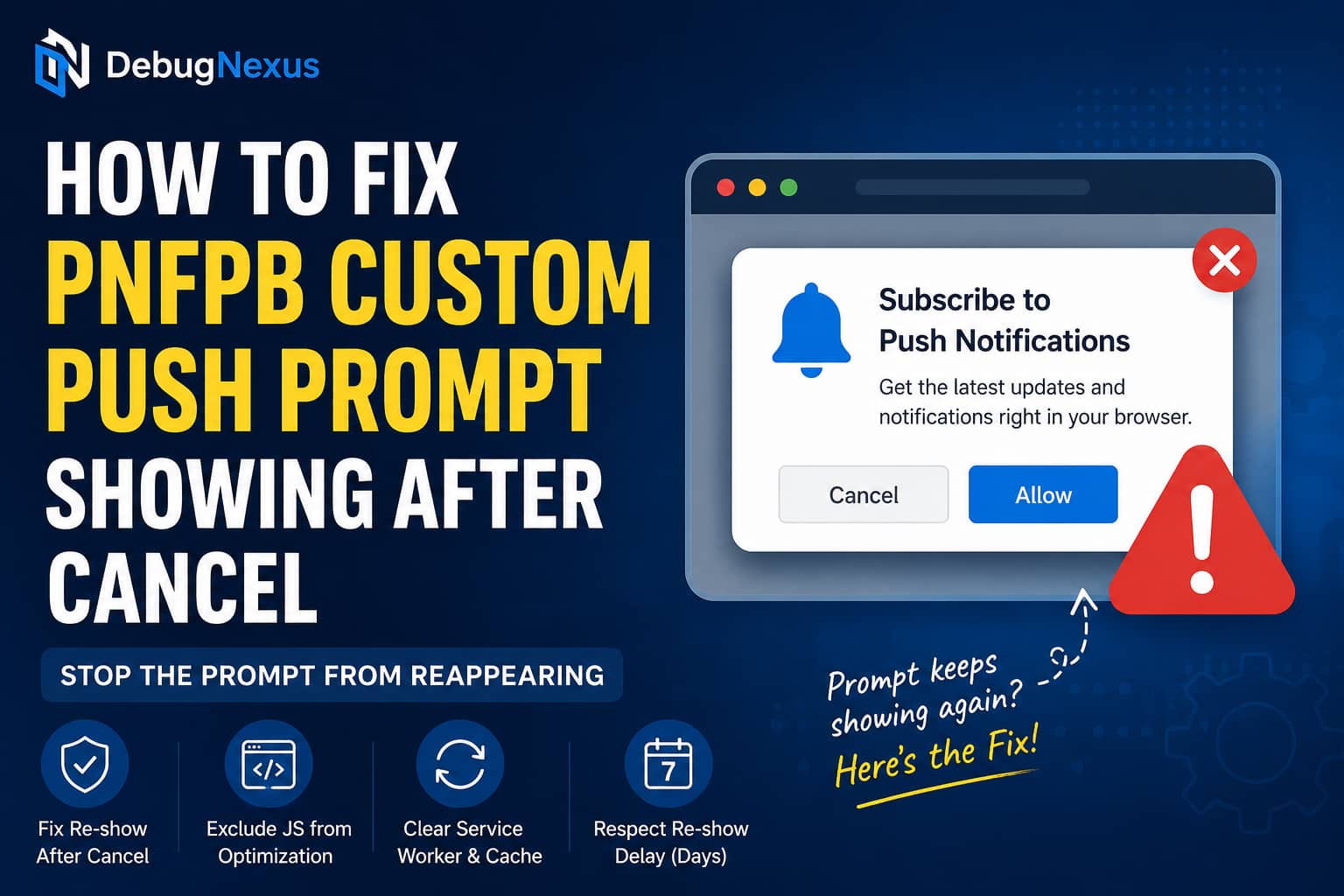
The PNFPB Custom Push Prompt may start appearing on every page after updating the Push Notification for Post and BuddyPress plugin. This can happen even when the Re-show After Cancel (days) option is set to seven days.
A visitor clicks Cancel, refreshes the page or visits another page, and the same subscription prompt immediately appears again.
The problem is usually caused by one of the following:
- A regression in the plugin’s prompt JavaScript
- An old JavaScript file still being served from cache
- A stale service worker left behind after the update
- JavaScript delay, deferral or minification changing execution order
- The dismissal timestamp not being saved in browser storage
- A privacy or cookie tool preventing persistent browser storage
This guide explains how to diagnose the problem, restore the normal cancellation delay and apply a temporary compatibility fix when the plugin’s built-in setting still does not work.
Understanding the PNFPB Custom Push Prompt
Push Notification for Post and BuddyPress, commonly abbreviated as PNFPB, provides a customizable subscription popup, bell icon, browser push notifications and optional Progressive Web App functionality.
The custom popup is different from the browser’s native notification permission box. It is a website-controlled dialog that appears before the browser is asked to grant notification permission. The plugin also generates a web app manifest and service worker when its PWA functionality is enabled.
When a visitor clicks Cancel, the plugin should remember that action and avoid showing the custom prompt again until the number of days entered in Re-show After Cancel has passed.
When the prompt returns after every refresh, either the cancellation value is not being saved or the plugin is not reading the saved value correctly.
Symptoms of the Problem
You may be experiencing this PNFPB issue when:
- The Custom Push Prompt opens on every page.
- Clicking Cancel closes it only temporarily.
- Refreshing the page immediately opens it again.
- Navigating to another page opens it again.
- Re-show After Cancel is set to seven days but is ignored.
- The problem started immediately after updating PNFPB.
- Deactivating and reinstalling the plugin did not solve it.
- The problem occurs only when a cache or optimization plugin is active.
- The problem disappears after clearing all browser site data.
Reinstalling the WordPress plugin may not fix this problem because the browser’s cached scripts, local storage, notification permission and registered service worker are separate from the plugin files on the server.
PNFPB’s own documentation also explains that normal deactivation does not delete its stored database tables or subscriber tokens.
Before Making Changes
Create a backup before modifying plugin settings or adding custom code.
When possible, reproduce the issue on a staging website first. You should also record:
- The installed PNFPB version
- The version installed before the problem started
- WordPress version
- PHP version
- Active caching and optimization plugins
- Whether Cloudflare or another CDN is active
- Whether PNFPB’s PWA option is enabled
- The browser used for testing
The current PNFPB requirements include WordPress 6.2 or later, PHP 8.1 or later and HTTPS. Confirm that the website meets those requirements before continuing.
Step 1: Update PNFPB to the Latest Version
Go to:
WordPress Dashboard > Plugins > Installed PluginsCheck whether an update is available for:
Push Notification for Post and BuddyPressInstall the newest stable release before applying custom code.
Recent PNFPB releases have included significant changes to the admin interface, PWA features, JavaScript and prompt behavior. A newer maintenance release may already contain a prompt-related correction.
After updating, do not test immediately. Clear all WordPress, CDN and browser caches first, as explained below.
Avoid permanently downgrading to an older version. A rollback can be useful on staging to confirm that an update caused the regression, but it can also restore security or compatibility problems corrected in later releases.
Step 2: Re-save the Custom Push Prompt Settings
The update may have preserved an old option value in a format that the updated JavaScript no longer reads correctly.
Open the PNFPB settings and find the Custom Push Prompt controls.
The exact location may vary by plugin version, but it will normally be under the plugin’s push, frontend prompt or customization settings.
Use the following reset process:
- Disable the Custom Push Prompt.
- Save the settings.
- Clear the WordPress cache.
- Re-enable the Custom Push Prompt.
- Set Re-show After Cancel (days) to
7. - Save the settings again.
- Purge every cache layer.
- Test in a normal browser window.
This forces WordPress to write the current prompt configuration again rather than continuing to use an outdated saved value.
Step 3: Clear Every Cache Layer
A stale JavaScript file can continue running after the plugin itself has been updated.
Clear the following cache layers:
WordPress cache
Purge the cache from your active caching plugin, such as:
- WP Rocket
- LiteSpeed Cache
- W3 Total Cache
- WP-Optimize
- FlyingPress
- Autoptimize
- Breeze
Hosting cache
Clear any full-page cache provided by your host, including:
- Varnish
- Nginx FastCGI cache
- LiteSpeed server cache
- Cloudways application cache
- Kinsta cache
- WP Engine cache
CDN cache
Purge Cloudflare or any other CDN serving the website’s JavaScript files.
When available, use a complete cache purge rather than clearing only the homepage.
Step 4: Remove the Old Service Worker and Site Data
PNFPB can generate a service worker named:
pnfpb_icpush_pwa_sw.jsAn older service worker or Cache Storage entry can continue controlling pages after a plugin update. The official plugin documentation confirms that PNFPB generates a service worker and PWA manifest when its PWA features are used.
In Google Chrome:
- Open the website.
- Press
F12. - Open the Application tab.
- Select Service Workers.
- Find the service worker associated with the website.
- Click Unregister.
- Open Storage.
- Click Clear site data.
- Close every tab containing the website.
- Open the website again.
Chrome’s Application panel is designed for inspecting service workers, browser storage, manifests and cached site data.
Clearing site data also resets your local test state. The Custom Push Prompt should therefore appear once during the first test.
Click Cancel, refresh the page and confirm whether it stays closed.
Step 5: Exclude PNFPB JavaScript from Optimization
JavaScript optimization is one of the most likely causes when the prompt’s Cancel button closes the dialog but fails to save the dismissal state.
A previous PNFPB support case produced errors after WP Rocket altered the plugin scripts. The recommended resolution was to exclude JavaScript files whose paths or filenames contain pnfpb from optimization.
Use these exclusions:
/wp-content/plugins/push-notification-for-post-and-buddypress/And:
pnfpbWP Rocket
Go to:
Settings > WP Rocket > File OptimizationAdd pnfpb to:
- Excluded JavaScript Files
- Delay JavaScript Execution exclusions
- Defer JavaScript exclusions, when available
Clear the WP Rocket cache after saving.
LiteSpeed Cache
Go to:
LiteSpeed Cache > Page Optimization > TuningAdd pnfpb to:
- JS Excludes
- JS Deferred/Delayed Excludes
Then purge all LiteSpeed caches.
Autoptimize
Go to:
Settings > Autoptimize > JavaScript OptionsAdd the plugin path or pnfpb to the JavaScript exclusion field.
Clear the Autoptimize cache afterward.
W3 Total Cache
Exclude PNFPB files from JavaScript minification and clear the minify cache.
Cloudflare
When using Cloudflare Rocket Loader, temporarily disable Rocket Loader and test again.
A push-notification script should generally load in its original order because it depends on browser APIs, WordPress JavaScript packages, event handlers and service-worker registration.
Step 6: Check Whether the Cancellation Is Stored
The re-show delay must be remembered somewhere in the visitor’s browser. A plugin may use a cookie, localStorage or another browser storage mechanism.
Chrome allows you to inspect this directly:
- Open the website.
- Press
F12. - Open Application.
- Expand Local Storage.
- Select your domain.
- Search for keys containing
pnfpb,push,prompt,cancelordismiss. - Keep the panel open.
- Click Cancel on the prompt.
- Check whether any storage value is created or changed.
Browser localStorage normally survives page refreshes and browser restarts. In private or incognito browsing, however, it is temporary and is deleted when the private session closes.
What the result means
No value changes after clicking Cancel
The Cancel event handler is probably not running correctly. This commonly points to a JavaScript error, optimization conflict or plugin regression.
A value is stored but the prompt still returns
The new prompt script may be ignoring the stored value, reading the wrong key or comparing the timestamp incorrectly.
The value disappears after refreshing
A privacy plugin, browser setting or consent-management system may be clearing or blocking persistent storage.
Do not perform this test in incognito mode unless you specifically want to test temporary storage behavior.
Step 7: Check the Browser Console
Open:
Developer Tools > ConsoleReload the page and look for red errors.
Potentially relevant errors include:
Uncaught ReferenceErrorwp is not definedCannot read properties of undefinedSecurityError: Failed to read the localStorage propertyServiceWorker registration failedQuotaExceededErrorA wp is not defined error can occur when an optimizer changes the loading order of WordPress JavaScript dependencies. This type of error has previously affected PNFPB when optimization was active.
Resolve the first JavaScript error in the console before assuming the re-show setting itself is defective. One failed script can prevent all code below it from running.
Step 8: Check the Native Notification Permission
Run this command in the browser console:
Notification.permissionThe response will be one of:
defaultgranteddeniedThe browser’s native notification permission is separate from the website’s custom prompt. The Notification API defines granted, denied and default as the possible permission states.
A visitor clicking Cancel on the PNFPB Custom Push Prompt will normally leave the native browser permission as default, because the actual browser permission request was never opened.
If permission is already denied, the website cannot override it with JavaScript. The visitor must reset notification permission through the browser’s site settings.
Step 9: Test for a Plugin Conflict
Temporarily deactivate all plugins except:
- Push Notification for Post and BuddyPress
- BuddyPress or BuddyBoss, when required by the website
Use a maintenance window or staging site for this test.
Clear all caches and test the Cancel behavior.
If the seven-day delay works, reactivate plugins one at a time until the problem returns.
Pay particular attention to:
- Performance and caching plugins
- Cookie-consent plugins
- Security plugins
- PWA plugins
- Other push-notification plugins
- JavaScript management plugins
- Plugins that move scripts to the footer
- Plugins that delay scripts until interaction
Do not run multiple plugins that register competing service workers unless they explicitly support integration. A website can have only one active service worker controlling a particular scope at a time.
Temporary Code Fix for the Seven-Day Cancellation Delay
Use the following workaround only when:
- The website is using the latest PNFPB version.
- All caches have been purged.
- PNFPB scripts have been excluded from optimization.
- The prompt still appears after every refresh.
- The popup element uses the ID
pnfpb-push-dialog-container.
The code remembers the visitor’s cancellation in localStorage and hides the PNFPB dialog for seven days.
Add it through the Code Snippets plugin or your child theme’s functions.php file. Do not edit the PNFPB plugin directly.
<?php
/**
 * Temporary PNFPB Custom Push Prompt cancellation fix.
 *
 * Remembers a visitor's cancellation for seven days.
 * Remove this snippet after the plugin provides a permanent fix.
 */

add_action(
	'wp_footer',
	static function () {
		if ( is_admin() ) {
			return;
		}
		?>
		<script>
		(() => {
			'use strict';

			const dialogSelector = '#pnfpb-push-dialog-container';
			const storageKey = 'debugnexus_pnfpb_prompt_cancelled_at';
			const reShowAfterDays = 7;
			const maximumAge =
				reShowAfterDays * 24 * 60 * 60 * 1000;

			const readCancellationTime = () => {
				try {
					return Number(
						window.localStorage.getItem(storageKey) || 0
					);
				} catch (error) {
					return 0;
				}
			};

			const saveCancellationTime = () => {
				try {
					window.localStorage.setItem(
						storageKey,
						String(Date.now())
					);
				} catch (error) {
					/*
					 * Storage may be unavailable when the visitor
					 * blocks persistent storage or uses a restricted
					 * private-browsing environment.
					 */
				}
			};

			const wasRecentlyCancelled = () => {
				const cancellationTime = readCancellationTime();

				return (
					cancellationTime > 0 &&
					Date.now() - cancellationTime < maximumAge
				);
			};

			const hidePrompt = () => {
				document
					.querySelectorAll(dialogSelector)
					.forEach((dialog) => {
						dialog.style.setProperty(
							'display',
							'none',
							'important'
						);
						dialog.setAttribute(
							'aria-hidden',
							'true'
						);
					});
			};

			const isCancelControl = (target) => {
				if (!(target instanceof Element)) {
					return false;
				}

				const control = target.closest(
					'button, a, [role="button"], ' +
					'input[type="button"], input[type="submit"]'
				);

				if (
					!control ||
					!control.closest(dialogSelector)
				) {
					return false;
				}

				const className =
					typeof control.className === 'string'
						? control.className
						: '';

				const inputValue =
					control instanceof HTMLInputElement
						? control.value
						: '';

				const label = [
					control.textContent || '',
					control.getAttribute('aria-label') || '',
					control.getAttribute('title') || '',
					inputValue,
					className
				]
					.join(' ')
					.trim()
					.toLowerCase();

				return /\b(cancel|close|dismiss|later|not now|no thanks)\b/
					.test(label);
			};

			document.addEventListener(
				'click',
				(event) => {
					if (!isCancelControl(event.target)) {
						return;
					}

					saveCancellationTime();
					window.setTimeout(hidePrompt, 0);
				},
				true
			);

			if (wasRecentlyCancelled()) {
				hidePrompt();

				new MutationObserver(hidePrompt).observe(
					document.documentElement,
					{
						childList: true,
						subtree: true
					}
				);
			}
		})();
		</script>
		<?php
	},
	99
);
What this code does
The snippet:
- Runs only on the public-facing website.
- Watches for Cancel, Close, Later, Not Now or similar controls inside the PNFPB dialog.
- Saves the cancellation time in the visitor’s browser.
- Suppresses the dialog for seven days.
- Does not subscribe or unsubscribe the visitor.
- Does not alter the browser’s notification permission.
- Does not modify the PNFPB plugin files or database.
To use a different interval, change:
const reShowAfterDays = 7;For example, to wait 14 days:
const reShowAfterDays = 14;How to Test the Temporary Fix
First, remove any previous test value by running this in the console:
localStorage.removeItem(
	'debugnexus_pnfpb_prompt_cancelled_at'
);
location.reload();
Then:
- Confirm that the prompt appears.
- Click Cancel.
- Refresh the page.
- Visit several other pages.
- Close and reopen the browser.
- Confirm that the prompt remains hidden.
You can verify that the timestamp was stored by running:
localStorage.getItem(
	'debugnexus_pnfpb_prompt_cancelled_at'
);
The browser should return a long numeric timestamp.
Test with a normal browser window rather than an incognito session because private browsing deletes local storage when the private session ends.
What to Do If the Code Does Not Work
Inspect the prompt using the browser’s developer tools.
Confirm that its outer container uses:
#pnfpb-push-dialog-containerIf the plugin update changed the element ID, replace this line in the snippet:
const dialogSelector = '#pnfpb-push-dialog-container';With the current prompt selector.
Also verify that the Cancel button contains one of these labels:
- Cancel
- Close
- Dismiss
- Later
- Not Now
- No Thanks
A translated button may require adding the translated word to the regular expression inside the code.
Common Mistakes
Testing only while logged in
Caching and prompt behavior may differ for logged-in administrators. Always test as a logged-out visitor.
Testing in incognito mode
Incognito is useful for getting a clean session, but its storage does not behave like a persistent normal browser profile after the session is closed.
Clearing only the WordPress cache
The stale file may be held by Cloudflare, the browser, a service worker or server-level page caching.
Editing the plugin directly
Any modification inside the PNFPB plugin directory will be overwritten by the next update.
Disabling the security or consent plugin permanently
Use temporary deactivation only to identify the conflict. After identifying it, configure a specific exclusion rather than leaving important protection disabled.
Using the workaround permanently
The custom snippet should be removed after the plugin fixes its own cancellation logic. Native plugin behavior is preferable to maintaining duplicate prompt logic.
Frequently Asked Questions
Why does the prompt return even though Re-show After Cancel is seven days?
The cancellation timestamp is probably not being stored, is being deleted or is no longer being read correctly by the updated JavaScript.
Will reinstalling PNFPB fix it?
Not necessarily. Reinstalling replaces server files, but it may not remove an old browser service worker, Cache Storage, CDN cache or browser storage.
Does clicking Cancel block notifications permanently?
No. Canceling the custom website prompt normally postpones it. It is not the same as clicking Block in the browser’s native notification permission dialog.
Can a cache plugin cause this problem?
Yes. Combining, delaying or deferring PNFPB JavaScript can change its execution order or prevent a click handler from saving the cancellation value. A previous official support response recommended excluding files containing pnfpb from optimization.
Will clearing site data unsubscribe existing visitors?
Clearing your own browser’s site data may remove the subscription and permission-related data for that browser profile. It does not delete every subscriber stored in the WordPress database.
Should I downgrade the plugin?
Use a rollback only as a temporary staging test. Update to the latest secure release for production and report the regression to the plugin developer with console errors and reproduction steps.
Information to Send to the Plugin Developer
When the issue remains after completing the troubleshooting steps, include:
- PNFPB version
- Previous working version
- WordPress version
- PHP version
- Browser and operating system
- Re-show After Cancel value
- Active cache and optimization plugins
- Whether PWA is enabled
- Console errors
- Screenshot of browser storage before and after clicking Cancel
- Confirmation that the issue remains with optimization disabled
- A staging URL when available
Clear reproduction steps make it easier for the developer to identify whether the regression is in the Cancel click handler, timestamp calculation or prompt display condition.
Final Recommendation
Start by updating PNFPB, re-saving the Custom Push Prompt settings and completely clearing the website’s scripts, browser storage and service worker.
Next, exclude all PNFPB JavaScript from minification, delay and deferral. Confirm that clicking Cancel creates or updates a persistent browser-storage value.
When those steps do not restore the seven-day delay, use the temporary compatibility snippet to remember the cancellation until an official plugin update resolves the regression.
This approach prevents the PNFPB Custom Push Prompt from repeatedly interrupting visitors while preserving the website’s push-notification and subscription functionality.
