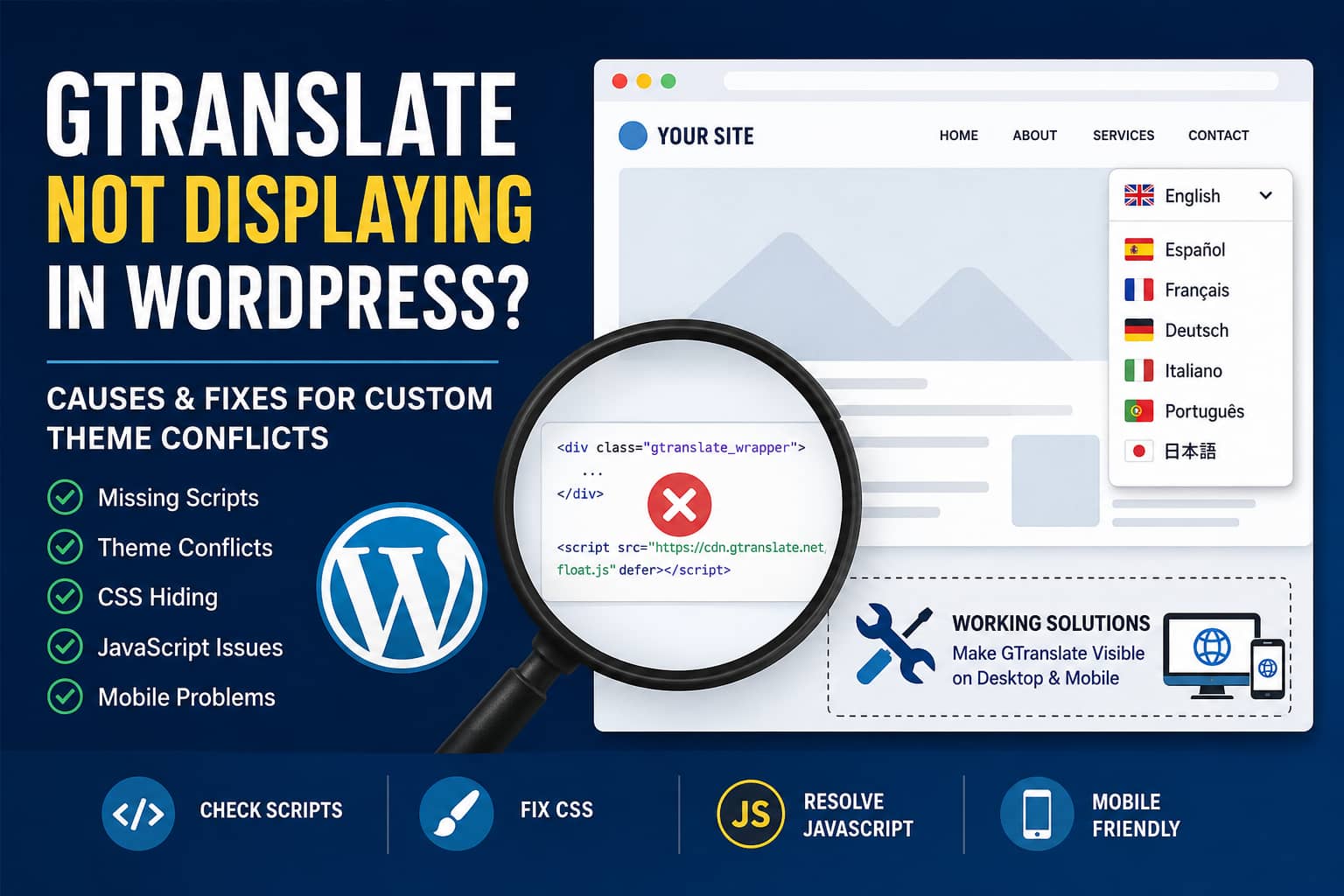
When a custom WordPress theme is active, the GTranslate language dropdown or floating icon may completely disappear. In some cases, the selector is missing from the page source. In others, its wrapper exists but remains empty or is hidden by CSS.
This usually means the problem is not with the selected languages. It is commonly caused by one of the following:
- Missing
wp_head()orwp_footer()calls in the custom theme - A theme template that does not render the GTranslate shortcode
- CSS applying
display: none, zero opacity, or an insufficientz-index - A parent container using
overflow: hidden - Theme JavaScript intercepting GTranslate links
- JavaScript optimization delaying or combining the GTranslate scripts
- Custom code removing or rebuilding the page HTML
- Separate mobile navigation code hiding the selector
This guide explains how to identify the exact cause and restore the GTranslate selector without replacing your business theme.
Important: Determine What Is Actually Missing
Before adding CSS or changing plugin settings, inspect the page and determine which of these three situations applies:
- The GTranslate wrapper and scripts are completely missing.
- The wrapper exists but is empty.
- The selector is rendered but hidden.
CSS can only solve the third situation. It cannot generate missing HTML or load a blocked JavaScript file.
Step 1: Confirm the GTranslate Configuration
In the WordPress dashboard, go to:
Settings → GTranslate
Check the following:
- GTranslate is enabled and active.
- A default website language is selected.
- At least one additional language is enabled.
- The floating language selector is enabled if you want a floating icon.
- A floating position such as Bottom Right or Top Right is selected.
- The selector is not restricted to an unused menu.
GTranslate officially supports several placement methods, including its floating selector, WordPress widgets, the [gtranslate] shortcode, and direct shortcode rendering inside a theme template.
Save the settings even when they already appear correct, and then clear every active cache.
Step 2: Check Whether GTranslate Is in the HTML
Open the affected page in Chrome.
Right-click anywhere on the page and select Inspect. Open the Elements tab and search for:
gtranslate_wrapperAlso search the page source for:
gtranslateSettingsand:
cdn.gtranslate.netYou can perform the same check from the browser console:
document.querySelectorAll(
    '.gtranslate_wrapper, .gt_float_switcher'
).length;
You can also list the detected GTranslate scripts:
[...document.scripts]
    .map(script => script.src)
    .filter(src => src.includes('gtranslate'));
Interpret the result as follows.
No wrapper and no script
The custom theme is probably not executing the necessary WordPress hooks, or the selector has not been inserted into the template.
Wrapper exists but is empty
The GTranslate JavaScript is blocked, delayed, broken by another script, or failing because of a browser console error.
An empty .gtranslate_wrapper has previously been associated with caching, optimization, and JavaScript errors.
Wrapper contains content but cannot be seen
The problem is normally CSS, positioning, clipping, or responsive visibility.
Step 3: Restore the Required WordPress Theme Hooks
A properly developed WordPress theme should call wp_head() before the closing </head> tag and wp_footer() before the closing </body> tag.
Open the custom theme’s header.php file and confirm that it contains:
<!doctype html>
<html <?php language_attributes(); ?>>
<head>
    <meta charset="<?php bloginfo('charset'); ?>">
    <meta
        name="viewport"
        content="width=device-width, initial-scale=1"
    >

    <?php wp_head(); ?>
</head>

<body <?php body_class(); ?>>
<?php wp_body_open(); ?>
Then open footer.php and confirm that it contains:
<?php wp_footer(); ?>
</body>
</html>
The important functions are:
wp_head();
wp_body_open();
wp_footer();
Do not place wp_footer() after the closing </body> tag.
Also confirm that the page template calls the theme header and footer:
<?php get_header(); ?>

<main id="primary" class="site-main">
    <?php
    while (have_posts()) {
        the_post();
        the_content();
    }
    ?>
</main>

<?php get_footer(); ?>
If the theme uses a completely custom landing-page template that does not call get_header() or get_footer(), WordPress plugins may not be able to insert their required scripts.
After correcting the templates:
- Save the files.
- Clear the website cache.
- Clear any CDN cache.
- Open the page in a private browser window.
- Search the source for
gtranslate_wrapperagain.
Step 4: Insert the GTranslate Shortcode Directly
When the floating selector does not render reliably, insert the official GTranslate shortcode into the desired theme location.
The plugin documentation supports this shortcode:
[gtranslate]To place it inside a WordPress page builder, use a Shortcode widget or block and enter:
[gtranslate]To place it inside header.php, use:
<div class="dn-language-switcher">
    <?php echo do_shortcode('[gtranslate]'); ?>
</div>
GTranslate officially documents the following PHP placement method:
<?php echo do_shortcode('[gtranslate]'); ?>Place the code inside a child theme rather than editing the parent theme directly. Otherwise, a future theme update may overwrite the modification.
Footer fallback using functions.php
When editing the header template is difficult, you can add a temporary floating fallback through the child theme’s functions.php file or the Code Snippets plugin.
/**
 * Display a GTranslate fallback selector.
 *
 * Use this only when another GTranslate selector is not already
 * being rendered elsewhere on the page.
 */
function debugnexus_gtranslate_fallback(): void
{
    if (is_admin() || wp_doing_ajax()) {
        return;
    }

    echo '<div class="dn-gtranslate-fallback">';
    echo do_shortcode('[gtranslate]');
    echo '</div>';
}
add_action('wp_footer', 'debugnexus_gtranslate_fallback', 20);
Do not use this snippet while another shortcode, widget, menu selector, or floating selector is active. Multiple placements may produce duplicate language selectors.
Step 5: Fix a GTranslate Selector Hidden by CSS
If the GTranslate elements are present in the browser inspector, add the following CSS under:
Appearance → Customize → Additional CSS
/*
 * Restore the GTranslate wrapper when theme CSS hides it.
 */
.gtranslate_wrapper,
.dn-language-switcher,
.dn-gtranslate-fallback {
    visibility: visible !important;
    opacity: 1 !important;
    pointer-events: auto !important;
}

/*
 * Keep the floating selector above headers, cookie notices,
 * mobile navigation, and page-builder sections.
 */
.gt_float_switcher {
    visibility: visible !important;
    opacity: 1 !important;
    pointer-events: auto !important;
    z-index: 2147483000 !important;
}

/*
 * Position the custom fallback selector.
 */
.dn-gtranslate-fallback {
    position: fixed !important;
    right: 20px !important;
    bottom: 20px !important;
    display: block !important;
    width: auto !important;
    height: auto !important;
    z-index: 2147483000 !important;
}

.dn-gtranslate-fallback .gtranslate_wrapper {
    position: relative !important;
    display: block !important;
    width: auto !important;
    height: auto !important;
    overflow: visible !important;
}

/*
 * Prevent the selector itself from being clipped.
 */
.dn-language-switcher,
.dn-language-switcher .gtranslate_wrapper {
    position: relative;
    overflow: visible !important;
}

/*
 * Mobile positioning.
 */
@media only screen and (max-width: 767px) {
    .dn-gtranslate-fallback {
        right: 12px !important;
        bottom: calc(
            12px + env(safe-area-inset-bottom)
        ) !important;
        max-width: calc(100vw - 24px) !important;
    }

    .gt_float_switcher {
        z-index: 2147483000 !important;
    }
}
Do not force every GTranslate dropdown child element to use display: block. Some dropdown items must remain hidden until the visitor opens the selector.
For example, avoid rules such as:
.gtranslate_wrapper * {
    display: block !important;
}
That can break the dropdown behavior.
Step 6: Check for a Hidden Parent Container
A visible GTranslate wrapper can still be clipped by one of its parent elements.
Common causes include:
overflow: hidden;display: none;opacity: 0;visibility: hidden;height: 0;This often happens when the selector is placed inside:
- A mobile menu that is hidden on desktop
- A desktop header that is hidden on mobile
- An Elementor section with responsive visibility enabled
- A sticky header clone
- A collapsed navigation panel
- An off-canvas menu
- A header container with
overflow: hidden
Select .gtranslate_wrapper in Chrome DevTools and inspect its parent elements one by one.
You can also run:
const gt = document.querySelector('.gtranslate_wrapper');

if (gt) {
    console.log(getComputedStyle(gt));

    let parent = gt.parentElement;

    while (parent) {
        const style = getComputedStyle(parent);

        console.log(parent, {
            display: style.display,
            visibility: style.visibility,
            opacity: style.opacity,
            overflow: style.overflow,
            height: style.height
        });

        parent = parent.parentElement;
    }
}
This will help identify a parent element that hides or clips the selector.
Do not globally apply overflow: visible to every header or page-builder container. That can break sliders, mobile menus, and decorative effects. Apply it only to the specific container holding GTranslate.
Step 7: Fix Theme JavaScript Intercepting Language Links
Some custom themes attach click handlers to every navigation link.
For example:
$('.site-navigation a').on('click', function (event) {
    event.preventDefault();

    // Custom theme navigation logic.
});
This also intercepts GTranslate language links, preventing the plugin from changing the language.
GTranslate links commonly use the .glink class. Exclude those links from the theme handler:
$('.site-navigation a')
    .not('.glink')
    .on('click', function (event) {
        // Existing theme navigation logic.
    });
A more defensive jQuery solution is:
$('.site-navigation a').on('click', function (event) {
    if (
        $(this).hasClass('glink') ||
        $(this).closest('.gtranslate_wrapper').length
    ) {
        return;
    }

    /*
     * Existing theme navigation logic can continue here.
     */
});
A similar theme conflict was traced to navigation JavaScript targeting every anchor. The suggested correction was to exclude .glink elements from the theme’s selector.
Vanilla JavaScript version
If the theme does not use jQuery, use this pattern:
document.addEventListener('click', function (event) {
    const link = event.target.closest('a');

    if (!link) {
        return;
    }

    if (
        link.classList.contains('glink') ||
        link.closest('.gtranslate_wrapper')
    ) {
        return;
    }

    /*
     * Run the theme's normal link-handling logic here.
     */
});
The important rule is that theme code must not run preventDefault() on GTranslate links.
Step 8: Remove Code That Deletes the GTranslate Wrapper
Search the theme and custom snippets for code similar to:
$('.gtranslate_wrapper').remove();or:
document
    .querySelector('.gtranslate_wrapper')
    .remove();
If either is present, remove it or restrict it to the specific page where the selector should be excluded.
A real GTranslate support case found custom code explicitly removing .gtranslate_wrapper from the page.
Also search the theme files for:
gtranslate_wrapperCheck these locations:
/wp-content/themes/your-theme/
/wp-content/themes/your-child-theme/
/wp-content/mu-plugins/
/wp-content/plugins/
Also inspect:
- Code Snippets entries
- Header and Footer Scripts plugins
- Elementor Custom Code
- Theme options containing custom JavaScript
- Google Tag Manager custom HTML tags
Step 9: Stop Replacing document.body.innerHTML
A particularly destructive custom script may contain code such as:
document.body.innerHTML =
    document.body.innerHTML.replace(
        'Old text',
        'New text'
    );
Replacing document.body.innerHTML rebuilds most of the page DOM. This can remove event listeners and destroy plugin-generated elements after GTranslate has initialized.
Do not modify the entire body to change a small piece of text.
Instead, target the required element:
document
    .querySelectorAll('.testimonial-name')
    .forEach(function (element) {
        if (element.textContent.includes('Old text')) {
            element.textContent =
                element.textContent.replace(
                    'Old text',
                    'New text'
                );
        }
    });
The exact selector should match the element that needs to be changed.
If the website contains code that assigns a new value to document.body.innerHTML, remove or rewrite it before testing GTranslate again.
Step 10: Check the Browser Console
Open Chrome DevTools and select the Console tab.
Look for errors such as:
Uncaught TypeErrorUncaught ReferenceErrorFailed to load resourceRefused to load the scriptContent Security Policy404 Not FoundEven an unrelated JavaScript error that occurs before GTranslate initializes can prevent the selector from loading.
Pay particular attention to errors mentioning:
gtranslatecdn.gtranslate.netfloat.jspopup.jsdropdown.jstranslate.google.comIf a GTranslate flag, script, or plugin file returns a 404 error, reinstall the plugin and clear the cache. A previous support case found that a missing flag asset and a parent element using display: none prevented the selector from working.
Step 11: Exclude GTranslate from JavaScript Optimization
Performance plugins can delay GTranslate until user interaction, combine it incorrectly, or change the script execution order.
Temporarily disable these features:
- Delay JavaScript execution
- Defer all JavaScript
- Combine JavaScript
- Minify JavaScript
- Remove unused JavaScript
- Cloudflare Rocket Loader
- Script manager unloading
- Consent-based script blocking
Then purge all caches and test again.
If GTranslate starts working, re-enable optimization and add exclusions for strings such as:
gtranslate/wp-content/plugins/gtranslate/cdn.gtranslate.netDepending on the widget style, you may also need to exclude the exact script shown in the browser’s Network or Console tab, such as:
float.jspopup.jsdropdown.jsDo not exclude all website scripts. Exclude only the GTranslate files involved in the conflict.
After adding exclusions, clear:
- WordPress page cache
- JavaScript and CSS optimization cache
- Hosting cache
- CDN or Cloudflare cache
- Browser cache
Step 12: Check Content Security Policy and Consent Tools
A strict Content Security Policy can block the external scripts required by the language selector.
The browser console may display a message similar to:
Refused to load the script because it violates
the following Content Security Policy directive
When this happens, add the exact blocked GTranslate origin to the appropriate CSP configuration.
Do this through the security plugin, hosting control panel, or server configuration responsible for the policy.
Do not solve a CSP issue by broadly allowing every external domain or adding unsafe directives without reviewing the security implications.
Cookie consent tools may also block translation scripts before consent. Temporarily disable script blocking in the consent plugin and test again. When confirmed, classify the required GTranslate script correctly in the consent platform.
Step 13: Make the Selector Work on Mobile
When GTranslate works on desktop but not mobile, the most common causes are:
- The selector is inside a desktop-only header
- The mobile navigation JavaScript captures its clicks
- The mobile menu closes before the language action runs
- A mobile container uses
overflow: hidden - The selector appears behind the cookie banner
- A responsive rule applies
display: none - The selector is positioned outside the viewport
Inspect the selector using Chrome’s responsive device mode.
Check for CSS such as:
@media only screen and (max-width: 767px) {
    .gtranslate_wrapper {
        display: none;
    }
}
Remove the rule or override it:
@media only screen and (max-width: 767px) {
    .gtranslate_wrapper,
    .gt_float_switcher {
        visibility: visible !important;
        opacity: 1 !important;
        pointer-events: auto !important;
    }
}
When the selector is inside a mobile menu, make sure the theme’s click handler excludes .glink and .gtranslate_wrapper, as shown earlier.
For the most reliable placement, use one floating selector outside the desktop and mobile menu containers.
Recommended Permanent Solution
For a custom theme, the cleanest permanent approach is:
- Restore
wp_head(),wp_body_open(), andwp_footer(). - Place
[gtranslate]in a stable header location. - Keep the selector outside containers that are replaced or hidden on mobile.
- Exclude
.glinkfrom global navigation click handlers. - Remove code that deletes
.gtranslate_wrapper. - Exclude GTranslate scripts from delayed JavaScript execution.
- Use targeted CSS only for visibility and stacking.
- Apply all theme changes through a child theme.
A simple header implementation would look like this:
<header class="site-header">
    <div class="site-header__inner">
        <div class="site-branding">
            <?php the_custom_logo(); ?>
        </div>

        <nav
            class="site-navigation"
            aria-label="<?php esc_attr_e(
                'Primary navigation',
                'your-theme'
            ); ?>"
        >
            <?php
            wp_nav_menu(
                [
                    'theme_location' => 'primary',
                    'container'      => false,
                ]
            );
            ?>
        </nav>

        <div class="dn-language-switcher">
            <?php echo do_shortcode('[gtranslate]'); ?>
        </div>
    </div>
</header>
Add the accompanying CSS:
.site-header__inner {
    display: flex;
    align-items: center;
    gap: 20px;
}

.site-navigation {
    flex: 1 1 auto;
}

.dn-language-switcher {
    position: relative;
    flex: 0 0 auto;
    visibility: visible !important;
    opacity: 1 !important;
    overflow: visible !important;
    z-index: 10000;
}

.dn-language-switcher .gtranslate_wrapper {
    visibility: visible !important;
    opacity: 1 !important;
    pointer-events: auto !important;
}

@media only screen and (max-width: 767px) {
    .site-header__inner {
        flex-wrap: wrap;
    }

    .dn-language-switcher {
        margin-left: auto;
    }
}
Adjust the class names to match the custom theme.
Final Testing Checklist
After applying the solution, test the following:
- The selector appears on the homepage.
- The selector appears on internal pages.
- It works while logged out.
- It works in a private browser window.
- It works on desktop Chrome.
- It works on Safari.
- It works on Android and iPhone screen sizes.
- The language dropdown opens correctly.
- Clicking a language changes the page language.
- The selector remains visible after scrolling.
- It does not appear behind a sticky header or cookie banner.
- No GTranslate-related console errors remain.
- Only one selector appears on each page.
- The selected language remains active while navigating.
Frequently Asked Questions
Why is GTranslate not appearing in my WordPress page source?
The custom theme may be missing wp_head() or wp_footer(), the GTranslate shortcode may not be rendered, or a custom script may be removing the wrapper after the page loads.
Can CSS fix a completely missing GTranslate selector?
No. CSS can reveal an existing element, but it cannot create missing GTranslate HTML or execute blocked scripts. First confirm that .gtranslate_wrapper exists.
How do I manually add GTranslate to a custom theme?
Add the following code to the required child-theme template:
<?php echo do_shortcode('[gtranslate]'); ?>You can also insert [gtranslate] into a WordPress Shortcode block or page-builder Shortcode widget.
Why does GTranslate work on desktop but not mobile?
The selector may be inside a desktop-only header, clipped by the mobile menu, covered by another fixed element, or blocked by mobile navigation JavaScript that intercepts all link clicks.
Why is the GTranslate wrapper empty?
An empty wrapper normally means the plugin’s JavaScript has not completed initialization. Check for console errors, caching conflicts, delayed scripts, missing files, CSP restrictions, and destructive custom JavaScript.
Should I edit the GTranslate plugin files?
No. Plugin updates will overwrite direct modifications. Apply fixes through a child theme, Code Snippets, theme JavaScript, or the performance plugin’s exclusion settings.
Conclusion
When GTranslate disappears only while a custom WordPress theme is active, switching themes is rarely the best permanent solution.
Start by checking whether .gtranslate_wrapper exists. If it is completely missing, repair the theme hooks or insert the official shortcode. If the wrapper is empty, investigate JavaScript, caching, CSP, and optimization. If the selector is rendered but invisible, correct its CSS, parent overflow, responsive visibility, and stacking order.
The most important fixes are restoring the standard WordPress hooks, rendering [gtranslate] from a stable theme location, and preventing custom navigation JavaScript from intercepting GTranslate links.
