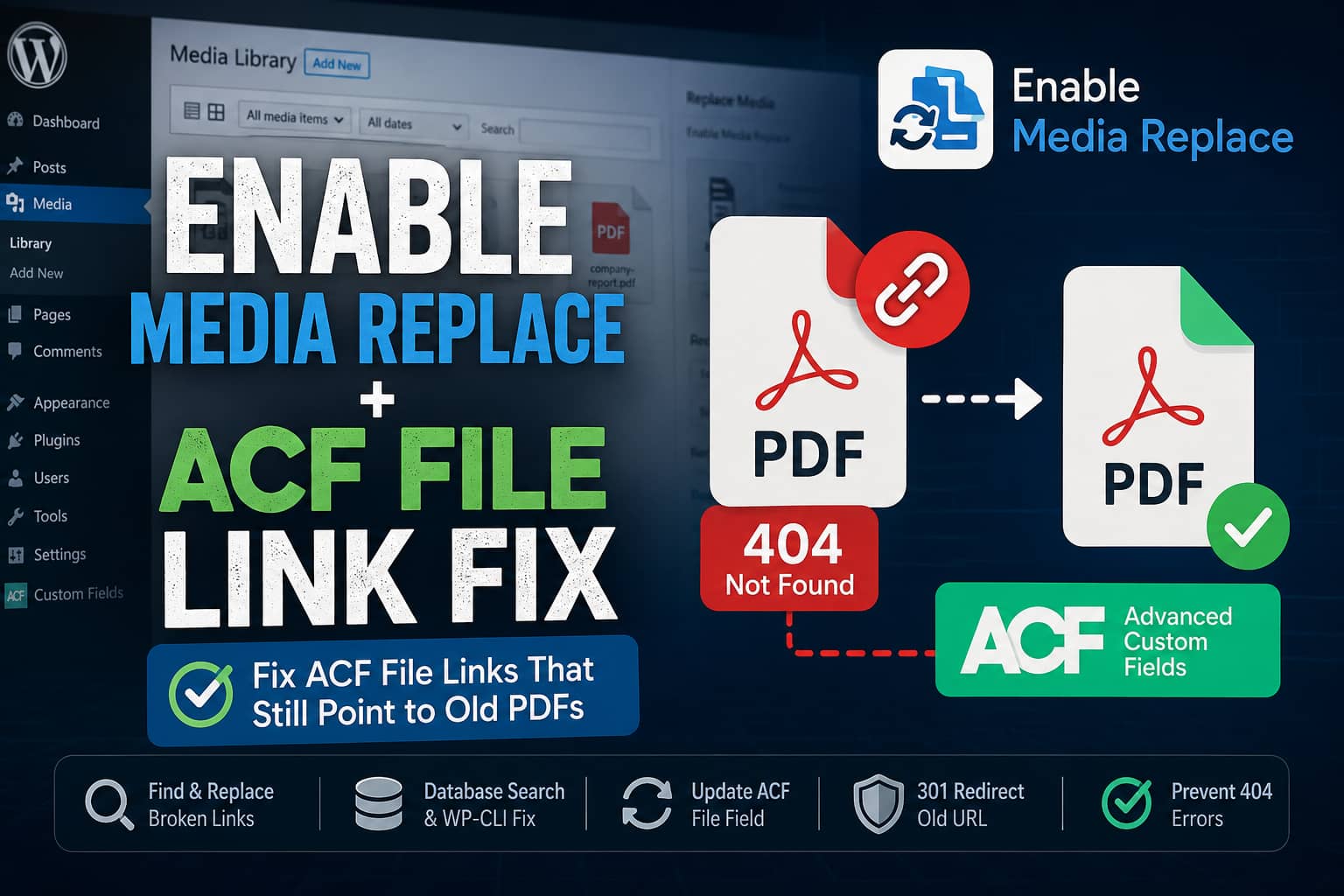
The Enable Media Replace plugin makes it easy to replace a PDF, image, or other WordPress Media Library file without manually updating every page that uses it.
However, a problem can occur when the replaced file was selected through an Advanced Custom Fields, or ACF, File field.
You may select:
Replace the file, use the new file name, and update all links
The new PDF uploads successfully, and the original file is removed. But the ACF field or download button continues linking to the old PDF URL. Because the old physical file no longer exists, visitors receive a 404 Page Not Found error.
This guide explains why Enable Media Replace may not update an ACF File field and provides several safe ways to fix the broken link.
Quick Solution
For most websites, use this order:
- Back up the WordPress files and database.
- Open the affected page, post, or custom post type.
- Remove the file from the ACF File field.
- Select the replacement file from the Media Library.
- Update the page.
- Clear WordPress, server, CDN, object, and browser caches.
- Add a 301 redirect from the old PDF URL to the new URL.
- Search the database for any remaining copies of the old URL.
For a permanent solution, configure the ACF field to use the attachment ID and generate the current file URL dynamically.
Why Enable Media Replace Does Not Always Update ACF Links
Enable Media Replace offers two main replacement methods:
- Replace the physical file while preserving the existing filename and URL.
- Replace the file, use the new filename, and search for links that need to be updated.
The plugin describes the second method as updating links that point to the current file. However, not every WordPress plugin or page builder stores media references in the same format.
A file URL might be stored in:
- Normal post or page content
- WordPress post meta
- An ACF field
- An ACF repeater or flexible content field
- A custom ACF block
- Page builder data
- A serialized PHP array
- JSON block markup
- A theme option
- A cached template
- A custom database table
Enable Media Replace may successfully update standard WordPress content but miss URLs stored in custom or unsupported structures.
The Enable Media Replace plugin author has specifically confirmed that custom ACF blocks are not currently supported by its automatic link replacement process.
Therefore, marking a related support topic as “resolved” does not necessarily mean the plugin was changed. It may only mean that the limitation was identified.
How the ACF File Field Works
The ACF File field can return a:
- File array
- File URL
- File attachment ID
ACF’s official documentation recommends retrieving the current file URL from the attachment ID when the field uses the ID return format.
Using an attachment ID is generally more reliable because the ID remains connected to the Media Library attachment even when the physical filename changes.
A literal URL is less flexible. For example:
https://example.com/wp-content/uploads/2025/06/company-report.pdfIf the replacement PDF is uploaded as:
https://example.com/wp-content/uploads/2026/07/company-report-v2.pdfany location that still contains the first URL will produce a 404 after the original file is removed.
Before Making Any Changes
Complete these steps first:
1. Create a backup
Back up both:
- The WordPress database
- The
wp-content/uploadsdirectory
Do not perform a database-wide replacement without a restorable backup.
2. Record the old and new URLs
Copy both complete PDF URLs.
Example:
Old:
https://example.com/wp-content/uploads/2025/06/company-report.pdf

New:
https://example.com/wp-content/uploads/2026/07/company-report-v2.pdf
You will need these values for searching, replacing, testing, and creating a redirect.
3. Find the attachment ID
Open the replacement file under:
WordPress Dashboard → Media → LibraryEdit the file and inspect the browser URL. It will contain something similar to:
post=456In this example, the attachment ID is 456.
Solution 1: Re-select the File in the ACF Field
This is the safest solution when only a few pages are affected.
- Open the affected page, post, or custom post type.
- Find the ACF File field.
- Click the button to remove the existing file selection.
- Save or update the page if necessary.
- Select the new PDF from the Media Library.
- Update the page again.
- Open the page in a private browser window.
- Test the download button.
Re-selecting the file forces ACF to save a fresh reference to the Media Library attachment.
If the field appears correct in the editor but the front end still uses the old URL, clear every caching layer before performing a database replacement.
Solution 2: Clear All WordPress and Server Caches
A replaced file or updated ACF value may remain cached in several places.
Clear the following:
- WordPress caching plugin
- Hosting or server cache
- Varnish cache
- Redis or Memcached object cache
- Cloudflare or another CDN
- Page builder generated CSS and data
- Browser cache
Then open the page in an incognito or private window.
You can also inspect the page source and search for the old filename.
How to interpret the result
The old URL appears in the HTML source:
The old value is probably still stored in the database, block markup, template data, or another custom field.
The new URL appears in the HTML source, but the browser opens the old file:
The problem is more likely caused by browser, CDN, proxy, or server caching.
The correct URL works directly but the download button is wrong:
The button or template is reading another field or cached value.
Solution 3: Find the Old PDF URL in the Database
Before replacing anything, locate where WordPress stores the old URL.
You can use phpMyAdmin to run read-only searches.
Replace wp_ with your actual WordPress table prefix.
Search normal post and block content
SELECT ID, post_type, post_status, post_title
FROM wp_posts
WHERE post_content LIKE '%company-report.pdf%';
Search post meta and ACF-related data
SELECT post_id, meta_key
FROM wp_postmeta
WHERE meta_value LIKE '%company-report.pdf%';
Search WordPress options
SELECT option_name
FROM wp_options
WHERE option_value LIKE '%company-report.pdf%';
These queries only locate the old filename. They do not modify the database.
Do not run a raw SQL REPLACE() operation against ACF post meta unless you are certain the values are not serialized. Changing the length of text inside serialized PHP data can corrupt that value.
Solution 4: Safely Replace the URL With WP-CLI
WP-CLI provides a safer way to replace URLs because its search-replace command intelligently handles PHP serialized data. It also supports a dry run that reports possible changes without saving them.
Run the following commands through SSH.
Define the URLs and database prefix
OLD='https://example.com/wp-content/uploads/2025/06/company-report.pdf'
NEW='https://example.com/wp-content/uploads/2026/07/company-report-v2.pdf'
PREFIX=$(wp db prefix)
Run a dry test first
wp search-replace "$OLD" "$NEW" \
"${PREFIX}posts" "${PREFIX}postmeta" "${PREFIX}options" \
--precise \
--recurse-objects \
--dry-run
Review the output carefully.
Apply the replacement
Remove --dry-run only after confirming that the reported replacements are correct:
wp search-replace "$OLD" "$NEW" \
"${PREFIX}posts" "${PREFIX}postmeta" "${PREFIX}options" \
--precise \
--recurse-objects
After the operation:
- Clear all caches.
- Re-save the affected page.
- Test the download link.
- Search the database again for the old filename.
Multisite websites
For WordPress Multisite, first test the command on the affected site. Depending on the storage location, you may need the --network option:
wp search-replace "$OLD" "$NEW" \
--network \
--precise \
--recurse-objects \
--dry-run
Always inspect the dry-run report before changing a multisite database.
Solution 5: Configure the ACF File Field to Use an Attachment ID
The best long-term approach is to avoid treating the PDF URL as permanent.
Open:
Custom Fields → Field Groups → Your File FieldChange the return format to:
File IDThen retrieve the current URL from WordPress when rendering the download link.
<?php
$post_id = get_the_ID();

/*
 * Passing false as the third argument returns the raw ACF value.
 * For a normal ACF File field, this should be the attachment ID.
 */
$file_id = (int) get_field(
    'document_file',
    $post_id,
    false
);

if ($file_id) {
    $file_url = wp_get_attachment_url($file_id);

    if ($file_url) {
        printf(
            '<a class="document-download" href="%1$s">%2$s</a>',
            esc_url($file_url),
            esc_html__('Download document', 'your-textdomain')
        );
    }
}
?>
Replace document_file with the name of your ACF field.
This code asks WordPress for the attachment’s current URL instead of relying on an old URL saved in HTML or custom block data.
Check What the ACF Field Actually Stores
A developer can inspect the raw ACF value temporarily:
<?php
$raw_value = get_field(
    'document_file',
    get_the_ID(),
    false
);

echo '<pre>';
var_dump($raw_value);
echo '</pre>';
?>
Remove this diagnostic code after testing.
Possible results
The value is an attachment ID
Example:
string(3) "456"or:
int(456)The ACF field itself is probably valid. The stale URL may be stored in:
- A custom ACF block
- Page builder data
- Another URL or Link field
- Post content
- A cached template
- A custom database table
The value is the old URL
Example:
https://example.com/wp-content/uploads/2025/06/company-report.pdfThe field may contain migrated, manually saved, or nonstandard data. Re-save the field using the correct attachment ID.
Repair One ACF File Field Programmatically
You can repair a specific field using update_field().
<?php
$post_id       = 123;
$attachment_id = 456;
$field_key     = 'field_abc123456789';

update_field(
    $field_key,
    $attachment_id,
    $post_id
);

clean_post_cache($post_id);
?>
Replace:
123with the affected page or post ID456with the Media Library attachment IDfield_abc123456789with the actual ACF field key
Using the ACF field key is safer than the field name, especially when initializing or repairing a field value.
Run this only once through a temporary custom plugin, WP-CLI command, or controlled development snippet. Remove the repair code after confirming the field has been updated.
Solution 6: Add a 301 Redirect From the Old PDF
Even after fixing the ACF field, the old PDF URL may still exist in:
- Google search results
- External websites
- Customer emails
- Bookmarks
- Previously downloaded documents
- Cached pages
Add a permanent 301 redirect from the old URL to the replacement PDF.
Apache example
Add this above the standard WordPress rules in .htaccess:
Redirect 301 /wp-content/uploads/2025/06/company-report.pdf https://example.com/wp-content/uploads/2026/07/company-report-v2.pdfNginx example
Add this to the appropriate server block:
location = /wp-content/uploads/2025/06/company-report.pdf {
    return 301 https://example.com/wp-content/uploads/2026/07/company-report-v2.pdf;
}
Alternatively, create the redirect through your hosting dashboard or a reputable WordPress redirection plugin.
Test the old URL after clearing the server and CDN caches. It should redirect directly to the new PDF.
How to Prevent This Problem Next Time
Keep the original filename and URL
When possible, choose:
Just replace the fileUpload the replacement PDF while preserving the existing filename and URL.
This is the most reliable option when the document is already linked from many locations.
Use the attachment ID
Configure the ACF File field to use a File ID, then generate the URL dynamically with:
wp_get_attachment_url($file_id);Avoid copying file URLs into separate fields
Do not select a file with an ACF File field and then manually paste its URL into:
- ACF URL fields
- ACF Link fields
- Button settings
- Custom block attributes
- Theme options
Those copied URLs become independent values and may not update when the media attachment changes.
Create redirects when filenames change
Whenever a public document receives a different filename or uploads directory, redirect the old URL to the new file.
Test on staging
For an important website:
- Copy production to staging.
- Replace the file on staging.
- Search for the old URL.
- Test every download location.
- Apply the same process to production.
Troubleshooting Checklist
Use this checklist when the old PDF link remains:
- Confirm that the new PDF exists in the Media Library.
- Open the new URL directly.
- Confirm that the old URL returns a 404 or redirect.
- Re-select the file in the ACF field.
- Update the page or custom post.
- Inspect the raw ACF value.
- View the front-end page source.
- Search
wp_postsfor the old filename. - Search
wp_postmetafor the old filename. - Search
wp_optionsfor the old filename. - Check ACF repeaters and flexible content fields.
- Check custom ACF block content.
- Check page builder button settings.
- Clear the object cache.
- Purge the CDN.
- Run a serialized-aware WP-CLI search-replace.
- Add a 301 redirect.
- Test while logged out and in a private browser window.
Frequently Asked Questions
Should Enable Media Replace update an ACF File field automatically?
A normal ACF File field that stores an attachment ID should continue resolving the current attachment URL. However, automatic URL replacement is not guaranteed when a literal URL is stored in custom ACF blocks, Link fields, page builder data, JSON markup, custom tables, or cached output.
Why does the old PDF return a 404?
The replacement process removed or renamed the original physical PDF, but at least one field, block, or template still contains the previous URL.
Will changing the ACF return format fix existing broken links?
Not necessarily. Changing the return format improves how your template retrieves future values, but it does not automatically remove old URLs already saved in block content or other database fields.
Is it safe to use SQL REPLACE on ACF data?
Direct SQL replacement can corrupt serialized values when the replacement URL has a different character length. Use ACF functions or a serialized-aware tool such as WP-CLI search-replace.
What is the safest replacement method?
Keeping the same filename and URL is the safest method. Select the option that replaces only the physical file whenever changing the public URL is unnecessary.
Why does the correct file appear in ACF but the front end still uses the old URL?
The front-end template may be reading another field, stored block attribute, page builder setting, transient, object cache entry, or generated static file.
Final Recommendation
When a PDF is already used throughout a WordPress website, replace the physical file without changing its filename or URL.
When a filename must change:
- Re-select the file in the ACF field.
- Save attachment IDs instead of permanent URLs.
- generate the current URL dynamically.
- Search the database with a serialized-aware tool.
- Clear every caching layer.
- Redirect the old PDF URL to the new one.
This approach repairs the immediate 404 error while preventing future document replacements from breaking ACF-powered download links.
