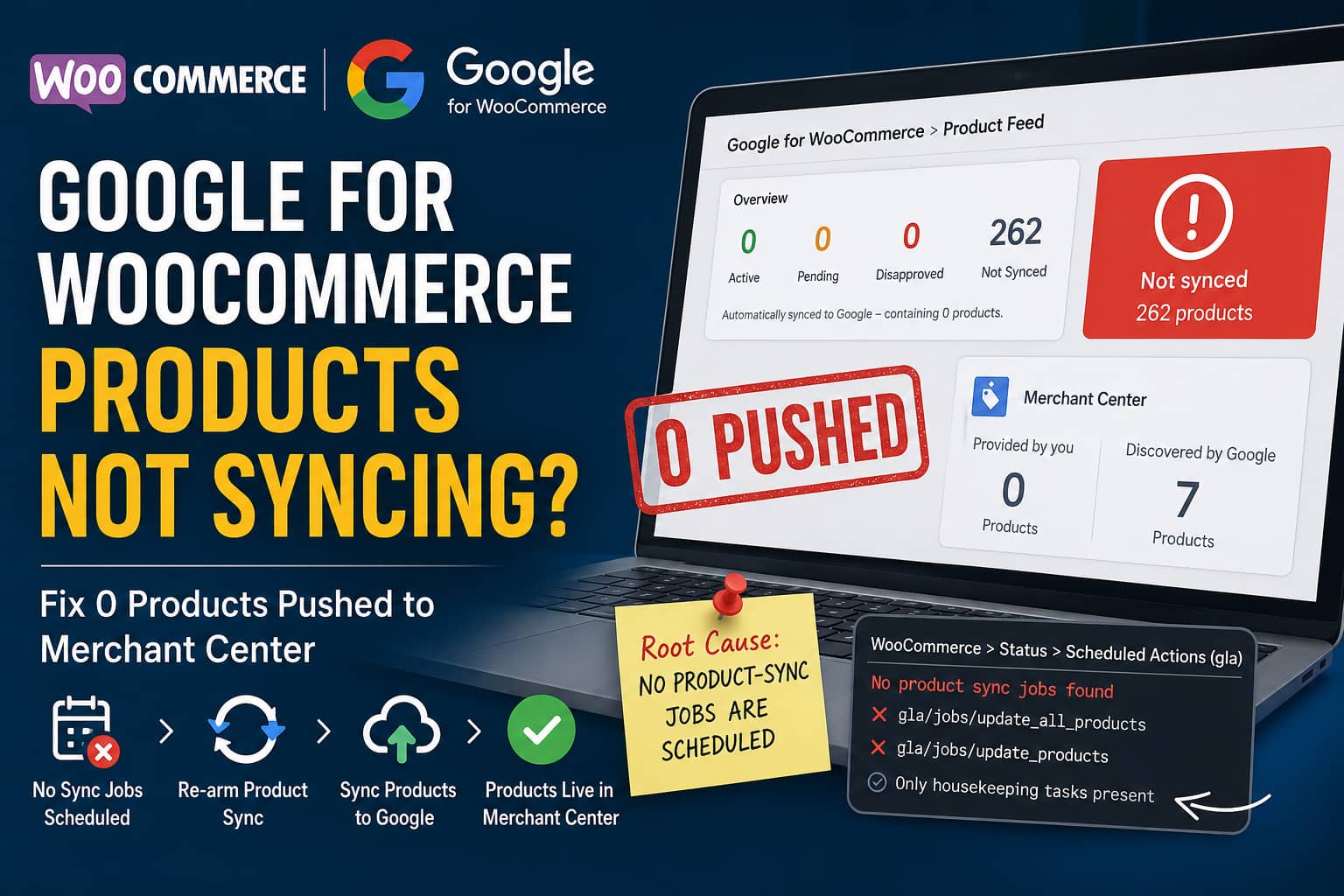
Google for WooCommerce can sometimes show that every account is connected correctly while sending absolutely no products to Google Merchant Center.
A typical case looks like this:
- All published WooCommerce products show Not synced
- Merchant Center shows 0 products provided by you
- The Google for WooCommerce setup is complete
- WordPress.com, Google, Merchant Center, and Google Ads show as connected
- Saving or editing a product does not trigger a sync
- WooCommerce Scheduled Actions contains no product-push jobs
This is different from a normal product rejection or disapproval.
The critical clue is that Google for WooCommerce is not scheduling the product-sync jobs at all.
This guide explains how to diagnose the problem, manually re-arm the full product sync, process the queue with WP-CLI, and completely reset the connection when necessary.
The Problem: Connected Accounts but Zero Products Synced
In the case that prompted this guide, the store had approximately 262 published products.
Under:
Marketing > Google for WooCommerce > Product Feed
the status showed:
- Active: 0
- Pending: 0
- Disapproved: 0
- Not Synced: 262
- Automatically synced to Google: 0 products
Google Merchant Center contained a few products discovered automatically by Google while Provided by you remained at zero.
The account connection itself appeared healthy:
- WordPress.com: Connected
- Google account: Connected
- Google Merchant Center: Connected
- Google Ads: Connected
- Merchant Center account status: Approved
However, under:
WooCommerce > Status > Scheduled Actions
filtering by the gla group showed only recurring housekeeping actions. There were no jobs responsible for submitting WooCommerce products to Google.
How Google for WooCommerce Normally Syncs Products
Google for WooCommerce does not normally generate a public XML feed URL.
It submits product information to Google through Google’s product API and uses WooCommerce Action Scheduler to process products in the background.
After onboarding, the extension should schedule a bulk update job. Saving or updating an individual WooCommerce product should also create an asynchronous synchronization action.
This means a healthy product-sync process should produce actions such as:
gla/jobs/update_all_products/create_batch
gla/jobs/update_products/process_item
The first action creates batches for a full catalog synchronization. The processing actions then send individual products or product batches to Google.
When neither of these actions is being created, repeatedly editing products will not solve the underlying issue.
Why the Product Sync Queue Can Stop
In this case, the WordPress.com connection had been disconnected for approximately two weeks.
During that period, Google for WooCommerce jobs failed with errors similar to:
Please reconnect your Jetpack account.and:
The job was stopped because its failure rate is above the allowed threshold.Google for WooCommerce depends on the WordPress.com connection for parts of its authentication and communication process. A missing WordPress.com token can cause product synchronization jobs to fail.
After reconnecting WordPress.com, recurring status-check and housekeeping jobs may recover while the bulk product-sync root job remains missing.
The likely sequence is:
- Authentication failed.
- Product jobs repeatedly failed.
- The failure-rate protection stopped processing additional jobs.
- The connection was restored.
- Recurring status actions resumed.
- A new full-product update job was never scheduled.
The solution is therefore not simply to clear caches. The bulk synchronization job must be scheduled again.
Step 1: Create a Database Backup
Before changing account connections or triggering a complete catalog sync, create a fresh database backup.
The synchronization process does not normally modify WooCommerce product content, but a backup is still recommended before troubleshooting account and scheduled-action data.
For a self-managed server, you can use your hosting backup system or WP-CLI:
wp db export before-google-product-sync.sqlRun the command from the WordPress installation directory.
Step 2: Confirm That Product-Sync Actions Are Missing
Go to:
WooCommerce > Status > Scheduled Actions
Search for:
glaCheck the Pending, In-progress, Complete, and Failed tabs.
Housekeeping actions may include names related to:
update_merchant_product_statuses
update_merchant_price_benchmarks
create_youtube_order_ids_cache
update_eu_political_campaigns
wc_gla_cron_daily_notes
The presence of these actions only proves that Action Scheduler is running generally. It does not prove that WooCommerce products are being submitted.
Look specifically for product actions such as:
gla/jobs/update_all_products/create_batch
gla/jobs/update_products/process_item
Next, edit one WooCommerce product and click Update.
Refresh Scheduled Actions. If no new Google product action is created, the product-sync scheduling process is not armed correctly.
Step 3: Open the Hidden Google for WooCommerce Connection Test Page
Google for WooCommerce version 3.7.3 includes a hidden administrator diagnostic page.
Replace example.com with your website domain and open:
https://example.com/wp-admin/admin.php?page=connection-test-admin-pageYou must be logged in as a WordPress administrator.
This page is not normally displayed in the WordPress navigation menu, but it contains tools for testing and resetting:
- WordPress.com connection
- Google account connection
- Merchant Center connection
- Merchant Center status cache
- Product synchronization
The connection test page is included in the official Google for WooCommerce plugin code.
Step 4: Clear the Merchant Center Status Cache
On the connection test page, locate the Merchant Center section.
Click:
Clear Status Cache
This clears locally cached Merchant Center status information so the extension can request fresh account and setup data.
It does not delete WooCommerce products or remove products from Merchant Center. The plugin source shows that this action clears its Merchant Center status cache and transient data.
After clearing it, reload the page and confirm that the Merchant Center connection is still recognized.
Step 5: Schedule a Complete Product Sync
Scroll to the Product Sync section.
You should see:
- An Async? checkbox
- A Sync All Products with Google Merchant Center button
Select the Async? checkbox.
Then click:
Sync All Products with Google Merchant Center
Using asynchronous mode is recommended for medium or large product catalogs because it allows Action Scheduler to process the catalog in manageable background batches.
The plugin’s code shows that the asynchronous option retrieves the full-product update job and calls its scheduling method. A successful request should display a message similar to:
Successfully scheduled a job to sync all products!A resolved Google for WooCommerce support case also confirmed that using this hidden Sync All Products tool restored a missing Merchant Center data source and restarted product submission.
Step 6: Check the Newly Created Scheduled Actions
Return to:
WooCommerce > Status > Scheduled Actions
Filter by the gla group again.
You should now see a root action similar to:
gla/jobs/update_all_products/create_batchAs the job runs, additional processing actions should appear:
gla/jobs/update_products/process_itemDepending on your catalog size, some actions may move quickly from Pending to Complete.
Open any failed action and review its log. Authentication errors, API errors, invalid product data, or server errors will normally appear in the action log.
Step 7: Process the Google Queue Using WP-CLI
On a self-managed VPS, WP-CLI is often the most reliable way to process a large Action Scheduler queue.
First, check the Action Scheduler status:
wp action-scheduler statusThen process all pending actions in the gla group:
wp action-scheduler run --group=gla --batches=0The --group=gla option limits processing to Google for WooCommerce actions.
The --batches=0 option tells the Action Scheduler command to continue processing batches until no matching actions remain. WooCommerce recommends WP-CLI for large or long-running queues because it avoids normal web-request time limits.
Run the command as the correct website system user and from the WordPress root directory.
Do not run multiple copies of the command simultaneously unless you have confirmed that no other Action Scheduler runner is active.
Step 8: Verify That the Sync Is Working
Check the following areas after processing the queue.
Scheduled Actions
The bulk update and product-processing jobs should move to Complete.
New product saves should begin creating Google synchronization actions again.
Google for WooCommerce Product Feed
Go to:
Marketing > Google for WooCommerce > Product Feed
Products may move through statuses such as:
Not synced
Pending
Active
A product listed as Not synced is not necessarily disapproved. WooCommerce explains that this status can include products waiting for submission, products that are excluded, or products that are not currently eligible.
Google Merchant Center
Check the data source and product sections in Merchant Center.
The important change is that products should begin appearing as information submitted by your store rather than only products Google discovered by crawling the website.
Google may require additional processing time before submitted products receive final approval, but the product count and data source should begin reflecting the API submission once the upload succeeds.
Individual Product Test
Edit one WooCommerce product, make a minor change, and click Update.
Then check the gla Scheduled Actions group.
A new product-processing action should be created. This confirms that individual product changes are triggering synchronization again.
What to Do If “Sync All Products” Schedules Nothing
If the button returns an error or no scheduled action appears, perform a controlled connection reset.
Do not uninstall the plugin or delete its database information as your first step.
Return to:
https://example.com/wp-admin/admin.php?page=connection-test-admin-pageThen follow this order.
1. Clear the Merchant Center status cache
Click Clear Status Cache.
2. Check the WordPress.com connection
If the page reports a missing WordPress.com token or an unhealthy connection, reconnect WordPress.com first.
3. Disconnect Merchant Center
Use the Merchant Center disconnect option on the diagnostic page.
4. Disconnect the Google account
Disconnect the Google account from the same page.
5. Reconnect through the normal onboarding screen
Go to:
Marketing > Google for WooCommerce
Reconnect:
- WordPress.com
- Google account
- Google Merchant Center
- Google Ads, when required by your setup
Confirm that the correct Merchant Center account is selected.
6. Run the asynchronous full sync again
Return to the hidden connection test page.
Select Async? and click:
Sync All Products with Google Merchant Center
Then check Scheduled Actions for the bulk-update job.
Google for WooCommerce support guidance has used this full connection reset when stale connection information prevented product synchronization from restarting.
Why Common Troubleshooting Attempts Do Not Fix This Problem
Several reasonable troubleshooting steps may have no effect when the missing component is the root bulk-sync job.
Deactivating and reactivating the plugin
Plugin reactivation loads the extension again, but it may not recreate a missing full-product synchronization job.
Flushing Redis object cache
Running:
wp cache flushcan remove stale cached values, but it does not directly call the plugin’s bulk synchronization scheduler.
It is useful for cache-related problems, but it cannot replace the missing update_all_products action.
Resaving every product
Bulk-resaving products normally helps when individual product update hooks work.
However, when saving a product does not create a gla action, resaving hundreds of products only repeats the broken trigger.
Reconnecting only WordPress.com
Reconnecting WordPress.com fixes the authentication problem that caused the original failures.
It does not always create a new catalog-wide synchronization job. The full sync may still need to be scheduled manually.
Waiting for the daily cron job
Daily Google housekeeping actions may check statuses and update account information, but their presence does not mean the full catalog submission queue has been recreated.
Should You Increase the Job Failure Threshold?
Google for WooCommerce includes protection that can stop a job after its recent failure rate exceeds an allowed threshold.
A filter named:
woocommerce_gla_job_failure_rate_thresholdcan alter that threshold. However, increasing it should not be the first solution.
The failure guard usually indicates an underlying problem such as:
- Broken WordPress.com authentication
- Invalid Google credentials
- Merchant Center connection failure
- Repeated API errors
- Blocked outbound requests
- Server-level networking problems
- Invalid product data affecting every batch
Raising the threshold without correcting the underlying issue can create more failed jobs and a much larger Action Scheduler queue.
Restore the connection, clear stale status data, and schedule a fresh full sync first.
Confirm That WordPress Cron and Action Scheduler Work
Google for WooCommerce depends on WooCommerce Action Scheduler and WordPress cron processing. The extension’s setup documentation specifically requires WordPress cron and Action Scheduler to be functional.
On a self-managed VPS, check whether this constant exists in wp-config.php:
define('DISABLE_WP_CRON', true);When WordPress cron is disabled, the server must have a real cron job that regularly processes due WordPress events.
However, if recurring gla housekeeping actions are already completing, the immediate problem is probably not a completely broken cron system. It is more likely that the missing product-sync job was never recreated.
Do Not Look for an XML Feed URL
Google for WooCommerce submits products using Google’s API. It does not provide the traditional XML feed URL that some other Merchant Center plugins generate.
Therefore, not finding an XML feed URL is expected.
Installing another feed plugin solely to work around a stopped API queue may create duplicate data sources and make Merchant Center troubleshooting more complicated.
Restore the existing API synchronization first.
Quick Recovery Checklist
Use this order when all products show Not synced and Merchant Center receives zero submitted products:
- Back up the WordPress database.
- Confirm the four linked accounts are connected.
- Check Scheduled Actions for missing
glaproduct jobs. - Open the hidden connection test page.
- Clear the Merchant Center status cache.
- Select Async?
- Click Sync All Products with Google Merchant Center.
- Confirm that
gla/jobs/update_all_products/create_batchis scheduled. - Process the queue with WP-CLI.
- Check product-processing action logs.
- Verify that Merchant Center begins receiving submitted products.
- Test synchronization by updating one WooCommerce product.
- Perform a controlled Google and Merchant Center reconnection only if the full-sync button still schedules nothing.
Final Recommendation
When Google for WooCommerce shows healthy connections but no products are submitted, focus on the Scheduled Actions queue rather than repeatedly reconnecting accounts or clearing caches.
The most effective recovery process is:
Clear Merchant Center status cache
        ↓
Schedule an asynchronous full product sync
        ↓
Process the gla Action Scheduler group
        ↓
Verify individual product updates create new actions
For the specific pattern covered in this guide, the key fix is using the plugin’s hidden connection test page to re-create the missing full-product synchronization job.
Once that root job is scheduled again, Action Scheduler can rebuild the product batches and begin sending the WooCommerce catalog to Google Merchant Center.
