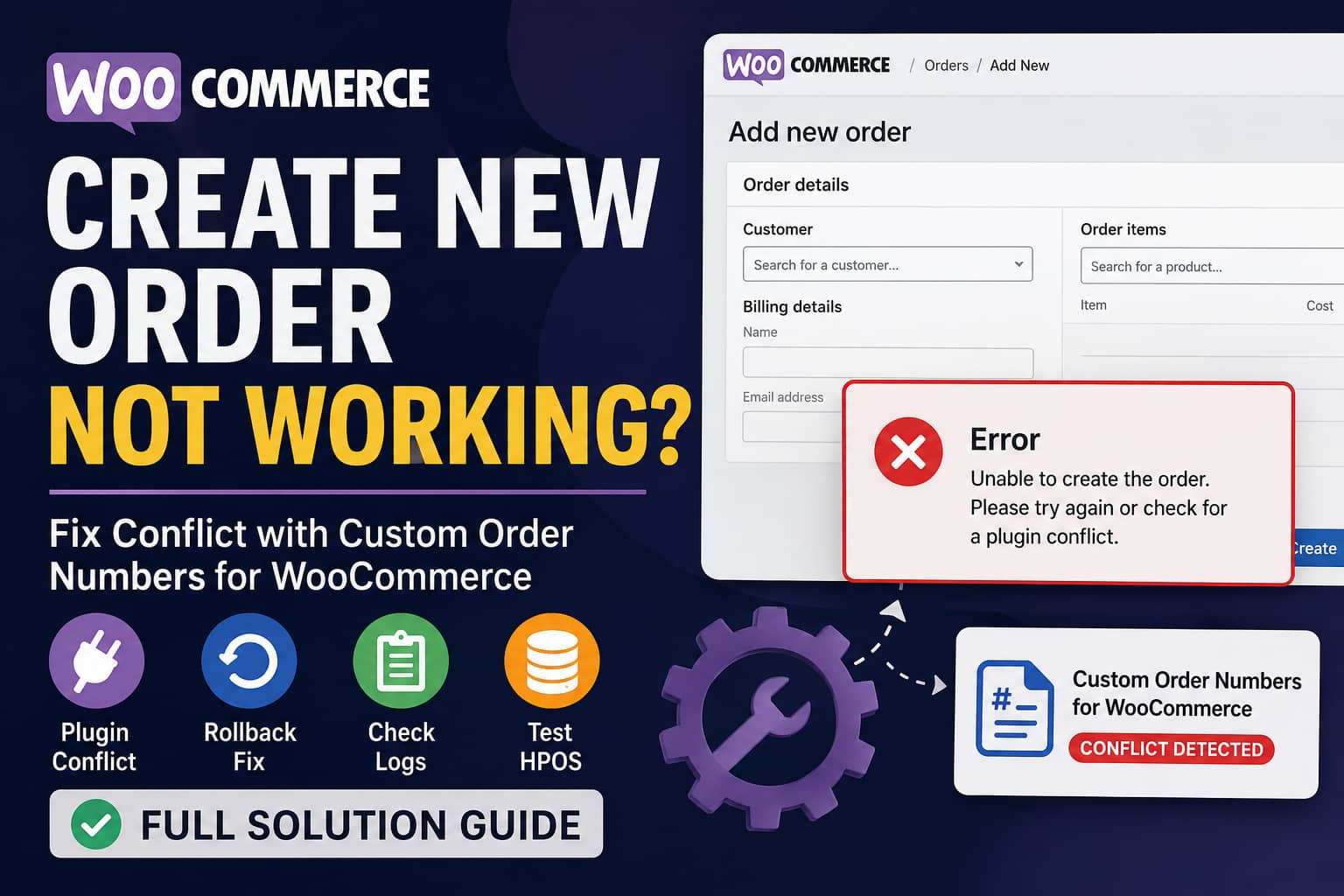
When the Create New Order feature stops working inside the WooCommerce admin area, store managers may be unable to add phone orders, replacement orders, test orders, or manually entered customer purchases.
A recently reported conflict indicates that this can happen when the Custom Order Numbers for WooCommerce plugin is active.
In this guide, you will learn how to confirm the conflict, restore manual order creation, safely roll back the affected plugin, check error logs, test High-Performance Order Storage, and collect the information needed for a permanent fix.
Problem Summary
The reported problem follows this pattern:
- Activate Custom Order Numbers for WooCommerce.
- Navigate to WooCommerce → Orders.
- Click Create Order or Add New Order.
- Attempt to create and save a manual order.
- The order screen fails to work correctly, the order is not created, or the admin page produces an error.
When the Custom Order Numbers plugin is disabled, WooCommerce manual order creation begins working again.
This strongly indicates a plugin conflict, although the exact underlying code error must be confirmed through the PHP or browser console logs.
Fastest Safe Fix
The immediate workaround is:
- Create a complete website backup.
- Test the issue on a staging site.
- Temporarily deactivate Custom Order Numbers for WooCommerce.
- Confirm that manual order creation works.
- If the issue started after updating to version 2.0.0, roll the plugin back to version 1.13.0.
- Report the conflict to the plugin developer with your logs and WooCommerce System Status Report.
The Custom Order Numbers plugin released version 2.0.0 on June 24, 2026. This was a significant update that introduced a React-based settings interface, a new REST API layer, and consolidated plugin settings. It is therefore reasonable to test the previous version if manual order creation stopped after that update. However, this timing alone does not prove which code change caused the problem.
Step 1: Back Up the Website
Before changing plugin versions, create a full backup that includes:
- WordPress files
- The WordPress database
- WooCommerce orders and customer information
- Plugin settings
- Theme and custom code
- Uploads
Whenever possible, perform the troubleshooting on a staging copy instead of your live WooCommerce store.
WooCommerce recommends using backups and a staging environment when testing plugin conflicts so that active orders and customers are not affected.
Do not run the plugin’s Renumerate Orders tool while troubleshooting. That feature can update the visible numbers assigned to existing orders and is unrelated to restoring the Add New Order screen.
Step 2: Confirm That the Plugin Is Causing the Conflict
Go to:
WordPress Dashboard → Plugins → Installed Plugins
Find:
Custom Order Numbers for WooCommerce
Click Deactivate.
Now return to:
WooCommerce → Orders → Add New Order
Try to create a basic test order:
- Add a billing name and email.
- Add one product.
- Select an order status.
- Click Create or Save.
How to Interpret the Result
If the manual order can now be created, the Custom Order Numbers plugin is involved in the problem.
If the order still cannot be created, another plugin, your theme, a code snippet, a server error, or WooCommerce itself may also be involved.
Do not assume that deactivating the plugin permanently fixes the underlying issue. It only confirms that the problem occurs when the plugin’s code is loaded.
Step 3: Use the Immediate Workaround
For a store that urgently needs to create manual orders, temporarily keep the custom order number plugin disabled.
You can then create the order through WooCommerce normally.
Be aware that an order created while the plugin is inactive may initially display the default WooCommerce order number instead of your custom sequential format.
After the order is created, you may reactivate the plugin and check whether it assigns or displays an appropriate custom number. Test this behavior on staging before using it for live orders.
Avoid repeatedly activating and deactivating the plugin during busy periods without testing. Order-number extensions can interact with invoices, subscriptions, exports, accounting tools, order searches, and third-party integrations.
Step 4: Roll Back Version 2.0.0 to Version 1.13.0
If the problem started immediately after upgrading Custom Order Numbers for WooCommerce to version 2.0.0, rolling back to version 1.13.0 is the most practical temporary solution.
Version 1.13.0 was the release immediately before 2.0.0.
Method 1: Install the Previous Version Manually
- Create a backup.
- Download version 1.13.0 from the plugin’s WordPress.org Advanced View or development history.
- Go to Plugins → Installed Plugins.
- Deactivate Custom Order Numbers for WooCommerce.
- Delete only the plugin files from the Plugins page.
Deleting the plugin files should not remove WooCommerce orders. However, always keep a backup in case the plugin removes settings during deletion.
- Go to Plugins → Add New → Upload Plugin.
- Upload the version 1.13.0 ZIP file.
- Activate the plugin.
- Review its settings.
- Create a test manual order.
Do not activate version 1.13.0 and version 2.0.0 simultaneously under different folder names.
Method 2: Roll Back With WP-CLI
Developers with SSH and WP-CLI access can use:
wp plugin deactivate custom-order-numbers-for-woocommerce

wp plugin install custom-order-numbers-for-woocommerce \
  --version=1.13.0 \
  --force

wp plugin activate custom-order-numbers-for-woocommerce
Afterward, clear the site cache and test manual order creation.
Important Rollback Warning
Version 2.0.0 migrated settings from multiple older WordPress options into a consolidated settings structure. Because of that migration, carefully review all numbering settings after rolling back.
Check:
- Whether custom numbering is enabled
- Sequential starting number
- Next order number
- Prefix
- Date prefix
- Counter reset schedule
- Order tracking settings
- Existing order number display
- Invoice and packing slip output
- Subscription renewal numbering
Do not assume every setting will automatically appear exactly as it did before the upgrade.
Step 5: Prevent the Plugin From Updating Again
A rollback can be overwritten by the next automatic plugin update.
Until a fixed version is released:
- Disable automatic updates for Custom Order Numbers for WooCommerce.
- Keep WooCommerce and security-related components maintained.
- Monitor the plugin changelog and support forum.
- Test the next plugin release on staging.
- Re-enable automatic updates only after confirming that manual order creation works.
Do not leave the plugin on an outdated version indefinitely. A rollback should be treated as a temporary compatibility measure.
Step 6: Check WooCommerce Fatal Error Logs
The most useful PHP error may already be recorded by WooCommerce.
Navigate to:
WooCommerce → Status → Logs
Search for a log file named similarly to:
fatal-errors-2026-07-24Open the most recent fatal error log and reproduce the problem in another browser tab.
Then refresh the log and look for references to:
custom-order-numbers-for-woocommerce
woocommerce
WC_Order
null
TypeError
Uncaught Error
Call to a member function
WooCommerce’s log viewer records PHP fatal errors and runtime errors. Errors such as calling a function on a null or unusable variable may appear there.
A useful error report should include:
- The complete error message
- File path
- Line number
- PHP version
- WordPress version
- WooCommerce version
- Custom Order Numbers plugin version
- Whether HPOS is enabled
Remove private customer data, server usernames, API credentials, and full database paths before publishing logs publicly.
Step 7: Enable WordPress Debug Logging
When WooCommerce does not record the error, temporarily enable the WordPress debug log.
Edit wp-config.php and add the following above the line that says:
/* That's all, stop editing! Happy publishing. */Add:
define( 'WP_DEBUG', true );
define( 'WP_DEBUG_LOG', true );
define( 'WP_DEBUG_DISPLAY', false );
@ini_set( 'display_errors', 0 );
Try creating a manual order again.
Then inspect:
/wp-content/debug.logWordPress documents that WP_DEBUG_LOG can record notices, warnings, and errors in wp-content/debug.log.
After completing the test, disable debugging:
define( 'WP_DEBUG', false );
define( 'WP_DEBUG_LOG', false );
define( 'WP_DEBUG_DISPLAY', false );
Leaving debug logging enabled can produce a large file and may expose sensitive technical information if the log becomes publicly accessible.
Step 8: Check the Browser Console
The type of failure helps identify where the problem is occurring.
When the Page Shows a PHP Error
Check:
- WooCommerce fatal error logs
wp-content/debug.log- Hosting PHP error logs
When the Button Does Nothing
A button that does not respond may indicate a JavaScript error.
While viewing the Add New Order screen:
- Right-click the page.
- Select Inspect.
- Open the Console tab.
- Clear existing messages.
- click the Create or Save button again.
- Copy any new red errors.
Look for file paths containing:
custom-order-numbers-for-woocommerce
woocommerce
wp-api-fetch
react
rest
admin
When the Screen Keeps Loading
Open the browser’s Network tab and repeat the action.
Check for failed requests with status codes such as:
400
401
403
404
500
A 401 or 403 response can indicate a permission, nonce, firewall, or REST API restriction.
A 500 response generally indicates a server-side PHP failure.
A security plugin, hosting firewall, Cloudflare rule, or custom code that blocks the WordPress REST API can also interfere with modern plugin interfaces.
Step 9: Test High-Performance Order Storage
WooCommerce may store orders using either:
- Legacy WordPress posts and postmeta tables
- High-Performance Order Storage, commonly called HPOS
The Custom Order Numbers plugin has included HPOS-related compatibility work since earlier releases. Its changelog also contains previous fixes involving manual orders and HPOS order searching.
This does not prove that HPOS is causing the current issue, but it is an important test variable.
On staging, go to:
WooCommerce → Settings → Advanced → Features
Check whether High-Performance Order Storage is enabled.
Record:
- Whether HPOS is enabled
- Whether compatibility mode is enabled
- Whether the legacy order datastore is active
- Whether the database tables are synchronized
Do not casually switch the authoritative order datastore on a live store.
Instead, create a staging copy and test these combinations:
- WooCommerce with HPOS and the custom order number plugin inactive
- WooCommerce with HPOS and the plugin active
- WooCommerce using the legacy datastore and the plugin active
If the error only occurs with one storage configuration, include that information in the developer report.
WooCommerce explains that HPOS compatibility mode synchronizes data between the HPOS and legacy order tables, and that the storage configuration can be managed under WooCommerce’s advanced feature settings.
Step 10: Run a Full Plugin Conflict Test
The Custom Order Numbers plugin may conflict directly with WooCommerce, or the failure may require a third plugin to reproduce.
On staging:
- Activate a default WordPress theme or Storefront.
- Deactivate all plugins except WooCommerce.
- Confirm that manual order creation works.
- Activate Custom Order Numbers for WooCommerce.
- Test again.
- If the problem does not appear, activate the remaining plugins one at a time.
- Test order creation after every activation.
Pay particular attention to plugins that modify:
- WooCommerce orders
- Sequential order numbers
- Invoices
- PDF documents
- Subscriptions
- Order statuses
- Admin permissions
- Checkout fields
- REST API access
- Admin JavaScript
- Security or firewall rules
- Database optimization
- Order exports
- ERP or accounting integrations
WooCommerce recommends disabling other plugins and testing extensions individually to identify conflicts. The Health Check troubleshooting mode can also disable plugins only for the administrator’s session, although WooCommerce notes that it may not reproduce every live-site combination perfectly.
Step 11: Test Administrator Permissions
If the problem only affects certain admin users, verify their permissions.
Test with a full WordPress Administrator account.
A role editor or security plugin may have removed capabilities required for creating orders, such as capabilities related to:
edit_shop_orders
publish_shop_orders
edit_others_shop_orders
manage_woocommerce
Version 2.0.0 of Custom Order Numbers for WooCommerce introduced a REST API layer with capability checks for its administrative operations. That change may be relevant when a restricted user receives a 401 or 403 response, although it does not establish the cause of manual order creation failures.
Do not permanently assign unrestricted Administrator access to staff simply to bypass an error. Identify and restore only the required permissions.
Step 12: Clear All Caches
After deactivating, rolling back, or updating the plugin, clear:
- WordPress caching plugin cache
- Object cache
- Redis or Memcached
- Hosting page cache
- Server cache
- CDN cache
- Browser cache
- PHP OPcache, when available
Admin pages are not normally page-cached, but stale object-cache entries or PHP bytecode may continue loading outdated code or settings.
Also test in a private browser window.
Step 13: Send a Complete Report to the Plugin Developer
A useful support report should contain:
Environment
- WordPress version
- WooCommerce version
- PHP version
- Custom Order Numbers plugin version
- Active theme
- HPOS status
- Compatibility mode status
- Multisite status
- Hosting environment
Reproduction Steps
1. Activate WooCommerce.
2. Activate Custom Order Numbers for WooCommerce.
3. Go to WooCommerce → Orders.
4. Click Add New Order.
5. Add a customer and product.
6. Save or create the order.
7. The order is not created or the admin screen fails.
8. Deactivate Custom Order Numbers for WooCommerce.
9. Repeat the test.
10. The manual order is created successfully.
Evidence
Include:
- Screenshot or screen recording
- WooCommerce fatal error
- WordPress debug log entry
- Browser console error
- Failed network request
- WooCommerce System Status Report
- Confirmation of whether version 1.13.0 works
The WooCommerce System Status Report can be found under:
WooCommerce → Status → System Status
Remove sensitive URLs, keys, customer details, and server information before posting it publicly.
What Not to Do
Do Not Edit the Plugin Files Directly
A direct modification will be overwritten during the next update and may introduce order-number duplication.
A code patch should only be used when the exact failing hook and error have been confirmed.
Do Not Renumber Every Existing Order
The Renumerate Orders tool does not repair the Add New Order screen.
It can change visible order numbers across the store and affect invoices, accounting records, customer communication, and integrations.
Do Not Change HPOS on the Live Store Without Testing
Changing the order datastore is not a routine troubleshooting toggle. Test it on staging and verify synchronization first.
Do Not Delete WooCommerce Orders
Deleting orders will not repair the plugin conflict and may create accounting, stock, reporting, and compliance problems.
Do Not Downgrade WooCommerce First
If deactivating one specific extension restores order creation, test rolling back that extension before changing WooCommerce core.
Is There a Permanent Fix?
At the time of writing, there is no verified public code patch for this newly reported problem.
The available solutions are therefore:
- Temporarily deactivate Custom Order Numbers for WooCommerce.
- Roll back from version 2.0.0 to version 1.13.0 when the issue began after that update.
- Collect PHP and JavaScript errors.
- Test HP creation, test rolling back that extension before changing WooCommerce core.
Is There a Permanent Fix?
At the time of writing, there is no verified public code patch for this newly reported problem.
The available solutions are therefore:
- Temporarily deactivate Custom Order Numbers for WooCommerceOS and other plugin conflicts on staging.
- Install the developer’s corrected release after testing it.
A permanent solution should come from a plugin update that addresses the specific error without disabling custom numbering or modifying existing order records.
Frequently Asked Questions
Will deactivating the plugin delete my WooCommerce orders?
Normally, no. WooCommerce orders are managed by WooCommerce, and the custom order number plugin changes how order numbers are generated or displayed.
However, always create a database backup before deactivating, deleting, downgrading, or-related extension.
Will the original WooCommerce order IDs change?
The plugin’s documentation explains that the original WooCommerce order ID remains in the database because WooCommerce and other extensions depend on it. The custom number is used as the displayed order number. citeturn407562view0
Can I continue accepting website orders?
You should separately test frontend checkout.
A problem creating orders manually in the admin does not automatically prove that customer checkout is broken. However, because both operations create WooCommerce orders, run a complete test order through the storefront before assuming checkout is unaffected.
Can I create orders while the plugin is disabled?
Yes, provided that WooCommerce itself is working. The new order may use the standard WooCommerce order number until the custom numbering plugin is reactivated.
Should I roll back directly on the live site?
Test the rollback on staging first.
After confirming that manual order creation, frontend checkout, invoices, emails, subscriptions, exports, and custom numbering work correctly, apply the same tested procedure to production during a low-traffic period.
Should I switch to another sequential order number plugin?
That is an option, but switching order-number systems requires careful testing. A replacement plugin may use different metadata, counters, prefixes, search behavior, and invoice integrations.
Do not activate two order-number plugins at the same time.
Final Solution Checklist
Before considering the problem resolved, confirm that:
- Manual admin orders can be created
- Frontend checkout creates orders
- Custom order numbers remain unique
- Sequential numbering continues correctly
- Existing order numbers have not changed
- Order search works
- Customer emails show the correct number
- Invoices show the correct number
- Refunds work
- Subscription renewals work, when applicable
- API and accounting integrations receive the correct identifier
- No new PHP fatal errors appear
- No browser console errors appear
- HPOS data remains synchronized
- Automatic updates are managed safely
Conclusion
When WooCommerce Admin cannot create a new order while Custom Order Numbers for WooCommerce is active, first confirm the conflict by deactivating the plugin on staging.
If the issue started after updating to version 2.0.0, rolling back to version 1.13.0 is the safest temporary workaround. Check the WooCommerce fatal logs, WordPress debug log, browser console, REST API requests, HPOS configuration, and administrator permissions to identify the exact cause.
Do not renumber existing orders or edit plugin files without understanding the error. Once the plugin developer releases a corrected version, test it on staging before updating the live store.
Need professional help diagnosing a WooCommerce plugin conflict or broken admin order screen? Contact DebugNexus for WordPress and WooCommerce troubleshooting.
