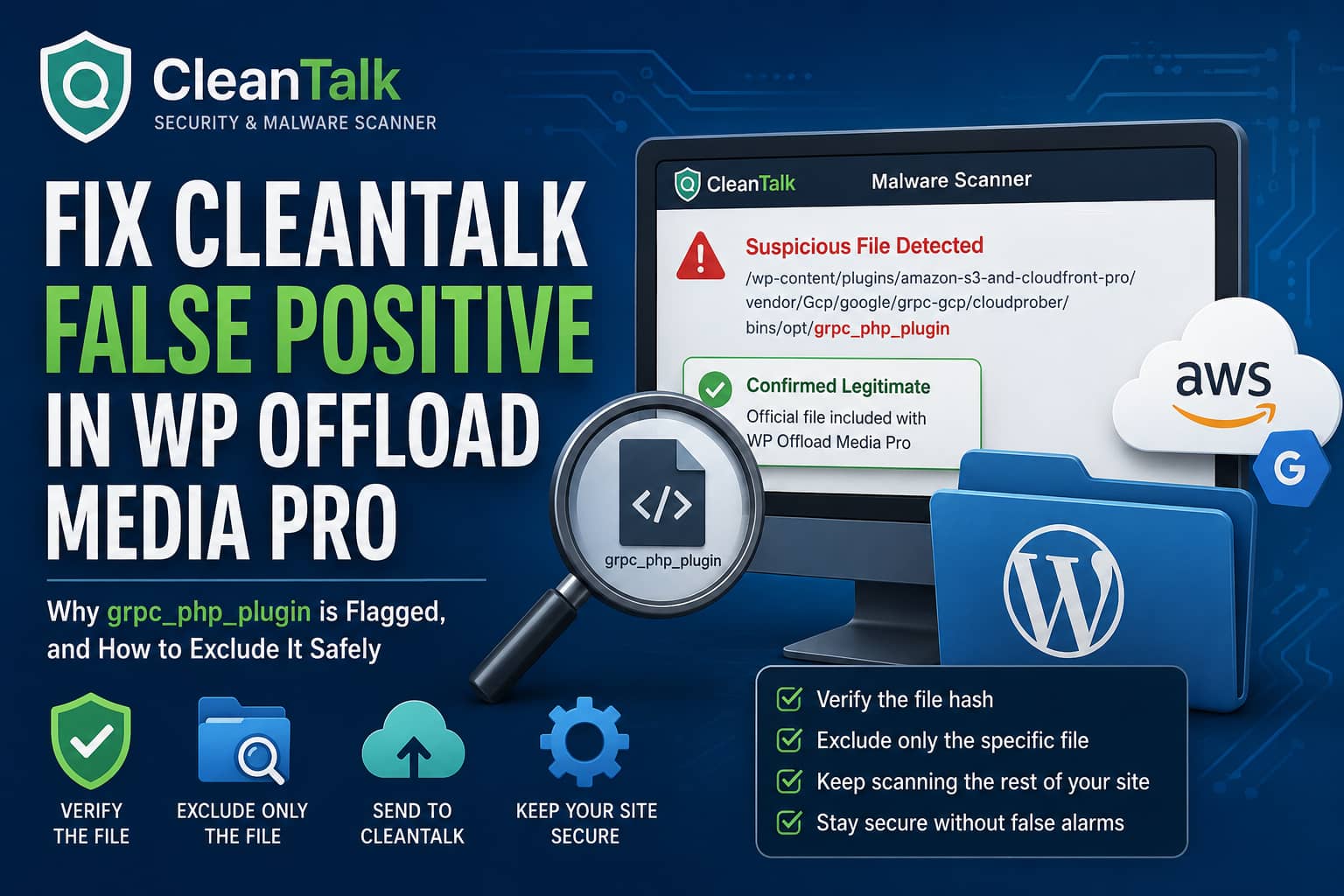
A WordPress administrator may receive repeated CleanTalk malware warnings for the following file:
/wp-content/plugins/amazon-s3-and-cloudfront-pro/vendor/Gcp/google/grpc-gcp/cloudprober/bins/opt/grpc_php_pluginThe warning can continue appearing even after the file has been reviewed and approved inside the CleanTalk Malware Scanner.
In a recently reported case, the developer of WP Offload Media Pro confirmed that the file is officially included with the plugin. The hosting provider also performed a separate malware scan and found no infection.
Despite those confirmations, CleanTalk continued flagging the file during subsequent scans.
This behavior is consistent with a malware scanner false positive. However, you should not automatically approve or exclude a file based only on its location. The file should be verified before adding it to CleanTalk’s exclusion list.
This guide explains why the file may be detected, how to confirm that it is legitimate, and how to exclude only that specific file without disabling malware scanning for the entire WP Offload Media Pro plugin.
What Is the grpc_php_plugin File?
The flagged file is located deep inside WP Offload Media Pro’s bundled vendor dependencies:
amazon-s3-and-cloudfront-pro
└── vendor
    └── Gcp
        └── google
            └── grpc-gcp
                └── cloudprober
                    └── bins
                        └── opt
                            └── grpc_php_plugin
The grpc_php_plugin name refers to the PHP plugin used by gRPC and the Protocol Buffers compiler to generate PHP client code from .proto service definitions.
Unlike a normal PHP file, this file may be a compiled executable without a familiar extension such as .php, .txt, or .json.
That unusual structure can cause security scanners to treat it as suspicious because:
- It is an executable file inside a WordPress plugin.
- It does not have a standard file extension.
- It contains compiled binary data rather than readable PHP source code.
- It exists deep inside a third-party vendor directory.
- Its binary patterns may resemble malware signatures.
- It may not be present in CleanTalk’s known-file database.
- Premium plugin files cannot always be compared with the WordPress.org repository.
The presence of an executable file inside a plugin should be investigated, but it does not automatically mean the site has been compromised.
Is the File Malware?
Based on the reported case, the file is likely a false positive because:
- The WP Offload Media Pro developer confirmed that it is included with the plugin.
- The hosting provider performed an independent scan and found no malware.
- The file is located inside an expected vendor dependency path.
- The filename and path correspond to a legitimate gRPC code-generation component.
However, a legitimate filename can still be replaced by an attacker.
For that reason, the path alone is not enough to prove that the file is safe. Verify the actual file before excluding it from future malware scans.
Important: Do Not Delete the File Immediately
Do not delete, quarantine, rename, or modify the file simply because CleanTalk identifies it as suspicious.
Removing a legitimate vendor dependency could cause:
- WP Offload Media Pro features to stop working.
- Google Cloud Storage integration failures.
- Background processing errors.
- Composer autoloading problems.
- Fatal PHP errors during plugin operations.
- The file to return after the next plugin update.
The correct approach is to verify the file first and then create a narrowly targeted scanner exclusion.
Step 1: Create a Full Website Backup
Before modifying security scanner settings or plugin files, create a full backup containing:
- WordPress files
- The WordPress database
- The current WP Offload Media Pro plugin folder
- The current CleanTalk configuration
Store the backup outside the public website directory whenever possible.
A backup is especially important when testing security alerts because accidentally deleting or replacing a required plugin file can affect media delivery.
Step 2: Update Both Plugins
Make sure you are using the latest available versions of:
- Security by CleanTalk
- WP Offload Media Pro
A detection rule may already have been corrected in a newer CleanTalk update. Similarly, WP Offload Media Pro may have changed or removed the dependency in a later release.
After updating:
- Clear the WordPress cache.
- Clear any server or object cache.
- Open the CleanTalk Malware Scanner.
- Click Synchronize with Cloud when that option is available.
- Run another malware scan.
If the file is no longer detected, no exclusion is required.
If it is still flagged, continue with the verification steps below.
Step 3: Verify the File Against a Clean Plugin Package
The most reliable verification method is to compare the live file with the same file from a clean WP Offload Media Pro installation package.
Download the exact same plugin version from your official WP Offload Media account.
Do not download premium plugins from unofficial repositories, shared download websites, nulled-plugin services, or file-sharing links.
Extract the clean ZIP file on your computer and locate:
amazon-s3-and-cloudfront-pro/vendor/Gcp/google/grpc-gcp/cloudprober/bins/opt/grpc_php_pluginYou should now have:
- The file currently installed on the website
- The corresponding file from the official plugin ZIP
Compare their SHA-256 hashes.
Compare the Hash Through SSH
On Linux, run:
sha256sum /path/to/live/grpc_php_pluginThen run the same command for the clean copy:
sha256sum /path/to/extracted/grpc_php_pluginExample output:
b7f1c2... grpc_php_pluginThe complete hashes must match exactly.
Compare the Hash on macOS
Use:
shasum -a 256 /path/to/grpc_php_pluginRun it once for the live file and once for the clean file.
Compare the Hash on Windows
Open PowerShell and run:
Get-FileHash "C:\path\to\grpc_php_plugin" -Algorithm SHA256Run the same command for the file extracted from the official plugin ZIP.
How to Interpret the Result
If both SHA-256 hashes match, the installed file is byte-for-byte identical to the official plugin file.
That is strong evidence that the CleanTalk warning is a false positive.
If the hashes do not match, do not exclude the file yet. Replace the plugin files with a clean official copy or contact WP Offload Media Pro support for confirmation.
Step 4: Check the File Type and Permissions
When SSH access is available, inspect the file type:
file /path/to/grpc_php_pluginThe result may identify it as a compiled Linux executable or another binary format.
Also inspect its permissions:
ls -l /path/to/grpc_php_pluginCompare the permissions with the clean plugin package and other files in the same directory.
Unexpected permissions such as world-writable access should be investigated.
Avoid randomly changing the file to 644 if it is intended to be executable. Changing required executable permissions may prevent the dependency from working.
Step 5: Send the File to CleanTalk for Analysis
Before excluding the file, use CleanTalk’s built-in analysis option when available.
Go to:
WordPress Dashboard
Settings
Security by CleanTalk
Malware Scanner
Find the detected file and select:
Send for AnalysisCleanTalk may classify the submitted file as safe or dangerous after cloud analysis.
You can also open a CleanTalk support ticket and provide:
- The full file path
- The WP Offload Media Pro version
- The CleanTalk version
- The SHA-256 hash
- Confirmation from WP Offload Media Pro support
- Confirmation from the hosting provider
- A screenshot of the repeated warning
Reporting the false positive may allow CleanTalk to update its detection system for other users.
Do not publicly upload a proprietary premium-plugin binary to a third-party scanning website without confirming that the plugin vendor permits it. Public malware-analysis services may retain uploaded files.
Step 6: Exclude Only the Flagged File in CleanTalk
After verifying that the file is legitimate, add a file-level exclusion.
Open:
WordPress Dashboard
Settings
Security by CleanTalk
General Settings
Locate the setting named:
Directory and file exclusions for the malware scannerAdd the following relative path on its own line:
wp-content/plugins/amazon-s3-and-cloudfront-pro/vendor/Gcp/google/grpc-gcp/cloudprober/bins/opt/grpc_php_pluginSave the settings.
Use the relative path rather than the complete server path. Do not include values such as:
/home/account/public_html/The final exclusion should contain only the path relative to the WordPress installation.
Run another malware scan to confirm that the file is no longer detected.
Why You Should Not Exclude the Entire Plugin
You could technically exclude the complete plugin directory:
wp-content/plugins/amazon-s3-and-cloudfront-proHowever, this is not recommended.
Excluding the full directory would prevent CleanTalk from scanning every WP Offload Media Pro file, including PHP files that could potentially be modified during a future compromise.
The safer exclusion is:
wp-content/plugins/amazon-s3-and-cloudfront-pro/vendor/Gcp/google/grpc-gcp/cloudprober/bins/opt/grpc_php_pluginThis excludes only the verified binary while allowing CleanTalk to continue scanning the rest of the plugin.
Alternative: Use a CleanTalk Exclusion File
CleanTalk also supports storing exclusions in a text file.
Create a file named:
spbct_directory_exclusions.txtPlace it inside:
/wp-content/Add the flagged file path:
wp-content/plugins/amazon-s3-and-cloudfront-pro/vendor/Gcp/google/grpc-gcp/cloudprober/bins/opt/grpc_php_pluginYou can add additional verified exclusions on separate lines:
wp-content/plugins/amazon-s3-and-cloudfront-pro/vendor/Gcp/google/grpc-gcp/cloudprober/bins/opt/grpc_php_plugin
wp-content/example-directory/verified-safe-file
Next, enter the exclusion file’s path in CleanTalk’s exclusion setting:
wp-content/spbct_directory_exclusions.txtThis method can be useful when managing several exclusions or maintaining the same configuration across multiple websites.
For a single false positive, entering the specific file directly into the exclusion field is usually simpler.
Why Approving the File May Not Stop Future Warnings
CleanTalk includes an option to approve suspicious files. However, approval and exclusion are not necessarily the same operation.
A file may appear again when:
- The plugin is updated.
- The file modification date changes.
- The file’s hash changes.
- CleanTalk receives new malware definitions.
- Scanner records are cleared.
- The local scanner synchronizes with the cloud.
- The plugin is reinstalled.
- CleanTalk treats the next scan as a new analysis.
An exclusion tells the scanner not to process the specified path. This makes it more appropriate for a verified file that is repeatedly detected because of its format or binary contents.
Security Risk of Excluding the File
An excluded file will no longer be examined by that CleanTalk malware scan.
If an attacker later replaces the excluded file, CleanTalk may not warn you about the change.
You can reduce this risk by:
- Excluding only the exact file, not the complete plugin.
- Keeping WP Offload Media Pro updated.
- Downloading updates only from the official vendor.
- Comparing the file hash after major plugin updates.
- Running independent hosting-level malware scans.
- Monitoring unexpected file modifications.
- Maintaining clean off-site backups.
- Reviewing administrator accounts and server logs.
- Protecting SFTP, hosting, and WordPress accounts with two-factor authentication.
File exclusions should be limited, documented, and reviewed periodically.
Optional: Reinstall WP Offload Media Pro From a Clean Copy
If you cannot confidently verify the installed file, replace the plugin with a clean official package.
Before proceeding:
- Create a complete backup.
- Record the current WP Offload Media Pro settings.
- Download the correct version from the official vendor account.
- Test the replacement on staging first.
- Replace the plugin files without deleting media records or cloud-storage configuration.
- Clear all caches.
- Test media URLs and new uploads.
- Run a new malware scan.
In many cases, replacing the plugin folder with a clean copy preserves settings because plugin settings are stored in the WordPress database.
However, always test this on staging because configurations can vary.
What to Do When the Hash Does Not Match
A different hash does not automatically prove that the file is malicious. Different plugin versions, operating-system builds, or packaged dependencies can produce different binaries.
If the hashes do not match:
- Confirm that you downloaded the exact same plugin version.
- Confirm that both files are intended for the same platform.
- Check the file modification date.
- Ask WP Offload Media Pro support to verify the hash.
- Ask CleanTalk to analyze the file.
- Replace the plugin with a clean official package.
- Run a server-level malware scan.
- Review recent file changes and administrator activity.
Do not add the exclusion until the difference has been explained.
Recommended Final Solution
For a site where WP Offload Media Pro support and the hosting provider have already confirmed that the file is legitimate, use this process:
- Back up the website.
- Update CleanTalk and WP Offload Media Pro.
- Synchronize CleanTalk with its cloud service.
- Compare the file against an official plugin package.
- Send the file to CleanTalk for analysis.
- Add only the exact file to the malware-scanner exclusions.
- Run another scan.
- Confirm that all other plugin and WordPress files are still being scanned.
- Document the exclusion for future maintenance.
Use this CleanTalk exclusion:
wp-content/plugins/amazon-s3-and-cloudfront-pro/vendor/Gcp/google/grpc-gcp/cloudprober/bins/opt/grpc_php_pluginFrequently Asked Questions
Is grpc_php_plugin a WordPress malware file?
Not necessarily. grpc_php_plugin is the name of a legitimate gRPC Protocol Buffers compiler plugin. In the reported case, WP Offload Media Pro’s developer confirmed that the file was included with the plugin.
The installed file should still be compared with a clean official copy before it is excluded.
Why does CleanTalk identify it as suspicious?
The file may be a compiled executable without a normal file extension. Security scanners often apply additional scrutiny to unknown executable files, especially when they cannot compare them with a public WordPress.org plugin package.
Can I safely delete grpc_php_plugin?
Deleting it is not recommended unless WP Offload Media Pro support confirms that it is unnecessary. Removing bundled vendor files can cause plugin functions to fail.
Why does the warning return after I approve the file?
The scanner may reconsider the file after updates, cloud synchronization, signature changes, log clearing, or changes to its hash or modification date. A verified path exclusion is more reliable for a persistent false positive.
Should I exclude the complete WP Offload Media Pro folder?
No. Excluding the complete plugin would prevent CleanTalk from detecting future changes to all files in that directory. Exclude only the exact verified file.
Will the exclusion remain after a plugin update?
The exclusion should continue working while the path remains unchanged. If WP Offload Media Pro changes the dependency path in a future release, the exclusion may need to be reviewed or removed.
Can an excluded file become infected later?
Yes. Excluded files are not checked by that scanner. This is why you should limit the exclusion to one verified file, keep the plugin updated, and periodically compare it with a clean vendor copy.
Should I disable CleanTalk’s malware scanner?
Disabling the entire scanner is unnecessary. A file-specific exclusion solves the repeated warning while preserving scanning for WordPress core, themes, and other plugin files.
Final Thoughts
A repeated malware warning should never be ignored, but it should not automatically lead to deleting a legitimate plugin dependency.
The file:
/wp-content/plugins/amazon-s3-and-cloudfront-pro/vendor/Gcp/google/grpc-gcp/cloudprober/bins/opt/grpc_php_pluginappears to be a bundled gRPC component included with WP Offload Media Pro. Its executable format and unusual extensionless filename can cause heuristic malware scanners to treat it as suspicious.
The safest solution is to verify the file against an official plugin package, report the false positive to CleanTalk, and exclude only the exact file from future scans.
This removes the repeated alert without disabling security scanning for the rest of WP Offload Media Pro or the WordPress website.
