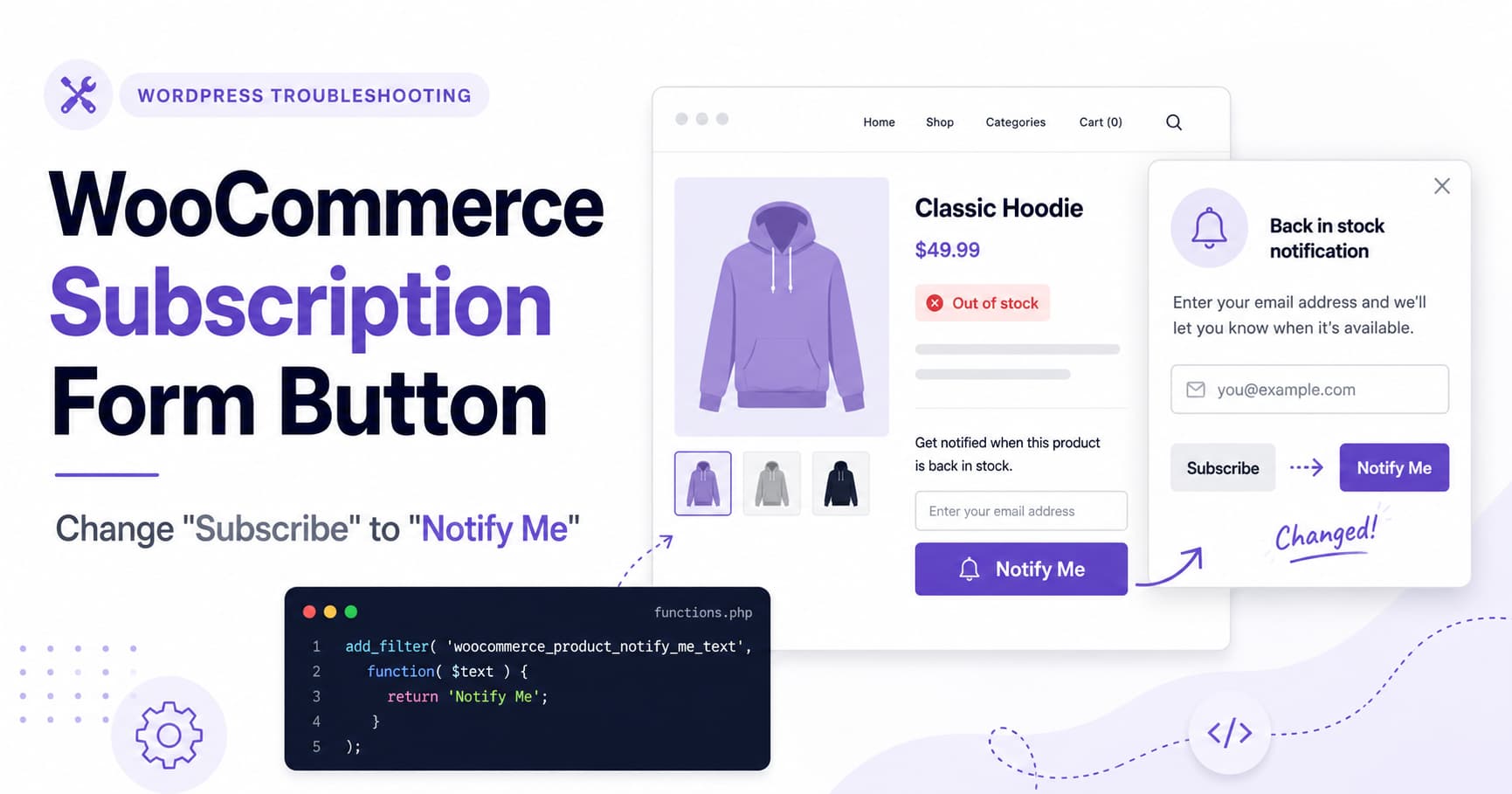
A WooCommerce store owner may change the button shown on an out-of-stock product from Subscribe to Notify Me, only to discover that the popup form still displays a Subscribe button.
The customer experience then looks like this:
- The customer clicks Notify Me on the product page.
- A back-in-stock subscription popup opens.
- The popup submit button says Subscribe.
Although both buttons perform related actions, using different labels can confuse customers. A visitor may wonder whether they are joining a marketing newsletter rather than requesting a one-time back-in-stock notification.
Fortunately, the two buttons can be changed independently.
This guide explains how to change the popup button from Subscribe to Notify Me in the Back in stock notifications for WooCommerce plugin.
Why the Popup Still Says “Subscribe”
The plugin uses separate text settings for different parts of the notification form:
- The button displayed on the product page
- The title displayed inside the modal
- The submit button displayed inside the modal
Changing the product-page button therefore does not necessarily change the button inside the popup.
The plugin also provides separate developer filters for each text value:
wsnm-text-ctachanges the product-page button.wsnm-modal-titlechanges the popup title.wsnm-modal-form-buttonchanges the submit button inside the popup.
The last filter is the one needed for this specific issue.
Method 1: Change the Button Through the Plugin Settings
Start with the plugin’s built-in settings before adding custom code.
In the WordPress dashboard, go to:
Back in Stock → Settings → Subscription Form
Depending on the installed plugin version, the field may be named something similar to:
- Form Button Text
- Modal Form Button
- Modal Button Text
- Subscription Form Button Text
Locate the field currently containing:
SubscribeReplace it with:
Notify MeSave the settings.
The plugin includes a subscription form preview, so use the Preview button to open the form and confirm that both buttons now use the desired wording.
The final flow should be:
Product button: Notify Me
Popup button: Notify Me
This is the preferred method because it does not require custom code.
Method 2: Change the Popup Button With PHP
When the setting is unavailable, overridden by another plugin, or not applying correctly, use the plugin’s official PHP filter.
Add the following code:
/**
 * Change the submit button inside the WooCommerce
 * back-in-stock notification popup.
 */
function debugnexus_change_stock_notification_modal_button( $button_text ) {
    return 'Notify Me';
}

add_filter(
    'wsnm-modal-form-button',
    'debugnexus_change_stock_notification_modal_button',
    99
);
This code changes only the submit button inside the modal form. It does not modify every Subscribe button on the website.
The priority is set to 99 so the customization runs after most default plugin callbacks and other basic customizations.
Where to Add the PHP Code
There are two safe ways to add the snippet.
Option 1: Use the Code Snippets Plugin
Install and activate the free Code Snippets plugin, and then:
- Go to Snippets → Add New.
- Enter a title such as:
Change Back-in-Stock Popup Button- Paste the PHP code into the code editor.
- Select Run snippet everywhere.
- Save and activate the snippet.
- Clear the website cache.
- Test an out-of-stock product.
Do not add another opening <?php tag when using Code Snippets.
Option 2: Use a Child Theme
Add the code to the active child theme’s functions.php file.
The usual location is:
/wp-content/themes/your-child-theme/functions.phpA child theme should be used instead of the parent theme. Changes made directly to a parent theme can be removed during a theme update.
Change All Three Back-in-Stock Text Values
Store owners may also want to customize the entire popup experience.
The following snippet changes:
- The product-page button
- The modal title
- The modal submit button
/**
 * Customize the WooCommerce back-in-stock notification form.
 */

/**
 * Product-page button.
 */
function debugnexus_change_wsnm_product_button( $button_text ) {
    return 'Notify Me';
}
add_filter(
    'wsnm-text-cta',
    'debugnexus_change_wsnm_product_button',
    99
);

/**
 * Popup title.
 */
function debugnexus_change_wsnm_modal_title( $modal_title ) {
    return 'Get Notified When This Product Is Available';
}
add_filter(
    'wsnm-modal-title',
    'debugnexus_change_wsnm_modal_title',
    99
);

/**
 * Popup submit button.
 */
function debugnexus_change_wsnm_modal_button( $button_text ) {
    return 'Notify Me';
}
add_filter(
    'wsnm-modal-form-button',
    'debugnexus_change_wsnm_modal_button',
    99
);
After adding the snippet, the customer will see a consistent notification flow:
Product button:
Notify Me

Popup title:
Get Notified When This Product Is Available

Popup submit button:
Notify Me
The text can be replaced with any wording suitable for the store.
Other useful options include:
Email Me When AvailableNotify Me When AvailableSend Me a Stock AlertLet Me KnowFor most WooCommerce stores, Notify Me or Email Me When Available is clearer than Subscribe because it describes the action the customer is requesting.
Why CSS Cannot Change the Button Text
CSS can change visual properties such as:
- Button color
- Font size
- Padding
- Border radius
- Hover color
- Width and alignment
CSS cannot reliably replace the actual text contained inside a button.
A CSS pseudo-element can visually cover the existing text, but that approach can create accessibility problems and may leave screen readers reading the original label.
Use the plugin setting or PHP filter to change the real button text.
Clear the Website Cache
The old text may remain visible after saving the new setting or activating the snippet.
Clear all applicable cache layers:
- Clear the WordPress caching plugin.
- Clear LiteSpeed, Varnish, Nginx, or hosting-level cache.
- Purge the CDN cache, including Cloudflare if used.
- Clear browser cache.
- Open the product in a private or incognito window.
Also clear any page-builder-generated files when the product template is built with Elementor, Divi, or another visual builder.
Check Translation Plugins
A translation plugin may override the button text after the PHP filter or plugin settings have been changed.
Check plugins such as:
- Loco Translate
- WPML
- Polylang
- TranslatePress
- Weglot
Search for the original string:
SubscribeMake sure the translation is not forcing the old button label.
For a multilingual store, translate the new text for every active language. For example:
English: Notify Me
German: Benachrichtige mich
French: Prévenez-moi
Spanish: Avísame
After updating a translation, clear both the translation cache and the website cache.
Update the Plugin When the Filter Does Not Work
The plugin’s newer versions include controls for managing the button text and modal title.
When the settings or filter are unavailable:
- Create a full website backup.
- Test the update on a staging website.
- Update the back-in-stock notification plugin.
- Clear all caches.
- Test the form again.
Do not edit the plugin’s PHP files directly. A plugin update would overwrite those modifications.
Test Simple and Variable Products
Do not test the change on only one product.
Simple product test
- Edit a simple WooCommerce product.
- Set its stock status to Out of stock.
- Open the product page in a private browser window.
- Click Notify Me.
- Confirm that the popup submit button also says Notify Me.
- Submit a test email address.
- Verify that the subscription is recorded.
Variable product test
- Open a variable product.
- Set one variation to Out of stock.
- Keep another variation in stock.
- Select the out-of-stock variation.
- Confirm that the notification button appears.
- Open the popup.
- Verify the modal button text.
- Repeat the test on mobile.
Variable product forms are often loaded dynamically after a customer selects a variation, so they should be tested separately from simple products.
The Button Still Says “Subscribe”
When the old text remains, check the following items.
The snippet is not active
Open Snippets → All Snippets and confirm that the snippet is activated.
The wrong filter was used
The product-page button and popup button use different filters.
Use:
wsnm-text-ctafor the product-page button.
Use:
wsnm-modal-form-buttonfor the submit button inside the popup.
A cache is serving the old form
Clear WordPress, server, CDN, and browser caches.
A translation overrides the text
Check Loco Translate, WPML, Polylang, TranslatePress, or another multilingual plugin.
Another back-in-stock plugin is active
Running two stock notification plugins can create duplicate buttons or cause the wrong form to open.
Go to Plugins → Installed Plugins and confirm that only the intended back-in-stock plugin is active.
The theme uses a custom product template
Temporarily test the product with a default WooCommerce-compatible theme on staging. This helps determine whether the button is coming from the plugin or from a custom theme template.
Frequently Asked Questions
Can I use “Email Me When Available” instead?
Yes. Replace Notify Me in the PHP snippet with the preferred text:
return 'Email Me When Available';Will the code survive a plugin update?
Yes, provided the snippet is stored in Code Snippets, a custom functionality plugin, or a child theme. Do not place the customization directly inside the back-in-stock plugin.
Does the snippet change newsletter subscription buttons?
No. The wsnm-modal-form-button filter belongs to the back-in-stock notification plugin and targets its modal submit button.
Will this change the notification email?
No. The snippet changes the frontend form button only. Email subjects and email content must be edited separately in the plugin’s email settings.
Do I need JavaScript?
No. The plugin already provides a PHP filter for the modal button, so JavaScript is unnecessary.
Can the popup title also be changed?
Yes. Use the wsnm-modal-title filter:
function debugnexus_change_stock_modal_title( $title ) {
    return 'Get Notified When This Product Is Back';
}

add_filter(
    'wsnm-modal-title',
    'debugnexus_change_stock_modal_title',
    99
);
Final Solution
The Notify Me button displayed on the product page and the Subscribe button displayed inside the popup are controlled separately.
First, check:
Back in Stock → Settings → Subscription FormChange the modal form button text to Notify Me and save the settings.
When the setting does not work, use:
function debugnexus_change_stock_notification_modal_button( $button_text ) {
    return 'Notify Me';
}

add_filter(
    'wsnm-modal-form-button',
    'debugnexus_change_stock_notification_modal_button',
    99
);
This produces consistent wording throughout the WooCommerce back-in-stock notification process without editing plugin files.
