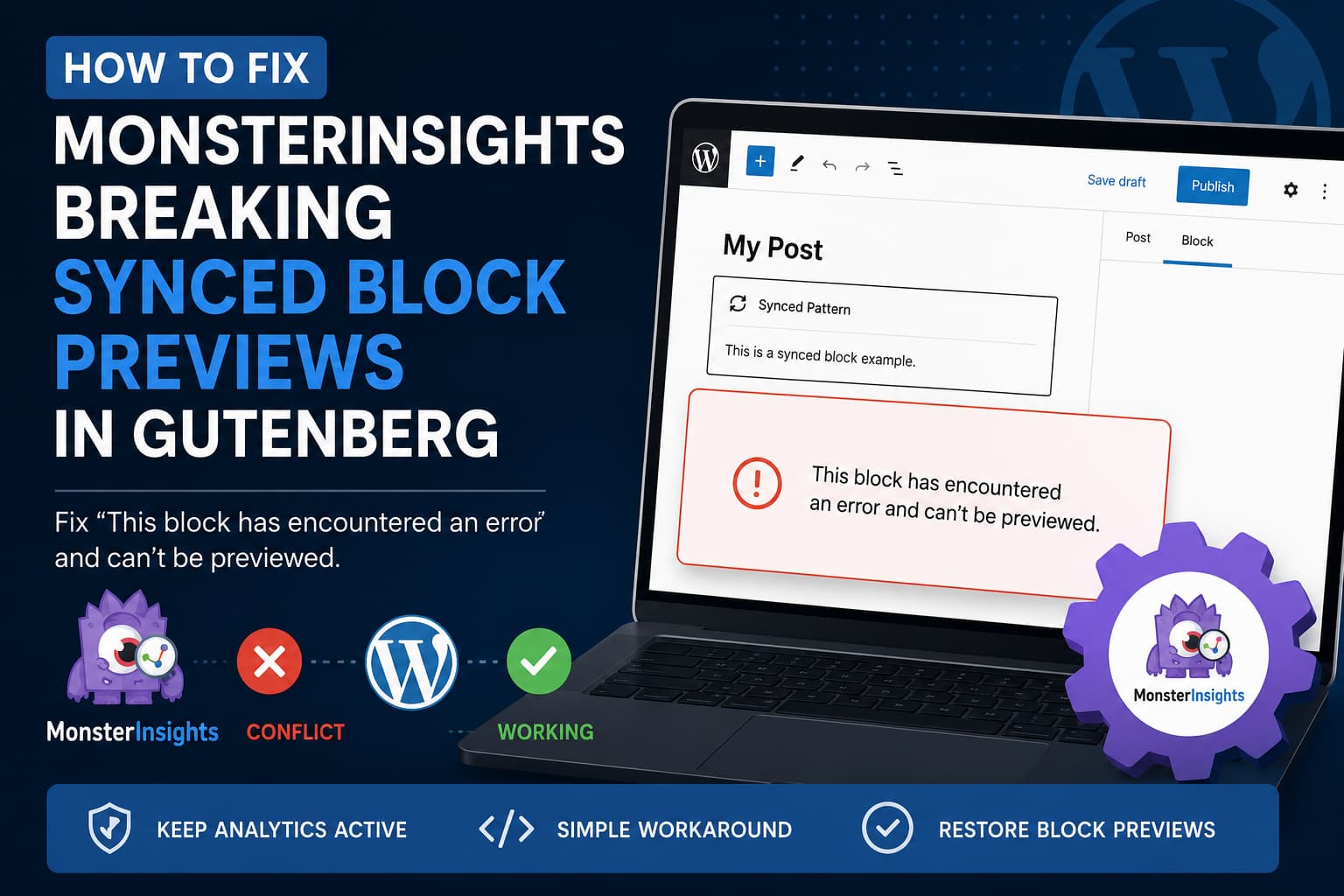
MonsterInsights may cause WordPress synced blocks to display the following error inside the Gutenberg editor:
This block has encountered an error and can’t be previewed.
The problem can occur even when MonsterInsights has only been installed and activated. Connecting the plugin to a Google Analytics account may not be necessary to reproduce the error.
The affected block usually continues working on the frontend, but Gutenberg cannot generate its preview inside the editor.
This guide explains how to confirm that MonsterInsights is causing the problem and provides a temporary editor-only workaround that allows you to keep analytics tracking active.
Problem Summary
The issue can be reproduced with steps similar to these:
- Install a clean version of WordPress.
- Create or edit a post.
- Add a paragraph or another simple block.
- Save it as a synced pattern.
- Save the post.
- Install and activate MonsterInsights.
- Reopen the post containing the synced pattern.
Gutenberg may replace the synced block preview with this message:
This block has encountered an error and can’t be previewed.WordPress previously called these reusable blocks. Since WordPress 6.3, they are officially known as synced patterns. Editing a synced pattern normally updates every location where that pattern is used.
What Causes the Error?
This appears to be a JavaScript compatibility problem between the MonsterInsights Gutenberg integration and an editor context used to render synced block previews.
MonsterInsights loads an editor bundle from a path similar to:
/wp-content/plugins/google-analytics-for-wordpress/assets/gutenberg/js/editor.min.jsThe normal post editor provides several WordPress data stores, post attributes and metadata objects. However, a block preview rendered inside an iframe or another isolated editor context may not provide exactly the same data.
If the MonsterInsights editor script expects one of those objects to exist, an uncaught JavaScript error can interrupt React rendering. Gutenberg then displays its generic block failure message.
A previous MonsterInsights support report documented a similar problem in which its Gutenberg editor.js file attempted to read MonsterInsights metadata when the WordPress editor returned an undefined meta value. That report involved the Site Editor rather than this exact synced-pattern preview, but it demonstrates how the same editor bundle can fail when loaded in a different editor context.
The current issue may involve a different line of code, so the browser console should still be checked before treating this explanation as the confirmed root cause.
Is the Synced Block Corrupted?
Usually, no.
The error commonly affects only the visual preview in Gutenberg. It does not necessarily mean that:
- The synced pattern was deleted.
- The block markup is invalid.
- The post content is damaged.
- The frontend version is broken.
- The synced pattern must be recreated.
Before deleting or rebuilding anything, temporarily deactivate MonsterInsights and reopen the editor.
If the block preview returns immediately, the block itself is probably fine.
Confirm That MonsterInsights Is the Cause
Use the following process on a staging site whenever possible.
1. Create a Backup
Create a full backup of the database and WordPress files before changing plugins or adding custom code.
Synced patterns are stored in the database, so the database backup is especially important.
2. Update WordPress and MonsterInsights
First, install available updates for:
- WordPress core
- MonsterInsights
- The Gutenberg plugin, when installed separately
- Other block-related plugins
- Your active theme
At the time of writing, WordPress 7.0.2 is the latest stable release. It contains important security fixes, so downgrading WordPress core is not a recommended solution.
The MonsterInsights plugin page currently lists version 11.1.2 in its changelog. Check for a newer release before applying a workaround because the plugin developer may release a compatibility fix.
3. Temporarily Deactivate MonsterInsights
Go to:
WordPress Dashboard > Plugins > Installed PluginsDeactivate MonsterInsights, clear your browser cache and reopen the affected post.
If the synced pattern preview works again, the conflict has been isolated to MonsterInsights or one of its editor integrations.
4. Check the Browser Console
Open the affected post and press:
F12Select the Console tab and reload the editor.
Look for errors that mention:
google-analytics-for-wordpressassets/gutenberg/js/editor.min.jsCannot read properties of undefinedwp.datacore/editorReactSave a screenshot and copy the complete error stack before clearing caches or changing plugin versions. This information will be useful when reporting the issue to MonsterInsights support.
Recommended Temporary Fix
The safest targeted workaround is to prevent the MonsterInsights Gutenberg JavaScript bundle from loading in the block editor.
This does not deactivate MonsterInsights. It only removes its editor-side bundle from Gutenberg screens.
The frontend analytics integration should remain active, but you must verify tracking after applying the workaround.
What Will Be Disabled?
Depending on the installed MonsterInsights version, editor-only features may become unavailable, including:
- MonsterInsights Site Notes controls inside Gutenberg
- Headline analysis features
- MonsterInsights editor panels
- Editing controls for MonsterInsights-specific blocks
- Other MonsterInsights Gutenberg integrations
Normal WordPress blocks and synced patterns should continue working.
Option 1: Add an MU Plugin
Using an MU plugin is preferable to editing functions.php because the workaround will remain active if the theme is changed.
Using FTP, SFTP, SSH or your hosting file manager, open:
/wp-content/Create the following folder if it does not already exist:
mu-pluginsInside that folder, create this file:
debugnexus-monsterinsights-gutenberg-fix.phpAdd the following code:
<?php
/**
 * Plugin Name: DebugNexus - MonsterInsights Gutenberg Workaround
 * Description: Temporarily prevents the MonsterInsights Gutenberg bundle from loading in the block editor.
 * Version: 1.0.0
 */

defined( 'ABSPATH' ) || exit;

add_action(
	'enqueue_block_editor_assets',
	static function () {
		global $wp_scripts;

		if ( ! ( $wp_scripts instanceof WP_Scripts ) ) {
			return;
		}

		foreach ( $wp_scripts->registered as $handle => $script ) {
			$src = isset( $script->src ) ? (string) $script->src : '';

			if (
				false === strpos(
					$src,
					'/google-analytics-for-wordpress/assets/gutenberg/js/editor'
				)
			) {
				continue;
			}

			wp_dequeue_script( $handle );
			wp_deregister_script( $handle );
		}
	},
	PHP_INT_MAX
);
Save the file and reopen the affected post.
MU plugins are loaded automatically and do not need to be activated from the normal Plugins page.
You can confirm that it loaded by visiting:
WordPress Dashboard > Plugins > Must-Use PluginsWhy the Code Searches by File Path
WordPress plugins can change their registered script handles between releases.
Instead of depending on a specific handle, the workaround searches registered editor scripts for the MonsterInsights Gutenberg file path:
/google-analytics-for-wordpress/assets/gutenberg/js/editorIt then removes only the matching script.
This makes the workaround more resistant to minor changes in the plugin’s internal script handle.
Option 2: Use a Code Snippets Plugin
The same PHP code may be added through a code snippets plugin.
Configure the snippet to:
- Run only in the WordPress administration area, when that option is available.
- Run automatically.
- Avoid executing on the frontend unnecessarily.
An MU plugin remains the cleaner choice for a temporary compatibility patch because it does not depend on another plugin.
Clear All Relevant Caches
After adding or removing the workaround, clear:
- Your browser cache.
- Any WordPress caching plugin.
- Object cache, such as Redis or Memcached.
- Server cache.
- Cloudflare or another CDN cache.
- Cached and combined admin JavaScript, when your optimization plugin processes admin pages.
Then close the editor tab completely and reopen the post from the WordPress dashboard.
A normal page refresh may not be enough when the browser has retained an older JavaScript bundle.
Verify the Fix
Test all of the following:
- Open an existing post containing a synced pattern.
- Confirm that the block preview appears.
- Edit the synced pattern.
- Save the post and pattern changes.
- Open another page where the same pattern is used.
- Confirm that the updated content appears there.
- Check the frontend for JavaScript errors.
- Confirm that Google Analytics is still receiving test traffic.
- Check the browser console for remaining MonsterInsights errors.
Use Google Analytics Realtime reporting or MonsterInsights tracking verification to confirm that frontend analytics still works.
Temporary No-Code Alternatives
Deactivate MonsterInsights While Editing
You can deactivate MonsterInsights, edit the affected posts and reactivate it afterward.
This is simple, but analytics tracking normally stops while the plugin is inactive. It is therefore not ideal for websites receiving significant traffic.
Use Troubleshooting Mode
The Health Check and Troubleshooting plugin can disable MonsterInsights only for your logged-in troubleshooting session.
This allows visitors to continue seeing the normal website configuration while you confirm the conflict.
Troubleshooting Mode is useful for diagnosis, but it is not a permanent fix for editors who need to work with synced patterns regularly.
Roll Back MonsterInsights
A previous MonsterInsights version may not contain the same conflict.
However, rolling back should be considered only when:
- You know which earlier version worked.
- You have tested it on staging.
- The older release has no known security issue.
- You have created a full backup.
- You disable automatic updates only temporarily.
Do not randomly install a significantly outdated version.
It is generally safer to disable the editor bundle than to run an old analytics plugin across the entire website.
Use Another Analytics Integration
When you only need to load a GA4 tracking tag and do not use the MonsterInsights dashboard or advanced reports, you may consider:
- Google Site Kit
- Google Tag Manager
- A lightweight GA4 integration
- A manually implemented tracking tag
Do not run multiple Google Analytics integrations using the same measurement ID at the same time. Duplicate tracking can inflate page views and events.
What Not to Do
Do Not Delete the Synced Pattern Immediately
Deleting the pattern can remove or affect its references across multiple posts.
Confirm the plugin conflict first.
Do Not Convert Every Pattern to Regular Blocks
Detaching the pattern may hide the editor problem, but you will lose synchronized updates across the website.
Do Not Edit MonsterInsights Core Files
Avoid modifying:
/wp-content/plugins/google-analytics-for-wordpress/Any changes made directly inside the plugin folder will be overwritten during the next update.
Use an MU plugin or a temporary snippet instead.
Do Not Downgrade WordPress Core
WordPress 7.0.2 is a security release. Downgrading core to avoid an editor compatibility issue can reintroduce vulnerabilities fixed by the current release.
How Plugin Developers Can Prevent This Error
A durable fix needs to come from MonsterInsights.
Editor integrations should verify that required WordPress stores and attributes exist before attempting to read them.
For example, code that reads post metadata should safely handle unavailable data:
const editorStore = wp.data.select( 'core/editor' );

const meta = editorStore?.getEditedPostAttribute
	? editorStore.getEditedPostAttribute( 'meta' ) || {}
	: {};

const siteNoteActive = Boolean(
	meta._monsterinsights_sitenote_active
);
The plugin should also avoid registering post-editor functionality in iframe previews or editor contexts where the required post data is unavailable.
Possible developer-side improvements include:
- Checking whether
core/editoris available. - Defaulting missing metadata to an empty object.
- Loading features only on supported post editor screens.
- Avoiding global execution inside isolated block previews.
- Adding error boundaries around optional editor components.
- Testing synced patterns, the Site Editor and iframe previews separately.
Reporting the Problem to MonsterInsights
Include the following information in a support report:
- WordPress version
- MonsterInsights version
- PHP version
- Active theme
- Whether the standalone Gutenberg plugin is installed
- Browser name and version
- Complete console error
- The path and line number shown in the stack trace
- Whether MonsterInsights is connected to Google Analytics
- Whether the problem occurs with a default theme
- Whether the problem occurs with all other plugins disabled
- Exact reproduction steps
A concise report might look like this:
MonsterInsights causes synced pattern previews to fail in Gutenberg.

Steps:
1. Install a clean WordPress site.
2. Create a post with a paragraph.
3. Save the paragraph as a synced pattern.
4. Save and close the post.
5. Install and activate MonsterInsights without connecting an account.
6. Reopen the post.

Result:
The synced pattern displays:
“This block has encountered an error and can’t be previewed.”

Expected:
The synced pattern should render normally.

Disabling MonsterInsights restores the preview.

Console error:
[Paste the complete JavaScript error here]
Frequently Asked Questions
Does this error affect the live website?
Not necessarily. In many cases, only the Gutenberg editor preview fails while the block continues rendering normally on the frontend.
Always check the public page before assuming that the content is broken.
Do I need to recreate the synced pattern?
Usually not. If deactivating MonsterInsights restores the preview, the existing pattern is probably valid.
Will the MU-plugin workaround stop Google Analytics tracking?
The workaround does not deactivate MonsterInsights. It targets the plugin’s Gutenberg editor script only.
Frontend analytics should continue working, but you should verify Realtime activity in GA4 after installing the workaround.
Can I leave the workaround permanently?
It may continue working, but it should be treated as temporary.
Remove it after MonsterInsights releases an official fix, then clear all caches and test the editor again.
Why does the issue happen without connecting MonsterInsights?
The plugin can register and load Gutenberg editor functionality immediately after activation. Some editor features do not require a completed Google Analytics connection before their JavaScript bundle is loaded.
Is this a WordPress core bug?
The available evidence points toward a MonsterInsights editor compatibility issue because disabling MonsterInsights restores the preview in the reported reproduction.
However, the exact failing function should be confirmed from the browser console before making a final technical conclusion.
Conclusion
When MonsterInsights causes synced blocks to show “This block has encountered an error and can’t be previewed,” the synced pattern itself may still be completely valid.
First, confirm the conflict by temporarily disabling MonsterInsights and checking the browser console. Then install available updates and report the complete JavaScript error to the plugin developer.
Until an official patch is available, removing the MonsterInsights Gutenberg editor bundle with a small MU plugin provides a more targeted solution than deactivating analytics across the entire website.
Remember to remove the temporary workaround after installing a confirmed compatibility fix.
