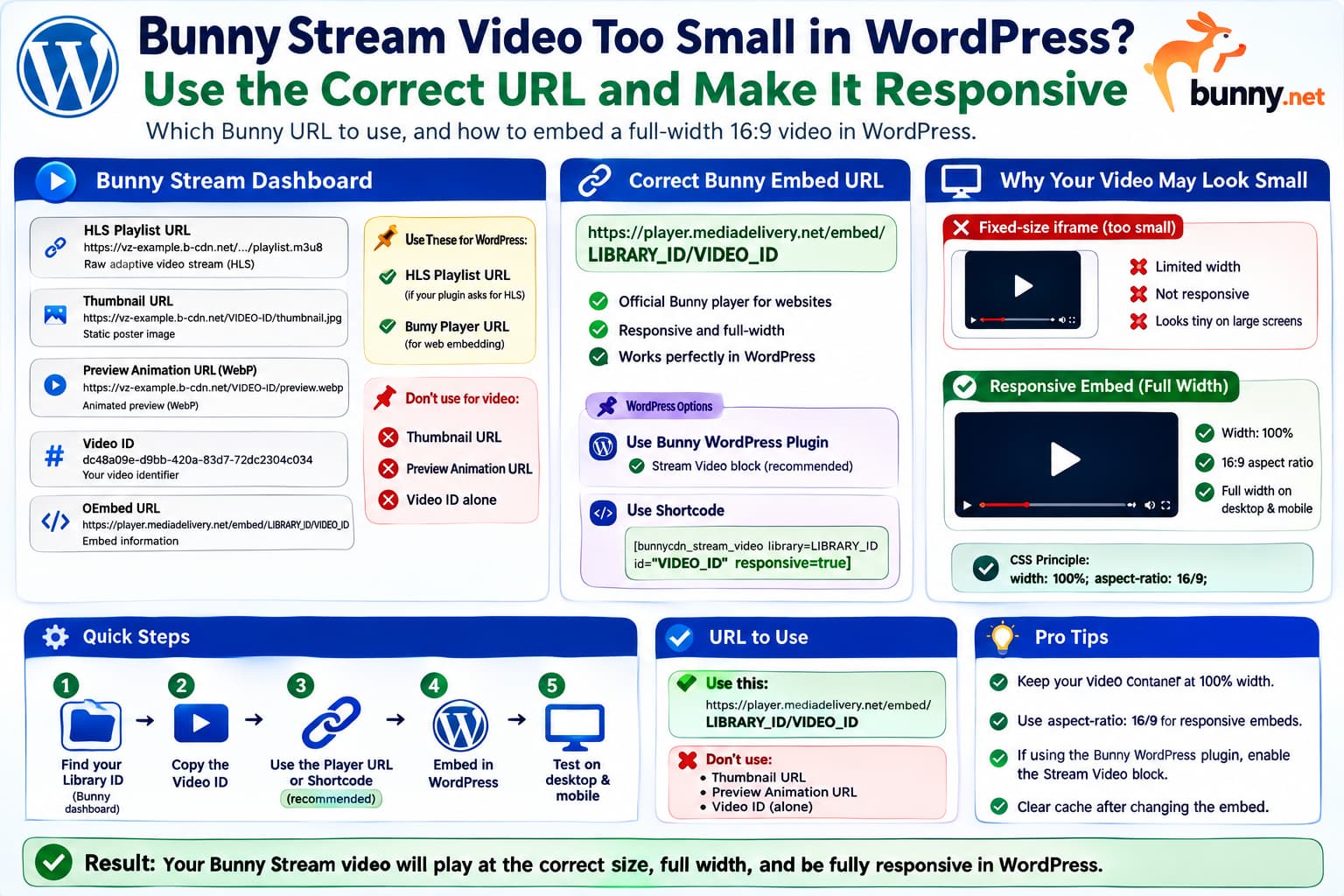
When adding a Bunny Stream video to WordPress, two problems can appear at the same time:
- The embedded video is displayed very small.
- Bunny Stream’s dashboard seems to provide several URLs, but not the Direct Play URL mentioned in some instructions.
For example, the video details may show:
HLS Playlist URLThumbnail URLPreview Animation URL (WebP)Video IDOEmbed
This makes it unclear which value should actually be pasted into WordPress.
The important thing is that those values serve different purposes.
For a normal Bunny-hosted video displayed on a WordPress page, you generally should not use the Thumbnail URL or Preview Animation URL, and you only use the HLS Playlist URL when your WordPress video player explicitly asks for an HLS .m3u8 stream.
If you want Bunny’s own player, use the Bunny embed/player URL or, even better, use Bunny’s official WordPress Stream block or shortcode. Bunny’s current documentation recommends its responsive iframe player for website embeds.
What Each Bunny Stream URL Is For
The dashboard values can be separated like this:
| Bunny value | Purpose |
|---|---|
| HLS Playlist URL | Raw adaptive video stream for HLS-compatible players |
| Thumbnail URL | Static poster image |
| Preview Animation URL | Animated WebP preview, not the video itself |
| Video ID | Identifies the Bunny Stream video |
| OEmbed | Metadata/embed information for compatible integrations |
| Embed/Player URL | Bunny’s actual web video player |
Bunny officially documents the raw HLS structure as:
https://YOUR-PULL-ZONE.b-cdn.net/VIDEO_ID/playlist.m3u8
while the current Bunny player embed format is:
https://player.mediadelivery.net/embed/LIBRARY_ID/VIDEO_ID
These are not interchangeable.
Which URL Should You Paste?
That depends entirely on what the WordPress field asks for.
If the Field Says HLS URL or .m3u8
Use:
HLS Playlist URL
For example:
https://vz-example.b-cdn.net/VIDEO-ID/playlist.m3u8
This is appropriate for players such as:
HLS.js-based playersFV PlayerPresto Player with HLS supportother HTML5/HLS players
Bunny describes the HLS playlist as the raw adaptive stream intended for custom playback integrations.
Do not use:
Thumbnail URL
or:
Preview Animation URL
in the video-source field.
Those are images.
If the Field Wants a Bunny Video/Embed URL
Use:
https://player.mediadelivery.net/embed/LIBRARY_ID/VIDEO_ID
For example:
https://player.mediadelivery.net/embed/197133/dc48a09e-d9bb-420a-83d7-72dc2304c034
on one line:
https://player.mediadelivery.net/embed/197133/dc48a09e-d9bb-420a-83d7-72dc2304c034
Bunny currently documents this as the standard embed URL for its player.
This is usually the safest choice when another plugin asks for:
Bunny URLEmbed URLPlayer URLVideo URL
rather than specifically asking for an HLS source.
Where Is the “Direct Play URL”?
Bunny’s older/current storage documentation still describes the direct-play structure as:
https://video.bunnycdn.com/play/LIBRARY_ID/VIDEO_ID
Bunny’s 2026 player documentation also says the new player uses player.mediadelivery.net for both embed and Direct Play URLs, while older URLs remain supported.
So with the newer player you may encounter a play URL resembling:
https://player.mediadelivery.net/play/LIBRARY_ID/VIDEO_ID
However, if you’re embedding the video on a website, I would prefer the explicitly documented:
https://player.mediadelivery.net/embed/LIBRARY_ID/VIDEO_ID
because Bunny’s embedding documentation specifically defines that URL for iframe website playback.
Bunny Still Documents “Copy Video Play URL”
Bunny’s current Stream quickstart says you can:
Stream→ open the video→ Copy Video Play Url
to obtain a shareable video URL.
If that button is not visible in the particular dashboard panel you are looking at, you do not need to rely on it to embed the video in WordPress.
You can build the embed URL from:
Library ID+Video ID
instead.
Where Do I Find the Library ID?
You already have the Video ID in the screen you described.
You also need the numeric Bunny Stream Library ID.
It usually appears in:
- your Stream library settings,
- the library URL in Bunny’s dashboard,
- the embed code,
- or WordPress if the Bunny account has already been connected.
Bunny’s official WordPress documentation specifically states that its shortcode requires both:
library = numeric Library IDid = video UUID
For example:
Library ID:197133Video ID:dc48a09e-d9bb-420a-83d7-72dc2304c034
produces:
https://player.mediadelivery.net/embed/197133/dc48a09e-d9bb-420a-83d7-72dc2304c034
Best Option in WordPress: Don’t Paste a URL at All
If you are using the official bunny.net WordPress plugin, Bunny now includes dedicated Stream support.
In Gutenberg:
Add Block→ bunny.net Stream Video→ Select existing video
The plugin can select videos from your Bunny Stream library directly.
That avoids confusion between:
HLSoEmbedthumbnailpreviewdirect playembed URL
entirely.
Use the Bunny Stream Shortcode
For a Classic Editor, page builder, WooCommerce product description, or shortcode-capable field, Bunny officially provides:
[bunnycdn_stream_video library=LIBRARY_ID id="VIDEO_ID"]
For example:
[bunnycdn_stream_video library=197133 id="dc48a09e-d9bb-420a-83d7-72dc2304c034"]
Bunny’s shortcode also supports:
responsive=true
and responsive sizing is the default.
For clarity, I would use:
[bunnycdn_stream_video library=197133 id="dc48a09e-d9bb-420a-83d7-72dc2304c034" responsive=true]
This is probably the easiest solution if the current manual embed is appearing very small.
Why Is the Video So Small?
Bunny’s player fills the dimensions of the iframe containing it.
That means if WordPress or your page builder produces:
<iframewidth="300"height="169"...></iframe>
the Bunny player will also appear approximately:
300px × 169px
Bunny itself cannot make the iframe larger than the space the website gives it.
Bunny’s official documentation specifically recommends using a responsive container rather than relying on small fixed width and height values.
Recommended Responsive Bunny Embed
For a normal 16:9 video, use:
<divclass="bunny-video-wrapper"><iframesrc="https://player.mediadelivery.net/embed/LIBRARY_ID/VIDEO_ID"loading="lazy"allow="accelerometer; gyroscope; autoplay; encrypted-media; picture-in-picture;"allowfullscreen></iframe></div>
Then:
.bunny-video-wrapper { position: relative; width: 100%; aspect-ratio: 16/9;}.bunny-video-wrapperiframe { position: absolute; inset: 0; width: 100%; height: 100%; border: 0;}
This gives you:
Desktop→ fills the content widthTablet→ shrinks proportionallyMobile→ remains 16:9
without maintaining fixed pixel dimensions.
Bunny recommends essentially this responsive layout in its own embedding documentation.
Older-Browser Version Using Padding
Another standard responsive approach is:
<divclass="bunny-video"><iframesrc="https://player.mediadelivery.net/embed/LIBRARY_ID/VIDEO_ID"allowfullscreen></iframe></div>
with:
.bunny-video { position: relative; width: 100%; padding-top: 56.25%;}.bunny-videoiframe { position: absolute; top: 0; left: 0; width: 100%; height: 100%; border: 0;}
Why:
56.25%
Because:
9 ÷ 16 = 0.5625
so it creates a 16:9 player.
This is also the pattern Bunny uses in its official responsive example.
Check the Parent Container Too
Sometimes the iframe is correctly:
width: 100%;
but still looks tiny.
That usually means its parent container is narrow.
For example:
<divstyle="width: 300px;"><iframestyle="width:100%;"></iframe></div>
The iframe’s 100% is only:
100% of 300px
not 100% of the browser.
Use DevTools:
Right click player→ Inspect
and inspect the parent elements.
Look for:
width: 300px;max-width: 300px;flex-basis: 25%;grid-template-columns: ...
or page-builder column settings.
Gutenberg
If the Bunny block appears small:
- Select the Bunny video block.
- Check the block toolbar.
- Try:
Wide width
or:
Full width
if your theme supports those alignments.
Then inspect whether the theme applies:
max-width
to the video/block wrapper.
Elementor, Divi, Bricks, Beaver Builder
The same issue commonly comes from the module/container rather than Bunny.
Check the video module’s parent:
Container widthColumn widthMax widthContent width
For example, in a two-column layout:
Column 1 = 25%Column 2 = 75%
putting the video in Column 1 will naturally make it small.
The Bunny iframe cannot exceed its assigned column.
Don’t Use Thumbnail URL as the Video
Your Bunny dashboard may provide:
Thumbnail URL
similar to:
https://vz-example.b-cdn.net/VIDEO-ID/thumbnail.jpg
That is only the poster image.
It does not contain the stream.
Likewise:
preview.webp
is an animated preview.
Bunny documents these separately from the HLS and playable video URLs.
What Is Preview Animation URL?
This:
Preview Animation URL (WebP)
is normally:
https://YOUR-CDN/VIDEO-ID/preview.webp
Bunny generates it as an animated preview of the video.
It can be useful for things such as:
video cardshover previewsvideo library thumbnails
but it should not be pasted into your video player’s source field.
What About OEmbed?
Bunny provides an oEmbed API and its oEmbed data includes information such as:
titlethumbnailwidthheightHTML embed markup
oEmbed is mainly a mechanism through which another application asks Bunny:
Give me the appropriate embed HTML for this Bunny video.
It is not the same thing as the HLS stream.
If a WordPress plugin explicitly says:
oEmbed URL
use its documented Bunny/oEmbed workflow.
But if the player asks:
Video Source
or:
HLS URL
do not paste the oEmbed endpoint.
Why oEmbed Can Sometimes Produce a Small Player
An oEmbed response can contain explicit:
widthheight
values.
A WordPress theme/plugin might use those dimensions directly and produce a fixed iframe.
For example:
<iframewidth="320"height="180">
That can explain:
The video plays, but it’s tiny.
The correct fix is usually not changing the Bunny video.
It is making the embed wrapper responsive.
If You’re Using Bunny’s Official WordPress Plugin
There is an even easier answer.
The current official bunny.net WordPress CDN Plugin includes:
Bunny Stream
and Bunny’s documentation specifically says:
responsive=true
is supported and defaults to responsive sizing.
So instead of manually pasting the HLS or oEmbed URL, use:
[bunnycdn_stream_video library=YOUR_LIBRARY_ID id="YOUR_VIDEO_ID" responsive=true]
This is the route I would recommend first.
The New Bunny Player Changed in 2026
There is one more reason older tutorials can be confusing.
Bunny introduced its new Stream player in March 2026.
New video libraries use the new player by default, and Bunny now recommends:
https://player.mediadelivery.net/embed/...
instead of the older:
https://iframe.mediadelivery.net/embed/...
for migrated/new-player integrations.
So if an old article tells you to look for a URL or dashboard option that no longer appears exactly the same way, it may simply be describing the old Bunny interface/player.
The Official Bunny WordPress Plugin Also Switched Players
The official Bunny WordPress plugin’s changelog shows that version 3.0.0 changed Stream integration to:
stream: use new player
and warns that custom HTML may require changes. Version 3.1.0 is tested with WordPress 7.0 and includes additional Stream improvements.
That is another reason I would use the current block or shortcode instead of copying old iframe snippets.
Fastest Fix
If you already have the official Bunny plugin installed, do this:
1. Find your Library ID.2. Copy the Video ID shown in Bunny.3. Add:[bunnycdn_stream_video library=LIBRARY_ID id="VIDEO_ID" responsive=true]4. Remove the old small embed.5. Clear page/cache.6. Reload.
That should give you a responsive Bunny player without needing:
HLS Playlist URLThumbnail URLPreview WebPOEmbed
at all.
If Your Plugin Specifically Requires a URL
Use this decision table:
| Plugin field says | Paste |
|---|---|
| HLS / M3U8 URL | .../playlist.m3u8 |
| Bunny Embed URL | https://player.mediadelivery.net/embed/LIBRARY_ID/VIDEO_ID |
| Bunny Video ID | Only the UUID Video ID |
| Library + Video ID | Enter both separately |
| Poster / Thumbnail | Thumbnail URL |
| oEmbed | Bunny player/play URL according to that plugin’s instructions |
The most common mistake is feeding:
HLS Playlist URL
into something expecting:
Bunny Player URL
or vice versa.
Do Not Enable Direct Play Just to Fix Player Size
Bunny has a security setting called:
Enable Direct Play
When disabled, direct video URLs can return 403, while website iframe embeds may still function.
That setting controls access, not player dimensions.
If your video already plays but is simply small, enabling Direct Play is not the correct fix.
Focus on:
iframe widthparent container widthresponsive setting
instead.
How to Verify the Fix
After changing the embed:
- Open the page on desktop.
- Inspect the player.
- Confirm the wrapper uses the desired width.
- Confirm iframe width is
100%. - Confirm the player keeps its correct aspect ratio.
- Resize the browser.
- Test mobile.
- Click fullscreen.
- Verify playback quality changes normally.
- Confirm no horizontal overflow appears.
The desired layout is:
Page content width┌───────────────────────────────────┐│ ││ Bunny Stream Video ││ 16:9 ││ │└───────────────────────────────────┘
rather than:
┌──────┐│video │└──────┘
Direct Answer
If your Bunny dashboard shows only:
HLS Playlist URLThumbnail URLPreview Animation URLVideo IDOEmbed
you are not missing the actual video.
For WordPress:
- If the player asks specifically for HLS, use the HLS Playlist URL.
- If it expects a Bunny/web-player URL, use:
https://player.mediadelivery.net/embed/LIBRARY_ID/VIDEO_ID
- If you’re using Bunny’s official WordPress plugin, use the Stream block or:
[bunnycdn_stream_video library=LIBRARY_ID id="VIDEO_ID" responsive=true]
The small video is almost certainly a separate sizing issue caused by the iframe or its parent container. Bunny’s own documentation recommends a responsive 100%-width player wrapper.
