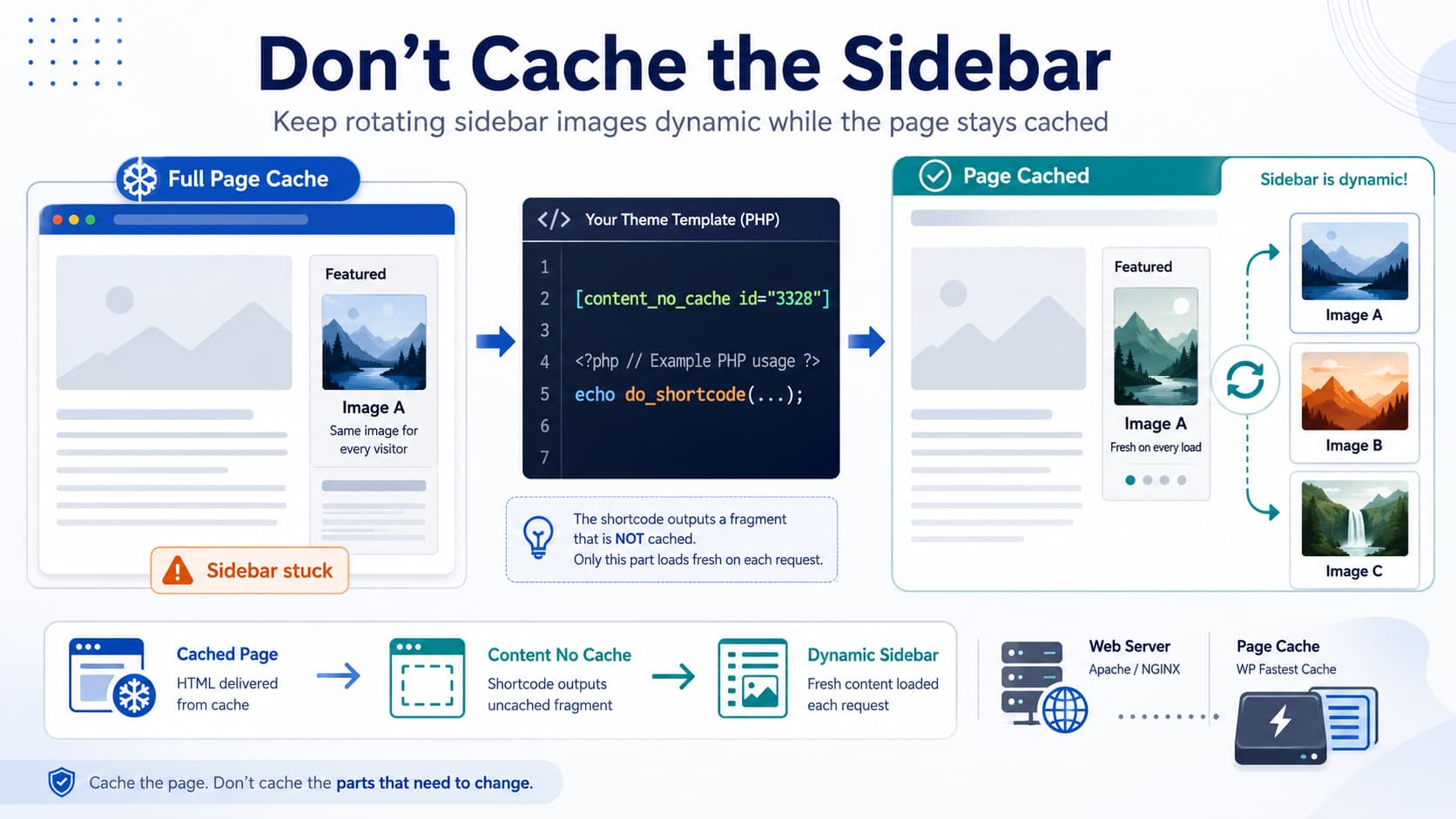
A rotating sidebar can work perfectly until full-page caching is enabled.
For example, suppose PHP randomly chooses one of several sidebar images whenever a WordPress page loads:
Page request
↓
PHP selects random image
↓
Sidebar displays Image B
Without page caching, the next page request can produce Image D, then Image A, and so on.
After enabling WP Fastest Cache, however, the generated page HTML is stored. That means the sidebar markup is stored along with everything else:
Cached HTML
↓
Sidebar already contains Image B
↓
Every cached request keeps showing Image B
The Content No Cache plugin is specifically designed for this situation. It lets the main page remain cached while retrieving one fragment separately so that the dynamic content can change. The plugin explicitly lists WP Fastest Cache among its tested caching plugins.
The important detail is that you do not add [content_no_cache] as an attribute to your image or <div>.
You output the Content No Cache shortcode where the dynamic sidebar fragment would normally be printed.
You Don’t Apply Content No Cache to a DIV
This would not work:
<div [content_no_cache id="3328"]>
    <img src="...">
</div>
Neither would:
<img
    src="..."
    content_no_cache="3328"
>
content_no_cache is a WordPress shortcode.
When calling a shortcode from a PHP template, WordPress provides:
do_shortcode()which parses and executes the shortcode string.
So inside a PHP sidebar template, the basic usage is:
<?php
echo do_shortcode(
    '[content_no_cache id="3328"]'
);
?>
If you specifically need the plugin’s remote-request mode:
<?php
echo do_shortcode(
    '[content_no_cache id="3328" request="remote"]'
);
?>
That output can sit anywhere normal HTML could sit.
For example:
<aside class="sidebar">

    <div class="sidebar-rotating-image">
        <?php
        echo do_shortcode(
            '[content_no_cache id="3328"]'
        );
        ?>
    </div>

</aside>
The <div> is simply your layout container.
The shortcode is what loads the uncached fragment.
What Should Be Inside Content No Cache ID 3328?
This is the part that is commonly misunderstood.
You first create a Content No Cache element in WordPress.
Suppose its post ID is:
3328The dynamic image-producing content belongs inside that Content No Cache element.
Then your theme/sidebar only contains:
echo do_shortcode(
    '[content_no_cache id="3328"]'
);
The plugin’s documented workflow is exactly this: create a Content No Cache element containing the dynamic content, copy its generated shortcode, and place that shortcode wherever the fragment should appear.
So conceptually:
sidebar.php
↓
[content_no_cache id=”3328″]
↓ separate uncached request ↓ Content No Cache element 3328 ↓ random image logic ↓ new sidebar markup
If Your Rotating Image Is Already Generated by a Shortcode
This is probably the cleanest solution.
Imagine you already have:
[random_sidebar_image]which outputs a randomly selected image.
Put this:
[random_sidebar_image]inside Content No Cache element 3328.
Then put only this in your PHP template:
<?php
echo do_shortcode(
    '[content_no_cache id="3328"]'
);
?>
The Content No Cache developer has specifically recommended this structure for existing shortcodes: place the original shortcode inside the Content No Cache custom post, then place [content_no_cache id="..."] on the page/template.
That keeps the responsibilities nicely separated.
Example: Turn Existing PHP Rotation Into a Shortcode
Suppose your sidebar currently contains PHP similar to:
<?php

$images = array(
    '/wp-content/uploads/sidebar-1.jpg',
    '/wp-content/uploads/sidebar-2.jpg',
    '/wp-content/uploads/sidebar-3.jpg',
);

$image = $images[
    array_rand( $images )
];

?>

<img
    src="<?php echo esc_url( $image ); ?>"
    alt=""
>
That code runs while WordPress builds the page.
With full-page caching, the resulting <img> markup gets cached.
Instead, move the random-image logic into a shortcode:
add_shortcode(
    'random_sidebar_image',
    function () {

        $images = array(
            home_url(
                '/wp-content/uploads/sidebar-1.jpg'
            ),
            home_url(
                '/wp-content/uploads/sidebar-2.jpg'
            ),
            home_url(
                '/wp-content/uploads/sidebar-3.jpg'
            ),
        );

        $image = $images[
            array_rand( $images )
        ];

        return sprintf(
            '<img src="%s" alt="" class="sidebar-random-image">',
            esc_url( $image )
        );
    }
);
Put that code in a small custom plugin or your child theme.
Then inside your Content No Cache element:
[random_sidebar_image]Finally your actual sidebar template contains:
<div class="rotating-sidebar-image">
    <?php
    echo do_shortcode(
        '[content_no_cache id="3328"]'
    );
    ?>
</div>
Now WP Fastest Cache can cache the page itself while Content No Cache requests the rotating image separately.
You Probably Do Not Need request="remote" Initially
Start with:
echo do_shortcode(
    '[content_no_cache id="3328"]'
);
The plugin normally retrieves its uncached content using Ajax.
Its documentation says:
request="remote"exists specifically for cases where another plugin does not load the required shortcode correctly during the Ajax request. Remote mode retrieves the content differently and is described as somewhat slower.
So use:
[content_no_cache id="3328"]first.
Only switch to:
[content_no_cache id="3328" request="remote"]if the normal version produces problems such as:
spinner never finishes
nested shortcode does not execute
required WordPress context is missing
plugin dependency isn't loaded during Ajax
The plugin author has repeatedly recommended request="remote" as a compatibility fallback rather than something every installation needs.
PHP Cannot Simply Be Pasted Into the Content No Cache Editor
Another possible trap is putting this directly into the Content No Cache editor:
<?php
echo my_random_sidebar_image();
?>
That does not automatically execute as PHP.
The plugin author specifically states that Content No Cache does not provide an editor that executes arbitrary PHP code. Whether PHP can execute depends on the editor/plugin responsible for that content, and ordinary WordPress post content does not execute raw PHP.
So the safer architecture is:
PHP function
↓
WordPress shortcode
↓
Content No Cache element
↓
Content No Cache shortcode in sidebar.php
instead of inserting PHP into the Content No Cache editor itself.
Content No Cache Can Also Call a PHP Function Directly
There is a more advanced option.
The plugin author has documented a mode where the id can refer to a PHP function rather than a Content No Cache post, for example:
[content_no_cache id="my_cnc_function"]This can be useful when the entire dynamic fragment already exists in PHP.
A simplified pattern would be:
function my_sidebar_random_image() {

    $images = array(
        home_url(
            '/wp-content/uploads/sidebar-1.jpg'
        ),
        home_url(
            '/wp-content/uploads/sidebar-2.jpg'
        ),
        home_url(
            '/wp-content/uploads/sidebar-3.jpg'
        ),
    );

    $image = $images[
        array_rand( $images )
    ];

    echo sprintf(
        '<img src="%s" alt="">',
        esc_url( $image )
    );
}
Then:
echo do_shortcode(
    '[content_no_cache id="my_sidebar_random_image"]'
);
The plugin author’s support documentation shows this function-based approach and even supports passing values from the original page into the later Ajax request through its vars mechanism.
For a basic random image, though, I would start with the normal Content No Cache element because it is easier to maintain.
If the Sidebar Image Depends on the Current Post
There is an additional complication if your image-selection logic depends on:
global $post;or:
get_the_ID();The uncached fragment is being retrieved in a separate request.
That means the original page’s $post context may not automatically exist when the dynamic fragment executes.
The plugin author has documented exactly this situation and provides a vars mechanism for sending information such as the current post ID into the uncached request.
For example:
[content_no_cache
    id="my_sidebar_image"
    vars="post_id"
]
Then you can provide the original post ID through:
add_filter(
    'content_no_cache_var_post_id',
    function ( $post_id ) {

        return get_queried_object_id();
    }
);
and retrieve it in your dynamic function from the request.
You only need this if the rotating image changes according to the page/post currently being viewed.
For purely random global sidebar images, it is unnecessary.
The Entire Sidebar Does Not Need to Be Uncached
Suppose your sidebar contains:
Search
Categories
Recent Posts
Random Advertisement Image
Newsletter Form
You do not need to make all of this dynamic.
Keep the static portions in the cached page:
<aside>

    <?php get_search_form(); ?>

    <?php dynamic_sidebar( 'main-sidebar' ); ?>

    <div class="rotating-ad">
        <?php
        echo do_shortcode(
            '[content_no_cache id="3328"]'
        );
        ?>
    </div>

</aside>
The point of Content No Cache is specifically to avoid excluding the entire page simply because one fragment needs fresh server-generated content.
That is exactly the right architecture for a rotating sidebar image.
What Happens With WP Fastest Cache
The initial cached HTML might effectively contain a placeholder/loading area:
<div class="rotating-ad">
    <!-- Content No Cache placeholder -->
</div>
The browser receives that cached page quickly.
Then Content No Cache requests the fresh content separately:
Cached page
↓
Browser loads page
↓
Content No Cache request
↓
WordPress runs random-image logic
↓
Image C inserted into sidebar
Visit another page:
Cached page
↓
new Content No Cache request
↓
Image A inserted
So WP Fastest Cache does not need to regenerate the whole page merely to rotate the sidebar.
Important: Page Cache and Browser Image Cache Are Different
Content No Cache solves:
HTML/page cacheIt does not disable the browser cache for image files.
The plugin author explicitly confirmed this distinction in a support thread: Content No Cache is for server-side/page caching and does not control browser image caching.
For a normal rotation such as:
sidebar-1.jpg
sidebar-2.jpg
sidebar-3.jpg
that is usually fine.
The HTML changes from:
<img src="sidebar-1.jpg">to:
<img src="sidebar-3.jpg">and the browser shows a different resource.
But if your PHP code repeatedly serves:
/sidebar-current.jpgwhile physically replacing the file behind that identical URL, the browser may continue showing its cached copy.
That is a different problem.
You would then need appropriate cache headers or a cache-busting URL such as:
/sidebar-current.jpg?v=123rather than Content No Cache.
Recommended Implementation for This Exact Case
If your current sidebar PHP is choosing a different image on each request, I would implement it like this:
Your existing PHP image-selection logic
↓
convert it into [random_sidebar_image]
↓
create Content No Cache element 3328
↓
put [random_sidebar_image] inside it
↓
sidebar.php outputs:
[content_no_cache id=”3328″]
↓ keep WP Fastest Cache enabled
Your PHP template code is simply:
<div class="sidebar-image">
    <?php
    echo do_shortcode(
        '[content_no_cache id="3328"]'
    );
    ?>
</div>
Only if the nested random-image shortcode fails in the normal Ajax request should you change it to:
<div class="sidebar-image">
    <?php
    echo do_shortcode(
        '[content_no_cache id="3328" request="remote"]'
    );
    ?>
</div>
That is the clean answer to the original question.
The shortcode does not go “on the image element.”
It replaces the dynamic image output inside whatever <div> or sidebar container you already have.
Version Note
At the time of verification, WordPress.org lists Content No Cache 0.1.5, last updated about three months ago, with WP Fastest Cache among its tested caching plugins. The plugin is currently listed as tested through WordPress 7.0.4.
Its changelog also shows that request="remote" has received specific fixes in previous releases, so staying on the latest available Content No Cache version is important if remote mode is required.
