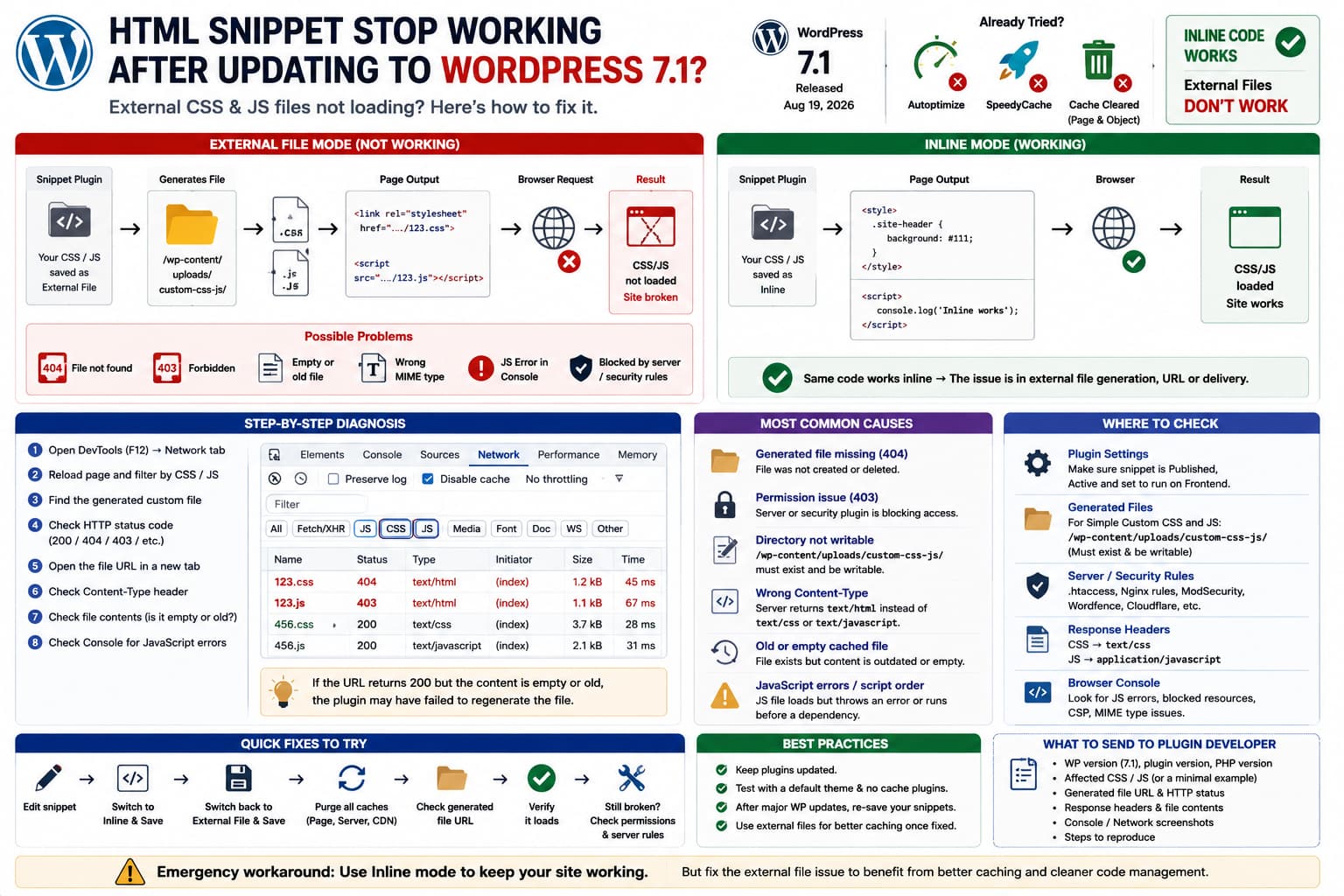
After upgrading to WordPress 7.1, you may find that custom CSS and JavaScript configured to load as external files suddenly stop working.
The site may lose styling or JavaScript functionality even after you:
- disable Autoptimize,
- disable SpeedyCache,
- clear page cache,
- clear object cache,
- hard-refresh the browser.
But when you change the same custom code from:
External File
to:
Inline
everything starts working again.
That difference is the most important diagnostic clue.
It strongly suggests that the CSS or JavaScript code itself is valid. The failure is more likely somewhere in the process that:
saves code→ generates an external .css/.js file→ creates its public URL→ prints that URL into the page→ lets the browser download it
rather than a general CSS or JavaScript compatibility problem.
Do Not Immediately Blame WordPress 7.1
WordPress 7.1 was released on August 19, 2026. One of its significant developer-facing changes is that the post editor is now always rendered inside an iframe. This can affect plugins whose editor JavaScript or CSS assumes the block canvas lives in the parent document.
However, WordPress 7.1 did not generally remove support for loading normal external CSS and JavaScript files on the frontend.
The standard WordPress APIs remain:
wp_enqueue_style()wp_enqueue_script()
and wp_enqueue_scripts remains the documented frontend hook for loading both types of assets.
Therefore, if:
Inline CSS/JS✓ worksExternal CSS/JS✗ fails
the first investigation should be the plugin’s external-file generation and delivery, not rewriting all your custom code for WordPress 7.1.
This Closely Matches Simple Custom CSS and JS External-File Mode
One popular plugin with exactly this architecture is Simple Custom CSS and JS.
The plugin officially supports both:
Print code inline
and:
Include code into an external file
and says that saved custom code is cached into generated files.
Its own troubleshooting documentation specifically tells users to verify that:
wp-content/uploads/custom-css-js
exists and is writable when custom code does not appear on the website.
As of August 20, 2026, WordPress.org lists the plugin as:
Simple Custom CSS and JSVersion: 3.53Tested up to: WordPress 7.0.4
not WordPress 7.1.
That does not prove WordPress 7.1 broke the plugin, but it does mean 7.1 compatibility is not yet declared on the public listing.
If the affected site uses another snippet plugin, the same troubleshooting method still applies, but its generated-file path will be different.
Fastest Test: Inspect the External File in DevTools
Leave one affected CSS or JavaScript snippet set to External File.
Open the frontend.
Press:
F12→ Network
Then reload the page.
Filter by:
CSS
and then:
JS
Look for the generated custom-code file.
You are trying to determine which of these situations exists:
A. File is never added to HTMLB. File URL is present but returns 404C. File URL returns 403D. File returns 200 but contains old/empty contentE. File returns 200 with the wrong Content-TypeF. File loads correctly but JavaScript throws an error
Each one requires a different fix.
Case 1: The External File Is Not in the Page at All
View the page source:
Ctrl + U
Search for part of the custom snippet filename or:
custom-css-js
If using Simple Custom CSS and JS, you would normally expect a stylesheet or script URL pointing somewhere under:
/wp-content/uploads/custom-css-js/
If nothing exists in the output, the plugin may not be enqueueing the generated asset.
Check that the snippet is:
PublishedActiveFrontend
and not:
DraftDisabledAdmin only
The plugin’s own FAQ specifically lists Published state as something to check when custom code is missing.
Then click:
Update / Publish
on the snippet again.
This forces the plugin to repeat its save/generation process.
Case 2: The File Returns 404
Suppose page source contains:
<linkrel="stylesheet"href="https://example.com/wp-content/uploads/custom-css-js/123.css"/>
but opening that URL gives:
404 Not Found
Now check the server physically:
/wp-content/uploads/custom-css-js/
Does:
123.css
actually exist?
If it does not, the plugin failed to regenerate its external file.
Simple Fix
Open the custom code entry and temporarily change:
External File→ Inline
Save it.
Then change it back:
Inline→ External File
and save again.
Check whether the .css or .js file is recreated.
This is safer than manually constructing plugin-generated files.
Check Directory Permissions
For Simple Custom CSS and JS, verify:
/wp-content/uploads/custom-css-js/
exists.
The plugin itself says this directory must be writable.
Typical directory permissions are often:
755
and files commonly:
644
but the correct ownership and permissions depend on the hosting environment.
The key test is whether PHP/WordPress can create and update files in that directory.
Do not immediately use:
777
as a permanent workaround.
World-writable permissions are unnecessary on properly configured hosting.
Test Whether WordPress Can Write Upload Files
Check:
Tools→ Site Health→ Info→ Filesystem Permissions
and verify the uploads directory is writable.
You can also create a new media upload.
If WordPress itself cannot write into:
/wp-content/uploads/
then the snippet plugin will have the same problem.
Case 3: The External File Returns 403
A 403 Forbidden means the file exists but the web server or security layer refuses to serve it.
Possible causes include:
.htaccessrules,- Nginx rules,
- ModSecurity,
- Wordfence,
- hosting security,
- Cloudflare WAF,
- hotlink/security rules,
- incorrect file ownership.
Open the generated file URL directly.
For example:
https://example.com/wp-content/uploads/custom-css-js/123.css
If that produces:
403
the browser cannot apply it regardless of whether WordPress generated it correctly.
At that point disabling Autoptimize will not help.
You need to investigate the server/security rule blocking files in that directory.
Case 4: HTTP 200, but the Generated File Is Empty
A file can load successfully while still doing nothing.
Open the generated .css or .js URL directly.
Compare its contents with what appears in the snippet editor.
For example, the editor may contain:
.site-header { background: #111;}
while the external file is:
empty
or contains an earlier revision.
This points toward a generation/synchronization failure.
Re-save the snippet and check the file modification timestamp.
If it remains unchanged, the plugin is not rewriting the file correctly.
Compare Inline and External Output
This is one of the strongest tests.
Inline Mode
Page source might contain:
<style>.site-header { background: #111;}</style>
and everything works.
External Mode
The same code becomes:
<linkrel="stylesheet"href="/wp-content/uploads/custom-css-js/example.css"/>
and the site breaks.
That proves:
CSS syntax✓ valid enough to workPlugin conditional logic✓ likely executingExternal asset path✗ where diagnosis should focus
The same principle applies to JavaScript.
Check the Response Content-Type
Open DevTools:
Network→ affected CSS/JS file→ Headers
A CSS file should normally be returned with a CSS MIME type such as:
text/css
A JavaScript file should be returned as JavaScript, commonly:
text/javascript
or:
application/javascript
If the browser requests:
custom-code.js
but receives:
text/html
that often means the server actually returned:
- a 404 template,
- a security challenge,
- a login page,
- a PHP-generated error document.
Chrome may then report something similar to:
Refused to execute script because its MIME type is text/html
Check the Console.
Look for JavaScript Errors
If external CSS loads but JavaScript still fails, open:
DevTools→ Console
Look for:
Uncaught ReferenceErrorUncaught TypeErrorFailed to load resourceRefused to execute scriptCORSContent Security Policy
The order of external files can also matter.
For example:
myPlugin.init();
will fail if the external file now executes before:
myPlugin
has been defined.
Inline code may accidentally execute later and therefore appear to “fix” the problem.
Check Whether the External JS Attributes Changed
Inspect the actual script tag.
For example:
<scriptsrc="/custom.js"defer></script>
behaves differently from:
<script>// inline JS here</script>
Also look for:
asyncdefertype="module"
and where the script appears:
<head>
versus before:
</body>
If a plugin update or optimization layer altered the generated script attributes, execution order can change even when the file itself loads correctly.
Why Disabling Autoptimize and SpeedyCache Was a Good Test
Both Autoptimize and SpeedyCache can process CSS and JavaScript.
Autoptimize can:
- aggregate,
- defer,
- minify,
- move,
- cache CSS/JS.
SpeedyCache can also minify and combine CSS and JavaScript.
Therefore disabling both is a sensible isolation step.
But once they are disabled and:
External File✗ still brokenInline✓ still works
continuing to clear their caches repeatedly is unlikely to reveal the cause.
Move to the actual generated file and HTTP response.
Clear Cache After Regenerating the Files
There is one cache detail worth remembering.
Autoptimize warns that page caches can contain HTML referring to external optimized CSS/JS files that no longer exist after an asset cache is cleared.
So after switching between inline and external modes:
- save the snippet,
- purge the snippet/plugin cache if available,
- clear page cache,
- clear server cache,
- purge CDN cache,
- hard-refresh.
But first verify the generated URL itself works.
No amount of cache clearing fixes:
404403empty filewrong URL
at the origin.
WordPress 7.1’s Iframed Editor Is a Separate Issue
WordPress 7.1 does include a change that snippet/plugin developers should test carefully: the post editor now always uses an iframe.
This can break editor integrations that do things such as:
document.querySelector(...)
while expecting to find content that now lives inside the editor iframe.
Likewise, CSS loaded only into the parent wp-admin document will not automatically style the content inside the iframe.
That matters if the complaint is:
Custom CSS/JS works on frontendbut no longer works inside Gutenberg editor
However, it does not directly explain:
Frontend external CSS/JS brokenbut frontend inline CSS/JS works
That second symptom points much more strongly toward external-file handling.
WordPress 7.1 Also Changed Some Core Styling Behavior
WordPress 7.1 includes many block/global-style changes, including responsive styles, pseudo states and some stylesheet ordering/specificity adjustments.
Those can explain a custom CSS rule no longer winning in the cascade.
But they would usually affect the same CSS whether the code was:
inline
or:
external
Since inline works, a CSS specificity change alone is a weaker explanation.
Do Not Rewrite Everything Inline Permanently Yet
Switching back to inline CSS and JavaScript is a reasonable emergency workaround because it restores the site.
For example:
External File✗ site brokenInline✓ site restored
Use Inline temporarily if the production site must remain functional.
But external files offer useful advantages:
- browser caching,
- cleaner HTML,
- easier Content Security Policy management in some setups,
- reduced repeated CSS/JS markup.
So the underlying external-file problem is worth fixing rather than rewriting every snippet.
Do Not Edit WordPress Core
Do not attempt to modify:
wp-includes/wp-admin/
because the issue appeared after upgrading to WordPress 7.1.
There is currently no evidence that WordPress’s standard external-script or external-stylesheet loading APIs were removed.
Core documentation still recommends wp_enqueue_style() and wp_enqueue_script() for frontend external assets.
The compatibility fix belongs in the affected plugin if its generated-file system is incompatible.
A Strong Plugin Bug Reproduction
To prove a WordPress 7.1 regression, create a staging site and reduce the test to:
WordPress 7.1Affected custom-code pluginDefault WordPress themeNo caching plugin
Create one CSS snippet:
body { outline: 10pxsolidred;}
Test:
Inline
Then:
External File
Do the same with simple JavaScript:
console.log('external snippet loaded');
If:
WP 7.0.4 + pluginExternal worksWP 7.1 + same plugin/settingsExternal fails
you now have a clean WordPress 7.1 compatibility regression.
That is far more useful to the plugin developer than a production site with several caching and optimization plugins.
What to Record During the Test
For each version capture:
Generated external URLHTTP statusResponse Content-TypeFile contentsConsole errorsNetwork errorsPage source
For example:
WordPress 7.0.4/wp-content/uploads/custom-css-js/123.css200 OKtext/css✓ CSS present
versus:
WordPress 7.1/wp-content/uploads/custom-css-js/123.css404
That immediately identifies the regression class.
Recommended Troubleshooting Order
Use this order:
- Keep the production site on Inline temporarily if that restores it.
- Update the snippet plugin to its latest version.
- Leave Autoptimize and SpeedyCache disabled during diagnosis.
- Switch one test snippet back to External File.
- Inspect the page source for its generated URL.
- Open that URL directly.
- Check whether it returns 200, 403 or 404.
- Confirm the external file contains the latest code.
- Check its
Content-Type. - Verify the generated-file directory exists and is writable.
- Re-save the snippet to force regeneration.
- Check browser Console errors.
- Reproduce on staging with only the snippet plugin enabled.
- Compare WordPress 7.0.4 and 7.1 if possible.
- Report the exact regression to the plugin developer.
Most Likely Cause in This Specific Pattern
Given:
Site worked before WordPress 7.1External CSS/JS✗ stopped workingAutoptimize disabled✗ still brokenSpeedyCache disabled✗ still brokenObject cache cleared✗ still brokenSame code switched to Inline✓ immediately works
the strongest working theory is:
The code itself is not the primary problem. The plugin’s generated external CSS/JS files are either no longer being generated, no longer being linked correctly, or are being rejected/not served correctly.
If the plugin is Simple Custom CSS and JS, start specifically with:
/wp-content/uploads/custom-css-js/
because its own documentation identifies that as the generated-file location that needs to exist and remain writable.
Current Compatibility Note
WordPress 7.1 was released on August 19, 2026.
At the time of verification on August 20, 2026, Simple Custom CSS and JS is version 3.53, last updated May 20, 2026, and its WordPress.org listing says:
Tested up to: 7.0.4
Its current changelog does not yet document a WordPress 7.1 external-file compatibility fix.
That makes a plugin compatibility issue plausible, but the correct technical report should still include the generated file’s status rather than assuming WordPress 7.1 itself broke external assets.
What to Send the Plugin Developer
Include:
- WordPress version: 7.1
- plugin name and exact version
- PHP version
- theme
- browser
- whether CSS, JS or both are affected
- External File vs Inline result
- affected generated URL
- HTTP status of that URL
- response Content-Type
- whether the file exists on disk
- whether the generated directory is writable
- browser Console errors
- confirmation that Autoptimize and SpeedyCache were disabled
- result using a default theme
- result with WordPress 7.0.4 versus 7.1, if tested
A concise reproduction would be:
WordPress 7.1+Plugin only+simple CSS snippetInline mode = worksExternal File mode = failsGenerated file = [HTTP status / error]
That gives the developer something concrete to patch.
How to Verify the Permanent Fix
After the plugin receives an update or you identify the server issue:
- switch the CSS snippet to External File,
- save,
- open the generated
.cssURL, - confirm HTTP 200 and correct CSS,
- switch JS to External File,
- open the
.jsURL, - confirm HTTP 200 and correct JavaScript,
- check DevTools Console,
- purge caches,
- reload the public site,
- confirm styling,
- confirm JavaScript functionality,
- repeat while logged out.
The final result should be:
Inline CSS/JS✓ worksExternal CSS/JS✓ works
without having to maintain all custom assets inline.
