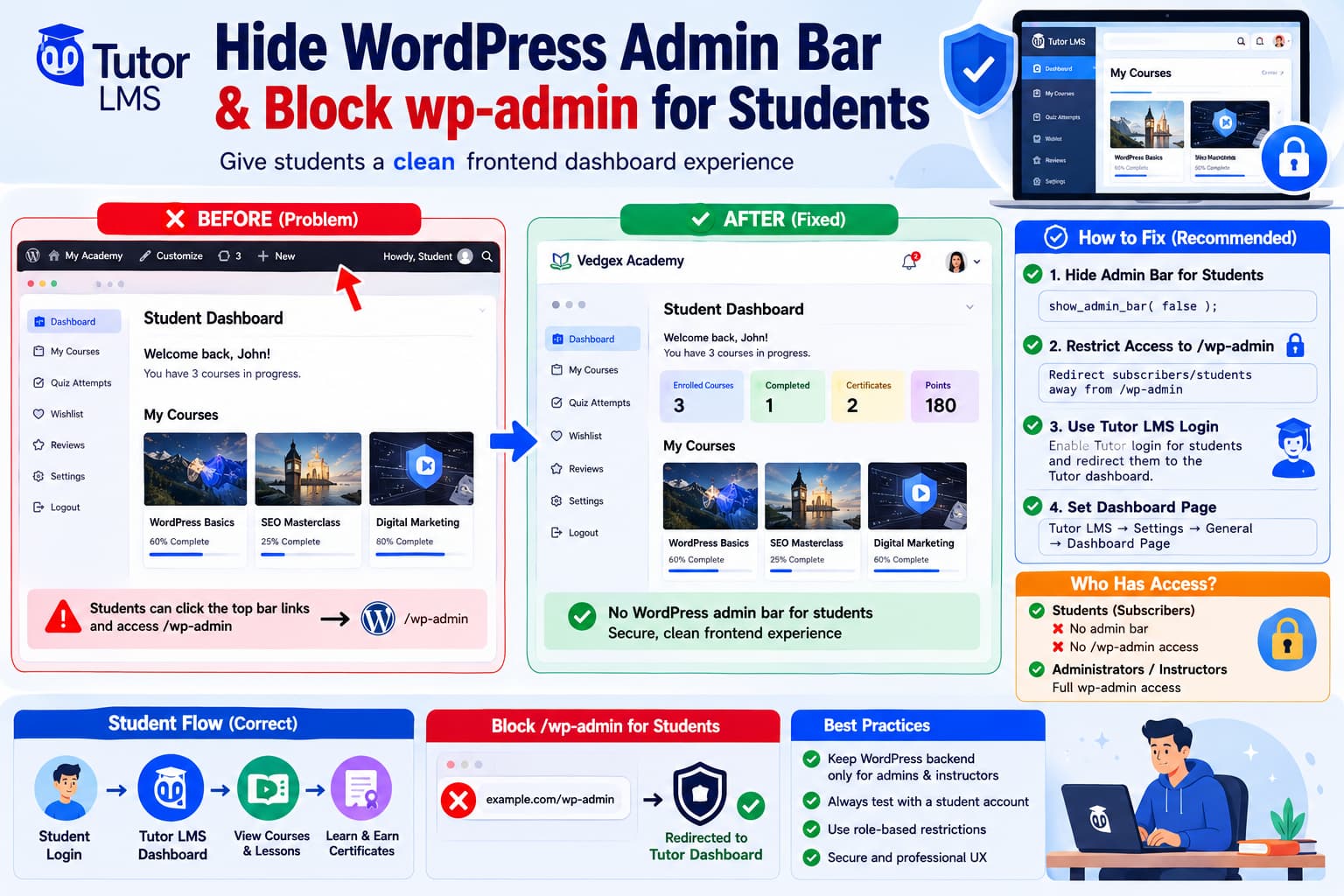
When Tutor LMS students log in and open the frontend dashboard, they should ideally remain inside the learning interface.
Instead, some sites show the normal black WordPress toolbar across the top:
WordPress logoSite nameEdit ProfileDashboardLog Out
Clicking one of those links can send the student to:
/wp-admin/
which exposes the WordPress backend interface and creates a confusing student experience.
This is especially noticeable when the intended workflow is:
Student logs in ↓Tutor LMS frontend dashboard ↓Courses / Profile / Quizzes / Lessons
rather than:
Student logs in ↓Tutor LMS dashboard ↓WordPress toolbar ↓wp-admin
The good news is that this can be corrected.
However, there is an important distinction between what Tutor LMS currently provides natively for instructors, what Tutor support says is available for students in Tutor LMS Pro, and what you may need to implement yourself when using the free version.
First: Tutor LMS Students Are Normally WordPress Subscribers
Tutor LMS does not create a completely separate authentication system.
A student is still a regular WordPress user.
Tutor LMS support confirms that users registered through the Student Registration page are normally created with the WordPress:
Subscriber
role.
So internally, a Tutor LMS student may look approximately like:
WordPress UserRole: Subscriber +Tutor LMS enrollment records
This explains why WordPress features such as the admin toolbar can still appear.
Being a Tutor LMS student does not automatically mean WordPress stops treating the account as a logged-in WordPress user.
Does Tutor LMS Have a Built-In Setting?
There are two relevant pieces of current Tutor LMS information.
Tutor LMS’s current Advanced Settings documentation contains:
Hide Admin Bar and Restrict Access to WP Admin for Instructors
Tutor describes that option as hiding the WordPress Admin Bar on the frontend and restricting backend access for instructors while administrators retain access.
You can currently find the documented setting under:
Tutor LMS→ Settings→ Advanced
The important word, however, is:
Instructors
The current public documentation specifically describes that setting for instructors rather than students.
What About Students?
Tutor LMS support has separately confirmed that hiding the WordPress admin bar for students/subscribers is available through Tutor LMS Pro and is not provided by the free edition in the same way.
An earlier Tutor LMS support case involving the exact student issue also received the same answer:
The Hide Admin Bar feature for students is not available in the free version and is included with Tutor LMS Pro.
So if you use Tutor LMS Pro, check your current Tutor LMS settings first before adding custom code.
If the student/admin-bar control is available in your installation, use the native option.
If you are using Tutor LMS Free, or the current interface does not provide the student restriction you need, a small WordPress-level rule is appropriate.
Hiding the Toolbar and Blocking wp-admin Are Two Different Things
This is important.
This:
show_admin_bar( false );
only removes the toolbar visually.
It does not prevent someone from manually opening:
https://example.com/wp-admin/
So a complete student-only setup needs two controls:
1. Hide WordPress toolbar2. Restrict wp-admin access
You should implement both.
Recommended Fix for Tutor LMS Students
If Tutor students on your site use WordPress’s normal:
Subscriber
role, use a role-specific solution.
This is safer than blocking every non-administrator because your site may also contain:
EditorsAuthorsShop ManagersTutor LMS instructorsSupport staff
who legitimately require backend access.
Create:
/wp-content/mu-plugins/tutor-student-admin-restriction.php
If the mu-plugins directory does not exist, create it.
Add:
<?php/** * Plugin Name: Tutor LMS Student Admin Restriction * Description: Hides the WordPress admin bar and prevents Subscriber/Tutor students from accessing wp-admin. */defined( 'ABSPATH' ) || exit;/** * Check whether the current user is a Tutor LMS student role. */functiondebugnexus_is_tutor_student_role() {$user=wp_get_current_user();if ( !$user||! $user->exists() ) {returnfalse; }returnin_array('subscriber', (array) $user->roles,true );}/** * Hide the WordPress admin toolbar for students. */add_filter('show_admin_bar',function ( $show ) {if ( debugnexus_is_tutor_student_role() ) {returnfalse; }return$show; });/** * Redirect students away from wp-admin. */add_action('admin_init',function () {if ( !debugnexus_is_tutor_student_role() ) {return; }/* * Do not break legitimate frontend AJAX requests. */if ( wp_doing_ajax() ) {return; }global$pagenow;/* * Some frontend plugins submit forms through admin-post.php. */if ( 'admin-post.php'===$pagenow ) {return; }/* * Use the Tutor LMS frontend dashboard when available. */if ( function_exists( 'tutor_utils' ) ) {$redirect_url=tutor_utils()->get_tutor_dashboard_page_permalink(); } else {$redirect_url=home_url( '/dashboard-page/' ); }wp_safe_redirect( $redirect_url ); exit; });
This produces:
Administrator→ Admin bar stays visible→ wp-admin worksSubscriber / Tutor student→ Admin bar hidden→ /wp-admin redirects to Tutor dashboard
Tutor’s current source exposes the frontend dashboard URL through its utility layer, including get_tutor_dashboard_page_permalink(), so using the Tutor-generated dashboard URL is preferable to hardcoding the page wherever possible.
Why Use an MU-Plugin?
You could add this code to:
functions.php
but I prefer an MU-plugin for access-control behavior.
A theme change should not accidentally restore students’ backend access.
An MU-plugin remains active independently of:
theme changestheme updateschild-theme mistakes
and WordPress loads it automatically.
The file goes in:
/wp-content/mu-plugins/
and does not need to be activated manually.
If You Truly Want to Block Every Non-Administrator
The original request asks for:
all WordPress core admin bars hidden and access to
/wp-adminrestricted for non-admin roles.
If that requirement is literal, you can use capability-based logic instead.
Replace the student-role test with:
function debugnexus_should_hide_wp_admin() { if ( ! is_user_logged_in() ) { return false; } return ! current_user_can( 'manage_options' );}
Then use:
add_filter( 'show_admin_bar', function ( $show ) { if ( debugnexus_should_hide_wp_admin() ) { return false; } return $show; });
and:
add_action( 'admin_init', function () { if ( ! debugnexus_should_hide_wp_admin() ) { return; } if ( wp_doing_ajax() ) { return; } global $pagenow; if ( 'admin-post.php' === $pagenow ) { return; } $redirect_url = function_exists( 'tutor_utils' ) ? tutor_utils()->get_tutor_dashboard_page_permalink() : home_url( '/' ); wp_safe_redirect( $redirect_url ); exit; });
But be careful.
This version also blocks WordPress backend access for:
EditorsAuthorsContributorsTutor instructorsShop Managers
unless they have manage_options.
For most LMS websites, the Subscriber-only version is safer.
Why We Exclude admin-ajax.php
Do not write a backend restriction like:
if ( is_admin() && ! current_user_can( 'manage_options' ) ) { wp_redirect( home_url() ); exit;}
without considering AJAX.
WordPress frontend plugins frequently send background requests through:
/wp-admin/admin-ajax.php
Tutor LMS itself localizes WordPress’s admin-ajax.php endpoint for frontend JavaScript.
Blocking that endpoint could break:
- course interactions,
- profile actions,
- quizzes,
- enrollment actions,
- AJAX forms,
- other frontend plugins.
That is why the recommended code explicitly keeps:
wp_doing_ajax()
working.
Do Not Block admin-post.php Blindly Either
Some plugins submit frontend forms through:
/wp-admin/admin-post.php
Even though the URL contains /wp-admin/, it is not necessarily a user trying to browse the backend.
Blocking it can break forms or account actions.
That is why the example allows:
admin-post.php
while blocking the normal backend interface.
Make Sure Students Use the Tutor LMS Login
There is another related issue.
Tutor LMS support confirms that login behavior changes depending on where the user signs in.
If a student signs in through Tutor LMS’s frontend login interface, Tutor normally directs them to the Tutor LMS dashboard.
If they sign in through the standard WordPress login path, WordPress can direct them toward its backend instead.
Tutor LMS currently provides:
Tutor LMS→ Settings→ Advanced→ Enable Tutor Login
and also lets administrators select the login page for students and instructors.
I recommend enabling the Tutor login experience.
Your student flow should therefore be:
/login/↓Tutor Login↓Authentication↓Tutor LMS Dashboard
rather than giving students:
/wp-login.php
as their normal sign-in URL.
Confirm the Tutor LMS Dashboard Page
Tutor’s current General settings contain:
Dashboard Page
This is the frontend page used for student and instructor dashboards. Tutor says it is normally selected automatically, but administrators can explicitly select it if necessary.
Check:
Tutor LMS→ Settings→ General→ Dashboard Page
and make sure:
/dashboard-page/
or whatever your chosen dashboard is called is selected.
Do not make the Tutor dashboard your site’s WordPress homepage merely to force redirects.
Tutor support has noted that using the dashboard incorrectly as the homepage can interfere with dashboard subpages.
Why Hiding the Admin Bar Improves More Than Appearance
The black WordPress toolbar is not inherently a vulnerability.
A Subscriber cannot suddenly administer WordPress merely because the toolbar is visible.
WordPress capabilities still determine what they can do.
But exposing it creates several problems.
Students see WordPress-specific controls such as:
WordPress logoDashboardEdit ProfileSite name
instead of remaining in the LMS.
This can:
- confuse learners,
- expose unnecessary backend URLs,
- create inconsistent branding,
- cause students to edit their WordPress profile instead of their Tutor profile,
- send them to permission-error screens,
- make the platform feel like a WordPress website rather than a dedicated learning system.
For an academy, the cleaner experience is:
Student↓Frontend learning platform only
Why CSS Alone Is Not Enough
You might find recommendations like:
#wpadminbar { display: none!important;}
Do not use that as the complete solution.
That merely hides the toolbar visually.
It does not remove it from the HTML, and it certainly does not prevent:
/wp-admin/
access.
WordPress already provides the correct show_admin_bar filter for programmatically controlling toolbar visibility.
Use the filter rather than CSS when possible.
Check the User’s Personal Toolbar Preference
WordPress also gives individual users a profile setting:
Toolbar[ ] Show Toolbar when viewing site
A student could potentially turn this off manually.
But asking every learner to modify WordPress profile settings defeats the purpose of a polished LMS.
The academy should enforce the frontend experience centrally.
Tutor LMS Has Historically Managed Backend Restrictions
The concept of restricting Tutor users from wp-admin is not new.
Tutor LMS release notes have previously referenced its:
Hide Admin Bar and Restrict Access to WP Admin
logic and compatibility fixes around which user roles should retain backend access.
This is another reason not to add an overly broad restriction without considering instructors and other staff roles.
Tutor LMS itself has historically had to distinguish:
AdministratorInstructorEditorStudent
when handling backend access.
Current Tutor LMS Version
As of August 21, 2026, WordPress.org lists Tutor LMS 4.0.5, released August 12, 2026, as the current public release.
Tutor LMS 4 introduced a redesigned learner dashboard and currently offers Modern, Kids, and Legacy learning modes.
Therefore, if the student’s black WordPress toolbar appears above the new Tutor LMS 4 dashboard, that toolbar is still WordPress’s own interface rather than part of Tutor’s new dashboard design.
Recommended Configuration for Vedgex Academy
For the requested setup, I would use:
Tutor LMS Dashboard→ frontend onlyTutor LMS Login→ enabledStudents→ Subscriber roleWordPress admin bar→ hidden for Subscribers/wp-admin/→ redirected to Tutor dashboard for SubscribersAdministrators→ normal WordPress toolbar and wp-admin accessInstructor access→ controlled separately using Tutor LMS's own setting
This avoids unintentionally breaking instructor workflows.
How to Test the Fix
Create a dedicated test student.
Do not test while logged in as Administrator.
Test 1: Tutor Dashboard
Log in as the student and open:
/dashboard-page/
Expected:
Tutor LMS dashboard✓WordPress black toolbar✗
Test 2: Direct wp-admin Request
While still logged in as the student, manually open:
https://example.com/wp-admin/
Expected:
Redirect→ Tutor LMS dashboard
Test 3: Direct admin profile
Try:
/wp-admin/profile.php
Expected:
Redirect→ Tutor dashboard
Test 4: Tutor LMS Features
Verify:
- My Courses
- Profile
- Quiz attempts
- Settings
- enrolled course access
- lesson completion
- logout
- password reset
still work.
Test 5: Administrator
Log out and sign in as an Administrator.
Expected:
Admin toolbar✓/wp-admin/✓Tutor LMS backend✓
If the Student Still Reaches wp-admin
Temporarily check for role changes.
Use:
Users→ All Users→ Student account
The role should normally be:
Subscriber
for a standard Tutor student.
If another membership or WooCommerce plugin changed the role to:
CustomerMemberStudentCustom Role
the Subscriber-specific code will not match.
You can expand it:
$student_roles = array( 'subscriber', 'customer', 'tutor_student',);return (bool) array_intersect( $student_roles, (array) $user->roles);
Only add roles that actually exist on your site.
Do not invent a tutor_student role if your installation does not register one.
If You Have Tutor LMS Pro
Before installing custom code, check your Tutor LMS Pro settings.
Tutor support has stated that student Admin Bar suppression is a Pro feature.
If your current Pro version provides the required student setting and it works correctly, use the native setting instead of duplicating it with custom code.
You generally want:
one system
controlling the restriction, not:
Tutor LMS rule+custom role plugin+functions.php redirect+security plugin redirect
all competing.
Direct Answer
The WordPress toolbar appearing on the Tutor LMS student dashboard is not part of the Tutor student interface. It appears because Tutor students remain logged-in WordPress users, normally with the Subscriber role.
Tutor LMS currently documents a built-in “Hide Admin Bar and Restrict Access to WP Admin for Instructors” option under Advanced settings. Tutor support has separately confirmed that student/subscriber admin-bar suppression is available in Tutor LMS Pro and not the same built-in feature in the free version.
For a free installation, or when the student option is unavailable, the clean fix is to:
hide the toolbar using show_admin_bar+redirect Subscriber users away from wp-admin+leave admin-ajax.php/admin-post.php working+send students back to the Tutor frontend dashboard
That keeps students fully inside the LMS while administrators retain normal WordPress access.
