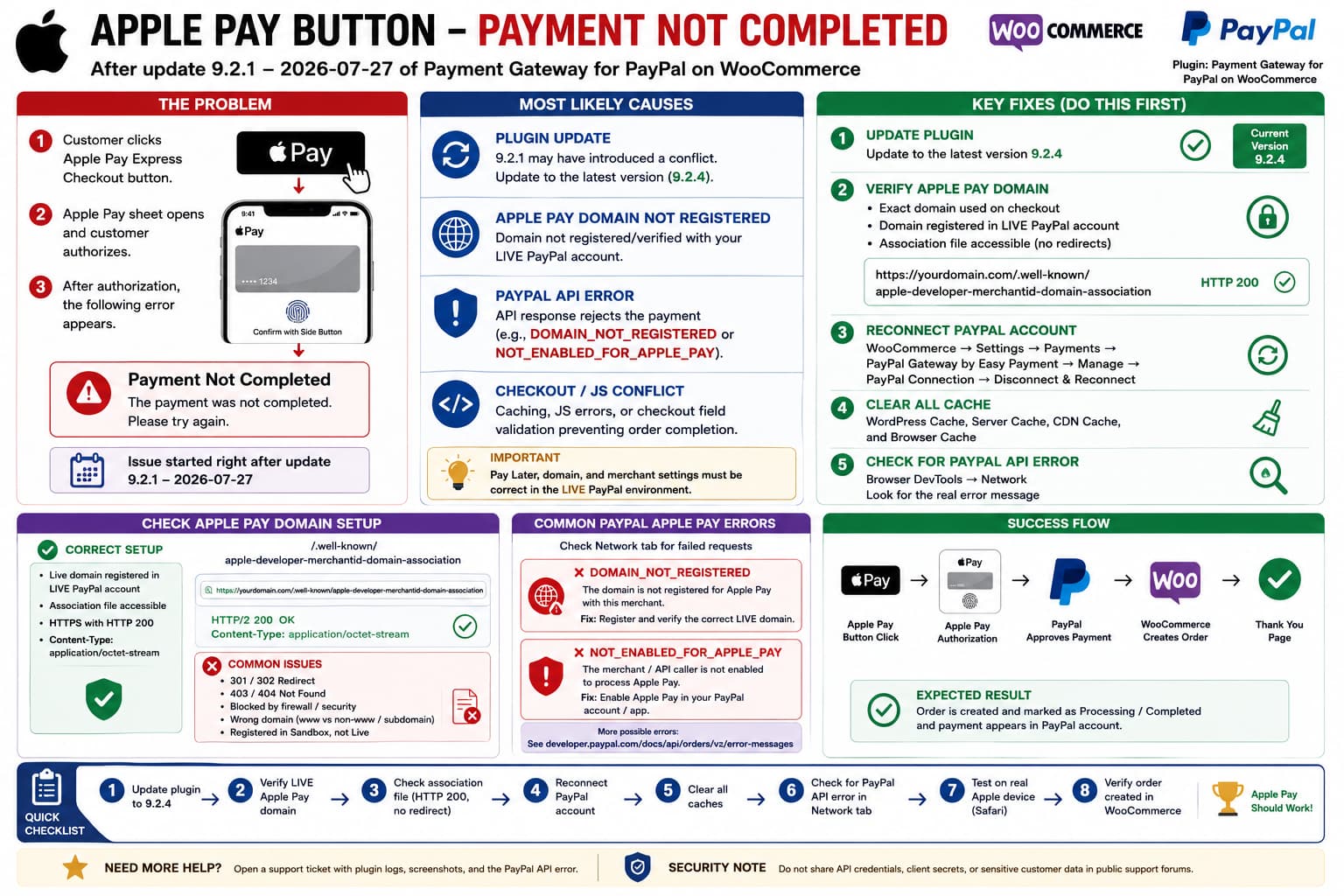
If the Apple Pay Express Checkout button opens correctly but displays:
Payment Not Completed
after the customer confirms the payment, the first thing to establish is which PayPal plugin was updated.
The reported version and release date:
9.2.1July 27, 2026
match Payment Gateway for PayPal on WooCommerce by Easy Payment, not the official WooCommerce PayPal Payments plugin. Version 9.2.1 was released July 27, 2026.
That distinction matters because the two plugins implement Apple Pay differently and use different settings.
The current public release of Payment Gateway for PayPal on WooCommerce is 9.2.4, released July 31, 2026.
So if the problem began immediately after 9.2.1, update to 9.2.4 before deeper troubleshooting.
Update From 9.2.1 First
Go to:
WordPress→ Plugins→ Installed Plugins→ Payment Gateway for PayPal on WooCommerce
If you still have:
9.2.1
update to the latest available version.
Versions 9.2.2 through 9.2.4 contain several payment-processing fixes following the 9.2.1 release, including checkout completion, 3-D Secure, card-processing and plugin-update fixes.
None of the published 9.2.2–9.2.4 changelog entries explicitly says:
Fixed Apple Pay “Payment Not Completed”
so I would not claim that 9.2.4 is a confirmed Apple Pay fix.
However, testing an issue reported immediately after 9.2.1 against 9.2.4 is the correct first step.
Also avoid permanently downgrading to an older version because 9.2.1 itself included security and payment-validation fixes.
The 9.2.1 Changelog Does Not Show an Apple Pay Change
This is another useful clue.
Version 9.2.1 primarily changed:
- PayPal Advanced/Payflow transaction verification,
- IPN validation,
- order-integrity checks,
- saved-payment-method ownership protections.
Its published changelog does not list an Apple Pay implementation change.
That means:
Apple Pay broke immediately after 9.2.1
is useful evidence, but timing alone does not prove the update directly changed Apple Pay.
A configuration or cached credential issue exposed during the upgrade is still possible.
Check Apple Pay Domain Registration Next
For PayPal-based Apple Pay on the web, the site domain must be registered.
PayPal states explicitly that Apple Pay will not work if the domain displaying the Apple Pay button is not registered and verified.
This is one of the highest-value checks when the Apple Pay sheet appears but completion fails.
The production site should host:
https://example.com/.well-known/apple-developer-merchantid-domain-association
and the relevant domain must also be registered with the live PayPal account used by the WooCommerce plugin.
Make Sure You Registered the Production Domain, Not Only Sandbox
PayPal keeps Sandbox and Live Apple Pay setup separate.
A domain configured under a sandbox environment does not automatically become valid for production transactions. PayPal requires production onboarding and live-domain verification before real Apple Pay transactions can be processed.
Therefore check:
PayPal environment:LIVEPlugin environment:LIVEApple Pay domain:Registered under LIVE PayPal account
This is especially important if the site previously worked in Sandbox.
Check the Exact Domain Being Used
Suppose PayPal contains:
example.com
but customers actually checkout at:
www.example.com
or:
shop.example.com
PayPal’s Apple Pay documentation requires domains and subdomains displaying the button to be registered.
Check the actual browser address during checkout.
Also check whether the site recently changed from:
www.example.com
to:
example.com
or moved between:
staging.example.comexample.com
A previous support case for this same WooCommerce PayPal gateway involved Apple Pay/Google Pay problems after a site change. The plugin developer advised reconnecting PayPal and re-registering the new Apple Pay domain when the site’s domain changed.
Test the Apple Domain Association File Directly
Open:
https://yourdomain.com/.well-known/apple-developer-merchantid-domain-association
It should load directly.
PayPal says Apple’s verification request must not receive a 3xx redirect. The verification file should be available over HTTPS and returned as the proper file rather than an HTML error page.
You can inspect it with:
curl-I https://example.com/.well-known/apple-developer-merchantid-domain-association
A healthy result should be roughly:
HTTP/2 200
not:
301302403404
PayPal also specifies:
Content-Type: application/octet-stream
for the domain association response.
Cloudflare or Security Rules Can Break Verification
Even if the file physically exists, Apple must be able to retrieve it.
PayPal specifically warns that the association file should not be hidden behind a firewall.
Therefore check whether:
/.well-known/*
is affected by:
- Cloudflare WAF,
- Wordfence,
- hosting ModSecurity,
- Basic Authentication,
- maintenance mode,
- country blocking,
- bot protection.
Do not disable your entire firewall permanently.
Create the minimum exception required for the Apple verification file.
Look for PayPal’s Actual API Error
“Payment Not Completed” is a customer-facing Apple Pay message.
The underlying PayPal response can be much more useful.
Open:
Browser DevTools→ Network
then reproduce the Apple Pay payment.
Look for failed PayPal or WooCommerce AJAX/REST requests.
PayPal documents Apple Pay errors including:
DOMAIN_NOT_REGISTERED
meaning the domain is not registered for that merchant, and:
NOT_ENABLED_FOR_APPLE_PAY
meaning the API caller or merchant is not configured to process Apple Pay.
If either appears, you have a much more precise diagnosis than the generic Apple Pay sheet message.
Common PayPal Apple Pay Errors
DOMAIN_NOT_REGISTERED
This points directly to domain registration.
Verify:
Production domainProduction PayPal accountCorrect www/non-www/subdomainAssociation file reachable
PayPal documents this as an Apple Pay business-validation error.
NOT_ENABLED_FOR_APPLE_PAY
This means the PayPal caller or merchant is not currently enabled to process Apple Pay.
In that case, WooCommerce configuration alone cannot repair the merchant capability.
Check the PayPal account/app configuration or contact PayPal.
Reconnect the PayPal Account
If domain registration is correct, reconnect PayPal from the plugin.
A support case for Payment Gateway for PayPal on WooCommerce documented incorrect Client ID configuration causing PayPal, Apple Pay and Google Pay problems. The plugin author recommended:
WooCommerce→ Settings→ Payments→ PayPal Gateway by Easy Payment→ Manage→ PayPal ConnectionDisconnect PayPal Account→ Connect PayPal again
and the reported issue was resolved after reconnecting and correcting the domain configuration.
This is particularly worth doing after a plugin upgrade if cached credentials or merchant capability data are stale.
Clear PayPal and Site Cache After Reconnecting
After reconnecting:
- Save the PayPal settings.
- Purge the WordPress cache.
- Purge server cache.
- Purge CDN cache.
- Open a private browser window.
- Test Apple Pay again.
This plugin has previously added specific handling to exclude PayPal SDK assets from caching because caching can interfere with payment rendering and behavior. Its changelog added PayPal SDK cache exclusion in version 9.0.55.
Do not cache checkout responses or stale PayPal SDK configuration.
Check JavaScript Errors
If Apple Pay opens but then fails, inspect:
DevTools→ Console
before and immediately after confirming the payment.
Look for errors involving:
applepaypaypalwoocommerceexpresscheckout
Also inspect whether JavaScript optimization is active through:
- LiteSpeed Cache,
- WP Rocket,
- Autoptimize,
- Cloudflare,
- Perfmatters,
- FlyingPress.
Temporarily disable:
JS delayJS combineJS minification
for checkout/payment scripts and retest.
If Apple Pay works afterward, restore optimization selectively rather than leaving everything disabled.
Check Whether the Order Is Created
After the failed Apple Pay attempt, open:
WooCommerce→ Orders
There are three diagnostically different outcomes.
No WooCommerce order exists
The failure probably happened before WooCommerce completed order creation.
Focus on:
Apple Pay merchant validationfrontend JavaScriptexpress-checkout validationshipping/address validation
Order exists as Failed
Open its order notes.
The plugin or PayPal may have recorded the actual rejection.
Order exists as Pending but PayPal charged the customer
Stop repeatedly testing until you understand the state.
That indicates the payment may have reached PayPal while WooCommerce failed to finalize the local order.
The plugin has a history of fixes involving order state and express-payment synchronization, so this case deserves logs and a support report rather than repeated checkout attempts.
Express Checkout Address Validation Matters
This plugin has had several historical Apple Pay/Google Pay fixes involving:
- express checkout,
- shipping-country validation,
- required phone fields,
- missing shipping options,
- address synchronization.
For example, earlier releases fixed Apple Pay Express Checkout failures and shipping-country validation, while version 9.0.52 fixed Apple Pay/Google Pay validation when the phone field was required.
Therefore, if domain registration is correct, test a very simple checkout configuration.
Use:
simple productstandard shipping zonenormal billing addressnormal shipping addressdefault WooCommerce fields
If that works, reintroduce checkout customizations one by one.
Check Custom Checkout Field Plugins
If you use a plugin that makes fields required, pay special attention to:
PhoneStatePostcodeAddress line 2Custom checkout fields
Express checkout creates or populates those fields differently from a normal manually completed checkout.
A field plugin may consider the WooCommerce order incomplete even though Apple Pay supplied enough information to authorize the payment.
Test on staging with only:
WooCommercePayment Gateway for PayPal on WooCommerce
active.
If Apple Pay then works, reactivate checkout-related plugins individually.
Classic Checkout vs Block Checkout
The PayPal gateway has made several recent changes to WooCommerce Blocks.
Version 9.1.0 added Apple Pay and Google Pay express-payment buttons to the WooCommerce Blocks mini-cart and refactored Blocks support.
Version 9.0.66 also fixed billing-address handling for Google Pay on Block Checkout.
Therefore determine whether the store uses:
Classic Checkout[woocommerce_checkout]
or:
WooCommerce Checkout Block
If Apple Pay fails only on one version, include that detail in the bug report.
That dramatically narrows the plugin code path involved.
Test Product Page vs Cart vs Checkout
Apple Pay Express Checkout can be exposed in different locations.
Test separately:
Product pageCartMini cartCheckout
For example:
Product Page✓ worksCheckout✗ Payment Not Completed
would suggest a checkout-specific validation issue.
Whereas:
Every Apple Pay button✗ fails
makes domain/account configuration more likely.
If the Issue Started Exactly With 9.2.1
You can perform a controlled regression test on staging.
Test:
Current 9.2.4
first.
If the failure remains, make a full backup and temporarily test the previous known-good release.
Do not use the downgrade as a permanent production fix because 9.2.1 included security-related transaction-validation changes.
The purpose is only to determine:
Older build✓ Apple Pay succeeds9.2.1+✗ Apple Pay fails
If you can reproduce that with everything else unchanged, send the result to the plugin developer.
That is strong regression evidence.
Do Not Assume 9.2.1 Definitely Caused the Bug
The changelog is important here.
The public 9.2.1 notes do not describe a direct Apple Pay change.
Therefore an article stating:
Version 9.2.1 broke Apple Pay
would currently be unsupported.
A more accurate conclusion is:
The problem reportedly began after upgrading to 9.2.1, but the exact cause needs to be isolated using current 9.2.4, domain verification, API responses and a controlled version comparison.
That distinction is important for technical credibility.
Recommended Troubleshooting Order
Use this sequence:
- Update Payment Gateway for PayPal on WooCommerce from 9.2.1 to the current 9.2.4 release.
- Confirm Apple Pay is enabled under the live PayPal account.
- Verify the exact production domain.
- Open the Apple association file and confirm HTTP 200 with no redirects.
- Confirm the production PayPal account has the domain registered.
- Disconnect and reconnect PayPal inside the WooCommerce plugin.
- Clear all caches.
- Reproduce the failure with DevTools Network and Console open.
- Look specifically for
DOMAIN_NOT_REGISTEREDorNOT_ENABLED_FOR_APPLE_PAY. - Check the WooCommerce order and its order notes.
- Test without checkout-field/security/cache optimization plugins.
- Compare Classic vs Block Checkout.
- Only if necessary, perform a temporary staging regression test against the previous known-good plugin release.
This sequence identifies the failure without making unnecessary changes to the store.
Most Likely First Checks
For an Apple Pay button that:
appears→ opens Apple Pay→ customer approves→ "Payment Not Completed"
I would check these three things first:
1. Update 9.2.1 → current 9.2.42. Reverify the LIVE Apple Pay domain3. Inspect the failed PayPal request for the real API error
PayPal explicitly rejects Apple Pay payments from an unregistered domain, and its API exposes a dedicated DOMAIN_NOT_REGISTERED error for that situation.
If those are clean, move on to WooCommerce checkout validation and plugin conflicts.
What to Send Plugin Support
Provide:
- Payment Gateway for PayPal on WooCommerce version
- WooCommerce version
- WordPress version
- PHP version
- Classic or Block Checkout
- page where Apple Pay fails
- whether normal PayPal works
- whether Google Pay works
- whether Apple Pay works on another button location
- screenshot of Apple Pay domain registration
- HTTP response for the association file
- browser console errors
- failed Network request/PayPal error
- WooCommerce order status and notes
- whether 9.2.4 behaves differently from 9.2.1
Do not publish:
PayPal client secretaccess tokenAPI authorization headerscustomer card/wallet data
in a public support thread.
This is especially important because the plugin’s 9.2.3 release specifically fixed PayPal API credentials being exposed in diagnostic cURL/server output.
How to Verify the Fix
After correcting the issue:
- Use a real supported Apple device/browser.
- Add a normal product to cart.
- Click Apple Pay Express Checkout.
- Select a valid Apple Wallet card.
- Confirm the payment.
- Verify the Apple Pay sheet closes successfully.
- Confirm WooCommerce creates the order.
- Confirm the order becomes Processing/Completed as expected.
- Confirm PayPal shows the corresponding transaction.
- Repeat from another enabled Apple Pay button location.
The final flow should be:
Apple Pay button↓Apple Pay sheet↓Authorize↓PayPal approves↓WooCommerce creates/completes order↓Thank-you page
rather than:
Authorize↓Payment Not Completed
Version Note
As of August 17, 2026, WordPress.org lists Payment Gateway for PayPal on WooCommerce 9.2.4 as the latest public version, released July 31, 2026.
Version 9.2.1 was released July 27, 2026, which matches the version/date in the original report. Its public changelog does not document an Apple Pay-specific modification.
That makes a direct Apple Pay regression possible but not yet proven from the published release notes alone.
