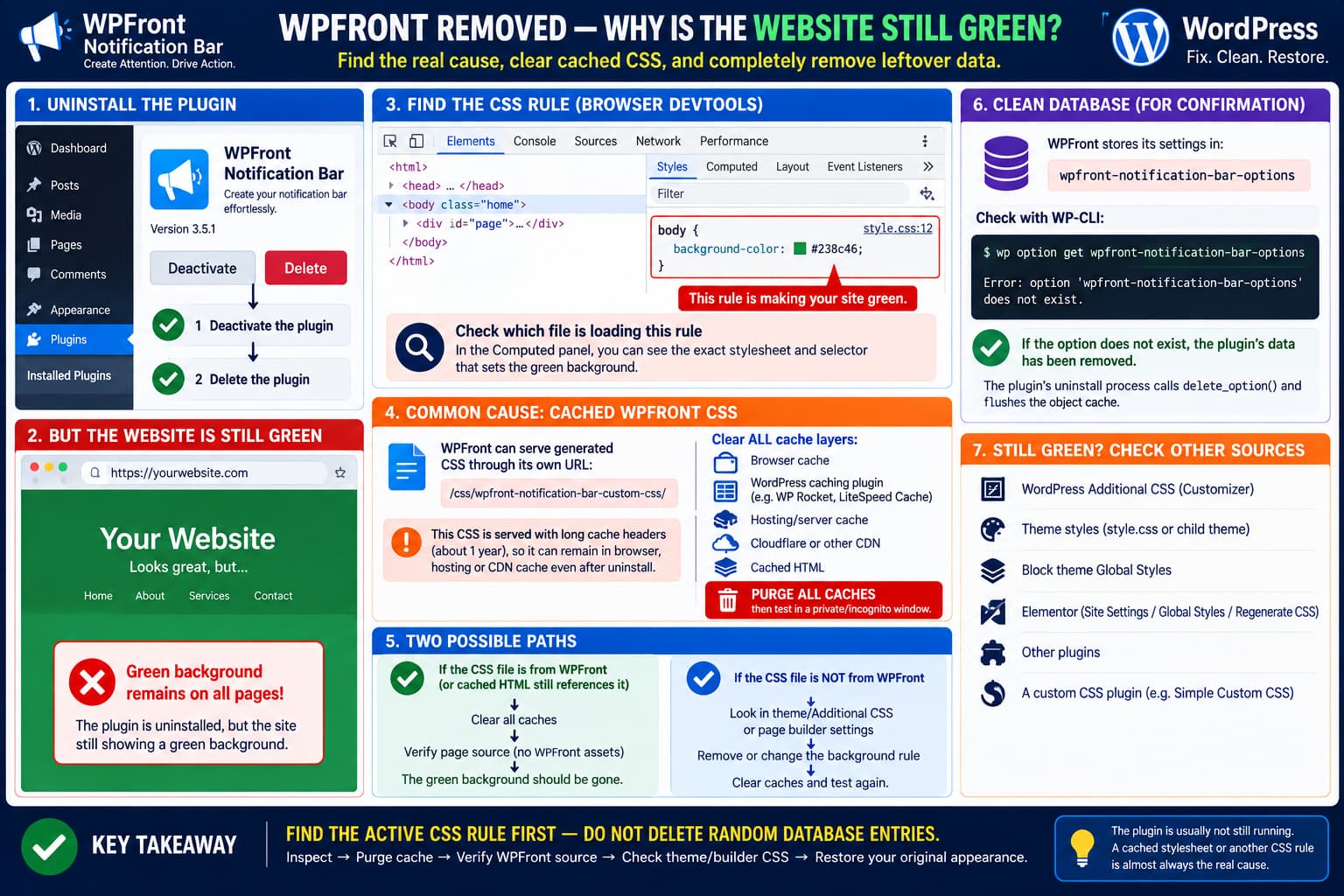
If uninstalling WPFront Notification Bar leaves every page of a WordPress site with a green background, reinstalling the plugin repeatedly is unlikely to fix the real cause.
The first thing to establish is whether WPFront is actually still contributing CSS to the page.
A deleted WordPress plugin cannot normally continue executing PHP and injecting new styles into fresh page requests.
However, old output from that plugin can remain visible through:
Browser cache
Page cache
Hosting cache
CDN cache
Cached generated CSS
Cached HTML that still references old CSS
WPFront’s own troubleshooting documentation specifically says that when its expected page-source output does not change, cached pages are a likely cause and the cache should be cleared.
There is also a stronger WPFront-specific reason to check caching: the plugin can serve dynamically generated notification-bar CSS through its own URL and sends long-lived public cache headers for that stylesheet.
So cleanup should begin with finding the stylesheet responsible for the green background, not deleting random database rows.
WPFront Normally Colors the Bar, Not the Whole Website
WPFront’s standard generated color rules target selectors such as:
#wpfront-notification-barThe generated CSS applies the configured bar colors and gradients specifically to the notification-bar element.
Conceptually, normal WPFront CSS looks like:
#wpfront-notification-bar {
    background: #00a000;
}
That should make the notification bar green.
It should not normally produce:
body {
    background: #00a000;
}
across every page.
This distinction is important.
If the entire viewport/page is green after WPFront has been removed, one of these is more likely:
Cached WPFront Custom CSS

Theme/customizer CSS

Page-builder global styling

WordPress Additional CSS

Another plugin's stylesheet

Cached page markup from before WPFront was removed
WPFront Does Allow Arbitrary Custom CSS
WPFront’s settings documentation includes a Custom CSS field for overriding the appearance of the notification bar.
The plugin’s CSS-generation code appends that custom CSS to its generated stylesheet.
So if the Custom CSS field ever contained something broad such as:
body {
    background-color: green;
}
or:
html,
body {
    background: #008000 !important;
}
then WPFront could indeed have made the whole site green while that stylesheet was loaded.
After uninstall, however, that CSS should disappear from newly generated pages.
If it does not, caching becomes the main suspect.
WPFront Can Serve Generated CSS Through a Dedicated URL
WPFront supports an option for loading its dynamic CSS through a URL.
Its code enqueues a stylesheet similar to:
/css/wpfront-notification-bar-custom-css/when that option is enabled.
The endpoint sends cache headers including an expiration roughly one year into the future.
This creates a plausible sequence:
WPFront active
      ↓
Generated CSS contains green background rule
      ↓
Browser / CDN caches stylesheet
      ↓
Page HTML is also cached
      ↓
WPFront deleted
      ↓
Old cached HTML still requests cached CSS
      ↓
Green background remains
That explains why simply reinstalling and uninstalling the plugin may appear to change nothing.
First Check the Page in Developer Tools
Open one affected page in Chrome or Edge.
Press:
F12Choose the Elements panel.
Select:
<body>or whichever element visibly has the green background.
Open:
Computed → background-color
or search for:
backgroundExpand the property.
The browser should identify the exact stylesheet and selector responsible.
You may discover something like:
body {
    background-color: #2f8f46;
}
coming from:
wpfront-notification-bar-custom-cssor from:
style.css
global-styles-inline-css
elementor-post-123.css
custom-css
theme-options.css
This is the fastest way to stop guessing.
If the Rule Comes From WPFront
If Developer Tools identifies a source containing:
wpfront-notification-barthen inspect the page source.
Right-click the page and choose:
View Page Source
Search for:
wpfront-notification-barWPFront itself recommends this source inspection when diagnosing whether its HTML/scripts are actually being served.
Look especially for stylesheet URLs containing:
wp-content/plugins/wpfront-notification-bar/or:
wpfront-notification-bar-custom-cssWPFront references still exist after uninstall
That usually means the HTML itself is stale.
Purge every page cache layer.
No WPFront reference exists in fresh source
Then WPFront is no longer part of the fresh page response.
The green background is coming from somewhere else.
Purge Every Cache Layer
Clearing only the browser cache may not be enough.
Clear caches in this order:
1. WordPress caching plugin
2. Hosting/server cache
3. CDN / Cloudflare cache
4. Page-builder generated CSS/cache
5. Browser cache
Examples include:
LiteSpeed Cache
WP Rocket
W3 Total Cache
SiteGround Dynamic Cache
Hostinger cache
Cloudflare
Bunny CDN
Elementor CSS regeneration
Then test in a private/incognito window.
For stronger verification, use a different device or browser after the CDN/server cache has been purged.
WPFront support has previously advised users with a notification bar that persisted after removal to disable it, clear caches and inspect theme/site caching. In a previous support case, WPFront specifically noted that if the plugin is deleted but the old display remains, the output may be coming from cache, the theme or another plugin rather than WPFront itself.
Check Whether WPFront’s Database Option Still Exists
WPFront stores its main settings under:
wpfront-notification-bar-optionsThe plugin’s uninstall code calls its cleanup routine, and that routine deletes:
delete_option( 'wpfront-notification-bar-options' );So a normal uninstall through:
Plugins → Deactivate → Delete
is designed to remove the main settings record.
If you have WP-CLI, verify it:
wp option get wpfront-notification-bar-optionsIf WordPress responds that the option does not exist, the primary WPFront configuration is already gone.
If it unexpectedly still exists, back up the database and remove it:
wp option delete wpfront-notification-bar-optionsBut remember:
Deleting this option is unlikely to fix a background that is already being served from cache.
Do Not Delete Random Database Rows
Avoid broad SQL commands such as:
DELETE FROM wp_options
WHERE option_name LIKE '%wpfront%';
unless you know exactly what each matching row contains.
Likewise, do not perform a global search-and-delete for:
greenor a color code.
The goal is to identify the actual CSS source first.
WPFront’s uninstall routine already knows which main option belongs to the plugin.
The Plugin Also Flushes WordPress Object Cache on Uninstall
WPFront’s uninstall script calls:
wp_cache_flush();after its data-removal routine.
That is useful, but it does not purge every possible caching system.
wp_cache_flush() does not necessarily clear:
Cloudflare full-page cache
Hosting reverse-proxy cache
Browser HTTP cache
Static HTML generated by a caching plugin
Separate CDN caches
So the fact that WPFront performs an object-cache flush does not rule out stale frontend content.
Inspect the Network Panel
Developer Tools can make the cache diagnosis even clearer.
Open:
F12 → Network
Reload the page.
Filter for:
cssLook for anything containing:
wpfront
notification-bar
custom-css
Check the Status and Size columns.
You may see:
(from memory cache)(from disk cache)or a CDN cache result.
Temporarily enable:
Disable cache
inside Developer Tools while the Network panel is open.
Reload again.
If the green background disappears, browser caching was directly involved.
Hard Reload Is Useful but Not Sufficient
A hard reload:
Ctrl + Shift + Rforces the browser to request fresh resources more aggressively.
But it cannot guarantee that:
Cloudflare
hosting cache
server reverse proxy
returns fresh HTML.
If the origin/CDN is still serving an old cached page, the browser can faithfully download the same stale stylesheet reference again.
That is why server/CDN purging matters.
Reinstall WPFront Only for Diagnostic Cleanup
If necessary, reinstall WPFront temporarily.
Then go to:
Settings → Notification Bar
and:
Disable notification bar
Disable Preview Mode
Remove anything in Custom CSS
Save settings
If a dynamic-CSS setting is enabled, disable it as well.
Then clear all caches while the plugin is still active.
View the page source and confirm that the old problematic styling is gone.
After that:
Deactivate
Delete
Purge caches again
This gives caches a chance to store a clean version of the site rather than the old WPFront output.
Check WordPress Additional CSS
Go to:
Appearance → Customize → Additional CSS
if your theme exposes the Customizer.
Search for:
background
background-color
body
html
You might find something like:
body {
    background: #00a651;
}
This is independent of WPFront.
Removing WPFront will not remove CSS stored in WordPress’s theme customization system.
Check Block Theme Global Styles
For a modern block theme, inspect:
Appearance → Editor → Styles
A background color set globally can affect all pages.
Also inspect the generated source for:
global-styles-inline-cssIf Developer Tools attributes the green background to that stylesheet, WPFront is not responsible for the active rule.
Check Elementor or Other Page Builders
If the site uses Elementor, regenerate its CSS:
Elementor → Tools → General → Regenerate CSS & Data
Then clear caches.
Also inspect:
Site Settings → Background
Global Colors
Page Settings
Container backgrounds
Other builders have equivalent global CSS/cache systems.
A theme or builder color accidentally changed around the same time as WPFront can create a false correlation.
Search for the Actual Green Color
Developer Tools will show the computed value, for example:
rgb(36, 140, 70)or:
#248c46Once you know the exact value, search the site’s CSS/custom settings for that specific color.
Searching for:
#248c46is far more useful than searching for the word:
greenbecause CSS colors are usually stored as hex, RGB, HSL or variables.
Check Whether the Green Area Is Actually the WPFront Bar
There is another possibility: what looks like a “green page background” may actually be an oversized notification-bar element.
Inspect the green area and see whether the element ID is:
wpfront-notification-barIf so, the problem is not a body background.
The bar may have acquired an abnormal:
height
min-height
position
through custom CSS or a theme conflict.
For example:
#wpfront-notification-bar {
    height: 100vh;
}
could make the notification bar cover the entire viewport and appear to turn the whole website green.
Again, Developer Tools will reveal this immediately.
Check for WPFront Cookies Only if Display State Is Weird
WPFront can create cookies for features such as:
Keep Closed
Max Views
Landing Page
Its source includes cookie names such as:
wpfront-notification-bar-keep-closed
wpfront-notification-bar-max-views
wpfront-notification-bar-landingpage
These cookies control the notification bar’s visibility/state.
They do not normally create a page background by themselves.
Clearing site cookies can be useful for testing the bar, but it should not be the primary fix for a persistent green body background.
Current Plugin Version
WordPress.org currently lists WPFront Notification Bar version:
3.5.1with 50,000+ active installations.
The current listing says the plugin is tested through WordPress 7.0.3.
If the issue occurs on WordPress 7.1, include that information in a support report, although a background persisting after complete plugin removal still points much more strongly toward cached output or another stylesheet than a live compatibility defect.
Recommended Diagnostic Sequence
Use this order:
Green background remains
        ↓
Inspect BODY/background in DevTools
        ↓
Which stylesheet owns the rule?
        ↓
 ┌──────────────────┬─────────────────────┐
 │ WPFront source   │ Other stylesheet    │
 │                  │                     │
 ▼                  ▼
View page source    Theme / builder /
for wpfront         custom CSS issue
        ↓
WPFront reference still present?
     ↙          ↘
   Yes           No
    ↓             ↓
Purge HTML/CDN   Cached browser CSS
cache            or another active rule
    ↓
Verify again
Then check:
wp option get wpfront-notification-bar-optionsonly to confirm database cleanup.
The Safest Cleanup Procedure
For a production site:
- Take a backup.
- Open Developer Tools and identify the selector making the page green.
- Record the stylesheet URL.
- Inspect fresh page source for
wpfront-notification-bar. - Purge WordPress, hosting and CDN caches.
- Clear/regenerate page-builder CSS if applicable.
- Test with browser cache disabled.
- Verify
wpfront-notification-bar-optionsis gone. - Search theme/Additional CSS if the active rule is not from WPFront.
- Do not manually delete unrelated database records.
Practical Conclusion
WPFront Notification Bar does store color and Custom CSS settings, but uninstalling the plugin is designed to remove its main:
wpfront-notification-bar-optionsdatabase record.
The uninstall script also flushes WordPress’s object cache.
The more important detail for this symptom is that WPFront can deliver dynamically generated Custom CSS through a dedicated URL with long-lived public cache headers.
In addition, its Custom CSS field can output administrator-supplied CSS selectors beyond the standard notification-bar selectors.
Therefore, if the green background continues after WPFront has been deleted:
do not start by manually wiping the database.
First use Developer Tools to identify the exact CSS rule.
If the rule comes from WPFront or the page source still references WPFront assets, purge the full-page/server/CDN/browser caches.
If fresh page source contains no WPFront assets, the remaining green styling is being supplied by the theme, a page builder, WordPress global/Additional CSS, another plugin, or another cached stylesheet.
That distinction will resolve the issue much faster than repeatedly reinstalling WPFront.
