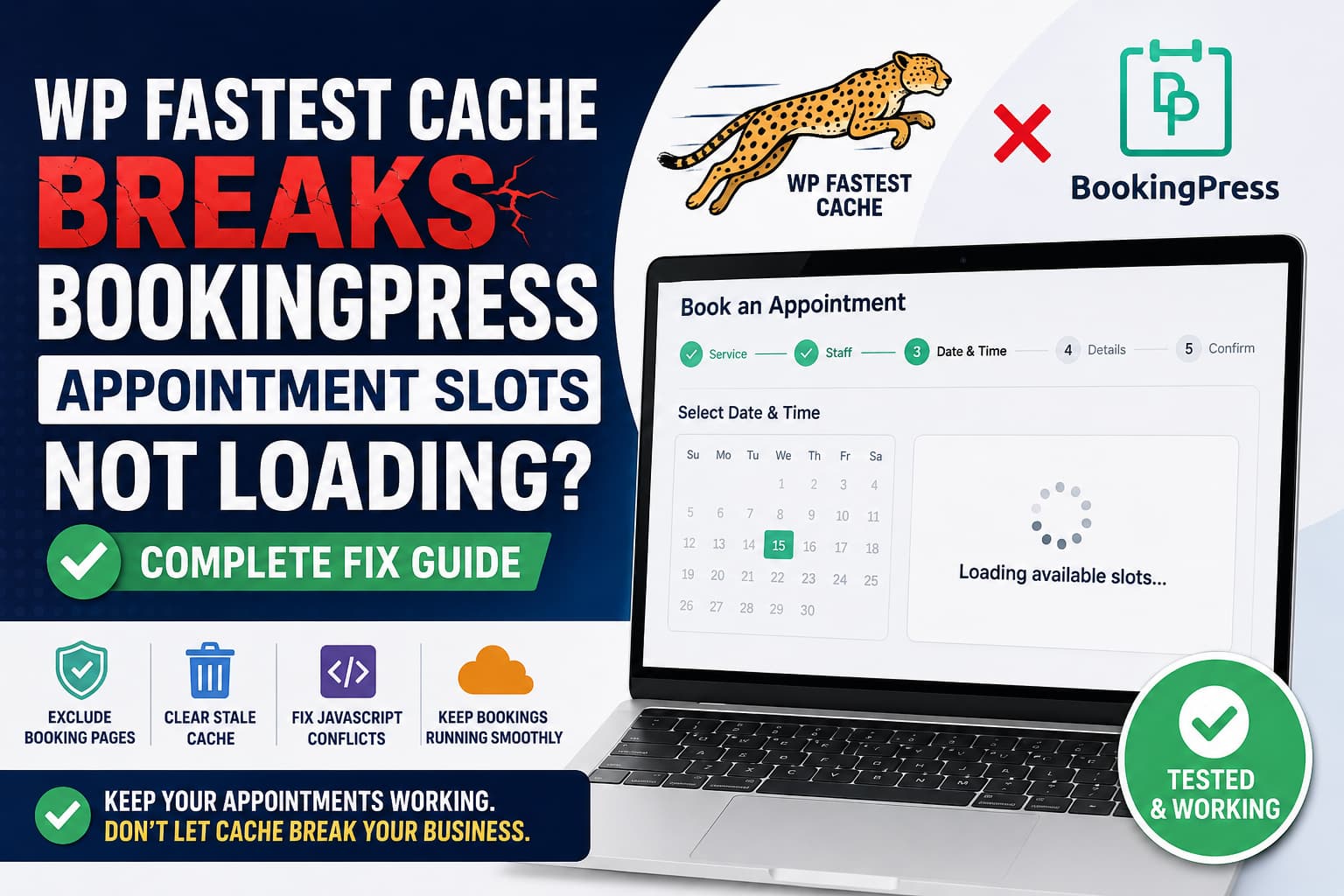
WP Fastest Cache can sometimes cause the BookingPress appointment form to stop loading available time slots. The booking form may work immediately after clearing the cache, but the problem returns after cached files have existed for several hours.
This is a serious issue for appointment-based businesses. Customers may see an endless loading animation, an empty calendar, unavailable dates, or no appointment slots at all.
Fortunately, you do not need to disable WP Fastest Cache across the entire website. The reliable solution is to exclude BookingPress pages from caching and prevent aggressive JavaScript optimization from interfering with the booking form.
This guide explains exactly how to fix the problem.
Symptoms of a WP Fastest Cache and BookingPress Conflict
The conflict may appear in several ways:
- Available appointment slots do not load.
- The date and time step remains empty.
- The BookingPress loading animation never disappears.
- Services and staff members appear, but the calendar does not work.
- All time slots incorrectly appear unavailable.
- The booking page works after clearing the cache but fails again later.
- The booking page works for logged-in administrators but not regular visitors.
- The browser console displays JavaScript or AJAX errors.
- The booking form works when WP Fastest Cache is disabled.
The most important clue is that clearing the cache temporarily restores the form. This strongly indicates that BookingPress itself is not completely broken. A cached page, expired security token, or optimized JavaScript file is probably interfering with the booking process.
Why Does WP Fastest Cache Affect BookingPress?
BookingPress is not a normal static page. It uses a JavaScript-powered booking interface to retrieve current services, staff availability, appointment dates, and time slots.
The main booking form is normally added with the following shortcode:
[bookingpress_form]BookingPress also provides dynamic shortcodes for customer appointments, cancellations, rescheduling, packages, and gift cards.
A caching plugin saves the generated page as static HTML. This works well for blog posts and informational pages, but booking pages contain dynamic data and request-specific values that should not remain cached for long periods.
Cached WordPress Nonces Can Expire
WordPress plugins commonly use security tokens called nonces when processing AJAX requests and form submissions.
WordPress nonces have a limited lifetime. Under the default configuration, a nonce remains valid for approximately 12 to 24 hours. A cached page can continue serving an old nonce after that nonce has expired, causing the related request to fail.
WP Fastest Cache specifically documents this situation. Its documentation explains that caching a page also caches the nonce value and that an expired cached nonce can cause requests to fail.
This explains why a BookingPress form may work after clearing the cache but stop working again later.
JavaScript Optimization Can Also Break the Booking Flow
The problem is not always caused by page caching alone.
Features such as these can change the order or timing of BookingPress scripts:
- Combine JavaScript
- Minify JavaScript
- Defer JavaScript
- Delay JavaScript execution
- Move scripts to the footer
- Combine inline JavaScript
- Remove render-blocking JavaScript
BookingPress currently uses a Vue.js-based front-end interface. A recent major release added Vue.js 3 compatibility, making it especially important that the plugin’s scripts and inline configuration load in the expected order.
Solution 1: Exclude the BookingPress Page From WP Fastest Cache
This is the recommended permanent solution.
Step 1: Find Every BookingPress Page
Go to:
WordPress Dashboard → PagesIdentify every page containing a BookingPress shortcode or block.
Depending on your configuration, this may include:
- Book an Appointment
- My Bookings
- Customer Dashboard
- Reschedule Appointment
- Cancel Appointment
- Service Packages
- Gift Cards
- Complete Payment
- Booking Confirmation
- Custom service-specific booking pages
- Staff-specific booking pages
Do not exclude only the main booking page when other BookingPress forms are available publicly.
BookingPress officially documents the following dynamic shortcodes:
[bookingpress_form]
[bookingpress_form_popup]
[bookingpress_my_appointments]
[bookingpress_appointment_reschedule]
[bookingpress_appointment_cancellation_confirmation]
[bookingpress_package_form]
[bookingpress_gift_card]
Any page containing one of these shortcodes should normally be treated as dynamic.
Step 2: Add the Main Booking Page to the Exclusion List
Go to:
WordPress Dashboard → WP Fastest Cache → ExcludeFind the Exclude Pages section and click:
Add New RuleConfigure the rule using the exact URL of your booking page.
For example, when the booking page is:
https://example.com/book-appointment/Use:
Rule: Is Equal To
Value: /book-appointment/
Depending on the version and interface, WP Fastest Cache may accept either the complete URL or the URL path.
WP Fastest Cache supports several matching methods:
- Is Equal To: Excludes one exact URL.
- Starts With: Excludes a parent path and its child URLs.
- Contains: Excludes URLs containing a particular word.
- Regular Expression: Excludes URLs matching a custom pattern.
These methods are documented in the plugin’s official exclusion guide.
Step 3: Exclude the Other BookingPress Pages
Add a separate rule for each relevant URL.
Example:
/book-appointment/
/my-bookings/
/reschedule-appointment/
/cancel-appointment/
/service-packages/
/gift-card/
/complete-payment/
Use your actual page slugs. Do not copy these examples without checking the URLs on your website.
When all BookingPress pages share one parent path, you can use a broader rule.
For example:
Rule: Starts With
Value: /booking/
This would exclude URLs such as:
/booking/appointment/
/booking/packages/
/booking/my-account/
Be careful with broad rules. Do not exclude unrelated pages unnecessarily.
Step 4: Save the Exclusion Rules
Save the WP Fastest Cache settings before clearing any cache.
Adding an exclusion rule does not necessarily remove a cached file that was generated previously. The existing cached HTML or optimized JavaScript may continue to be served until it is deleted.
Solution 2: Delete All Existing Cache and Minified Files
After adding the exclusion rules, clear every relevant cache layer.
In WP Fastest Cache, delete:
- All page cache
- Minified CSS files
- Minified JavaScript files
- Combined CSS and JavaScript files
Use the option that clears both the normal cache and minified files when it is available.
Then clear:
- Hosting-level page cache
- Redis or Memcached object cache
- Varnish cache
- LiteSpeed server cache, when enabled separately
- Cloudflare or another CDN cache
- Browser cache
Open the booking page in a private or incognito browser window after clearing everything.
Testing while logged in as an administrator is not sufficient because many caching plugins bypass or alter caching behavior for logged-in users.
Solution 3: Disable JavaScript Optimization Temporarily
When excluding the booking page does not fully resolve the problem, test WP Fastest Cache’s optimization settings.
Temporarily disable:
Combine JS
Minify JS
Render Blocking JS
Delay JS
Combine Inline JS
Clear the page cache and minified files again.
Test the complete booking process as a logged-out visitor.
Check whether you can:
- Select a service.
- Select a staff member.
- Select a date.
- Load the available appointment slots.
- Enter customer information.
- Select a payment method.
- Complete a test appointment.
When the booking form works after disabling JavaScript optimization, re-enable the options one at a time.
Clear all cache after enabling each option and test again. The last option enabled before the problem returns is the likely source of the conflict.
Solution 4: Exclude BookingPress JavaScript Files
When you need to keep JavaScript optimization active, exclude the affected BookingPress scripts instead of disabling optimization globally.
Depending on the installed versions, BookingPress files may load from paths containing:
/wp-content/plugins/bookingpress-appointment-booking/
/wp-content/plugins/bookingpress-appointment-booking-pro/
Premium add-ons may use additional plugin directories.
Do not guess individual filenames. Open the affected booking page and use the browser’s developer tools.
Find the Problematic Script
In Chrome:
- Open the booking page.
- Press
F12. - Open the Console tab.
- Reload the page.
- Look for red JavaScript errors.
- Open the Network tab.
- Filter the requests by
JS. - Look for files containing
bookingpress. - Copy the relevant script URL or plugin-directory pattern.
Add the identified path to WP Fastest Cache’s JavaScript exclusion area.
After saving the exclusion:
- Delete all cache.
- Delete minified JavaScript files.
- Purge the CDN.
- Test in an incognito window.
Excluding the full BookingPress script directory is less optimized than excluding one script, but it may be more reliable when several interdependent files are affected.
Optional Code: Automatically Exclude BookingPress Pages
The dashboard exclusion method is recommended because it is easier to maintain.
For developers managing several BookingPress pages, the following code can automatically tell WP Fastest Cache not to cache selected page slugs.
Add it using the Code Snippets plugin or a child theme:
/**
 * Exclude BookingPress pages from WP Fastest Cache.
 *
 * Replace the page slugs below with the actual slugs used
 * on your WordPress website.
 */
function debugnexus_exclude_bookingpress_pages_from_wpfc() {
    if (
        is_admin() ||
        wp_doing_ajax() ||
        ! function_exists( 'wpfc_exclude_current_page' )
    ) {
        return;
    }

    $bookingpress_page_slugs = array(
        'book-appointment',
        'my-bookings',
        'reschedule-appointment',
        'cancel-appointment',
        'service-packages',
        'gift-card',
        'complete-payment',
    );

    if ( is_page( $bookingpress_page_slugs ) ) {
        wpfc_exclude_current_page();
    }
}
add_action(
    'template_redirect',
    'debugnexus_exclude_bookingpress_pages_from_wpfc',
    1
);
WP Fastest Cache officially provides the wpfc_exclude_current_page() function for programmatically excluding the current URL.
Replace the page slugs in the code with the exact slugs used on your website.
After adding the code, clear all existing caches and test the site as a logged-out visitor.
Alternative Code: Detect BookingPress Shortcodes Automatically
The following version detects common BookingPress shortcodes inside normal WordPress page content:
/**
 * Prevent WP Fastest Cache from caching pages that contain
 * supported BookingPress shortcodes.
 */
function debugnexus_exclude_bookingpress_shortcode_pages_from_wpfc() {
    if (
        is_admin() ||
        wp_doing_ajax() ||
        ! is_singular() ||
        ! function_exists( 'wpfc_exclude_current_page' )
    ) {
        return;
    }

    $post = get_queried_object();

    if ( ! $post instanceof WP_Post ) {
        return;
    }

    $bookingpress_shortcodes = array(
        'bookingpress_form',
        'bookingpress_form_popup',
        'bookingpress_my_appointments',
        'bookingpress_appointment_reschedule',
        'bookingpress_appointment_cancellation_confirmation',
        'bookingpress_package_form',
        'bookingpress_gift_card',
    );

    foreach ( $bookingpress_shortcodes as $shortcode ) {
        if ( has_shortcode( $post->post_content, $shortcode ) ) {
            wpfc_exclude_current_page();
            break;
        }
    }
}
add_action(
    'template_redirect',
    'debugnexus_exclude_bookingpress_shortcode_pages_from_wpfc',
    1
);
The slug-based version is more reliable when BookingPress is inserted through Elementor templates, reusable blocks, widgets, theme templates, or other dynamically generated content. Shortcode detection only checks the current post’s stored content.
Do not install both snippets. Choose one method.
Can Cache Timeout Fix the Problem?
WP Fastest Cache recommends clearing cached pages twice daily when cached WordPress nonces are involved.
You can configure this from:
WP Fastest Cache → Delete Cache → Cache TimeoutHowever, cache timeout should be considered a temporary workaround for a business-critical booking page.
A timeout rule can still leave the page serving an expired or problematic cached version before the scheduled deletion runs. WP Fastest Cache also notes that its scheduled cache timeout depends on WordPress Cron being triggered by site visits unless a real server cron job is configured.
Excluding the booking page completely is safer and more predictable.
Update BookingPress Before Continuing
A genuine BookingPress time-slot bug can look similar to a caching conflict.
Before blaming WP Fastest Cache, confirm that the following components are compatible and updated together:
- BookingPress Lite
- BookingPress Pro
- Payment gateway add-ons
- Staff Member add-on
- Service Packages add-on
- Google Calendar add-on
- Outlook Calendar add-on
- Location add-on
- Any other active BookingPress extensions
At the time this guide was verified, BookingPress Pro 6.0.3 and the corresponding Lite release included fixes related to booked time slots, unavailable dates, and the current month not loading in specific configurations.
Always test major BookingPress updates on a staging website before updating the live booking system.
Check the BookingPress Debug Logs
BookingPress includes debugging options for appointment processing and integrations.
Enable debugging temporarily from the BookingPress settings and reproduce the issue.
Depending on the installed version, available logs may include:
- Appointment debug logs
- Payment gateway logs
- Calendar synchronization logs
- Email notification logs
- Import and export logs
Appointment logs can help identify incomplete submissions, booking failures, scheduling conflicts, and unexpected appointment behavior.
Disable unnecessary debugging after collecting the required information because debug files can grow over time and may contain operational information.
Check for Server and CDN Caching
Excluding a page from WP Fastest Cache only controls WP Fastest Cache.
Your hosting provider or CDN may still cache the booking page.
Check for:
- Cloudflare Cache Everything rules
- Cloudflare APO
- Varnish
- Nginx FastCGI cache
- Hosting-provider page cache
- LiteSpeed Cache installed at the server level
- Managed WordPress caching
- Reverse proxy caching
Add the same BookingPress URLs to the bypass or exclusion rules for every active caching layer.
For Cloudflare, create a cache bypass rule for the relevant paths, such as:
URI Path equals /book-appointment/Also bypass the customer dashboard, cancellation, rescheduling, package, gift-card, and payment pages where applicable.
Do not run multiple full-page caching plugins simultaneously.
Verify That the Fix Is Permanent
Do not stop testing after the booking form works once.
Use the following process:
- Clear all cache layers.
- Open the booking page in an incognito window.
- Complete a test appointment.
- Confirm that the appointment appears in BookingPress.
- Confirm that the selected slot becomes unavailable when appropriate.
- Test from a second browser.
- Test on a mobile device.
- Leave the cache active for at least one full nonce cycle.
- Test the form again as a logged-out visitor.
- Confirm that the booking page is not being served from page cache.
You can inspect the HTML source or response headers for cache-related comments and headers.
The important result is not simply that the form works after clearing the cache. It must continue working after the rest of the website’s cache has been regenerated.
Recommended WP Fastest Cache Configuration for BookingPress
A stable configuration usually looks like this:
Keep Enabled Globally
- Page caching for normal pages
- Browser caching
- Gzip compression
- HTML minification, after testing
- CSS minification, after testing
- Image optimization
- WebP delivery
Exclude or Test Carefully
- BookingPress booking pages
- Customer dashboard pages
- Cancellation and rescheduling pages
- Payment pages
- BookingPress JavaScript files
- JavaScript combination
- JavaScript delay
- Inline JavaScript combination
- Third-party payment scripts
- Calendar integration scripts
The goal is not to disable website optimization. The goal is to prevent static caching and aggressive script processing on pages that must remain interactive.
Frequently Asked Questions
Can WP Fastest Cache ignore BookingPress?
Yes. Add every page containing a BookingPress booking form, customer panel, rescheduling form, cancellation form, package form, gift-card form, or payment flow to the WP Fastest Cache page-exclusion list.
Do I need to disable WP Fastest Cache completely?
No. You can continue caching normal posts, pages, category archives, and other static content. Only the dynamic BookingPress pages need to be excluded.
Why does BookingPress work after clearing the cache?
The cached page may contain expired request data or an old WordPress nonce. Clearing the cache forces WordPress to generate a fresh page and fresh security values.
Why does the booking form work for administrators?
Logged-in administrators are commonly excluded from normal page caching. Always test the form while logged out or in an incognito browser window.
Should I exclude admin-ajax.php?
Normally, no. AJAX requests themselves should not be page-cached. Focus first on excluding the front-end BookingPress pages and correcting JavaScript optimization.
Will setting a short cache timeout solve it?
It may reduce how often the problem happens, but it is less reliable than completely excluding the booking pages.
Should the My Bookings page be cached?
No. It displays customer-specific appointment information and should remain dynamic.
Can Cloudflare still break the form after WP Fastest Cache is configured?
Yes. Cloudflare, hosting cache, Varnish, Nginx FastCGI cache, or another reverse proxy can still cache the page. Add the booking URLs to every active caching layer’s bypass rules.
Final Solution
The most reliable fix for WP Fastest Cache breaking BookingPress appointment slots is:
- Exclude every BookingPress front-end page from page caching.
- Delete all previously generated cache and minified files.
- Purge hosting and CDN caches.
- Test JavaScript minification, combination, defer, and delay settings.
- Exclude BookingPress scripts when JavaScript optimization causes the conflict.
- Update BookingPress Lite, Pro, and all add-ons as one compatible set.
- Test the entire appointment and payment flow while logged out.
- Verify the form again after the website cache has been regenerated.
Do not rely on repeatedly clearing the cache manually. A booking system must remain available without daily administrator intervention.
