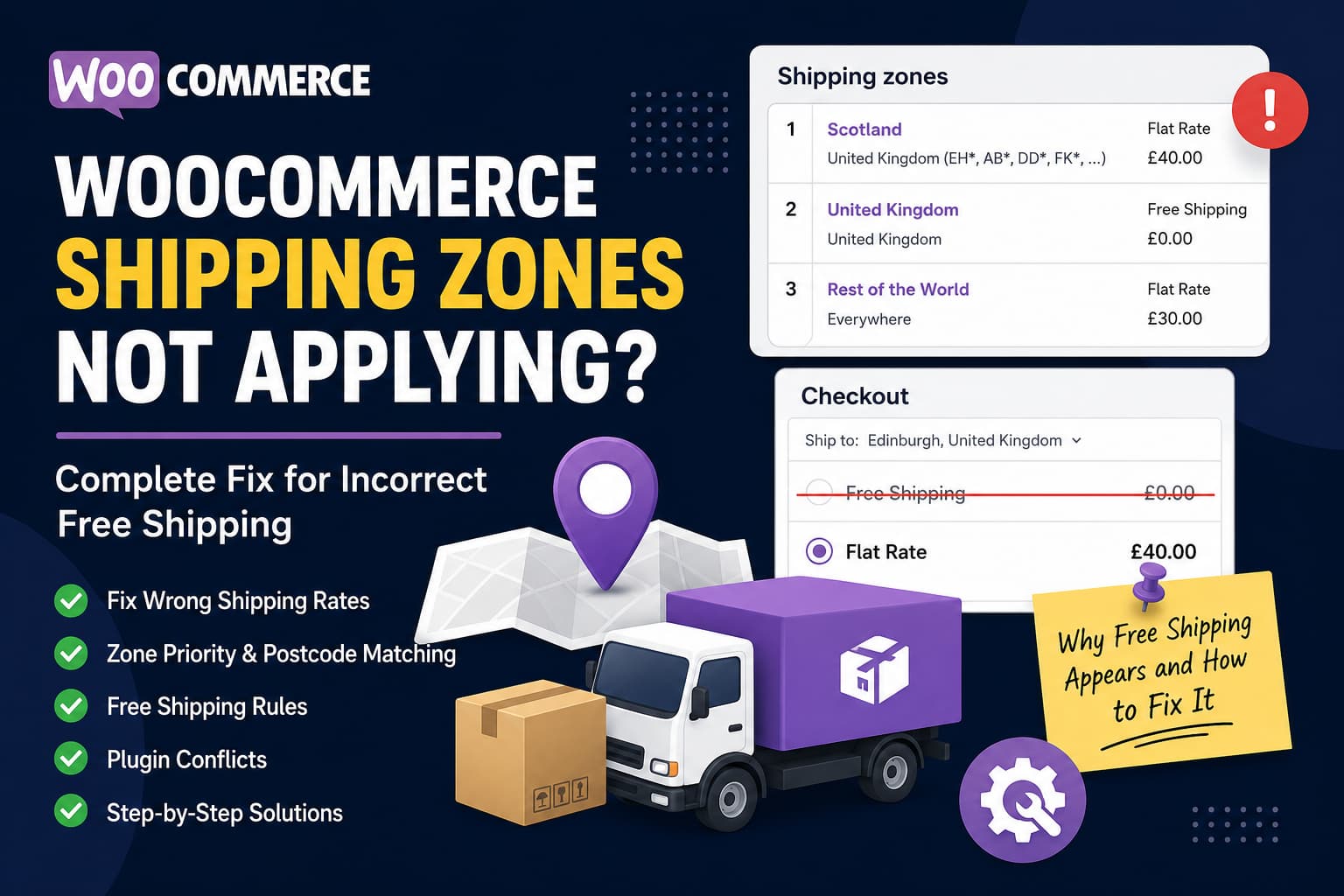
A WooCommerce store owner recently reported that their shipping zones had stopped applying correctly.
The business was based in England and had configured a £40 delivery charge for Scotland. However, an order placed for delivery to Edinburgh received free shipping instead of the expected £40 charge.
The shipping settings appeared to be correct, and the configuration had previously worked without problems.
This issue is usually not caused by WooCommerce completely ignoring the shipping settings. In most cases, WooCommerce is matching the customer to a different shipping zone, allowing an incorrectly configured free-shipping method, or receiving modified shipping rates from another plugin.
This guide explains how to identify the matched shipping zone and permanently fix incorrect shipping charges.
Why WooCommerce Shipping Zones Stop Applying
WooCommerce assigns each customer to only one shipping zone.
When a shipping address matches multiple zones, WooCommerce does not combine them. It processes the zones from top to bottom and uses the first matching zone. More specific zones must therefore appear above broader country-level zones.
For example, consider this configuration:
- United Kingdom – Free Shipping
- Scotland – £40 Delivery
An Edinburgh address matches the United Kingdom zone first. WooCommerce stops checking after that match and never reaches the Scotland zone.
The customer consequently receives free shipping.
The correct order should be:
- Scotland – £40 Delivery
- United Kingdom – Free Shipping
- Rest of the World
This zone-order problem is the most likely explanation when a location-specific shipping charge suddenly appears as free shipping.
Step 1: Check the Shipping Address on the Order
Before changing any settings, check the address saved on the affected order.
Go to:
WooCommerce → Orders → Open the affected order
Review the following information:
- Shipping country
- Shipping city
- Shipping county or region
- Shipping postcode
- Selected shipping method
Make sure the customer entered a complete shipping address rather than only a billing address.
For an Edinburgh order, confirm that:
- The shipping country is United Kingdom
- The city is Edinburgh
- The postcode begins with the appropriate Edinburgh postcode area, such as
EH
Also check the shipping line under the order totals. If it says Free Shipping, WooCommerce made the free-shipping method available during checkout and either selected it automatically or allowed the customer to select it.
Step 2: Put the Scotland Zone Above the UK Zone
Go to:
WooCommerce → Settings → Shipping → Shipping zones
Look at the current order of the zones.
A specific Scotland zone must be positioned above any broader zone that includes the entire United Kingdom.
A suitable structure would look like this:
| Priority | Shipping zone | Shipping method |
|---|---|---|
| 1 | Scotland | Flat Rate – £40 |
| 2 | United Kingdom | Free Shipping |
| 3 | Rest of the World | Appropriate international rate |
Drag the Scotland zone above the United Kingdom zone and save the changes.
WooCommerce recommends arranging zones from the smallest geographical area to the largest because the first matching zone is the one used at checkout.
Step 3: Configure the Scotland Zone Correctly
Edit the Scotland shipping zone.
The configuration should contain:
- Zone name: Scotland
- Zone region: United Kingdom
- Postcode limitation or supported Scotland region
- Shipping method: Flat Rate
- Cost:
40
Do not add a Free Shipping method to this zone unless Scotland orders should become eligible for free delivery under specific conditions.
Using Postcodes for Edinburgh
For an Edinburgh-only shipping rule, add this postcode wildcard:
EH*The asterisk tells WooCommerce to match postcodes beginning with EH, including postcodes such as EH1, EH3, and EH12.
WooCommerce supports individual postcodes, numeric ranges, and wildcard patterns in postcode-based shipping zones.
Using Postcodes for All of Scotland
Common Scottish postcode areas include:
AB*
DD*
DG*
EH*
FK*
G*
HS*
IV*
KA*
KW*
KY*
ML*
PA*
PH*
TD*
ZE*
Enter each pattern on a separate line.
However, postcode areas do not always follow national borders perfectly. Some border postcode areas, particularly TD, can include addresses outside Scotland. Remote islands and Highland locations may also require separate pricing from the rest of Scotland.
For precise commercial shipping rules, compare your postcode list with the delivery zones provided by your courier. Alternatively, use a shipping extension that provides England, Scotland, Wales, and Northern Ireland as selectable shipping locations.
The important point is that the Scotland zone must match every location where the £40 charge should apply. Any postcode that does not match will fall through to the broader United Kingdom zone below it.
Step 4: Inspect the Free Shipping Method
Edit every zone containing a Free Shipping method.
Go to:
WooCommerce → Settings → Shipping → Shipping zones → Edit zone
Click Edit beside Free Shipping and review the Free shipping requires setting.
WooCommerce provides the following options:
- No requirement
- A valid free-shipping coupon
- A minimum order amount
- A minimum order amount or coupon
- A minimum order amount and coupon
When No requirement is selected, every customer who matches that shipping zone qualifies for free shipping.
This is safe only when the zone itself is correctly limited.
For example, free shipping with no requirement can be used in an England-specific zone. It should not be placed in a broad United Kingdom zone unless all UK destinations, including Scotland, should receive free shipping.
Also check whether a coupon used on the order has Allow free shipping enabled.
Coupons can be reviewed under:
Marketing → Coupons
Step 5: Enable WooCommerce Shipping Debug Mode
WooCommerce includes a shipping debug mode that shows which shipping zone is being matched.
Go to:
WooCommerce → Settings → Shipping → Shipping settings
Enable:
Debug mode
Save the settings and open the checkout page in a private or incognito browser window.
Add a physical product to the cart and enter the Edinburgh shipping address. WooCommerce should display a notice showing the matched shipping zone.
The expected result is:
Customer matched zone: ScotlandIf it displays something similar to:
Customer matched zone: United Kingdomthe Scotland zone is not matching the address.
Check:
- Zone order
- Shipping country
- Postcode patterns
- Spaces or mistakes in the postcode
- Whether the zone contains an active shipping method
Debug mode also bypasses the shipping-rate cache, making it particularly useful when old shipping results continue appearing after configuration changes. Remember to disable it after testing because the debug information can be visible to customers.
Step 6: Check the “Hide Shipping Rates” Setting
Recent WooCommerce versions include this setting:
Hide shipping rates when free shipping is available
It can be found under:
WooCommerce → Settings → Shipping → Shipping settings
When enabled, WooCommerce hides paid methods whenever Free Shipping is available.
The setting itself does not incorrectly create free shipping. However, it can make the problem more confusing because the £40 Flat Rate option disappears completely as soon as another plugin or shipping rule makes Free Shipping available.
Temporarily disable this option while troubleshooting.
If both Free Shipping and the £40 Flat Rate then appear, the actual problem is that Free Shipping is incorrectly qualifying for the order.
Step 7: Clear Cached Shipping Rates
WooCommerce stores calculated shipping information in the customer session. A previously entered address or rate can remain selected while testing.
After changing shipping settings:
- Open WooCommerce → Status → Tools.
- Clear WooCommerce transients if the option is available.
- Clear the website cache.
- Purge the server or CDN cache.
- Start a new incognito browser session.
- Add the product to a new cart.
- Enter the full shipping address again.
Do not cache the following WooCommerce pages:
/cart/
/checkout/
/my-account/
The cart and checkout contain customer-specific session data and should not be served as static cached pages.
Also exclude WooCommerce cart fragments, checkout requests, and Store API requests from overly aggressive JavaScript or AJAX optimization.
Step 8: Test for a Shipping Plugin Conflict
The report mentions that “the plugin” had previously worked correctly. If the affected shipping method comes from a third-party plugin, WooCommerce core may not be responsible for calculating the final rate.
Plugins that can change shipping availability include:
- Table-rate shipping plugins
- Weight-based shipping plugins
- Conditional shipping plugins
- Membership plugins
- Wholesale pricing plugins
- Free-shipping progress bar plugins
- Coupon plugins
- Multi-vendor plugins
- Currency and location plugins
- Custom checkout plugins
A plugin can use the woocommerce_package_rates filter to add, remove, or modify shipping methods after WooCommerce has matched the customer’s zone.
To test for a conflict:
- Create a staging copy of the website.
- Keep WooCommerce and the required shipping plugin active.
- Temporarily deactivate other shipping, coupon, membership, and checkout plugins.
- Test the Edinburgh address again.
- Reactivate the plugins individually until the problem returns.
WooCommerce’s official troubleshooting guidance also recommends checking conditional shipping plugins and testing whether the behavior continues after they are temporarily disabled.
Do not perform plugin-conflict testing directly on a busy live store unless you are using a troubleshooting mode that only affects the administrator’s session.
Step 9: Search for Custom Shipping Code
Check the following locations for custom PHP that modifies shipping rates:
functions.php
Child theme functions.php
Code Snippets plugin
Custom functionality plugin
Must-use plugins
wp-content/mu-plugins/
Search for these hooks and functions:
woocommerce_package_rates
woocommerce_shipping_free_shipping_is_available
woocommerce_cart_shipping_method_full_label
WC_Shipping_Zones
unset( $rates
free_shipping
A common customization hides all paid methods whenever a free-shipping rate exists.
That customization may have worked with an older shipping configuration but can produce incorrect results after a WooCommerce or shipping-plugin update.
Temporarily disable suspicious snippets on staging and test the checkout again.
Optional Safety Snippet: Remove Free Shipping for Scottish Postcodes
The proper solution is to correct the shipping zones. However, the following snippet can be used as an additional safeguard to prevent WooCommerce’s core Free Shipping method from appearing for common Scottish postcode areas.
/**
 * Remove WooCommerce core Free Shipping for Scottish postcode areas.
 *
 * This is a safety rule only. Configure the correct £40 Flat Rate
 * inside the appropriate WooCommerce shipping zone first.
 */
add_filter(
    'woocommerce_package_rates',
    function ( $rates, $package ) {
        $country  = strtoupper(
            isset( $package['destination']['country'] )
                ? $package['destination']['country']
                : ''
        );

        $postcode = strtoupper(
            preg_replace(
                '/\s+/',
                '',
                isset( $package['destination']['postcode'] )
                    ? $package['destination']['postcode']
                    : ''
            )
        );

        if ( 'GB' !== $country || '' === $postcode ) {
            return $rates;
        }

        $scottish_prefixes = array(
            'AB',
            'DD',
            'DG',
            'EH',
            'FK',
            'G',
            'HS',
            'IV',
            'KA',
            'KW',
            'KY',
            'ML',
            'PA',
            'PH',
            'TD',
            'ZE',
        );

        $is_scottish_postcode = false;

        foreach ( $scottish_prefixes as $prefix ) {
            if ( 0 === strpos( $postcode, $prefix ) ) {
                $is_scottish_postcode = true;
                break;
            }
        }

        if ( ! $is_scottish_postcode ) {
            return $rates;
        }

        foreach ( $rates as $rate_id => $rate ) {
            if (
                is_object( $rate ) &&
                isset( $rate->method_id ) &&
                'free_shipping' === $rate->method_id
            ) {
                unset( $rates[ $rate_id ] );
            }
        }

        return $rates;
    },
    100,
    2
);
Add this code through a custom functionality plugin, a properly configured snippets plugin, or the child theme. Do not edit the main WooCommerce plugin files.
This snippet only removes WooCommerce’s core Free Shipping method. It does not automatically create the £40 shipping rate. The Scotland zone must still contain a working Flat Rate or plugin-provided shipping method.
It may also need adjustment if:
- Your shipping plugin uses a custom free-shipping method ID
- Your courier treats border postcodes differently
- Scottish islands have separate rates
- Your business uses a more detailed postcode list
Test every relevant delivery area on staging before using the snippet on a live store.
Recommended Final Shipping Configuration
For the reported England and Scotland scenario, use this setup:
Zone 1: Scotland
Region: United Kingdom
Postcodes: Verified Scottish delivery postcodes
Method: Flat Rate
Cost: £40
Free Shipping: Not enabled
Zone 2: United Kingdom
Region: United Kingdom
Method: Free Shipping
Position: Below Scotland
Zone 3: Rest of the World
Add the appropriate international methods or leave it without methods if international delivery is unavailable.
The narrower Scotland zone must always remain above the broader United Kingdom zone.
Complete Testing Checklist
After correcting the configuration, test at least these scenarios:
Edinburgh address
Use a complete postcode beginning with EH.
Expected result:
Matched zone: Scotland
Shipping: £40
Glasgow address
Use a complete postcode beginning with G.
Expected result:
Matched zone: Scotland
Shipping: £40
London address
Use a valid London postcode.
Expected result:
Matched zone: United Kingdom
Shipping: Free Shipping
Scottish Highlands or islands
Test relevant IV, KW, HS, PA, PH, or ZE postcodes.
Confirm whether these addresses should receive the standard £40 rate or a separate remote-area charge.
Coupon test
Apply every coupon that can affect shipping and confirm that it does not unintentionally enable free shipping for Scotland.
Guest and logged-in tests
Test checkout as:
- A guest
- A new customer
- An existing customer with a saved address
Saved customer addresses and checkout sessions can produce different results from a completely new checkout.
What About the Order That Already Received Free Shipping?
Changing the shipping zones will only affect future calculations. It will not automatically add the missing £40 charge to an order that has already been paid.
Review the order before dispatching it.
Depending on the store’s terms and customer-service policy, the store owner may:
- Contact the customer and explain the shipping error
- Request payment for the missing delivery charge
- Cancel and refund the order
- Honour the accidental free shipping as a goodwill gesture
Do not silently add a new charge to a completed payment without the customer’s authorization.
Frequently Asked Questions
Why is WooCommerce ignoring my shipping zone?
WooCommerce usually is not ignoring the zone. The customer is probably matching a broader zone positioned above it, the postcode does not match, or another plugin is modifying the available rates.
Does WooCommerce combine multiple shipping zones?
No. Each customer matches only one shipping zone, and WooCommerce uses the first matching zone in the shipping-zone list.
Why is WooCommerce showing free shipping instead of flat rate?
A Free Shipping method may be enabled without requirements, a free-shipping coupon may be active, or the customer may be matching a broader zone containing Free Shipping.
Can I create a WooCommerce shipping zone using postcodes?
Yes. WooCommerce supports exact postcodes, numeric postcode ranges, and wildcard patterns such as EH*.
How do I see which shipping zone WooCommerce matched?
Enable debug mode under WooCommerce → Settings → Shipping → Shipping settings. Then enter the complete customer address on the cart or checkout page.
Why did the problem start after an update?
An update may change a plugin’s conditional logic, expose an existing zone-order mistake, reset a method setting, or create a compatibility problem with custom shipping code. Test the site with only WooCommerce and the required shipping plugin active on staging.
Final Conclusion
When an Edinburgh order incorrectly receives free shipping, the first thing to check is the order of the WooCommerce shipping zones.
WooCommerce matches only one zone and stops at the first match. Therefore, a broad United Kingdom free-shipping zone can override a more specific Scotland zone when it appears higher in the list.
Move the Scotland zone above the United Kingdom zone, verify the Scottish postcode coverage, remove Free Shipping from the Scotland zone, and use WooCommerce debug mode to confirm the matched location.
If the correct zone is matched but free shipping still appears, investigate coupons, shipping plugins, cache settings, and custom code using the woocommerce_package_rates filter.
