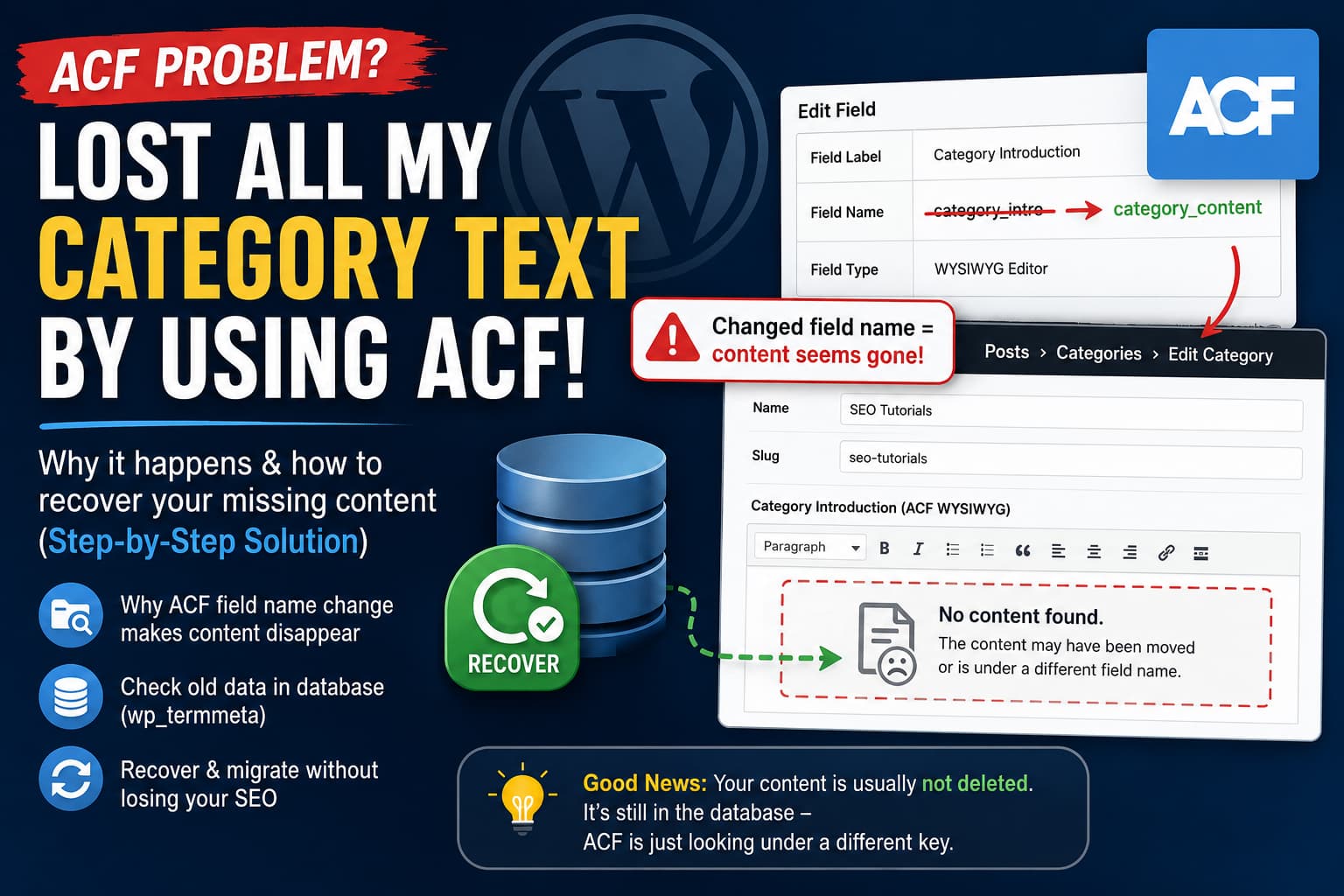
Renaming an Advanced Custom Fields field can cause previously entered category text to suddenly disappear from WordPress and Elementor.
This often happens after creating an ACF WYSIWYG field for category archive content, adding detailed SEO text to multiple categories, and then changing the field’s Field Name to make it reusable or better organized.
After saving the field group, some category descriptions may remain visible while others become completely blank.
The good news is that the content is usually not permanently deleted. In most cases, ACF is simply looking for the content under a new metadata key while the original text remains stored under the old field name.
This guide explains why it happens, how to check whether the missing category content is still in the database, and how to recover it without manually rewriting every category.
Why Did the ACF Category Text Disappear?
Every ACF field has several important settings:
- Field Label
- Field Name
- Field Type
- Field Key
The Field Label is the human-readable name displayed in the WordPress administrator area.
The Field Name is different. ACF uses it when saving and retrieving the value from the WordPress database. ACF’s documentation specifically describes the field name as the name used to save and load data.
For example, suppose the original field was configured as:
Field Label: Category Introduction
Field Name: category_intro
Field Type: WYSIWYG Editor
WordPress may store the category’s content under the following term metadata key:
category_introIf the field name is later changed to:
category_contentACF starts looking for:
category_contentThe existing content may still be stored under:
category_introBecause the new metadata key does not yet contain a value, the field appears empty.
Did ACF Actually Delete the Content?
Usually, no.
Changing an ACF field name normally does not migrate existing values to the new metadata key. The original values may remain in the database under the old field name.
ACF also stores a second reference entry with an underscore before the field name:
category_intro
_category_intro
The first entry contains the field value. The underscored entry connects that value to the corresponding ACF field key, such as:
field_67abc12345678When migrating an ACF field manually, both the content and the field reference need to be considered. ACF’s support documentation confirms that field values and field-key references use these paired metadata keys.
This is why changing the field name can make the content appear to vanish even though the original database rows still exist.
Why Are Some Categories Still Showing Their Text?
There are several possible reasons:
- Some categories were edited and saved after the field was renamed.
- Some categories already had values stored under the new field name.
- Different category templates may be loading different ACF fields.
- Some text may be coming from the native WordPress category description instead of ACF.
- Elementor may still be displaying cached content.
- More than one ACF field group may contain similar field names.
- A translation plugin may store separate values for each language or term.
Do not assume that the categories still showing content prove that the missing values were deleted. First inspect the original field name and the term metadata.
Important: Back Up the Database First
Before changing field names, running SQL, or executing a migration script, create a complete database backup.
At minimum, back up:
wp_terms
wp_term_taxonomy
wp_termmeta
wp_posts
wp_postmeta
wp_options
The actual table prefix may not be wp_. For example, your term metadata table might be:
abc_termmetaDo not run bulk database queries on a production website without a current backup.
When possible, perform the recovery on a staging copy first.
Solution 1: Change the Field Name Back
This is the fastest and safest recovery method.
Step 1: Find the original field name
Go to:
WordPress Dashboard
> ACF
> Field Groups
> Edit the affected field group
Open the WYSIWYG field and check its current Field Name.
You need the exact previous field name, including underscores and spelling.
For example:
Old field name: category_intro
New field name: category_content
Possible places to find the old field name include:
- A recent database backup
- A staging website
- ACF Local JSON files
- An exported ACF field group
- Theme or plugin PHP files
- Elementor template settings
- Previous screenshots
- Version-control history
Step 2: Restore the old field name
Change the field name back to its original value:
category_introDo not change the Field Key.
Save the field group.
Step 3: Check the category editor
Go to:
Posts
> Categories
> Edit an affected category
The original content should reappear if it is still stored under the old metadata key.
Step 4: Clear Elementor and website caches
If the content appears in the category editor but not on the frontend, clear the following:
- Elementor CSS and data cache
- WordPress page cache
- Hosting cache
- Redis or Memcached object cache
- CDN cache
- Browser cache
In Elementor, also visit:
Elementor
> Tools
> General
> Clear Files & Data
The exact menu wording can vary between Elementor versions.
Step 5: Verify the dynamic tag
Edit the Elementor Theme Builder template used for category archives.
Check the widget displaying the category text and confirm that its dynamic tag points to the correct ACF field.
Update the template and test several category pages.
Solution 2: Check the Old ACF Data in phpMyAdmin
When changing the field name back does not immediately restore the content, inspect the term metadata table.
ACF fields attached to categories and other taxonomy terms are saved as term metadata. WordPress provides get_term_meta() and related functions specifically for retrieving this data.
Open phpMyAdmin and select the website database.
Run the following query after replacing the example field names:
SELECT
    term_id,
    meta_key,
    LEFT(meta_value, 300) AS value_preview
FROM wp_termmeta
WHERE meta_key IN (
    'category_intro',
    '_category_intro',
    'category_content',
    '_category_content'
)
ORDER BY term_id, meta_key;
Replace:
category_introwith the old field name.
Replace:
category_contentwith the new field name.
Also replace wp_termmeta if the website uses a custom database prefix.
What the results mean
You may see rows similar to:
term_id: 17
meta_key: category_intro
meta_value: <p>This is the original category content...</p>
You may also see:
term_id: 17
meta_key: _category_intro
meta_value: field_67abc12345678
This confirms that the original content remains in the database.
If the new key is empty or missing, ACF is not finding the old value because the configured field name no longer matches the stored metadata key.
Check Whether the Text Is an ACF Field or Native Category Description
WordPress has a built-in description field for categories. It is separate from an ACF WYSIWYG field.
The native category description is generally stored in:
wp_term_taxonomy.descriptionAn ACF category field is generally stored in:
wp_termmetaGo to:
Posts
> Categories
> Edit Category
Check both:
- The standard WordPress Description box
- The custom ACF WYSIWYG field
If the text exists in the standard description but Elementor is configured to display the ACF field, the page can still appear blank.
In that situation, correct the Elementor dynamic tag or move the content into the intended ACF field.
Solution 3: Keep the New Field Name and Migrate the Content
You may want to retain the new field name because it is already used in templates or code.
Instead of manually copying every category, migrate the values from the old metadata key to the current ACF field.
Using ACF’s update_field() function with the field key helps ACF save the value and create the correct field reference. ACF recommends using a field key when saving values that may not already have a valid reference.
Find the new ACF field key
Edit the field group.
Open Screen Options in the upper-right corner and enable Field Keys if that option is available.
The key will look similar to:
field_67abc12345678Copy the field key for the renamed field.
One-time migration snippet
The following code migrates non-empty values from an old category field to the current field.
It does not delete the original values.
Replace the three configuration values before running it:
<?php
/**
 * One-time ACF taxonomy field migration.
 *
 * Back up the database before using this code.
 * Test it on staging first.
 */

add_action(
    'admin_init',
    function () {
        if ( ! current_user_can( 'manage_options' ) ) {
            return;
        }

        if ( ! function_exists( 'update_field' ) ) {
            return;
        }

        /*
         * Change these values.
         */
        $taxonomy     = 'category';
        $old_name     = 'category_intro';
        $new_name     = 'category_content';
        $new_field_key = 'field_67abc12345678';

        /*
         * Prevent the migration from running repeatedly.
         * Change the option name if you need to run a different migration.
         */
        $migration_option = 'debugnexus_acf_category_text_migration_complete';

        if ( get_option( $migration_option ) ) {
            return;
        }

        $term_ids = get_terms(
            array(
                'taxonomy'   => $taxonomy,
                'hide_empty' => false,
                'fields'     => 'ids',
            )
        );

        if ( is_wp_error( $term_ids ) ) {
            error_log(
                'ACF migration error: ' . $term_ids->get_error_message()
            );
            return;
        }

        $migrated = 0;
        $skipped  = 0;

        foreach ( $term_ids as $term_id ) {
            $term_id = (int) $term_id;

            /*
             * Skip terms that do not have the old metadata key.
             */
            if ( ! metadata_exists( 'term', $term_id, $old_name ) ) {
                continue;
            }

            $old_value = get_term_meta( $term_id, $old_name, true );

            /*
             * Do not create a new value when the old value is empty.
             */
            if ( '' === $old_value || null === $old_value ) {
                $skipped++;
                continue;
            }

            $new_value_exists = metadata_exists(
                'term',
                $term_id,
                $new_name
            );

            $new_value = $new_value_exists
                ? get_term_meta( $term_id, $new_name, true )
                : '';

            /*
             * Protect any non-empty content already entered under
             * the new field name.
             */
            if ( $new_value_exists && '' !== $new_value ) {
                $skipped++;
                error_log(
                    sprintf(
                        'ACF migration skipped term %d because the new field already contains content.',
                        $term_id
                    )
                );
                continue;
            }

            /*
             * ACF supports taxonomy targets using:
             * taxonomy_termID
             *
             * Example: category_17
             */
            $acf_target = $taxonomy . '_' . $term_id;

            update_field(
                $new_field_key,
                $old_value,
                $acf_target
            );

            /*
             * Verify that the raw term metadata was saved.
             */
            $saved_value = get_term_meta(
                $term_id,
                $new_name,
                true
            );

            if ( $saved_value === $old_value ) {
                $migrated++;
            } else {
                error_log(
                    sprintf(
                        'ACF migration could not verify term %d.',
                        $term_id
                    )
                );
            }
        }

        update_option(
            $migration_option,
            array(
                'completed' => current_time( 'mysql' ),
                'migrated'  => $migrated,
                'skipped'   => $skipped,
            ),
            false
        );

        error_log(
            sprintf(
                'ACF category migration completed. Migrated: %d. Skipped: %d.',
                $migrated,
                $skipped
            )
        );
    }
);
ACF supports taxonomy field targets such as category_123, term_123, and taxonomy term objects when loading taxonomy values.
How to run the migration snippet
You can add the code temporarily using:
- A small custom plugin
- An
mu-plugin - The Code Snippets plugin
- WPCode
- The active child theme’s
functions.php
A custom plugin or staging environment is preferable.
After adding and activating the code:
- Visit any WordPress administrator page.
- Check the affected categories.
- Confirm that the text appears under the new field.
- Check the frontend category archives.
- Review the PHP error log for the migration summary.
- Remove or deactivate the migration code.
The migration contains an option flag to prevent repeated execution, but the snippet should still be removed after verification.
How to Run the Migration Again
The snippet stores this WordPress option:
debugnexus_acf_category_text_migration_completeTo run the same migration again, delete that option using WP-CLI:
wp option delete debugnexus_acf_category_text_migration_completeOnly do this after reviewing why the previous migration did not produce the expected result.
Direct SQL Method
It is technically possible to rename the metadata keys directly in wp_termmeta.
However, a simple query such as:
UPDATE wp_termmeta
SET meta_key = 'category_content'
WHERE meta_key = 'category_intro';
can create problems when:
- Some terms already contain the new metadata key
- The same field name is used by another taxonomy
- Translated terms use separate metadata
- Duplicate metadata rows already exist
- The underscored ACF reference key is not updated
- A field belongs to a repeater, group, or flexible-content structure
For these reasons, the ACF migration script is generally safer than a global SQL update.
Direct SQL should only be used after inspecting the affected rows, limiting the query to the correct taxonomy, and taking a complete database backup.
Do Not Delete the Old Metadata Immediately
After the new field is working, leave the original metadata in place temporarily.
Keeping the old data provides an additional recovery path while you test:
- All affected category pages
- Desktop and mobile layouts
- Translated category archives
- Elementor templates
- Internal links
- HTML formatting
- Images and shortcodes inside the WYSIWYG content
Old metadata can be removed later after confirming that every category has been migrated successfully.
There is usually no immediate performance benefit from deleting a small number of old term metadata rows.
Elementor Still Shows a Blank Field After Recovery
If the ACF content is visible in the WordPress category editor but Elementor still displays nothing, check the archive template.
Go to:
Templates
> Theme Builder
> Archive
Edit the category archive template.
Select the widget that should display the category text and inspect its dynamic tag.
Confirm:
- The dynamic tag type is ACF Field
- The correct renamed field is selected
- The template display condition includes the intended categories
- The widget is not hidden through responsive settings
- The text color is not matching the background
- The widget is not inside a hidden conditional container
Then clear Elementor files and all caching layers.
Check for ACF Local JSON Conflicts
ACF can load field groups from JSON files stored in a directory such as:
/wp-content/themes/your-theme/acf-json/If the database field group and Local JSON file contain different field names, ACF may load an unexpected configuration.
Check:
ACF
> Field Groups
Look for a synchronization notice.
Also inspect the applicable JSON file for:
"name": "category_intro"or:
"name": "category_content"Make sure the active database field group, JSON configuration, Elementor template, and PHP code all use the intended field name.
What to Do If the Old Data Is Not in wp_termmeta
If no rows exist under the old field name, check the following sources:
1. Database backups
Restore a backup to staging and inspect the old wp_termmeta table.
You do not necessarily need to restore the entire production website. You may be able to export only the relevant term metadata rows from the backup.
2. Native category descriptions
Check:
wp_term_taxonomy.descriptionThe content may have been entered in the native WordPress description field.
3. Other metadata tables
If the field was previously attached to a post, page, options screen, or custom post type, its value may be located in:
wp_postmeta
wp_options
4. Translation-plugin data
WPML, Polylang, or another multilingual plugin may have created separate category terms for each language.
Search by both the original term ID and the translated term IDs.
5. Search-engine caches and archives
Search-engine snippets or third-party archives may contain portions of the old category copy. However, these should be treated only as a last-resort source because the complete formatting and content may not be available.
6. Staging and development websites
An older staging copy may still contain the original ACF values and field configuration.
SEO Steps After Restoring the Category Content
Once the content has been recovered:
- Confirm that each category URL still returns HTTP status
200. - Keep the existing category slugs and URLs unchanged.
- Check that the restored text appears in the rendered HTML.
- Verify that category pages are indexable.
- Check canonical URLs.
- Confirm that SEO titles and meta descriptions remain correct.
- Check internal links inside the restored WYSIWYG content.
- Remove broken shortcodes or missing images.
- Clear every cache layer.
- Submit important category URLs for recrawling after the content is stable.
Changing the ACF field name does not normally require redirects because it does not change the public category URL.
Avoid changing category slugs during recovery unless there is a separate reason to do so.
How to Rename an ACF Field Safely in the Future
Change the field label, not the field name
If the goal is only to display a clearer name in the WordPress dashboard, change:
Field LabelLeave this unchanged:
Field NameFor example:
Old label: Intro
New label: SEO Category Introduction

Field name remains: category_intro
The field label can be improved without changing the metadata key used for the stored content.
Treat field names like database column names
Once a field contains production data, consider its name permanent.
Changing it should be treated as a data migration rather than a visual edit.
Document important ACF fields
Maintain a list containing:
- Field label
- Field name
- Field key
- Field type
- Field group
- Location rules
- Elementor templates using the field
- PHP templates using the field
Test changes on staging
Before renaming a production ACF field:
- Copy the website to staging.
- Change the field name.
- Inspect the database.
- Migrate the values.
- Test every affected template.
- Repeat the verified process on production.
Frequently Asked Questions
Does renaming an ACF field delete its content?
Usually, the original content remains stored under the old metadata key. The field appears empty because ACF is now loading the value using the new field name.
Where are ACF category fields stored?
ACF fields attached to categories and other taxonomy terms are generally stored as term metadata in the WordPress term metadata table.
Can I recover the text by changing the field name back?
Yes. If the original metadata still exists, restoring the exact old field name is normally the quickest recovery method.
Can I safely change an ACF field label?
Yes. Changing the visible Field Label does not normally change the metadata key. Changing the Field Name does.
Do I need ACF Pro to recover the content?
No. The recovery principle also applies to fields created with the free version of Advanced Custom Fields.
Why is Elementor showing an empty ACF field?
Elementor may be pointing to the renamed field, loading the wrong archive template, or displaying cached output. First confirm that the ACF value exists in the category editor, then check the Elementor dynamic tag and clear caches.
Should I manually rewrite all the category content?
Not before checking the database. If the old metadata rows still exist, the text can often be restored by reverting the field name or migrating the values.
Final Recommendation
Do not begin manually rewriting the missing category text until you have inspected the original ACF metadata.
The safest recovery order is:
- Back up the database.
- Identify the exact original field name.
- Change the field name back temporarily.
- Check whether the content reappears.
- Inspect
wp_termmeta. - Migrate the values if the new field name must be retained.
- Verify Elementor dynamic tags and archive templates.
- Clear all caches.
- Test every affected category page.
- Keep the old metadata until the recovery is fully confirmed.
In most cases, the category text was not erased. Renaming the ACF field caused WordPress and Elementor to look under a different metadata key. Once the original key is restored or the content is correctly migrated, the category copy can be recovered without recreating it manually.
