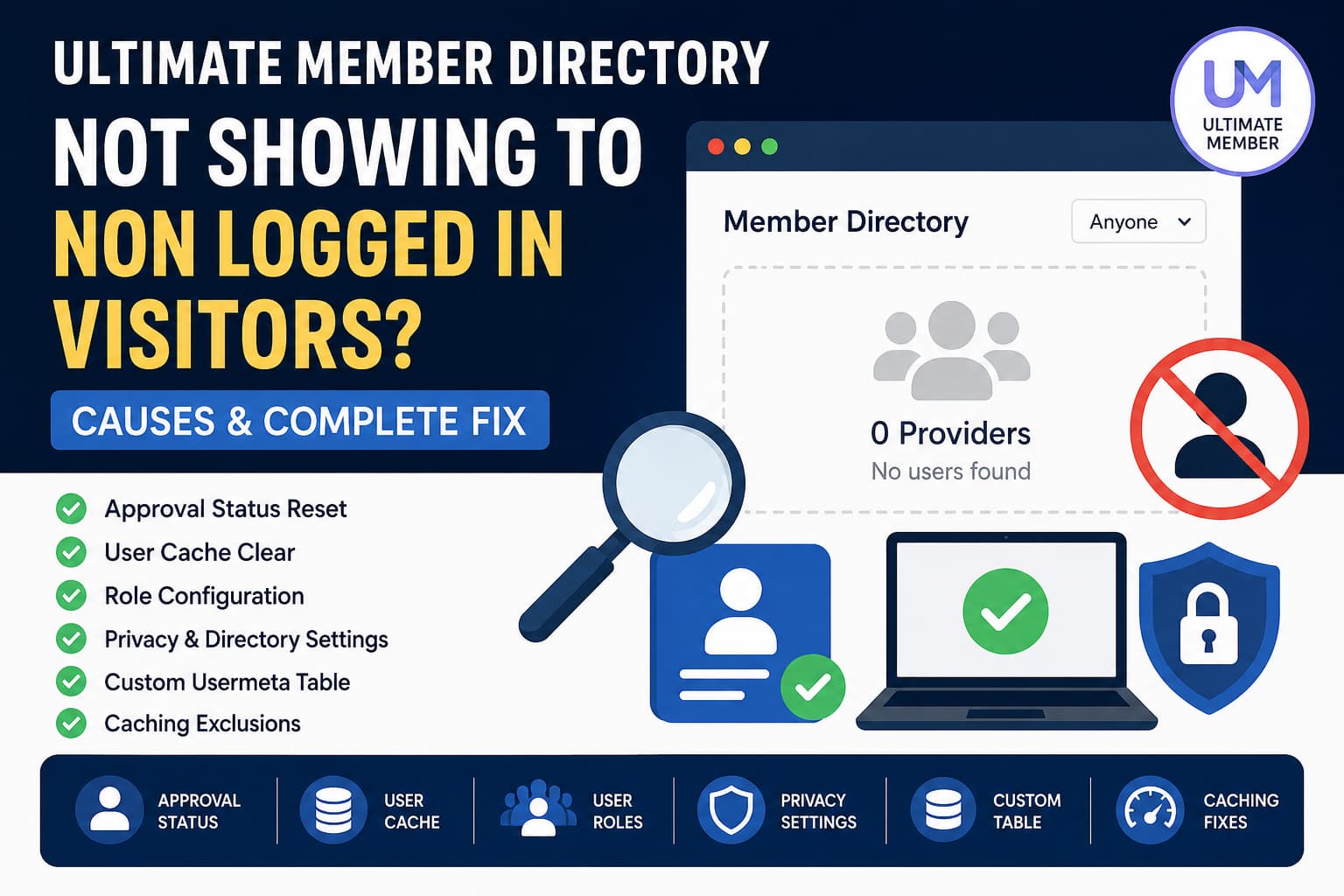
A common Ultimate Member problem occurs when a public member directory works for administrators or logged-in users but appears empty to logged-out visitors.
In the browser’s Network panel, the AJAX request may complete successfully and return a response similar to this:
{
  "success": true,
  "data": {
    "pagination": {
      "current_page": 1,
      "total_pages": 0,
      "total_users": 0,
      "header": "0 Providers"
    },
    "users": [],
    "is_search": false
  }
}
This response is an important clue.
The AJAX endpoint is working. The request is not being blocked by a firewall, security plugin, page builder, or server configuration. Ultimate Member is processing the request but excluding every user from the result.
The most common causes are:
- Incorrect or stale Ultimate Member approval statuses
- Profiles marked as hidden from directories
- A member-directory role restriction that does not match the users’ stored roles
- Stale Ultimate Member user cache
- An outdated custom usermeta table
- Additional directory filters
- Multiple-role priority conflicts
- Page or server caching
The following troubleshooting process fixes each of these possibilities.
The Most Likely Cause: Stale User Approval Status
Ultimate Member normally displays only approved users to non-administrators. Administrators may still see users whose public status or directory metadata prevents them from appearing to guests.
This can create a confusing situation:
- The Users screen says the accounts are approved.
- The administrator sees them in the directory.
- Logged-out visitors receive zero users.
- Clearing the normal WordPress cache does not help.
In a documented Ultimate Member support case, every user appeared approved in WordPress. The directory started working only after the administrator moved the affected users to Pending Review and then approved them again. This forced Ultimate Member to rewrite the account-status and directory data.
Step 1: Back Up the Website
Before changing account statuses or roles, create a complete database backup.
User account changes affect membership access, profile visibility, and potentially email notifications. Test the process on one affected user before applying it to everyone.
Step 2: Reset the Approval Status of One User
Go to:
WordPress Dashboard → Users → All UsersSelect one user who should appear in the public directory.
Temporarily change that user’s Ultimate Member status to:
Pending ReviewSave the change.
Next, approve the user again:
Users → All Users → Hover over the user → ApproveOpen the public directory in a private or incognito browser window.
If the user now appears, you have confirmed that the problem was stale Ultimate Member approval metadata.
You can then repeat the process for the remaining affected users using Ultimate Member’s bulk account-status actions.
Important Warning
Do not approve accounts that are intentionally pending, inactive, rejected, or awaiting email confirmation.
Ultimate Member distinguishes between approved, pending review, awaiting email confirmation, rejected, and inactive accounts. Only approved accounts should receive normal membership access.
Step 3: Clear the Ultimate Member User Cache
Ultimate Member maintains its own user cache. Clearing Redis, FlyingPress, browser cache, transients, or a hosting cache does not necessarily refresh this plugin-specific data.
Go to:
WordPress Dashboard → Ultimate Member → Dashboard → User CacheClick:
Clear Cache of UsersUltimate Member’s documentation explains that programmatic or database-level changes do not always refresh its user cache automatically. A manual cache clear is recommended when user data appears inconsistent.
After clearing the user cache:
- Edit the affected member directory.
- Click Update without necessarily changing anything.
- Clear your page-cache plugin.
- Test the page while logged out.
Step 4: Restore a Clean Directory Configuration
Temporarily remove every optional filter from the directory.
Go to:
Ultimate Member → Member Directories → EditUse the following baseline configuration.
General Options
Set:
User Roles to Display: Leave empty
Only show members with a profile photo: Disabled
Only show members with a cover photo: Disabled
Only show specific users: Empty
Exclude specific users: Empty
Only show completed profiles: Disabled
Only show verified profiles: Disabled
Leaving User Roles to Display empty instructs Ultimate Member to include all applicable member roles.
Privacy Options
Set:
Who can see this member directory: Anyone
Allowed Roles: Empty
The Anyone option allows both logged-in and logged-out visitors to access the directory.
Results and Pagination
Disable:
Show results only after search or filtrationWhen this option is enabled, the directory can intentionally return no initial members until a visitor performs a search. A previous support case involving an apparently empty directory was resolved by disabling this setting.
Click Update, clear caches, and test again.
If the users now appear, re-enable the filters one at a time until you identify the setting excluding them.
Step 5: Fix the “User Roles to Display” Problem
Another useful clue is when the directory works with no selected role but returns zero users as soon as a specific role is selected.
That means the public-directory problem is connected to role data rather than the page itself.
Verify the User’s Actual WordPress Role
Open an affected user:
Users → All Users → Edit UserConfirm the Role field contains the role selected in the member directory.
Do not rely only on the number shown beside the role under:
Ultimate Member → User RolesTest the exact user account.
Force WordPress to Rewrite the Role
For one test user:
- Change the user temporarily to a safe alternative role such as Subscriber.
- Update the user.
- Assign the correct Ultimate Member role again.
- Update the user.
- Clear the Ultimate Member user cache.
- Update the member directory.
This can repair stale role-capability data and refresh the user’s cached directory record.
Do not perform this on administrators or other privileged accounts without carefully recording their existing roles.
Check for Multiple Roles
A WordPress user can have more than one role. Ultimate Member uses role-priority settings to decide which role controls profile access and membership features. A higher priority number takes precedence.
Review the roles under:
Ultimate Member → User Roles → Edit RoleIf users have multiple roles, make sure the intended Ultimate Member role has an appropriate priority.
Also verify these profile-access settings:
Can view other member profiles: Enabled
Can view these user roles only: Leave empty while testing
Ultimate Member recommends leaving the second setting empty when the role should be able to view all profiles.
Step 6: Check Profile Privacy and Directory Hiding
Go to:
Ultimate Member → Settings → General → AccountTemporarily disable:
Allow users to hide their profiles from the directoryIf the Privacy tab was enabled previously, some users may already have a stored directory-hiding preference.
A practical reset process is:
- Enable the Privacy tab temporarily.
- Edit or log in as an affected test user.
- Set the profile so it is not hidden from the directory.
- Save the account settings.
- Disable the Privacy tab again if it is not required.
Administrators can see profiles that are hidden from normal directory visitors, which explains why privacy problems may only affect logged-out users.
Step 7: Rebuild the Ultimate Member Custom Usermeta Table
Ultimate Member can use a custom table named similarly to:
wp_um_metadataThis table improves directory filtering and search performance. However, if it becomes outdated, role-based or metadata-based directory queries can return incorrect results.
Check:
Ultimate Member → Settings → Advanced → FeaturesLook for:
Enable custom table for usermetaIf it is enabled:
- Create a database backup.
- Disable the custom usermeta table option.
- Save the settings.
- Enable it again.
- Run the table-update process.
- Wait until the process finishes.
- Clear the Ultimate Member user cache.
- Test the directory again.
Ultimate Member specifically recommends rebuilding this table when member-directory searching or filtering produces inconsistent results.
Step 8: Exclude the Directory from Caching
Even though Ultimate Member attempts to protect its core pages from caching, custom placement, server caching, and optimization plugins can still interfere.
Exclude the following from full-page caching:
- The member-directory page
- Ultimate Member profile pages
- Login and registration pages
- Account pages
- AJAX requests
- Pages containing an Ultimate Member directory shortcode
Ultimate Member warns that member-directory pages use secure requests and may return stale or incorrect content when cached. It also recommends avoiding multiple caching plugins.
After adding the exclusions, clear:
- WordPress page cache
- Redis or object cache
- Hosting or CDN cache
- Ultimate Member user cache
- Browser cache
Test in a new incognito session.
Step 9: Check the Database Values
When the problem remains, inspect the affected users’ metadata.
Replace wp_ with the database prefix used by your installation.
The following query is read-only:
SELECT
    u.ID,
    u.user_login,
    status.meta_value AS ultimate_member_status,
    hidden.meta_value AS hidden_from_directory,
    roles.meta_value AS wordpress_roles
FROM wp_users AS u
LEFT JOIN wp_usermeta AS status
    ON status.user_id = u.ID
    AND status.meta_key = 'account_status'
LEFT JOIN wp_usermeta AS hidden
    ON hidden.user_id = u.ID
    AND hidden.meta_key = 'hide_in_members'
LEFT JOIN wp_usermeta AS roles
    ON roles.user_id = u.ID
    AND roles.meta_key = 'wp_capabilities'
ORDER BY u.ID;
For a publicly visible user, check for:
ultimate_member_status: approved
hidden_from_directory: empty, false, or disabled
wordpress_roles: Contains the expected role slug
Ultimate Member uses the account_status usermeta key for account approval, with approved representing a fully approved account.
Avoid manually editing serialized WordPress role data unless you understand PHP serialization. Incorrectly editing wp_capabilities can remove access or corrupt a user’s role assignment.
Step 10: Check for Custom Query Modifications
Custom plugins and code snippets can modify Ultimate Member directory queries.
Search the website code for hooks such as:
um_prepare_user_query_args
um_pre_users_query
um_members_directory_custom_query
pre_get_users
Check:
- The active theme’s
functions.php - The child theme
- The Code Snippets plugin
- Must-use plugins
- Custom membership integrations
- Role-management plugins
- Search and filtering extensions
Temporarily disable custom snippets that modify user queries, then test the directory as a guest.
A custom query may use conditions such as is_user_logged_in() and accidentally add an empty role or metadata filter for logged-out visitors.
Recommended Fix Order
For this exact symptom, use this order:
- Leave User Roles to Display empty.
- Set directory visibility to Anyone.
- Disable all optional directory filters.
- Disable Show results only after search or filtration.
- Move one affected user to Pending Review.
- Approve the user again.
- Clear the Ultimate Member user cache.
- Update the directory.
- Test while logged out.
- Reassign the user’s role if role-specific filtering still returns zero.
- Rebuild the custom usermeta table if enabled.
- Add the directory page to all cache exclusions.
In most cases where administrators see users but public visitors receive total_users: 0, resetting the account approval status and clearing Ultimate Member’s user cache resolves the problem.
Why This Is Not Usually a Firewall Problem
A firewall or security rule normally produces symptoms such as:
403 Forbidden
401 Unauthorized
500 Internal Server Error
Blocked admin-ajax.php request
Invalid nonce
HTML challenge page instead of JSON
A successful JSON response containing:
"success": truemeans WordPress and Ultimate Member handled the AJAX request.
The empty users array means the directory query completed but did not find users who passed every approval, privacy, role, and directory-filter condition.
Frequently Asked Questions
Why does the directory work for administrators?
Administrators can see users or profiles that may be hidden from regular visitors. Logged-out visitors are subject to Ultimate Member’s approval, directory-privacy, profile-privacy, and filter conditions.
Why does selecting a role return zero users?
The users may not have the exact stored WordPress role expected by the directory, their role cache may be stale, a second role may have higher priority, or the custom Ultimate Member metadata table may be outdated.
Should “User Roles to Display” be empty?
Leave it empty during troubleshooting. Ultimate Member documents that an empty selection displays users from all applicable roles. Once the directory works, select the required role and test again.
Does clearing a normal WordPress cache clear Ultimate Member’s user cache?
Not necessarily. Ultimate Member maintains a separate user cache that can be cleared from its Dashboard.
Should I edit the account status directly in the database?
Use Ultimate Member’s account-status controls whenever possible. They are more likely to update related metadata, actions, and cache records correctly.
Will changing users to Pending Review email them?
That depends on the enabled Ultimate Member email templates and the action used. Test the process on a staging website or one controlled account before applying a bulk change.
Final Solution
When an Ultimate Member directory is visible to “Anyone” but returns zero users only for logged-out visitors, the issue is usually not the AJAX request itself.
The reliable repair is to:
- Confirm all intended users are genuinely approved
- Reset stale approval statuses by moving affected users to Pending Review and approving them again
- Clear Ultimate Member’s user cache
- Remove role restrictions temporarily
- Confirm the users’ actual WordPress roles
- Rebuild the custom usermeta table when enabled
- Disable restrictive directory options
- Exclude the member directory from page caching
Once the underlying approval, role, and directory metadata are synchronized, the AJAX response should report the correct total_users value and the profiles should become visible to public visitors.
