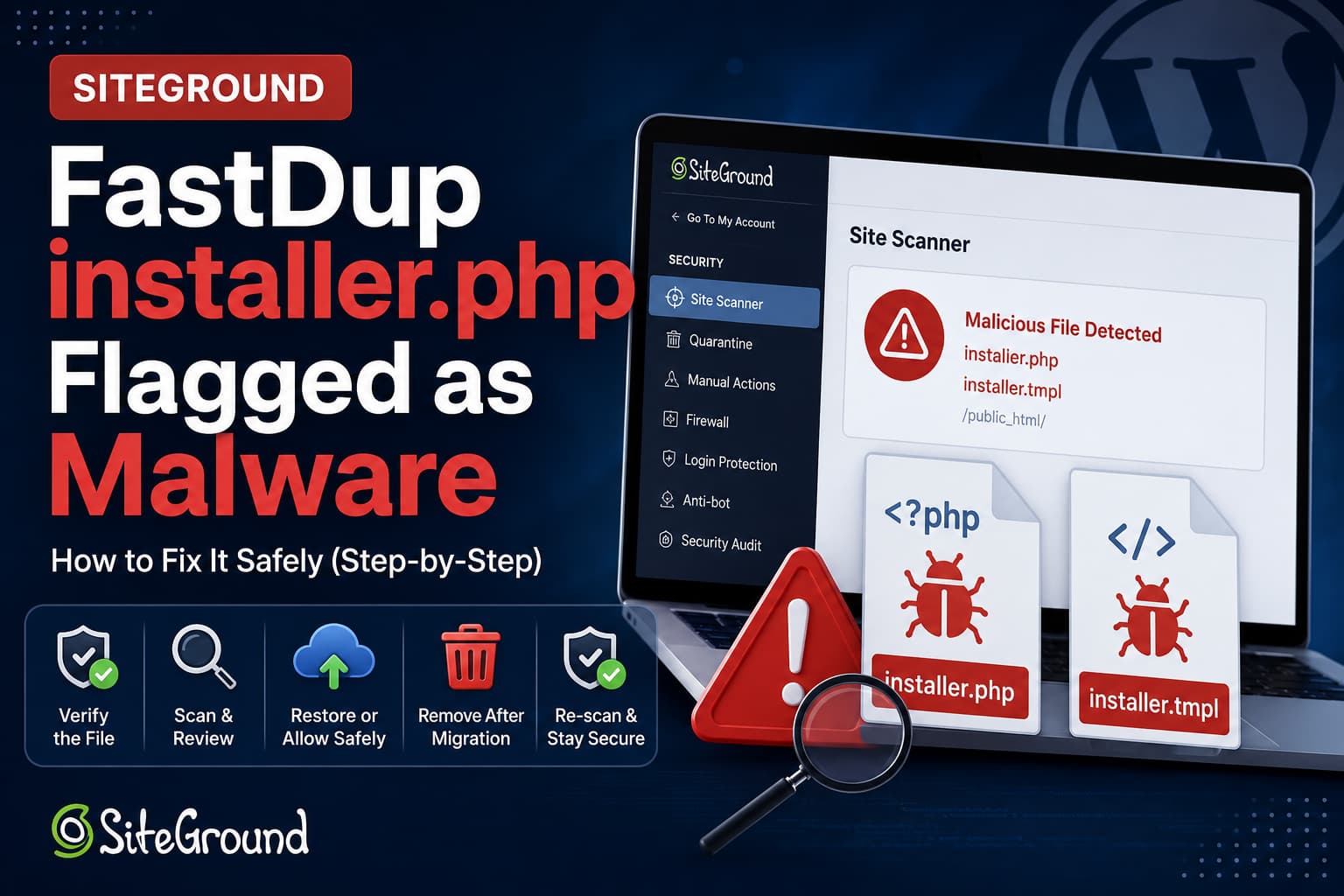
SiteGround Site Scanner may identify the FastDup files installer.php and installer.tmpl as malicious software during a WordPress migration.
The warning can appear while uploading a FastDup migration package, after completing the installation, or during a routine SiteGround file scan. In some cases, the option intended to remove the installer does not appear to delete everything, and SiteGround continues reporting installer.tmpl inside the FastDup plugin directory.
FastDup support has stated that its installer detection is a false positive and recommended allowing the verified plugin files. However, you should not automatically assume that every file named installer.php is safe. Confirm its source and integrity before restoring, executing, or excluding it from security scanning.
This guide explains why SiteGround flags these files, how to verify them safely, how to complete the migration, and how to prevent the warning from returning.
Quick Solution
The safest solution depends on whether you still need FastDup.
If the migration is complete:
- Delete the generated
installer.phpfrom the website root. - Delete the FastDup archive, database dump, package log, and other migration files.
- Deactivate and delete FastDup if you do not need it for future migrations.
- Run a new SiteGround file scan.
If you still need FastDup:
- Update FastDup from the official WordPress plugin directory.
- Verify that the flagged file belongs to the official plugin.
- Restore the verified file from SiteGround quarantine instead of automatically cleaning it.
- Ask SiteGround to review the detection as a possible false positive.
- Allow only the exact verified file or plugin path if an exclusion is available.
Do not create a broad security exclusion for all PHP files or the complete website directory.
Why FastDup Uses installer.php
FastDup creates a migration package containing a copy of the WordPress files and database.
Its documented migration process requires you to:
- Create a FastDup package.
- Download the archive and installer.
- Upload the files to the destination server.
- Open
installer.php. - Use the installer to extract the archive and configure the migrated website.
The official FastDup plugin page specifically instructs users to run installer.php on the destination server.
A migration installer requires extensive file and database access. It may need to:
- Extract an archive.
- Create and overwrite PHP files.
- Import database tables.
- Replace old domain references.
- Modify WordPress configuration.
- Test database credentials.
- Remove temporary installation files.
Malware scanners also look for scripts capable of creating files, modifying databases, extracting archives, and executing installation operations. As a result, a legitimate migration installer can trigger the same heuristic rules used to detect malicious uploaders or backdoors.
A detection therefore requires investigation, but it does not prove by itself that the file is infected.
What Is installer.tmpl?
The installer.tmpl file is different from the generated installer.php file placed in the destination website root.
FastDup uses a template file to generate the executable installer included with a migration package. The plugin’s official changelog references updates to installer.tmpl and a previous correction for a missing installer template, confirming that this template is part of FastDup’s installation system.
The two files normally have different purposes:
installer.php
This is the generated migration installer uploaded to the destination website.
It is temporary and should be removed immediately after the migration has finished.
installer.tmpl
This is a template stored within the FastDup plugin files.
FastDup may require it when generating future installers. Deleting it while keeping FastDup active could prevent the plugin from creating another complete migration package.
If you no longer need FastDup, deleting the entire plugin is cleaner than repeatedly deleting only installer.tmpl.
Is the FastDup Installer Actually Safe?
FastDup support responded to the reported SiteGround detection by saying the installer was safe and that the malware warning was a false positive. The recommended workaround was to allow the verified plugin through the scanner.
That statement applies to the legitimate file distributed by FastDup. It should not be treated as proof that any file with the same name is safe.
Attackers commonly use ordinary filenames such as:
installer.php
update.php
admin.php
wp-login.php
class.php
cache.php
Before running or restoring the installer, confirm all of the following:
- FastDup was installed from the official WordPress plugin directory.
- The package was created from your own trusted website.
- Nobody else had access to modify the downloaded package.
- The flagged file is in the expected migration or plugin location.
- The file modification time matches the migration or plugin installation.
- The file matches a clean copy from the same FastDup version.
- No unrelated PHP installers exist elsewhere on the account.
At the time of writing, the official directory lists FastDup version 2.7.3 and identifies it as tested with WordPress 7.0.2. Always check for a newer stable release before troubleshooting.
Step 1: Create a Backup Before Changing Anything
Before deleting, restoring, cleaning, or excluding a file, create a complete backup containing:
- The WordPress database
- WordPress core files
- Themes and plugins
- Uploaded media
- The FastDup archive
- Existing server configuration
- The SiteGround malware report
When possible, download the backup to a separate computer or cloud-storage location rather than keeping the only backup inside the same hosting account.
Do not execute a suspicious installer merely to determine what it does.
Step 2: Record the Exact File Paths
Open:
Site Tools > Security > Site ScannerSelect the relevant scan and click View details.
Record the complete path of every detected file.
The location is important.
A generated installer may appear in the document root:
/public_html/installer.phpThe template may appear somewhere inside the plugin directory:
/public_html/wp-content/plugins/fastdup/.../installer.tmplAn unexpected copy might appear elsewhere:
/public_html/wp-content/uploads/installer.php
/public_html/wp-includes/installer.php
/public_html/cache/installer.php
A FastDup installer in the website root during an active migration may be expected. An unexplained installer inside uploads, a cache directory, or a WordPress core folder requires further investigation.
Do not delete files based only on their filename. Confirm the complete path first.
Step 3: Locate All Copies of the Files
You can search through SiteGround File Manager or SSH.
From SiteGround, open:
Site Tools > Site > File ManagerSelect the website root and search for:
installer.php
installer.tmpl
With SSH, navigate to the correct website directory and run:
find . -type f \( -name "installer.php" -o -name "installer.tmpl" \) -printThe command only lists matching files. It does not delete anything.
Review each result individually.
Do not use a broad command such as:
find . -name "*.php" -deleteThat would destroy the WordPress installation.
Step 4: Update FastDup from the Official Source
Open:
WordPress Dashboard > Plugins > Installed PluginsUpdate FastDup if an official update is available.
If the plugin installation may have been modified, download a clean copy of the same version from the official WordPress plugin directory and compare it with the server copy.
Avoid:
- Nulled or cracked plugin packages
- Plugin downloads from file-sharing websites
- Unofficial mirrors
- Old plugin ZIP files stored on an unknown computer
- Installers received through unsolicited email
The plugin’s recent changelog includes multiple security improvements, so using the newest compatible release is particularly important.
Step 5: Compare the File Hashes
A cryptographic hash helps determine whether two files are identical.
On the server, calculate the flagged file’s SHA-256 hash:
sha256sum /full/path/to/installer.tmplCalculate the hash of the corresponding file from a clean copy of the same FastDup version:
sha256sum /path/to/clean-copy/installer.tmplThe two values should match exactly.
On Windows, you can calculate a hash with:
certutil -hashfile installer.tmpl SHA256A matching hash confirms that the server file is identical to the clean comparison file. It does not independently audit whether the developer’s original code is secure, but it helps rule out unauthorized modification of your installed copy.
If the hashes do not match:
- Do not restore or run the flagged file.
- Preserve a copy for investigation.
- Replace the plugin with a clean official installation.
- Scan the complete hosting account.
- Review administrator, FTP, SSH, and SiteGround access.
- Change compromised credentials where appropriate.
Step 6: Handle SiteGround Quarantine Safely
SiteGround Site Scanner Premium can scan newly uploaded files and move suspicious files into quarantine before they reach the public website directory.
SiteGround allows quarantine to be enabled or disabled. It also provides actions to clean, restore, or remove quarantined files.
For a verified false positive, use caution with the Clean option.
The automated cleaning process may remove code that the scanner considers malicious. If the code is actually required by the FastDup installer, the cleaned file may no longer work correctly.
After confirming the file is legitimate, the safer migration workflow is:
- Open
Site Tools > Security > Site Scanner > Quarantine. - Locate the exact FastDup installer.
- Confirm the original path and upload time.
- Verify the file against the official plugin package.
- Choose Restore for the verified file.
- Complete the migration immediately.
- Delete the installer and archive.
- Run another Site Scanner scan.
SiteGround documents that restoring a quarantined file moves it to the public folder without modifying it.
Do not restore unrelated files simply because they were detected at the same time.
Step 7: Temporarily Disable Upload Quarantine When Necessary
If SiteGround immediately quarantines the verified installer every time it is uploaded, you can temporarily deactivate upload quarantine.
Go to:
Site Tools > Security > Site Scanner > QuarantineTurn the quarantine option off, upload the verified installer, and complete the migration.
SiteGround confirms that quarantine is optional and can be switched on or off. Files uploaded while it is disabled can still be detected by later scans.
Use this only as a tightly controlled temporary workaround:
- Verify the installer first.
- Disable quarantine.
- Upload only the required installer and archive.
- Run the migration immediately.
- Delete all migration files.
- Re-enable quarantine.
- Run an on-demand scan.
Do not leave quarantine disabled after the migration.
Step 8: Delete installer.php After Migration
The generated installer.php should not remain publicly accessible after the migration.
Delete it using SiteGround File Manager, SFTP, or SSH.
Example:
rm -f /full/path/to/public_html/installer.phpReplace the example with the exact confirmed path.
Also remove the migration archive and temporary files. Depending on the package, these may include:
archive.zip
package.zip
database.sql
scan_package.json
installer log files
temporary extraction files
Do not run a broad wildcard deletion unless you have verified every matching filename.
After deletion, try opening the previous installer address in a private browser window:
https://example.com/installer.phpIt should return a 404 Not Found, 403 Forbidden, or another response confirming that the installer can no longer run.
Step 9: Remove FastDup When It Is No Longer Needed
If you only installed FastDup for a one-time migration, the simplest permanent solution is to remove it afterward.
Go to:
WordPress Dashboard > Plugins > Installed PluginsThen:
- Deactivate FastDup.
- Confirm that the migrated website still works.
- Delete FastDup.
- Check whether its old package directory remains.
- Remove obsolete migration packages after downloading any backup you need.
- Run another SiteGround scan.
Deleting the plugin removes its installer.tmpl file along with the rest of the plugin code. This is safer and cleaner than deleting the template while leaving an incomplete plugin installation active.
If you need FastDup regularly for backups or cloning, keep the verified plugin installed and ask SiteGround to review the false-positive detection.
Step 10: Ask SiteGround to Review the Detection
The FastDup support recommendation is to allow the verified plugin, but SiteGround’s current public documentation focuses on restoring, cleaning, deleting, or temporarily disabling quarantine rather than documenting a general user-managed malware allowlist.
Contact SiteGround support and provide:
Website:
Detected file:
Complete server path:
FastDup version:
WordPress version:
Site Scanner detection name:
Date and time detected:
SHA-256 hash:
Source of the plugin:
Result of comparison with official package:
Ask SiteGround to:
- Review whether the detection is a false positive.
- Confirm the exact signature or rule being triggered.
- Check whether the file can be excluded safely.
- Submit the file to its security team for a definition update.
- Confirm whether the exclusion applies by hash, filename, or path.
A hash-specific or exact-file exception is safer than excluding the whole website or all PHP files.
Why the Automatic Removal Option May Not Work
There are several possible explanations for the installer remaining after the removal option was selected.
The option only removes installer.php
A post-installation cleanup option may remove the generated installer from the website root without deleting installer.tmpl from the active plugin.
The template is part of FastDup itself and may be needed to create future installers.
SiteGround quarantined the file
If SiteGround intercepted or moved the installer during upload, FastDup may no longer be working with the file in the location it expects.
This can prevent the normal installation and cleanup process from completing correctly.
File ownership or permissions prevented deletion
PHP must have permission to remove the generated installer.
Typical WordPress permissions are:
Directories: 755
Files: 644
However, ownership is often more important than the numeric permission. The web-server or PHP user must be allowed to modify the file.
Do not use 777 as a permanent workaround.
The migration request ended before cleanup finished
A PHP timeout, server error, interrupted browser request, or failed redirect may allow the website installation to complete while preventing the final cleanup action from running.
The installer was created again
Running the migration again, extracting the archive a second time, or restoring an old backup can return previously deleted installation files.
Manual verification after every migration is therefore still necessary.
Recommended Permanent Workaround
For a one-time migration, use this workflow:
- Update FastDup.
- Create the migration package.
- Verify the generated installer.
- Restore it from quarantine or temporarily disable quarantine.
- Complete the migration.
- Delete the installer and archive manually.
- Delete FastDup from the destination if it is no longer needed.
- Re-enable SiteGround quarantine.
- Run a new malware scan.
For recurring FastDup use:
- Keep FastDup updated.
- Verify the official plugin files.
- Ask SiteGround to review the detection.
- Allow only the exact verified file or path.
- Continue deleting generated installers after every migration.
- Store backup archives outside the public website directory whenever possible.
What You Should Not Do
Avoid these unsafe workarounds:
- Do not ignore every
installer.phpwarning. - Do not whitelist every PHP file.
- Do not exclude the complete
public_htmldirectory. - Do not disable SiteGround security permanently.
- Do not leave the installer publicly accessible.
- Do not keep migration archives in the website root.
- Do not automatically restore all quarantined files.
- Do not use SiteGround’s automatic cleaning on a false positive without checking what it changes.
- Do not delete
installer.tmplwhile expecting FastDup to continue working normally. - Do not download a replacement installer from an unofficial source.
Post-Migration Security Checklist
After completing the migration, confirm the following:
- The website frontend loads.
- WordPress administration works.
- The database connection is correct.
- Internal pages use the new URL.
- Images and CSS files load.
- Forms and checkout functions work.
installer.phphas been removed.- Migration ZIP files have been removed.
- SQL dumps and package logs have been removed.
- No unexpected installer copies exist.
- FastDup has been removed if no longer needed.
- SiteGround quarantine is enabled again.
- A fresh Site Scanner scan reports no unexplained files.
- WordPress, themes, and plugins are updated.
- Old administrator accounts have been reviewed.
- FTP, SSH, hosting, and WordPress credentials are secure.
Frequently Asked Questions
Is FastDup installer.php malware?
The official FastDup installer is not automatically malware simply because SiteGround detects it. FastDup support has identified this particular report as a false positive. You should still verify that your copy came from the official plugin and was not modified before running or restoring it.
Why does SiteGround flag installer.php?
Migration installers perform high-risk operations such as extracting PHP files, importing databases, changing configuration, and writing to the server. These capabilities can resemble malware behavior and trigger heuristic security rules.
Can I delete installer.php?
Yes. Delete the generated installer.php after the migration is complete. It should not remain accessible on a production website.
Can I delete installer.tmpl?
You can remove it by deleting FastDup when you no longer need the plugin. Deleting only the template while leaving FastDup installed may prevent future migration packages from including a working installer.
Should I whitelist FastDup?
Only whitelist an exact file or plugin path after verifying it against the official package. Do not create a broad exception covering all PHP files or the complete website.
Should I choose Clean or Restore in SiteGround quarantine?
For a confirmed false positive, use Restore after verifying the file. The Clean option may remove code the scanner considers suspicious and could damage the legitimate installer.
Can I temporarily turn off SiteGround quarantine?
Yes. SiteGround allows file-upload quarantine to be disabled. Turn it off only long enough to upload and run the verified installer, and re-enable it immediately afterward.
Why does installer.tmpl return after I delete it?
It may return when FastDup is reinstalled, updated, restored from backup, or copied during another migration. It belongs to the plugin package rather than being only a temporary root installer.
Final Conclusion
A SiteGround warning for the FastDup installer.php or installer.tmpl file can be a false positive, but it should still be handled carefully.
Verify the exact file path, compare the file with an official FastDup package, and restore only the confirmed installer. Complete the migration within a controlled window, delete the generated installer and archive immediately, and re-enable all SiteGround security protections.
If FastDup is no longer needed, remove the entire plugin. If it is required for recurring migrations, ask SiteGround to review the detection and apply the narrowest possible exception rather than weakening malware protection for the complete website.
