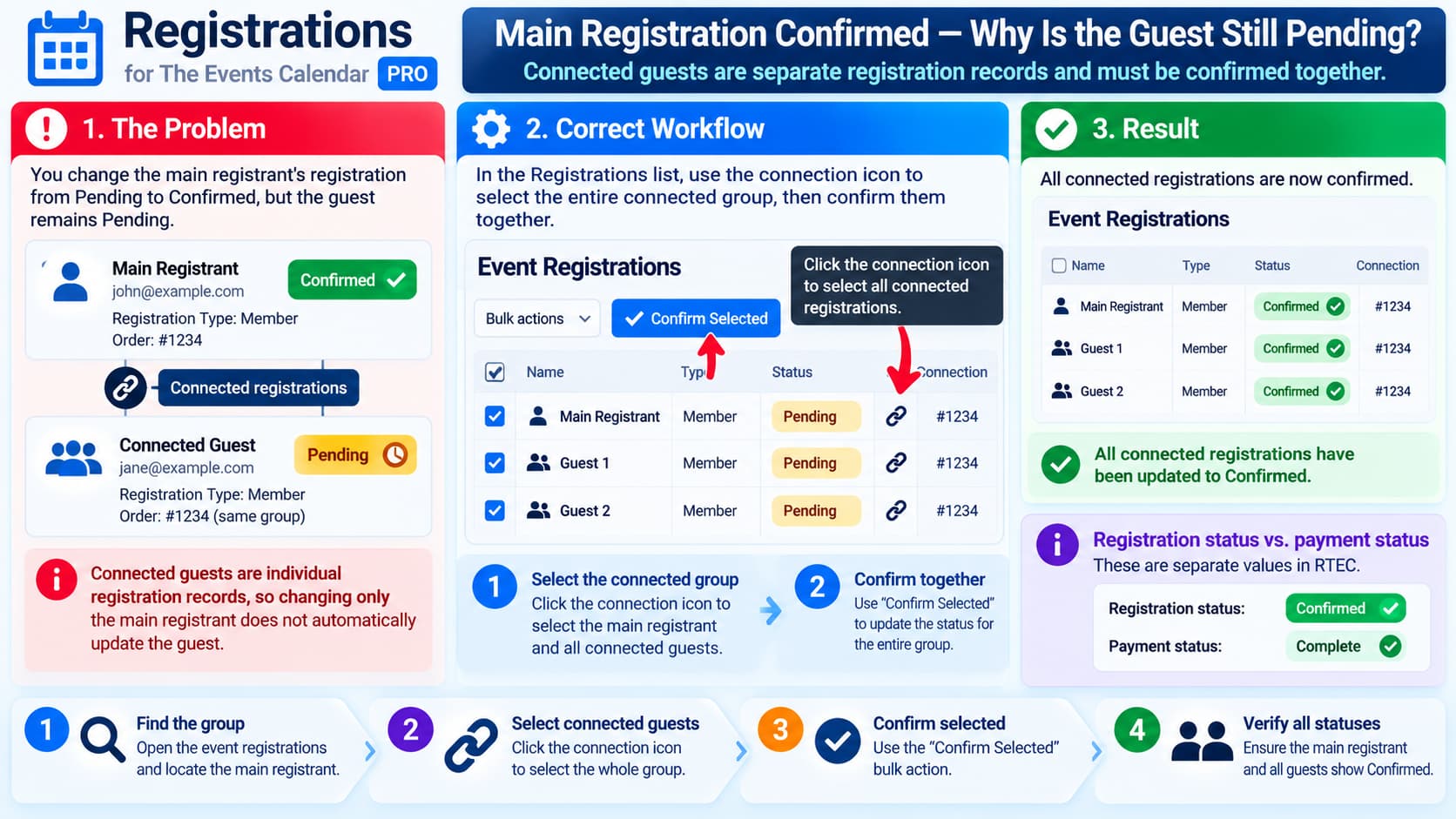
When using Registrations for The Events Calendar Pro (RTEC), a primary attendee can register additional people using the Connected Guests feature.
This can create a situation like:
Main Registrant    Confirmed
Guest 1            Pending
Guest 2            Pending
It is reasonable to expect that manually changing the main registrant from Pending to Confirmed would automatically confirm everyone connected to that registration.
However, connected guests in RTEC are stored as individual registration records.
The fact that they belong to the same registration group does not mean every manual status change made to the parent record is automatically copied to the children.
For manually managed registrations, the safer workflow is to select the entire connected group and confirm those registrations together.
There is one important exception: when a paid connected registration completes its normal payment workflow, RTEC specifically documents that all connected registrations are considered confirmed once payment is complete.
Connected Guests Are Separate Registrations
RTEC does not store additional attendees merely as text attached to the primary attendee.
With Connected Guest Registration enabled, each attendee gets their own registration record.
The plugin’s documentation explains that after submission:
- the main attendee has a registration;
- each connected guest has a registration;
- connected records are linked together;
- each can have its own fields and attendee information.
In the Registrations table, RTEC displays a link/connection icon next to connected registrations. Hovering over it highlights the other registrations in the same group, and clicking it selects those connected registrations together.
This architecture is useful because a guest can have their own:
- name;
- email;
- meal preference;
- registration type;
- attendance/check-in status;
- custom form answers.
But it also means statuses can exist on separate records.
Manual Status Changes Are Different From Group Payment Confirmation
This distinction is important.
Automatic payment workflow
RTEC’s Connected Guests documentation explicitly says that if an event has a cost, all connected guests are included in the total payment and:
once payment is complete, all connected registrations will be considered confirmed.
So the expected paid-event workflow is:
Main + Guest 1 + Guest 2
          ↓
      One payment
          ↓
   Payment completes
          ↓
Main        Confirmed
Guest 1     Confirmed
Guest 2     Confirmed
Manual admin status change
If an administrator opens only the primary registration and manually changes its registration status, that is a change to that selected registration record.
RTEC’s current administration documentation describes status changes as actions performed on attendee registrations individually or through the registration management tools.
Therefore this workflow:
Main Registrant
Pending → Confirmed
should not automatically be assumed to mean:
Every connected registration
Pending → Confirmed
The connected registrations should be selected as a group when you intend to confirm the whole party manually.
Use the Connection Icon to Select the Whole Group
RTEC provides a built-in way to handle connected registrations.
Go to:
WordPress Dashboard → Registrations
Open the Detailed View for the relevant event.
Connected registrations should show a link/connection icon.
RTEC documents that:
- hovering over the icon highlights registrations belonging to the same connected group;
- clicking the icon selects the connected registrations.
So instead of editing only the main attendee:
☐ Main Registrant
☐ Guest 1
☐ Guest 2
click the connection icon so the group is selected:
☑ Main Registrant
☑ Guest 1
☑ Guest 2
Then use the appropriate bulk confirmation/status action.
This is the safest way to tell RTEC that the entire party should change status.
Use “Confirm Selected” for Pending Registrations
RTEC has historically provided a:
Confirm Selectedtool in the Detailed View.
The plugin changelog specifically documents that the tool is used to manually confirm pending registrations.
For an event using manual confirmation, the workflow should therefore be:
- Open the event’s registrations.
- Locate the main attendee.
- Identify the connected guests using the connection icon.
- Select the entire connected group.
- Use Confirm Selected.
- Verify every record now shows Confirmed.
That produces:
Main Registrant    Confirmed
Guest 1            Confirmed
Guest 2            Confirmed
without manually editing each guest separately.
Pending, Confirmed, and Complete Are Not Necessarily the Same Status
There is another source of confusion worth checking.
Current RTEC documentation distinguishes between:
registration_statusand:
payment_statusFor example, the current webhook documentation shows:
"registration_status": "confirmed",
"payment_status": "complete"
So:
Confirmed normally describes the attendee’s registration status.
Complete can describe payment status.
Those are related during paid registration, but they are not identical fields.
For example:
Registration status: Pending
Payment status: Complete
could indicate a workflow/configuration problem requiring investigation.
Likewise, manually changing something marked Complete in a payment-related area should not be assumed to update every registration status in the connected group.
When diagnosing the issue, verify exactly which value you are changing:
Registration status?
or
Payment status?
How Manual Confirmation Conditions Work
RTEC supports several Confirmation Conditions.
One option is:
Manually onlyUnder this configuration, all new registrations start as Pending until an administrator confirms them manually.
RTEC’s documentation explains:
All registrations are initially marked as “pending” until an administrator manually takes action using the dashboard tools.
This makes the group-selection workflow especially important.
Suppose a party registers:
Alice — Main
Bob — Guest
Carol — Guest
Initially:
Alice    Pending
Bob      Pending
Carol    Pending
If only Alice is edited:
Alice    Confirmed
Bob      Pending
Carol    Pending
that does not necessarily indicate corrupted guest records.
Instead select all three and confirm them as a connected group.
Why RTEC Keeps Connected Guests as Separate Records
It may initially seem simpler to make guests inherit every property of the parent automatically.
But RTEC increasingly supports independent management of connected registrations.
For example, recent versions allow:
- individual connected guest information;
- individual cancellation in a connected group;
- guest promotion when the main registration is removed;
- different registration types where configured;
- guest-specific form fields.
The RTEC 2.26 changelog introduced the ability to cancel an individual registration instead of necessarily canceling the entire connected group.
Version 3.0.7 also added logic that promotes the first remaining guest to become the new main registration when the original main registrant is deleted, canceled, or unregistered.
These features demonstrate that connected guests are intentionally real, independently manageable registration records.
That is why automatically copying every manual status change from the main record could sometimes be undesirable.
Check Whether You Are Using Connected Guests or the Simple Guests Field
RTEC actually has two different ways to handle guests.
Guests field
The ordinary Guests field stores mainly a quantity.
For example:
John Smith
Guests: 2
The backend counts this as three attendees, but those two guests do not necessarily have independent registration records.
Connected Guests
Connected Guests creates individual registrations:
John Smith — Main
Jane Smith — Connected
Robert Smith — Connected
RTEC recommends Connected Guests when you need individual attendee information.
The status issue described here applies to Connected Guests, where each guest has a separate registration record.
Confirm All Records After a Manual Payment
If someone paid outside the website, another common scenario is:
Registration submitted
        ↓
Main + guests are Pending
        ↓
Organizer receives offline payment
        ↓
Organizer manually records/approves payment
Before changing anything, confirm whether the payment tool you’re using is designed to confirm the entire connected registration group.
RTEC has specific payment lifecycle logic, and the plugin’s documentation says connected registrations are confirmed together when the normal payment workflow completes.
If you are instead manually changing individual records, use the connection/bulk-selection tools and verify every guest afterward.
Do not assume that setting only the main registration to Confirmed represents the payment status of the whole group.
Confirmation Emails Can Also Be Affected
Status changes may trigger confirmation communications depending on the event’s configuration.
RTEC supports confirmation emails that correspond to a registrant becoming confirmed.
Connected registrations can also be configured to use a single group confirmation/notification message. That option was added in RTEC 2.22.
Before repeatedly changing statuses while testing, check your email configuration.
Otherwise, you may unintentionally send multiple confirmation messages to the primary attendee or guests.
Use a staging/test event where possible.
How to Test the Correct Workflow
Create a test event with manual confirmation enabled.
Register:
Main:
Test Primary

Connected Guest:
Test Guest
Before confirmation
Verify:
Test Primary    Pending
Test Guest      Pending
Test individual editing
Change only the main attendee.
If the result is:
Test Primary    Confirmed
Test Guest      Pending
you have reproduced the behavior.
Test group confirmation
Reset/create another test party.
In the Detailed registration view:
- click the connected-registration icon;
- make sure both records are selected;
- use Confirm Selected.
Expected:
Test Primary    Confirmed
Test Guest      Confirmed
That should be the normal administrative workflow for manually confirming the connected party.
What If Payment Completes but the Guest Still Remains Pending?
That is different.
RTEC’s documentation explicitly says all connected registrations should be confirmed after the connected group’s payment completes.
So this situation:
Payment: Complete

Main:   Confirmed
Guest:  Pending
after a normal RTEC payment workflow deserves troubleshooting.
Check:
- your RTEC Pro version;
- payment gateway/add-on version;
- whether the guest is genuinely part of the same connection group;
- whether the payment was processed through RTEC or manually altered;
- PHP/server logs;
- whether custom code modifies registration status.
Current RTEC 3.3 includes several recent payment and confirmation fixes, including handling of pending registrations after PayPal payment.
Test updates on staging before changing a live registration/payment site.
Verify the Guests Really Belong to the Same Group
The registration table provides a Connection value for linked records.
RTEC’s documentation says connected registrations share a unique connection identifier.
Verify that:
Main        Connection: 12345
Guest 1     Connection: 12345
Guest 2     Connection: 12345
If the supposed guest has a different connection number, it is not actually part of the same connected registration group.
That would explain why group behavior does not apply.
Recommended Workflow
For events where an administrator manually approves entire parties:
New Registration
       ↓
Main + Guests = Pending
       ↓
Review registration
       ↓
Click connection icon
       ↓
Select complete connected group
       ↓
Confirm Selected
       ↓
Main + Guests = Confirmed
This is preferable to opening only the main registration and changing its status individually.
Final Answer
You are probably not missing a setting.
With RTEC Connected Guests, the main attendee and each additional guest are stored as separate registration records. Manually changing only the main registration’s status does not need to cascade automatically to every connected guest.
Instead:
- open the event’s registration management screen;
- use the connection/link icon to select the connected group;
- select all relevant attendees;
- use Confirm Selected or the appropriate bulk status action;
- verify that each registration now shows Confirmed.
RTEC specifically documents one workflow where the group should update together: when payment for a connected registration successfully completes, all connected registrations should become confirmed.
So the distinction is:
Manual edit of one registration
→ affects that selected registration

Successful group payment
→ all connected registrations should confirm
Also make sure you are not confusing payment status “Complete” with registration status “Confirmed”. Current RTEC data treats these as separate fields.
