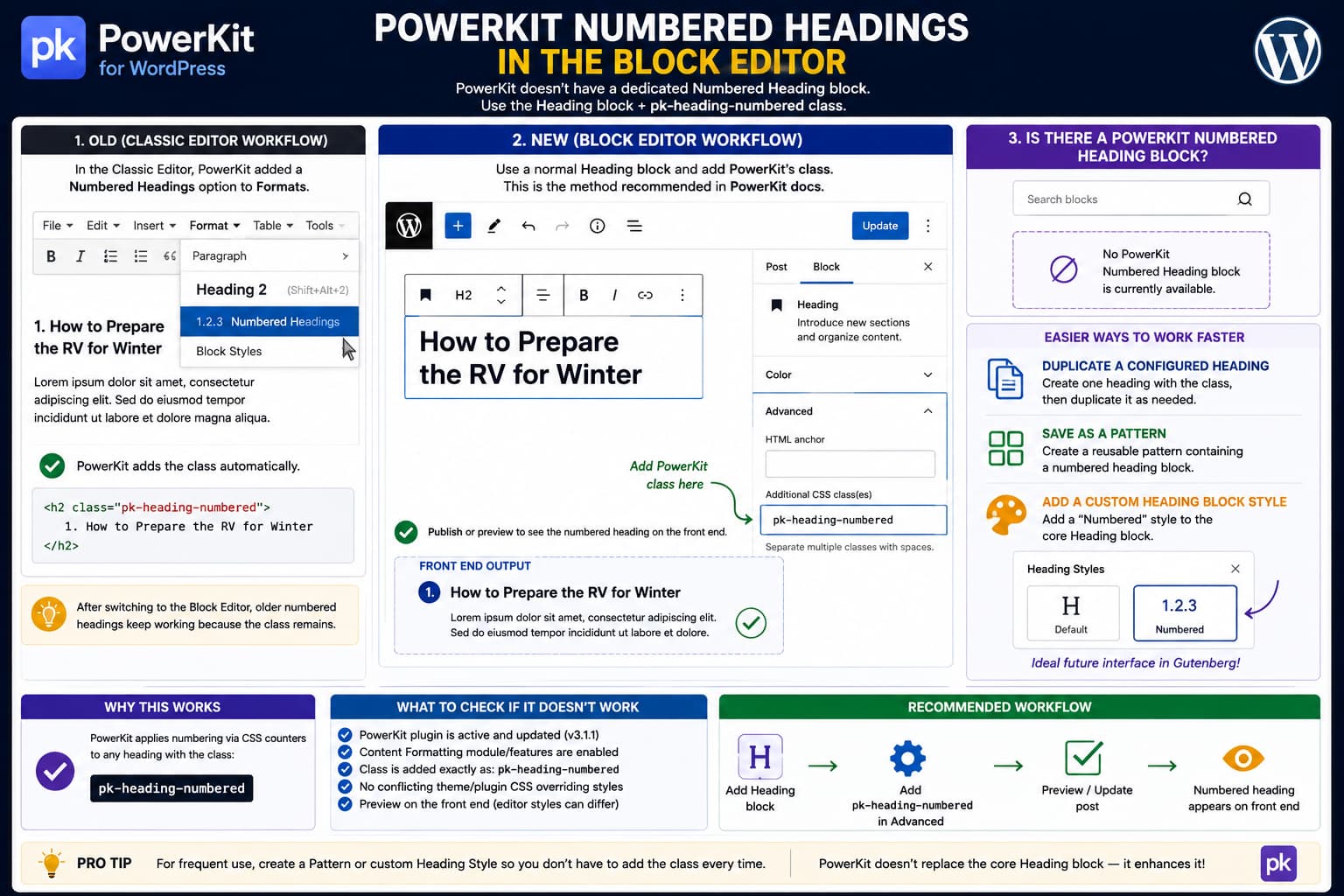
After switching from the Classic Editor to the WordPress Block Editor, PowerKit’s Numbered Headings feature can appear to have disappeared.
In the Classic Editor, PowerKit added its formatting options to the editor’s Formats menu. You could select a heading and choose Numbered Headings without knowing which CSS class PowerKit used internally.
The Block Editor works differently.
PowerKit’s own documentation currently says that when using the newer WordPress Block Editor, numbered headings should be created by adding:
pk-heading-numberedto the Heading block’s Additional CSS Class(es) field.
So seeing that class on older converted headings is expected, and manually adding the same class is not merely a workaround. It is currently PowerKit’s documented Gutenberg workflow.
How to Add a PowerKit Numbered Heading
Add a normal WordPress Heading block.
For example:
How to Prepare the RV for WinterSelect the Heading block.
Open the block settings sidebar using the Settings icon in the upper-right corner of the editor.
Expand:
Advanced
Find:
Additional CSS Class(es)
Enter:
pk-heading-numberedDo not include a period before the class name.
Correct:
pk-heading-numberedIncorrect:
.pk-heading-numberedThe period is used when referring to a class in CSS. WordPress’s Additional CSS Class field expects only the class name.
Update or preview the post.
PowerKit should then apply its numbered-heading styling.
PowerKit explicitly documents this process for the new Block Editor.
Why Older Headings Already Have the Class
An older heading created using PowerKit’s Classic Editor formatting might contain HTML resembling:
<h2 class="pk-heading-numbered">
    How to Prepare the RV for Winter
</h2>
After migrating that content into Gutenberg, WordPress can preserve the class.
That explains why old numbered headings continue to work even though you cannot find a Numbered Heading button in the Heading block toolbar.
The visual feature was never dependent on a special semantic heading element.
It largely depends on a normal heading containing PowerKit’s class:
pk-heading-numberedSo the migration can produce this situation:
Classic Editor
      ↓
Formats → Numbered Heading
      ↓
PowerKit adds pk-heading-numbered
      ↓
Switch to Block Editor
      ↓
Class remains
      ↓
Old numbered heading still works
The missing part is the convenient Classic Editor UI that originally added the class for you.
Does PowerKit Have a Numbered Heading Gutenberg Block?
There is currently no documented PowerKit Numbered Heading Gutenberg block intended to replace WordPress’s native Heading block.
PowerKit’s documentation lists its major modules, including Content Formatting, Basic Shortcodes, galleries, Lightbox, Inline Posts, fonts, Table of Contents, marketing features, widgets and utilities. It does not document a dedicated numbered-heading block.
Its Numbered Headings documentation specifically tells Gutenberg users to use the standard Heading block and add:
pk-heading-numberedunder Advanced.
Therefore, searching the Block Inserter for something such as:
PowerKit Numbered Headingis unlikely to solve this particular issue.
Do Not Confuse PowerKit’s “Blocks” Formatting With Gutenberg Blocks
There is a potentially confusing piece of terminology in PowerKit’s documentation.
Its Content Formatting documentation has a section called:
Blocks
But there, “Block styles” refers to formatting content with:
- borders;
- shadows;
- alignment;
- backgrounds.
It does not mean that PowerKit provides replacement Gutenberg blocks for all of those formatting features.
This distinction matters because someone reading:
PowerKit → Content Formatting → Blocks
could reasonably assume there should be a PowerKit block category inside Gutenberg.
That is not what this particular documentation section means.
PowerKit Does Have Some Block-Editor Integrations
This also does not mean PowerKit has no Gutenberg support at all.
For example, Code Supply documentation for PowerKit-powered subscription forms documents an Opt-In Form Gutenberg block.
So PowerKit’s approach varies by module.
Some features may have dedicated Block Editor integrations, while others continue to rely on:
- shortcodes;
- CSS classes;
- native WordPress blocks;
- widgets;
- Classic-block compatibility.
For Numbered Headings, the documented approach is still the native Heading block plus pk-heading-numbered.
WordPress Officially Supports Custom Classes on Heading Blocks
This is not an unsupported Gutenberg hack.
WordPress’s core Heading block explicitly supports custom class names. Its current block definition includes:
className: trueand WordPress exposes the Additional CSS Class field through the block’s Advanced settings.
Conceptually, the saved block becomes:
<h2 class="wp-block-heading pk-heading-numbered">
    Heading text
</h2>
PowerKit then sees the class and applies its numbered-heading presentation.
Make Sure the PowerKit Content Formatting Feature Is Active
If adding:
pk-heading-numbereddoes nothing on the frontend, verify that PowerKit’s Content Formatting functionality is enabled.
PowerKit describes Numbered Headings as part of its Content Formatting feature set alongside:
- styled lists;
- badges;
- drop caps;
- call-outs;
- content-block styles.
Also make sure PowerKit itself remains active after the theme migration.
A theme change can alter which recommended plugins or modules are enabled even when existing post HTML remains unchanged.
Compare an Old Working Heading
If older numbered headings still work, they provide the best troubleshooting reference.
Open an old post.
Select one of the working numbered headings.
Go to:
Block → Advanced → Additional CSS Class(es)
Confirm that it contains:
pk-heading-numberedThen create a new Heading block with the same class.
If:
Old heading + class → numbered
New heading + same class → numbered
then PowerKit is working correctly and the only missing feature is the old editor toolbar shortcut.
If:
Old heading → numbered
New heading + same class → not numbered
compare the generated HTML and heading levels.
There may be theme CSS specificity or editor/frontend differences involved.
Check the Frontend, Not Only the Editor
Some WordPress plugin styles are more accurately represented on the frontend than inside Gutenberg’s editing canvas.
After adding:
pk-heading-numbereduse:
Preview → Preview in new tab
If the heading is numbered on the frontend but not inside the editing interface, the saved markup is probably correct.
The remaining issue is editor-style parity rather than broken numbering.
Do not add duplicate numbering manually to the heading text just because Gutenberg’s canvas does not perfectly reproduce the frontend style.
Do Not Type Numbers Into the Heading Manually
Avoid changing:
Prepare the Vehicleinto:
1. Prepare the Vehicleif PowerKit is supposed to provide the number automatically.
Otherwise you can end up with:
1. 1. Prepare the Vehiclewhen the PowerKit class is later restored.
Manual numbering also creates maintenance problems when sections are rearranged.
A CSS-counter-based or plugin-managed numbering system is preferable because moving a heading can allow the displayed sequence to update without rewriting every title.
The Main Usability Problem Is Real
Although manually entering the class is officially documented, it is understandable that this feels less convenient than the Classic Editor workflow.
Classic Editor:
Select heading
        ↓
Formats
        ↓
Numbered Heading
        ↓
Done
Block Editor:
Select heading
        ↓
Open Settings
        ↓
Advanced
        ↓
Additional CSS Class(es)
        ↓
Type pk-heading-numbered
For someone who uses numbered headings frequently, repeating that process throughout every article is unnecessary friction.
Fortunately, there are several ways to make the workflow faster without replacing PowerKit.
Option 1: Duplicate a Numbered Heading
This is the simplest solution.
Create one Heading block.
Add:
pk-heading-numberedThen use the block menu:
Duplicate
Change the duplicated heading text.
The custom class should remain attached to the duplicated block.
Your workflow becomes:
Create one configured heading
        ↓
Duplicate
        ↓
Change text
        ↓
Duplicate again
This requires no extra plugin or code.
Option 2: Copy and Paste the Configured Block
WordPress blocks carry their block attributes when copied within the editor.
Configure one Heading block with:
pk-heading-numberedThen copy the whole block and paste it wherever another numbered heading is needed.
Change only the heading text.
This can be faster than reopening Advanced settings repeatedly.
Option 3: Create a WordPress Pattern
If you use numbered headings across many posts, create a simple WordPress pattern containing a correctly configured Heading block.
For example:
Heading block
Class: pk-heading-numbered
Level: H2
Placeholder: Section Heading
You can then insert your pattern whenever needed.
A non-synced pattern is usually more appropriate for this use because every inserted heading should contain different text.
Conceptually:
Patterns
   ↓
Numbered H2
   ↓
Insert
   ↓
Replace placeholder text
That gives you something much closer to a reusable PowerKit numbered-heading block without modifying PowerKit.
Option 4: Register a Proper Block Style
For a site where authors use numbered headings constantly, the cleanest developer-level improvement is a Gutenberg block style.
Instead of manually adding a CSS class, the Heading block’s Styles panel could offer:
Default

Numbered
A custom block style can be registered specifically for:
core/headingWordPress’s Heading block supports custom classes, making this kind of extension compatible with the native block model.
The important point is to preserve compatibility with PowerKit’s existing frontend CSS.
For example, a developer could register a style producing:
is-style-powerkit-numberedand then map that selector to PowerKit’s numbered-heading styling.
Alternatively, a small custom editor extension could directly toggle:
pk-heading-numberedon the selected Heading block.
That would recreate the convenience missing from the Classic Editor.
Why PowerKit Should Ideally Add a Block Style
From a Gutenberg UX perspective, a block style would be more natural than asking every author to memorize:
pk-heading-numberedThe desired workflow could be:
Add Heading
       ↓
Styles
       ↓
Numbered
rather than requiring a custom-class field.
It would also avoid the need for PowerKit to create an entirely separate heading block.
Creating a second Heading block just for numbering could introduce unnecessary duplication.
The native:
core/headingalready provides:
- H1–H6 semantics;
- anchors;
- typography;
- spacing;
- colors;
- alignment;
- custom classes.
PowerKit only needs to add presentation behavior.
A block style is therefore a more natural extension than replacing the core Heading block.
Existing Content Does Not Need to Be Rebuilt
If migrated Classic Editor posts already contain:
pk-heading-numberedand still display correctly, there is no reason to rebuild those headings just because the site now uses Gutenberg.
Preserve them.
Recreating every old post in blocks introduces unnecessary risk.
Instead:
Existing working headings → leave alone

New headings → apply pk-heading-numbered
Then improve the editor workflow separately if desired.
PowerKit’s Current Version
At the time of writing, WordPress.org lists PowerKit 3.1.1 as the current release.
The latest release includes a security fix for a stored XSS issue in the Separator shortcode’s style attribute, so sites using an older PowerKit release should update after taking the usual backup precautions.
The WordPress.org listing currently says the plugin is tested through WordPress 7.0.4.
That compatibility metadata does not change the documented numbered-heading workflow, but it is useful context when troubleshooting a site already running WordPress 7.1.
Classic Block Is Not Necessary Just for Numbered Headings
Some older PowerKit documentation sections contain WordPress 5.x compatibility notes recommending a Classic block for formatting features that depended on the old editor toolbar.
However, the same Numbered Headings documentation now explicitly provides a Gutenberg-native method:
Add pk-heading-numbered to Additional CSS ClassTherefore, if numbered headings are the only feature you need, there is no reason to insert a Classic block just to achieve them.
Using a native Heading block preserves a cleaner Gutenberg document structure.
Recommended Workflow
For occasional numbered headings:
1. Add normal Heading block
2. Open Advanced
3. Add pk-heading-numbered
4. Preview frontend
For frequent use:
1. Configure one Heading
2. Duplicate it throughout the article
For repeated use across many articles:
Create a reusable non-synced patternFor editorial teams or heavy usage:
Register a custom Heading block styleThe last option provides the best long-term editor UX.
What PowerKit Could Improve
The plugin does not necessarily need a separate PowerKit heading block.
A better improvement would be adding a native Gutenberg style variation to the WordPress Heading block:
Heading
├── Default
└── Numbered
Selecting Numbered would apply the existing:
pk-heading-numberedbehavior automatically.
That would:
- preserve semantic core Heading blocks;
- maintain compatibility with old content;
- remove repeated manual class entry;
- provide an obvious editor interface;
- avoid introducing another custom block.
This would effectively reproduce the convenience of Classic Editor’s Formats → Numbered Headings option in a Gutenberg-native way.
Practical Conclusion
Nothing is necessarily broken after the theme/editor migration.
PowerKit’s official documentation currently tells Block Editor users to create a normal WordPress Heading and add:
pk-heading-numberedunder:
Advanced → Additional CSS Class(es)
The fact that older Classic Editor headings already contain this class confirms the same underlying mechanism.
PowerKit does not currently document a dedicated numbered-heading Gutenberg block. Its Content Formatting “Blocks” terminology refers to formatting styles rather than a replacement Gutenberg Heading block.
If manually entering the class repeatedly is inconvenient, the safest improvements are to duplicate a preconfigured Heading block, save one as a non-synced pattern, or add a custom Gutenberg block style that exposes Numbered directly in the Heading block’s Styles panel.
