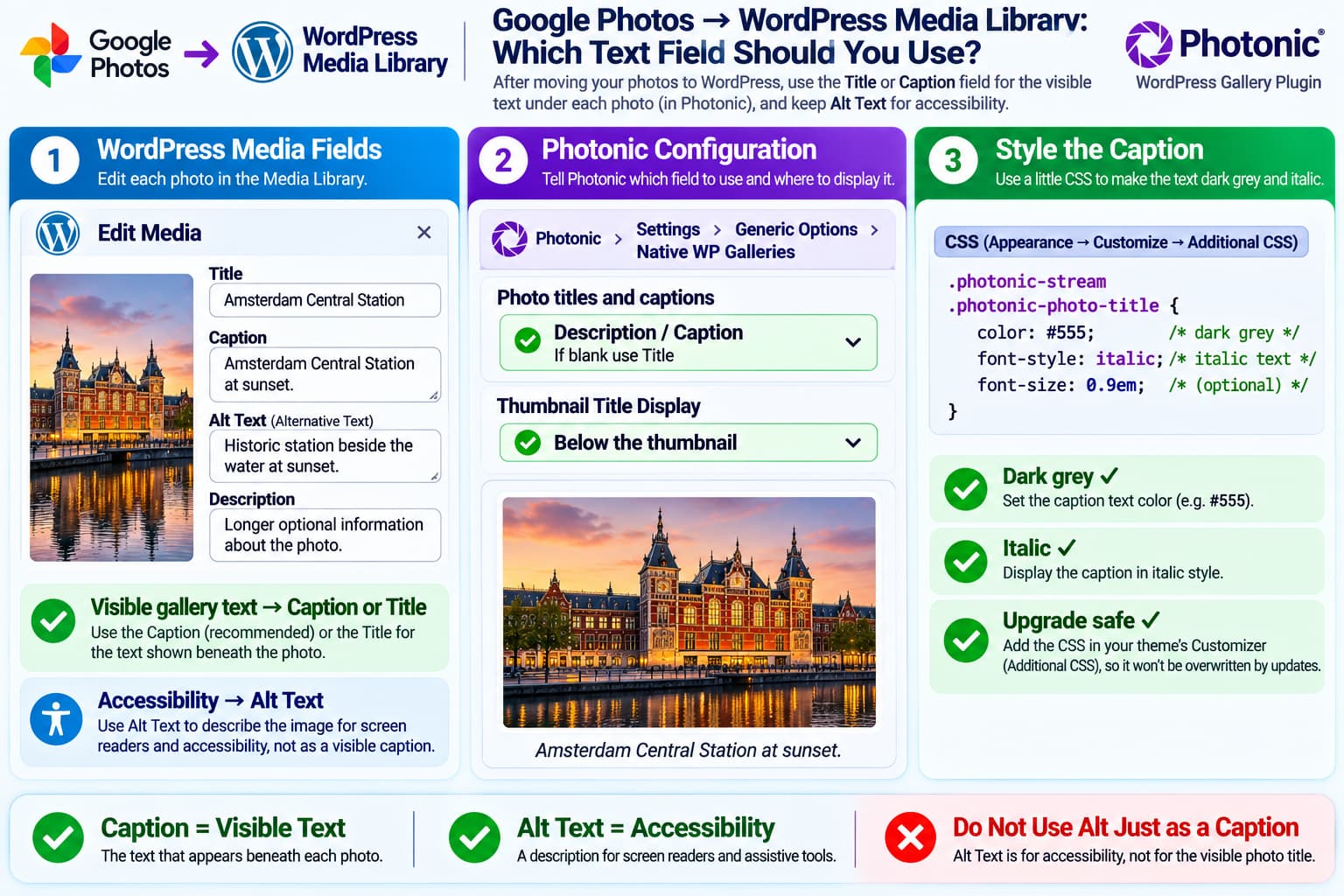
After moving photos from Google Photos into the WordPress Media Library, an important question is:
Which WordPress field should contain the text that Photonic displays underneath each photo?
The short answer is:
Use either the WordPress Title field or Caption field. Do not use Alternative Text as your normal visible photo caption.
Photonic has native support for choosing between the photo’s Title and Description/Caption when it builds a WordPress gallery.
Why Moving the Photos Locally Makes Sense for Photonic
Photonic previously supported Google Photos directly.
However, Google’s Photos API changes effectively ended Photonic’s normal Google Photos integration. The current Photonic plugin page warns that Google Photos support is no longer reliable following Google’s API shutdown changes beginning March 31, 2025.
Uploading the images physically into:
WordPress
→ Media
→ Library
lets Photonic use its Native WordPress Gallery functionality instead.
The existing gallery layout and Photonic configuration can therefore continue to be useful even though the image source changes.
WordPress Gives Each Image Several Text Fields
When you open an image in:
Media → Library
WordPress normally provides fields such as:
Alternative Text
Title
Caption
Description
These fields do not all serve the same purpose.
Title
The Title is the attachment’s WordPress title.
For example:
Sunset over Lake ComoPhotonic can use this directly as the displayed photo title.
Caption
The Caption is intended for visible descriptive text associated with the image.
For example:
Evening view from Bellagio, Lake Como.This is often the better field if you want text displayed underneath photographs.
Description
Description is a longer attachment description.
Photonic groups its Caption/Description handling together when choosing the visible gallery text.
Alternative Text
Alternative Text is different.
It is intended primarily to describe the image to users who cannot see it, including users of screen readers.
For example:
Orange sunset over Lake Como with mountains in the distanceIt should not normally be treated simply as a decorative photo title.
Which Field Should You Use?
For the requested layout—short text displayed beneath every photo—I would use one of these two approaches.
Option 1 — Use Title
In each Media Library image:
Title:
Amsterdam Central Station
Then configure Photonic to display the photo Title.
This works well if each photograph has a short name.
Option 2 — Use Caption
For more descriptive text:
Caption:
Amsterdam Central Station photographed from the canal.
Then tell Photonic to use:
Description / CaptionThis is generally the cleaner approach if the visible text is really a caption rather than the formal image title.
Recommended Field Arrangement
A practical setup is:
Title:
Amsterdam Central Station

Caption:
Amsterdam Central Station at sunset.

Alternative Text:
Historic Amsterdam Central Station beside the water at sunset.
Each field then has its own purpose.
That is preferable to putting the same sentence into every field.
Configure Photonic to Use the Title
Go to:
Photonic
→ Settings
→ Generic Options
→ Native WP Galleries
Look for:
Photo titles and captions
Photonic currently supports options equivalent to:
No title / caption / description

Always use the photo title

Always use the photo description / caption

Use description / caption;
if blank, use title

Use title;
if blank, use description / caption
This matches Photonic’s current source and its documented Native WordPress Gallery settings.
For your case, a very practical setting is:
Use the photo title.
If blank use the description / caption.
That gives you a fallback if some images do not yet have Titles.
Make the Title Appear Under the Photo
On the same Native WP Galleries settings page, find:
Thumbnail Title Display
Choose:
Below the thumbnailPhotonic offers several title-display styles, including tooltip, below-thumbnail, hover effects and no title.
So the full configuration becomes:
Photo titles and captions:
Use the photo title.
If blank use description / caption.

Thumbnail Title Display:
Below the thumbnail
The result should conceptually be:
┌─────────────────────┐
│                     │
│       PHOTO         │
│                     │
└─────────────────────┘

Amsterdam Central Station
Important: “Below the Thumbnail” Does Not Work With Every Photonic Layout
Photonic’s settings specifically note that the below-thumbnail title style does not work with:
Random Justified Galleryand:
Mosaic LayoutIf the album uses one of those layouts, changing the Media Library fields will not automatically make titles appear underneath.
You may need to use a standard grid or another Photonic layout that supports below-image titles.
Should You Use Alternative Text Instead?
Normally, no.
Photonic’s current title/caption choices still revolve around:
Title
Description / Caption
rather than Alt Text.
There has previously been a specific Photonic support request asking to use WordPress Alt Text as the gallery caption.
The Photonic developer explained that Alt Text is stored differently in WordPress and is not included in the normal gallery-data query. Pulling it separately for every image can add extra database queries.
That is one reason Alt Text has historically not been a normal Photonic caption option.
Photonic Does Have an Alt-Text Workaround
Photonic includes a filter called:
photonic_modify_titleThe plugin developer previously suggested this child-theme solution:
add_filter(
    'photonic_modify_title',
    'photonic_modify_native_titles',
    10,
    2
);

function photonic_modify_native_titles( $title, $attachment ) {

    $alt = get_post_meta(
        $attachment->ID,
        '_wp_attachment_image_alt',
        true
    );

    if ( ! empty( $alt ) ) {
        return $alt;
    }

    return $title;
}
The developer confirmed this approach is upgrade-safe when placed in a child theme rather than inside Photonic itself.
However, the same developer also warned that querying Alt Text this way is not particularly performance-efficient because WordPress stores the Alt value separately, which can require another lookup for each image.
For a gallery containing many photographs, that is another reason I would prefer using Title or Caption.
Better Recommendation
Instead of:
Alt Text
→ visible title
use:
Title or Caption
→ visible title

Alt Text
→ accessibility description
That is cleaner both semantically and technically.
Make the Photo Titles Dark Grey and Italic
Yes.
Photonic renders its visible photo title using classes including:
.photonic-photo-title
.photonic-title
So you can style it without editing Photonic itself.
Go to:
Appearance
→ Customize
→ Additional CSS
or your theme’s equivalent custom-CSS area.
Add:
.photonic-stream .photonic-photo-title {
    color: #555;
    font-style: italic;
}
That gives you a dark-grey italic title.
For slightly lighter dark grey:
.photonic-stream .photonic-photo-title {
    color: #666;
    font-style: italic;
}
If Your Theme Overrides the Color
Some themes may have more specific CSS.
If the color does not change, use:
.photonic-stream .photonic-photo-title.photonic-title {
    color: #555 !important;
    font-style: italic;
}
I would only add !important if the simpler rule does not work.
Optional: Center the Text
If you also want the text centred below the photo:
.photonic-stream .photonic-photo-title {
    color: #555;
    font-style: italic;
    text-align: center;
}
Optional: Make It Slightly Smaller
For a traditional photographic caption appearance:
.photonic-stream .photonic-photo-title {
    color: #555;
    font-style: italic;
    font-size: 0.9em;
    text-align: center;
}
That would probably match the requested design well.
Recommended Final CSS
I would start with:
.photonic-stream .photonic-photo-title {
    color: #555;
    font-style: italic;
    font-size: 0.9em;
    text-align: center;
}
There is no need to modify Photonic PHP or CSS files.
Keeping the custom CSS in the theme/customizer means a Photonic update will not overwrite it.
What If the Uploaded Photo Title Is the Filename?
WordPress often creates an attachment title from the uploaded file or its embedded metadata.
So you may initially see something such as:
IMG_5821instead of:
St Peter's Square, RomeWordPress can also derive Title and Caption values from embedded image metadata during upload.
If you want meaningful labels under the photographs, edit the Title or Caption in the Media Library.
For example:
IMG_5821.jpgcan remain the physical filename while the WordPress Title becomes:
St Peter's Square, RomeYou do not need to rename the actual file just to change the displayed text.
For Many Photos, Caption May Be the Better Choice
If the site contains many albums, I would consider using:
Title = short internal/image name

Caption = text shown below photo

Alt Text = accessibility description
Then configure Photonic:
Photo titles and captions:
Always use photo description / caption
This makes your intent very clear.
Someone editing the Media Library later can immediately understand:
Caption
=
the text visitors see
rather than having to remember that the attachment Title is being used as a caption.
Photonic Can Also Fall Back Between Fields
You do not have to complete every image immediately.
A useful migration setting is:
Use the photo description / caption.
If blank use the title.
This lets older photos use their Title while you gradually add better Captions.
Photonic explicitly supports this fallback behavior.
What I Would Use for This Migration
For a Google Photos → local WordPress migration, I recommend:
MEDIA LIBRARY

Title:
Short useful name

Caption:
What should appear beneath the photo

Alt Text:
Actual image description for accessibility
Then:
PHOTONIC

Photo titles and captions:
Use description / caption.
If blank use title.

Thumbnail Title Display:
Below the thumbnail
And:
.photonic-stream .photonic-photo-title {
    color: #555;
    font-style: italic;
    font-size: 0.9em;
    text-align: center;
}
This provides the cleanest separation between visible captions and accessibility text.
Final Answer
You do not need to use Alternative Text to create the titles underneath your photographs.
For images now stored in the WordPress Media Library, Photonic can directly use either:
Titleor:
Caption / DescriptionConfigure:
Photonic
→ Settings
→ Generic Options
→ Native WP Galleries
→ Photo titles and captions
and choose the field you prefer.
Then set:
Thumbnail Title Display
→ Below the thumbnail
For the requested dark-grey italic appearance, use:
.photonic-stream .photonic-photo-title {
    color: #555;
    font-style: italic;
}
I would personally use the Caption field for the visible sentence beneath each photograph, leave Title as the short image name, and reserve Alternative Text for accessibility.
That approach works naturally with Photonic and keeps the WordPress Media Library organized correctly.
