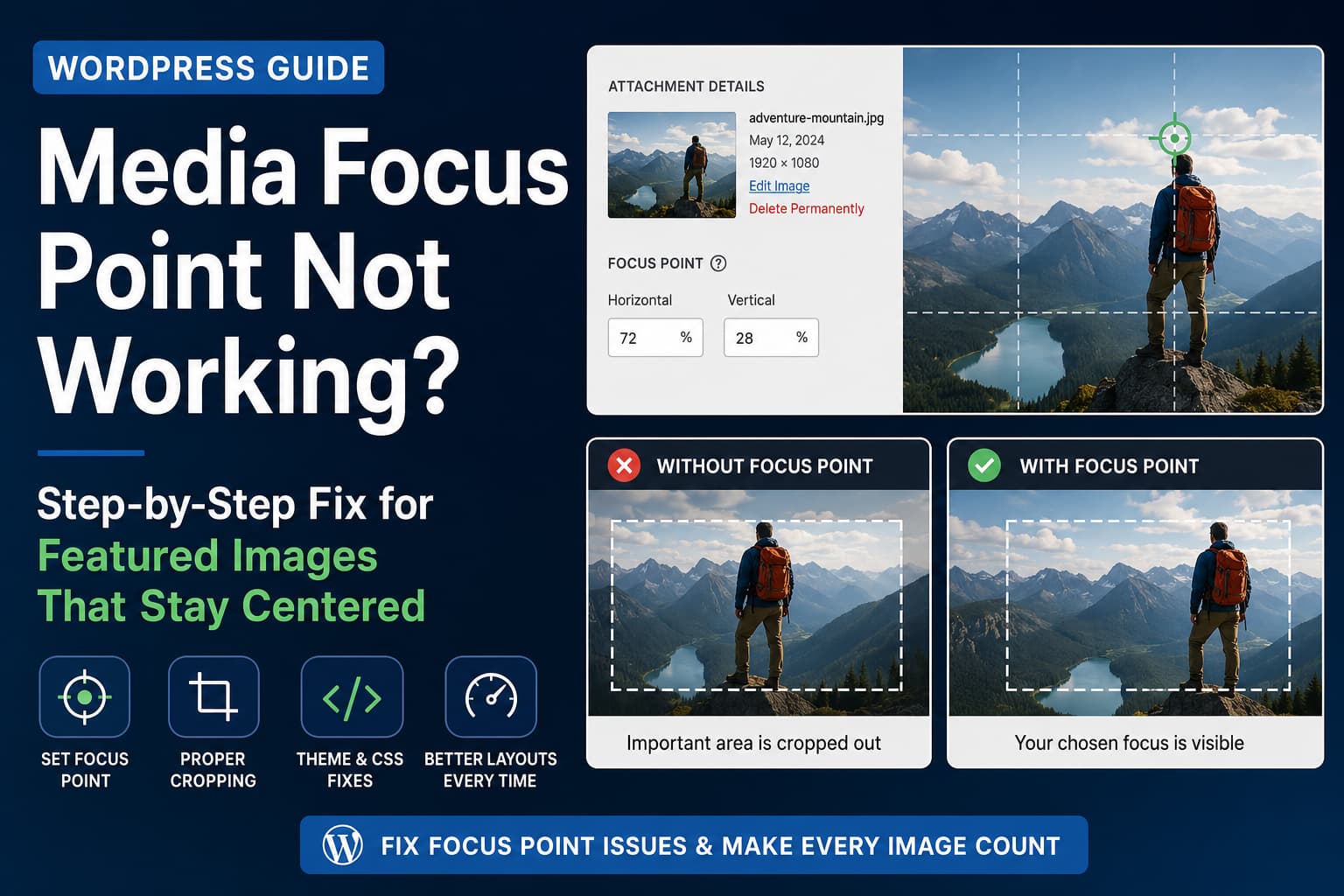
WordPress featured images are often automatically cropped to fit blog cards, archive pages, and responsive layouts. This can create a problem when the important part of an image is near the top, left, or right edge.
The Media Focus Point plugin is designed to solve this by letting you choose which part of an image should remain visible. However, you may find that after setting and saving the focus point, the featured image is still cropped from the center.
A typical report looks like this:
I set the focus point for several featured images, but the images are still centered and not aligned correctly on the blog page.
This does not necessarily mean that the focus point was not saved. In most cases, the theme, WordPress image size, Query Loop block, or custom template is preventing the saved position from being applied correctly.
This guide explains how to diagnose and fix the problem.
Why the WordPress Focus Point Stays in the Center
The Media Focus Point plugin normally adds an inline CSS declaration to the image, similar to:
<img
    src="featured-image.jpg"
    style="object-position: 72% 28%;"
    alt="Example featured image"
>
The percentages identify the horizontal and vertical focus position selected in the Media Library. The plugin documentation confirms that it applies the focus point through the image’s object-position property.
However, object-position only produces a visible result when the image is being cropped inside its container.
For example:
.featured-image {
    width: 100%;
    height: 300px;
    object-fit: cover;
}
The object-fit: cover declaration makes the image fill the container while preserving its original proportions. Any excess part of the image is cropped, and object-position determines which section remains visible.
The focus point may appear not to work when:
- The theme overrides
object-positionwithcenter. - The image does not use
object-fit: cover. - WordPress is loading an already hard-cropped thumbnail.
- The theme does not use the standard WordPress featured-image functions.
- The image is rendered as a CSS background.
- A page builder or Query Loop replaces the plugin’s inline style.
- Cached HTML or CSS is still being displayed.
Step 1: Inspect the Featured Image
Open the affected blog or archive page in Chrome.
Right-click the featured image and select Inspect.
Look for the actual <img> element.
A correctly integrated image should contain an inline style similar to:
style="object-position: 72% 28%;"There are three possible results.
The object-position Style Is Missing
When there is no object-position declaration, the theme or page builder may not be using a standard WordPress image-rendering function.
The plugin works most reliably when the image is generated through:
get_the_post_thumbnail()or:
wp_get_attachment_image()WordPress applies the wp_get_attachment_image_attributes filter while generating images through wp_get_attachment_image(). This filter allows plugins to add or modify attributes such as classes, styles, loading behavior, and other image markup.
If the theme manually constructs an image URL, the plugin may never get an opportunity to add the focus-point style.
The Correct Style Exists but the Image Remains Centered
Check the Computed tab in browser developer tools and search for:
object-positionThe computed value should match the inline style.
For example:
object-position: 72% 28%;If the computed value is instead:
object-position: 50% 50%;or:
object-position: center;another stylesheet is overriding the plugin.
This commonly happens when a theme contains a rule such as:
.blog-card img {
    object-position: center !important;
}
Because the theme uses !important, it can override the plugin’s normal inline declaration.
The Correct Position Exists but Nothing Visually Changes
This usually means one of two things:
- The image is not being cropped with
object-fit: cover. - WordPress has already permanently cropped the source thumbnail.
Both problems are covered below.
Step 2: Add the Required Featured-Image CSS
The plugin controls where the image is positioned, but the image still needs a crop area.
For a WordPress Query Loop or Post Featured Image block, add the following CSS under:
Appearance → Customize → Additional CSS
Block themes may provide the Additional CSS field under the Site Editor’s Styles area.
/* Featured-image crop container */
.wp-block-post-featured-image {
    aspect-ratio: 4 / 3;
    overflow: hidden;
}

/* Make linked images fill the container */
.wp-block-post-featured-image > a {
    display: block;
    width: 100%;
    height: 100%;
}

/* Allow the saved focus point to control cropping */
.wp-block-post-featured-image img {
    display: block;
    width: 100%;
    height: 100%;
    object-fit: cover;
}
Notice that the code does not set an object-position.
That is intentional.
The Media Focus Point plugin needs to supply a different position for each image. Adding this would break the plugin:
.wp-block-post-featured-image img {
    object-position: center;
}
It would force every image back to the center.
You can change the card shape by adjusting the aspect ratio:
aspect-ratio: 16 / 9;Other common options include:
aspect-ratio: 3 / 2;
aspect-ratio: 4 / 3;
aspect-ratio: 1 / 1;
Step 3: Remove Conflicting object-position Rules
Search the theme’s CSS for:
object-positionYou may find something similar to:
.post-thumbnail img {
    object-position: center !important;
}
Change it to:
.post-thumbnail img {
    object-fit: cover;
}
Remove only the fixed object-position declaration. Keep object-fit: cover because that property creates the crop area required for the focus point.
Do not solve the conflict by adding another fixed position such as:
object-position: top !important;That may improve one image, but it forces every featured image to use the same position and defeats the purpose of setting individual focus points.
When the conflicting CSS belongs to a third-party theme, place the correction in a child theme or the Additional CSS section. Do not directly edit the parent theme’s stylesheet because a theme update may overwrite the changes.
Step 4: Check for Hard-Cropped WordPress Thumbnails
This is one of the most commonly overlooked causes.
WordPress can generate multiple versions of an uploaded image, including:
image-150x150.jpg
image-300x200.jpg
image-768x512.jpg
Some image sizes use hard cropping. WordPress physically removes parts of the original image while creating the thumbnail.
For example, imagine an original portrait image in which the subject is close to the top. WordPress generates a landscape thumbnail by cropping the image from its center. The subject’s face may already be removed from the generated file.
Applying this afterward cannot restore the missing pixels:
object-position: 50% 10%;The browser can only reposition pixels that still exist in the loaded image.
How to Identify a Hard-Cropped Image
Inspect the image and check its src or srcset URL.
If the image being loaded has exact dimensions in its filename, such as:
featured-photo-600x400.jpgopen that image directly in a new browser tab.
If the important area is already missing from the actual file, the problem is a hard-cropped thumbnail rather than the focus-point CSS.
Step 5: Use an Uncropped Image Size
The simplest test is to make the theme use the full image:
<?php
echo get_the_post_thumbnail(
    get_the_ID(),
    'full',
    array(
        'class' => 'blog-card__image',
    )
);
?>
Using the full image confirms whether the hard-cropped thumbnail was causing the problem.
However, loading full-resolution images on an archive page may negatively affect page speed. A better permanent solution is to create a large but uncropped image size.
Add the following to a child theme’s functions.php file or a site-specific custom plugin:
<?php
/**
 * Register a proportional, non-hard-cropped image size for blog cards.
 */
add_action(
    'after_setup_theme',
    function () {
        add_image_size(
            'blog-card-focus',
            1200,
            900,
            false
        );
    }
);
The final false means WordPress should resize the image proportionally rather than hard-cropping it.
Then render the featured image using the new size:
<?php
echo get_the_post_thumbnail(
    get_the_ID(),
    'blog-card-focus',
    array(
        'class'   => 'blog-card__image',
        'loading' => 'lazy',
    )
);
?>
Add the corresponding CSS:
.blog-card__media {
    aspect-ratio: 4 / 3;
    overflow: hidden;
}

.blog-card__media a {
    display: block;
    width: 100%;
    height: 100%;
}

.blog-card__image {
    display: block;
    width: 100%;
    height: 100%;
    object-fit: cover;
}
The browser now performs the final visual crop, allowing the plugin’s object-position value to control which part remains visible.
After registering a new image size, regenerate the existing image thumbnails. New uploads will receive the new size automatically, but older Media Library images will not have it until thumbnail regeneration has been completed.
Step 6: Fix a Custom Theme Template
A custom theme may output the featured image manually:
<img src="<?php echo esc_url( get_the_post_thumbnail_url() ); ?>">Although this displays the image, it bypasses the normal attachment-image markup and may prevent Media Focus Point from adding its inline style.
Replace the manually created <img> tag with:
<?php
if ( has_post_thumbnail() ) {
    echo get_the_post_thumbnail(
        get_the_ID(),
        'blog-card-focus',
        array(
            'class' => 'blog-card__image',
        )
    );
}
?>
A complete blog-card example would look like this:
<article <?php post_class( 'blog-card' ); ?>>

    <?php if ( has_post_thumbnail() ) : ?>
        <figure class="blog-card__media">
            <a href="<?php the_permalink(); ?>">
                <?php
                echo get_the_post_thumbnail(
                    get_the_ID(),
                    'blog-card-focus',
                    array(
                        'class'   => 'blog-card__image',
                        'loading' => 'lazy',
                    )
                );
                ?>
            </a>
        </figure>
    <?php endif; ?>

    <div class="blog-card__content">
        <h2 class="blog-card__title">
            <a href="<?php the_permalink(); ?>">
                <?php the_title(); ?>
            </a>
        </h2>

        <?php the_excerpt(); ?>
    </div>

</article>
This uses WordPress’s standard featured-image function, giving the plugin access to the generated image attributes.
Step 7: Fix Featured Images Used as CSS Backgrounds
Some themes and page builders do not render featured images as <img> elements. Instead, they use:
<div style="background-image: url('featured-image.jpg');"></div>The CSS object-position property does not apply to background images.
Background images use:
background-positionThe Media Focus Point plugin provides an MFP_Background() function for this situation. According to the plugin documentation, the function can generate the background image, background size, and saved background position.
A custom background-image template can use:
<?php
$image_id = get_post_thumbnail_id();

if ( $image_id && function_exists( 'MFP_Background' ) ) :
    $background_style = MFP_Background( $image_id );
    ?>

    <a
        class="blog-card__background"
        href="<?php the_permalink(); ?>"
        style="<?php echo esc_attr( $background_style ); ?>"
        aria-label="<?php echo esc_attr( get_the_title() ); ?>"
    ></a>

<?php endif; ?>
Add the container dimensions separately:
.blog-card__background {
    display: block;
    width: 100%;
    aspect-ratio: 4 / 3;
    background-repeat: no-repeat;
}
The generated inline style should resemble:
style="
    background-image: url('featured-image.jpg');
    background-position: 72% 28%;
    background-size: cover;
"
Do not add this afterward:
.blog-card__background {
    background-position: center !important;
}
That would override the individual focus point.
Step 8: Check Query Loop and Block Theme Settings
When using a Query Loop block:
- Open the template or page in the Site Editor.
- Select the Post Featured Image block.
- Check whether an aspect ratio has been selected.
- Check whether the image scale is set to Cover.
- Save the template.
- Inspect the front-end image again.
The most important part is that the resulting <img> element retains the plugin-generated inline object-position.
A block-level focal-point control and the Media Focus Point plugin may also compete with one another. When the block itself adds a fixed position, remove that fixed block position and let the plugin manage the per-image value.
Step 9: Clear Every Cache Layer
After changing the CSS or template:
- Clear the WordPress caching plugin.
- Clear the hosting or server cache.
- Purge the CDN cache.
- Clear generated page-builder CSS.
- Open the page in an incognito window.
- Perform a hard refresh.
A cached archive page may continue displaying old HTML without the focus-point style even after the image setting has been updated.
This is especially likely when:
- The change appears while logged in but not while logged out.
- The Media Library shows the new focus point correctly.
- The front end still contains the previous inline style.
- Different browsers show different results.
Step 10: Confirm the Focus Point Was Saved
Open:
Media → Library → Select the affected image
Check whether the horizontal and vertical percentages still show the chosen values.
For example:
Horizontal: 72%
Vertical: 28%
If the fields have returned to:
Horizontal: 50%
Vertical: 50%
the selected point may not have been saved.
Try the following:
- Update the Media Focus Point plugin.
- Set the focus point directly from the Media Library attachment screen.
- Save the point again.
- Reopen the image and confirm the percentages.
- Check the browser console for JavaScript errors.
- Temporarily disable admin-interface customization plugins.
- Test for a plugin conflict on a staging website.
The plugin has previously released fixes related to the featured-image modal, Gutenberg integration, wide-image calculations, and focus-point selection behavior, so using the latest stable release is an important troubleshooting step.
Recommended Complete Fix
For most WordPress blog archives, the most reliable configuration is:
- Use
get_the_post_thumbnail()or the Post Featured Image block. - Load a proportional, non-hard-cropped image size.
- Place the image inside a fixed aspect-ratio container.
- Apply
object-fit: cover. - Do not set a global
object-position. - Remove any
object-position: center !importantrule. - Let Media Focus Point add the individual inline position.
- Clear all page, server, and CDN caches.
The essential CSS is:
.wp-block-post-featured-image {
    aspect-ratio: 4 / 3;
    overflow: hidden;
}

.wp-block-post-featured-image > a {
    display: block;
    width: 100%;
    height: 100%;
}

.wp-block-post-featured-image img {
    display: block;
    width: 100%;
    height: 100%;
    object-fit: cover;
}
The essential PHP for custom templates is:
<?php
echo get_the_post_thumbnail(
    get_the_ID(),
    'blog-card-focus',
    array(
        'class' => 'blog-card__image',
    )
);
?>
Final Thoughts
When a WordPress focus point remains centered, the plugin is not always the actual source of the problem.
The focus point may be saved correctly, but the result can still be blocked by:
- A fixed
object-positionin the theme. - Missing
object-fit: cover. - An already cropped WordPress thumbnail.
- Custom image markup that bypasses WordPress filters.
- A background image requiring
background-position. - Query Loop or page-builder image settings.
- Cached HTML or CSS.
Start by inspecting the final <img> element. The presence or absence of the inline object-position value will immediately tell you whether you are dealing with a plugin integration problem, a CSS conflict, or an image-cropping problem.
Once the image is rendered through the standard WordPress functions and cropped in the browser instead of being permanently cropped beforehand, each saved focus point should work correctly across desktop, tablet, and mobile layouts.
Frequently Asked Questions
Why does my featured image stay centered after setting a focus point?
The theme may be overriding the saved position with object-position: center, or the image may be an already hard-cropped WordPress thumbnail.
Does object-position work without object-fit: cover?
The property can still exist, but it normally will not produce a noticeable result unless the image content is larger than its visible container. Using object-fit: cover creates the cropping area that the focus point controls.
Can a focus point restore an area removed from a thumbnail?
No. If WordPress permanently removed part of the image while generating a hard-cropped thumbnail, CSS cannot restore those pixels. Use the full image or a proportional, non-hard-cropped image size.
Does Media Focus Point work with background images?
Yes, but background images require the plugin’s MFP_Background() function. Standard object-position only applies to replaced elements such as <img> and <video>.
Should I set object-position in my custom CSS?
No. A global value would apply the same position to every image. Set only the dimensions and object-fit: cover, then allow the plugin to add the individual object-position inline.
