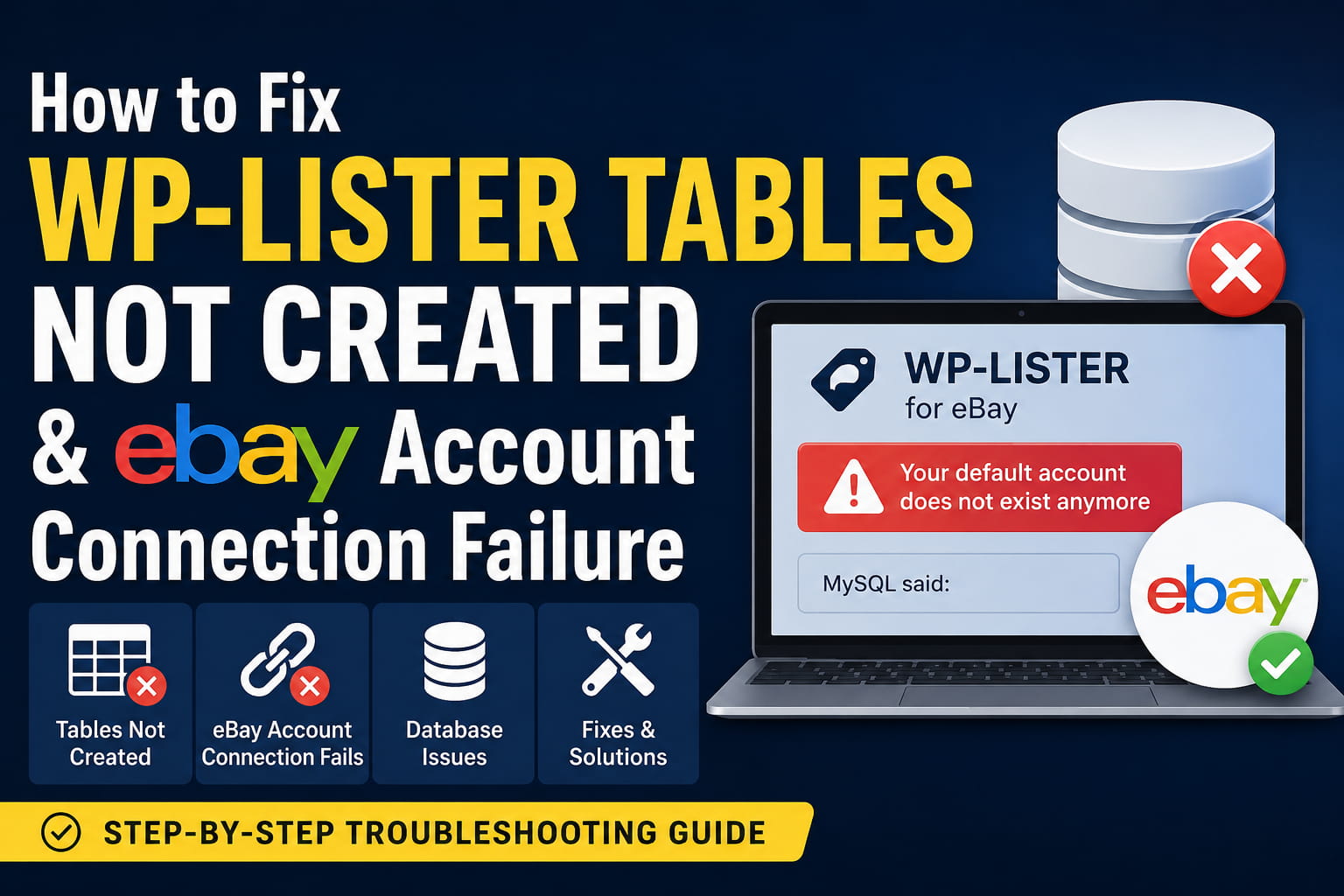
When WP-Lister tables are not created during plugin activation, the problem can prevent much more than the initial setup.
You may manually import the missing database tables and make the warning disappear, but WP-Lister may still be unable to save an eBay account. The eBay authorization process completes successfully, yet the account does not appear after returning to WordPress.
Other symptoms may include:
- A red warning saying that WP-Lister database tables are missing
- Reinstalling the plugin does not create the tables
- eBay authorization completes after clicking Agree
- The account is not imported into WordPress
- WP-Lister displays “Your default account does not exist anymore”
- Saving the account produces a blank “MySQL said” error
- Other parts of WordPress continue using the database normally
These symptoms usually indicate a local WordPress database problem rather than an eBay login failure.
Why the eBay Authorization Can Succeed but the Account Still Disappears
Connecting an eBay account involves two separate stages.
First, WP-Lister redirects the administrator to eBay. The user signs in and approves access. eBay then redirects the browser back to WordPress.
Second, WP-Lister must save the returned account information and authorization data in its own database tables.
Therefore, a successful eBay authorization does not prove that WP-Lister can save the account locally. If the required tables are missing, incomplete, or not writable, eBay can approve the connection while WordPress fails to store it.
The message:
Your default account does not exist anymoremay appear when WP-Lister has a saved setting referencing an account ID, but the corresponding account row is missing from the plugin’s database table.
Why Manually Importing the Tables May Not Fix It
Manually importing SQL through phpMyAdmin can remove the missing-table warning, but it does not guarantee that the imported schema matches the installed plugin version.
The imported tables may have:
- Missing columns
- Incorrect column types
- Missing indexes
- Missing primary keys
- Missing
AUTO_INCREMENTproperties - An outdated schema
- The wrong character set or collation
- An incorrect WordPress table prefix
- Tables from the Pro version while Lite is installed, or the reverse
- Tables copied from a different WP-Lister release
WordPress recommends that plugins create and update their own tables through their installation and upgrade routines. These routines can compare the existing schema with the required schema and apply necessary changes.
For this reason, manually importing random WP-Lister tables should not be treated as the permanent solution.
Most Likely Causes
1. The WordPress database user cannot create or alter tables
A WordPress website can appear to work normally even when its database user has limited permissions.
Existing posts, pages, products, and settings may continue working because the database user can run:
SELECTINSERTUPDATEDELETE
However, installing a plugin with custom tables may additionally require:
CREATEALTERINDEXDROP
If CREATE or ALTER is unavailable, WP-Lister may be unable to install or update its schema.
2. A partial installation already exists
The first activation may have created only some of the required tables before encountering a PHP error, timeout, or database failure.
A later activation may then find a mixture of:
- Correct tables
- Missing tables
- Partially created tables
- Old database-version settings
Simply deleting and reinstalling the plugin files may not remove the database tables or saved WordPress options.
3. The imported tables use an incompatible schema
Tables imported from another website or plugin version may look correct in phpMyAdmin but still be incompatible with the installed WP-Lister code.
An “unknown column,” invalid default value, duplicate primary key, or missing auto-increment setting can prevent the eBay account from being inserted.
4. The wrong table prefix was used
The default WordPress prefix is commonly:
wp_However, many websites use a custom prefix, such as:
dn_
site_
store_
WordPress plugins should use the prefix configured in wp-config.php. The WordPress Plugin Handbook specifically instructs plugin developers to use $wpdb->prefix rather than assuming wp_.
5. The server does not meet the plugin requirements
WP Lab’s current requirements documentation lists WordPress 6.0 or later, WooCommerce 8.0 or later, PHP 8.1 or later with cURL, MySQL 5.7 or MariaDB 10.3 or later, at least 256 MB of PHP memory, and a recommended execution time of 300 seconds for the current-generation plugin. It also states that WordPress Multisite is not officially supported.
A server that does not meet those requirements may interrupt the installation or account-import process.
6. The activation routine encountered a hidden PHP error
A white screen or blank MySQL message may occur when error display is disabled.
The real error may already be recorded in:
wp-content/debug.log- The hosting PHP error log
- The web server error log
- The MySQL or MariaDB error log
Step 1: Create a Complete Backup
Before editing, renaming, or removing any database table, create a complete backup containing:
- The WordPress database
- WordPress files
- WooCommerce data
- WP-Lister settings and tables
Perform the repair on a staging site when possible.
WordPress also recommends using a staging environment or taking an appropriate backup before enabling debugging or making technical changes.
Step 2: Update WP-Lister and Check Compatibility
Go to:
WordPress Dashboard > PluginsConfirm that you are running the latest available WP-Lister release compatible with your license and website.
As of July 2026, the WordPress plugin directory lists WP-Lister Lite for eBay version 3.8.8. That release includes several database-related fixes, including a correction for site details not saving when an ebay_sites row is missing.
Also verify:
WordPress: 6.0 or newer
WooCommerce: 8.0 or newer
PHP: 8.1 or newer
PHP cURL: Enabled
PHP memory limit: 256 MB or higher
MySQL: 5.7 or newer
MariaDB: 10.3 or newer
Avoid testing this repair on an unsupported WordPress Multisite installation.
Step 3: Enable WordPress Debug Logging
Open wp-config.php and add the following before:
/* That's all, stop editing! Happy publishing. */Add:
define( 'WP_DEBUG', true );
define( 'WP_DEBUG_LOG', true );
define( 'WP_DEBUG_DISPLAY', false );

@ini_set( 'display_errors', 0 );
Now repeat the action that produces the error:
- Activate WP-Lister.
- Open the WP-Lister setup page.
- Attempt to connect the eBay account.
- Return from eBay.
- Attempt to save the account.
Then inspect:
/wp-content/debug.logWordPress documents that this configuration records PHP errors, notices, and warnings in wp-content/debug.log while hiding them from the public page. Debugging should normally be used only temporarily or on staging.
Look for messages containing:
WP-Lister
wpdb
MySQL
CREATE TABLE
ALTER TABLE
INSERT INTO
Unknown column
Permission denied
Table doesn't exist
Duplicate entry
Fatal error
Disable debugging when testing is complete.
Step 4: Check the Active Database and Table Prefix
Open wp-config.php and locate:
$table_prefix = 'wp_';Your prefix may be different.
In phpMyAdmin, verify that the manually imported tables use exactly the same prefix.
You can also run:
SELECT DATABASE();This confirms which database phpMyAdmin is currently viewing.
Then run:
SELECT CURRENT_USER();This identifies the database account WordPress may be using, although the displayed account can vary according to the hosting configuration.
Step 5: Check the WordPress Database User’s Privileges
In phpMyAdmin, open the SQL tab and run:
SHOW GRANTS FOR CURRENT_USER();Look for sufficient privileges on the WordPress database.
For plugin installation and upgrades, the user may need permissions including:
SELECT
INSERT
UPDATE
DELETE
CREATE
ALTER
INDEX
DROP
On managed hosting, you may not have permission to modify database grants yourself. Send the output to the hosting provider and ask:
Please confirm that the database user assigned to this WordPress installation can create, alter, index, insert into, update, and drop custom plugin tables in the application database.
Do not grant global database-server access when database-specific privileges are sufficient.
Optional table-creation test
On a staging website, an experienced administrator can test table creation with:
CREATE TABLE wp_wplister_permission_test (
    id bigint unsigned NOT NULL AUTO_INCREMENT,
    PRIMARY KEY (id)
) ENGINE=InnoDB;
Replace wp_ with the actual WordPress prefix.
If it succeeds, remove the test table:
DROP TABLE wp_wplister_permission_test;If the first command returns a permission error, WP-Lister will probably be unable to create its tables until the database privileges are corrected.
Step 6: Do Not Continue Using Unverified Imported Tables
If this is a new WP-Lister installation and it does not contain live listings, profiles, orders, or account information, the safest repair is usually to let the installed plugin version rebuild its own schema.
Do not immediately delete the imported tables.
Instead:
- Create a database backup.
- Deactivate WP-Lister.
- Identify only the tables that were manually imported.
- Rename them by adding a backup suffix.
For example:
original_table_name_backup_20260714Renaming preserves the imported data while preventing WP-Lister from treating those tables as its active schema.
Do not rename or remove standard WordPress or WooCommerce tables.
When the site already contains live WP-Lister data, stop here and obtain vendor assistance before altering anything.
Step 7: Reinstall the Plugin Files Cleanly
After fixing the database privileges and isolating the manually imported tables:
- Deactivate WP-Lister.
- Delete the plugin through the WordPress Plugins screen.
- Confirm that its plugin directory has been removed.
- Download a fresh copy from the official source.
- Upload and activate it again.
- Visit the new eBay menu immediately.
- Allow the setup process to complete.
WP-Lister’s official installation instructions state that after activation, the administrator should visit the new eBay page and follow the setup instructions.
If you have WP-CLI access, activation can also be tested with:
wp plugin deactivate wp-lister-for-ebay
wp cache flush
wp plugin activate wp-lister-for-ebay --debug
The --debug output may reveal an activation error that the WordPress dashboard hides.
Step 8: Confirm That the New Tables Are Complete
After activation, return to phpMyAdmin and verify that WP-Lister created its own tables.
Check that:
- All tables use the correct WordPress prefix
- The tables were created by the current installation
- Primary keys are present
- Required ID columns use
AUTO_INCREMENT - The storage engine is supported
- The character set and collation are compatible with the WordPress database
- There are no duplicate old and new table sets
Do not manually add missing columns based on SQL from an unknown version.
If a table remains missing, check debug.log immediately after activation. The first SQL or PHP error is generally more useful than later errors.
Step 9: Connect the eBay Account Again
Once the database tables have been created correctly:
- Open the WP-Lister account settings.
- Select the correct eBay marketplace.
- Start the authorization process.
- Sign in to the correct eBay account.
- Click Agree.
- Wait for eBay to redirect back to WordPress.
- Confirm that the account now appears in WP-Lister.
- Set it as the default account.
- Save the settings.
Do not repeatedly authorize the account while WP-Lister is still unable to write to its database.
Step 10: Resolve the Stale Default Account Message
The following error usually means the saved default account reference does not match an existing account row:
Your default account does not exist anymoreAfter a valid account has been imported:
- Open the WP-Lister account settings.
- Select the newly imported account.
- Set it as the default.
- Save the settings.
- Refresh the page.
When no account appears in the list, the problem is still with the database write or account callback. Changing the default setting alone will not fix it.
Avoid manually editing serialized WordPress options unless WP Lab provides the exact option name and value structure.
Understanding Common Database Errors
CREATE command denied
The WordPress database user does not have permission to create custom tables.
Solution: Ask the hosting provider to grant the required database-level privileges.
ALTER command denied
The tables may exist, but WP-Lister cannot upgrade their structure.
Solution: Grant ALTER and INDEX permissions, then rerun the plugin’s official installation or upgrade routine.
Table doesn't exist
One or more required WP-Lister tables were not created or use the wrong prefix.
Solution: Check the prefix, database privileges, activation error, and schema installation.
Unknown column
The table exists, but its schema does not match the installed plugin version.
Solution: Restore the correct schema using the installer from the same plugin version. Do not add a guessed column without reviewing the official schema.
Duplicate entry for key PRIMARY
An imported table may contain duplicate IDs, or its primary key and auto-increment configuration may be incorrect.
Solution: Back up the table and have the schema and data reviewed before reconnecting the account.
Field doesn't have a default value
The imported schema may be old or incompatible with the server’s SQL mode.
Solution: Compare the schema with the current plugin installer rather than disabling MySQL strict mode globally.
Blank MySQL said message
The plugin may be suppressing or losing the original database message.
Solution: Inspect the WordPress debug log, hosting PHP log, and database error log immediately after reproducing the failure.
What If the Tables Work but the eBay Connection Still Fails?
Once database creation and inserts have been confirmed, investigate the authorization configuration separately.
WP Lab support has identified the following common account-connection causes:
- Missing or invalid SSL certificate
- Incorrect redirect URL
- Sandbox API credentials used with the production marketplace
- Incorrect API credentials
Those checks are most relevant when the account table is writable but the authorization callback still fails.
In another connection-related support case, WP Lab advised editing the account and using the Fetch Token button. That workaround applies only when an account record already exists in WP-Lister.
Information to Send to WP Lab or Your Hosting Provider
When the issue remains unresolved, collect:
- WP-Lister version
- WordPress version
- WooCommerce version
- PHP version
- MySQL or MariaDB version
- WordPress table prefix
- Hosting provider
- Whether the site is Multisite
- Output of
SHOW GRANTS FOR CURRENT_USER() - The first relevant
debug.logerror - The exact missing table names
- The exact SQL error after the eBay callback
- Confirmation that HTTPS is valid
- Whether production or sandbox eBay credentials are being used
Do not post database credentials, eBay tokens, API secrets, or complete authorization URLs publicly.
Final Solution
When WP-Lister tables are not created and the eBay account disappears after authorization, the two problems are usually connected.
The most reliable repair process is:
- Back up the website.
- Confirm that the server meets WP-Lister’s requirements.
- Enable temporary WordPress debugging.
- Verify the active database and table prefix.
- Confirm that the database user can create and alter custom tables.
- Stop using manually imported tables from an unknown version.
- Let the current WP-Lister installer create the schema.
- Review the first PHP or MySQL error if installation fails.
- Reconnect the eBay account only after the tables are writable.
- Set the successfully imported account as the default.
Manually importing tables may hide the initial warning, but it does not repair missing permissions, outdated columns, invalid indexes, or a stale plugin installation state.
A clean schema created by the installed WP-Lister version is safer and more reliable than manually reconstructing the database.
