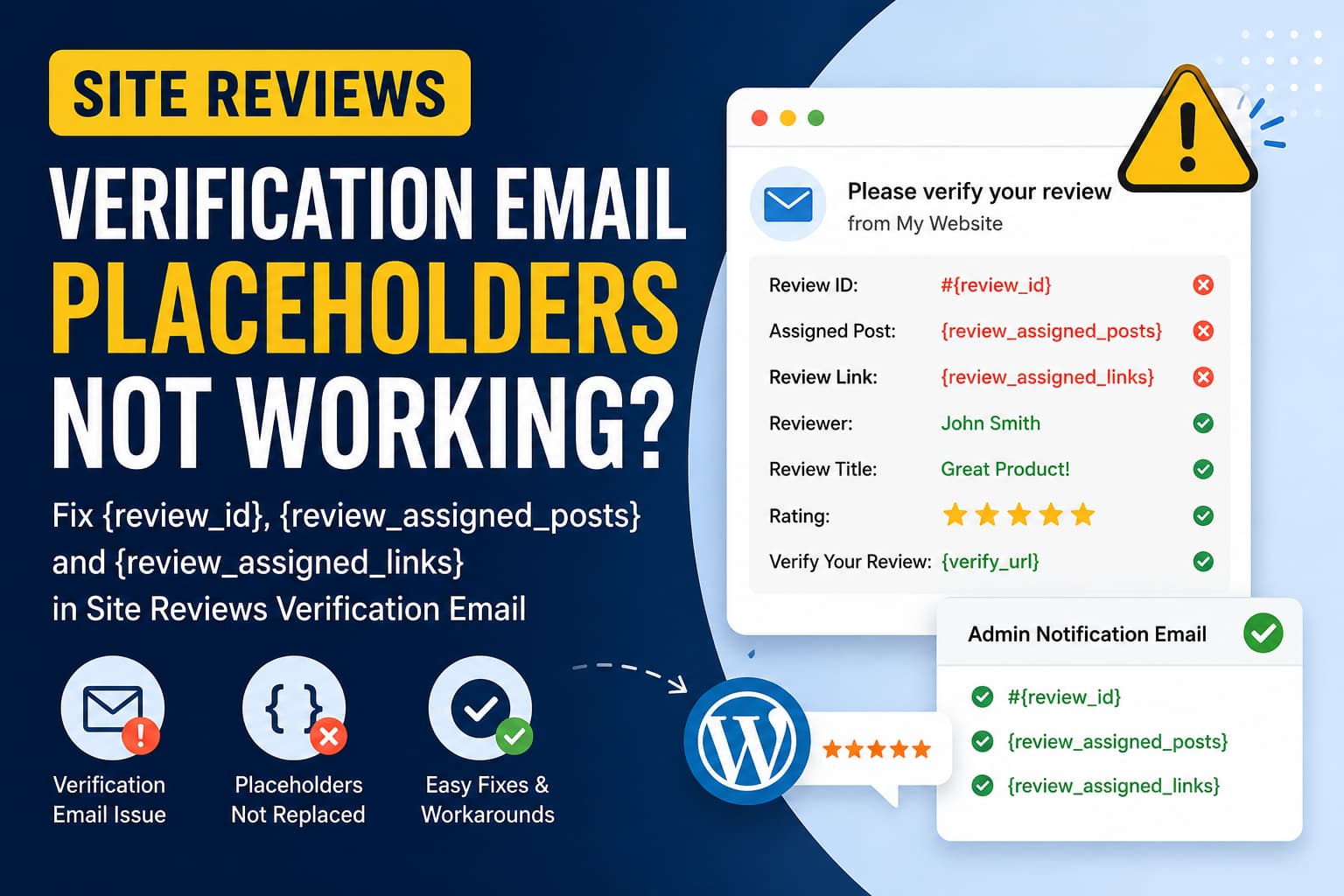
The Site Reviews verification email placeholders may not work as expected when review verification is enabled in WordPress.
The verification email can be delivered successfully, and most template placeholders may be replaced correctly, while specific placeholders remain empty or appear as their original template text.
The affected placeholders commonly include:
{review_assigned_posts}
{review_assigned_links}
{review_id}
At the same time, the same placeholders may work correctly in the administrator notification email.
This guide explains the symptoms, likely cause, safe temporary solution, and how to test the verification email without editing the Site Reviews plugin files.
What Is the Site Reviews Verification Email?
Site Reviews allows WordPress website owners to request verification when someone submits a review. The reviewer receives an email containing a verification link, which they must follow to confirm the review.
The plugin officially supports assigning reviews to posts, pages, custom post types, categories, and users. It also includes automatic review-verification and administrator-notification features.
The verification email can be customized with placeholders such as:
{review_author}
{review_title}
{review_rating}
{verify_url}
{site_title}
{site_url}
When the email is generated, Site Reviews should replace each supported placeholder with information from the submitted review.
Symptoms of the Problem
The issue occurs when some placeholders work in the verification email while others do not.
For example, a verification template may contain:
Review ID: #{review_id}

Assigned Post:
{review_assigned_posts}

Review Link:
{review_assigned_links}

Reviewer:
{review_author}

Rating:
{review_rating}

Verify your review:
{verify_url}
The resulting email may look like this:
Review ID: #{review_id}

Assigned Post:

Review Link:

Reviewer:
John Smith

Rating:
5

Verify your review:
https://example.com/verification-link/
The following problems are visible:
{review_assigned_posts}returns an empty value.{review_assigned_links}returns an empty value.{review_id}is not processed and is delivered literally.- Other placeholders are replaced correctly.
- The administrator notification email processes all three affected placeholders successfully.
This last observation is important because it shows that the review assignment exists and the placeholders are valid in at least one email context.
How to Reproduce the Issue
You can test the problem with the following procedure.
- Open the Site Reviews settings in WordPress.
- Enable the option to request review verification.
- Add
{review_id},{review_assigned_posts}, and{review_assigned_links}to the verification email template. - Submit a review through the public review form.
- Assign the review to a post or page during submission.
- Check the verification email received by the reviewer.
- Check the administrator notification email.
- Compare the placeholder values in both messages.
The verification email may omit the assigned post values and leave {review_id} unchanged, while the administrator email displays the information correctly.
Is This a Bug or an Intentional Limitation?
The behavior strongly suggests that the verification email and administrator notification email use different placeholder-processing contexts.
The notification template appears to receive the complete review object, including:
- The review ID
- Assigned post information
- Assigned post links
- Review author information
- Review title and rating
The verification template appears to receive a smaller set of values focused on confirming the review, such as:
- Reviewer name
- Review title
- Review rating
- Verification URL
- Website name and URL
This may be an intentional placeholder limitation, or it may be a bug where the verification email does not receive the complete review context.
Without confirmation from the plugin developer, it should not be described definitively as either one.
At the time of checking, Site Reviews 8.1.0 was the current public version, and its changelog did not list a fix related to verification email placeholders.
Safe Temporary Solution
The safest temporary solution is to use only the placeholders that are confirmed to work in the verification email.
Remove these placeholders from the verification template:
{review_assigned_posts}
{review_assigned_links}
{review_id}
Keep them in the administrator notification template, where they are processed correctly.
This avoids sending customers incomplete messages or unresolved placeholder text.
Recommended Verification Email Template
Use the following template until the plugin developer confirms that the additional placeholders are supported.
Verification email subject
Please verify your review on {site_title}Verification email message
Hello {review_author},

Thank you for submitting your review on {site_title}.

Review title:
{review_title}

Rating:
{review_rating}

Please use the link below to verify your review:

{verify_url}

Your review will be processed after the verification is completed.

Thank you,
{site_title}
{site_url}
This template uses only the placeholders reported to work correctly.
Recommended Administrator Notification Template
The administrator email can continue to include the complete review information.
A new review has been submitted.

Review ID:
#{review_id}

Reviewer:
{review_author}

Review title:
{review_title}

Rating:
{review_rating}

Assigned content:
{review_assigned_posts}

Assigned links:
{review_assigned_links}

Website:
{site_title}
{site_url}
This keeps the detailed internal information in the administrator email while the reviewer receives a clean verification message.
Why This Is Better Than Showing Broken Placeholders
Leaving an unresolved placeholder such as the following in an outgoing email looks unprofessional:
Review ID: #{review_id}Empty assigned-post sections may also confuse reviewers:
Your review was submitted for:A verification email has one primary purpose: asking the reviewer to confirm the submission.
The review ID and assigned-content information are usually more useful to the website administrator than to the person verifying the review. Removing those fields temporarily does not prevent the verification process from working.
Update Site Reviews Before Troubleshooting
Before making template changes, verify that the latest Site Reviews version is installed.
Go to:
WordPress Dashboard > Plugins > Installed PluginsCheck the installed Site Reviews version and install any available update after creating a website backup.
The plugin’s official instructions also recommend backing up before updating. When review-related problems appear after an update, Site Reviews provides a Migrate Plugin tool on its Tools page.
Do not run migration tools without a recent database backup.
Clear WordPress and Server Caches
Email templates may be stored or affected by more than one cache layer.
After updating the template:
- Save the Site Reviews settings.
- Clear the WordPress page cache.
- Clear the object cache if Redis or Memcached is active.
- Clear the hosting cache.
- Clear any CDN cache.
- Submit a completely new test review.
Do not rely only on an email generated before the settings were changed.
Test With a New Review
Use a new email address or a plus-address alias for each test:
yourname+reviewtest1@example.com
yourname+reviewtest2@example.com
Then verify the following:
- The verification email is delivered.
{review_author}is replaced.{review_title}is replaced.{review_rating}is replaced.{verify_url}produces a working verification link.{site_title}and{site_url}are replaced.- No unresolved placeholders remain in the email.
- The administrator notification contains the review ID and assignment details.
Also test the verification link to confirm that it changes the review’s verified status.
Check the Site Reviews Console
Site Reviews includes a Console area for diagnosing plugin problems.
Open the Site Reviews administration pages and locate the Console or Tools section. Check for errors generated at the same time as the test submission.
The plugin documentation identifies its Console as the first place to check when technical problems occur.
Look for errors involving:
- Email generation
- Review verification
- Review assignments
- Scheduled actions
- PHP exceptions
- Template interpolation
- Mail-delivery failures
The absence of an error does not prove that every placeholder is supported, but it helps rule out a general email or database failure.
Check Scheduled Actions
WordPress plugins may use background tasks to process emails and other events.
Check:
Tools > Scheduled ActionsOn WooCommerce websites, this may appear under:
WooCommerce > Status > Scheduled ActionsLook for failed actions related to Site Reviews around the time the test review was submitted.
A failed email action is different from a placeholder-processing problem. When the email is delivered but contains empty or unresolved values, the mail system itself is generally working.
Do Not Edit the Site Reviews Plugin Files
Avoid modifying files inside:
/wp-content/plugins/site-reviews/Any direct change will be overwritten during the next plugin update.
Editing plugin files may also:
- Break future updates
- Introduce PHP errors
- Create security problems
- Make troubleshooting more difficult
- Hide the original issue from the plugin developer
Use an MU plugin, a separate custom plugin, or an official Site Reviews hook only after the required email context has been confirmed.
Can This Be Fixed With Custom Code?
Site Reviews is developer-friendly and provides many hooks. Its published hook list includes filters for modifying composed email data, email messages, and individual notification tags.
Relevant hooks include:
site-reviews/email/compose
site-reviews/email/message
site-reviews/notification/tag/<tag>
However, adding a placeholder through a filter is only safe when the verification email provides a reliable reference to the exact review being processed.
A code snippet that searches for the latest review using the recipient’s email address is not recommended. Two reviews could be submitted close together, and the wrong review ID or assignment information could be inserted into the email.
Until the verification mailer’s review context is confirmed, the safe choices are:
- Use the working placeholders.
- Keep detailed information in the administrator notification.
- Wait for an official plugin update.
- Ask the plugin developer which hook and review object should be used for verification emails.
Information to Include in a Support Request
When reporting the issue, provide:
Site Reviews version:
WordPress version:
PHP version:
Active theme:
Request Verification enabled: Yes
Review assigned to a post: Yes
SMTP plugin:
Caching plugin:
Also include the exact results:
Verification email:

{review_assigned_posts} = empty
{review_assigned_links} = empty
{review_id} = sent literally

Administrator notification:

{review_assigned_posts} = works
{review_assigned_links} = works
{review_id} = works
Mention that the verification link and basic review placeholders work correctly.
This makes it easier for the developer to determine whether the behavior is an intentional limitation or a missing set of template values.
What to Do After an Official Fix
When a future Site Reviews update includes a fix:
- Back up the website and database.
- Update Site Reviews.
- Restore one affected placeholder at a time.
- Submit a new test review.
- Confirm the reviewer and administrator emails.
- Test the verification URL.
- Check the Site Reviews Console.
- Remove any temporary custom workaround.
Do not restore all placeholders at once without testing.
Final Recommendation
The Site Reviews verification process itself may continue to work even when {review_assigned_posts}, {review_assigned_links}, and {review_id} are not processed in the verification email.
The safest temporary solution is to remove those placeholders from the reviewer-facing verification template and keep them in the administrator notification template.
Use the working placeholders for the verification request:
{review_author}
{review_title}
{review_rating}
{verify_url}
{site_title}
{site_url}
Do not edit the Site Reviews plugin files or use code that guesses which review belongs to an email recipient.
Once the plugin developer confirms whether the behavior is a bug or an intentional limitation, the verification template can be updated accordingly.
